Learn how to manage user access with Google Kubernetes Engine (GKE).
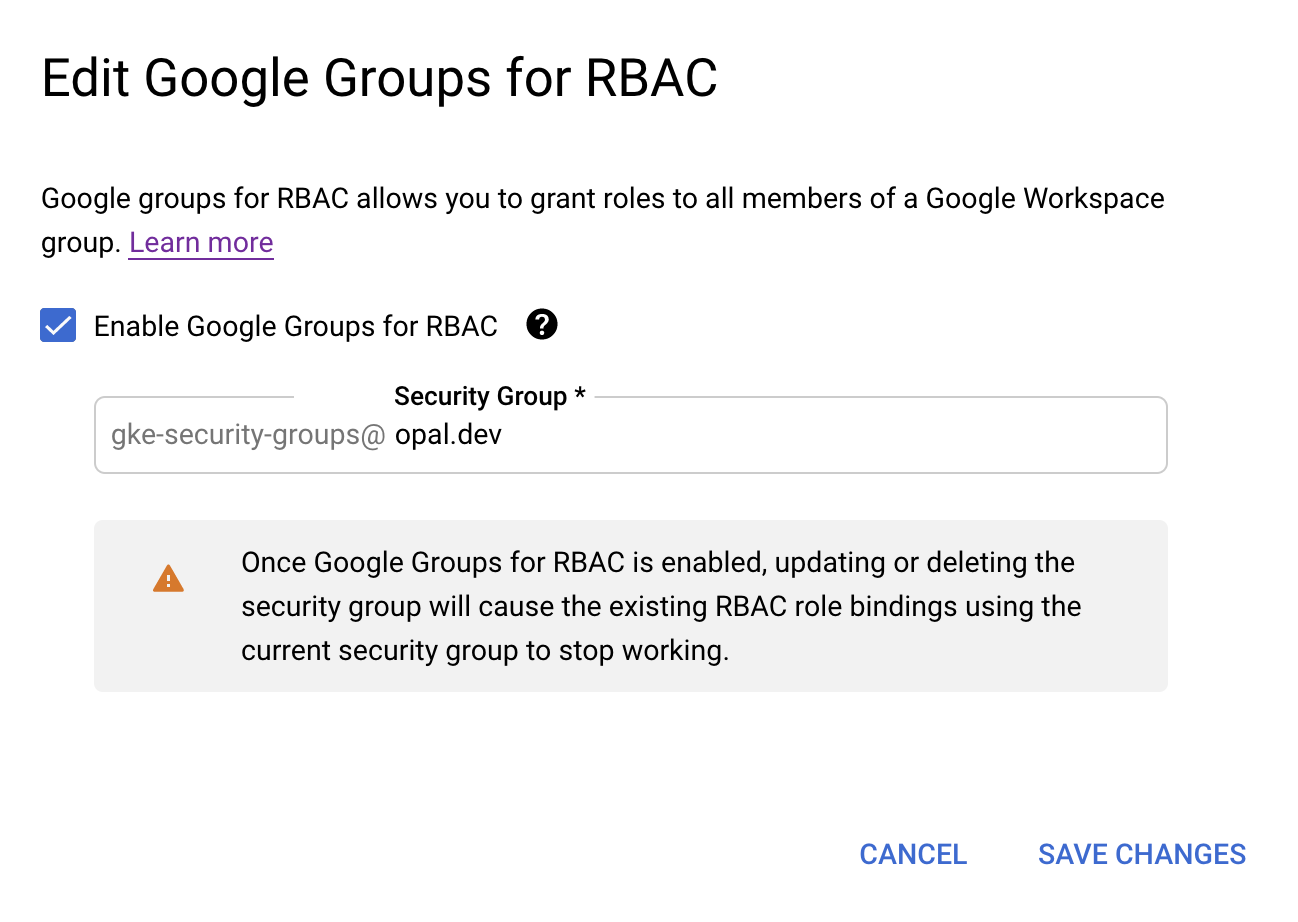
This integration allows you to manage user access with Google Kubernetes Engine (GKE). This relies on the Google Groups integration with GKE. It enables you to grant roles to the members of a group in Google Groups.
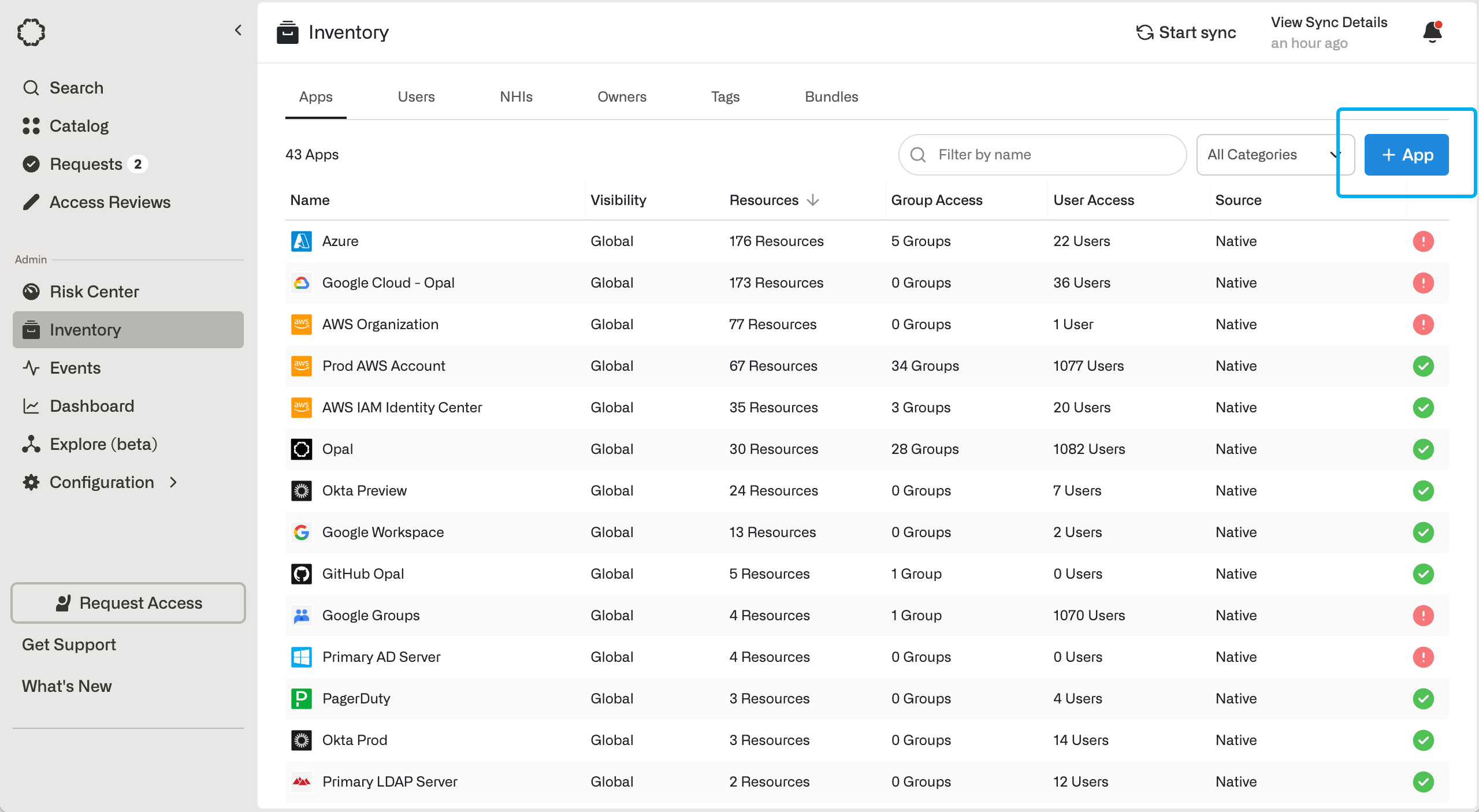
To get started, go to the Inventory, select the +App button at the top right of the screen, and choose the Google Groups tile.Opal requires multiple credentials in order to manage your Google Groups.
Click + Create Service Account. Enter a name and description for the service account. When done click Create.
The Service account permissions section that follows is not required. Click Continue.
On the Grant users access to this service account screen, click Done.
Select the new service account.
Click the Keys tab.
Click the Add key drop-down menu, then select Create new key.
Select JSON as the Key type and click Create.
Your new public/private key pair is generated and downloaded to your machine.
Click Close on the Private key saved to your computer dialog, then return to the table of your service accounts. We then need to enable G Suite domain-wide delegation with the following steps:
Locate the newly-created service account in the table. Under Actions, click Manage details.
In the service account details, click Show domain-wide delegation, then ensure the Enable G Suite Domain-wide Delegation checkbox is checked.
If you haven’t yet configured your app’s OAuth consent, you must do so before you can enable domain-wide delegation. Follow the on-screen instructions to configure the OAuth consent screen, then repeat the above steps and re-check the checkbox.
Click Save to update the service account, and return to the table of service accounts. A new column, Domain-wide delegation, can be seen. Click View Client ID to obtain and make a note of the client ID. Now let’s delegate domain-wide authority to your service account:
To access user data on a Google Workspace domain, the service account that you created needs to be granted access by a super administrator for the domain. To delegate domain-wide authority to a service account, follow those steps:
From your Google Workspace domain’s Admin console, go to Main menu > Security > API controls.
In the Domain wide delegation pane, select Manage Domain Wide Delegation.
Click Add new.
In the Client ID field, enter the client ID obtained from the service account creation steps above.
In the OAuth Scopes field, enter the following scope:
Create a Google Group called Opal. This group can be used later to automatically import groups into Opal (outside of GKE) by adding them as members of this group.
Back in Opal, fill in details about your Google Groups service account:
For Opal group email, you should enter the email of the Google group created above.
For Google Workspace admin email, you should enter the email of someone in your organization with at least Groups Admin privileges. If the service account is used outside of GKE, then Super Admin privileges are required on the admin email.
Then click to upload the downloaded JSON file for the created service account. If this step is successful, you have completed setting up the Google Groups server connection.
Create a group with the name gke-security-groups. Make sure the gke-security-groups group has the View Members permission for Group Members.
Create a group for cluster admin access level. Please use the following format for naming: opal_CLUSTER_NAME_ACCESS_LEVEL. Each group must have the View Members permission for Group Members. - Example: if your cluster name is Acme-prod, and access level is admin, the group name should be opal_Acme-prod_admin.
In the gke-security-groups group, click Add member and add the group we just created.
The groups that were added under the gke-security-groups group will show up as Roles for your clusters.Users are then able to request access to the Roles defined earlier. Once the access is granted users will be able to run kubectl commands after connecting to the cluster with gcloud.
Last modified on October 31, 2025
Was this page helpful?
{"docsConfig":{"theme":"mint","$schema":"https://mintlify.com/docs.json","name":"Opal Security Docs","colors":{"primary":"#0C7997","light":"#EDFCFC","dark":"#074055"},"logo":{"light":"https://mintcdn.com/opalsecurity/FBbZyeMPZrA69UcV/logo/logo-dark.svg?fit=max\u0026auto=format\u0026n=FBbZyeMPZrA69UcV\u0026q=85\u0026s=93a4bd75f157f9f0ab43cdf4d715b5cd","dark":"https://mintcdn.com/opalsecurity/FBbZyeMPZrA69UcV/logo/logo-light.svg?fit=max\u0026auto=format\u0026n=FBbZyeMPZrA69UcV\u0026q=85\u0026s=1774b545e4f1c5cad647f5194f7b26d9"},"favicon":{"light":"https://mintcdn.com/opalsecurity/DRAwGKUXMxLRQouh/logo/icon-opal-black.svg?fit=max\u0026auto=format\u0026n=DRAwGKUXMxLRQouh\u0026q=85\u0026s=9c8bd1204b6b5b83542c2ab5be549858","dark":"https://mintcdn.com/opalsecurity/DRAwGKUXMxLRQouh/logo/icon-opal-white.svg?fit=max\u0026auto=format\u0026n=DRAwGKUXMxLRQouh\u0026q=85\u0026s=73b53b4ceab6ae0b00e30b2042a6020a"},"icons":{"library":"lucide"},"styling":{"eyebrows":"breadcrumbs","latex":false},"integrations":{"ga4":{"measurementId":"G-1PPPM1WF6D"}},"errors":{"404":{"redirect":false,"title":"Page can't be found","description":"Sorry! This page might have been moved, or the link might be broken. Go back to our documentation via https://docs.opal.dev/docs/welcome."}},"metadata":{"timestamp":true},"navigation":{"pages":[]}},"deployment":{"deploymentMetadataValue":{"subdomain":"opalsecurity","hasAudioNarration":false,"actualSubdomain":"opalsecurity","customDomains":["docs.opal.dev"],"gitSource":{"type":"github","owner":"opalsecurity","repo":"docs","deployBranch":"main","contentDirectory":"","isPrivate":true,"mountPath":"","label":""},"chroma":{"liveDeploymentHistoryId":"6ae53a3b88b90693e911fadb","collectionId":"58745dd4-af12-4aee-a56b-e01162c67c8c","schemaVersion":"v3","latestBuiltDeploymentHistoryId":"6ae53a3b88b90693e911fadb"},"feedback":{"thumbs":true},"entitlements":{"AI_CHAT":{"status":"ENABLED"},"WEB_MCP":{"status":"ENABLED"},"NARRATION":{"status":"ENABLED"}},"buildId":"6ae53a3b88b90693e911fadb","clientVersion":"0.0.4044","searchFilterCounts":[{"language":"default","tag":"API Reference","count":212},{"language":"default","tag":"Opal API","count":207},{"language":"default","tag":"Documentation","count":99},{"language":"default","tag":"Integrations","count":94},{"language":"default","tag":"Entitlement Management","count":63},{"language":"default","tag":"resources","count":34},{"language":"default","tag":"groups","count":32},{"language":"default","tag":"Getting Started","count":25},{"language":"default","tag":"Access Management","count":22},{"language":"default","tag":"Infrastructure","count":22}]},"assistantConfig":{"enableStarterQuestions":true,"enableContextualStarterQuestions":true,"deflection":{"enabled":true,"email":"support@opal.dev","showHelpButton":true}},"basePath":"","hasChatPermissions":true,"hasWebMcpPermissions":true,"toggles":[{"name":"kill-isr","enabled":true,"variant":{"name":"disabled","enabled":false,"feature_enabled":true},"impressionData":false},{"name":"agent-mintlify-slack","enabled":true,"variant":{"name":"disabled","enabled":false,"feature_enabled":true},"impressionData":false},{"name":"agent-integrations-settings","enabled":true,"variant":{"name":"disabled","enabled":false,"feature_enabled":true},"impressionData":false},{"name":"automations-pr-grouping","enabled":true,"variant":{"name":"disabled","enabled":false,"feature_enabled":true},"impressionData":false},{"name":"custom-prefix","enabled":true,"variant":{"name":"disabled","enabled":false,"feature_enabled":true},"impressionData":false},{"name":"analytics-v7","enabled":true,"variant":{"name":"disabled","enabled":false,"feature_enabled":true},"impressionData":false},{"name":"user-flows-analytics","enabled":true,"variant":{"name":"disabled","enabled":false,"feature_enabled":true},"impressionData":false},{"name":"no-publish-flow","enabled":true,"variant":{"name":"disabled","enabled":false,"feature_enabled":true},"impressionData":false},{"name":"workos-onboarding","enabled":true,"variant":{"name":"disabled","enabled":false,"feature_enabled":true},"impressionData":false},{"name":"llms-txt-v2","enabled":true,"variant":{"name":"disabled","enabled":false,"feature_enabled":true},"impressionData":false},{"name":"snapshot-serving-live","enabled":true,"variant":{"name":"disabled","enabled":false,"feature_enabled":true},"impressionData":false},{"name":"stripTemperatureMiddleware","enabled":true,"variant":{"name":"disabled","enabled":false,"feature_enabled":true},"impressionData":false},{"name":"support-platform-pylon-zendesk","enabled":true,"variant":{"name":"disabled","enabled":false,"feature_enabled":true},"impressionData":false},{"name":"snapshot-serving","enabled":true,"variant":{"name":"disabled","enabled":false,"feature_enabled":true},"impressionData":false},{"name":"instant-rollback","enabled":true,"variant":{"name":"disabled","enabled":false,"feature_enabled":true},"impressionData":false},{"name":"granular-notifications-server","enabled":true,"variant":{"name":"disabled","enabled":false,"feature_enabled":true},"impressionData":false},{"name":"granular-notifications","enabled":true,"variant":{"name":"disabled","enabled":false,"feature_enabled":true},"impressionData":false},{"name":"automations-fable","enabled":true,"variant":{"name":"disabled","enabled":false,"feature_enabled":true},"impressionData":false},{"name":"fixed-ai-action-pricing","enabled":true,"variant":{"name":"disabled","enabled":false,"feature_enabled":true},"impressionData":false},{"name":"automation-resolve-merge-conflict","enabled":true,"variant":{"name":"disabled","enabled":false,"feature_enabled":true},"impressionData":false},{"name":"scoped-publishing","enabled":true,"variant":{"name":"disabled","enabled":false,"feature_enabled":true},"impressionData":false},{"name":"mintql","enabled":true,"variant":{"name":"disabled","enabled":false,"feature_enabled":true},"impressionData":false},{"name":"page-level-analytics","enabled":true,"variant":{"name":"disabled","enabled":false,"feature_enabled":true},"impressionData":false},{"name":"editor-version-history-v2","enabled":true,"variant":{"name":"disabled","enabled":false,"feature_enabled":true},"impressionData":false},{"name":"billing-page-v2","enabled":true,"variant":{"name":"disabled","enabled":false,"feature_enabled":true},"impressionData":false},{"name":"full-page-search","enabled":true,"variant":{"name":"disabled","enabled":false,"feature_enabled":true},"impressionData":false},{"name":"workspace-projects","enabled":true,"variant":{"name":"disabled","enabled":false,"feature_enabled":true},"impressionData":false},{"name":"assistant-v5","enabled":true,"variant":{"name":"disabled","enabled":false,"feature_enabled":true},"impressionData":false},{"name":"byok-sep-25","enabled":true,"variant":{"name":"disabled","enabled":false,"feature_enabled":true},"impressionData":false},{"name":"fork-pr-previews","enabled":true,"variant":{"name":"disabled","enabled":false,"feature_enabled":true},"impressionData":false},{"name":"revalidation-jwt","enabled":true,"variant":{"name":"disabled","enabled":false,"feature_enabled":true},"impressionData":false},{"name":"vite-origin","enabled":true,"variant":{"name":"disabled","enabled":false,"feature_enabled":true},"impressionData":false},{"name":"billing-updated-9-15","enabled":true,"variant":{"name":"disabled","enabled":false,"feature_enabled":true},"impressionData":false},{"name":"workos-sso-scim","enabled":true,"variant":{"name":"disabled","enabled":false,"feature_enabled":true},"impressionData":false},{"name":"hobby-abuse-scan","enabled":true,"variant":{"name":"disabled","enabled":false,"feature_enabled":true},"impressionData":false},{"name":"dashboard-inbox","enabled":true,"variant":{"name":"disabled","enabled":false,"feature_enabled":true},"impressionData":false},{"name":"workos-signup","enabled":true,"variant":{"name":"disabled","enabled":false,"feature_enabled":true},"impressionData":false},{"name":"turbopuffer-dual-write","enabled":true,"variant":{"name":"disabled","enabled":false,"feature_enabled":true},"impressionData":false},{"name":"workos-enabled","enabled":true,"variant":{"name":"disabled","enabled":false,"feature_enabled":true},"impressionData":false},{"name":"approve-review-flow","enabled":true,"variant":{"name":"disabled","enabled":false,"feature_enabled":true},"impressionData":false},{"name":"sso-setup-deadline-banner","enabled":true,"variant":{"name":"disabled","enabled":false,"feature_enabled":true},"impressionData":false}],"googleFontsInlined":false},"customCss":[],"page":{"pagePath":"integrations/google-kubernetes-engine-getting-started","slug":"/integrations/google-kubernetes-engine-getting-started","pageMetadata":{"title":"Google Kubernetes Engine (GKE)","description":"Learn how to manage user access with Google Kubernetes Engine (GKE).","href":"/integrations/google-kubernetes-engine-getting-started"},"description":{"compiledSource":"\"use strict\";\nconst {jsx: _jsx} = arguments[0];\nconst {useMDXComponents: _provideComponents} = arguments[0];\nfunction _createMdxContent(props) {\n const _components = {\n p: \"p\",\n ..._provideComponents(),\n ...props.components\n };\n return _jsx(_components.p, {\n children: \"Learn how to manage user access with Google Kubernetes Engine (GKE).\"\n });\n}\nfunction MDXContent(props = {}) {\n const {wrapper: MDXLayout} = {\n ..._provideComponents(),\n ...props.components\n };\n return MDXLayout ? _jsx(MDXLayout, {\n ...props,\n children: _jsx(_createMdxContent, {\n ...props\n })\n }) : _createMdxContent(props);\n}\nreturn {\n default: MDXContent\n};\n","frontmatter":{},"scope":{}},"pageType":"default","mdx":{"mdxSource":{"compiledSource":"\"use strict\";const{Fragment:_Fragment,jsx:_jsx,jsxs:_jsxs}=arguments[0];const{useMDXComponents:_provideComponents}=arguments[0];function _createMdxContent(props){const _components={a:`a`,code:`code`,li:`li`,p:`p`,pre:`pre`,span:`span`,strong:`strong`,ul:`ul`,..._provideComponents(),...props.components},{CodeBlock,CodeGroup,Heading,OptimizedImage}=_components;if(!CodeBlock)_missingMdxReference(`CodeBlock`,true);if(!CodeGroup)_missingMdxReference(`CodeGroup`,true);if(!Heading)_missingMdxReference(`Heading`,true);if(!OptimizedImage)_missingMdxReference(`OptimizedImage`,true);return _jsxs(_Fragment,{children:[_jsx(_components.p,{children:`This integration allows you to manage user access with Google Kubernetes Engine (GKE). This relies on the Google Groups integration with GKE. It enables you to grant roles to the members of a group in Google Groups.`}),`\n`,_jsx(Heading,{level:`2`,id:`add-a-google-groups-app`,children:`Add a Google Groups App`}),`\n`,_jsxs(_components.p,{children:[`To get started, go to the `,_jsx(_components.strong,{children:`Inventory`}),`, select the `,_jsx(_components.strong,{children:`+App`}),` button at the top right of the screen, and choose the Google Groups tile.`]}),`\n`,_jsx(OptimizedImage,{src:`https://mintcdn.com/opalsecurity/fu-nWazMe1LxLhxi/images/docs/2a0593cb7c058d6252c8804b16fe2fd938f5aa880c54f43c05871c3bc0000d79-opal-101-apps-add-app.png?fit=max\u0026auto=format\u0026n=fu-nWazMe1LxLhxi\u0026q=85\u0026s=6f2220ac3903c7a4f3bc1e3d7519ac64`,alt:``,\"data-og-width\":`2560`,width:`2560`,\"data-og-height\":`1406`,height:`1406`,\"data-path\":`images/docs/2a0593cb7c058d6252c8804b16fe2fd938f5aa880c54f43c05871c3bc0000d79-opal-101-apps-add-app.png`,\"data-optimize\":`true`,\"data-opv\":`3`,srcset:`https://mintcdn.com/opalsecurity/fu-nWazMe1LxLhxi/images/docs/2a0593cb7c058d6252c8804b16fe2fd938f5aa880c54f43c05871c3bc0000d79-opal-101-apps-add-app.png?w=280\u0026fit=max\u0026auto=format\u0026n=fu-nWazMe1LxLhxi\u0026q=85\u0026s=6233c5197f40c09334f89366e424b58b 280w, https://mintcdn.com/opalsecurity/fu-nWazMe1LxLhxi/images/docs/2a0593cb7c058d6252c8804b16fe2fd938f5aa880c54f43c05871c3bc0000d79-opal-101-apps-add-app.png?w=560\u0026fit=max\u0026auto=format\u0026n=fu-nWazMe1LxLhxi\u0026q=85\u0026s=337b333ef2873089d5925e0fb40df7c6 560w, https://mintcdn.com/opalsecurity/fu-nWazMe1LxLhxi/images/docs/2a0593cb7c058d6252c8804b16fe2fd938f5aa880c54f43c05871c3bc0000d79-opal-101-apps-add-app.png?w=840\u0026fit=max\u0026auto=format\u0026n=fu-nWazMe1LxLhxi\u0026q=85\u0026s=59c0d4d22735bc8db450b2a304e429d0 840w, https://mintcdn.com/opalsecurity/fu-nWazMe1LxLhxi/images/docs/2a0593cb7c058d6252c8804b16fe2fd938f5aa880c54f43c05871c3bc0000d79-opal-101-apps-add-app.png?w=1100\u0026fit=max\u0026auto=format\u0026n=fu-nWazMe1LxLhxi\u0026q=85\u0026s=d9600d59a7972bc62725f48d03874df8 1100w, https://mintcdn.com/opalsecurity/fu-nWazMe1LxLhxi/images/docs/2a0593cb7c058d6252c8804b16fe2fd938f5aa880c54f43c05871c3bc0000d79-opal-101-apps-add-app.png?w=1650\u0026fit=max\u0026auto=format\u0026n=fu-nWazMe1LxLhxi\u0026q=85\u0026s=08a4d54c2b264acd6c3bd58143716abb 1650w, https://mintcdn.com/opalsecurity/fu-nWazMe1LxLhxi/images/docs/2a0593cb7c058d6252c8804b16fe2fd938f5aa880c54f43c05871c3bc0000d79-opal-101-apps-add-app.png?w=2500\u0026fit=max\u0026auto=format\u0026n=fu-nWazMe1LxLhxi\u0026q=85\u0026s=223497b43f30060419fdde3ad6b3e550 2500w`}),`\n`,_jsx(_components.p,{children:`Opal requires multiple credentials in order to manage your Google Groups.`}),`\n`,_jsx(Heading,{level:`2`,id:`1-configure-a-service-account-for-opal`,children:`1. Configure a service account for Opal`}),`\n`,_jsx(_components.p,{children:`For Opal to manage your Google Groups on your behalf, you need to create a service account with proper permission scopes.`}),`\n`,_jsxs(_components.ul,{children:[`\n`,_jsxs(_components.li,{children:[`Open the `,_jsx(_components.a,{href:`https://console.developers.google.com/iam-admin/serviceaccounts`,children:`Service accounts page`}),`. If prompted, select a project.`]}),`\n`,_jsxs(_components.li,{children:[`Click `,_jsx(_components.strong,{children:`+ Create Service Account`}),`. Enter a name and description for the service account. When done click `,_jsx(_components.strong,{children:`Create`}),`.`]}),`\n`,_jsxs(_components.li,{children:[`The `,_jsx(_components.strong,{children:`Service account permissions`}),` section that follows is not required. Click `,_jsx(_components.strong,{children:`Continue`}),`.`]}),`\n`,_jsxs(_components.li,{children:[`On the `,_jsx(_components.strong,{children:`Grant users access to this service account`}),` screen, click `,_jsx(_components.strong,{children:`Done`}),`.`]}),`\n`,_jsx(_components.li,{children:`Select the new service account.`}),`\n`,_jsxs(_components.li,{children:[`Click the `,_jsx(_components.strong,{children:`Keys`}),` tab.`]}),`\n`,_jsxs(_components.li,{children:[`Click the `,_jsx(_components.strong,{children:`Add key`}),` drop-down menu, then select `,_jsx(_components.strong,{children:`Create new key`}),`.`]}),`\n`,_jsxs(_components.li,{children:[`Select `,_jsx(_components.strong,{children:`JSON`}),` as the `,_jsx(_components.strong,{children:`Key type`}),` and click `,_jsx(_components.strong,{children:`Create`}),`.`]}),`\n`,_jsx(_components.li,{children:`Your new public/private key pair is generated and downloaded to your machine.`}),`\n`,_jsxs(_components.li,{children:[`Click `,_jsx(_components.strong,{children:`Close`}),` on the `,_jsx(_components.strong,{children:`Private key saved to your computer`}),` dialog, then return to the table of your service accounts. We then need to enable G Suite domain-wide delegation with the following steps:`]}),`\n`,_jsxs(_components.li,{children:[`Locate the newly-created service account in the table. Under `,_jsx(_components.strong,{children:`Actions`}),`, click `,_jsx(_components.strong,{children:`Manage details`}),`.`]}),`\n`,_jsxs(_components.li,{children:[`In the service account details, click `,_jsx(_components.strong,{children:`Show domain-wide delegation`}),`, then ensure the `,_jsx(_components.strong,{children:`Enable G Suite Domain-wide Delegation checkbox`}),` is checked.`]}),`\n`,_jsx(_components.li,{children:`If you haven’t yet configured your app’s OAuth consent, you must do so before you can enable domain-wide delegation. Follow the on-screen instructions to configure the OAuth consent screen, then repeat the above steps and re-check the checkbox.`}),`\n`,_jsxs(_components.li,{children:[`Click `,_jsx(_components.strong,{children:`Save`}),` to update the service account, and return to the table of service accounts. A new column, `,_jsx(_components.strong,{children:`Domain-wide delegation`}),`, can be seen. Click `,_jsx(_components.strong,{children:`View Client ID`}),` to obtain and make a note of the client ID. Now let’s delegate domain-wide authority to your service account:`]}),`\n`]}),`\n`,_jsx(_components.p,{children:`To access user data on a Google Workspace domain, the service account that you created needs to be granted access by a super administrator for the domain. To delegate domain-wide authority to a service account, follow those steps:`}),`\n`,_jsxs(_components.ul,{children:[`\n`,_jsxs(_components.li,{children:[`From your Google Workspace domain’s `,_jsx(_components.a,{href:`https://admin.google.com/`,children:`Admin console`}),`, go to `,_jsx(_components.strong,{children:`Main menu > Security > API controls`}),`.`]}),`\n`,_jsxs(_components.li,{children:[`In the`,_jsx(_components.strong,{children:`\\xA0Domain wide delegation`}),` pane, select `,_jsx(_components.strong,{children:`Manage Domain Wide Delegation`}),`.`]}),`\n`,_jsxs(_components.li,{children:[`Click `,_jsx(_components.strong,{children:`Add new`}),`.`]}),`\n`,_jsxs(_components.li,{children:[`In the `,_jsx(_components.strong,{children:`Client ID`}),` field, enter the client ID obtained from the service account creation steps above.`]}),`\n`,_jsxs(_components.li,{children:[`In the `,_jsx(_components.strong,{children:`OAuth Scopes`}),` field, enter the following scope:`]}),`\n`]}),`\n`,_jsx(CodeBlock,{numberOfLines:`2`,language:`text`,children:_jsx(_components.pre,{className:`shiki shiki-themes github-light-default dark-plus`,style:{backgroundColor:`#ffffff`,\"--shiki-dark-bg\":`#0B0C0E`,color:`#1f2328`,\"--shiki-dark\":`#D4D4D4`},language:`text`,children:_jsxs(_components.code,{language:`text`,numberOfLines:`2`,children:[_jsx(_components.span,{className:`line`,children:_jsx(_components.span,{children:`https://www.googleapis.com/auth/admin.directory.group`})}),`\n`,_jsx(_components.span,{className:`line`,children:_jsx(_components.span,{})})]})})}),`\n`,_jsxs(_components.ul,{children:[`\n`,_jsxs(_components.li,{children:[`Click `,_jsx(_components.strong,{children:`Authorize`}),`. Your service account now has domain-wide access to the Google Admin Directory API for all the users of your domain with admin access.`]}),`\n`]}),`\n`,_jsx(Heading,{level:`2`,id:`2-enable-the-google-admin-api`,children:`2. Enable the Google Admin API`}),`\n`,_jsxs(_components.ul,{children:[`\n`,_jsxs(_components.li,{children:[`Go to the `,_jsx(_components.a,{href:`https://console.cloud.google.com/apis/api/admin.googleapis.com/overview`,children:`Google Admin API overview`}),` in Google Cloud.`]}),`\n`,_jsxs(_components.li,{children:[`Click `,_jsx(_components.strong,{children:`Enable API`}),`.`]}),`\n`]}),`\n`,_jsx(Heading,{level:`2`,id:`3-create-opal-group`,children:`3. Create Opal group`}),`\n`,_jsxs(_components.ul,{children:[`\n`,_jsxs(_components.li,{children:[`Create a Google Group called `,_jsx(_components.strong,{children:`Opal`}),`. This group can be used later to automatically import groups into Opal (outside of GKE) by adding them as members of this group.`]}),`\n`]}),`\n`,_jsx(Heading,{level:`2`,id:`4-complete-opal-form`,children:`4. Complete Opal form`}),`\n`,_jsx(_components.p,{children:`Back in Opal, fill in details about your Google Groups service account:`}),`\n`,_jsxs(_components.ul,{children:[`\n`,_jsx(_components.li,{children:`For Opal group email, you should enter the email of the Google group created above.`}),`\n`,_jsxs(_components.li,{children:[`For Google Workspace admin email, you should enter the email of someone in your organization with at least `,_jsx(_components.code,{children:`Groups Admin`}),` privileges. If the service account is used outside of GKE, then `,_jsx(_components.code,{children:`Super Admin`}),` privileges are required on the admin email.`]}),`\n`,_jsx(_components.li,{children:`Then click to upload the downloaded JSON file for the created service account. If this step is successful, you have completed setting up the Google Groups server connection.`}),`\n`]}),`\n`,_jsx(Heading,{level:`2`,id:`set-up-your-gke-clusters`,children:`Set up your GKE clusters`}),`\n`,_jsx(Heading,{level:`3`,id:`1-enable-google-groups-for-rbac`,children:`1. Enable Google Groups for RBAC`}),`\n`,_jsxs(_components.p,{children:[`In the `,_jsx(_components.a,{href:`https://console.cloud.google.com/kubernetes/list/`,children:`GKE console`}),`, select a cluster and click `,_jsx(_components.strong,{children:`Edit.`})]}),`\n`,_jsxs(_components.ul,{children:[`\n`,_jsx(_components.li,{children:`Look for the setting Google Groups for RBAC and click the Edit button.`}),`\n`,_jsxs(_components.li,{children:[`Check `,_jsx(_components.strong,{children:`Enable Google Groups for RBAC.`})]}),`\n`,_jsx(_components.li,{children:`Complete the security group name with your domain name.`}),`\n`,_jsxs(_components.li,{children:[`Click `,_jsx(_components.strong,{children:`Save changes.`})]}),`\n`]}),`\n`,_jsx(OptimizedImage,{src:`https://mintcdn.com/opalsecurity/CCjTTkaW-43B4efd/images/docs/f400002-GoogleK8_2.png?fit=max\u0026auto=format\u0026n=CCjTTkaW-43B4efd\u0026q=85\u0026s=3b15252ea453648a0f6c79711d7d1555`,alt:``,\"data-og-width\":`1298`,width:`1298`,\"data-og-height\":`922`,height:`922`,\"data-path\":`images/docs/f400002-GoogleK8_2.png`,\"data-optimize\":`true`,\"data-opv\":`3`,srcset:`https://mintcdn.com/opalsecurity/CCjTTkaW-43B4efd/images/docs/f400002-GoogleK8_2.png?w=280\u0026fit=max\u0026auto=format\u0026n=CCjTTkaW-43B4efd\u0026q=85\u0026s=03b2cacf0c28c29bf5c772b8afd7a7f8 280w, https://mintcdn.com/opalsecurity/CCjTTkaW-43B4efd/images/docs/f400002-GoogleK8_2.png?w=560\u0026fit=max\u0026auto=format\u0026n=CCjTTkaW-43B4efd\u0026q=85\u0026s=1320b696bfaff06dc709cc324bfc3d00 560w, https://mintcdn.com/opalsecurity/CCjTTkaW-43B4efd/images/docs/f400002-GoogleK8_2.png?w=840\u0026fit=max\u0026auto=format\u0026n=CCjTTkaW-43B4efd\u0026q=85\u0026s=f21f6ba872746913c84a63b12c6f3259 840w, https://mintcdn.com/opalsecurity/CCjTTkaW-43B4efd/images/docs/f400002-GoogleK8_2.png?w=1100\u0026fit=max\u0026auto=format\u0026n=CCjTTkaW-43B4efd\u0026q=85\u0026s=ffba5c472668bd6e5254d9916186418d 1100w, https://mintcdn.com/opalsecurity/CCjTTkaW-43B4efd/images/docs/f400002-GoogleK8_2.png?w=1650\u0026fit=max\u0026auto=format\u0026n=CCjTTkaW-43B4efd\u0026q=85\u0026s=43391862cf22b8cd5f69b6903c96c99a 1650w, https://mintcdn.com/opalsecurity/CCjTTkaW-43B4efd/images/docs/f400002-GoogleK8_2.png?w=2500\u0026fit=max\u0026auto=format\u0026n=CCjTTkaW-43B4efd\u0026q=85\u0026s=3de18a9cc6f76864c94f3e96dd7efd4b 2500w`}),`\n`,_jsx(Heading,{level:`3`,id:`2-create-google-groups-for-access-levels`,children:`2. Create Google Groups for access levels`}),`\n`,_jsxs(_components.p,{children:[`Go to `,_jsx(_components.a,{href:`https://groups.google.com/`,children:`Google Groups`}),`.`]}),`\n`,_jsxs(_components.ul,{children:[`\n`,_jsxs(_components.li,{children:[`Create a group with the name gke-security-groups. Make sure the gke-security-groups group has the `,_jsx(_components.strong,{children:`View Members`}),` permission for `,_jsx(_components.strong,{children:`Group Members`}),`.`]}),`\n`,_jsxs(_components.li,{children:[`Create a group for cluster admin access level. Please use the following format for naming: opal_CLUSTER_NAME_ACCESS_LEVEL. Each group must have the `,_jsx(_components.strong,{children:`View Members`}),` permission for `,_jsx(_components.strong,{children:`Group Members`}),`. - Example: if your cluster name is Acme-prod, and access level is admin, the group name should be opal_Acme-prod_admin.`]}),`\n`,_jsxs(_components.li,{children:[`In the gke-security-groups group, click `,_jsx(_components.strong,{children:`Add member\\xA0`}),`and add the group we just created.`]}),`\n`]}),`\n`,_jsx(Heading,{level:`3`,id:`3-define-cluster-role-bindings-in-kubernetes`,children:`3. Define cluster role bindings in Kubernetes`}),`\n`,_jsx(_components.p,{children:`Next, assign the Google Group to a Kubernetes RBAC role.`}),`\n`,_jsxs(_components.ul,{children:[`\n`,_jsxs(_components.li,{children:[`Run `,_jsx(_components.code,{children:`kubectl edit clusterrolebinding cluster-admin`})]}),`\n`,_jsx(_components.li,{children:`Edit the subjects array so it contains the following:`}),`\n`]}),`\n`,_jsx(CodeGroup,{children:_jsx(CodeBlock,{filename:`yaml`,numberOfLines:`7`,language:`yaml`,children:_jsx(_components.pre,{className:`shiki shiki-themes github-light-default dark-plus`,style:{backgroundColor:`#ffffff`,\"--shiki-dark-bg\":`#0B0C0E`,color:`#1f2328`,\"--shiki-dark\":`#D4D4D4`},language:`yaml`,children:_jsxs(_components.code,{language:`yaml`,numberOfLines:`7`,children:[_jsxs(_components.span,{className:`line`,children:[_jsx(_components.span,{style:{color:`#116329`,\"--shiki-dark\":`#569CD6`},children:`subjects`}),_jsx(_components.span,{style:{color:`#1F2328`,\"--shiki-dark\":`#D4D4D4`},children:`:`})]}),`\n`,_jsxs(_components.span,{className:`line`,children:[_jsx(_components.span,{style:{color:`#1F2328`,\"--shiki-dark\":`#D4D4D4`},children:`- `}),_jsx(_components.span,{style:{color:`#116329`,\"--shiki-dark\":`#569CD6`},children:`apiGroup`}),_jsx(_components.span,{style:{color:`#1F2328`,\"--shiki-dark\":`#D4D4D4`},children:`: `}),_jsx(_components.span,{style:{color:`#0A3069`,\"--shiki-dark\":`#CE9178`},children:`rbac.authorization.k8s.io`}),_jsx(_components.span,{style:{color:`#1F2328`,\"--shiki-dark\":`#D4D4D4`},children:` `})]}),`\n`,_jsxs(_components.span,{className:`line`,children:[_jsx(_components.span,{style:{color:`#116329`,\"--shiki-dark\":`#569CD6`},children:` kind`}),_jsx(_components.span,{style:{color:`#1F2328`,\"--shiki-dark\":`#D4D4D4`},children:`: `}),_jsx(_components.span,{style:{color:`#0A3069`,\"--shiki-dark\":`#CE9178`},children:`Group`}),_jsx(_components.span,{style:{color:`#1F2328`,\"--shiki-dark\":`#D4D4D4`},children:` `})]}),`\n`,_jsxs(_components.span,{className:`line`,children:[_jsx(_components.span,{style:{color:`#116329`,\"--shiki-dark\":`#569CD6`},children:` name`}),_jsx(_components.span,{style:{color:`#1F2328`,\"--shiki-dark\":`#D4D4D4`},children:`: `}),_jsx(_components.span,{style:{color:`#0A3069`,\"--shiki-dark\":`#CE9178`},children:`system:masters`})]}),`\n`,_jsxs(_components.span,{className:`line`,children:[_jsx(_components.span,{style:{color:`#1F2328`,\"--shiki-dark\":`#D4D4D4`},children:`- `}),_jsx(_components.span,{style:{color:`#116329`,\"--shiki-dark\":`#569CD6`},children:`apiGroup`}),_jsx(_components.span,{style:{color:`#1F2328`,\"--shiki-dark\":`#D4D4D4`},children:`: `}),_jsx(_components.span,{style:{color:`#0A3069`,\"--shiki-dark\":`#CE9178`},children:`rbac.authorization.k8s.io`}),_jsx(_components.span,{style:{color:`#1F2328`,\"--shiki-dark\":`#D4D4D4`},children:` `})]}),`\n`,_jsxs(_components.span,{className:`line`,children:[_jsx(_components.span,{style:{color:`#116329`,\"--shiki-dark\":`#569CD6`},children:` kind`}),_jsx(_components.span,{style:{color:`#1F2328`,\"--shiki-dark\":`#D4D4D4`},children:`: `}),_jsx(_components.span,{style:{color:`#0A3069`,\"--shiki-dark\":`#CE9178`},children:`Group`}),_jsx(_components.span,{style:{color:`#1F2328`,\"--shiki-dark\":`#D4D4D4`},children:` `})]}),`\n`,_jsxs(_components.span,{className:`line`,children:[_jsx(_components.span,{style:{color:`#116329`,\"--shiki-dark\":`#569CD6`},children:` name`}),_jsx(_components.span,{style:{color:`#1F2328`,\"--shiki-dark\":`#D4D4D4`},children:`: `}),_jsx(_components.span,{style:{color:`#0A3069`,\"--shiki-dark\":`#CE9178`},children:`opal\\\\_Acme-prod\\\\[email\\xA0protected]`})]}),`\n`]})})})}),`\n`,_jsx(_components.p,{children:`Save and exit.`}),`\n`,_jsx(Heading,{level:`2`,id:`access-your-clusters-in-opal`,children:`Access your clusters in Opal`}),`\n`,_jsx(_components.p,{children:`The groups that were added under the gke-security-groups group will show up as Roles for your clusters.`}),`\n`,_jsx(_components.p,{children:`Users are then able to request access to the Roles defined earlier. Once the access is granted users will be able to run kubectl commands after connecting to the cluster with gcloud.`})]})}function MDXContent(props={}){const{wrapper:MDXLayout}={..._provideComponents(),...props.components};return MDXLayout?_jsx(MDXLayout,{...props,children:_jsx(_createMdxContent,{...props})}):_createMdxContent(props)}return{default:MDXContent};function _missingMdxReference(id,component){throw new Error(`Expected `+(component?`component`:`object`)+\" `\"+id+\"` to be defined: you likely forgot to import, pass, or provide it.\")}","frontmatter":{},"scope":{"config":{},"pageMetadata":{"title":"Google Kubernetes Engine (GKE)","description":"Learn how to manage user access with Google Kubernetes Engine (GKE).","href":"/integrations/google-kubernetes-engine-getting-started"}}},"mdxSourceWithNoJs":null},"mdxExtracts":{"tableOfContents":[{"title":"Add a Google Groups App","slug":"add-a-google-groups-app","depth":2,"children":[]},{"title":"1. Configure a service account for Opal","slug":"1-configure-a-service-account-for-opal","depth":2,"children":[]},{"title":"2. Enable the Google Admin API","slug":"2-enable-the-google-admin-api","depth":2,"children":[]},{"title":"3. Create Opal group","slug":"3-create-opal-group","depth":2,"children":[]},{"title":"4. Complete Opal form","slug":"4-complete-opal-form","depth":2,"children":[]},{"title":"Set up your GKE clusters","slug":"set-up-your-gke-clusters","depth":2,"children":[{"title":"1. Enable Google Groups for RBAC","slug":"1-enable-google-groups-for-rbac","depth":3,"children":[]},{"title":"2. Create Google Groups for access levels","slug":"2-create-google-groups-for-access-levels","depth":3,"children":[]},{"title":"3. Define cluster role bindings in Kubernetes","slug":"3-define-cluster-role-bindings-in-kubernetes","depth":3,"children":[]}]},{"title":"Access your clusters in Opal","slug":"access-your-clusters-in-opal","depth":2,"children":[]}],"codeExamples":{}},"jsLinks":["/_mintlify/custom/opalsecurity/d0e14c3cf9bbd682/changelog-scraper.js"],"subdomain":"opalsecurity","siteName":"Opal Security Docs","title":"Google Kubernetes Engine (GKE) - Opal Security Docs","contextualStarterQuestions":[{"_id":"69b0b49b0e8c1bf71a51a4a1","deploymentId":"68ddaa9a3f8b7de5bc3a7b47","questionText":"What does GKE integration enable?","status":"active","generatedBy":"contextual","path":"integrations/google-kubernetes-engine-getting-started","createdAt":"2026-03-11T00:17:31.371Z","updatedAt":"2026-03-11T00:17:31.371Z","__v":0},{"_id":"69b0b49b0e8c1bf71a51a4a2","deploymentId":"68ddaa9a3f8b7de5bc3a7b47","questionText":"How do I grant roles to group members?","status":"active","generatedBy":"contextual","path":"integrations/google-kubernetes-engine-getting-started","createdAt":"2026-03-11T00:17:31.371Z","updatedAt":"2026-03-11T00:17:31.371Z","__v":0},{"_id":"69b0b49b0e8c1bf71a51a4a0","deploymentId":"68ddaa9a3f8b7de5bc3a7b47","questionText":"How do I add a Google Groups app?","status":"active","generatedBy":"contextual","path":"integrations/google-kubernetes-engine-getting-started","createdAt":"2026-03-11T00:17:31.370Z","updatedAt":"2026-03-11T00:17:31.370Z","__v":0}],"navMaps":{"firstHrefInVersion":{},"firstHrefInLanguage":{}},"lastModified":"2026-01-28T20:32:08.812Z","gitLastModified":"2025-10-31T17:45:06.000Z","originalFileLocation":"integrations/google-kubernetes-engine-getting-started.mdx"},"headHtml":"\u003cscript data-mint-head>(function(){var d=document.documentElement,p=null;if(!p){try{p=localStorage.getItem(\"isDarkMode\")}catch(e){}if(p==='true')p='dark';else if(p==='false')p='light';if(p!=='light'\u0026\u0026p!=='dark'\u0026\u0026p!=='system')p=\"system\"}var r=p==='system'?(matchMedia(\"(prefers-color-scheme: dark)\").matches?'dark':'light'):p;d.classList.remove(r==='dark'?'light':'dark');d.classList.add(r);d.setAttribute(\"data-theme-preference\",p)})();\u003c/script>\u003cmeta data-mint-head name=\"description\" content=\"Learn how to manage user access with Google Kubernetes Engine (GKE).\">\u003cmeta data-mint-head name=\"application-name\" content=\"Opal Security Docs\">\u003cmeta data-mint-head name=\"generator\" content=\"Mintlify\">\u003clink data-mint-head rel=\"icon\" type=\"image/png\" sizes=\"192x192\" href=\"/mintlify-assets/_mintlify/favicons/opalsecurity/t501z2uOx-XXqevB/_generated/favicon/android-chrome-192x192.png\" media=\"(prefers-color-scheme: light)\">\u003clink data-mint-head rel=\"apple-touch-icon\" type=\"image/png\" sizes=\"180x180\" href=\"/mintlify-assets/_mintlify/favicons/opalsecurity/t501z2uOx-XXqevB/_generated/favicon/apple-touch-icon.png\">\u003clink data-mint-head rel=\"icon\" type=\"image/png\" sizes=\"16x16\" href=\"/mintlify-assets/_mintlify/favicons/opalsecurity/t501z2uOx-XXqevB/_generated/favicon/favicon-16x16.png\" media=\"(prefers-color-scheme: light)\">\u003clink data-mint-head rel=\"icon\" type=\"image/png\" sizes=\"32x32\" href=\"/mintlify-assets/_mintlify/favicons/opalsecurity/t501z2uOx-XXqevB/_generated/favicon/favicon-32x32.png\" media=\"(prefers-color-scheme: light)\">\u003clink data-mint-head rel=\"shortcut icon\" type=\"image/x-icon\" href=\"/mintlify-assets/_mintlify/favicons/opalsecurity/t501z2uOx-XXqevB/_generated/favicon/favicon.ico\" media=\"(prefers-color-scheme: light)\">\u003clink data-mint-head rel=\"icon\" type=\"image/png\" sizes=\"192x192\" href=\"/mintlify-assets/_mintlify/favicons/opalsecurity/t501z2uOx-XXqevB/_generated/favicon-dark/android-chrome-192x192.png\" media=\"(prefers-color-scheme: dark)\">\u003clink data-mint-head rel=\"icon\" type=\"image/png\" sizes=\"16x16\" href=\"/mintlify-assets/_mintlify/favicons/opalsecurity/t501z2uOx-XXqevB/_generated/favicon-dark/favicon-16x16.png\" media=\"(prefers-color-scheme: dark)\">\u003clink data-mint-head rel=\"icon\" type=\"image/png\" sizes=\"32x32\" href=\"/mintlify-assets/_mintlify/favicons/opalsecurity/t501z2uOx-XXqevB/_generated/favicon-dark/favicon-32x32.png\" media=\"(prefers-color-scheme: dark)\">\u003clink data-mint-head rel=\"shortcut icon\" type=\"image/x-icon\" href=\"/mintlify-assets/_mintlify/favicons/opalsecurity/t501z2uOx-XXqevB/_generated/favicon-dark/favicon.ico\" media=\"(prefers-color-scheme: dark)\">\u003cmeta data-mint-head property=\"og:title\" content=\"Google Kubernetes Engine (GKE) - Opal Security Docs\">\u003cmeta data-mint-head property=\"og:description\" content=\"Learn how to manage user access with Google Kubernetes Engine (GKE).\">\u003cmeta data-mint-head property=\"og:site_name\" content=\"Opal Security Docs\">\u003cmeta data-mint-head property=\"og:url\" content=\"https://docs.opal.dev/integrations/google-kubernetes-engine-getting-started\">\u003cmeta data-mint-head property=\"og:type\" content=\"website\">\u003cmeta data-mint-head property=\"og:image\" content=\"https://opalsecurity.mintlify.app/_mintlify/api/og/v2?division=Google+Cloud+Platform+%28GCP%29\u0026amp;title=Google+Kubernetes+Engine+%28GKE%29\u0026amp;description=Learn+how+to+manage+user+access+with+Google+Kubernetes+Engine+%28GKE%29.\u0026amp;theme=287ef1256bbb1bf2a61f3fd2\u0026amp;signature=c1c9eb9c733c476f960fafb1390cf7914bcde6336307a03f3bf779c2683274f7\">\u003cmeta data-mint-head property=\"og:image:width\" content=\"1200\">\u003cmeta data-mint-head property=\"og:image:height\" content=\"630\">\u003cmeta data-mint-head name=\"twitter:card\" content=\"summary_large_image\">\u003cmeta data-mint-head name=\"twitter:title\" content=\"Google Kubernetes Engine (GKE) - Opal Security Docs\">\u003cmeta data-mint-head name=\"twitter:description\" content=\"Learn how to manage user access with Google Kubernetes Engine (GKE).\">\u003cmeta data-mint-head name=\"twitter:image\" content=\"https://opalsecurity.mintlify.app/_mintlify/api/og/v2?division=Google+Cloud+Platform+%28GCP%29\u0026amp;title=Google+Kubernetes+Engine+%28GKE%29\u0026amp;description=Learn+how+to+manage+user+access+with+Google+Kubernetes+Engine+%28GKE%29.\u0026amp;theme=287ef1256bbb1bf2a61f3fd2\u0026amp;signature=c1c9eb9c733c476f960fafb1390cf7914bcde6336307a03f3bf779c2683274f7\">\u003cmeta data-mint-head name=\"twitter:image:width\" content=\"1200\">\u003cmeta data-mint-head name=\"twitter:image:height\" content=\"630\">\u003cmeta data-mint-head name=\"msapplication-config\" content=\"/mintlify-assets/_mintlify/favicons/opalsecurity/t501z2uOx-XXqevB/_generated/favicon/browserconfig.xml\">\u003cmeta data-mint-head name=\"apple-mobile-web-app-title\" content=\"Opal Security Docs\">\u003cmeta data-mint-head name=\"msapplication-TileColor\" content=\"#0C7997\">\u003clink data-mint-head rel=\"canonical\" href=\"https://docs.opal.dev/integrations/google-kubernetes-engine-getting-started\">\u003clink data-mint-head rel=\"alternate\" type=\"application/xml\" href=\"/sitemap.xml\">\u003clink data-mint-head rel=\"alternate\" type=\"text/markdown\" href=\"/integrations/google-kubernetes-engine-getting-started.md\">\u003cscript data-mint-head type=\"application/ld+json\">{\"@context\":\"https://schema.org\",\"@graph\":[{\"@type\":\"Organization\",\"@id\":\"https://docs.opal.dev/#organization\",\"name\":\"Opal Security Docs\",\"url\":\"https://docs.opal.dev\",\"logo\":{\"@type\":\"ImageObject\",\"url\":\"https://mintcdn.com/opalsecurity/FBbZyeMPZrA69UcV/logo/logo-dark.svg?fit=max\u0026auto=format\u0026n=FBbZyeMPZrA69UcV\u0026q=85\u0026s=93a4bd75f157f9f0ab43cdf4d715b5cd\"}},{\"@type\":\"WebSite\",\"@id\":\"https://docs.opal.dev#website\",\"name\":\"Opal Security Docs\",\"url\":\"https://docs.opal.dev\",\"publisher\":{\"@id\":\"https://docs.opal.dev/#organization\"}},{\"@type\":\"WebPage\",\"@id\":\"https://docs.opal.dev/integrations/google-kubernetes-engine-getting-started#webpage\",\"url\":\"https://docs.opal.dev/integrations/google-kubernetes-engine-getting-started\",\"name\":\"Google Kubernetes Engine (GKE)\",\"description\":\"Learn how to manage user access with Google Kubernetes Engine (GKE).\",\"dateModified\":\"2025-10-31T17:45:06.000Z\",\"isPartOf\":{\"@id\":\"https://docs.opal.dev#website\"},\"breadcrumb\":{\"@id\":\"https://docs.opal.dev/integrations/google-kubernetes-engine-getting-started#breadcrumb\"}},{\"@type\":\"BreadcrumbList\",\"@id\":\"https://docs.opal.dev/integrations/google-kubernetes-engine-getting-started#breadcrumb\",\"itemListElement\":[{\"@type\":\"ListItem\",\"position\":1,\"name\":\"Entitlement Management\",\"item\":\"https://docs.opal.dev/integrations/setting-up-your-aws-organization-in-opal\"},{\"@type\":\"ListItem\",\"position\":2,\"name\":\"Infrastructure\",\"item\":\"https://docs.opal.dev/integrations/setting-up-your-aws-organization-in-opal\"},{\"@type\":\"ListItem\",\"position\":3,\"name\":\"Google Cloud Platform (GCP)\",\"item\":\"https://docs.opal.dev/integrations/google-cloud-platform\"},{\"@type\":\"ListItem\",\"position\":4,\"name\":\"Google Kubernetes Engine (GKE)\",\"item\":\"https://docs.opal.dev/integrations/google-kubernetes-engine-getting-started\"}]},{\"@type\":[\"Article\",\"TechArticle\"],\"@id\":\"https://docs.opal.dev/integrations/google-kubernetes-engine-getting-started#article\",\"headline\":\"Google Kubernetes Engine (GKE)\",\"name\":\"Google Kubernetes Engine (GKE)\",\"description\":\"Learn how to manage user access with Google Kubernetes Engine (GKE).\",\"url\":\"https://docs.opal.dev/integrations/google-kubernetes-engine-getting-started\",\"mainEntityOfPage\":{\"@id\":\"https://docs.opal.dev/integrations/google-kubernetes-engine-getting-started#webpage\"},\"dateModified\":\"2025-10-31T17:45:06.000Z\",\"publisher\":{\"@id\":\"https://docs.opal.dev/#organization\"},\"isPartOf\":{\"@id\":\"https://docs.opal.dev#website\"}}]}\u003c/script>\u003cscript data-mint-head type=\"application/ld+json\">{\"@context\":\"https://schema.org\",\"@type\":\"WebSite\",\"name\":\"Opal Security Docs\",\"creator\":{\"@type\":\"Organization\",\"name\":\"Mintlify\",\"url\":\"https://mintlify.com\"}}\u003c/script>","siteName":"Opal Security Docs","nav":{"global":null,"tabs":[{"tab":"Documentation","pages":[{"title":"Documentation","href":"/docs/welcome"}]},{"tab":"Integrations","pages":[{"title":"Integrations","sidebarTitle":"Overview","mode":"wide","href":"/integrations/overview"},{"group":"IDP \u0026 HRIDP","pages":[{"group":"Okta","pages":[{"title":"Okta","sidebarTitle":"Connect to Okta","href":"/integrations/okta"},{"title":"Okta IDP/HRIS Integration","href":"/integrations/okta-idphris-integration"},{"title":"Import Okta apps","href":"/integrations/okta-apps"},{"title":"Okta rate limits","href":"/integrations/okta-rate-limits"}]},{"group":"Google","pages":[{"title":"Google","sidebarTitle":"Connect to Google","href":"/integrations/google"},{"title":"Google IDP/HRIS Integration","href":"/integrations/google-idphris-integration"},{"title":"Google Groups","href":"/integrations/google-groups"},{"title":"Google Workspace","href":"/integrations/google-workspace"}]},{"group":"Azure","pages":[{"title":"Azure","sidebarTitle":"Connect to Azure","href":"/integrations/azure"},{"title":"Azure Entra IDP/HRIS Integration","href":"/integrations/azure-entra-idphris-integration"},{"title":"Azure Infrastructure Setup","href":"/integrations/azure-infrastructure-setup"},{"title":"Add Azure Databases","href":"/integrations/adding-azure-sql-databases"},{"title":"Azure Real Time Sync Setup","href":"/integrations/azure-real-time-sync"}]},{"group":"Active Directory","pages":[{"title":"Overview","sidebarTitle":"Connect to Active Directory","href":"/integrations/active-directory"},{"title":"Active Directory IDP/HRIS Integration","href":"/integrations/active-directory-idphris-integration"}]},{"group":"Workday","pages":[{"title":"Overview","sidebarTitle":"Connect to Workday","href":"/integrations/workday"},{"title":"Workday IDP/HRIS Integration","href":"/integrations/workday-idphris-integration"}]},{"group":"Rippling","pages":[{"title":"Rippling IDP/HRIS Integration","href":"/integrations/rippling-idphris-integration"}]}]},{"group":"Entitlement Management","pages":[{"group":"Infrastructure","expanded":true,"pages":[{"group":"Amazon Web Services (AWS)","expanded":false,"pages":[{"title":"Amazon Web Services (AWS)","href":"/integrations/setting-up-your-aws-organization-in-opal"},{"title":"Configure AWS for self-hosted Opal","href":"/integrations/aws-integration-on-prem-setup"},{"title":"Configure additional AWS accounts to manage in Opal","href":"/integrations/configure-additional-aws-accounts-to-manage-in-opal"},{"title":"AWS IAM Identity Center Workflows","href":"/integrations/aws-iam-identity-center-formerly-aws-sso"},{"title":"Add an IAM role","href":"/integrations/adding-an-iam-role"},{"title":"Add an RDS database","href":"/integrations/adding-an-rds-database"},{"title":"Add an EC2 instance","href":"/integrations/adding-an-ec2-instance"},{"title":"Add an EKS cluster","href":"/integrations/adding-an-eks-cluster"},{"title":"Adding AWS Resources to Opal Groups via AWS Tags","href":"/integrations/adding-aws-resources-to-opal-groups-via-aws-tags"},{"title":"AWS Real Time Sync Setup","href":"/integrations/aws-real-time-sync"}]},{"group":"Google Cloud Platform (GCP)","expanded":false,"pages":[{"title":"Google Cloud Platform (GCP)","sidebarTitle":"Connect to GCP","href":"/integrations/google-cloud-platform"},{"title":"Add an organization","href":"/integrations/adding-gcp-organization"},{"title":"Add a project","href":"/integrations/adding-gcp-project"},{"title":"Add a folder","href":"/integrations/adding-gcp-folder"},{"title":"Add a BigQuery Dataset","href":"/integrations/adding-bigquery-dataset"},{"title":"Add a Cloud Storage bucket","href":"/integrations/adding-gcp-bucket"},{"title":"Add a Cloud SQL Instance","href":"/integrations/adding-sql-instance"},{"title":"Add a Compute Engine Instance","description":null,"href":"/integrations/adding-compute-instance"},{"title":"Google Kubernetes Engine (GKE)","href":"/integrations/google-kubernetes-engine-getting-started"},{"title":"GCP Service Accounts","description":"Add and manage Google Cloud Platform (GCP) service accounts in Opal.","href":"/integrations/gcp-service-accounts"}]},{"group":"Snowflake","expanded":false,"pages":[{"title":"Snowflake","sidebarTitle":"Connect to Snowflake","href":"/integrations/snowflake"},{"title":"Snowflake User Provisioning","href":"/integrations/snowflake-user-provisioning"}]}]},{"title":"1Password","href":"/integrations/1password"},{"title":"Anthropic Platform","href":"/integrations/anthropic"},{"title":"Astra","href":"/integrations/astra"},{"title":"Axiom","href":"/integrations/axiom"},{"title":"Clickhouse","href":"/integrations/clickhouse"},{"title":"Atlassian Confluence","sidebarTitle":"Atlassian Confluence","href":"/integrations/confluence"},{"title":"Coupa","href":"/integrations/coupa"},{"title":"Cursor","href":"/integrations/cursor"},{"title":"Databricks","href":"/integrations/databricks"},{"title":"Datadog","href":"/integrations/datadog"},{"title":"Devin AI","href":"/integrations/devin"},{"title":"Docusign","href":"/integrations/docusign"},{"title":"Duo","href":"/integrations/duo"},{"title":"GitHub","href":"/integrations/github"},{"title":"GitHub Enterprise","href":"/integrations/github-enterprise"},{"title":"GitLab","href":"/integrations/gitlab"},{"title":"Grafana","href":"/integrations/grafana"},{"title":"Hubspot","href":"/integrations/hubspot"},{"title":"Incident.io","href":"/integrations/incidentio"},{"title":"Atlassian Jira","sidebarTitle":"Atlassian Jira","href":"/integrations/jira"},{"title":"LDAP","href":"/integrations/ldap"},{"title":"Linear","sidebarTitle":"Linear","href":"/integrations/linear"},{"title":"NetSuite","href":"/integrations/netsuite"},{"title":"Okta CIAM","href":"/integrations/okta-ciam"},{"title":"OpenAI Platform","href":"/integrations/openai"},{"title":"Oracle Fusion Cloud","href":"/integrations/oracle-fusion-cloud"},{"title":"PagerDuty","href":"/integrations/pagerduty-entitlements"},{"title":"Ramp","tag":"NEW","href":"/integrations/ramp"},{"title":"Rippling","tag":"NEW","href":"/integrations/rippling"},{"title":"Rootly","href":"/integrations/rootly"},{"title":"Salesforce","href":"/integrations/salesforce"},{"title":"Slack users and groups","href":"/integrations/slack-user-groups"},{"title":"Salesforce Tableau","href":"/integrations/tableau"},{"title":"Tailscale","href":"/integrations/tailscale"},{"title":"Teleport","href":"/integrations/teleport"},{"title":"Twingate","href":"/integrations/twingate"},{"title":"Vercel","tag":"NEW","href":"/integrations/vercel"},{"title":"Workday groups and roles","href":"/integrations/workday-groups-and-roles"},{"title":"Wrike","tag":"NEW","href":"/integrations/wrike"},{"title":"Zendesk","href":"/integrations/zendesk"},{"title":"Zoom","href":"/integrations/zoom"}]},{"group":"Productivity Tools","pages":[{"group":"Communication","expanded":true,"pages":[{"title":"Google Chat","href":"/integrations/google-chat"},{"title":"Lark","href":"/integrations/lark"},{"title":"Slack","href":"/integrations/slack"}]},{"group":"Ticketing","expanded":true,"pages":[{"title":"Freshservice","href":"/integrations/freshservice"},{"title":"Jira","href":"/integrations/jira-ticketing"},{"title":"Linear","href":"/integrations/linear-ticketing"},{"title":"Notion","href":"/integrations/notion"},{"title":"Risotto","tag":"BETA","href":"/integrations/risotto"},{"title":"ServiceNow","href":"/integrations/servicenow"},{"title":"Shortcut","href":"/integrations/shortcut"}]},{"group":"On-call","expanded":true,"pages":[{"title":"Opsgenie","deprecated":true,"href":"/integrations/opsgenie"},{"title":"PagerDuty","deprecated":true,"href":"/integrations/pagerduty-oncall"}]}]}]},{"tab":"API Reference","pages":[{"title":"API Reference","href":"/reference/authentication"}]},{"tab":"Changelog","pages":[{"title":"Changelog","href":"/changelog/changelog"}]}]},"basePath":"","title":"Google Kubernetes Engine (GKE) - Opal Security Docs","buildId":"dpl_DeHjVRGfFnhYQwHnfC2pjeXXv8h9","deploymentId":"dpl_DeHjVRGfFnhYQwHnfC2pjeXXv8h9","dynamics":["a74be98ba7"],"chunks":["zoom-image-lightbox-BG6oD64b.js","lightbox-handle-r17bVUz3.js"]}