

User matching: Opal matches ClickHouse users to Opal accounts by email. If
the user’s email in Clickhouse does not match the user’s email in Opal, the
account will appear as unlinked and can be manually associated through
Clickhouse.
- SQL access — ClickHouse databases, tables, and SQL roles (
GRANT/REVOKEon the service) - Cloud console access (optional) — ClickHouse Cloud organization members, invitations, and console roles (Admin, Developer, and custom roles)
- Users can request access to ClickHouse roles, databases, tables, and (when Cloud is configured) console roles, with time-limited grants that expire automatically
- Admins can import ClickHouse resources into Opal’s catalog, configure reviewers, and see a full audit trail of who has access to what
- Admins can revoke access manually at any time — SQL changes apply in ClickHouse, and console changes apply in ClickHouse Cloud
Supported resources
Console roles and SQL roles are different objects, even if they share a name.
Granting a console role does not run
GRANT in ClickHouse SQL, and granting a
SQL role does not change Cloud console permissions.Requirements
To connect ClickHouse to Opal, you must first:- Be an Opal Admin
- Have access to a running ClickHouse instance in ClickHouse Cloud
- Have credentials for a ClickHouse admin user able to create a dedicated SQL service user and grant permissions
- To manage Cloud console members and roles: a ClickHouse Cloud Admin API key
1. Create a service account in ClickHouse
Opal requires a dedicated SQL service account with read access to system tables and permission to manage grants. Do not use the Clouddefault user — ClickHouse Cloud does not allow grants to that user.
In your ClickHouse SQL Console (or via curl), run:
You must use
GRANT CURRENT GRANTS(ACCESS MANAGEMENT ON *.*) instead of
GRANT ACCESS MANAGEMENT. This is because the Cloud default user doesn’t
hold the full ACCESS MANAGEMENT bundle, so CURRENT GRANTS passes only the
subset needed by Opal.2. Add Clickhouse to Opal
In Opal, go to Inventory > + App, then select ClickHouse. Fill in the connection form using the following details.
Leave the three Cloud fields empty to manage SQL access only. If you fill in any of them, all three are required.
Upon clicking Create, Opal validates the SQL connection. If Cloud fields are set, Opal also lists Cloud members and console roles. If validation fails, verify hostname, port, and credentials, that your IP is allowed in ClickHouse Cloud network settings, and that the API key can administer the organization.
3. Optional: enable Cloud console management
To invite people into the ClickHouse Cloud organization, remove members, and grant console roles through Opal:-
In ClickHouse Cloud, open Settings (organization) and select API keys. Create a key with Admin access. Your organization ID is under Organization settings in the same sidebar.
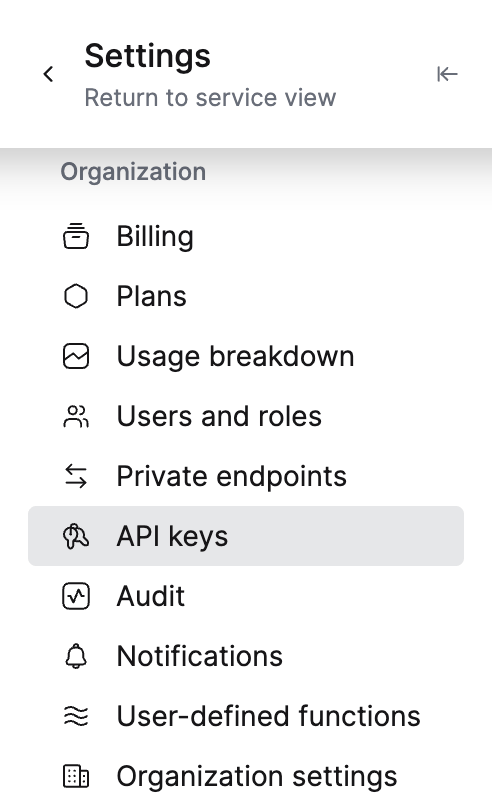
- Copy the key ID, key secret, and your organization ID.
- Enter all three on the ClickHouse app in Opal (on create, or later in the app’s credentials).
CREATE USER login for clickhouse-client.
4. Import resources
After the connection is created, Opal will run an initial sync to discover your ClickHouse databases, tables, SQL roles, and users. If Cloud credentials are set, it also discovers console roles and Cloud members (including pending invitations). Go to Assets to see everything that was discovered. Database resources in Opal list their tables on the Assets tab. On a table, User Access includes people granted the table directly and people who inherited access from the parent database (GRANT … ON database.*).
To make a resource or role requestable, import them and configure reviewers and access policies as needed.
Only imported resources with “Allow Requests” toggled ON will appear in Opal’s Request Access catalog.
User provisioning
User provisioning is only available when Cloud console management is
enabled. Follow step 3 to add
a Cloud API key. Opal provisions ClickHouse Cloud organization members, not
SQL users.