

Self-hosted Opal deployments must be on version 1.949 or later to use the Databricks integration.
- Users can request time-bound access to your Databricks groups.
- Auditors can initiate access reviews that assign managers or group admins to periodically review users with long-lived access to Databricks resources.
- Admins can add resources from other Opal integrations to an Databricks group so a Databricks group’s members can automatically gain birthright access to, for example, a GitHub repo, AWS IAM role, etc.
- All access changes are tracked in as events that you can log to Slack or export to your favorite tools.
Supported resources
*You can add Databricks users and service principals as members of groups, and grant users, service principals, and groups access to resources.
†Unity Catalog access is group-based. Opal grants and revokes privileges on Databricks UC Catalogs, Schemas, Volumes, Functions, and Registered Models by adding them to or removing them from Databricks account groups, and group members inherit that access. Opal doesn’t support granting Unity Catalog privileges directly to individual users or service principals, so users get Unity Catalog access by requesting a Databricks group that has it. See Connect Unity Catalog resources.
The Databricks integration does not support managing identities at the workspace level, based on Databricks’ guidelines for identity federation.
Requirements
To set up the Databricks integration, you must:- Be an Opal Admin
- Have permission to create a service principal in Databricks
- To also sync Unity Catalog resources, have permission to assign the Metastore Admin role in the Databricks account console (see Connect Unity Catalog resources)
1. Configure fields in Databricks
First, create a service principal in Databricks and create an OAuth secret for it:- Add a Databricks service principal.
- Assign the service principal the Account admin role.
- Create an OAuth secret for this service principal. Select Generate secret and specify any lifetime. You have to rotate this when it expires, so you might want to choose a long expiration. By default, secrets refresh every 2 years.
- Save the Secret and Client ID, which you’ll use in the next step.
- Account Login URL. Use the base URL you use to log in to Databricks. For example,
https://accounts.cloud.databricks.com. - Account ID. Retrieve this from your avatar in the top left corner of Databricks.
2. Configure fields in Opal
Go to Inventory > + App and find the Databricks integration. Give the integration a name, admin, description, and specify its visibility. Enter the Account Login URL, Account ID, Client ID, and Client secret fields from the previous step, then select Save.3. Import resources to Opal
In the Inventory in the Databricks app, select … > Import items to add your Databricks resources to Opal.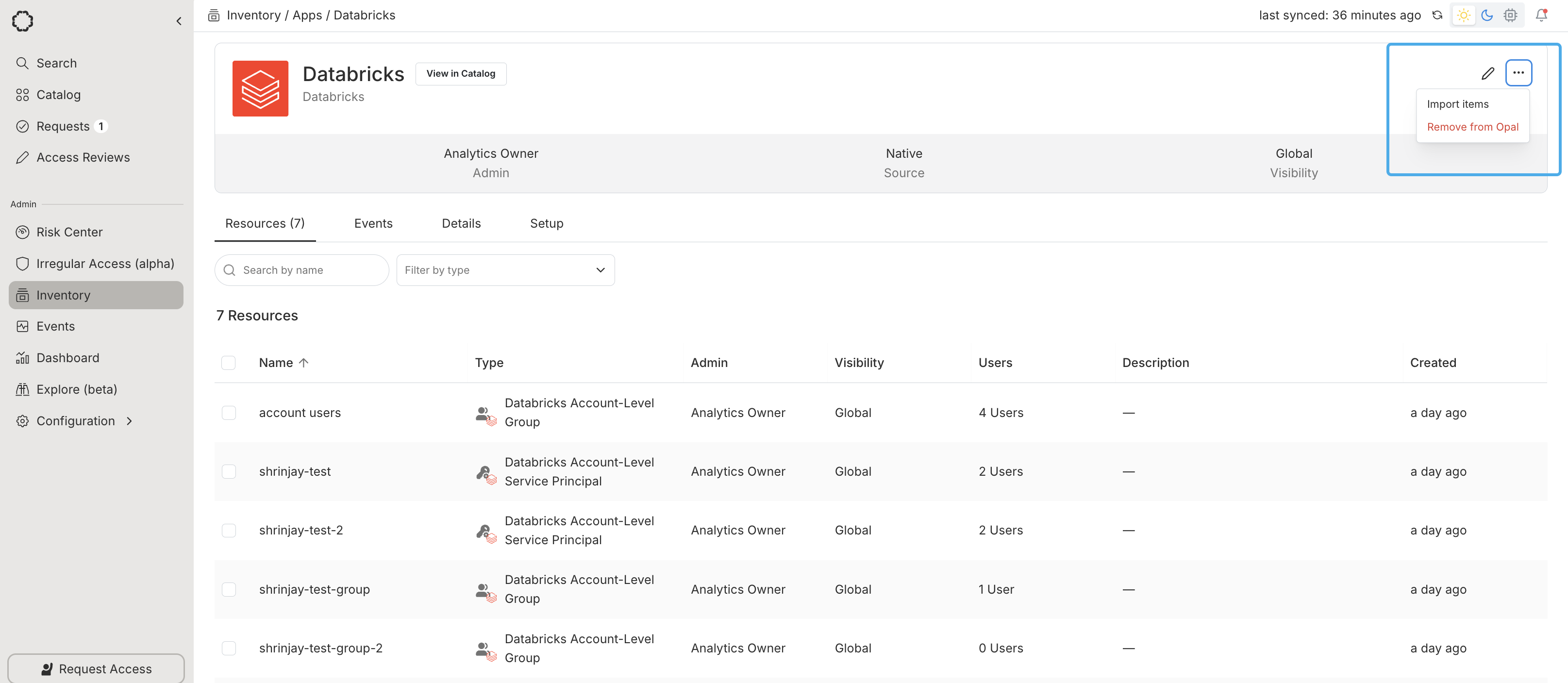
Connect Unity Catalog resources
Unity Catalog support for the Databricks integration is currently in limited beta. Contact Opal support to enable it for your organization.
- Add the service principal to at least one workspace that’s assigned to a Unity Catalog metastore. See Databricks’ guide to managing service principals.
- In the Databricks account console, assign the service principal the Metastore Admin role on each metastore you want Opal to sync. Alternatively, grant the service principal
USE_CATALOGon only the specific catalogs you want visible to Opal.
Unity Catalog resource discovery currently supports Databricks accounts on AWS and GCP. Azure Databricks and Databricks on GovCloud aren’t yet supported.
USE_CATALOG grants) — Opal surfaces this as an import error rather than an empty list, since Databricks’ API can’t otherwise distinguish “no catalogs exist” from “the service principal can’t see any.”