

- Allow users to request just-in-time access to a Box folder, at the exact collaboration role they need, from the web and Slack
- Manage Box group membership, and which folders each group can access
- Grant and revoke the Box co-admin role
- Set the right resource owners to delegate approvals to those with the most context
- Automatically revoke access when a time-bound grant expires
Supported resources
Opal syncs every active managed user in your Box enterprise. The integration doesn’t create or delete Box users, which arrive through SSO or your identity provider, and it doesn’t sync files or external collaborators.
How Box access maps to Opal
- Enterprise roles: your Box enterprise appears in Opal with the access levels User, Co-admin, and Admin. Opal can grant and revoke Co-admin, and revoking it returns the user to User. Only the Box Admin Console can change the primary Admin, so Opal syncs it, but Box rejects a grant of it from Opal.
- Folder access levels: each Box collaboration role is an access level: Previewer, Uploader, Previewer Uploader, Viewer, Viewer Uploader, Editor, and Co-owner. Owner is also listed, but Box only transfers folder ownership in Box itself, so it rejects a grant of Owner from Opal. A folder’s owner doesn’t appear among its users in Opal.
- One role per folder: Box allows each user or group one collaboration per folder. Requesting a different role on a folder changes the existing collaboration rather than adding a second one. When that grant is revoked or expires, the user returns to the role they still hold on the folder in Opal, and the collaboration is removed only if they hold no other role.
- Subfolders: Opal syncs the whole tree under each shared folder. Access in Box flows down to every subfolder, so a subfolder shows its parents’ collaborators as indirect access. To remove it, revoke it on the folder where it was granted. Box doesn’t allow a different role on a subfolder the user already accesses through a parent, so request the role on the parent instead.
- Access from outside the shared folder: if a shared folder sits inside a parent the service account can’t see, collaborators on that parent are synced as inherited. Revoking this access in Opal doesn’t remove it from Box; remove it on the parent folder in Box.
- Groups: Box group admins sync as group members. If your identity provider manages a group in Box, it may undo membership changes on its next sync.
- Notifications: Opal turns off Box’s own invitation email when it grants folder access, because Opal already notifies the requester.
Requirements
Before you begin, you must:- Be an Opal Admin
- Have a Box admin who can authorize a Platform App for your enterprise
- Have the owner of each folder Opal should manage, or a Box admin, available to share it with the service account
- Ask the Opal team to enable the Box integration for your organization
Configuration steps
1. Create a Box Platform App
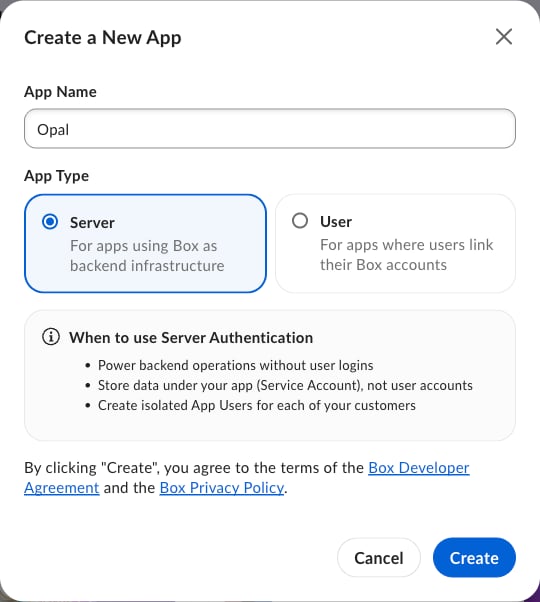
- In the Box Developer Console, select New App.
- Name the app, for example
Opal, choose the Server app type, and select Create.
2. Configure the app
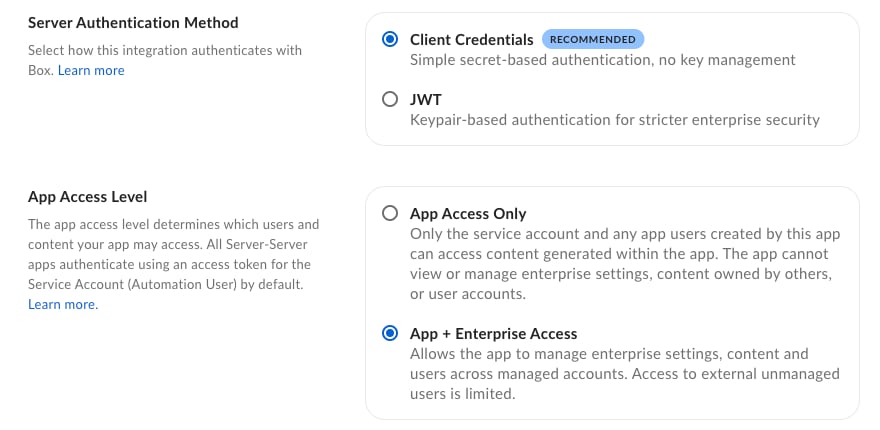
On the app’s Configuration tab:- Under Server Authentication Method, select Client Credentials.
- Under App Access Level, select App + Enterprise Access.
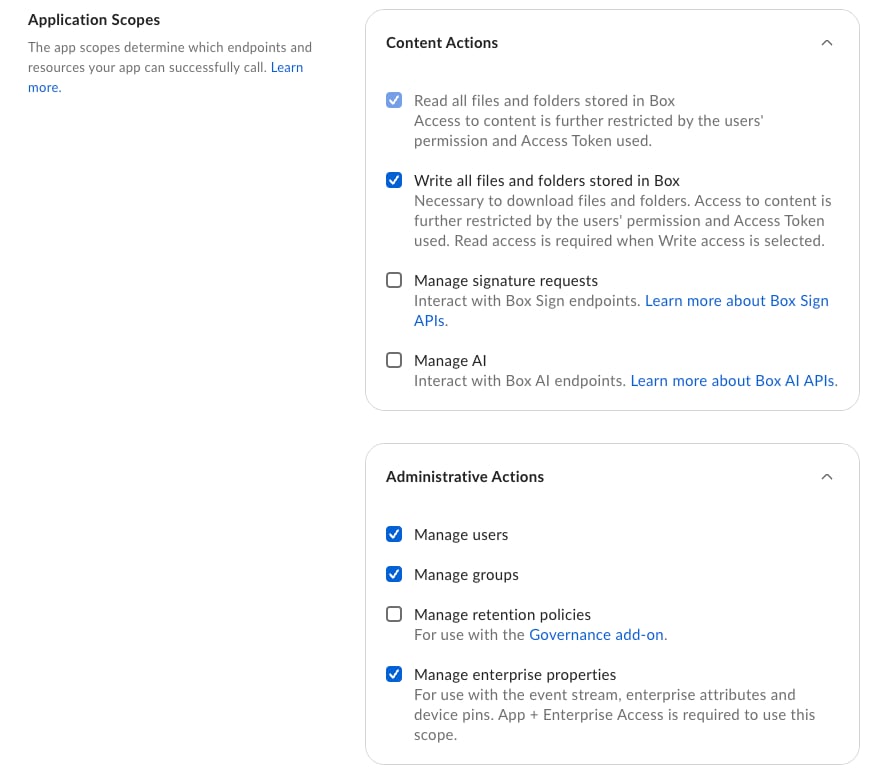
- Under Application Scopes, enable the following scopes, then select Save:
3. Authorize the app
A Box admin must authorize the app before it can call the Box API. In the Admin Console, go to Integrations > Platform Apps Manager and authorize the app by its Client ID. On a Box free developer account, the app is authorized automatically. The app’s App Details panel shows Authorized once this is done.4. Collect the app’s credentials
Record the following values. You’ll enter them in Opal in step 6.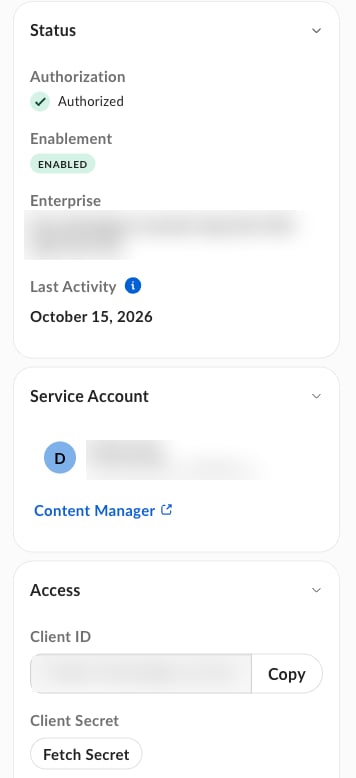
5. Share folders with the service account
Opal manages access only to the folders shared with the app’s service account. For each top-level folder you want users to request, open Share in Box, invite the service account login from step 4, set the role to Co-owner, and select Send. Opal syncs every subfolder under a shared folder, so you don’t need to share subfolders separately.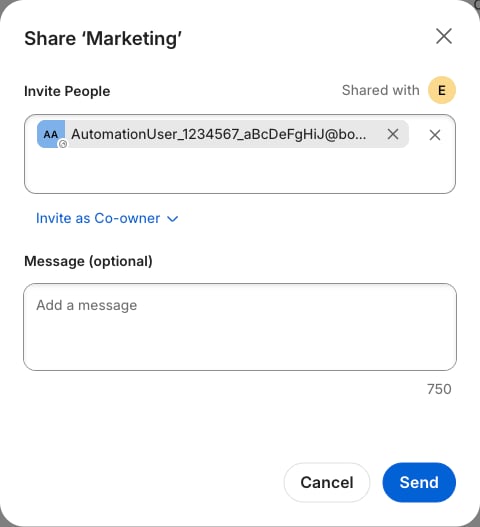
The service account needs the Co-owner role so it can add and remove other collaborators on the folder.
6. Create the Box app in Opal
In Opal, go to Inventory > +App and select Box. Fill in the following fields:
Opal checks the credentials when you save the app.