

Overview
Risotto is a conversational access request tool that lets employees request access to applications directly through Slack. When you connect Opal as Risotto’s access governance provider, Risotto submits those requests to Opal for Opal to perform the grant while employees continue requesting conversationally in Slack.This is a guide to configure Opal in your Risotto environment. The Opal integration is currently in Beta in Risotto. Contact your Risotto representative to have it enabled for your organization.
What this integration enables
With Opal connected as Risotto’s governance provider, Risotto can:- Submit access requests to Opal on behalf of users, for applications you route to Opal
- Let Opal evaluate its own approval policies (reviewers, just-in-time duration, segregation-of-duty rules)
- Receive the outcome of a request (approved, denied, fulfilled) and reflect it back in the Slack thread and ticket
- Link requesters and reviewers directly to the request in Opal
Prerequisites
Before connecting, make sure you have:- Risotto Admin Access
- Opal admin access — Required to create the API key and register an Events Streaming destination.
- Resources already configured in Opal — The applications you want Risotto to route should already exist in Opal with their owners and request policies set up.
Risotto talks to Opal Cloud at
https://api.opal.dev/v1 by default. You only need to override this if your Opal instance uses a non-default host.Opal API keys carry the permissions of the user or service account that created them. Create the key from a dedicated service account scoped to the minimum resources Risotto needs, and store it in a secret manager.
1. Create an Opal API key
In your Opal admin console, go to Settings > API Tokens and create a new token. Give it a descriptive name (e.g.,Risotto). Copy the generated token immediately and store it securely — you’ll paste it into Risotto in the next step.
2. Connect Opal in Risotto
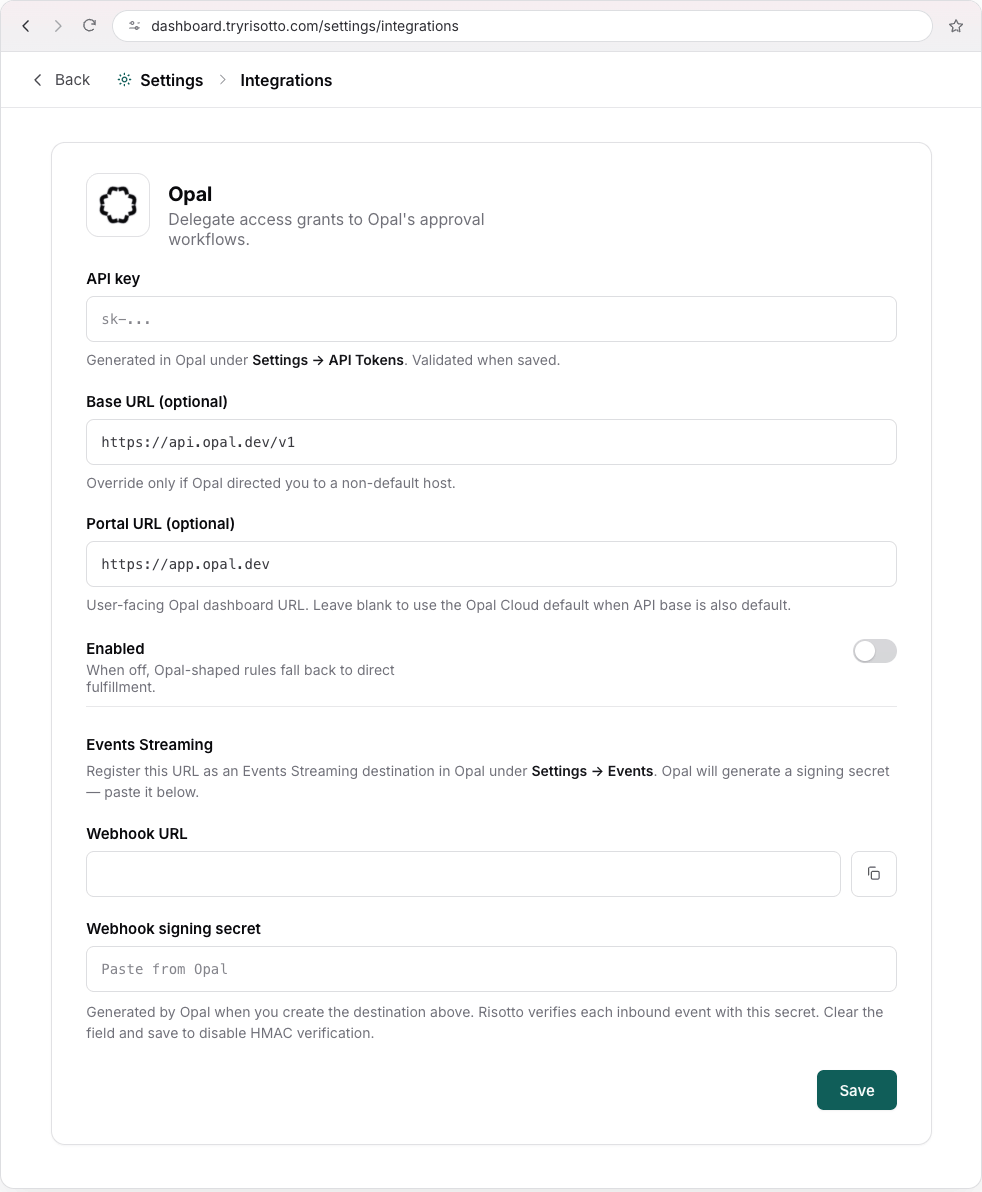
In your Risotto dashboard, go to Settings > Integrations > All and open the Opal panel. Fill in the connection fields:- API key (required) — The token you copied in Step 1 (
sk-…). Risotto validates it when you save. - Base URL (optional) — Defaults to
https://api.opal.dev/v1. Override this only if your Opal instance uses a non-default host. - Portal URL (optional) — Defaults to
https://app.opal.dev. This is the user-facing Opal dashboard URL that Risotto uses for View in Opal deep links. Leave blank to use the Opal Cloud default.
3. Set up inbound resolution (Events Streaming)
Risotto learns of request outcome through Opal’s Events Streaming (webhooks), and needs to be configured so approvals and grants flow back to Slack in near real time.
4. Route applications to Opal
Access governance is configured per application. For each application you want Opal to fulfill, open the application in Risotto, route its access to Opal, and choose the matching Opal resource. When an application is routed to Opal, Risotto keeps a shadow copy of the relevant access configuration in sync so it can present the right options to requesters and dispatch correctly. Applications you don’t route to Opal continue to use your existing access rules.End-user experience
What the requester sees in Slack
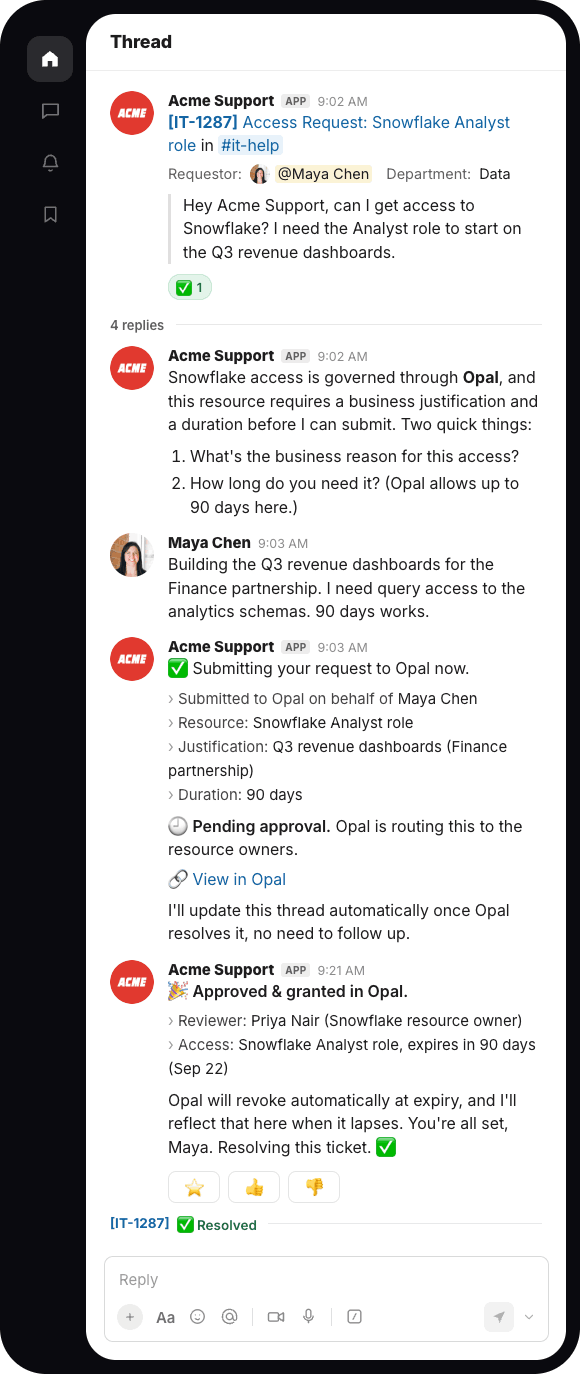
- The employee asks Risotto for access to an Opal-managed application in Slack, as usual.
- Risotto collects any details Opal needs (such as a business justification or the specific access level) before submitting, so the request isn’t bounced back for missing information.
- Risotto confirms it has submitted the request to Opal and posts a View in Opal link so the requester can follow the approval there.
- When Opal approves and grants (or denies) the request, Risotto updates the same Slack thread with the outcome.
What reviewers see
Reviewers are notified and act inside Opal, using their existing approval policies — Risotto does not change who approves or how. The request appears in Opal as an on-behalf-of request submitted by Risotto for the named employee, with the justification and access level the user provided in Slack.What “View in Opal” links do
The View in Opal link deep-links to the specific access request in your Opal tenant, using the Portal URL configured in the Opal panel (defaulting tohttps://app.opal.dev). Requesters use it to track status; reviewers and admins use it to approve, deny, or audit the request. Because Opal remains the system of record, the full approval history and any time-bound expiration live in Opal.
Troubleshooting
API key validation failed on save
API key validation failed on save
- Verify the API key is valid (
sk-…) and hasn’t been revoked in Opal. - Leave Base URL blank unless Opal directed you to a non-default host; if set, confirm it’s reachable.
- Make sure the key’s account has permission to create access requests on behalf of others.
Requests aren't dispatching to Opal
Requests aren't dispatching to Opal
- Confirm the Enabled toggle is on — while it’s off, Opal-shaped rules fall back to direct fulfillment.
- Confirm the application is routed to Opal and mapped to the correct Opal resource.
Outcomes aren't coming back to Slack
Outcomes aren't coming back to Slack
- Verify the Opal Events Streaming destination points at the Webhook URL from Risotto’s Opal panel.
- Confirm the Webhook signing secret in Risotto matches the one Opal generated. If unsure, rotate the secret in Opal and re-enter it in Risotto.
- Remember that expirations are reconciled on a schedule rather than via webhook, so an expired grant may take a short time to reflect.