

- Allow users to request just-in-time access to a shared drive, at the exact role they need, from the web and Slack
- Grant a Google group access to a shared drive
- Review who has access to each shared drive, including access through groups and nested groups
- Set the right resource owners to delegate approvals to those with the most context
- Automatically revoke access when a time-bound grant expires
Supported resources
Opal syncs every active user in your Workspace and skips suspended users. Drive and group members from outside your Workspace are matched to Opal users by email. The integration doesn’t sync folders or files inside a shared drive, or sharing with a whole domain or with anyone who has the link.
How shared drive access maps to Opal
- Access levels: each shared drive role is an access level: Viewer, Commenter, Contributor, Content manager, and Manager.
- One role per drive: Google allows each user or group one role on a shared drive. Requesting a different role replaces the member’s current role. When that grant is revoked or expires, the member loses access to the drive rather than returning to their earlier role.
- Revoking access: a revoke removes only the role it names. If the member’s role on the drive has changed since the grant, Opal leaves the new role in place. Access a user has through a group isn’t affected when you revoke their direct role.
- Groups: a group’s members, including members of groups nested inside it at any depth, show the group’s access to a drive as indirect access.
- Group membership is read-only: Google Groups owns group membership, so Opal can’t add or remove members from groups in this app, and requests for these groups are turned off. To manage membership in Opal, use the Google Groups integration.
- Notifications: Opal turns off Google’s own sharing email when it grants drive access, because Opal already notifies the requester.
Requirements
Before you begin, you must:- Be an Opal Admin
- Have a Google Workspace super admin, who can configure domain-wide delegation and whom the service account acts as
- Have access to a Google Cloud project where you can enable APIs and create a service account key
- Ask the Opal team to enable the Google Shared Drive integration for your organization
Configuration steps
1. Enable the Google APIs
In the Google Cloud console, select the project that will hold the service account, and enable the following APIs: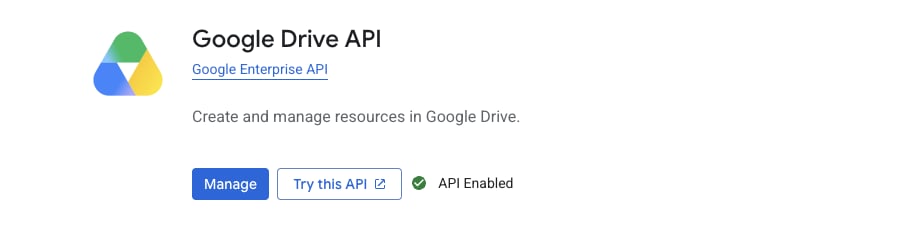
2. Create a service account
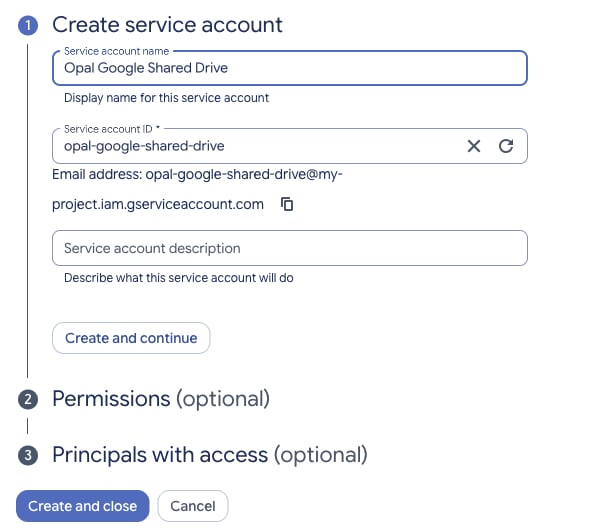
- Go to IAM & Admin > Service accounts and select Create service account.
- Name the service account, for example
Opal Google Shared Drive. - The service account doesn’t need any Google Cloud roles, so skip the optional steps and select Create and close.
3. Create a key and copy the client ID
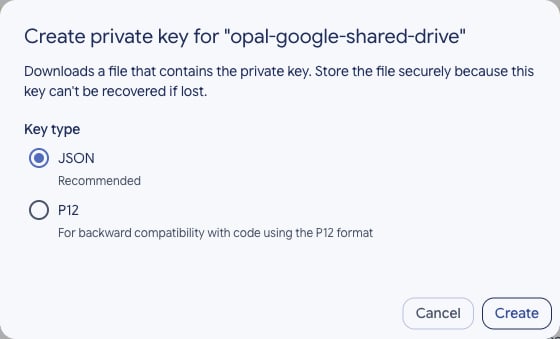
- Open the service account and go to the Keys tab.
- Select Add key > Create new key, choose JSON, and select Create. Google downloads the key file. You’ll enter its contents in Opal in step 5.
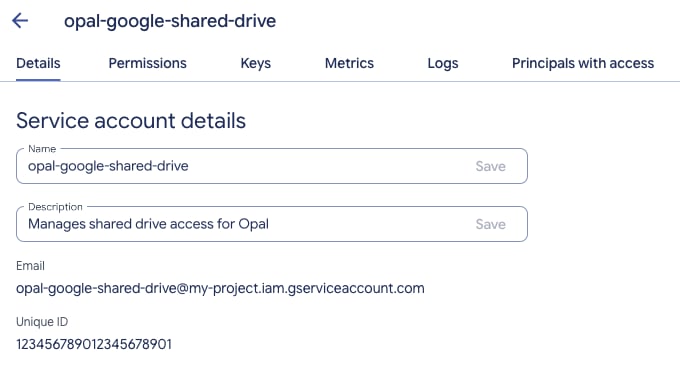
- Go to the Details tab and copy the Unique ID. This is the service account’s OAuth client ID, which you’ll use in step 4.
If your organization enforces the
iam.disableServiceAccountKeyCreation policy, ask a Google Cloud organization admin to allow key creation for this project.4. Set up domain-wide delegation
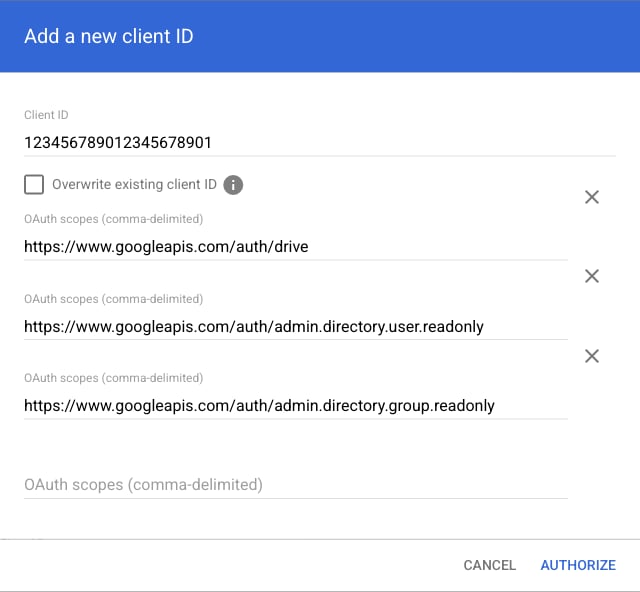
- In the Google Admin console, go to Security > Access and data control > API controls, and select Manage Domain Wide Delegation.
- Select Add new, and enter the Unique ID from step 3 as the Client ID.
- Enter the following scopes in OAuth scopes, separated by commas, then select Authorize:
5. Create the Google Shared Drive app in Opal
In Opal, go to Inventory > +App and select Google Shared Drive. Fill in the following fields:
To manage more than one Google Workspace, create a separate app for each.