

- Allow users to request just-in-time access to an organization role, such as Write or Admin, from the web and Slack
- Allow users to request membership of a resource group, at the role they need
- Set the right resource owners to delegate approvals to those with the most context
- Automatically revoke access when a time-bound grant expires
Supported resources
Opal syncs members of your organization whose email Hugging Face shows to the token, and matches them to people in Opal by email. Hugging Face shows member emails only on Team and Enterprise plans, for members whose email matches a domain your organization has verified or set in its SSO configuration. Members without a visible email aren’t synced.
The integration doesn’t invite or remove organization members, and it doesn’t sync repositories or collections. They inherit access from organization roles and resource groups.
How Hugging Face access maps to Opal
- Organization roles: your organization appears in Opal as Hugging Face Organization, with the access levels No access, Read, Contributor, Write, and Admin. Each member holds one role, so requesting a different role replaces the existing one. Changing a member’s role keeps their resource group memberships.
- Revoking Contributor, Write, or Admin returns the user to Read. If the user no longer holds the revoked role, Opal leaves them as they are.
- Opal doesn’t revoke Read or No access, because that would mean removing the user from the organization. Remove users through your identity provider instead.
- Resource groups: each resource group appears in Opal as a Hugging Face Resource Group, with the access levels Read, Contributor, Write, Admin, and Inherit. Inherit gives the member the same role in the group as their organization role. Each group member holds one role, so requesting a different role on a group changes the existing one. Revoking a grant removes the user from the group.
Limitations
- Resource groups and role changes require a Hugging Face Team or Enterprise plan. On other plans, Hugging Face rejects these calls, and no members sync because emails aren’t shown.
- A user must already be a member of the organization before Opal can grant them a role or add them to a resource group.
- Because Opal can’t revoke Read or No access, don’t make those grants time-bound. Use time-bound access for Contributor, Write, and Admin, and for resource groups.
Requirements
Before you begin, you must:- Be an Opal Admin
- Be an Admin of the Hugging Face organization, on a Team or Enterprise plan
Configuration steps
1. Create a fine-grained access token
Hugging Face’s steps are in User access tokens.- In Hugging Face, go to your settings and open the Access Tokens tab.
- Select New token, choose the Fine-grained token type, and name the token, for example
Opal. - Scope the token’s organization permissions to the organization you want Opal to manage, and give it read access to that organization’s settings and members.
- If Opal should change access, also select Write access to organizations settings / member management for that organization. Skip this if you’ll set Access to Read only in step 2.
- Create the token, then copy it. The token begins with
hf_. You’ll enter it in Opal in step 2.
If your organization requires administrator approval for fine-grained tokens, a token created by a non-admin stays Pending and Hugging Face rejects it with a
403 error. Tokens that organization admins create are approved automatically.2. Create the Hugging Face app in Opal
In Opal, go to Inventory > + App and select Hugging Face. Fill in the following fields: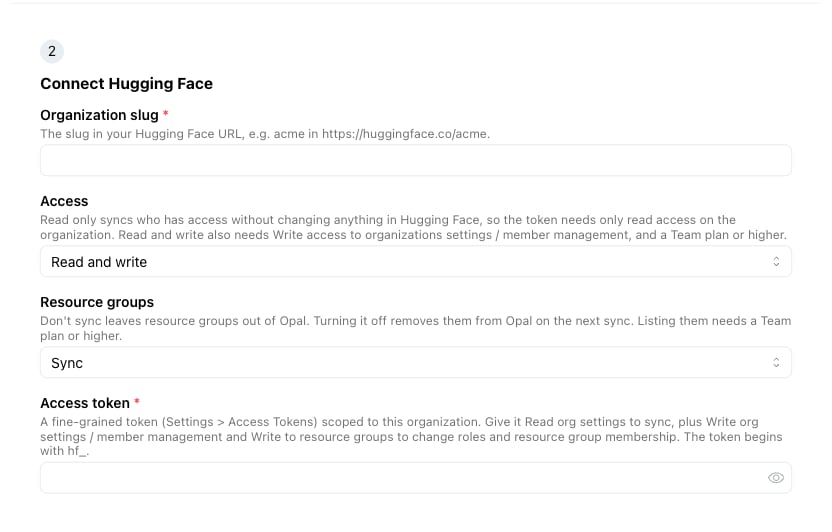
You can change Access and Resource groups later, and replace the token, from the app’s Setup tab. Changing Resource groups to Don’t sync removes resource groups from Opal on the next sync. To manage a different organization, add another app.
3. Check the app setup
Opal doesn’t test the token when you save the app. Open the app’s Setup tab to check that the token can read your organization:
Opal can’t test write access from the Setup tab. A token without Write access to organizations settings / member management still looks healthy until a grant fails.