

- Allow users to request just-in-time access to a vault, at the exact vault permission they need, from the web and Slack
- Manage 1Password group membership, and which vaults each group can access
- Set the right resource owners to delegate approvals to those with the most context
- Automatically revoke access when a time-bound grant expires
Choose how to connect
Through your identity provider
Available now. Nothing new to deploy.Opal manages groups in your identity provider, and your identity provider provisions those groups into 1Password.
- Opal adds or removes a user in an identity provider group, for example
1Password – Prod DB, through your existing Okta or Microsoft Entra ID integration. - Your identity provider pushes the group to 1Password through 1Password’s automated provisioning.
- In 1Password, you map each group to its vaults once. Group membership then grants vault access.
Connector in your environment
Per-vault, per-permission access. You run one container.A small 1Password connector runs in your environment and makes changes with the 1Password CLI.
- Opal sends a signed HTTPS request, for example “grant Alice View items on Prod DB”.
- The connector checks the signature, then applies the change in 1Password as a dedicated 1Password account.
- Vault access and group membership update in your 1Password account.
Which should you use?
- If group-level access works for you, use your identity provider. It’s available today, with nothing to deploy and no new credential. You’ll need Okta or Microsoft Entra ID connected to Opal, with 1Password provisioning turned on.
- If you need fine-grained vault access, such as just-in-time access to one vault at one permission, or direct user-to-vault grants, use the connector.
Why doesn't Opal store my 1Password credential?
Why doesn't Opal store my 1Password credential?
The simplest design would have you paste a 1Password admin credential into Opal. Opal doesn’t offer this. Opal would then hold the credentials for every customer’s 1Password account, so a single breach of Opal could expose all of them. Encrypting the stored credentials doesn’t fix this, because Opal would have to decrypt them to use them.1Password also has no server-side admin API. Account data is end-to-end encrypted, so changing vault permissions or group membership requires the 1Password CLI, signed in as an account in your 1Password. The connector keeps that account in your environment.
Why not a 1Password service account?
Why not a 1Password service account?
1Password service accounts can’t manage group membership, and can only change access to vaults they created themselves, not your existing vaults. Fine-grained access therefore needs a regular 1Password account with permission to manage groups and vaults. That’s why the connector runs in your environment, signed in as a dedicated account.
Supported resources
The rest of this page covers the connector, which works with both Opal Cloud and self-hosted Opal.
The integration doesn’t provision or deprovision 1Password users, or import 1Password audit events. 1Password doesn’t support nested groups.
How vault access maps to Opal
- Access levels: each vault permission is an access level. 1Password Business accounts have 12 permissions, and Teams and Families accounts have 3.
- Permission dependencies: some 1Password permissions require others. Each access level is a bundle of a permission plus everything it requires, for example Export items also includes View item history, View and copy passwords, and View items. Granting an access level grants the whole bundle. Revoking it, or letting a time-bound grant expire, removes the bundle and anything that depends on it, except permissions the user’s other access levels still require. 1Password doesn’t record why a permission is held, so if a user already had View items before a time-bound View and copy passwords grant, the expiry removes View items too. See 1Password’s vault permission dependencies.
- Which vaults sync: every vault the connector’s identity can manage, directly or through the built-in Owners or Administrators group. 1Password gives those groups Manage vault on every shared vault by default, so you don’t add the identity to vaults one by one. The identity’s own personal vault isn’t synced.
- Group access to vaults: Opal stores one access level per group grant, so a group’s vault access appears at its highest permission.
- Access through a group: if a user only has vault access through a 1Password group, revoking it directly from the vault fails. Remove the user from the group instead.
- The connector’s own identity: the connector refuses any change to its own 1Password identity, and to the built-in Owners and Administrators groups’ vault access. Either change would break sync.
Requirements
Before you begin, you’ll need:- A 1Password Business account. Custom groups and granular vault permissions are only available on Business.
- A dedicated 1Password identity for the connector, in the built-in Administrators or Owners group, with its email, password, and Secret Key. Don’t add this identity to Unlock with SSO, because the connector signs in with a password.
- Your own secret store for that password and Secret Key. Don’t store them in 1Password itself.
- One always-on container with a persistent volume. The volume holds the connector’s 1Password device trust.
- An HTTPS URL that Opal can reach. Opal Cloud needs a publicly reachable endpoint. Self-hosted Opal can use a private one. For a private endpoint, make the DNS record DNS-only: a proxying CDN, such as Cloudflare with proxying on, sends Opal’s requests to the CDN, which can’t reach a private address.
Configuration steps
1. Create the 1Password identity
In 1Password, create a dedicated user for the connector, confirm it, and add it to the Administrators group (or Owners). The connector needs this group to list people and to manage vault access. Save its email, password, and Secret Key in your secret store. See Security recommendations before you choose its 2FA settings.2. Deploy the connector
Deploy the connector with the 1Password identity’s credentials and a signing secret. The connector uses the secret to verify that each request comes from Opal, and you’ll paste the same secret into Opal in the next step. It must be at least 32 characters. SetOP_ACCOUNT_ADDRESS (Helm: accountAddress) to your 1Password sign-in address, for example example.1password.com.
Pick a version from the releases page and use it wherever <version> appears below.
The connector image doesn’t include the 1Password CLI. Each option below copies it from 1Password’s official 1password/op image, pinned by version and digest, so the host must be able to pull from Docker Hub as well as GitHub Container Registry. To use a registry mirror, set the Helm value opCli.image.repository.
- Helm (Kubernetes)
- Docker Compose
- Docker
-
If you deploy with a GitOps tool that renders with
helm template, such as Argo CD, setsecret.opalSigningSecretyourself (for example fromopenssl rand -hex 32) or useexistingSecret. The chart can’t read the existing Secret there, so it would generate a new one on every render. -
To keep credentials out of Helm values and your shell history, or if the password contains a comma (which
--settreats as a separator), create the Kubernetes Secret yourself with the keysOPAL_SIGNING_SECRET,OP_EMAIL,OP_SECRET_KEY, andOP_PASSWORD. Then pass--set secret.create=false --set secret.existingSecret=<name>. -
To expose the connector, pass
--set ingress.enabled=true --set ingress.host=<host>with your ingress class and TLS settings, or use your own load balancer. See the chart’svalues.yamlfor every option.
3. Create the 1Password app in Opal
In Opal, go to Inventory > Add App, and select Connect on the 1Password tile, under SaaS Apps.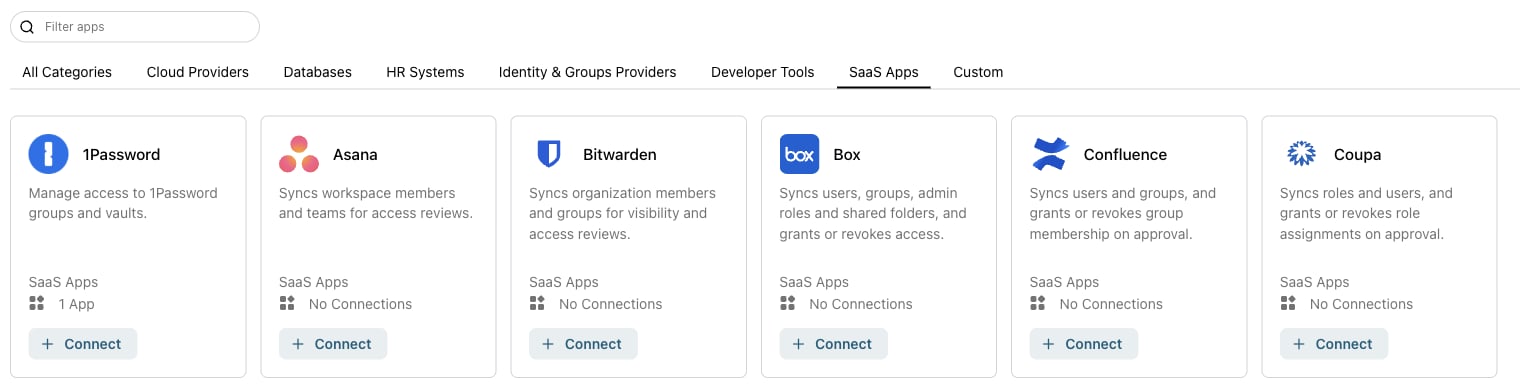
The 1Password tile in Add App
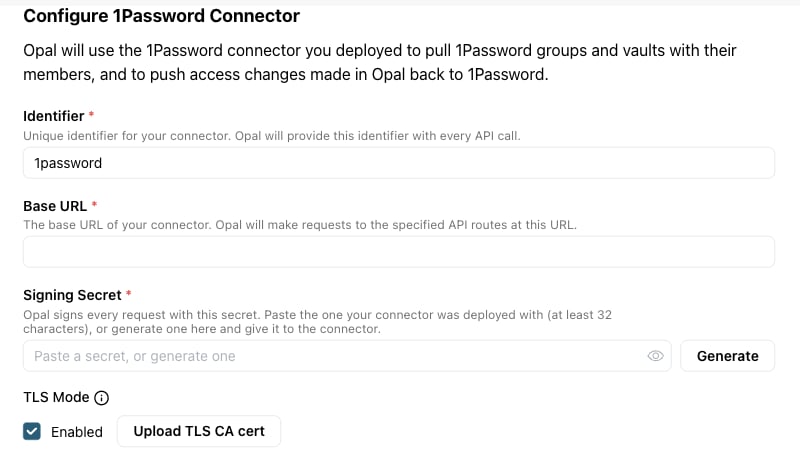
Connector settings for the 1Password app
4. Import vaults and groups
On the app’s Assets tab, select Import assets to import vaults and groups. You can choose which vaults to import. Every vault the connector’s identity can manage is offered, including sensitive ones, so only import the vaults you want users to be able to request. Vault access then appears per access level on each vault’s User Access tab. Users can now request access to a vault or to join a group.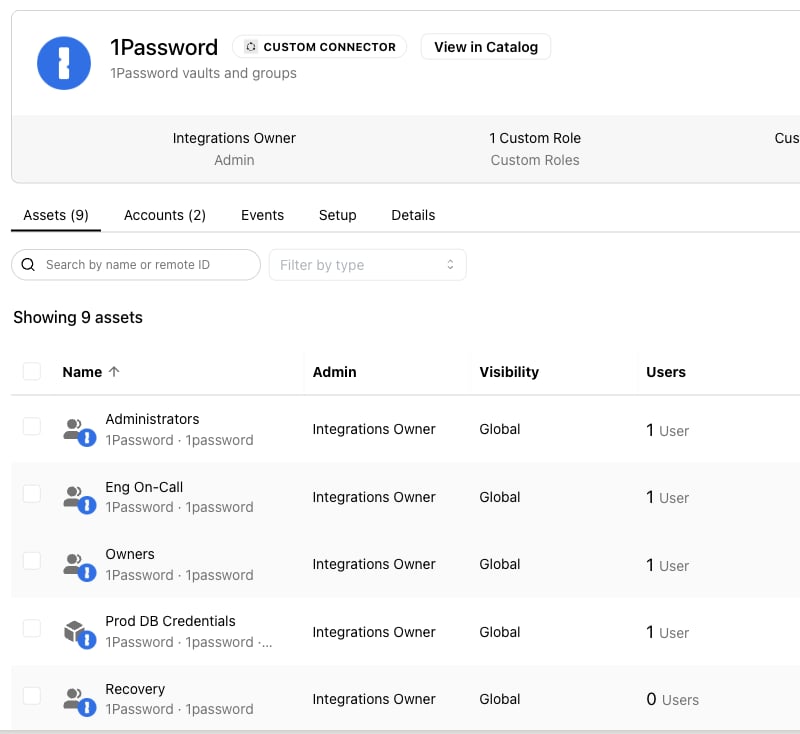
Imported 1Password groups and vaults
Upgrade an existing connection
If you set up the connector before the 1Password tile was available, through Add App > Custom Connector, you don’t need to recreate the app. Recreating it would discard its Opal configuration, such as request settings and reviewers.- Upgrade the connector to the latest version, as in Upgrade the connector. Its configuration doesn’t change.
- Optionally, to show the 1Password logo, open the app’s Setup tab and upload it under App icon. The app’s vaults and groups show the same logo.
Upgrade the connector
The connector’s 1Password device trust lives on its persistent volume, so upgrading doesn’t need a new 2FA bootstrap.- Helm (Kubernetes)
- Docker Compose
- Docker
Security recommendations
The connector’s 1Password identity can change any vault access in your account. Treat the connector host, its volume, and its credentials like your 1Password account itself.- Add a 1Password firewall rule. Use a firewall rule to only allow this identity to sign in from the connector’s egress IP address. Stolen credentials are then unusable from anywhere else.
- Require approval for vault access. Anyone who can approve a vault request in Opal can grant 1Password vault access. Configure vault resources so that requests aren’t auto-approved and need more than one reviewer.
- Keep the 2FA secret with the credentials. If the identity uses 2FA, store its 2FA secret in the same place as its password and Secret Key, so whoever is on call can bootstrap the device without the original admin.
2FA and device bootstrap
1Password only asks for a second factor when an identity signs in on a new device. Routine sign-ins on a known device need only the password and Secret Key. 2FA enforcement applies to the whole 1Password account, so you can’t exempt the connector’s identity. The connector’s device is its persistent volume. Once that device is trusted, the connector never sees a 2FA prompt. If the identity doesn’t use 2FA, the connector adds the device on its first request. If it does, add the device by hand once, and again whenever device trust is lost:- The volume is deleted or recreated, for example on a new PVC or storage class, a cluster move,
helm uninstallwith PVC cleanup, ordocker compose down -v. - The device is removed in 1Password, from the identity’s Devices list or with “sign out of all devices”.
- The identity’s password changes, or its Secret Key is regenerated.
- 2FA is turned on for the identity, or enforced for the account, after you set up the connector.
this device needs a one-time 2FA bootstrap by hand. The connector retries at most every 5 minutes, so it won’t race you or pile up failed sign-ins.
To bootstrap, have the identity’s 2FA authenticator or security key at hand, and run the command in an interactive terminal. op reads the Secret Key from the container’s OP_SECRET_KEY. Enter the password and the current six-digit code when prompted.
Open a shell in the connector:
op account add, add the account:
op signin, the account is already added, so sign in once instead:
op account add, the connector picks up the account on its next request. After op signin, it picks it up when the 5-minute wait ends. Restart the connector to skip the wait. To check the device, run the op signin command again: it should only ask for the password.
Verify and monitor the connector
Connector images and Helm charts are signed with cosign. To verify both before you deploy:GET /healthz returns 200 without a signature and without calling 1Password. GET /readyz also needs no signature, and returns 200 only while the connector can sign in to 1Password. The Helm chart uses it as the readiness probe. Every other endpoint requires Opal’s signature.
Troubleshooting
Creating the app fails with “Custom Connector creation failed”
Creating the app fails with “Custom Connector creation failed”
Opal couldn’t get a signed response from the connector’s
/status endpoint. Check that:- The Base URL resolves to the connector from where Opal runs. For a private endpoint, make sure the DNS record isn’t proxied by a CDN.
- The Signing Secret in Opal matches the connector’s
OPAL_SIGNING_SECRET. If you changed the connector’s secret, restart it: it reads the secret on startup. GET /readyzreturns200. If it doesn’t, the connector logs say why, for example that the device needs a 2FA bootstrap.
User sync fails with “status 500”, and the connector logs say “(403) Forbidden”
User sync fails with “status 500”, and the connector logs say “(403) Forbidden”
The connector’s identity can’t list people in 1Password. Add it to the Administrators or Owners group, then sync again. If the error persists, restart the connector so it signs in with the new permissions.
A vault doesn't appear in Import items
A vault doesn't appear in Import items
The connector only sees vaults its identity can manage. By default, the Owners and Administrators groups can manage every shared vault. If someone removed their access from a vault, give the identity, or one of its groups, Manage vault permission on it. Personal vaults never appear.