- Users can request time-bounded access to supported Azure resources
- Auditors can initiate access reviews that assign managers or group admins to periodically review users with long-lived access to Azure resources
- Admins can add resources from other Opal integrations to an Azure AD group so the group’s members can automatically gain birthright access to, for example, a GitHub repo, AWS IAM role, etc.
- Access changes are tracked as events that can be logged to a Slack channel or exported to your favorite tools
Supported resources
*You can grant Azure User-Assigned Manage Identities access to resources and groups.
Requirements
- You must be an Azure and Opal admin.
- Opal associates Azure AD users to Opal users through their primary email address in Azure AD.
Set up Azure app registration
1. Create app registration
In your Azure portal, go to Azure Active Directory > App registrations > New Registration.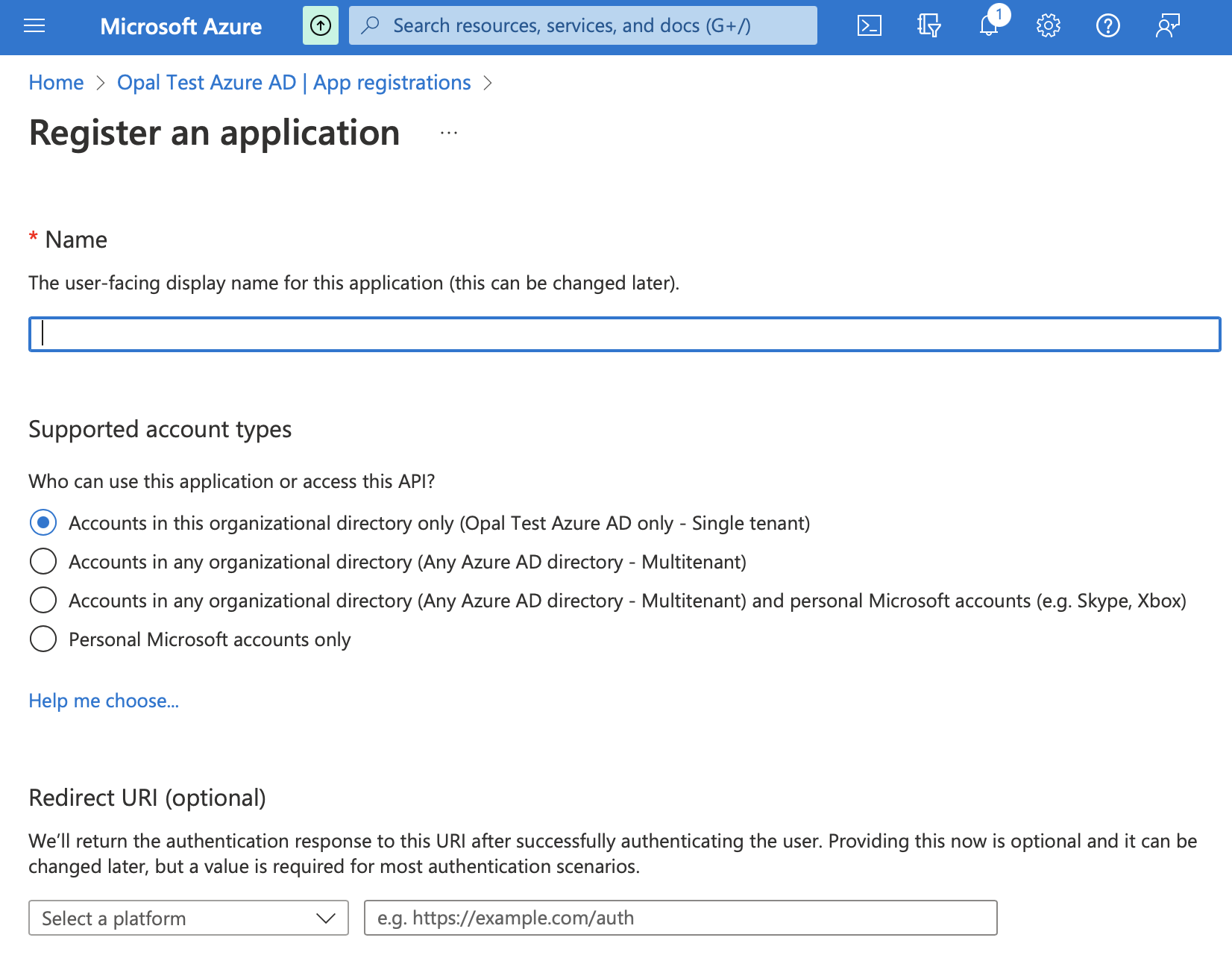
Once the app registration is created, save the Application (client) ID and Directory (tenant) ID on the Overview page. You’ll use these values in the following step.
2. Generate a client secret
On the app registration page, go to Certificates & Secrets > New client secret. Choose a name and expiration. Note that you need to create a new client secret at the expiration interval for your Azure AD connection to continue working. The maximum allowed by Microsoft is 2 years.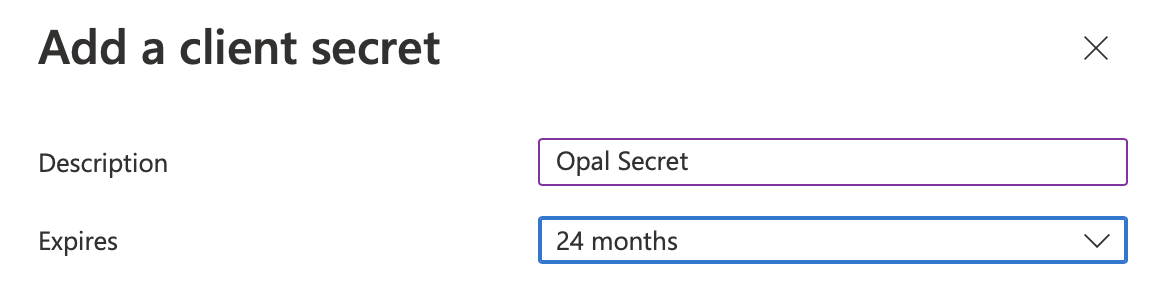
3. Add permissions
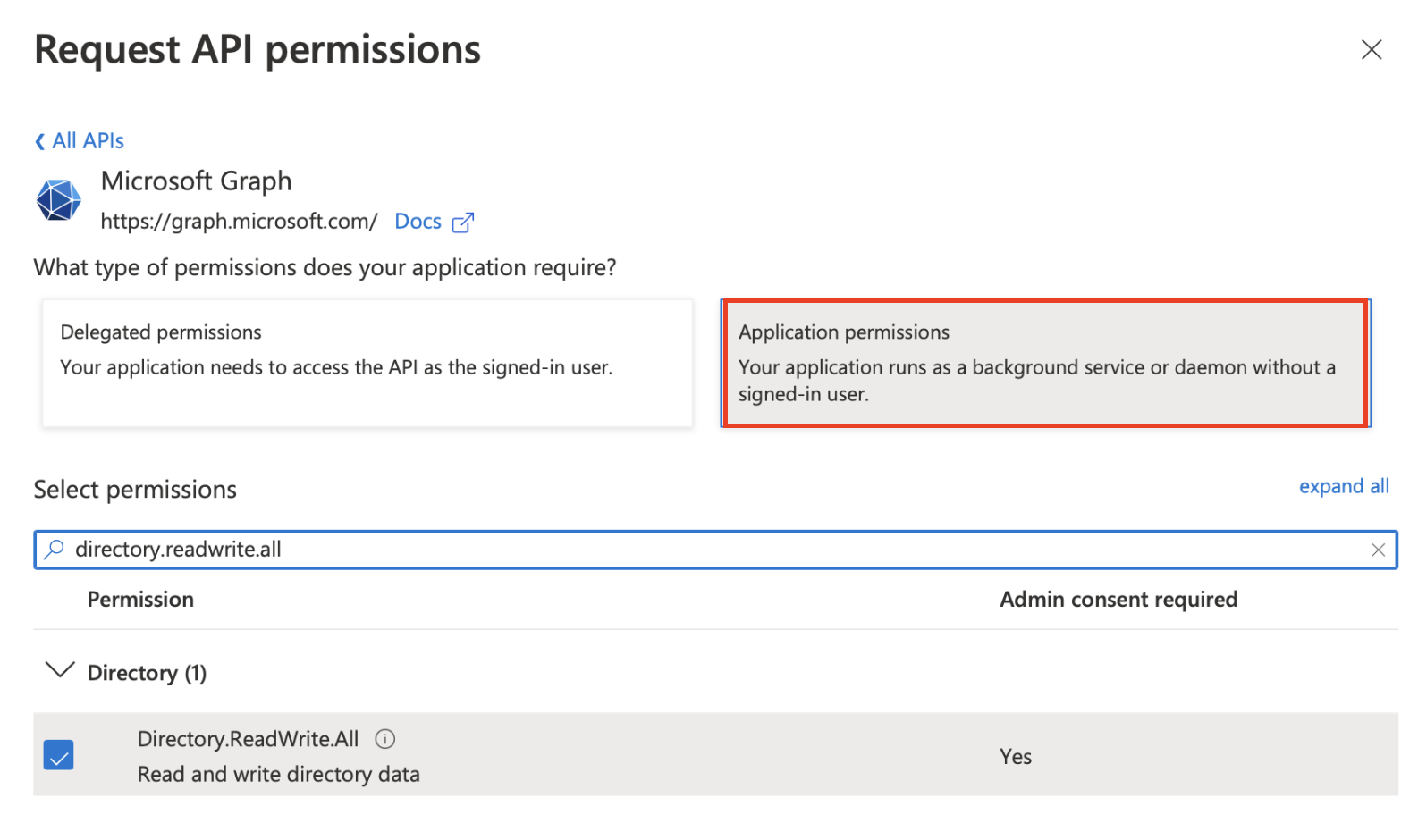
API Permissions and select Add a permission. Choose Microsoft Graph -> **Application Permissions** and add the following permissions:
Directory.ReadWrite.AllCustomSecAttributeAssignment.ReadWrite.AllRoleManagement.ReadWrite.Directory
4. Create and assign Opal Service Role
To manage access to Azure Subscriptions and Resource Groups, follow the instructions here before continuing. Note that this step can be skipped if you only want to manage Azure AD groups with Opal.Set up Opal connection
1. Create the Azure connection
In the Opal dashboard, navigate to Apps, click on the + icon, and find the Azure App. Fill out the details for the integration, using the secret from the previous step. The Tenant ID and Client ID are available from the Azure AD app registration page.2. Click the Authorize & Create button
This step will open a pop-up to authorize your newly created app registration with Azure AD. Once the permissions have been accepted, the connection will be created.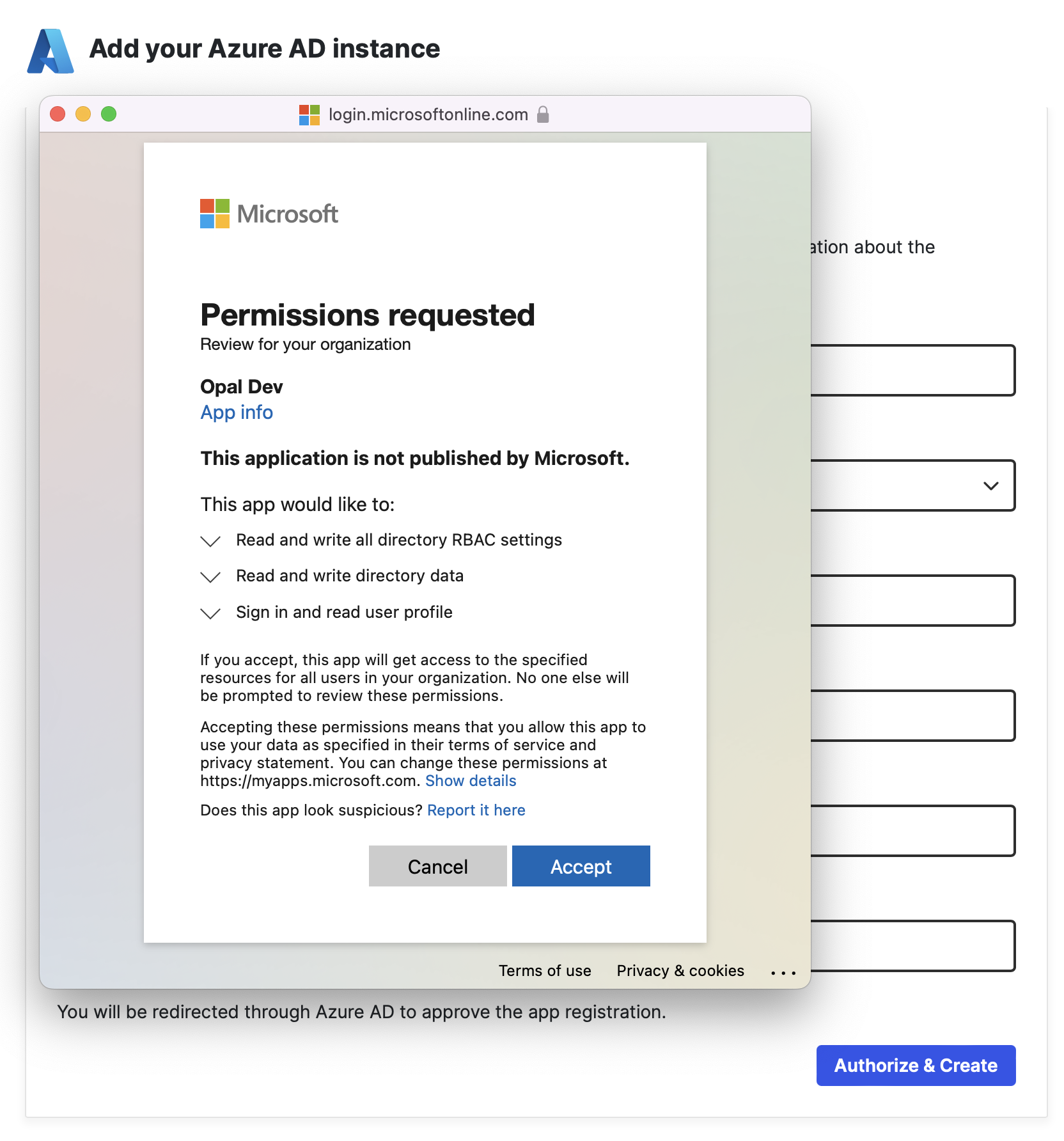
Run app validation checks
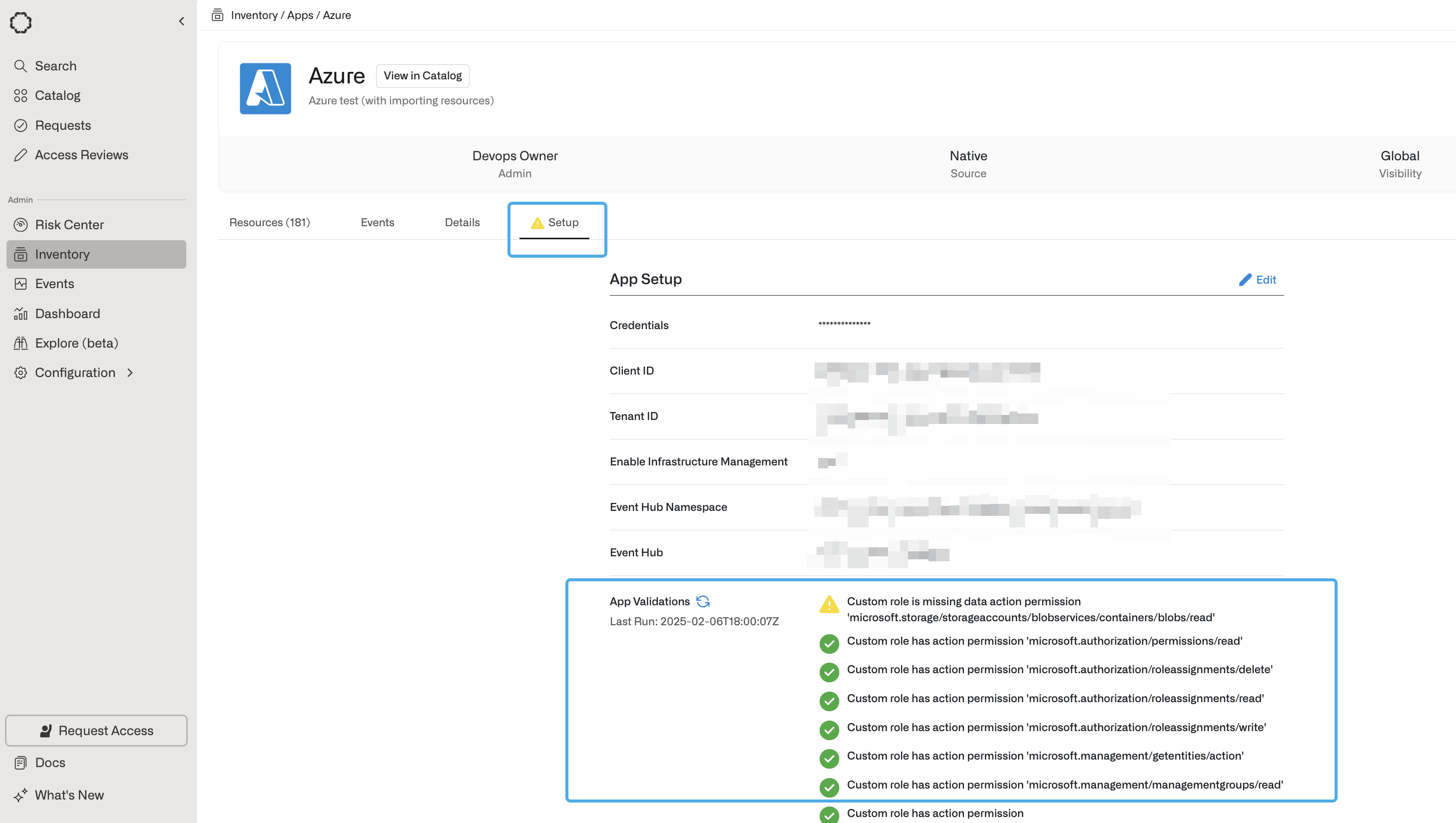
After you save your app, you can view existing sync issues from the Setup tab on the app detail page. Missing permissions and sync issues show in the App Validations section. Select the refresh icon to rerun validation checks.