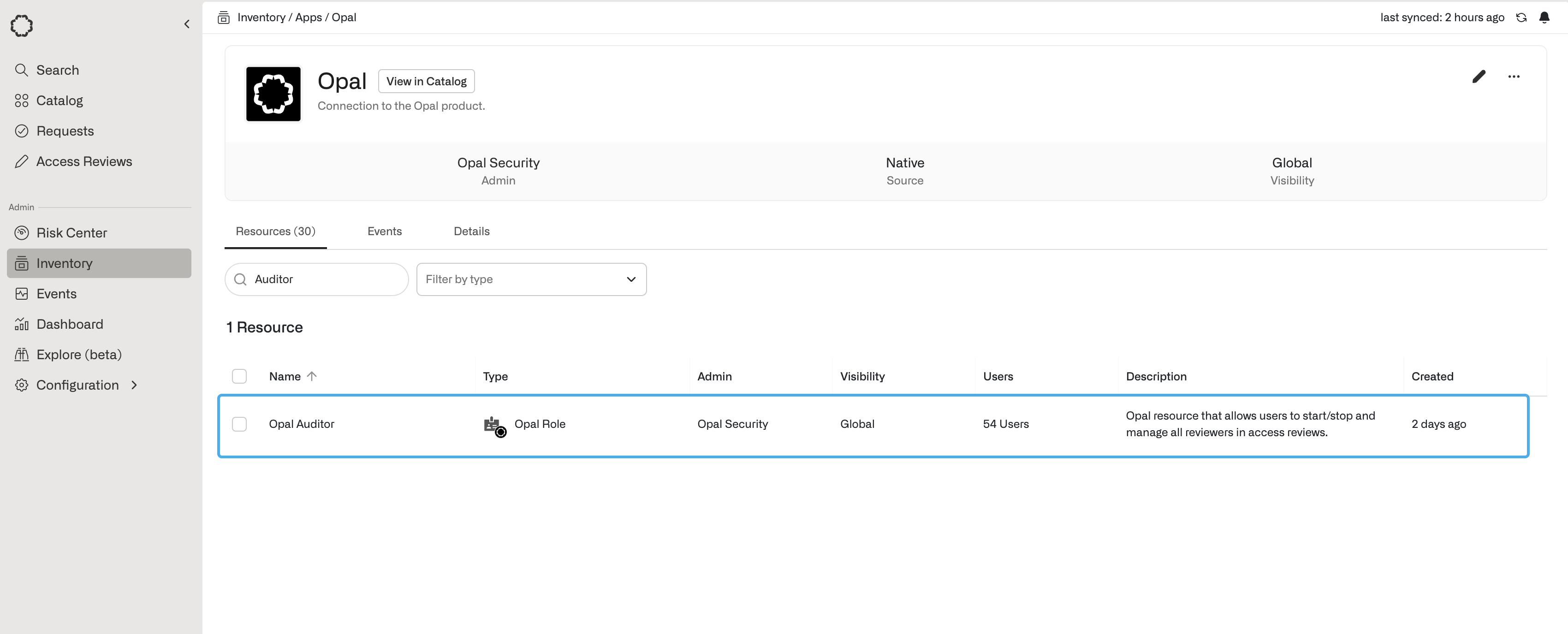
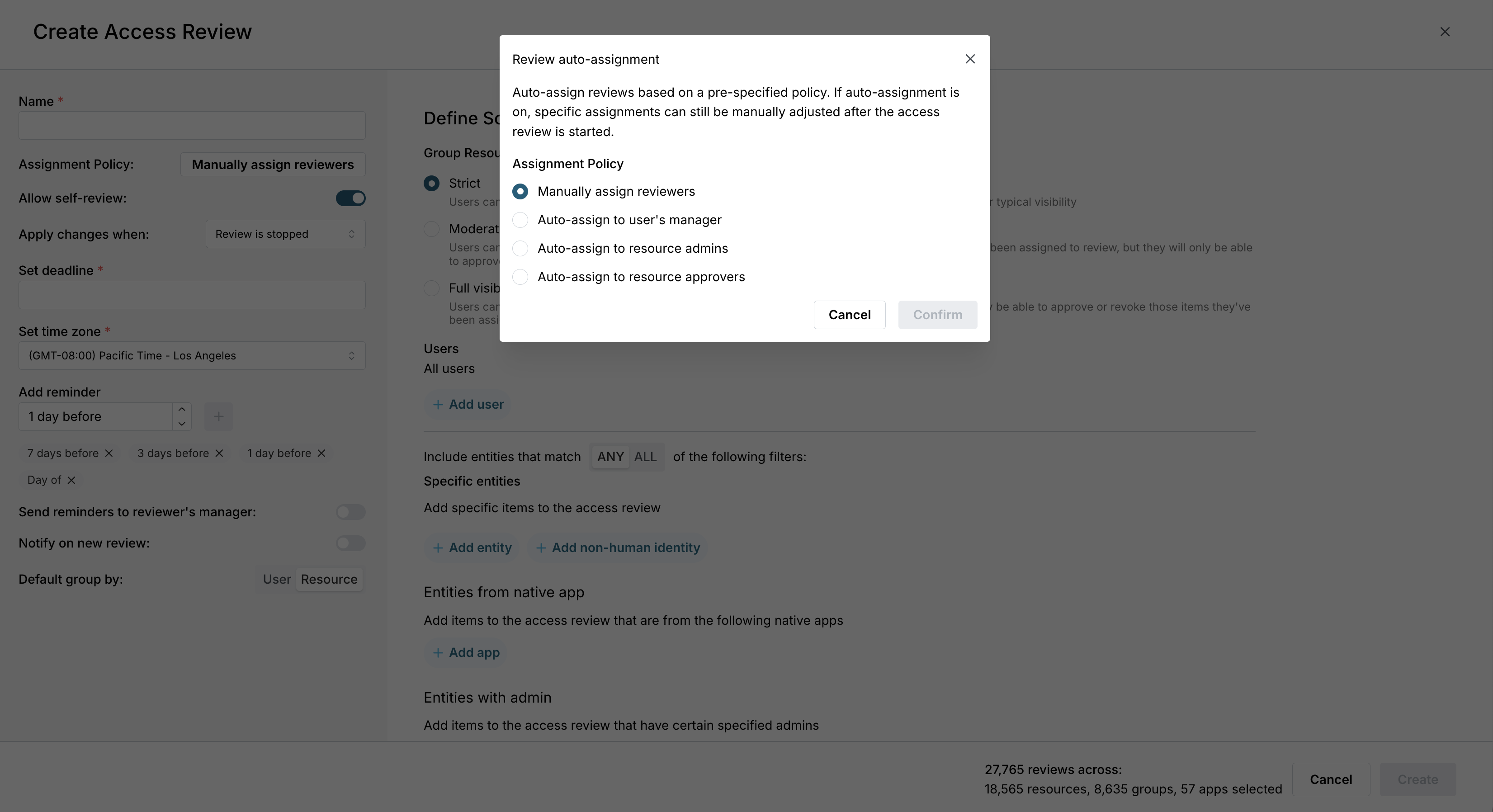
To start a user review, you must have the Opal Auditor role.In the Inventory tab, select the App Opal. Here you’ll find the Opal Auditor role.If you’re an Opal Admin, you can add yourself directly to the resource by navigating to the User Access tab and clicking on the + Add Users. If you’re not an Opal Admin, you can request access to the role.
You can create recurring reviews from the Schedules tab, specifying months and . Select + Create Schedule and specify the months and day of the week to run the review. You can edit the review—its groups, users, resources, etc.—at any time, and changes take effect on the next scheduled review.
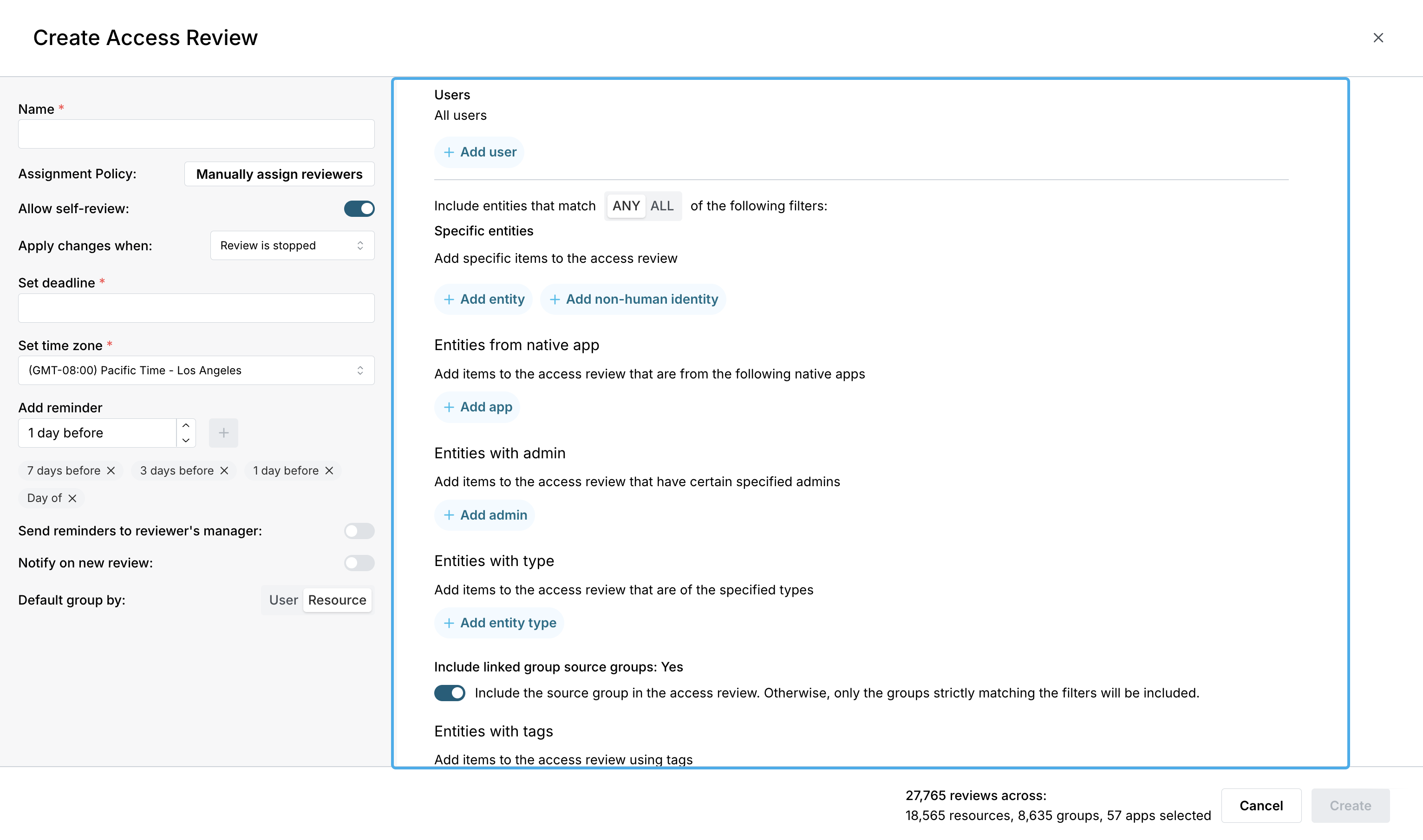
In the Users and Entities sections, you can filter specific users and entities (resources, nonhuman identities, groups, and apps) to review. See the preview next to the Cancel and Create buttons—e.g., 171 resources, 60 groups, 18 apps in the below screenshot—to see affected entities as you update filters.Consider the following filters when you select what to review:
Filter by user: Include only resources and groups that certain users have access to in the review. The user filter is applied first before any other filters are applied to entities.
Filter by specific entities: Select specific resources, nonhuman identities, groups, and apps to include in the review. Note that the entity filter only includes the entity itself. For example, if you specify a resource and want to review the groups who can access the resource, you must add the groups as entities as well.
Filter by apps: Specify resources and groups to include from certain apps.
Filter by admin: Include resources and groups owned by specified admins.
Filter by resource and group type: Include resources and groups of certain types.
Filter by tags: Include resources and groups with certain tags.
Filter by name: Include resources and groups whose names match a given substring.
If you use linked groups and would like to include users from source groups in the access review, consider toggling on Include linked group source groups.
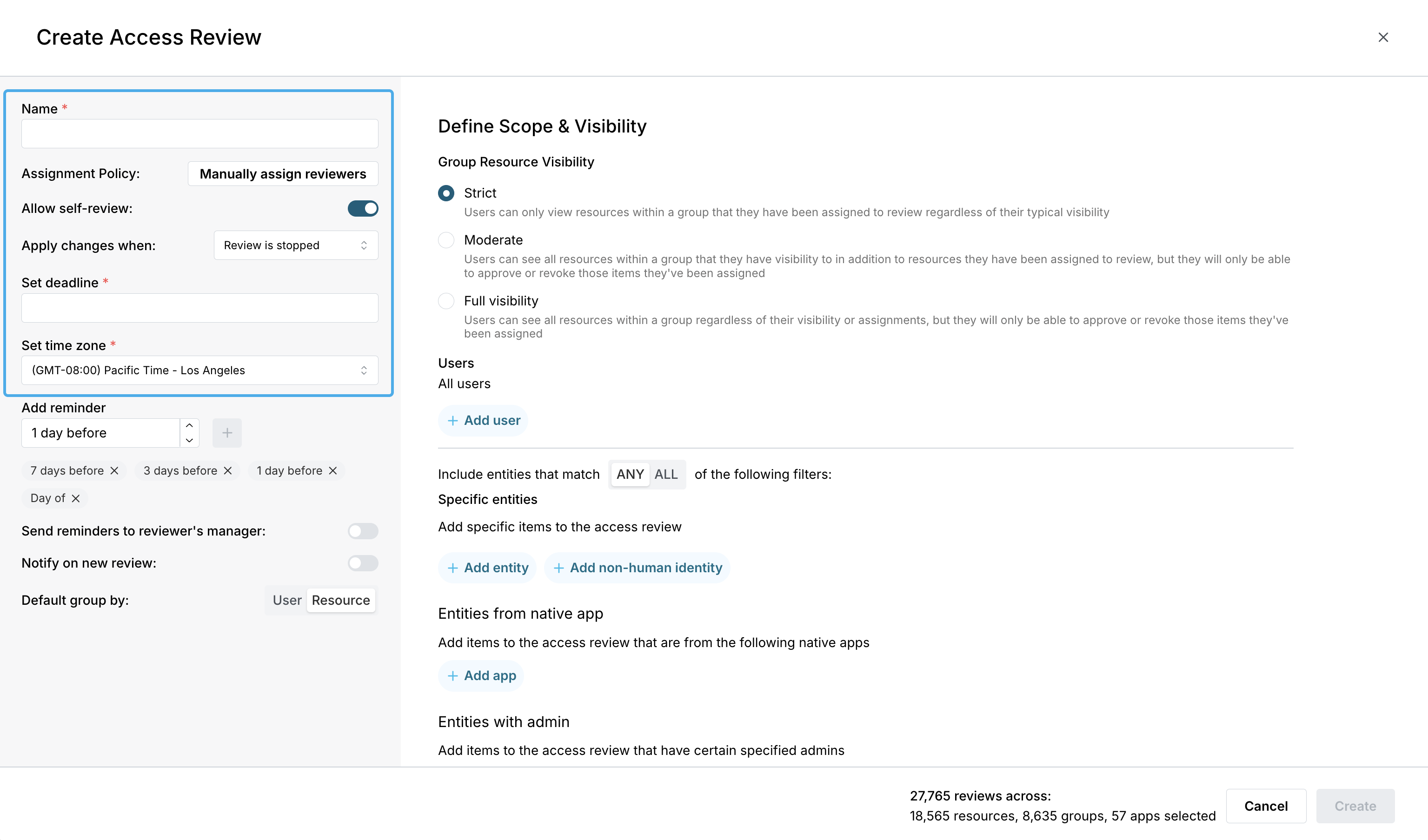
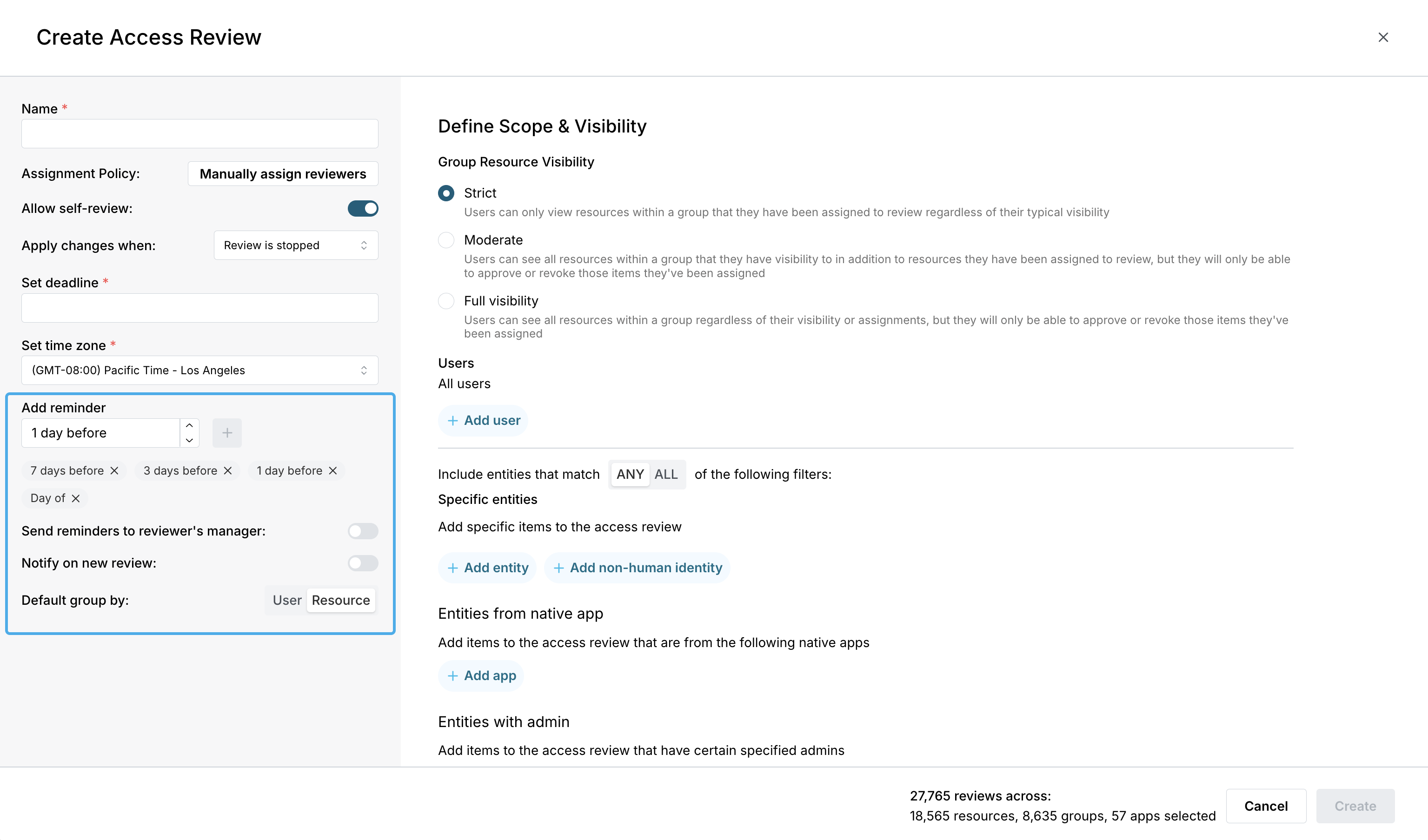
In the left side panel, you can configure the following settings:
Access Review Reminders: Choose a set schedule to send preset campaign reminders to all reviewers with incomplete reviews.
New review notifications: Enable to notify users on Slack and email when they’re assigned a new review.
Last modified on July 2, 2026
Was this page helpful?
{"docsConfig":{"theme":"mint","$schema":"https://mintlify.com/docs.json","name":"Opal Security Docs","colors":{"primary":"#0C7997","light":"#EDFCFC","dark":"#074055"},"logo":{"light":"https://mintcdn.com/opalsecurity/FBbZyeMPZrA69UcV/logo/logo-dark.svg?fit=max\u0026auto=format\u0026n=FBbZyeMPZrA69UcV\u0026q=85\u0026s=93a4bd75f157f9f0ab43cdf4d715b5cd","dark":"https://mintcdn.com/opalsecurity/FBbZyeMPZrA69UcV/logo/logo-light.svg?fit=max\u0026auto=format\u0026n=FBbZyeMPZrA69UcV\u0026q=85\u0026s=1774b545e4f1c5cad647f5194f7b26d9"},"favicon":{"light":"https://mintcdn.com/opalsecurity/DRAwGKUXMxLRQouh/logo/icon-opal-black.svg?fit=max\u0026auto=format\u0026n=DRAwGKUXMxLRQouh\u0026q=85\u0026s=9c8bd1204b6b5b83542c2ab5be549858","dark":"https://mintcdn.com/opalsecurity/DRAwGKUXMxLRQouh/logo/icon-opal-white.svg?fit=max\u0026auto=format\u0026n=DRAwGKUXMxLRQouh\u0026q=85\u0026s=73b53b4ceab6ae0b00e30b2042a6020a"},"icons":{"library":"lucide"},"styling":{"eyebrows":"breadcrumbs","latex":false},"integrations":{"ga4":{"measurementId":"G-1PPPM1WF6D"}},"errors":{"404":{"redirect":false,"title":"Page can't be found","description":"Sorry! This page might have been moved, or the link might be broken. Go back to our documentation via https://docs.opal.dev/docs/welcome."}},"metadata":{"timestamp":true},"navigation":{"pages":[]}},"deployment":{"deploymentMetadataValue":{"subdomain":"opalsecurity","hasAudioNarration":false,"actualSubdomain":"opalsecurity","customDomains":["docs.opal.dev"],"gitSource":{"type":"github","owner":"opalsecurity","repo":"docs","deployBranch":"main","contentDirectory":"","isPrivate":true,"mountPath":"","label":""},"chroma":{"liveDeploymentHistoryId":"6ae939c29f472f227a033762","collectionId":"d0ce0c96-77d0-4b9a-acd6-bfeaeead69cd","schemaVersion":"v3","latestBuiltDeploymentHistoryId":"6ae939c29f472f227a033762"},"feedback":{"thumbs":true},"entitlements":{"AI_CHAT":{"status":"ENABLED"},"WEB_MCP":{"status":"ENABLED"},"NARRATION":{"status":"ENABLED"}},"buildId":"6ae939c29f472f227a033762","clientVersion":"0.0.4045","searchFilterCounts":[{"language":"default","tag":"API Reference","count":212},{"language":"default","tag":"Opal API","count":207},{"language":"default","tag":"Documentation","count":99},{"language":"default","tag":"Integrations","count":95},{"language":"default","tag":"Entitlement Management","count":63},{"language":"default","tag":"resources","count":34},{"language":"default","tag":"groups","count":32},{"language":"default","tag":"Getting Started","count":25},{"language":"default","tag":"Access Management","count":22},{"language":"default","tag":"Infrastructure","count":22}]},"assistantConfig":{"enableStarterQuestions":true,"enableContextualStarterQuestions":true,"deflection":{"enabled":true,"email":"support@opal.dev","showHelpButton":true}},"basePath":"","hasChatPermissions":true,"hasWebMcpPermissions":true,"toggles":[{"name":"kill-isr","enabled":true,"variant":{"name":"disabled","enabled":false,"feature_enabled":true},"impressionData":false},{"name":"agent-mintlify-slack","enabled":true,"variant":{"name":"disabled","enabled":false,"feature_enabled":true},"impressionData":false},{"name":"agent-integrations-settings","enabled":true,"variant":{"name":"disabled","enabled":false,"feature_enabled":true},"impressionData":false},{"name":"automations-pr-grouping","enabled":true,"variant":{"name":"disabled","enabled":false,"feature_enabled":true},"impressionData":false},{"name":"custom-prefix","enabled":true,"variant":{"name":"disabled","enabled":false,"feature_enabled":true},"impressionData":false},{"name":"analytics-v7","enabled":true,"variant":{"name":"disabled","enabled":false,"feature_enabled":true},"impressionData":false},{"name":"user-flows-analytics","enabled":true,"variant":{"name":"disabled","enabled":false,"feature_enabled":true},"impressionData":false},{"name":"no-publish-flow","enabled":true,"variant":{"name":"disabled","enabled":false,"feature_enabled":true},"impressionData":false},{"name":"workos-onboarding","enabled":true,"variant":{"name":"disabled","enabled":false,"feature_enabled":true},"impressionData":false},{"name":"llms-txt-v2","enabled":true,"variant":{"name":"disabled","enabled":false,"feature_enabled":true},"impressionData":false},{"name":"snapshot-serving-live","enabled":true,"variant":{"name":"disabled","enabled":false,"feature_enabled":true},"impressionData":false},{"name":"stripTemperatureMiddleware","enabled":true,"variant":{"name":"disabled","enabled":false,"feature_enabled":true},"impressionData":false},{"name":"support-platform-pylon-zendesk","enabled":true,"variant":{"name":"disabled","enabled":false,"feature_enabled":true},"impressionData":false},{"name":"snapshot-serving","enabled":true,"variant":{"name":"disabled","enabled":false,"feature_enabled":true},"impressionData":false},{"name":"instant-rollback","enabled":true,"variant":{"name":"disabled","enabled":false,"feature_enabled":true},"impressionData":false},{"name":"granular-notifications-server","enabled":true,"variant":{"name":"disabled","enabled":false,"feature_enabled":true},"impressionData":false},{"name":"granular-notifications","enabled":true,"variant":{"name":"disabled","enabled":false,"feature_enabled":true},"impressionData":false},{"name":"automations-fable","enabled":true,"variant":{"name":"disabled","enabled":false,"feature_enabled":true},"impressionData":false},{"name":"fixed-ai-action-pricing","enabled":true,"variant":{"name":"disabled","enabled":false,"feature_enabled":true},"impressionData":false},{"name":"automation-resolve-merge-conflict","enabled":true,"variant":{"name":"disabled","enabled":false,"feature_enabled":true},"impressionData":false},{"name":"scoped-publishing","enabled":true,"variant":{"name":"disabled","enabled":false,"feature_enabled":true},"impressionData":false},{"name":"mintql","enabled":true,"variant":{"name":"disabled","enabled":false,"feature_enabled":true},"impressionData":false},{"name":"page-level-analytics","enabled":true,"variant":{"name":"disabled","enabled":false,"feature_enabled":true},"impressionData":false},{"name":"editor-version-history-v2","enabled":true,"variant":{"name":"disabled","enabled":false,"feature_enabled":true},"impressionData":false},{"name":"billing-page-v2","enabled":true,"variant":{"name":"disabled","enabled":false,"feature_enabled":true},"impressionData":false},{"name":"full-page-search","enabled":true,"variant":{"name":"disabled","enabled":false,"feature_enabled":true},"impressionData":false},{"name":"workspace-projects","enabled":true,"variant":{"name":"disabled","enabled":false,"feature_enabled":true},"impressionData":false},{"name":"assistant-v5","enabled":true,"variant":{"name":"disabled","enabled":false,"feature_enabled":true},"impressionData":false},{"name":"byok-sep-25","enabled":true,"variant":{"name":"disabled","enabled":false,"feature_enabled":true},"impressionData":false},{"name":"fork-pr-previews","enabled":true,"variant":{"name":"disabled","enabled":false,"feature_enabled":true},"impressionData":false},{"name":"revalidation-jwt","enabled":true,"variant":{"name":"disabled","enabled":false,"feature_enabled":true},"impressionData":false},{"name":"vite-origin","enabled":true,"variant":{"name":"disabled","enabled":false,"feature_enabled":true},"impressionData":false},{"name":"billing-updated-9-15","enabled":true,"variant":{"name":"disabled","enabled":false,"feature_enabled":true},"impressionData":false},{"name":"workos-sso-scim","enabled":true,"variant":{"name":"disabled","enabled":false,"feature_enabled":true},"impressionData":false},{"name":"hobby-abuse-scan","enabled":true,"variant":{"name":"disabled","enabled":false,"feature_enabled":true},"impressionData":false},{"name":"dashboard-inbox","enabled":true,"variant":{"name":"disabled","enabled":false,"feature_enabled":true},"impressionData":false},{"name":"workos-signup","enabled":true,"variant":{"name":"disabled","enabled":false,"feature_enabled":true},"impressionData":false},{"name":"turbopuffer-dual-write","enabled":true,"variant":{"name":"disabled","enabled":false,"feature_enabled":true},"impressionData":false},{"name":"workos-enabled","enabled":true,"variant":{"name":"disabled","enabled":false,"feature_enabled":true},"impressionData":false},{"name":"approve-review-flow","enabled":true,"variant":{"name":"disabled","enabled":false,"feature_enabled":true},"impressionData":false},{"name":"sso-setup-deadline-banner","enabled":true,"variant":{"name":"disabled","enabled":false,"feature_enabled":true},"impressionData":false}],"googleFontsInlined":false},"customCss":[],"page":{"pagePath":"docs/access-reviews-legacy","slug":"/docs/access-reviews-legacy","pageMetadata":{"title":"Create Access Reviews","description":"Learn how to create and configure User Access Reviews in Opal.","tag":"LEGACY","href":"/docs/access-reviews-legacy"},"description":{"compiledSource":"\"use strict\";\nconst {jsx: _jsx} = arguments[0];\nconst {useMDXComponents: _provideComponents} = arguments[0];\nfunction _createMdxContent(props) {\n const _components = {\n p: \"p\",\n ..._provideComponents(),\n ...props.components\n };\n return _jsx(_components.p, {\n children: \"Learn how to create and configure User Access Reviews in Opal.\"\n });\n}\nfunction MDXContent(props = {}) {\n const {wrapper: MDXLayout} = {\n ..._provideComponents(),\n ...props.components\n };\n return MDXLayout ? _jsx(MDXLayout, {\n ...props,\n children: _jsx(_createMdxContent, {\n ...props\n })\n }) : _createMdxContent(props);\n}\nreturn {\n default: MDXContent\n};\n","frontmatter":{},"scope":{}},"pageType":"default","mdx":{"mdxSource":{"compiledSource":"\"use strict\";const{Fragment:_Fragment,jsx:_jsx,jsxs:_jsxs}=arguments[0];const{useMDXComponents:_provideComponents}=arguments[0];function _createMdxContent(props){const _components={a:`a`,hr:`hr`,li:`li`,ol:`ol`,p:`p`,strong:`strong`,ul:`ul`,..._provideComponents(),...props.components},{Heading,OptimizedImage,Warning}=_components;if(!Heading)_missingMdxReference(`Heading`,true);if(!OptimizedImage)_missingMdxReference(`OptimizedImage`,true);if(!Warning)_missingMdxReference(`Warning`,true);return _jsxs(_Fragment,{children:[_jsx(Warning,{children:_jsxs(_components.p,{children:[`Access Reviews will soon be a legacy feature. Manage your Access Reviews with `,_jsx(_components.a,{href:`/docs/access-campaigns`,children:`Access Campaigns`}),`, now in beta.`]})}),`\n`,_jsx(_components.p,{children:`Opal can be used to automate User Access Reviews (UARs). In Opal, compliance teams can:`}),`\n`,_jsxs(_components.ol,{children:[`\n`,_jsx(_components.li,{children:`Snapshot user access when a review is started`}),`\n`,_jsx(_components.li,{children:`Intelligently assign reviews for resource owners to review in a self-service way`}),`\n`,_jsx(_components.li,{children:`Scope reviews by apps and resources`}),`\n`,_jsx(_components.li,{children:`Generate a report to summarize all actions for audit purposes`}),`\n`]}),`\n`,_jsx(Heading,{level:`2`,id:`start-user-access-reviews`,children:`Start User Access Reviews`}),`\n`,_jsx(Heading,{level:`3`,id:`assume-the-opal-auditor-role`,children:`Assume the Opal Auditor role`}),`\n`,_jsxs(_components.p,{children:[`To start a user review, you must have the `,_jsx(_components.strong,{children:`Opal Auditor role`}),`.`]}),`\n`,_jsxs(_components.p,{children:[`In the `,_jsx(_components.strong,{children:`Inventory`}),` tab, select the App `,_jsx(_components.strong,{children:`Opal`}),`. Here you’ll find the `,_jsx(_components.strong,{children:`Opal Auditor`}),` role.`]}),`\n`,_jsx(OptimizedImage,{src:`https://mintcdn.com/opalsecurity/odnvD_MsXBxTor9u/images/docs/92ebba3e9eccf7a02d0de93d15ca2b2731f6a4568d938d47dc0aa8e8ec19c9ca-auditor-role.png?fit=max\u0026auto=format\u0026n=odnvD_MsXBxTor9u\u0026q=85\u0026s=8c92724a3686d30c047c05d37157d40d`,alt:``,\"data-og-width\":`3400`,width:`3400`,\"data-og-height\":`1375`,height:`1375`,\"data-path\":`images/docs/92ebba3e9eccf7a02d0de93d15ca2b2731f6a4568d938d47dc0aa8e8ec19c9ca-auditor-role.png`,\"data-optimize\":`true`,\"data-opv\":`3`,srcset:`https://mintcdn.com/opalsecurity/odnvD_MsXBxTor9u/images/docs/92ebba3e9eccf7a02d0de93d15ca2b2731f6a4568d938d47dc0aa8e8ec19c9ca-auditor-role.png?w=280\u0026fit=max\u0026auto=format\u0026n=odnvD_MsXBxTor9u\u0026q=85\u0026s=da8eba07b92ff4f72d556851956c7823 280w, https://mintcdn.com/opalsecurity/odnvD_MsXBxTor9u/images/docs/92ebba3e9eccf7a02d0de93d15ca2b2731f6a4568d938d47dc0aa8e8ec19c9ca-auditor-role.png?w=560\u0026fit=max\u0026auto=format\u0026n=odnvD_MsXBxTor9u\u0026q=85\u0026s=f0c30e2bbab66d3522a832036e1fe92f 560w, https://mintcdn.com/opalsecurity/odnvD_MsXBxTor9u/images/docs/92ebba3e9eccf7a02d0de93d15ca2b2731f6a4568d938d47dc0aa8e8ec19c9ca-auditor-role.png?w=840\u0026fit=max\u0026auto=format\u0026n=odnvD_MsXBxTor9u\u0026q=85\u0026s=3a649722b20bd2287fffb385fbca3803 840w, https://mintcdn.com/opalsecurity/odnvD_MsXBxTor9u/images/docs/92ebba3e9eccf7a02d0de93d15ca2b2731f6a4568d938d47dc0aa8e8ec19c9ca-auditor-role.png?w=1100\u0026fit=max\u0026auto=format\u0026n=odnvD_MsXBxTor9u\u0026q=85\u0026s=4dfc5be03ab3a3e230b687d92c5bd52a 1100w, https://mintcdn.com/opalsecurity/odnvD_MsXBxTor9u/images/docs/92ebba3e9eccf7a02d0de93d15ca2b2731f6a4568d938d47dc0aa8e8ec19c9ca-auditor-role.png?w=1650\u0026fit=max\u0026auto=format\u0026n=odnvD_MsXBxTor9u\u0026q=85\u0026s=e6218d828ca5c8f5773ff9b1ab130050 1650w, https://mintcdn.com/opalsecurity/odnvD_MsXBxTor9u/images/docs/92ebba3e9eccf7a02d0de93d15ca2b2731f6a4568d938d47dc0aa8e8ec19c9ca-auditor-role.png?w=2500\u0026fit=max\u0026auto=format\u0026n=odnvD_MsXBxTor9u\u0026q=85\u0026s=ddd61681e78dbf1247360a29a177ace6 2500w`}),`\n`,_jsxs(_components.p,{children:[`If you’re an Opal Admin, you can add yourself directly to the resource by navigating to the `,_jsx(_components.strong,{children:`User Access`}),` tab and clicking on the `,_jsx(_components.strong,{children:`+ Add Users`}),`. If you’re not an Opal Admin, you can request access to the role.`]}),`\n`,_jsx(Heading,{level:`3`,id:`create-user-access-reviews`,children:`Create User Access Reviews`}),`\n`,_jsxs(_components.p,{children:[`Start an access review from the `,_jsx(_components.strong,{children:`+ Access Review`}),` button in the Ongoing tab.`]}),`\n`,_jsx(Heading,{level:`4`,id:`scheduled-reviews`,children:`Scheduled reviews`}),`\n`,_jsxs(_components.p,{children:[`You can create recurring reviews from the `,_jsx(_components.strong,{children:`Schedules`}),` tab, specifying months and . Select `,_jsx(_components.strong,{children:`+ Create Schedule`}),` and specify the months and day of the week to run the review. You can edit the review—its groups, users, resources, etc.—at any time, and changes take effect on the next scheduled review.`]}),`\n`,_jsx(Heading,{level:`4`,id:`add-general-information`,children:`Add general information`}),`\n`,_jsx(OptimizedImage,{src:`https://mintcdn.com/opalsecurity/dWhedKTqx4IAfll5/images/docs/create_UARs_info.png?fit=max\u0026auto=format\u0026n=dWhedKTqx4IAfll5\u0026q=85\u0026s=fd591a2f1d55cc5ccc4258d36d1467a4`,alt:``,\"data-og-width\":`3071`,width:`3071`,\"data-og-height\":`1807`,height:`1807`,\"data-path\":`images/docs/create_UARs_info.png`,\"data-optimize\":`true`,\"data-opv\":`3`,srcset:`https://mintcdn.com/opalsecurity/dWhedKTqx4IAfll5/images/docs/create_UARs_info.png?w=280\u0026fit=max\u0026auto=format\u0026n=dWhedKTqx4IAfll5\u0026q=85\u0026s=833f0aeb32976017f7a3a87489639194 280w, https://mintcdn.com/opalsecurity/dWhedKTqx4IAfll5/images/docs/create_UARs_info.png?w=560\u0026fit=max\u0026auto=format\u0026n=dWhedKTqx4IAfll5\u0026q=85\u0026s=46122597dd131d889852a2dc17c52b0c 560w, https://mintcdn.com/opalsecurity/dWhedKTqx4IAfll5/images/docs/create_UARs_info.png?w=840\u0026fit=max\u0026auto=format\u0026n=dWhedKTqx4IAfll5\u0026q=85\u0026s=3223031449d38658eecef5078e295806 840w, https://mintcdn.com/opalsecurity/dWhedKTqx4IAfll5/images/docs/create_UARs_info.png?w=1100\u0026fit=max\u0026auto=format\u0026n=dWhedKTqx4IAfll5\u0026q=85\u0026s=3747f368eaf43214650751ab4744ce40 1100w, https://mintcdn.com/opalsecurity/dWhedKTqx4IAfll5/images/docs/create_UARs_info.png?w=1650\u0026fit=max\u0026auto=format\u0026n=dWhedKTqx4IAfll5\u0026q=85\u0026s=b507cfd35242cacd88fe9c2b5f5fb160 1650w, https://mintcdn.com/opalsecurity/dWhedKTqx4IAfll5/images/docs/create_UARs_info.png?w=2500\u0026fit=max\u0026auto=format\u0026n=dWhedKTqx4IAfll5\u0026q=85\u0026s=5b4e978f1b8213bdd4ef1e1f7518761d 2500w`}),`\n`,_jsx(_components.p,{children:`In the left panel, enter general details about the review:`}),`\n`,_jsxs(_components.ul,{children:[`\n`,_jsxs(_components.li,{children:[_jsx(_components.strong,{children:`Name:\\xA0`}),` Customize the name of the review.`]}),`\n`,_jsxs(_components.li,{children:[_jsx(_components.strong,{children:`Reviewer auto-assignment:`}),` By default, this is set to `,_jsx(_components.strong,{children:`Manually assign reviewers`}),`. Click `,_jsx(_components.strong,{children:`Select Policy`}),` to choose your auto-assignment configuration.`]}),`\n`,_jsxs(_components.li,{children:[_jsx(_components.strong,{children:`Self-review:`}),` Enable to allow self-reviews.`]}),`\n`,_jsxs(_components.li,{children:[_jsx(_components.strong,{children:`Apply changes when:`}),` Set when access changes should take effect: immediately as decisions are made, or all at once when your access review ends.`]}),`\n`,_jsxs(_components.li,{children:[_jsx(_components.strong,{children:`Deadline:\\xA0`}),` Set the deadline by which reviewers must complete their reviews.`]}),`\n`,_jsxs(_components.li,{children:[_jsx(_components.strong,{children:`Time zone:`}),` Set the timezone to be used across reviews.`]}),`\n`]}),`\n`,_jsx(OptimizedImage,{src:`https://mintcdn.com/opalsecurity/RWGpz5CYWLEtWdIA/images/docs/assignment_policy.png?fit=max\u0026auto=format\u0026n=RWGpz5CYWLEtWdIA\u0026q=85\u0026s=c5972db72e83162dfa32cf604a0da528`,alt:``,\"data-og-width\":`3302`,width:`3302`,\"data-og-height\":`1796`,height:`1796`,\"data-path\":`images/docs/assignment_policy.png`,\"data-optimize\":`true`,\"data-opv\":`3`,srcset:`https://mintcdn.com/opalsecurity/RWGpz5CYWLEtWdIA/images/docs/assignment_policy.png?w=280\u0026fit=max\u0026auto=format\u0026n=RWGpz5CYWLEtWdIA\u0026q=85\u0026s=f36641c3050a989a963c8843b86bce51 280w, https://mintcdn.com/opalsecurity/RWGpz5CYWLEtWdIA/images/docs/assignment_policy.png?w=560\u0026fit=max\u0026auto=format\u0026n=RWGpz5CYWLEtWdIA\u0026q=85\u0026s=23e72857b0f9f48e1e9efac34967d32e 560w, https://mintcdn.com/opalsecurity/RWGpz5CYWLEtWdIA/images/docs/assignment_policy.png?w=840\u0026fit=max\u0026auto=format\u0026n=RWGpz5CYWLEtWdIA\u0026q=85\u0026s=b2e2124f14f3151b1c93ef3b5206e5ba 840w, https://mintcdn.com/opalsecurity/RWGpz5CYWLEtWdIA/images/docs/assignment_policy.png?w=1100\u0026fit=max\u0026auto=format\u0026n=RWGpz5CYWLEtWdIA\u0026q=85\u0026s=ebeead5b8502e6a3df5649c97c292e22 1100w, https://mintcdn.com/opalsecurity/RWGpz5CYWLEtWdIA/images/docs/assignment_policy.png?w=1650\u0026fit=max\u0026auto=format\u0026n=RWGpz5CYWLEtWdIA\u0026q=85\u0026s=4e984a2e781252229c4ced7ec23ce79d 1650w, https://mintcdn.com/opalsecurity/RWGpz5CYWLEtWdIA/images/docs/assignment_policy.png?w=2500\u0026fit=max\u0026auto=format\u0026n=RWGpz5CYWLEtWdIA\u0026q=85\u0026s=ce6b61de25428a396b97700bc381813e 2500w`}),`\n`,_jsx(Heading,{level:`4`,id:`set-visibility`,children:`Set visibility`}),`\n`,_jsxs(_components.p,{children:[`Set the `,_jsx(_components.strong,{children:`Group Resource Visibility`}),` to `,_jsx(_components.strong,{children:`Strict`}),`, `,_jsx(_components.strong,{children:`Moderate`}),`, or `,_jsx(_components.strong,{children:`Full visibility`}),`, depending on the sensitivity of the resources and groups being reviewed.`]}),`\n`,_jsx(Heading,{level:`4`,id:`set-review-scopes`,children:`Set review scopes`}),`\n`,_jsxs(_components.p,{children:[`In the `,_jsx(_components.strong,{children:`Users`}),` and `,_jsx(_components.strong,{children:`Entities`}),` sections, you can filter specific users and entities (resources, nonhuman identities, groups, and apps) to review. See the preview next to the `,_jsx(_components.strong,{children:`Cancel`}),` and `,_jsx(_components.strong,{children:`Create`}),` buttons—e.g., 171 resources, 60 groups, 18 apps in the below screenshot—to see affected entities as you update filters.`]}),`\n`,_jsx(_components.p,{children:`Consider the following filters when you select what to review:`}),`\n`,_jsxs(_components.ul,{children:[`\n`,_jsxs(_components.li,{children:[_jsx(_components.strong,{children:`Filter by user`}),`: Include only resources and groups that certain users have access to in the review. The user filter is applied first before any other filters are applied to entities.`]}),`\n`,_jsxs(_components.li,{children:[_jsx(_components.strong,{children:`Filter by specific entities`}),`: Select specific resources, nonhuman identities, groups, and apps to include in the review. Note that the entity filter only includes the entity itself. For example, if you specify a resource and want to review the groups who can access the resource, you must add the groups as entities as well.`]}),`\n`,_jsxs(_components.li,{children:[_jsx(_components.strong,{children:`Filter by apps`}),`: Specify resources and groups to include from certain apps.`]}),`\n`,_jsxs(_components.li,{children:[_jsx(_components.strong,{children:`Filter by admin`}),`: Include resources and groups owned by specified admins.`]}),`\n`,_jsxs(_components.li,{children:[_jsx(_components.strong,{children:`Filter by resource and group type`}),`: Include resources and groups of certain types.`]}),`\n`,_jsxs(_components.li,{children:[_jsx(_components.strong,{children:`Filter by tags`}),`: Include resources and groups with certain tags.`]}),`\n`,_jsxs(_components.li,{children:[_jsx(_components.strong,{children:`Filter by name`}),`: Include resources and groups whose names match a given substring.`]}),`\n`]}),`\n`,_jsxs(_components.p,{children:[`If you use `,_jsx(_components.a,{href:`/docs/linked-groups`,children:`linked groups`}),` and would like to include users from source groups in the access review, consider toggling on `,_jsx(_components.strong,{children:`Include linked group source groups`}),`.`]}),`\n`,_jsx(OptimizedImage,{src:`https://mintcdn.com/opalsecurity/dWhedKTqx4IAfll5/images/docs/create_UARs_scopes.png?fit=max\u0026auto=format\u0026n=dWhedKTqx4IAfll5\u0026q=85\u0026s=1ef756712020de58532b56a83c8bee24`,alt:``,\"data-og-width\":`3064`,width:`3064`,\"data-og-height\":`1809`,height:`1809`,\"data-path\":`images/docs/create_UARs_scopes.png`,\"data-optimize\":`true`,\"data-opv\":`3`,srcset:`https://mintcdn.com/opalsecurity/dWhedKTqx4IAfll5/images/docs/create_UARs_scopes.png?w=280\u0026fit=max\u0026auto=format\u0026n=dWhedKTqx4IAfll5\u0026q=85\u0026s=7f25cdf9aaacae2ec3128b66c58eb26a 280w, https://mintcdn.com/opalsecurity/dWhedKTqx4IAfll5/images/docs/create_UARs_scopes.png?w=560\u0026fit=max\u0026auto=format\u0026n=dWhedKTqx4IAfll5\u0026q=85\u0026s=0c778e55cc59c1739ff5edd1a91dc6a3 560w, https://mintcdn.com/opalsecurity/dWhedKTqx4IAfll5/images/docs/create_UARs_scopes.png?w=840\u0026fit=max\u0026auto=format\u0026n=dWhedKTqx4IAfll5\u0026q=85\u0026s=f8bd97c10e4b2f2fc922dbd07fe59877 840w, https://mintcdn.com/opalsecurity/dWhedKTqx4IAfll5/images/docs/create_UARs_scopes.png?w=1100\u0026fit=max\u0026auto=format\u0026n=dWhedKTqx4IAfll5\u0026q=85\u0026s=c29ef23813dc25aac1e266d80829961c 1100w, https://mintcdn.com/opalsecurity/dWhedKTqx4IAfll5/images/docs/create_UARs_scopes.png?w=1650\u0026fit=max\u0026auto=format\u0026n=dWhedKTqx4IAfll5\u0026q=85\u0026s=71d64252ae283f7ac27bbe2a96d6539f 1650w, https://mintcdn.com/opalsecurity/dWhedKTqx4IAfll5/images/docs/create_UARs_scopes.png?w=2500\u0026fit=max\u0026auto=format\u0026n=dWhedKTqx4IAfll5\u0026q=85\u0026s=35c667f0b8e85a0625286215fff6dd49 2500w`}),`\n`,_jsx(Heading,{level:`4`,id:`set-notifications`,children:`Set notifications`}),`\n`,_jsx(_components.p,{children:`In the left side panel, you can configure the following settings:`}),`\n`,_jsxs(_components.ul,{children:[`\n`,_jsxs(_components.li,{children:[_jsx(_components.strong,{children:`Access Review Reminders`}),`: Choose a set schedule to send preset campaign reminders to all reviewers with incomplete reviews.`]}),`\n`,_jsxs(_components.li,{children:[_jsx(_components.strong,{children:`New review notifications`}),`: Enable to notify users on Slack and email when they’re assigned a new review.`]}),`\n`]}),`\n`,_jsx(OptimizedImage,{src:`https://mintcdn.com/opalsecurity/dWhedKTqx4IAfll5/images/docs/create_UARs_reminders.png?fit=max\u0026auto=format\u0026n=dWhedKTqx4IAfll5\u0026q=85\u0026s=b91658b20c04202ba21c4f81411d4407`,alt:``,\"data-og-width\":`3071`,width:`3071`,\"data-og-height\":`1807`,height:`1807`,\"data-path\":`images/docs/create_UARs_reminders.png`,\"data-optimize\":`true`,\"data-opv\":`3`,srcset:`https://mintcdn.com/opalsecurity/dWhedKTqx4IAfll5/images/docs/create_UARs_reminders.png?w=280\u0026fit=max\u0026auto=format\u0026n=dWhedKTqx4IAfll5\u0026q=85\u0026s=9d44ddf53dd88787467fcee4667e7b4d 280w, https://mintcdn.com/opalsecurity/dWhedKTqx4IAfll5/images/docs/create_UARs_reminders.png?w=560\u0026fit=max\u0026auto=format\u0026n=dWhedKTqx4IAfll5\u0026q=85\u0026s=5089f72468c7b8c630b0df2486c0a6a1 560w, https://mintcdn.com/opalsecurity/dWhedKTqx4IAfll5/images/docs/create_UARs_reminders.png?w=840\u0026fit=max\u0026auto=format\u0026n=dWhedKTqx4IAfll5\u0026q=85\u0026s=e1b5d55fcafd4051f50998e76fd3354f 840w, https://mintcdn.com/opalsecurity/dWhedKTqx4IAfll5/images/docs/create_UARs_reminders.png?w=1100\u0026fit=max\u0026auto=format\u0026n=dWhedKTqx4IAfll5\u0026q=85\u0026s=f93757667a6dd1246b34c7050cf336bf 1100w, https://mintcdn.com/opalsecurity/dWhedKTqx4IAfll5/images/docs/create_UARs_reminders.png?w=1650\u0026fit=max\u0026auto=format\u0026n=dWhedKTqx4IAfll5\u0026q=85\u0026s=606be5a3f2d7f45f5089883343a7a066 1650w, https://mintcdn.com/opalsecurity/dWhedKTqx4IAfll5/images/docs/create_UARs_reminders.png?w=2500\u0026fit=max\u0026auto=format\u0026n=dWhedKTqx4IAfll5\u0026q=85\u0026s=732f0f63374aa73788ee45bb34f151b7 2500w`}),`\n`,_jsx(_components.hr,{})]})}function MDXContent(props={}){const{wrapper:MDXLayout}={..._provideComponents(),...props.components};return MDXLayout?_jsx(MDXLayout,{...props,children:_jsx(_createMdxContent,{...props})}):_createMdxContent(props)}return{default:MDXContent};function _missingMdxReference(id,component){throw new Error(`Expected `+(component?`component`:`object`)+\" `\"+id+\"` to be defined: you likely forgot to import, pass, or provide it.\")}","frontmatter":{},"scope":{"config":{},"pageMetadata":{"title":"Create Access Reviews","description":"Learn how to create and configure User Access Reviews in Opal.","tag":"LEGACY","href":"/docs/access-reviews-legacy"}}},"mdxSourceWithNoJs":null},"mdxExtracts":{"tableOfContents":[{"title":"Start User Access Reviews","slug":"start-user-access-reviews","depth":2,"children":[{"title":"Assume the Opal Auditor role","slug":"assume-the-opal-auditor-role","depth":3,"children":[]},{"title":"Create User Access Reviews","slug":"create-user-access-reviews","depth":3,"children":[]},{"title":"Scheduled reviews","slug":"scheduled-reviews","depth":4,"children":[]},{"title":"Add general information","slug":"add-general-information","depth":4,"children":[]},{"title":"Set visibility","slug":"set-visibility","depth":4,"children":[]},{"title":"Set review scopes","slug":"set-review-scopes","depth":4,"children":[]},{"title":"Set notifications","slug":"set-notifications","depth":4,"children":[]}]}],"codeExamples":{}},"jsLinks":["/_mintlify/custom/opalsecurity/d0e14c3cf9bbd682/changelog-scraper.js"],"subdomain":"opalsecurity","siteName":"Opal Security Docs","title":"Create Access Reviews - Opal Security Docs","contextualStarterQuestions":[{"_id":"6a46b5c42b4a02deda7677db","deploymentId":"68ddaa9a3f8b7de5bc3a7b47","questionText":"How are reviews assigned to owners?","status":"active","generatedBy":"contextual","path":"docs/access-reviews-legacy","createdAt":"2026-07-02T19:02:28.286Z","updatedAt":"2026-07-02T19:02:28.286Z","__v":0},{"_id":"6a46b5c42b4a02deda7677da","deploymentId":"68ddaa9a3f8b7de5bc3a7b47","questionText":"What role do I need for reviews?","status":"active","generatedBy":"contextual","path":"docs/access-reviews-legacy","createdAt":"2026-07-02T19:02:28.286Z","updatedAt":"2026-07-02T19:02:28.286Z","__v":0},{"_id":"6a46b5c42b4a02deda7677d9","deploymentId":"68ddaa9a3f8b7de5bc3a7b47","questionText":"How do I start an access review?","status":"active","generatedBy":"contextual","path":"docs/access-reviews-legacy","createdAt":"2026-07-02T19:02:28.286Z","updatedAt":"2026-07-02T19:02:28.286Z","__v":0}],"navMaps":{"firstHrefInVersion":{},"firstHrefInLanguage":{}},"lastModified":"2026-07-02T19:02:13.575Z","gitLastModified":"2026-07-02T19:01:35.000Z","originalFileLocation":"docs/access-reviews-legacy.mdx"},"headHtml":"\u003cscript data-mint-head>(function(){var d=document.documentElement,p=null;if(!p){try{p=localStorage.getItem(\"isDarkMode\")}catch(e){}if(p==='true')p='dark';else if(p==='false')p='light';if(p!=='light'\u0026\u0026p!=='dark'\u0026\u0026p!=='system')p=\"system\"}var r=p==='system'?(matchMedia(\"(prefers-color-scheme: dark)\").matches?'dark':'light'):p;d.classList.remove(r==='dark'?'light':'dark');d.classList.add(r);d.setAttribute(\"data-theme-preference\",p)})();\u003c/script>\u003cmeta data-mint-head name=\"description\" content=\"Learn how to create and configure User Access Reviews in Opal.\">\u003cmeta data-mint-head name=\"application-name\" content=\"Opal Security Docs\">\u003cmeta data-mint-head name=\"generator\" content=\"Mintlify\">\u003clink data-mint-head rel=\"icon\" type=\"image/png\" sizes=\"192x192\" href=\"/mintlify-assets/_mintlify/favicons/opalsecurity/t501z2uOx-XXqevB/_generated/favicon/android-chrome-192x192.png\" media=\"(prefers-color-scheme: light)\">\u003clink data-mint-head rel=\"apple-touch-icon\" type=\"image/png\" sizes=\"180x180\" href=\"/mintlify-assets/_mintlify/favicons/opalsecurity/t501z2uOx-XXqevB/_generated/favicon/apple-touch-icon.png\">\u003clink data-mint-head rel=\"icon\" type=\"image/png\" sizes=\"16x16\" href=\"/mintlify-assets/_mintlify/favicons/opalsecurity/t501z2uOx-XXqevB/_generated/favicon/favicon-16x16.png\" media=\"(prefers-color-scheme: light)\">\u003clink data-mint-head rel=\"icon\" type=\"image/png\" sizes=\"32x32\" href=\"/mintlify-assets/_mintlify/favicons/opalsecurity/t501z2uOx-XXqevB/_generated/favicon/favicon-32x32.png\" media=\"(prefers-color-scheme: light)\">\u003clink data-mint-head rel=\"shortcut icon\" type=\"image/x-icon\" href=\"/mintlify-assets/_mintlify/favicons/opalsecurity/t501z2uOx-XXqevB/_generated/favicon/favicon.ico\" media=\"(prefers-color-scheme: light)\">\u003clink data-mint-head rel=\"icon\" type=\"image/png\" sizes=\"192x192\" href=\"/mintlify-assets/_mintlify/favicons/opalsecurity/t501z2uOx-XXqevB/_generated/favicon-dark/android-chrome-192x192.png\" media=\"(prefers-color-scheme: dark)\">\u003clink data-mint-head rel=\"icon\" type=\"image/png\" sizes=\"16x16\" href=\"/mintlify-assets/_mintlify/favicons/opalsecurity/t501z2uOx-XXqevB/_generated/favicon-dark/favicon-16x16.png\" media=\"(prefers-color-scheme: dark)\">\u003clink data-mint-head rel=\"icon\" type=\"image/png\" sizes=\"32x32\" href=\"/mintlify-assets/_mintlify/favicons/opalsecurity/t501z2uOx-XXqevB/_generated/favicon-dark/favicon-32x32.png\" media=\"(prefers-color-scheme: dark)\">\u003clink data-mint-head rel=\"shortcut icon\" type=\"image/x-icon\" href=\"/mintlify-assets/_mintlify/favicons/opalsecurity/t501z2uOx-XXqevB/_generated/favicon-dark/favicon.ico\" media=\"(prefers-color-scheme: dark)\">\u003cmeta data-mint-head property=\"og:title\" content=\"Create Access Reviews - Opal Security Docs\">\u003cmeta data-mint-head property=\"og:description\" content=\"Learn how to create and configure User Access Reviews in Opal.\">\u003cmeta data-mint-head property=\"og:site_name\" content=\"Opal Security Docs\">\u003cmeta data-mint-head property=\"og:url\" content=\"https://docs.opal.dev/docs/access-reviews-legacy\">\u003cmeta data-mint-head property=\"og:type\" content=\"website\">\u003cmeta data-mint-head property=\"og:image\" content=\"https://opalsecurity.mintlify.app/_mintlify/api/og/v2?division=Legacy+UARs\u0026amp;title=Create+Access+Reviews\u0026amp;description=Learn+how+to+create+and+configure+User+Access+Reviews+in+Opal.\u0026amp;theme=287ef1256bbb1bf2a61f3fd2\u0026amp;signature=dc84ad097bdb13342b331ecd653cfd7d92fdaedf924bd4a07859e71ae600b3d1\">\u003cmeta data-mint-head property=\"og:image:width\" content=\"1200\">\u003cmeta data-mint-head property=\"og:image:height\" content=\"630\">\u003cmeta data-mint-head name=\"twitter:card\" content=\"summary_large_image\">\u003cmeta data-mint-head name=\"twitter:title\" content=\"Create Access Reviews - Opal Security Docs\">\u003cmeta data-mint-head name=\"twitter:description\" content=\"Learn how to create and configure User Access Reviews in Opal.\">\u003cmeta data-mint-head name=\"twitter:image\" content=\"https://opalsecurity.mintlify.app/_mintlify/api/og/v2?division=Legacy+UARs\u0026amp;title=Create+Access+Reviews\u0026amp;description=Learn+how+to+create+and+configure+User+Access+Reviews+in+Opal.\u0026amp;theme=287ef1256bbb1bf2a61f3fd2\u0026amp;signature=dc84ad097bdb13342b331ecd653cfd7d92fdaedf924bd4a07859e71ae600b3d1\">\u003cmeta data-mint-head name=\"twitter:image:width\" content=\"1200\">\u003cmeta data-mint-head name=\"twitter:image:height\" content=\"630\">\u003cmeta data-mint-head name=\"msapplication-config\" content=\"/mintlify-assets/_mintlify/favicons/opalsecurity/t501z2uOx-XXqevB/_generated/favicon/browserconfig.xml\">\u003cmeta data-mint-head name=\"apple-mobile-web-app-title\" content=\"Opal Security Docs\">\u003cmeta data-mint-head name=\"msapplication-TileColor\" content=\"#0C7997\">\u003clink data-mint-head rel=\"canonical\" href=\"https://docs.opal.dev/docs/access-reviews-legacy\">\u003clink data-mint-head rel=\"alternate\" type=\"application/xml\" href=\"/sitemap.xml\">\u003clink data-mint-head rel=\"alternate\" type=\"text/markdown\" href=\"/docs/access-reviews-legacy.md\">\u003cscript data-mint-head type=\"application/ld+json\">{\"@context\":\"https://schema.org\",\"@graph\":[{\"@type\":\"Organization\",\"@id\":\"https://docs.opal.dev/#organization\",\"name\":\"Opal Security Docs\",\"url\":\"https://docs.opal.dev\",\"logo\":{\"@type\":\"ImageObject\",\"url\":\"https://mintcdn.com/opalsecurity/FBbZyeMPZrA69UcV/logo/logo-dark.svg?fit=max\u0026auto=format\u0026n=FBbZyeMPZrA69UcV\u0026q=85\u0026s=93a4bd75f157f9f0ab43cdf4d715b5cd\"}},{\"@type\":\"WebSite\",\"@id\":\"https://docs.opal.dev#website\",\"name\":\"Opal Security Docs\",\"url\":\"https://docs.opal.dev\",\"publisher\":{\"@id\":\"https://docs.opal.dev/#organization\"}},{\"@type\":\"WebPage\",\"@id\":\"https://docs.opal.dev/docs/access-reviews-legacy#webpage\",\"url\":\"https://docs.opal.dev/docs/access-reviews-legacy\",\"name\":\"Create Access Reviews\",\"description\":\"Learn how to create and configure User Access Reviews in Opal.\",\"dateModified\":\"2026-07-02T19:01:35.000Z\",\"isPartOf\":{\"@id\":\"https://docs.opal.dev#website\"},\"breadcrumb\":{\"@id\":\"https://docs.opal.dev/docs/access-reviews-legacy#breadcrumb\"}},{\"@type\":\"BreadcrumbList\",\"@id\":\"https://docs.opal.dev/docs/access-reviews-legacy#breadcrumb\",\"itemListElement\":[{\"@type\":\"ListItem\",\"position\":1,\"name\":\"Auditing and Security\",\"item\":\"https://docs.opal.dev/docs/access-campaigns\"},{\"@type\":\"ListItem\",\"position\":2,\"name\":\"Access Campaigns\",\"item\":\"https://docs.opal.dev/docs/access-campaigns\"},{\"@type\":\"ListItem\",\"position\":3,\"name\":\"Create Access Reviews\",\"item\":\"https://docs.opal.dev/docs/access-reviews-legacy\"}]},{\"@type\":[\"Article\",\"TechArticle\"],\"@id\":\"https://docs.opal.dev/docs/access-reviews-legacy#article\",\"headline\":\"Create Access Reviews\",\"name\":\"Create Access Reviews\",\"description\":\"Learn how to create and configure User Access Reviews in Opal.\",\"url\":\"https://docs.opal.dev/docs/access-reviews-legacy\",\"mainEntityOfPage\":{\"@id\":\"https://docs.opal.dev/docs/access-reviews-legacy#webpage\"},\"dateModified\":\"2026-07-02T19:01:35.000Z\",\"publisher\":{\"@id\":\"https://docs.opal.dev/#organization\"},\"isPartOf\":{\"@id\":\"https://docs.opal.dev#website\"}}]}\u003c/script>\u003cscript data-mint-head type=\"application/ld+json\">{\"@context\":\"https://schema.org\",\"@type\":\"WebSite\",\"name\":\"Opal Security Docs\",\"creator\":{\"@type\":\"Organization\",\"name\":\"Mintlify\",\"url\":\"https://mintlify.com\"}}\u003c/script>","siteName":"Opal Security Docs","nav":{"global":null,"tabs":[{"tab":"Documentation","groups":[{"group":"Welcome","icon":"leaf","pages":[{"title":"Quickstart","mode":"wide","href":"/docs/welcome"},{"title":"Overview","href":"/docs/opal-overview"},{"title":"Concepts","href":"/docs/opal-101"},{"title":"Opal architecture","href":"/docs/opal-architecture"},{"group":"Best practices","pages":[{"title":"Best practices for access requests","href":"/docs/best-practices-for-access-requests"},{"title":"Best practices for access reviews","href":"/docs/best-practices-for-user-access-reviews"}]}]},{"group":"End user","icon":"book-open","pages":[{"title":"Access Request FAQs","sidebarTitle":"How to request access","href":"/docs/end-user-faq"},{"title":"Tips on searching","href":"/docs/tips-on-searching"},{"title":"Complete Access Reviews","sidebarTitle":"How to complete access reviews","href":"/docs/complete-access-reviews"}]},{"group":"Getting Started","icon":"rocket","pages":[{"title":"Set up Cloud","href":"/docs/set-up-cloud"},{"group":"Set up Self-Hosted","pages":[{"title":"Set up Self-Hosted","href":"/docs/self-host-overview"},{"title":"Self-Hosted on AWS EKS","href":"/docs/self-host-opal-aws-guide"},{"title":"Self-Hosted on GKE","href":"/docs/self-host-opal-gke-guide"},{"title":"Disaster recovery guide","href":"/docs/disaster-recovery-guide"},{"title":"Update your Opal installation","href":"/docs/update-self-hosted-opal"},{"title":"Install Opal using Helm","href":"/docs/install-opal-using-helm"},{"title":"Set up an Airgapped Opal Environment","href":"/docs/setup-an-airgapped-opal-environment"},{"title":"Configure Async Exports Storage (Self-Hosted)","href":"/docs/configure-async-exports-storage"},{"title":"Kubernetes Components and Health Monitoring","href":"/docs/kubernetes-components-and-health-monitoring-guide"}]},{"group":"Connect Identity or HR Providers","pages":[{"title":"Connect Identity or HR Providers","sidebarTitle":"Overview","href":"/docs/connect-your-identity-provider-idp"},{"title":"Add your first IDP/HR provider","href":"/docs/add-your-first-idphr-provider"},{"title":"Add additional IDP/HR providers","href":"/docs/add-additional-idphr-providers"},{"title":"Import user secondary emails","href":"/docs/importing-user-secondary-email"}]},{"title":"Connect Productivity Tools","sidebarTitle":"Connect Productivity Tools","href":"/docs/connect-your-productivity-tools"},{"group":"Connect Apps and Infrastructure","pages":[{"title":"Connect Apps and Infrastructure","sidebarTitle":"Overview","href":"/docs/set-up-connections"},{"title":"Import and configure resources","href":"/docs/import-and-configure-resources-and-groups"},{"title":"Opal's server IP ranges","href":"/docs/ip-ranges"}]},{"group":"Configure SSO and MFA","pages":[{"title":"Configure SSO and MFA","sidebarTitle":"Overview","href":"/docs/configure-sso-and-mfa"},{"group":"SSO with SAML","pages":[{"title":"SSO with SAML","href":"/docs/sso-with-saml"},{"title":"Google SAML Setup","href":"/docs/google-saml-setup"},{"title":"Okta SAML Setup","href":"/docs/okta-saml-setup"}]},{"title":"Okta Multifactor Authentication","href":"/docs/okta-multifactor-authentication"},{"title":"Okta SCIM: Provision Opal Users","href":"/docs/okta-scim-integration"},{"title":"OIDC Provider Setup for Opal Actions","href":"/docs/oidc-provider-setup-for-opal-actions"}]}]},{"group":"Access Management","icon":"shield","pages":[{"group":"Manage end-user catalog","pages":[{"title":"Curate end-user catalog","href":"/docs/curate-catalog"},{"title":"Bundles","href":"/docs/bundles"},{"title":"Configure reviewers","href":"/docs/configure-reviewers"},{"title":"Escalate if no response","href":"/docs/escalate-if-no-response"},{"title":"Request on behalf rules","href":"/docs/request-on-behalf"},{"title":"Delegate reviews","href":"/docs/delegate-reviews"}]},{"title":"Configuration templates","href":"/docs/configuration-templates"},{"title":"Manage access with ticketing","href":"/docs/ticket-propagation"},{"title":"Access Rules","href":"/docs/access-rules"},{"title":"Risk Center","href":"/docs/least-privilege-posture-management"},{"group":"Manage groups in Opal","pages":[{"title":"Overview","href":"/docs/manage-groups-in-opal"},{"title":"Manage break-glass access","href":"/docs/manage-breakglass-access"},{"title":"Nested groups","href":"/docs/nested-groups"},{"title":"Group aliasing","href":"/docs/okta-group-aliasing"},{"title":"Linked groups","href":"/docs/linked-groups"},{"title":"Group leaders","href":"/docs/group-projects"}]},{"title":"Notifications","href":"/docs/notifications"},{"title":"Special roles in Opal","href":"/docs/roles-in-opal"},{"title":"Owner Permissions","href":"/docs/owner-permissions"},{"title":"Custom Opal roles","href":"/docs/custom-opal-roles"},{"title":"User provisioning","href":"/docs/user-provisioning"},{"title":"Access Comparison","sidebarTitle":"Access Comparison","tag":"NEW","href":"/docs/access-comparison"}]},{"group":"AI Agent Governance","icon":"cpu","pages":[{"title":"Agent Inventory","href":"/docs/agent-inventory"},{"title":"OpenAI and ChatGPT","href":"/docs/openai-chatgpt-setup"},{"title":"Anthropic Setup","href":"/docs/anthropic-agent-setup"}]},{"group":"OpalScript","icon":"scroll","tag":"NEW","pages":[{"title":"Use OpalScript to automate access workflows","sidebarTitle":"Overview","href":"/docs/opalscript-overview"},{"title":"Work with scripts in the OpalScript editor","sidebarTitle":"Using the editor","href":"/docs/opalscript-editor"},{"title":"Write OpalScript with AI","sidebarTitle":"Write with AI","href":"/docs/opalscript-ai-assistant"},{"title":"Utility Modules for OpalScript","sidebarTitle":"Utility Modules","href":"/docs/opalscript-utilitymodules"},{"group":"Request Review Scripts","pages":[{"title":"Start automating workflows around requests","sidebarTitle":"Request Review","href":"/docs/requestreview-getstarted"},{"title":"Request Review Example Scripts","sidebarTitle":"Examples","href":"/docs/requestreview-examples"}]},{"title":"Control who can cover a request with delegation conditions","sidebarTitle":"Delegation Conditions","href":"/docs/opalscript-delegation-conditions"},{"title":"Give Paladin extra context with context provider scripts","sidebarTitle":"Paladin Context","tag":"BETA","href":"/docs/opalscript-context-provider"},{"title":"Manage OpalScripts with Terraform","sidebarTitle":"Terraform","href":"/docs/opalscript-terraform"},{"title":"OpalScript Reference","sidebarTitle":"Reference","href":"/docs/opalscript-reference"}]},{"group":"Paladin","icon":"bot","tag":"NEW","pages":[{"title":"Use Paladin to scale your security function","sidebarTitle":"Overview","href":"/docs/paladin/overview"},{"title":"Review access requests with Paladin","sidebarTitle":"Access Requests","href":"/docs/paladin/access-request"},{"title":"Review access campaigns with Paladin Insights","sidebarTitle":"Access Reviews","href":"/docs/paladin/access-reviews"},{"title":"Model providers","sidebarTitle":"Model Providers","href":"/docs/paladin/model-providers"},{"title":"Set up Paladin on self-hosted Opal","sidebarTitle":"Self-Hosted Setup","href":"/docs/paladin/self-hosted-setup"}]},{"group":"OpalQuery","icon":"search","tag":"NEW","pages":[{"title":"Overview","href":"/docs/opal-query"},{"title":"Node queries","href":"/docs/opal-query-node"},{"title":"Access queries","href":"/docs/opal-query-access"},{"title":"Query API","href":"/docs/opal-query-api"}]},{"group":"Auditing and Security","icon":"user-round-search","pages":[{"group":"Access Campaigns","tag":"NEW","pages":[{"title":"Create Access Campaigns","sidebarTitle":"Create access campaigns","href":"/docs/access-campaigns"},{"title":"Manage Access Campaign","description":"Learn how to manage your Access Campaign.","sidebarTitle":"Manage your access campaign","href":"/docs/managing-access-campaigns"},{"group":"Legacy UARs","pages":[{"title":"Create Access Reviews","tag":"LEGACY","href":"/docs/access-reviews-legacy"},{"title":"Assign and complete reviews","description":"Learn how to assign and complete User Access reviews in Opal.","tag":"LEGACY","href":"/docs/assigning-and-completing-reviews-legacy"},{"title":"Manage reviews","tag":"LEGACY","href":"/docs/managing-user-access-reviews-legacy"}]}]},{"title":"Events","href":"/docs/event-types"},{"title":"Events Streaming","href":"/docs/events-streaming"},{"title":"Metrics dashboard","href":"/docs/metrics"},{"title":"Sync schedules and triggers","href":"/docs/sync-schedules-and-triggers"}]},{"group":"Custom Integrations","icon":"pencil-line","pages":[{"title":"Overview","href":"/docs/custom-integrations-overview"},{"title":"Create your own connector","href":"/docs/how-to-create-your-own-connector"},{"title":"Custom Connector API Spec","href":"/docs/api-spec"},{"title":"Webhooks","href":"/docs/webhooks"}]},{"group":"For Developers","icon":"terminal","pages":[{"title":"Opal CLI","href":"/docs/opal-cli"},{"title":"Use Terraform with Opal","href":"/docs/use-terraform-with-opal"},{"group":"Model Context Protocol (MCP) Server","tag":"NEW","pages":[{"title":"Model Context Protocol (MCP)","mode":"wide","sidebarTitle":"Overview","href":"/docs/mcp/overview"},{"title":"End User MCP Server","sidebarTitle":"End Users","href":"/docs/mcp/end-user"},{"title":"Admin Provisioning MCP Server","sidebarTitle":"Admin Provisioning","href":"/docs/mcp/admin-provisioning"},{"title":"Admin Auditing MCP Server","sidebarTitle":"Admin Auditing","href":"/docs/mcp/admin-auditing"},{"title":"Okta Cross App Access (XAA)","sidebarTitle":"Okta Cross App Access","href":"/docs/mcp/okta-cross-app-access"},{"title":"Legacy MCP","deprecated":true,"href":"/docs/mcp/gram-mcp-servers"}]}]}]},{"tab":"Integrations","pages":[{"title":"Integrations","href":"/integrations/overview"}]},{"tab":"API Reference","pages":[{"title":"API Reference","href":"/reference/authentication"}]},{"tab":"Changelog","pages":[{"title":"Changelog","href":"/changelog/changelog"}]}]},"basePath":"","title":"Create Access Reviews - Opal Security Docs","buildId":"dpl_36EDyZCDfRuoUD9af5CH4M1bqY2h","deploymentId":"dpl_36EDyZCDfRuoUD9af5CH4M1bqY2h","dynamics":["a74be98ba7"],"chunks":["zoom-image-lightbox-eHyQ0tlO.js","lightbox-handle-r17bVUz3.js"]}