


Filter by app, type, tag, or your access
Click the filter icon next to the search bar to show built-in filters. You can combine them to narrow results:
You can also toggle Requestable Only in the results header to hide items you cannot request.
Search by name or keyword
Type in the search bar to match item names. If your organization has smart search enabled, you can combine keywords (apps and resource types) with name text in one query.Smart search requires version 1.1228.0 or later.
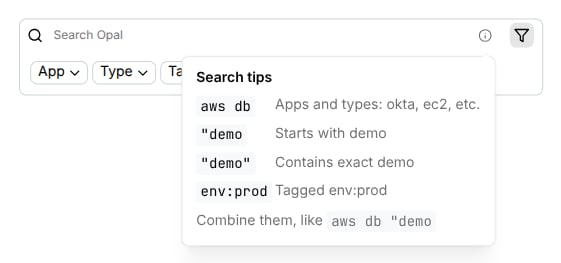
Common query patterns
Keywords map to apps and types your organization has connected. If a word is not recognized, Opal treats it as part of the name search.
Try these
gcp postgres "admin"finds GCP Cloud SQL Postgres instances whose names containadmin.role adminfinds roles across your inventory whose names matchadmin, such as GitHub org roles and PagerDuty roles.databricks group "remotefinds Databricks account groups whose names start withremote.
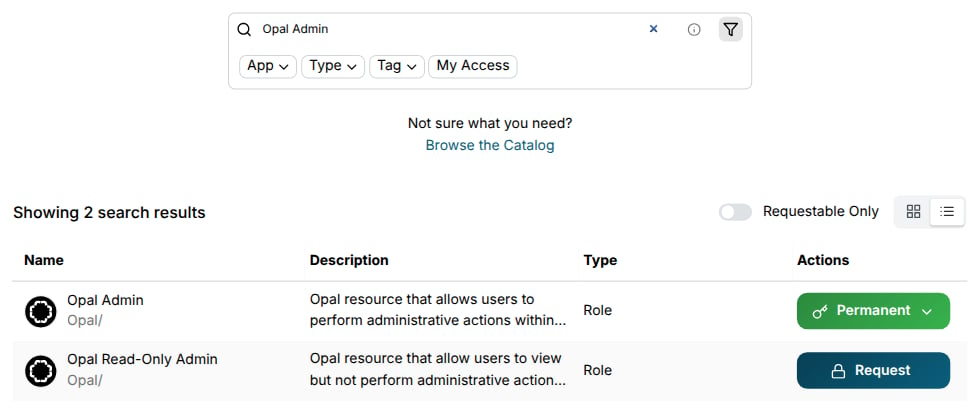
Combine filters and text
Filters and the search bar work together. For example, select App → AWS, then typedb "prod to find AWS databases whose names start with prod.
If you do not see what you need
- Try fewer keywords or a shorter name fragment.
- Clear filters and search again.
- Browse the Catalog to explore apps by category.
- Ask your admin if the resource is visible and requestable in Opal.