

Only Opal Admins can use the assistant. Read-only Admins can open the editor but not the assistant.
Write a script with the assistant
-
Navigate to Admin > OpalScript > Editor, open a script, then select Assistant at the top right of the editor.
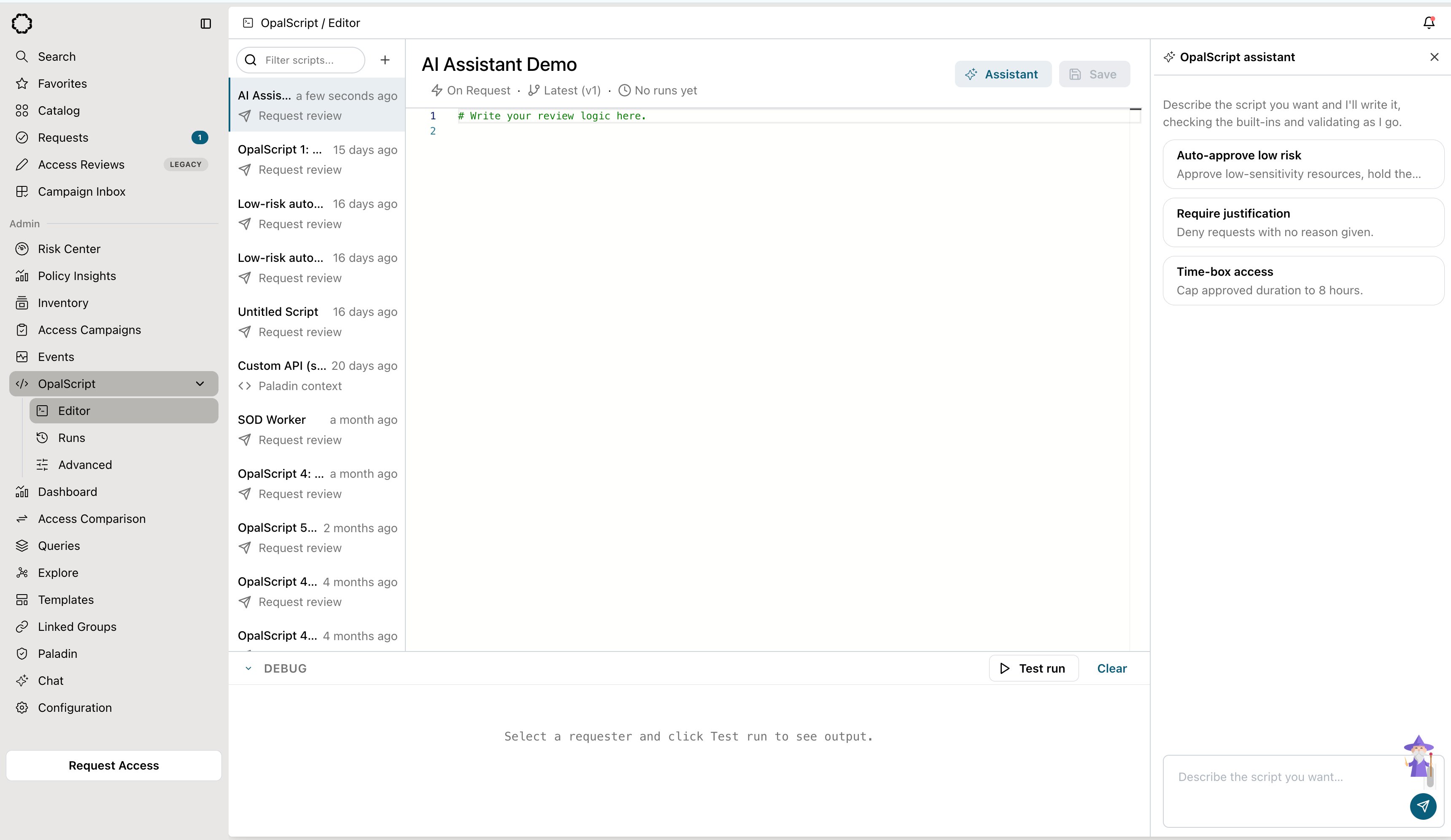
- Describe what you want, or pick one of the suggested prompts. For example: “Deny requests with no reason given.”
-
When the assistant changes the script, the editor shows a Proposed change diff. Select Accept to load the change into the editor, or Discard to drop it.
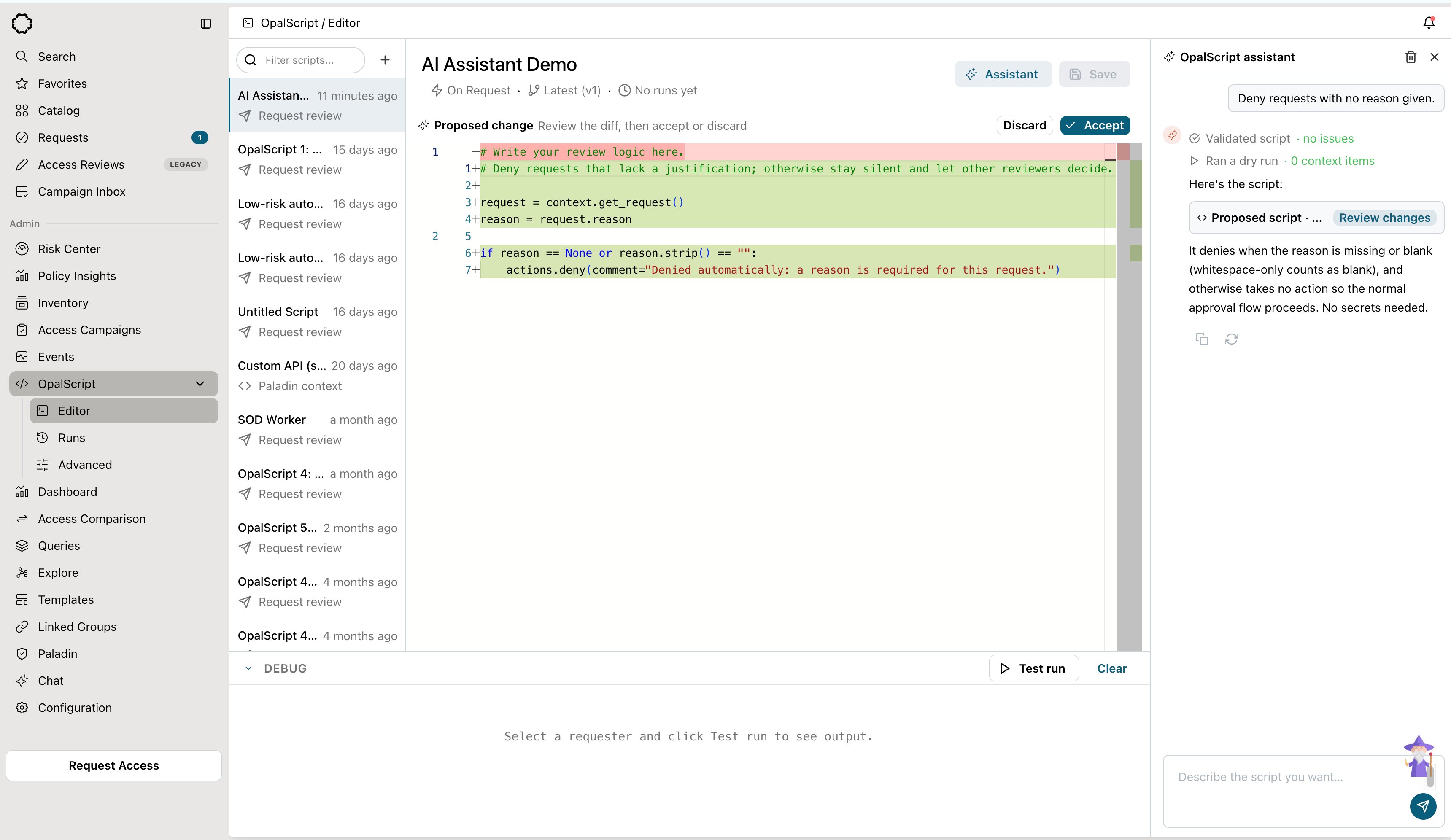
- Accepting doesn’t save. Test the script, then select Save.
What the assistant does while it works
The assistant doesn’t just generate text. As it works, it uses tools against your organization and shows each step in the panel:Suggested prompts
The prompts the assistant offers depend on the type of script you have open:Conversations
Each conversation belongs to one script and one user. It picks up where you left off, even on another device. To start over, select the trash icon (Clear conversation) at the top of the assistant panel. You can resize the assistant panel by dragging its edge. The editor remembers whether you left it open.Tips for good results
- Say what should happen in every branch. “Approve if X, deny if Y, otherwise leave it for a human” produces a more predictable script than “approve if X.”
- Name real things. Mention the resource, group, tag, or user by name, and the assistant looks up its ID for you.
- Mention outside systems and secrets. If the script should call an API, name the service and the secret that holds its credential. The host must be on the egress allowlist.
- Always review and test. The assistant validates and dry-runs its work, but you own the script. Read the diff, then use a test run before you save.