

actions.match() when it does.
Opal runs the script every time it picks a configuration, including when a user browses the catalog, not only when they submit a request. Each run has a 1-second time limit, so keep scripts short and avoid long loops.
How Opal picks a configuration
Opal checks a resource’s or group’s request configurations in priority order, from the top of the list down:- For a configuration that uses a script, Opal runs the script. If the script calls
actions.match(), Opal uses that configuration and stops. If the script ends without calling it, Opal moves on to the next configuration. - For a configuration that uses groups and roles, Opal checks those as usual.
- If nothing matches, Opal uses the default configuration.
Write a request configuration condition script
- Navigate to OpalScript > Editor and select +.
- Choose Request configuration as the script type, then pick Blank script or one of the templates.
- Read the user and the item from the
contextmodule, and callactions.match()when the configuration should apply.
context module
There’s no request yet when Opal picks a configuration, so the script can’t read a reason, a duration, or a requester. It reads only the following. Each function returnsNone when the value doesn’t apply.
The catalog asks whether an item can be requested at all, before an access level is chosen. There,
get_access_level_remote_id() and get_access_level_name() return None. Write your script so that it still works when there’s no access level.actions module
Selects this request configuration. This call is terminal: the script ends when it runs. A script that ends without callingactions.match() doesn’t match.
Other modules
Request configuration condition scripts can use these utility modules:entity: look up users, groups, and resources, including their tagsaccess: check whether a user already has access to a resource or grouprisk: look up the risk sensitivity of a resource or grouptime: work with timestamps
requests, http, notifications, tickets, and groups, aren’t available.
Use a request configuration condition script
- Open the resource or group, then edit its request configuration. You can’t use a script on the default configuration.
-
Under Match by OpalScript, select your script. If the configuration already has groups or roles selected, clear them first.
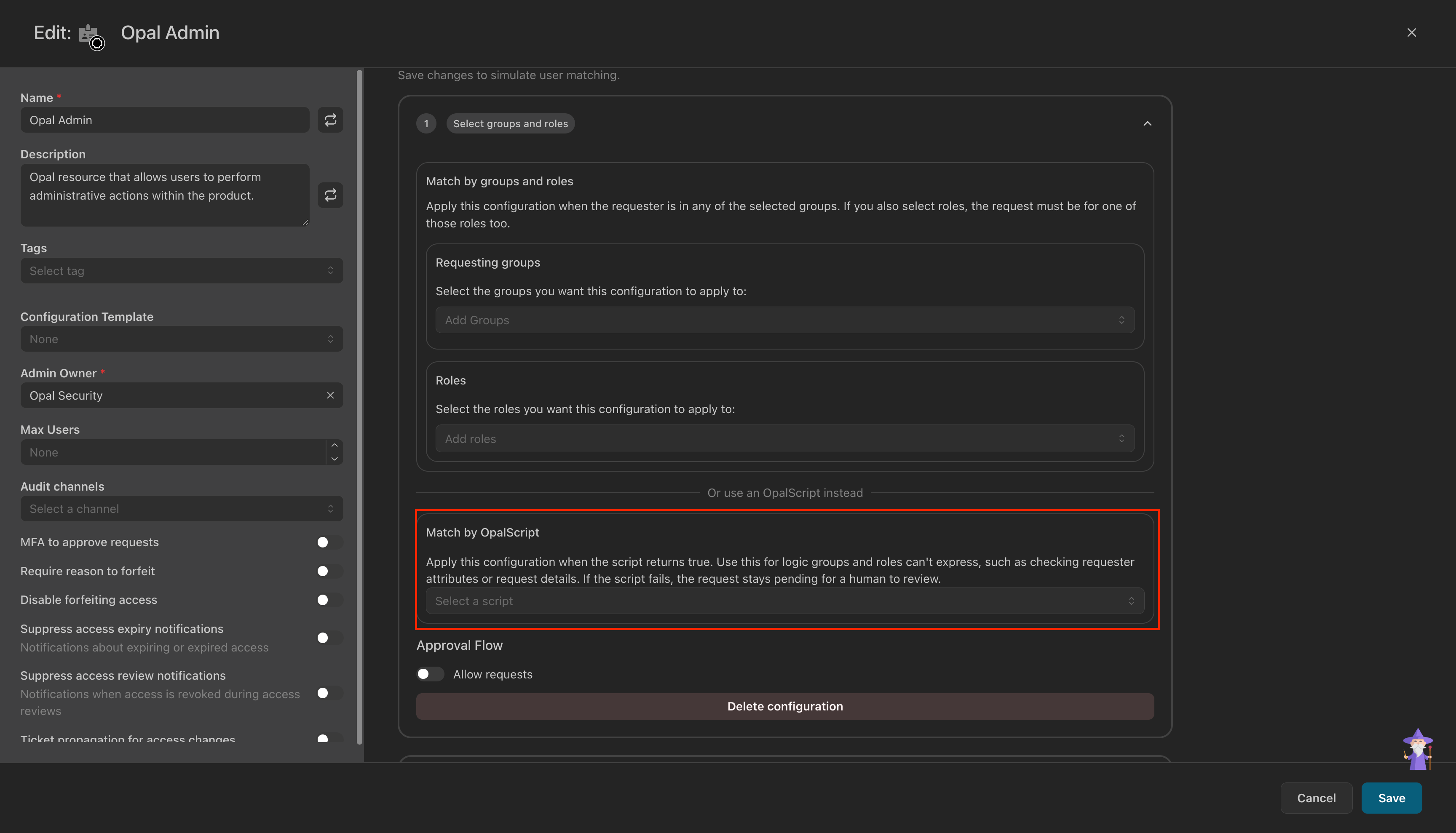
- Save the configuration, and check its priority. Opal runs scripts in priority order, so a configuration with a script only takes effect if no configuration above it matches first.
Test a request configuration condition script
Use Test run in the editor, as described in Test a script before you use it. The last line of the Debug panel says whether the script matched: configuration applies or configuration does not apply. When a user submits a request, Opal records each condition script run, and you can find them under OpalScript > Runs.Templates
Apply the configuration when one of the user’s tags, such as a location synced from your identity provider, holds one of the listed values. Edit the two constants at the top.CONFLICTS to a handful of entries.