

Start reviewing items
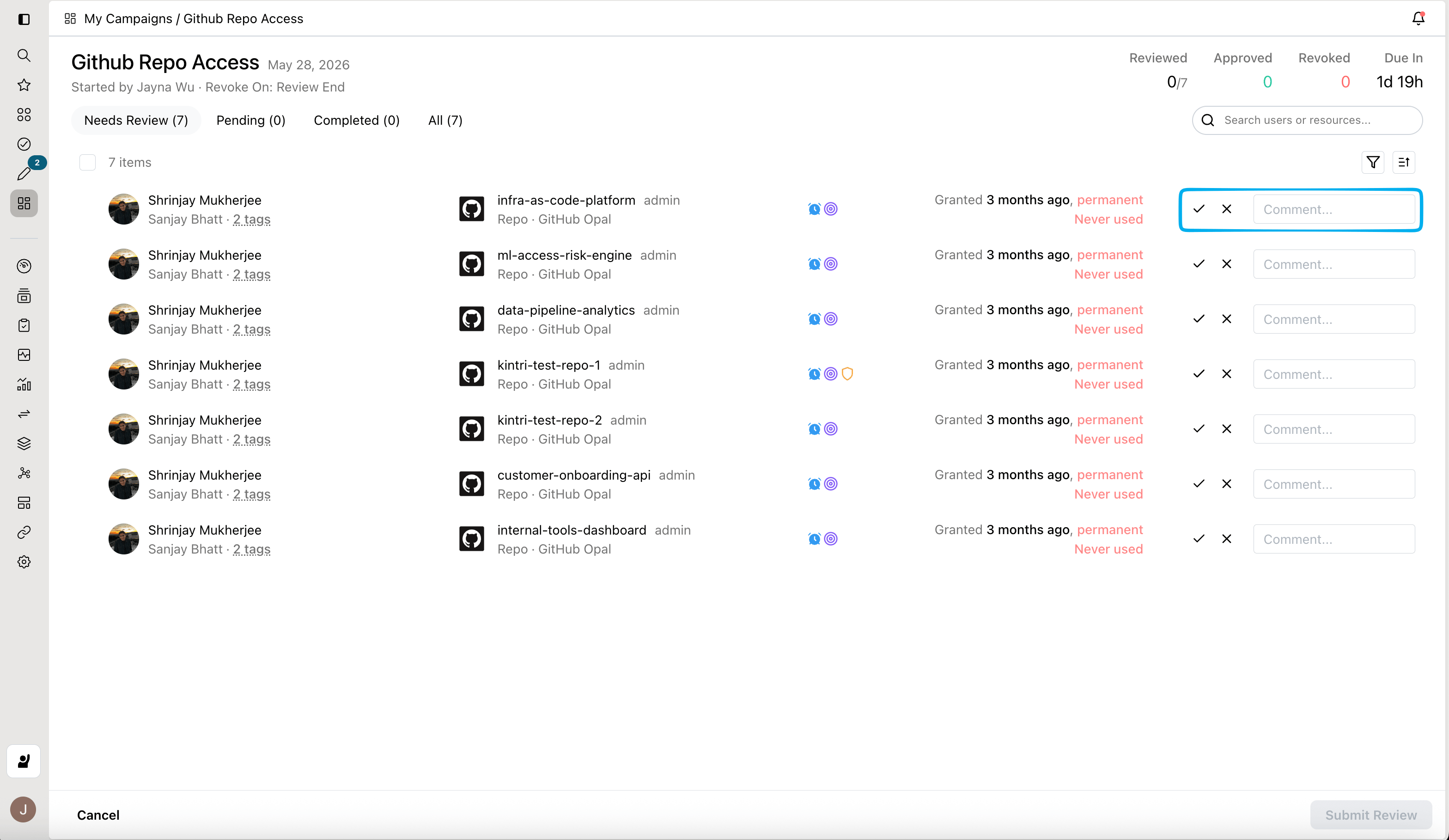
If you have been assigned reviews, the campaign will appear under the Campaign Inbox tab. Click into the campaign to begin reviewing each item.- To approve, click the checkmark (✔️).
- To revoke, click the X.
- To add a comment, enter text in the corresponding comment box.
Submit reviews
Reviewed items move to Pending until you’re ready to finalize. Once you’ve made all your decisions, click Submit Review—your reviews will move to the Completed tab.If the review is set to Revoke on decision, items you’ve revoked will propagate to the end system as soon as you submit review.
If the review is set to Revoke on: Review end, you can edit your decision in the completed tab up until your admin stops the access campaign.You may check how your admin has configured the access campaign by looking at the campaign’s details on the top right.
FAQs
I don't have enough context to make this decision, can I route it to someone else?
I don't have enough context to make this decision, can I route it to someone else?
If your admin has enabled Reviewer reassignment, you should see the option next to the revoke button.
I made the wrong decision, can I change it?
I made the wrong decision, can I change it?
If you haven’t submitted your decision on the review item, you can always change your decision by navigating to Pending and correcting it.
If you’ve submitted your decision, you must check how your admin has configured the access campaign by looking at the campaign’s details on the top right.
- If the review is set to Revoke on decision, items you’ve revoked will already have propagated to the end system. Contact your admin to let them know of the error.
- If the review is set to Revoke on: Review end, you can still edit your decision in the Completed tab until your admin stops the access campaign. Don’t forget to submit all changes.