

Prerequisites
- You must be an Opal Admin, or an Admin of the resource or group you’re configuring.
- The stage you add escalation to must use Any logic. Escalation can’t be added to a stage that requires All reviewers to approve. See Approval flow.
How escalation works
When you add escalation to a stage, Opal adds an Escalation stage directly after it. The escalation stage contains the original stage’s reviewers plus the owners and users you escalate to.- If any original reviewer responds before the timer expires, the request proceeds normally and the escalation stage is satisfied at the same time. Nothing extra happens.
- If nobody responds before the timer expires, the request advances to the escalation stage, and the escalated reviewers are notified.
- The original reviewers stay on the escalation stage, so they can still approve after escalation. Escalation widens the pool of people who can act; it doesn’t take the request away from anyone.
Escalation only widens the pool of reviewers. It never grants access on its own—a request that nobody acts on still expires the way it normally would.
Configure escalation
- Go to the resource or group’s Edit page and expand Request Configuration.
-
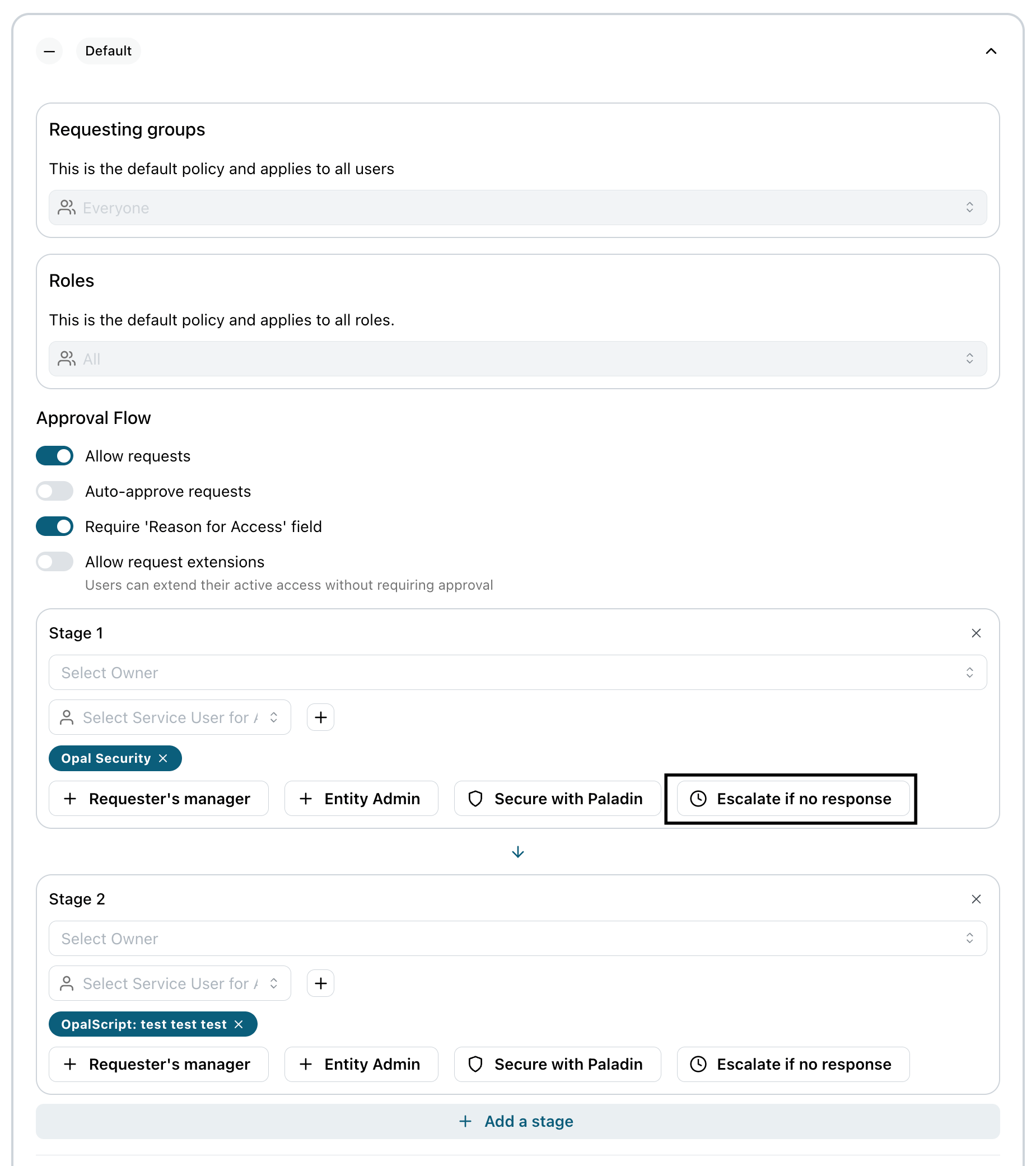
In the Approval Flow section, find the stage you want to add a timer to and select Escalate if no response.
-
Under Escalate after, choose how long to wait before escalating:
-
Select the owners and users to escalate to. You can pick any combination, but you must select at least one.
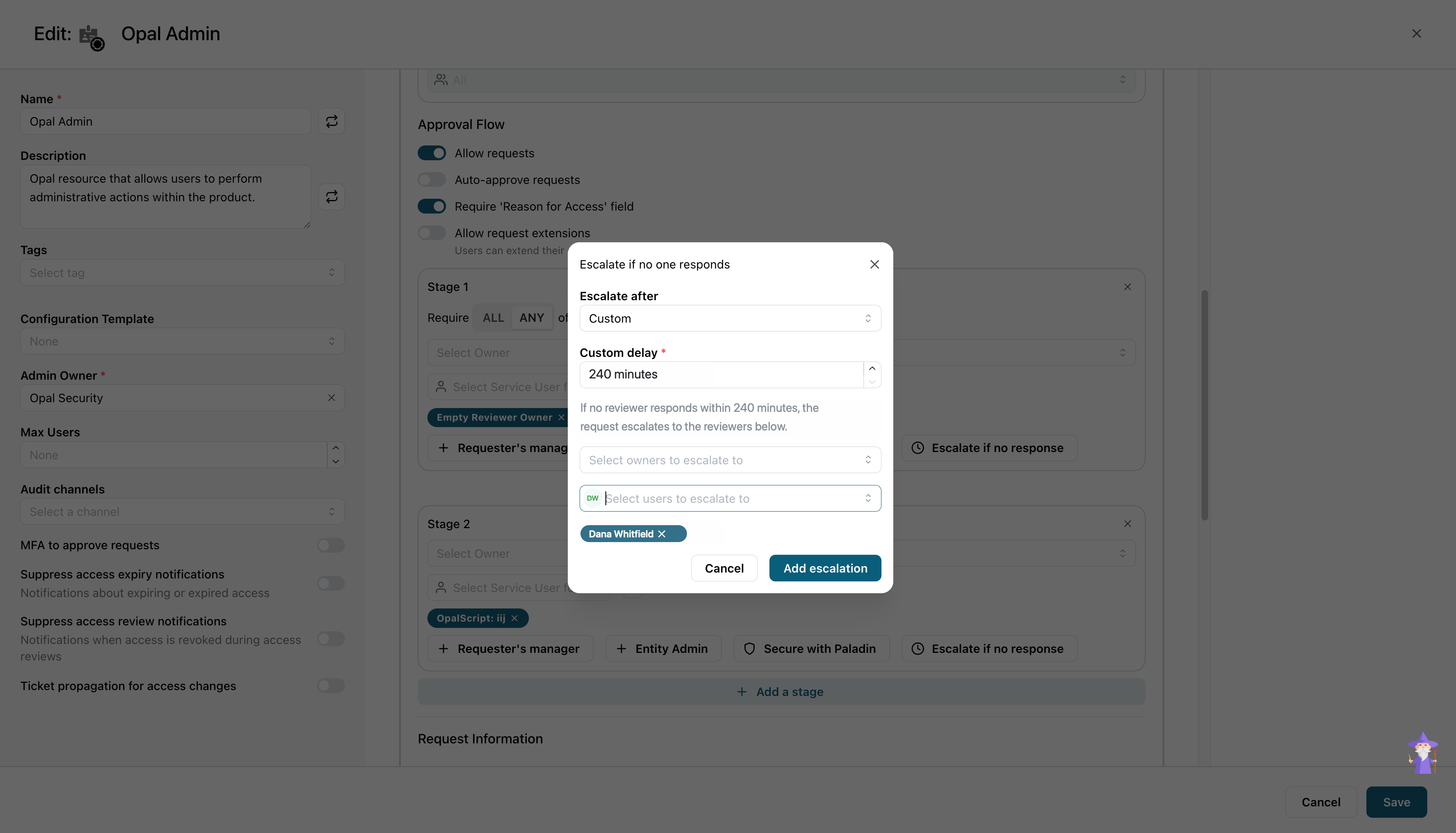
- Select Add escalation. The new Escalation stage appears below the stage you configured.
- Save the request configuration.
What escalation looks like on a request
On a pending request, the Reviewers section labels both halves of the pair. The original stage is tagged with the wait time you configured, and the stage below it is tagged ESCALATION.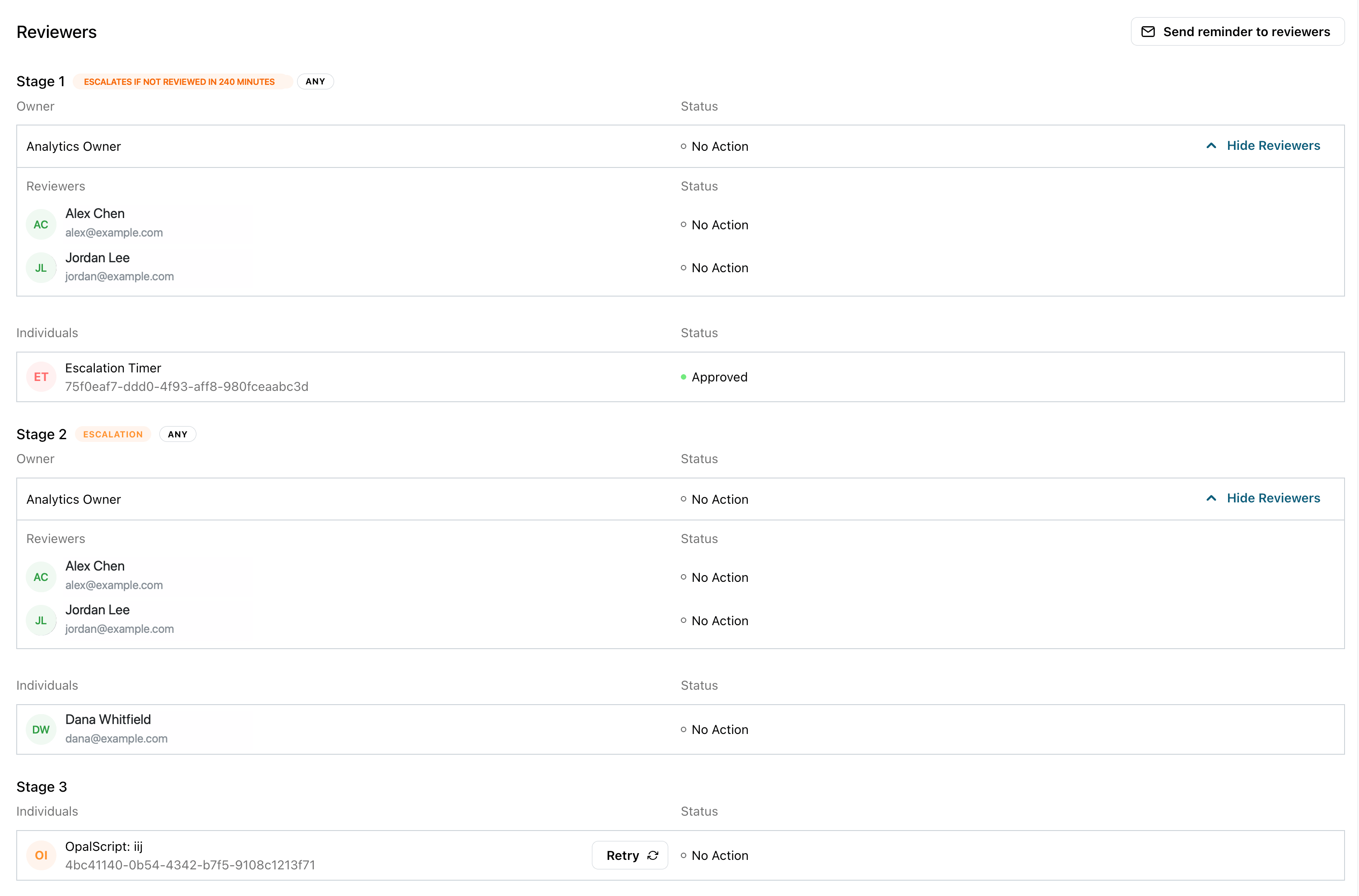
No reviewer responded in time - escalating.—so the handoff is visible in the Activity feed.
The timer only moves the request forward to the escalation stage. It is not an approval of the request: the escalated reviewers still have to approve before access is granted.
How the timer is implemented
The escalation timer isn’t separate machinery—it’s an OpalScript automation attached to the Escalation Timer service user, built from the same primitives you use in your own request review scripts. Opal provisions one timer per timed stage and runs this script:context.get_escalation_delay_minutes()reads the wait time off the stage the timer sits on, so one script serves every escalation point. ANonedelay means the stage is no longer timed, and the script ends without acting.actions.pause()holds the run until the window expires. This is whydelay_minutestops out at 1440—it’s the same bound that applies to any paused script.- On resume,
context.is_pending_reviewer()checks whether the stage is still waiting. If a reviewer responded during the window, the timer does nothing.
Opal owns this script. It doesn’t appear in your OpalScript console and you can’t edit it, but its executions show up on the Runs page like any other automation. See Monitor runs.
Configure escalation with Terraform
Escalation is an attribute of a reviewer stage, not an object of its own. In Terraform you attach anescalation block to the stage that should time out, inside reviewer_stages on a request_configurations entry. Opal derives the escalation stage from that block—you never declare the escalation stage yourself.
Escalation is available on opal_resource, opal_group, and opal_configuration_template, and is readable from the matching data sources. It requires provider version 3.7.4 or later. See Use Terraform with Opal to install the provider.
terraform apply, the group has two stages in the Opal UI: the stage you declared, tagged with the wait time, and the Escalation stage below it. Terraform still tracks a single stage, because Opal folds the derived stage back into escalation when it reads the configuration. Subsequent plans are clean—you don’t get a permanent diff for a stage you didn’t write.
escalation.owner_ids and escalation.user_ids are sets, so reordering them doesn’t produce a diff.
Configure escalation with the API
The API uses the same shape.escalation is a field on a reviewer stage, and reviewer stages live on a request configuration:
PUT /resourcesandPUT /groupssetrequest_configurationson a resource or group.POST /configuration-templatesandPUT /configuration-templatesset them on a configuration template.GET /resources/{resource_id},GET /groups/{group_id}, andGET /resources/{resource_id}/reviewer-stagesread them back.
escalation becomes two stages internally, but reads collapse the pair back into one entry, so what you GET matches what you PUT. The Escalation Timer service user is managed by Opal and never appears in service_user_ids.
Field reference
Rules and common errors
Opal enforces the same rules on both paths. Except for thedelay_minutes range, which the provider checks during terraform plan, the provider passes your configuration through, so a rejected apply reports the API’s error verbatim.
- The stage must use
OR. A stage withescalationandoperatorset toANDis rejected witha reviewer stage with escalation must use the OR operator. Opal adds the escalation timer to the stage as an extra reviewer; underANDthe timer would become a required approver and every request would stall until the timeout. This mirrors the UI, where Escalate if no response is only offered on a stage set to Any. - Name at least one escalation target. An
escalationblock with noowner_idsand nouser_idsis rejected withescalation must name at least one owner or user. - Don’t repeat the stage’s own reviewers.
escalation.owner_idsandescalation.user_idsname only the people you’re escalating to. The stage’s ownowner_idsandservice_user_idsare added to the escalation stage automatically, and repeating them is rejected—escalation owner_ids must not repeat the stage's own reviewers, they escalate automaticallyfor an owner,escalation user_ids must not repeat the stage's own service users, they escalate automaticallyfor a service user. Both errors list the repeated IDs. Because they’re unioned in rather than copied, removing a reviewer from the stage also removes them from the escalation—you don’t have to remember to update both lists. delay_minutesmust be between 1 and 1440. Terraform rejects anything outside that range at plan time; the API rejects it withinvalid escalation delay_minutes, must be between 1 and 1440, got 2880. The timer is implemented as a pause of that length, so the bound is the same one that applies to a paused workflow.- Escalation must be enabled for your organization. If it isn’t, the request is rejected with
escalation is not enabled for this organization. Contact Opal support to have it turned on.
Examples
Production database access — 4 hours
An engineer requests read access to the production database during an incident. First-line reviewers are the database owners; the escalation reviewers are the on-call SRE rotation.- Escalate after: 4 hours
- Escalate to: SRE on-call
Marketing tool seat — 24 hours
A new hire requests a seat in a marketing SaaS tool. The team manager reviews these, and the escalation reviewers are the marketing ops team.- Escalate after: 24 hours
- Escalate to: Marketing Ops
Admin role on a sensitive system — 8 hours, escalating to security
A developer requests an admin role on a system holding customer data. The resource owner reviews first; the escalation reviewers are the security team.- Escalate after: 8 hours
- Escalate to: Security