> ## Documentation Index
> Fetch the complete documentation index at: https://docs.opal.dev/llms.txt
> Use this file to discover all available pages before exploring further.
# Authentication
> Learn how to authenticate your requests to the Opal API.
# Overview
When making requests to the Opal API, you must pass an authentication bearer token in the header to identify yourself as an authorized user.
To do this, pass a header with key **Authorization** and value **Bearer** where is the value of the API token you generate from the admin API console.
## Using the API With Opal Service Users
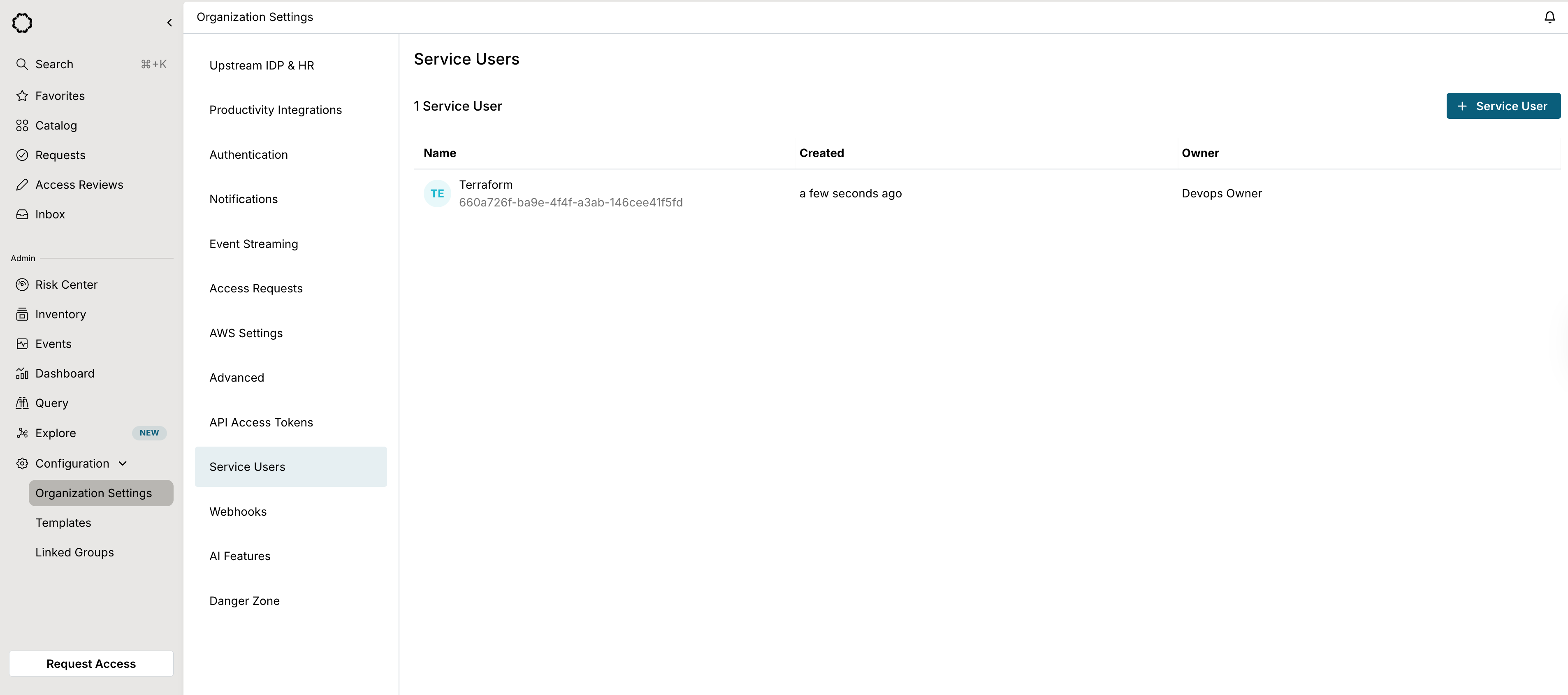
Service users have their own identity in Opal and can be assigned Opal roles to scope their permissions. Opal Admins can create a service user on the **Organization Settings -> Service Users** page.
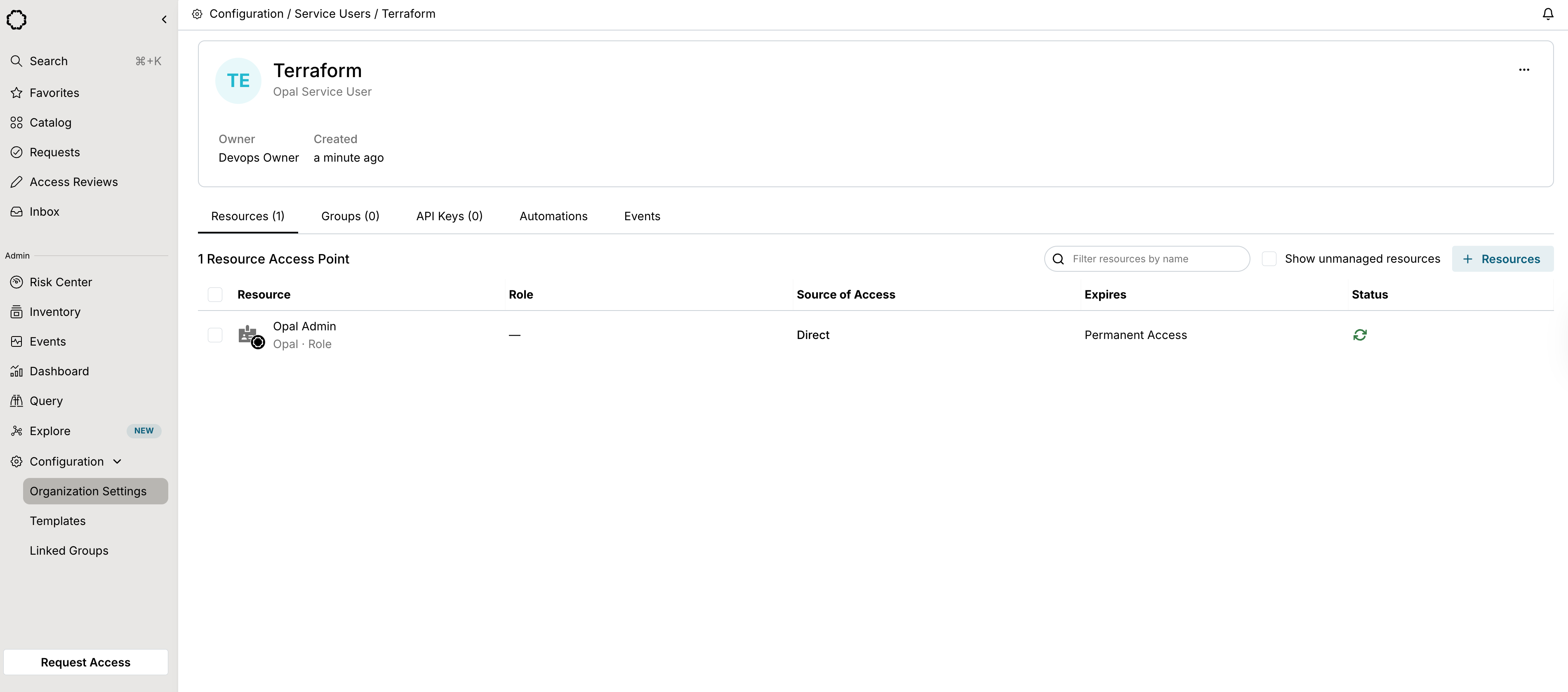
 Service users can be assigned to Opal roles and scoped roles under the **Resources** tab. Service users can be added to Opal groups under the **Groups** tab. These can be combined to provide granular permissions to Service Users.
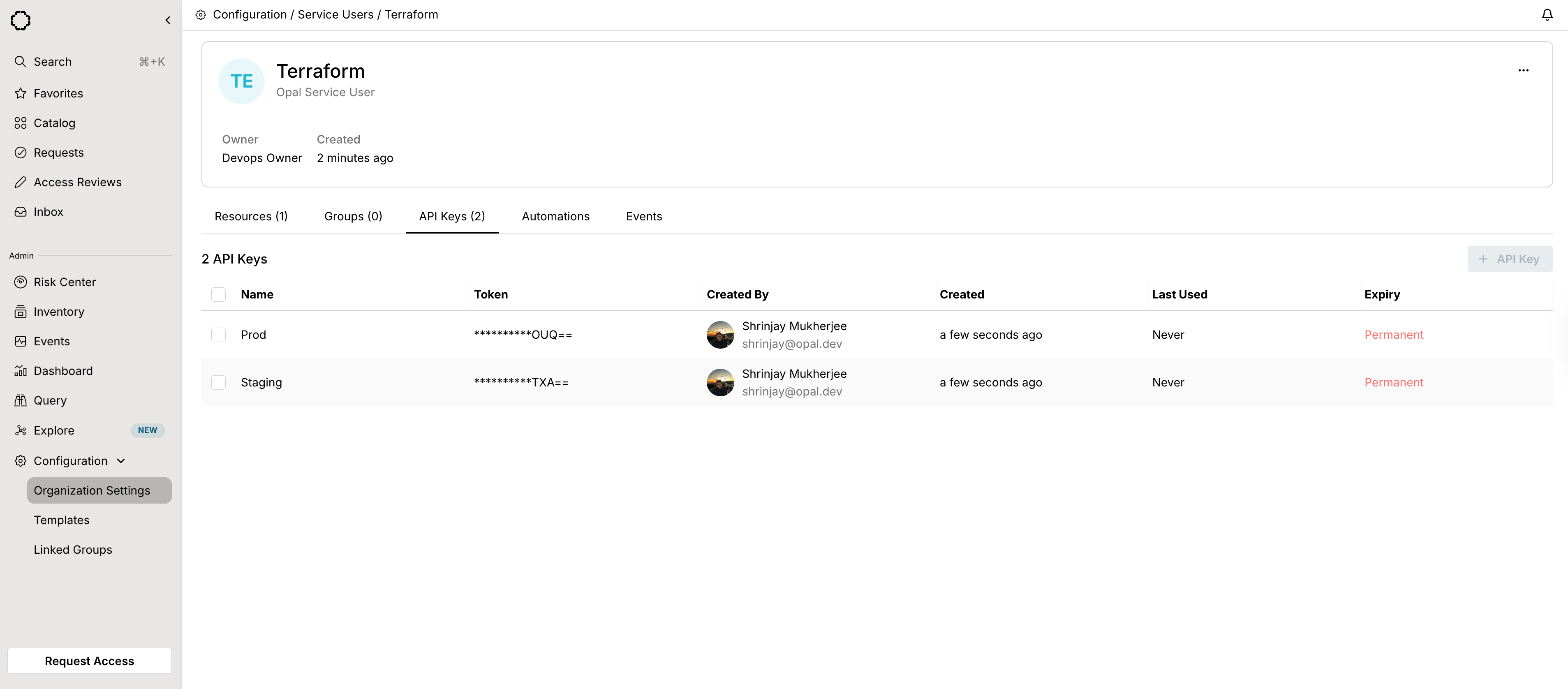
 API keys for service users can be created under the **API Keys** tab and can be set to expire. A maximum of **2 API Keys** can be created for a service user.
 ## Using the API with Personal Access Tokens
Personal access tokens are tied to your identity and have your permissions. By default, only Opal Admins can generate personal access tokens. However, admins can enable all users to create PATs by toggling the **Allow all users to create PATs** setting in **Organization Settings -> Advanced**.
Users can generate personal access tokens on the **User -> Settings** page:
## Using the API with Personal Access Tokens
Personal access tokens are tied to your identity and have your permissions. By default, only Opal Admins can generate personal access tokens. However, admins can enable all users to create PATs by toggling the **Allow all users to create PATs** setting in **Organization Settings -> Advanced**.
Users can generate personal access tokens on the **User -> Settings** page:
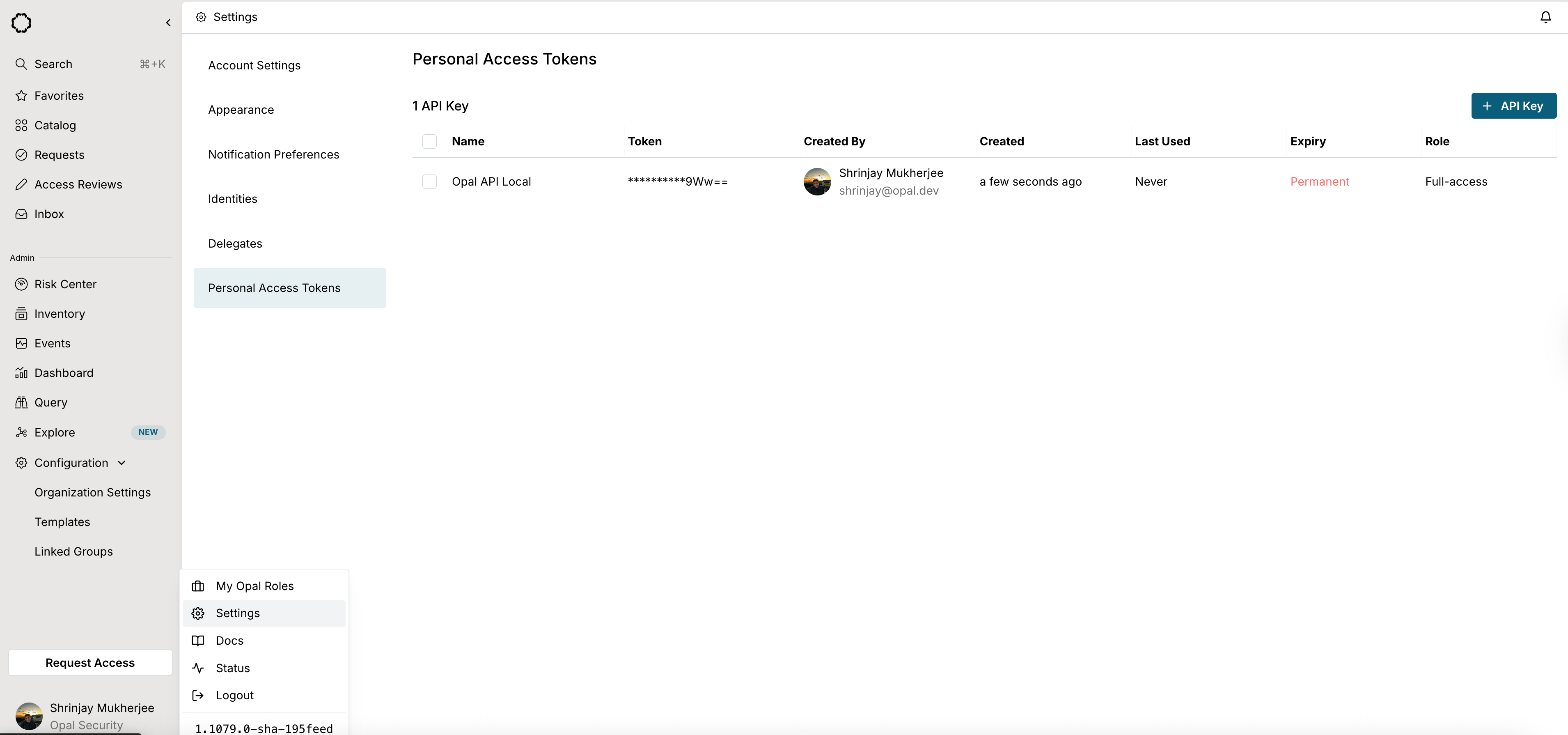 Personal access tokens can either be **Read-only** or **Full-access**:
* **Read-only tokens** can only perform GET requests, limited to resources you have permission to view.
* **Full-access tokens** can perform all API operations (GET, POST, PUT, DELETE), but are still scoped to your user permissions - you cannot access or modify resources beyond what your Opal role allows.
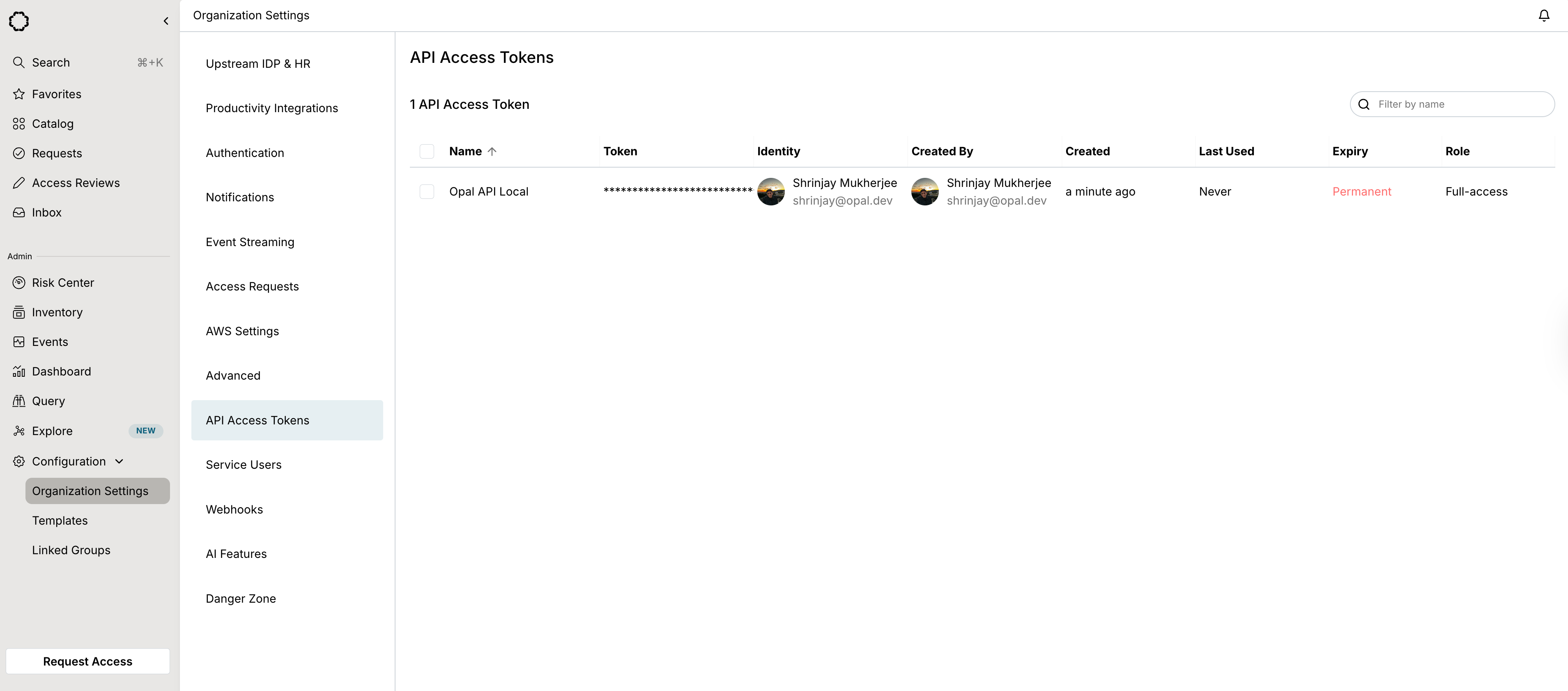
Once the token is generated, copy it and use it to make authenticated requests to the Opal API. If a token is compromised, you can revoke it from the same page. Any other Opal Admin can revoke your token from the **Organization Settings -> API Tokens** page.
Personal access tokens can either be **Read-only** or **Full-access**:
* **Read-only tokens** can only perform GET requests, limited to resources you have permission to view.
* **Full-access tokens** can perform all API operations (GET, POST, PUT, DELETE), but are still scoped to your user permissions - you cannot access or modify resources beyond what your Opal role allows.
Once the token is generated, copy it and use it to make authenticated requests to the Opal API. If a token is compromised, you can revoke it from the same page. Any other Opal Admin can revoke your token from the **Organization Settings -> API Tokens** page.