> ## Documentation Index
> Fetch the complete documentation index at: https://docs.opal.dev/llms.txt
> Use this file to discover all available pages before exploring further.
# Zoom
> Learn how to connect your Zoom instance to Opal to manage and review access.
You can connect Zoom to Opal to manage and review access.
## Supported resources
| Resource | Read | Grant and revoke access |
| ------------------------------ | ---- | ----------------------- |
| Users | ✔️ | |
| Roles — *Zoom Role* | ✔️ | ✔️ |
| License tiers — *Zoom License* | ✔️ | ✔️ |
| Groups — *Zoom Group* | ✔️ | ✔️ |
With Opal's Zoom integration:
* **Users can** request access to Zoom roles, paid license seats, and groups through Opal.
* **Admins can** review who holds each Zoom role, license tier, and group membership, and grant or revoke that access — including running [access reviews](/docs/access-campaigns).
* **Admins can** reallocate paid license seats (Licensed / Unassigned). Opal never purchases seats, so a grant with no free seat fails safely instead of billing.
## Requirements
To connect with Zoom, you must first:
* Be an [Opal Admin](/docs/roles-in-opal).
* Have a Zoom plan of **Pro or higher** (groups require Pro; **custom roles require Business**).
* Have a Zoom **account Owner or full admin** create a [Server-to-Server OAuth app](https://developers.zoom.us/docs/internal-apps/s2s-oauth/) (covered in [step 1](#1-create-a-server-to-server-oauth-app-in-zoom)).
A Zoom Server-to-Server app can hold no more privilege than the admin who created it. Create it under a **durable admin identity** — if that admin is later downgraded, Zoom silently strips the app's scopes and sync/provisioning will start failing.
## 1. Create a Server-to-Server OAuth app in Zoom
Signed in as a Zoom account Owner or admin, in [Zoom's Platform Studio](https://marketplace.zoom.us/):
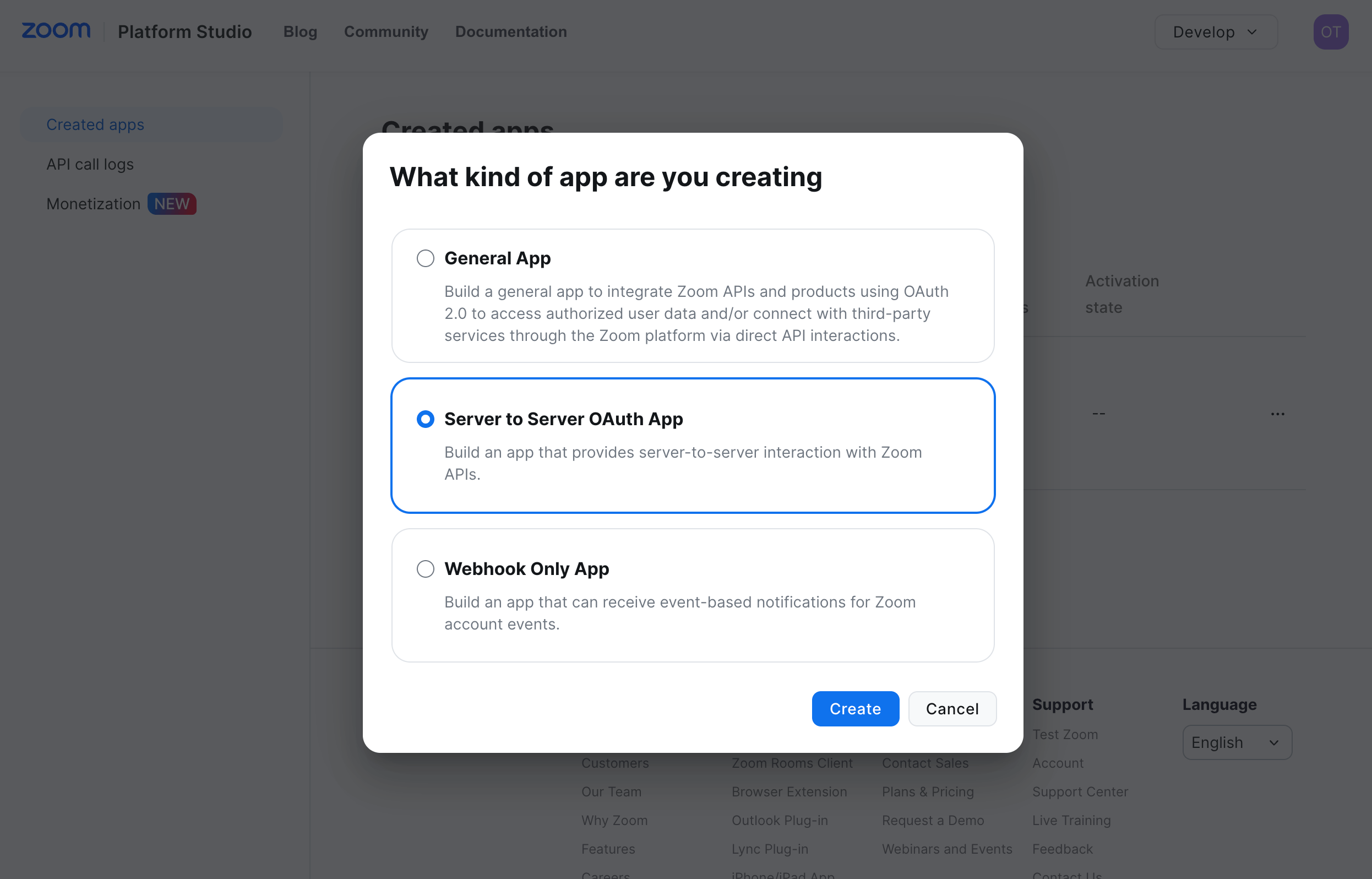
1. Go to **Develop** > **Build App**, select **Server to Server OAuth App**, and select **Create**. Give the app a name, for example `Opal`.
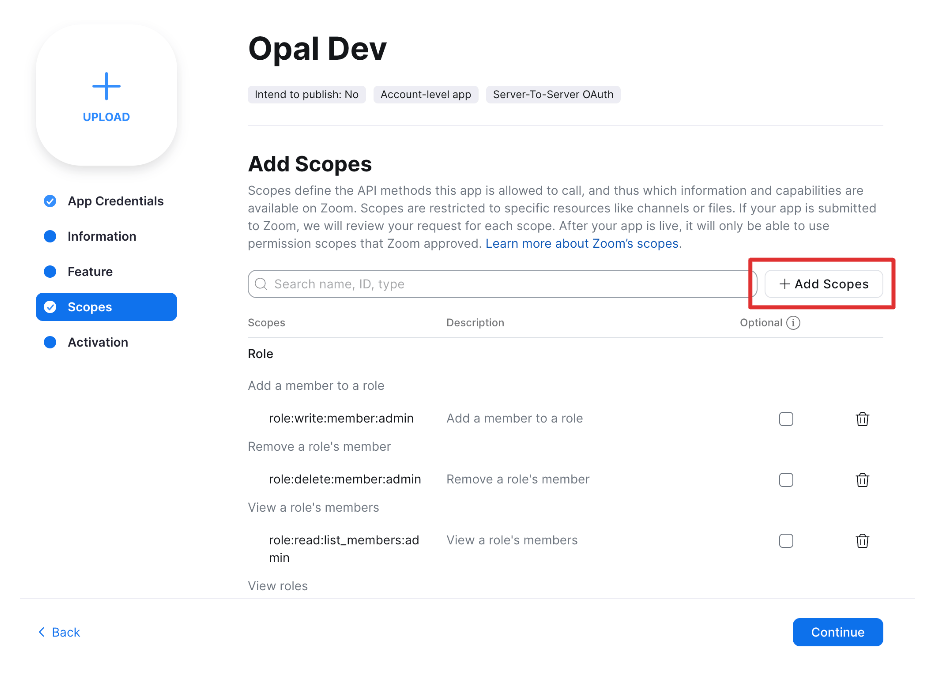
 2. On the **Scopes** tab, add the scopes Opal needs (see [Scopes](#scopes)): the required read scopes for sync, the optional `user:read:settings:admin` scope for add-on license visibility, and the write scopes for any provisioning you want to enable.
 3. Fill in the app's basic information and **Activate** the app.
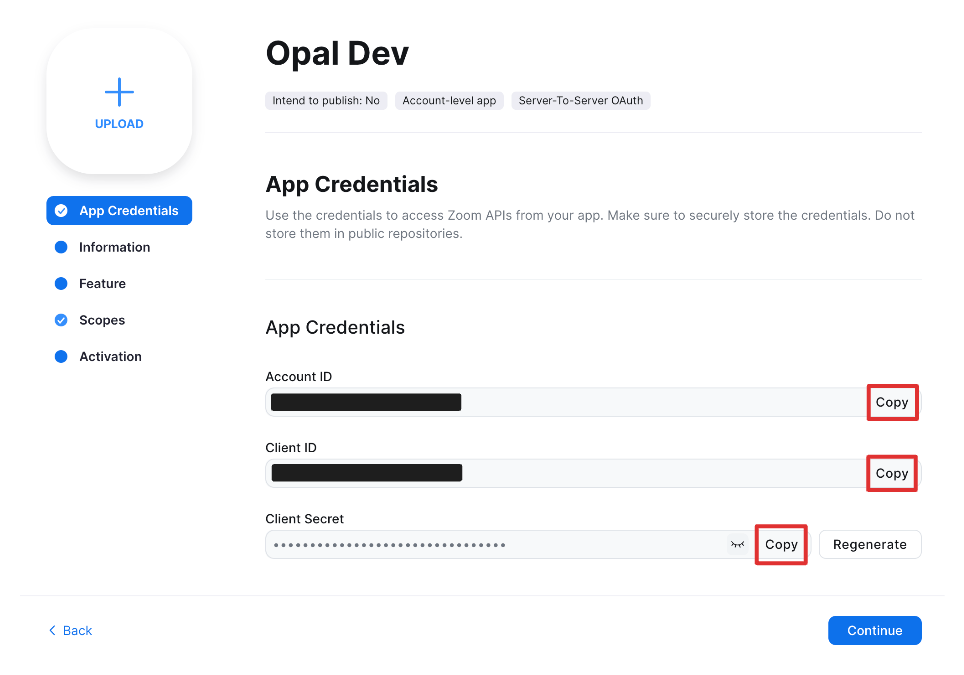
4. On the **App Credentials** tab, copy the **Account ID**, **Client ID**, and **Client Secret**.
3. Fill in the app's basic information and **Activate** the app.
4. On the **App Credentials** tab, copy the **Account ID**, **Client ID**, and **Client Secret**.
 ## 2. Create the Opal app
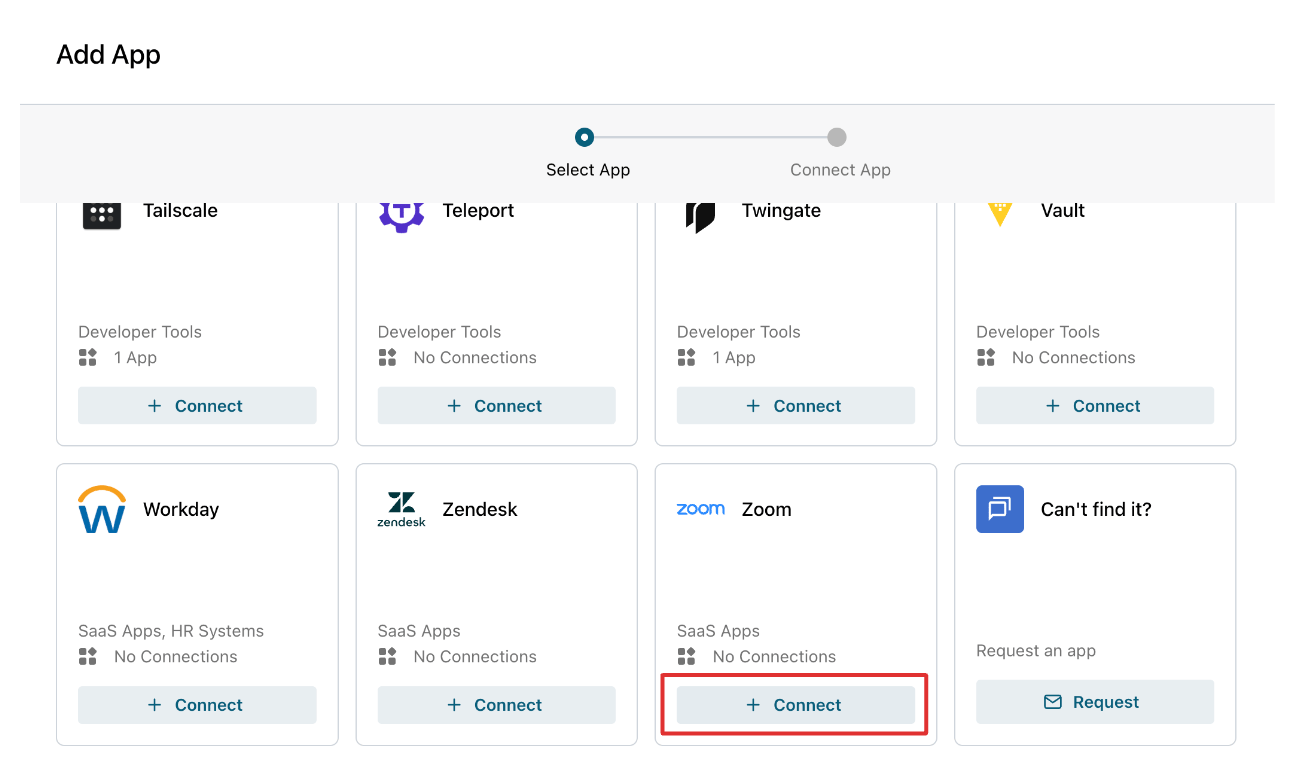
In Opal, go to **Inventory** > **+ App**, then select **Connect** on the **Zoom** tile.
## 2. Create the Opal app
In Opal, go to **Inventory** > **+ App**, then select **Connect** on the **Zoom** tile.
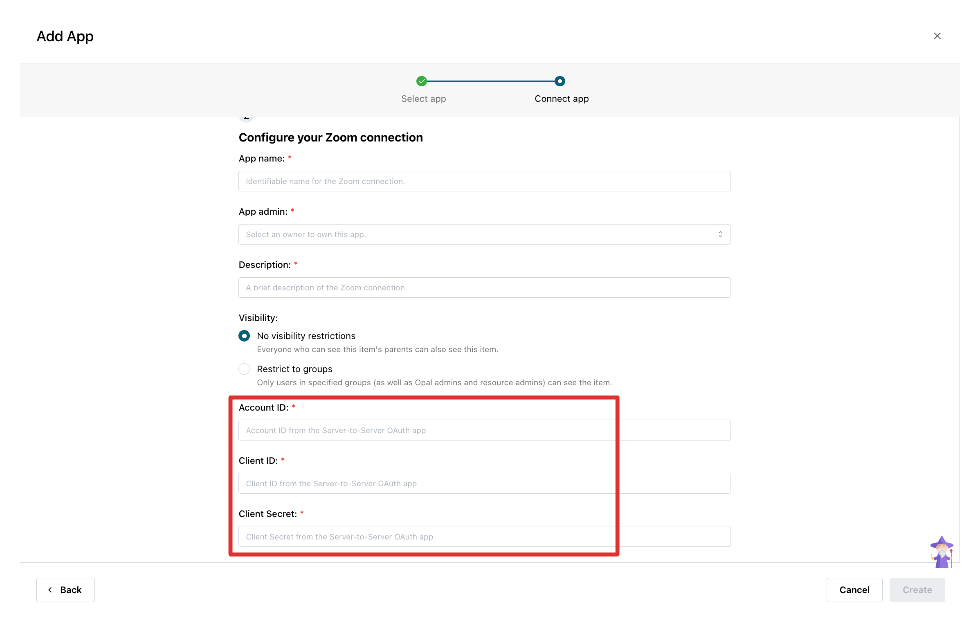
 ## 3. Enter your Zoom credentials in Opal
Fill in the following fields, then create. Opal validates the credentials and reports which scopes were granted — any missing scope is flagged with the exact capability it disables.
| Field | Value |
| ------------- | ----------------------------------------------------------------------------- |
| App name | An identifiable name for the connection, for example `Zoom`. |
| App admin | The [Owner](/docs/opal-101#owners) of this app. |
| Description | A short description shown to people requesting access. |
| Visibility | Global, or restricted to specific groups. |
| Account ID | The Account ID from [step 1](#1-create-a-server-to-server-oauth-app-in-zoom). |
| Client ID | The Client ID from step 1. |
| Client Secret | The Client Secret from step 1. |
## 3. Enter your Zoom credentials in Opal
Fill in the following fields, then create. Opal validates the credentials and reports which scopes were granted — any missing scope is flagged with the exact capability it disables.
| Field | Value |
| ------------- | ----------------------------------------------------------------------------- |
| App name | An identifiable name for the connection, for example `Zoom`. |
| App admin | The [Owner](/docs/opal-101#owners) of this app. |
| Description | A short description shown to people requesting access. |
| Visibility | Global, or restricted to specific groups. |
| Account ID | The Account ID from [step 1](#1-create-a-server-to-server-oauth-app-in-zoom). |
| Client ID | The Client ID from step 1. |
| Client Secret | The Client Secret from step 1. |
 After you save the app, you can import your Zoom roles, licenses, and groups from **...** > **Import items**.
## Additional information
### What Opal syncs
* **Users** — across active, inactive, and pending states; identity is matched by email.
* **Roles** — **Admin**, **Owner**, and any custom roles (custom roles require Business) as **Zoom Role** resources. Each user holds exactly one role, so at most one Zoom Role maps to a user. The default **Member** role is not modeled as a resource — a user with no elevated role is just an account.
* **License tiers** as **Zoom License** resources: **Licensed** (paid seat) and **Unassigned** (No Meetings License), plus add-on licenses **Webinar** and **Large Meeting**. Basic (free) and On-prem tiers are not modeled.
* **Groups** as **Zoom Group** groups (a user can belong to multiple).
The account **Owner** is excluded from all provisioning.
### Provisioning behavior
* **License** — grant sets the tier; revoke downgrades to Basic. Opal never bills: if no free seat is available the grant fails with "no available seats" and nothing changes.
* **Role** — each user holds exactly one role, so Zoom Roles are **mutually exclusive**: granting a role moves the user off their previous one, and revoking a role reverts them to **Member**. The base **Member** role isn't a grantable or revocable resource, and the **Owner** role is **read-only** — account ownership is transferred through Zoom's dedicated owner-transfer flow, not Opal, so granting or revoking Owner reports *unsupported*. Applies to active users only.
* **Group** — add or remove a single membership, leaving other groups untouched. Adds apply to active users only.
Access can only be granted to users who **already exist in Zoom** — Opal never creates Zoom accounts, so a grant targeting someone with no matching Zoom user fails with a clear "could not be matched" message instead of silently doing nothing.
All provisioning actions are idempotent — re-granting or re-revoking is a safe no-op.
### Scopes
**Required read scopes** (needed for all sync):
| Purpose | Scope |
| ------------------------------------ | ------------------------------- |
| List users (license type + role) | `user:read:list_users:admin` |
| Get a user (validation, point reads) | `user:read:user:admin` |
| List roles | `role:read:list_roles:admin` |
| List role members | `role:read:list_members:admin` |
| List groups | `group:read:list_groups:admin` |
| List group members | `group:read:list_members:admin` |
**Optional read scope** — add-on license visibility: `user:read:settings:admin`. Without it, base tiers, roles, and groups still sync; only the **Webinar** and **Large Meeting** license resources come back empty.
**Write scopes** (add only for the provisioning you want):
| Capability | Scope(s) |
| ------------------------- | ------------------------------------------------------- |
| Change license tier | `user:update:user:admin` |
| Grant / revoke role | `role:write:member:admin`, `role:delete:member:admin` |
| Add / remove group member | `group:write:member:admin`, `group:delete:member:admin` |
For least privilege, Opal does **not** request user-creation, user hard-delete, or email/password write scopes — it manages license, role, and group membership for existing users, not account creation or deletion.
***
After you save the app, you can import your Zoom roles, licenses, and groups from **...** > **Import items**.
## Additional information
### What Opal syncs
* **Users** — across active, inactive, and pending states; identity is matched by email.
* **Roles** — **Admin**, **Owner**, and any custom roles (custom roles require Business) as **Zoom Role** resources. Each user holds exactly one role, so at most one Zoom Role maps to a user. The default **Member** role is not modeled as a resource — a user with no elevated role is just an account.
* **License tiers** as **Zoom License** resources: **Licensed** (paid seat) and **Unassigned** (No Meetings License), plus add-on licenses **Webinar** and **Large Meeting**. Basic (free) and On-prem tiers are not modeled.
* **Groups** as **Zoom Group** groups (a user can belong to multiple).
The account **Owner** is excluded from all provisioning.
### Provisioning behavior
* **License** — grant sets the tier; revoke downgrades to Basic. Opal never bills: if no free seat is available the grant fails with "no available seats" and nothing changes.
* **Role** — each user holds exactly one role, so Zoom Roles are **mutually exclusive**: granting a role moves the user off their previous one, and revoking a role reverts them to **Member**. The base **Member** role isn't a grantable or revocable resource, and the **Owner** role is **read-only** — account ownership is transferred through Zoom's dedicated owner-transfer flow, not Opal, so granting or revoking Owner reports *unsupported*. Applies to active users only.
* **Group** — add or remove a single membership, leaving other groups untouched. Adds apply to active users only.
Access can only be granted to users who **already exist in Zoom** — Opal never creates Zoom accounts, so a grant targeting someone with no matching Zoom user fails with a clear "could not be matched" message instead of silently doing nothing.
All provisioning actions are idempotent — re-granting or re-revoking is a safe no-op.
### Scopes
**Required read scopes** (needed for all sync):
| Purpose | Scope |
| ------------------------------------ | ------------------------------- |
| List users (license type + role) | `user:read:list_users:admin` |
| Get a user (validation, point reads) | `user:read:user:admin` |
| List roles | `role:read:list_roles:admin` |
| List role members | `role:read:list_members:admin` |
| List groups | `group:read:list_groups:admin` |
| List group members | `group:read:list_members:admin` |
**Optional read scope** — add-on license visibility: `user:read:settings:admin`. Without it, base tiers, roles, and groups still sync; only the **Webinar** and **Large Meeting** license resources come back empty.
**Write scopes** (add only for the provisioning you want):
| Capability | Scope(s) |
| ------------------------- | ------------------------------------------------------- |
| Change license tier | `user:update:user:admin` |
| Grant / revoke role | `role:write:member:admin`, `role:delete:member:admin` |
| Add / remove group member | `group:write:member:admin`, `group:delete:member:admin` |
For least privilege, Opal does **not** request user-creation, user hard-delete, or email/password write scopes — it manages license, role, and group membership for existing users, not account creation or deletion.
***