> ## Documentation Index
> Fetch the complete documentation index at: https://docs.opal.dev/llms.txt
> Use this file to discover all available pages before exploring further.
# Workday groups and roles
> Learn how to manage access to Workday groups and roles.
Opal’s integration with Workday allows administrators to view and manage user access to Workday entities, such as User Security Groups and Organization Roles, which are typically tied to Domain Security Policies and Role Based Security Groups, respectively.
## 1. Add additional Domain Security Policy Permissions in Workday
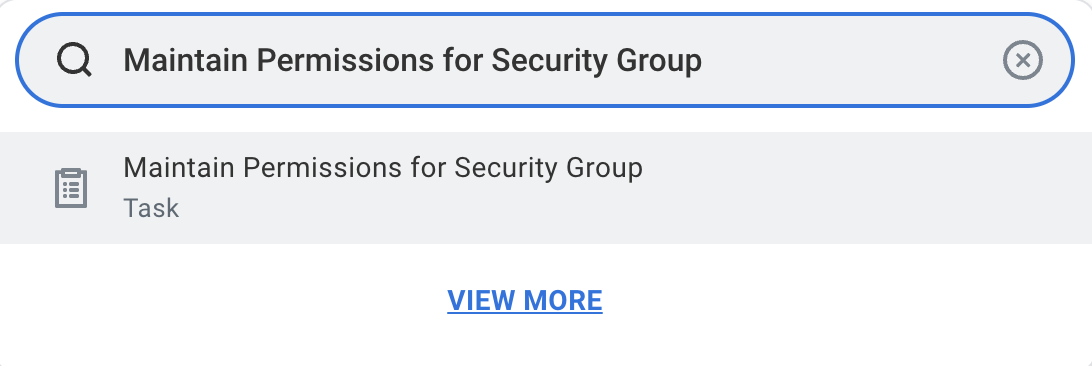
Go to the Workday Search bar, enter **Maintain Permissions for Security Group**, and select the corresponding Task.
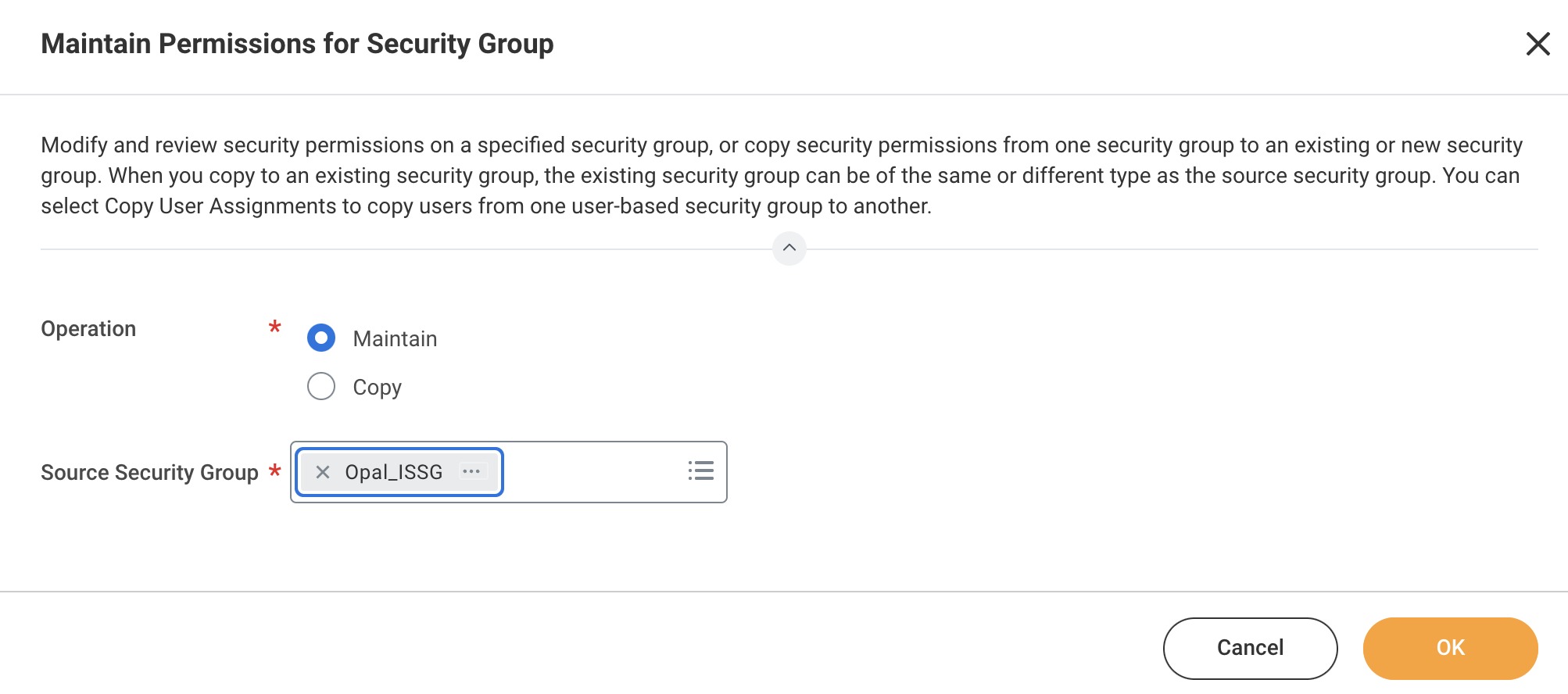
 In the task modal, first set the **Operation** to **Maintain** and set the **Source Security Group** to the Security Group you created in Step 2 of *Getting Started*.
 Then, edit the **Domain Security Policy Permissions** and add the following operations:
| View/Modify Access | Domain Security Policy |
| ------------------ | ---------------------------------------- |
| GET and PUT | User-Based Security Group Administration |
| GET ONLY | Manage: Organization Roles |
| GET ONLY | Manage: Organization Integration |
## 2. Edit Business Security Policy in Workday
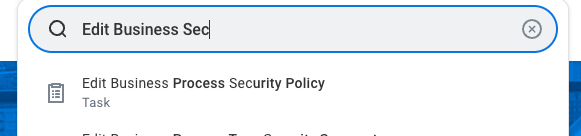
Navigate to the Workday Search bar, enter **Edit Business Security Policy**, and select the corresponding Task.
Then, edit the **Domain Security Policy Permissions** and add the following operations:
| View/Modify Access | Domain Security Policy |
| ------------------ | ---------------------------------------- |
| GET and PUT | User-Based Security Group Administration |
| GET ONLY | Manage: Organization Roles |
| GET ONLY | Manage: Organization Integration |
## 2. Edit Business Security Policy in Workday
Navigate to the Workday Search bar, enter **Edit Business Security Policy**, and select the corresponding Task.
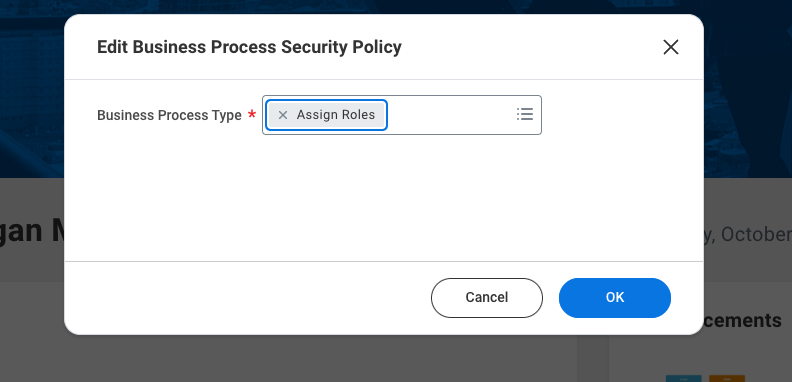
 In the task modal, set Business Process Type to **Assign Roles**.
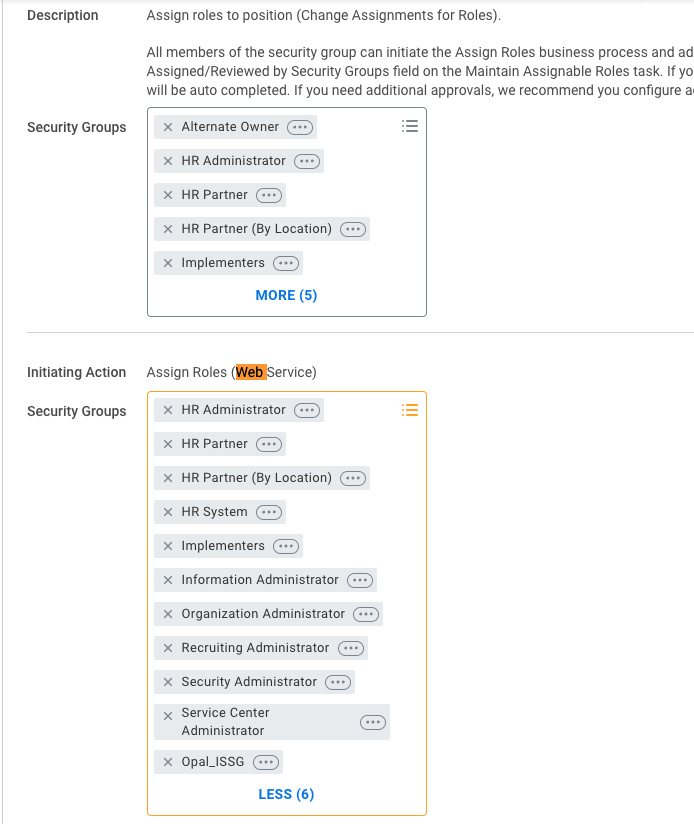
 Then, add the Security Group you created in Step 2 of *Getting Started* to **Assign Roles (Web Service)**.
 ## 3. Activate All Pending Authentication Policy Changes in Workday
Navigate to the Workday Search bar, enter **Activate All Pending Authentication Policy Changes**, and select the corresponding Task.
## 3. Activate All Pending Authentication Policy Changes in Workday
Navigate to the Workday Search bar, enter **Activate All Pending Authentication Policy Changes**, and select the corresponding Task.
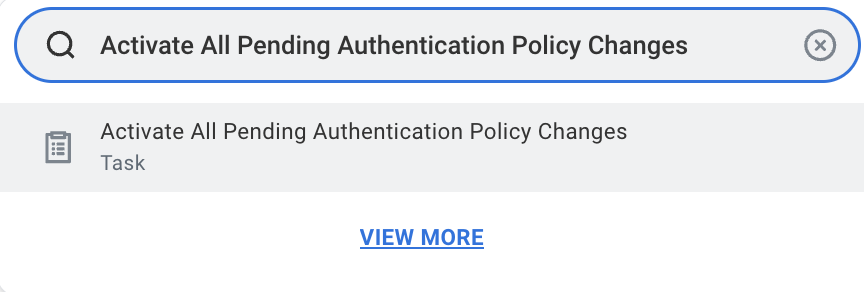 Add any comments, review, and check the **Confirm** box to activate the Authentication Policy Changes.
## 4. Import Workday items in Opal
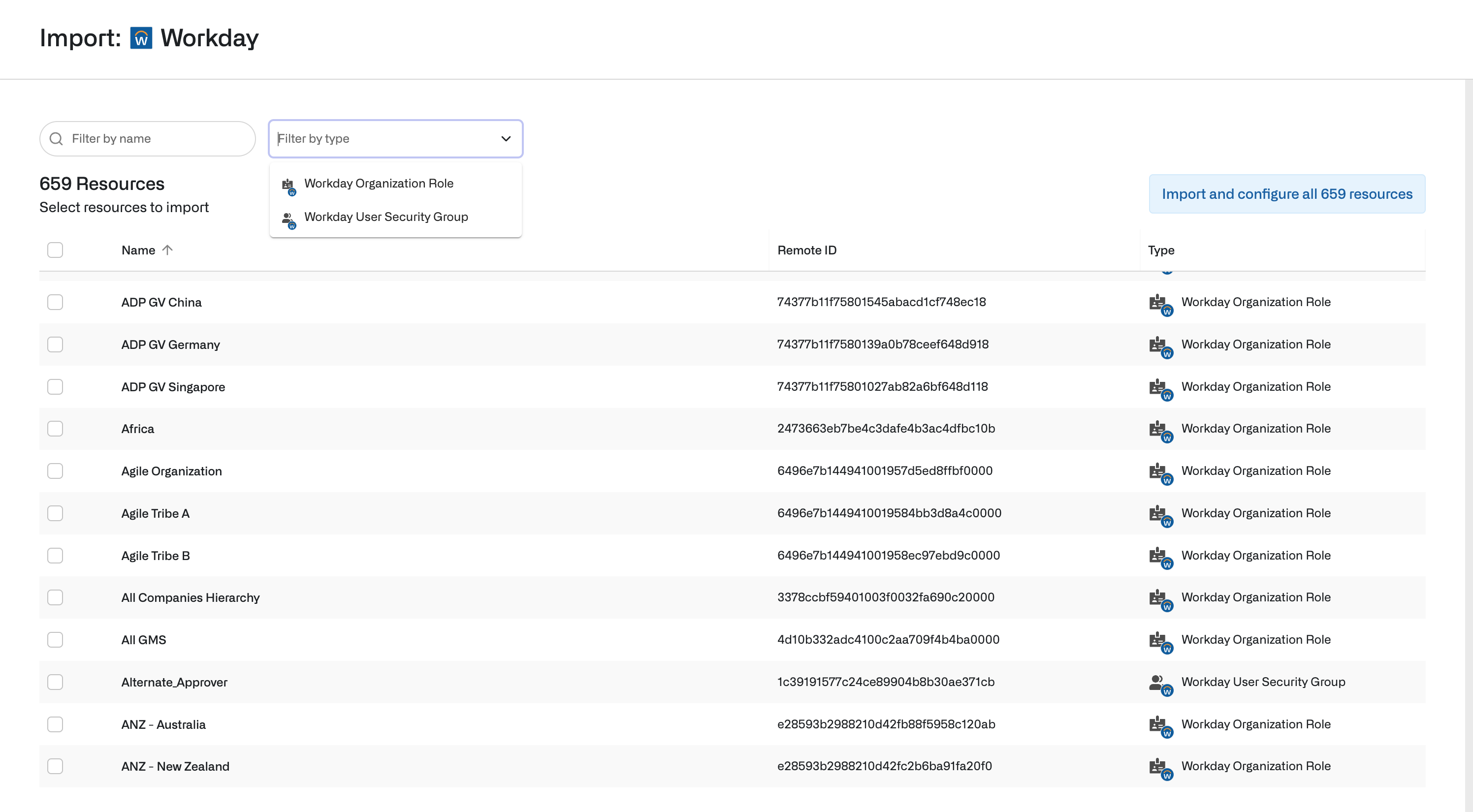
In Opal, go to the **Inventory** and select the **Workday** app, then in the upper left, select **...** > **Import items**. Select the User Based Security Groups and Organization Roles that you want to manage.
Add any comments, review, and check the **Confirm** box to activate the Authentication Policy Changes.
## 4. Import Workday items in Opal
In Opal, go to the **Inventory** and select the **Workday** app, then in the upper left, select **...** > **Import items**. Select the User Based Security Groups and Organization Roles that you want to manage.