> ## Documentation Index
> Fetch the complete documentation index at: https://docs.opal.dev/llms.txt
> Use this file to discover all available pages before exploring further.
# Tailscale
> Learn how to connect Opal to Tailscale to manage SSH access within your tailnet.
With the Tailscale integration, you can granularly manage SSH access within your tailnet:
* Allow users to request just-in-time access to resources on your tailnet from the web and Slack
* Set the right resource owners to delegate approvals to those with the most context
* Configure day-one access to Tailscale resources with groups from your identity provider
* Automatically escalate and revoke privileged resource access based on on-call schedules, e.g., [PagerDuty](/integrations/pagerduty-oncall) or [Opsgenie](/integrations/opsgenie)
## Supported resources
| Resource | Read | Grant and revoke access | Available in Risk Center |
| ------------------------------------------------------------ | ---- | ----------------------- | ------------------------ |
| Tailscale Groups | ✔️ | ✔️ | ✔️ |
| [Tailscale SSH](https://tailscale.com/kb/1193/tailscale-ssh) | ✔️ | ✔️ | ✔️ |
## Requirements
Before you begin this guide, you’ll need a tailnet and an Opal account. To learn how to create a tailnet, see the [Tailscale quickstart](https://tailscale.com/kb/1017/install/).
## Configuration steps
To use Opal with Tailscale:
1. Generate an [OAuth client](https://tailscale.com/kb/1215/oauth-clients) from the [OAuth clients page of the admin console](https://login.tailscale.com/admin/settings/oauth) and give the policy file the `write` scope.
1. Using an API key instead of an OAuth client is deprecated. They are still supported but not recommended, as they have a maximum expiry of 90 days and must be refreshed manually.
2. To upgrade a Tailscale app that uses an API key, find the app in **Inventory**, then select **Setup** > **Edit**. Add the OAuth credentials and remove the API key. After you save the settings, check the **App validations** section to confirm your app authenticated correctly. No further action is needed after you add valid credentials.
2. In Opal, go to **Inventory**, click on the **+ App** icon, and select **Tailscale**. Set the following fields.
| Field | Value | Example(s) |
| ----------------------------- | ------------------------------------------------------------------------------------------------------------------------------------- | ---------------------------------------------------- |
| App admin | The team that should manage the Tailscale app in Opal. | *API Owners* |
| Description | Let your end users know what they're requesting access to. | *SSH access to the production network* |
| Tailnet name | Your tailnet's domain name. Find this by opening the admin console and copying the name next to the Tailscale logo in the upper left. | `example.com`, `[email protected]`, `example.github` |
| Tailscale OAuth Client ID | The `Client ID` of the OAuth client you generated in Step 1. | |
| Tailscale OAuth Client Secret | The `Client secret` of the OAuth client you generated in Step 1. | |
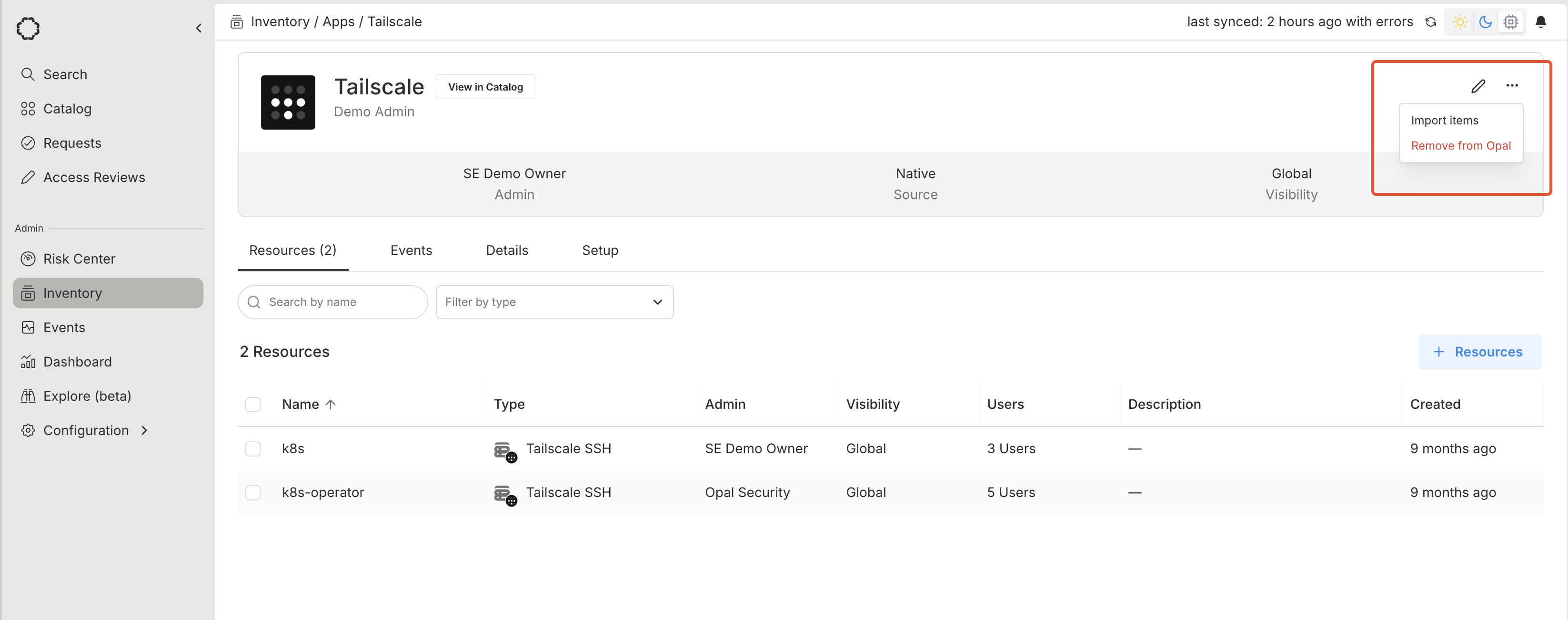
3. Import Tailscale resources to Opal by selecting **...** > **Import items**.
 For each ACL tag that is selected, Opal automatically parses the existing access rules and SSH access rules that apply to that tag, and which groups have access to the tagged sources using those rules.
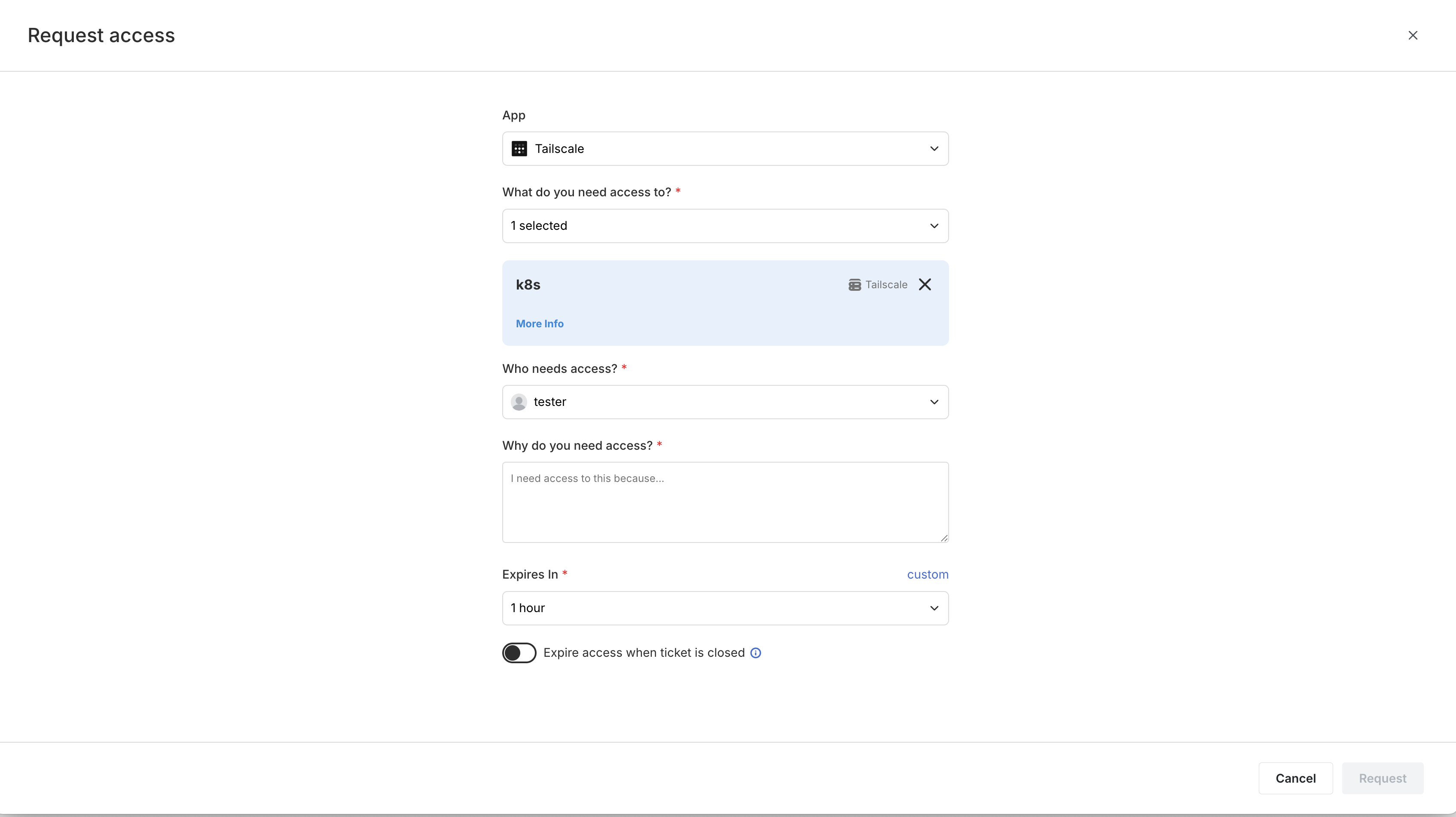
Users can now request access or SSH access to a specific tag in Tailscale or to join a specific group.
For each ACL tag that is selected, Opal automatically parses the existing access rules and SSH access rules that apply to that tag, and which groups have access to the tagged sources using those rules.
Users can now request access or SSH access to a specific tag in Tailscale or to join a specific group.