> ## Documentation Index
> Fetch the complete documentation index at: https://docs.opal.dev/llms.txt
> Use this file to discover all available pages before exploring further.
# PagerDuty
> Learn how to connect your PagerDuty accounts with Opal to manage and review access.
Opal natively supports an integration with PagerDuty. This integration enables organizations to manage access to groups and roles, and sync Pagerduty on-call schedules to any group.
You can now sync on-call schedules in Opal's native PagerDuty app as a nested
group! There are no breaking changes to our legacy [Pagerduty productivity
integration](/integrations/pagerduty-oncall).
Use the following steps for managing access to PagerDuty roles.
 ## Supported resources
| Resource | Read | Grant and revoke access | Available in Risk Center |
| ----------------- | ---- | ----------------------- | ------------------------ |
| PagerDuty Role | ✔️ | ✔️ | ✔️ |
| On call Schedules | ✔️ | ✔️ | ✔️ |
You can grant access to PagerDuty roles using the native integration.
The PagerDuty integration also supports user account [deprovisioning](/docs/user-provisioning).
## 1. Create app in Opal
In Opal, go to the **Inventory**, click on the **+ App** icon, and select the **PagerDuty** app.
## 2. Create a service account for Opal
Opal requires an API Access Key to manage your PagerDuty on your behalf.
To set up an API Access Key:
1. In PagerDuty, go to **Integrations > API Access Keys > Create New API Key**.
2. Set the description to Opal, leave the read-only checkbox disabled, then select **Create Key Set**. You will receive an API Key with full access.
3. Save the API Key, as it will only be visible once.
## 3. Save your Opal app
After you create the service account, go back to Opal and fill in details about your app—the name, description, and visibility. Enter the API Key from the previous step in the **PagerDuty API Key** field, then select **Create**.
After you save the app, in the **Details** tab, you can manage default settings, such as:
* **Admin**: Who is the owner who can manage configurations
* **Description**: What is the human understandable description for the role
* **Webhook for access changes**: Opal can push events to a webhook rather than connecting to the end system
* **Import setting**: Opal can either import all or manually import resources
* **Default import visibility**: Resources can be either global or limited access (based on groups)
***
## Syncing your On-Call Schedules
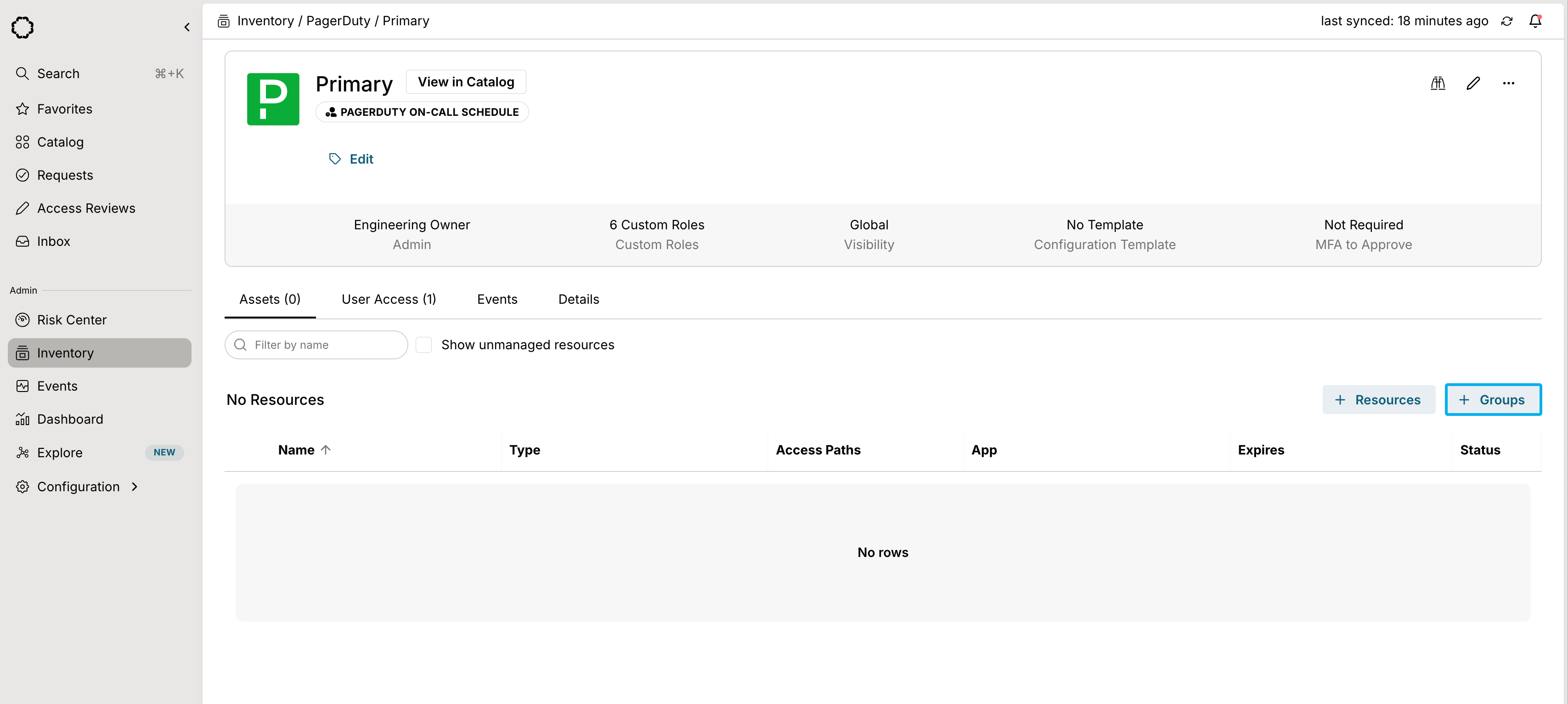
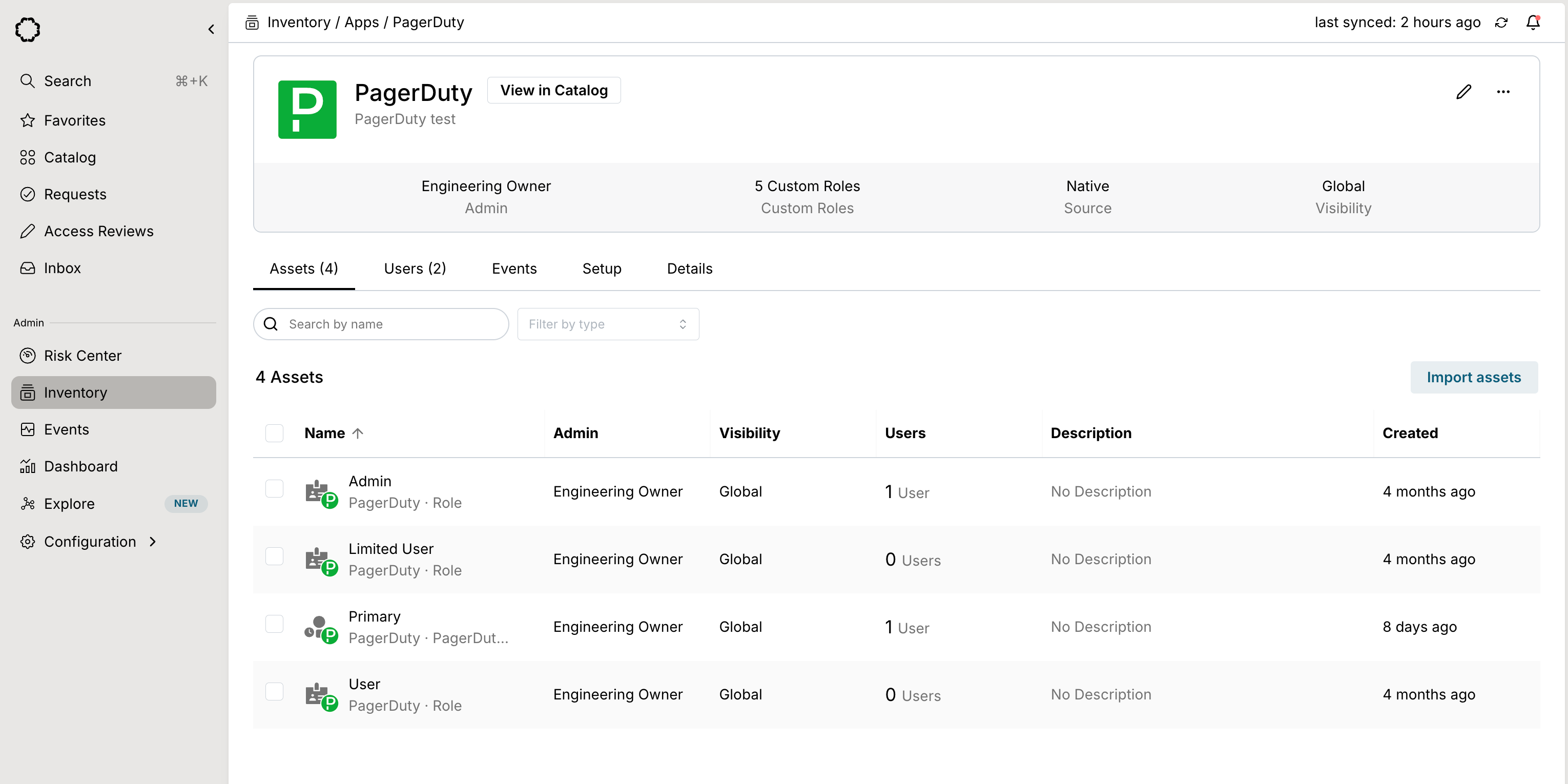
You find and use on-call schedules as a group directly under the **Assets** tab. If you wish to sync it to a group in Opal, you can add the group as a nested group to the on-call schedule group by clicking **+ Groups**.
## Supported resources
| Resource | Read | Grant and revoke access | Available in Risk Center |
| ----------------- | ---- | ----------------------- | ------------------------ |
| PagerDuty Role | ✔️ | ✔️ | ✔️ |
| On call Schedules | ✔️ | ✔️ | ✔️ |
You can grant access to PagerDuty roles using the native integration.
The PagerDuty integration also supports user account [deprovisioning](/docs/user-provisioning).
## 1. Create app in Opal
In Opal, go to the **Inventory**, click on the **+ App** icon, and select the **PagerDuty** app.
## 2. Create a service account for Opal
Opal requires an API Access Key to manage your PagerDuty on your behalf.
To set up an API Access Key:
1. In PagerDuty, go to **Integrations > API Access Keys > Create New API Key**.
2. Set the description to Opal, leave the read-only checkbox disabled, then select **Create Key Set**. You will receive an API Key with full access.
3. Save the API Key, as it will only be visible once.
## 3. Save your Opal app
After you create the service account, go back to Opal and fill in details about your app—the name, description, and visibility. Enter the API Key from the previous step in the **PagerDuty API Key** field, then select **Create**.
After you save the app, in the **Details** tab, you can manage default settings, such as:
* **Admin**: Who is the owner who can manage configurations
* **Description**: What is the human understandable description for the role
* **Webhook for access changes**: Opal can push events to a webhook rather than connecting to the end system
* **Import setting**: Opal can either import all or manually import resources
* **Default import visibility**: Resources can be either global or limited access (based on groups)
***
## Syncing your On-Call Schedules
You find and use on-call schedules as a group directly under the **Assets** tab. If you wish to sync it to a group in Opal, you can add the group as a nested group to the on-call schedule group by clicking **+ Groups**.