> ## Documentation Index
> Fetch the complete documentation index at: https://docs.opal.dev/llms.txt
> Use this file to discover all available pages before exploring further.
# Opsgenie
> Learn how to connect Opal to Opsgenie.
Opsgenie is being
[sunset](https://www.atlassian.com/software/opsgenie/migration) and moved over
the Jira Service Management.
Using Opal's Opsgenie integration, you can link on-call schedules with Opal groups. The user who is currently on-call is added to all permissions associated with that group so they can effectively diagnose and solve live issues. When
they're no longer on-call, Opal automatically removes their privileges.
Opal always syncs access for whoever is currently on-call, including current
overrides.
## 1. Create an Opsgenie token
Opal requires a "read-only" Opsgenie API token. Go to your Opsgenie dashboard and create an API token by following [the official Opsgenie documentation](https://support.atlassian.com/opsgenie/docs/api-key-management/).
## 2. Add your token to Opal
To enable the Opsgenie integration, in the Opal dashboard, go to **Configuration** > **Settings** > **Productivity Integrations**. Select **Opsgenie** and enter your API token from the previous step.
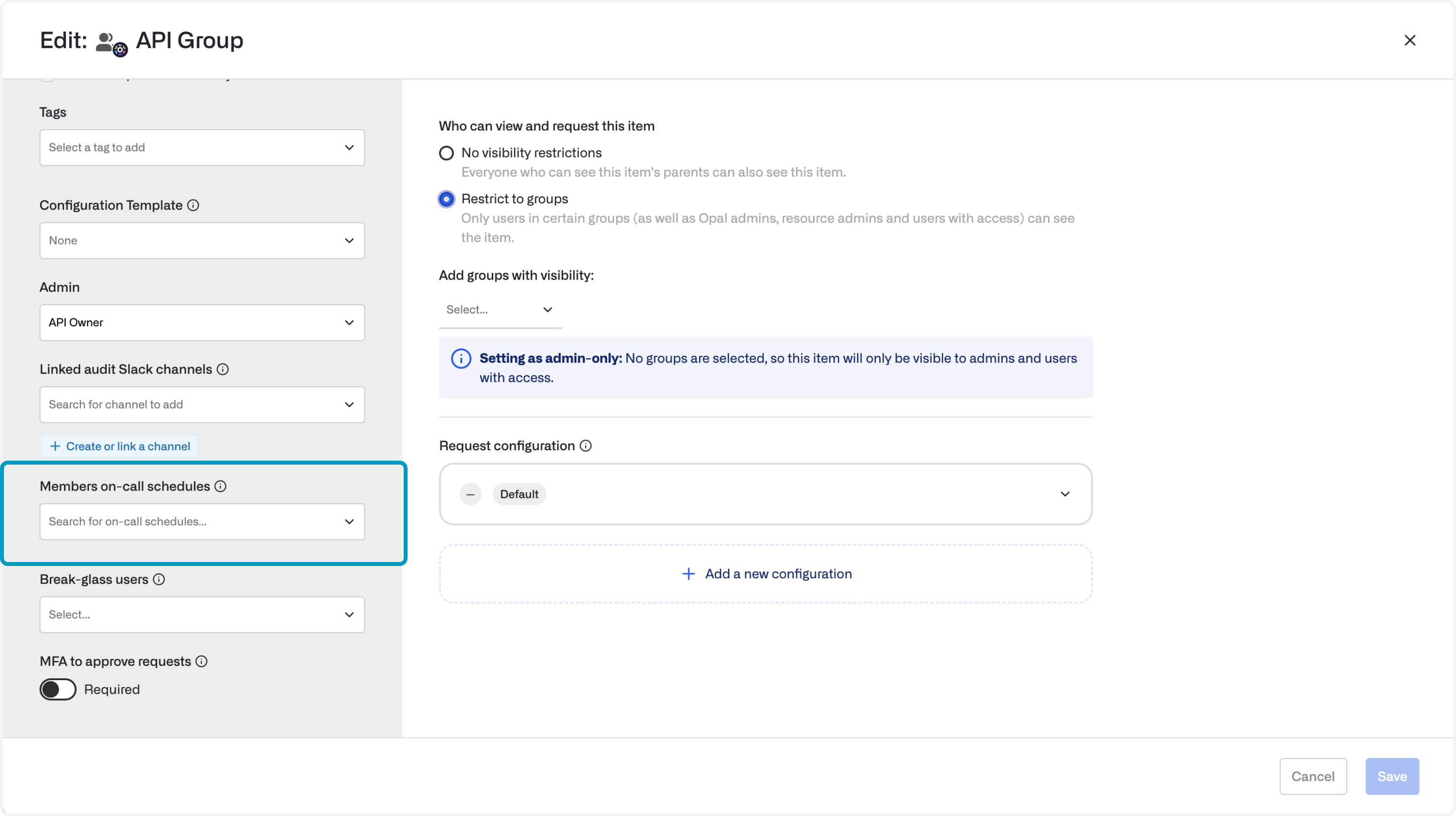
## 3. Create an Opsgenie-synced group
Any group in Opal can be synchronized with an Opsgenie schedule. Edit the group and select schedules to sync: