> ## Documentation Index
> Fetch the complete documentation index at: https://docs.opal.dev/llms.txt
> Use this file to discover all available pages before exploring further.
# Okta CIAM
> Connect your Okta CIAM instance to Opal to manage and review access.
You can connect Okta CIAM to Opal to manage and review manage permissions for privileged identities in your Okta tenant.
## Overview
Since Okta CIAM allows for a single Okta tenant to contain your internal workforce identities *(i.e. privileged identities)* and external customer identities *(i.e. customer PII)*, this Opal connector allows you to achieve separation between the two. This is done through a profile attribute filter to ensure Opal syncs and manages the appropriate subset of users and groups.
## Supported resources
| Resource | Read | Grant and revoke access |
| -------------------------------- | ---- | ----------------------- |
| Okta Users and User Attributions | ✔️ | ✔️ |
| Okta Groups | ✔️ | ✔️ |
| Okta Roles | ✔️ | ✔️ |
With Opal's Okta CIAM integration:
* Users can **request time-bounded access** to your Okta groups and admin roles
* Admins can **add resources from other Opal integrations** to an Okta group so members of that Okta group can automatically gain birthright access to resources (e.g. Github repository, AWS IAM role)
* All access changes are tracked in a **permanent audit log** that can notify a Slack channel or be exported to your favorite tools.
* User account deprovisioning is supported
The Okta CIAM integration does not currently support real-time sync.
## Requirements
To connect Opal with Okta CIAM, you must first:
* Be an [Opal Admin](/docs/roles-in-opal)
* [Configure an Okta API token](/integrations/okta#1-configure-an-api-token-for-opal) for Opal
* Add a custom profile attribute `opal_okta_ciam_managed` and set it to `True` for all users and groups you want Opal to manage
## 1. Setting up the attribute
In your Okta Admin Console, create a custom profile attribute `opal_okta_ciam_managed` boolean.
* For [Users](https://help.okta.com/en-us/content/topics/users-groups-profiles/usgp-add-custom-user-attributes.htm): Add `opal_okta_ciam_managed` boolean to your user profile
* For [Groups](https://help.okta.com/en-us/content/topics/users-groups-profiles/usgp-add-custom-group-attributes.htm): Add `opal_okta_ciam_managed` boolean to your group profile
Set `opal_okta_ciam_managed = true` on all internal workforce users and groups you want Opal to manage.
Ensure that `opal_okta_ciam_managed = true` is only applied to internal
workforce identities and groups you want Opal to manage. Ensure customer
accounts and customer-facing groups **do not** have this attribute. Opal will
only sync and display users and groups where `opal_okta_ciam_managed` is
explicitly set to `true`.
## 2. Create Opal app
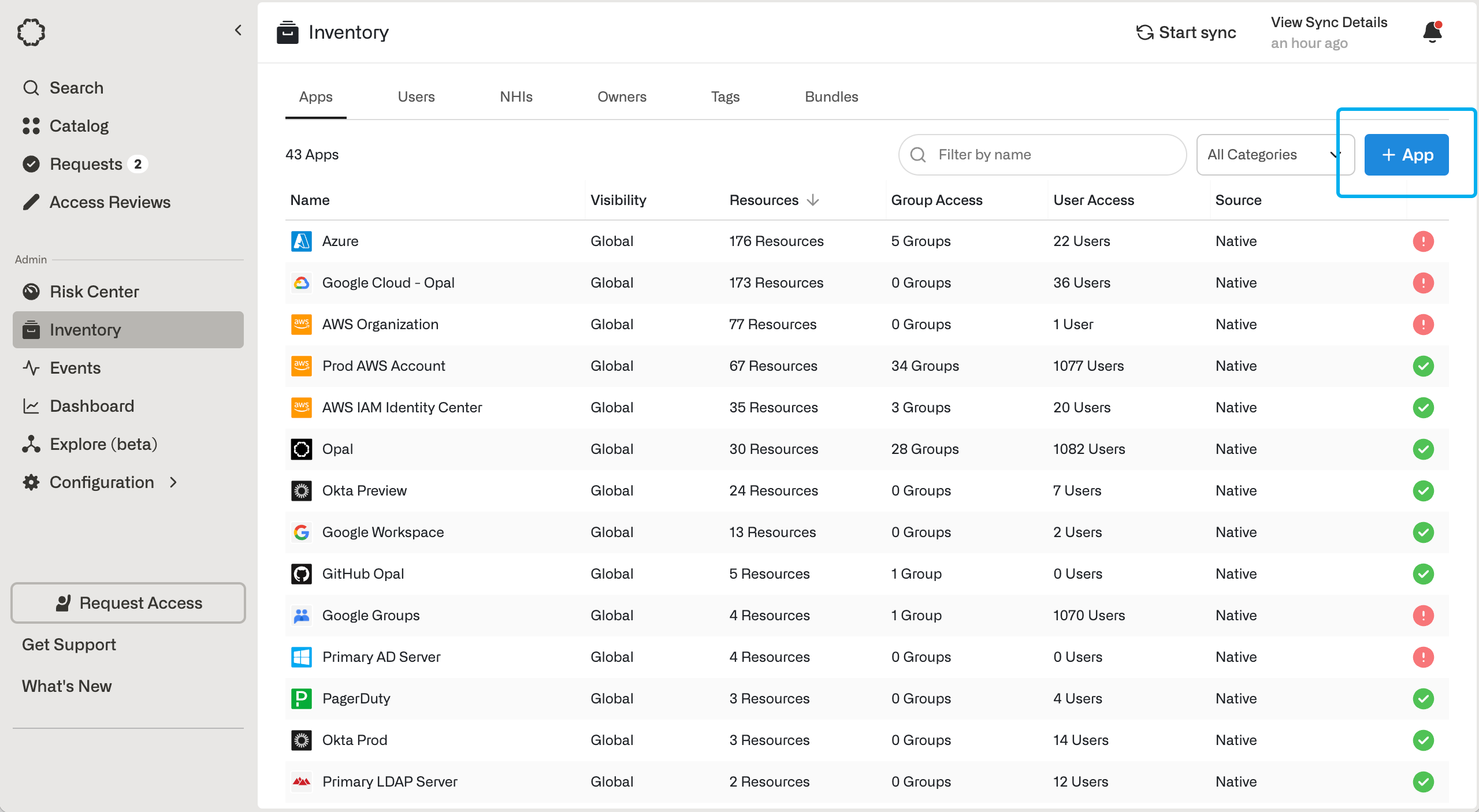
In Opal, go to the **Inventory** >**+ App**, then select **Okta CIAM**.
 ## 3. Configure the app
Fill in the following fields about your Okta CIAM integration.
| Field | Value |
| ----------- | ------------------------------------------------------------------------------------------------------------------------------------------------------------------------------------------------------------------------------ |
| App name | Identifiable name for the app, e.g., Oracle Fusion Cloud |
| App admin | The [Owner](/docs/opal-101#owners) of the app |
| Description | A description to provide additional context to requesting users. |
| Visibility | **No visibility restrictions** makes the item visible to all users who can view the parent app. **Restrict to groups** restricts the visibility to groups you specify, Opal admins, resource admins, and users granted access. |
Using information about your Okta organization, fill in the following fields.
| Field | Value |
| --------------------- | ------------------------------------------------------------------------------------------------------------------------------------- |
| Organization hostname | The [Okta domain](https://developer.okta.com/docs/guides/find-your-domain/main/) for your Okta organization (e.g. mydomain.okta.com). |
| API Token | The Okta API token you configured for Opal |
After you save the app, you can [run app validation checks](/integrations/okta#run-app-validation-checks). You may also [configure auto-import Okta groups](/integrations/okta#automatic-import-okta-groups-only).
## 3. Configure the app
Fill in the following fields about your Okta CIAM integration.
| Field | Value |
| ----------- | ------------------------------------------------------------------------------------------------------------------------------------------------------------------------------------------------------------------------------ |
| App name | Identifiable name for the app, e.g., Oracle Fusion Cloud |
| App admin | The [Owner](/docs/opal-101#owners) of the app |
| Description | A description to provide additional context to requesting users. |
| Visibility | **No visibility restrictions** makes the item visible to all users who can view the parent app. **Restrict to groups** restricts the visibility to groups you specify, Opal admins, resource admins, and users granted access. |
Using information about your Okta organization, fill in the following fields.
| Field | Value |
| --------------------- | ------------------------------------------------------------------------------------------------------------------------------------- |
| Organization hostname | The [Okta domain](https://developer.okta.com/docs/guides/find-your-domain/main/) for your Okta organization (e.g. mydomain.okta.com). |
| API Token | The Okta API token you configured for Opal |
After you save the app, you can [run app validation checks](/integrations/okta#run-app-validation-checks). You may also [configure auto-import Okta groups](/integrations/okta#automatic-import-okta-groups-only).