> ## Documentation Index
> Fetch the complete documentation index at: https://docs.opal.dev/llms.txt
> Use this file to discover all available pages before exploring further.
# Notion
> Learn how to connect your Opal instance with Notion.
With Opal's Notion integration, you can:
* Create audit tickets for access requests
* Propagate access to Opal using Notion ticket
## Configuration requirements
To connect Notion with Opal, you must:
* Be an Opal Admin
## 1. Retrieve Notion integration token
[Create an integration in Notion](https://www.notion.so/my-integrations), then copy the [internal integration token](https://www.notion.com/help/add-and-manage-connections-with-the-api).
## 2. Configure Notion databases
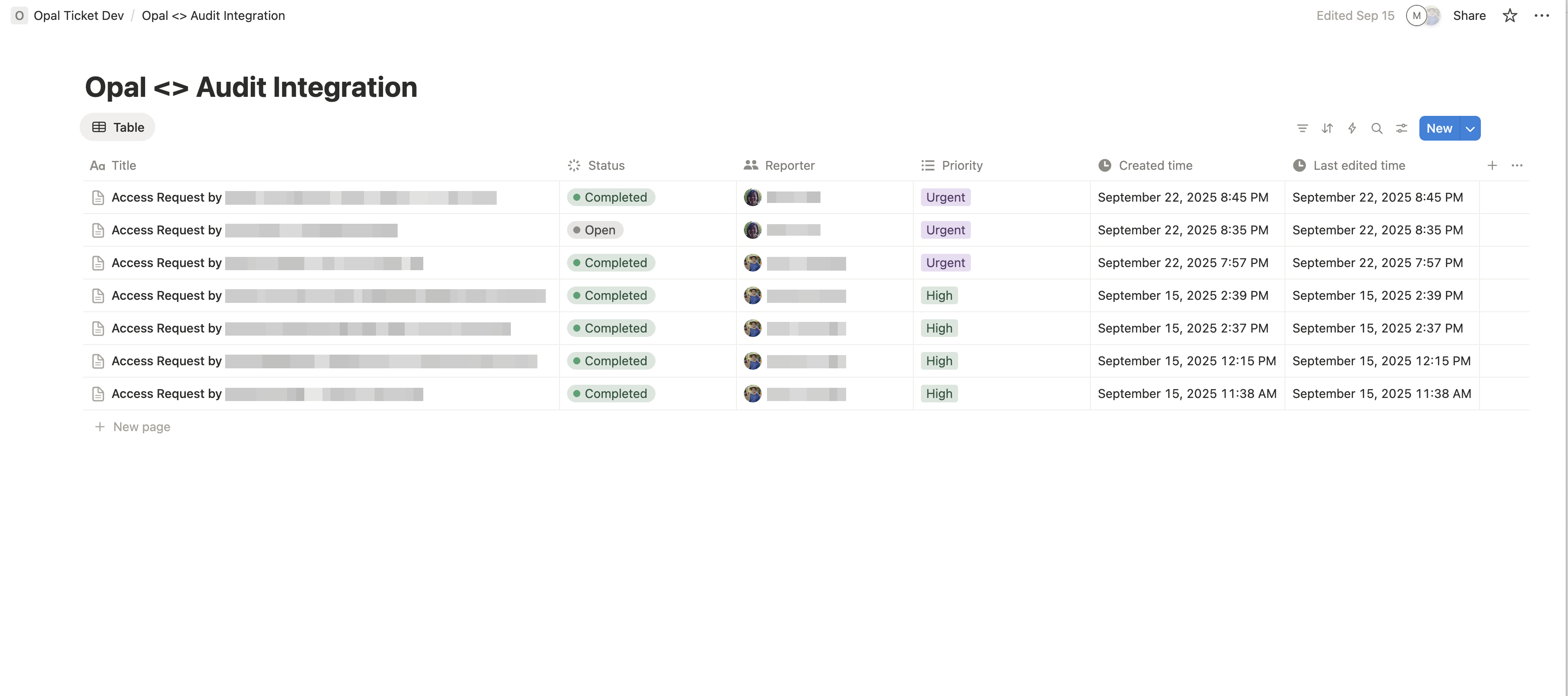
For each ticketing project, you should maintain a separate Notion database using the following schema. Connect each database to the connection you used to create the Notion integration token.
| Field | Type |
| ----------------------------------- | ---------------------------------------- |
| Title | Text |
| Status | Status (Open, In Progress, Completed) |
| Reporter | Person |
| Priority | Multi-select (Low, Medium, High, Urgent) |
| Created time *(Notion default)* | Created time |
| Last edited time *(Notion default)* | Last edited time |
For example, to use Notion to track both auditing and propagation tickets, you'd create separate databases for **Opal \<> Propagate Integration** and **Opal \<> Audit Integration**, and connect them to the same integration.
 ## 3. Create Notion app in Opal
In Opal, go to **Configuration** > **Organization Settings** > **Productivity Integrations** and select **Connect** next to **Notion**.
## 3. Create Notion app in Opal
In Opal, go to **Configuration** > **Organization Settings** > **Productivity Integrations** and select **Connect** next to **Notion**.
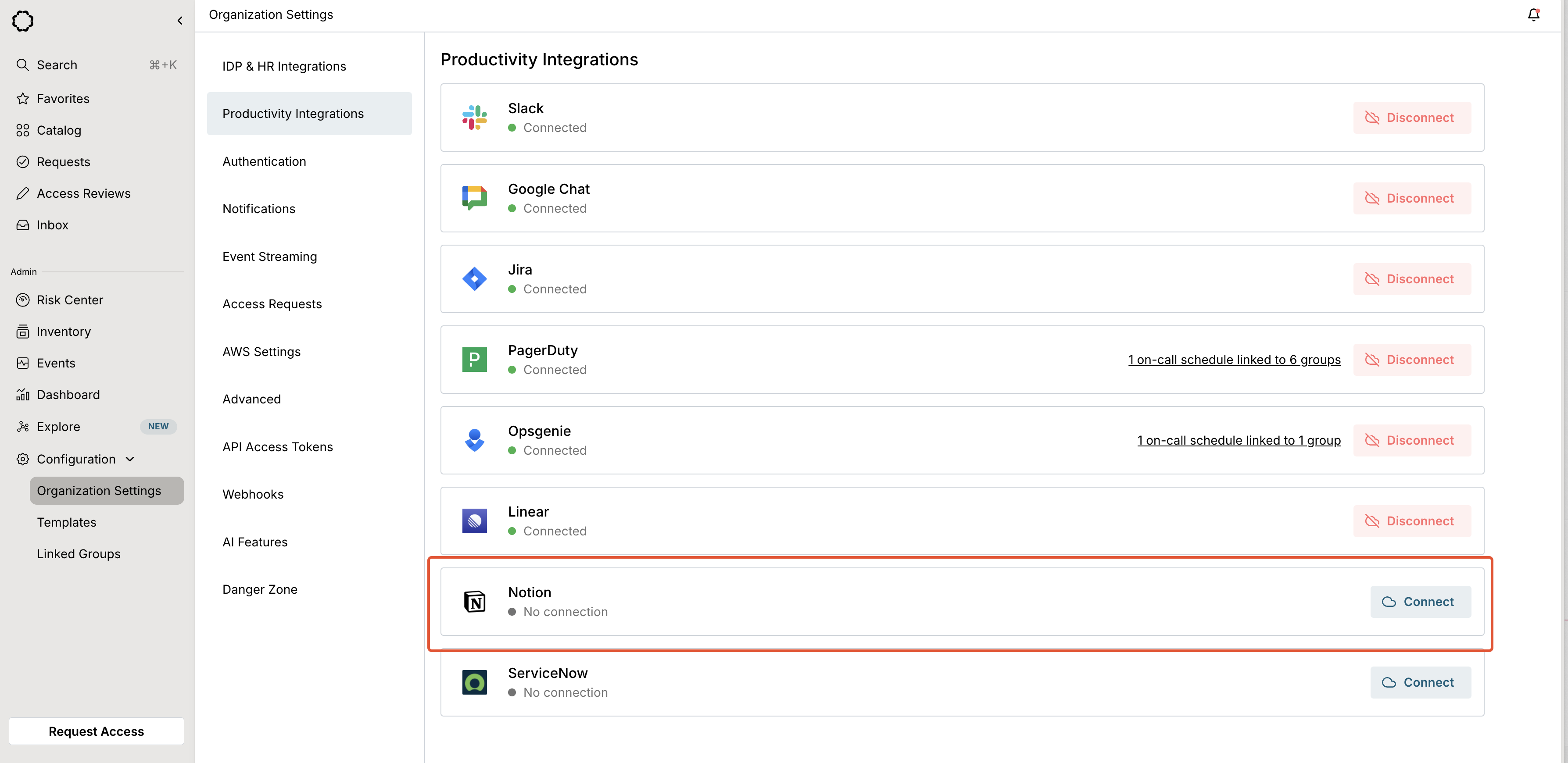 Enter the integration token you saved from step 1, then save the integration.
## Create audit tickets
To create audit tickets in Notion for every access request, enable **Notion** as a ticketing provider under **Configuration** > **Organization Settings** > **Access Requests**. You'll see the Notion databases you configured show as options after saving the Notion token.
## Propagate access with tickets
See the ticket propagation guide to learn how to propagate access with tickets connected to your Notion databases.
***
Enter the integration token you saved from step 1, then save the integration.
## Create audit tickets
To create audit tickets in Notion for every access request, enable **Notion** as a ticketing provider under **Configuration** > **Organization Settings** > **Access Requests**. You'll see the Notion databases you configured show as options after saving the Notion token.
## Propagate access with tickets
See the ticket propagation guide to learn how to propagate access with tickets connected to your Notion databases.
***