> ## Documentation Index
> Fetch the complete documentation index at: https://docs.opal.dev/llms.txt
> Use this file to discover all available pages before exploring further.
# Lark
> Learn how to connect Opal to Lark to send notifications and manage access requests.
You can connect Opal to Lark to send interactive notifications to requesters and reviewers about access requests, expirations, and reviews. Reviewers can approve or deny requests directly from a Lark card.
## Requirements
To set up the Lark integration, you must:
* Be an Opal Admin
* Have permission to create custom apps in the [Lark Developer Console](https://open.larksuite.com/)
* Be on versions `1.1187.0` or later
* Ask Opal team to enable the feature for you
Opal connects to Lark over an outbound long connection (WebSocket), so self-hosted Opal instances don't need to expose a public endpoint to receive Lark events.
## 1. Create a custom app in Lark
Go to the [Lark Developer Console](https://open.larksuite.com/) and create a new custom app named `Opal` or whatever name you want your bot to be.
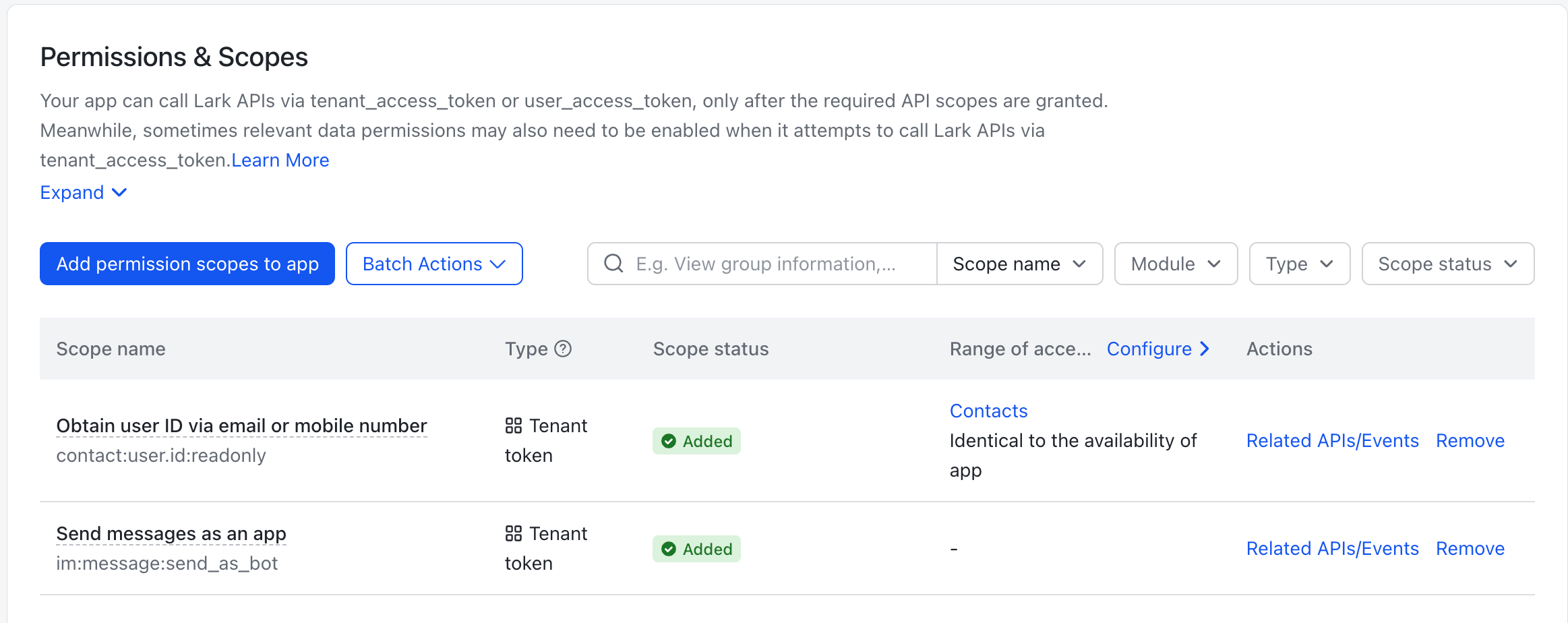
### *Permissions and Scopes*
| Scope | Purpose |
| -------------------------- | ------------------------------------------------------------------- |
| `im:message:send_as_bot` | Send notification cards, update them in place, and reply in threads |
| `contact:user.id:readonly` | Match Opal users to Lark accounts by email |
 ### *Events and Callbacks*
* Select the **persistent connection** for Event Configuration and Callback Configuration
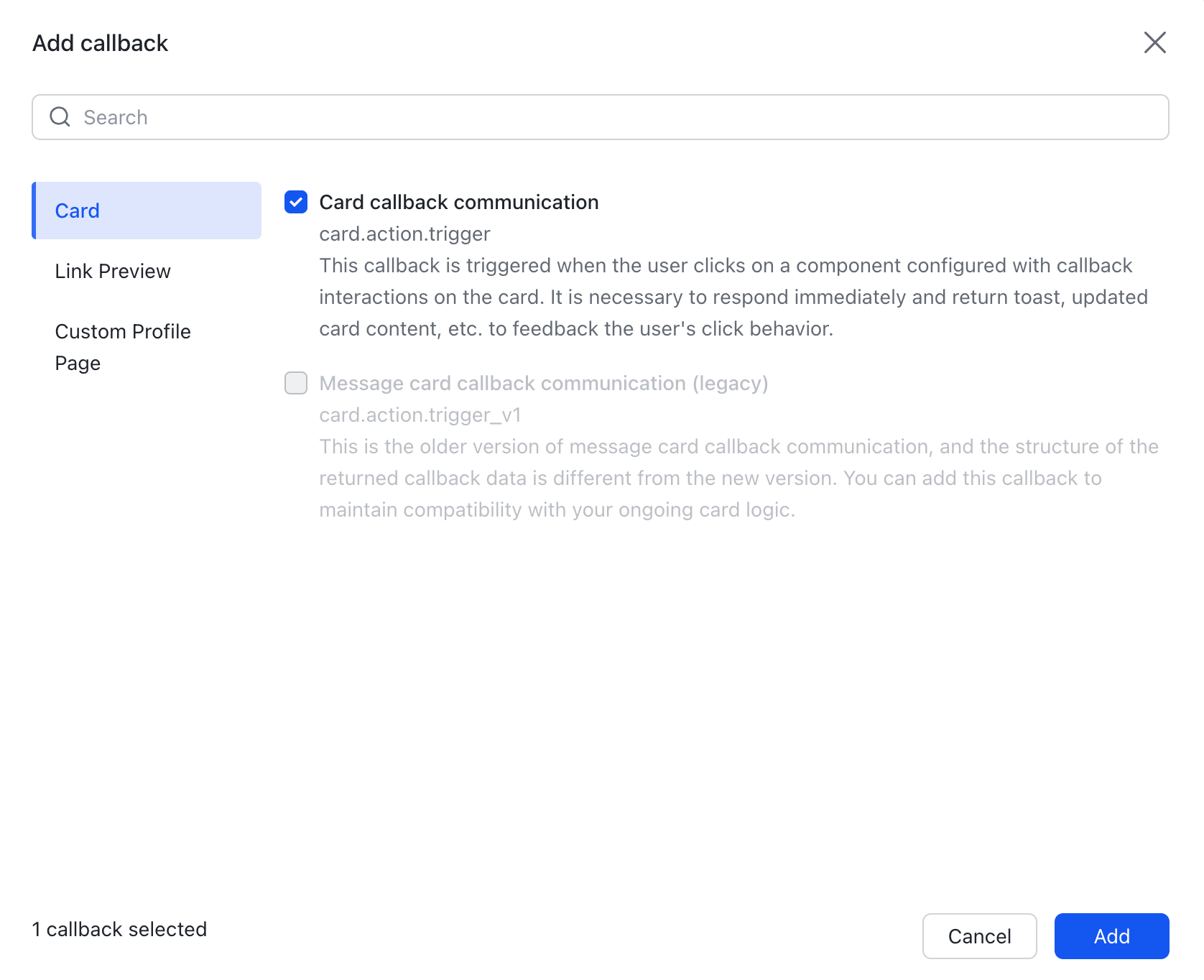
* Under Callback Configuration, add the **Card callback communication** callback (`card.action.trigger`), which lets reviewers act on requests from card buttons. Leave the legacy `card.action.trigger_v1` callback unchecked.
### *Events and Callbacks*
* Select the **persistent connection** for Event Configuration and Callback Configuration
* Under Callback Configuration, add the **Card callback communication** callback (`card.action.trigger`), which lets reviewers act on requests from card buttons. Leave the legacy `card.action.trigger_v1` callback unchecked.
 * Publish a version of the app so the permissions and events take effect. From the app's credentials page, record the **App ID** and **App Secret**. You'll use these in the next step.
## 2. Connect Lark to Opal
In Opal, go to **Configuration** > **Settings** > **Productivity Integrations** and select the option to connect Lark. Fill in the following fields:
| Field | Value |
| ----------- | --------------------------------------------------------------------------------------------------------------------------------------- |
| Lark Domain | The Lark open platform base URL: `https://open.larksuite.com` for international tenants or `https://open.feishu.cn` for Feishu tenants. |
| App ID | The App ID of the custom app you created, e.g., `cli_a1b2c3d4e5f6g7h8`. |
| App Secret | The App Secret of the custom app you created. |
Opal validates the credentials upon saving. Once connected, Opal matches your Opal users to Lark accounts by email address.
Users without a matching Lark account don't receive Lark notifications; these skipped notifications are recorded in the audit trail.
## 3. Enable Lark notifications
Users control their own Lark notifications from their notification preferences in Opal. To receive Opal messages in Lark, users must enable the **Lark** notification type in their account settings.
## What users can do in Lark
### Act on requests from cards
Opal sends interactive cards as direct messages:
* **Reviewers** receive a card for each access request with the request details and buttons to **Approve** or **Deny** (and **Admin Approve**, where applicable). When a request is resolved—whether from Lark or the web app—the card updates in place to show the outcome.
* **Requesters** receive status updates as their request is approved or denied, and comments on a request appear as threaded replies on the card.
* **Users with expiring access** receive an expiration alert with an **Extend** button.
## Limitations
* Linked reviewer channels and linked audit channels are not supported for Lark; Opal sends Lark notifications as direct messages only.
* Admin-paused notification categories (such as access revocation, request cancellation, and access expiration) also apply to Lark notifications.
* Publish a version of the app so the permissions and events take effect. From the app's credentials page, record the **App ID** and **App Secret**. You'll use these in the next step.
## 2. Connect Lark to Opal
In Opal, go to **Configuration** > **Settings** > **Productivity Integrations** and select the option to connect Lark. Fill in the following fields:
| Field | Value |
| ----------- | --------------------------------------------------------------------------------------------------------------------------------------- |
| Lark Domain | The Lark open platform base URL: `https://open.larksuite.com` for international tenants or `https://open.feishu.cn` for Feishu tenants. |
| App ID | The App ID of the custom app you created, e.g., `cli_a1b2c3d4e5f6g7h8`. |
| App Secret | The App Secret of the custom app you created. |
Opal validates the credentials upon saving. Once connected, Opal matches your Opal users to Lark accounts by email address.
Users without a matching Lark account don't receive Lark notifications; these skipped notifications are recorded in the audit trail.
## 3. Enable Lark notifications
Users control their own Lark notifications from their notification preferences in Opal. To receive Opal messages in Lark, users must enable the **Lark** notification type in their account settings.
## What users can do in Lark
### Act on requests from cards
Opal sends interactive cards as direct messages:
* **Reviewers** receive a card for each access request with the request details and buttons to **Approve** or **Deny** (and **Admin Approve**, where applicable). When a request is resolved—whether from Lark or the web app—the card updates in place to show the outcome.
* **Requesters** receive status updates as their request is approved or denied, and comments on a request appear as threaded replies on the card.
* **Users with expiring access** receive an expiration alert with an **Extend** button.
## Limitations
* Linked reviewer channels and linked audit channels are not supported for Lark; Opal sends Lark notifications as direct messages only.
* Admin-paused notification categories (such as access revocation, request cancellation, and access expiration) also apply to Lark notifications.