> ## Documentation Index
> Fetch the complete documentation index at: https://docs.opal.dev/llms.txt
> Use this file to discover all available pages before exploring further.
# Incident.io
> Learn how to connect Incident.io to Opal.
With our Incident.io integration, you can sync on-call schedules in Opal as a nested group. We will automatically add whoever is currently on-call to all the resources associated with that group so they can effectively diagnose and solve live issues. Once they're no longer on-call, Opal will automatically remove their privileges.
## Supported resources
| Resource | Read | Grant and revoke access |
| ----------------------------- | ---- | ----------------------- |
| Incident.io on-call rotations | ✔️ | ✔️ |
Opal always syncs access for whoever is currently on-call, including current
overrides.
## 1. Create a Incident.io token
Opal requires a "read-only" Incident.io API token. Go to your incident.io dashboard and [create an API token](https://help.incident.io/articles/3838115863-our-api#where-can-i-find-the-api-keys-16).
## 2. Create Incident.io App in Opal
In your inventory, click **+ App** and search for **incident.io**. Connect to the **incident.io** native integration and add all necessary information, including the API token you created in step 1.
## 3. Sync your Incident.io schedules
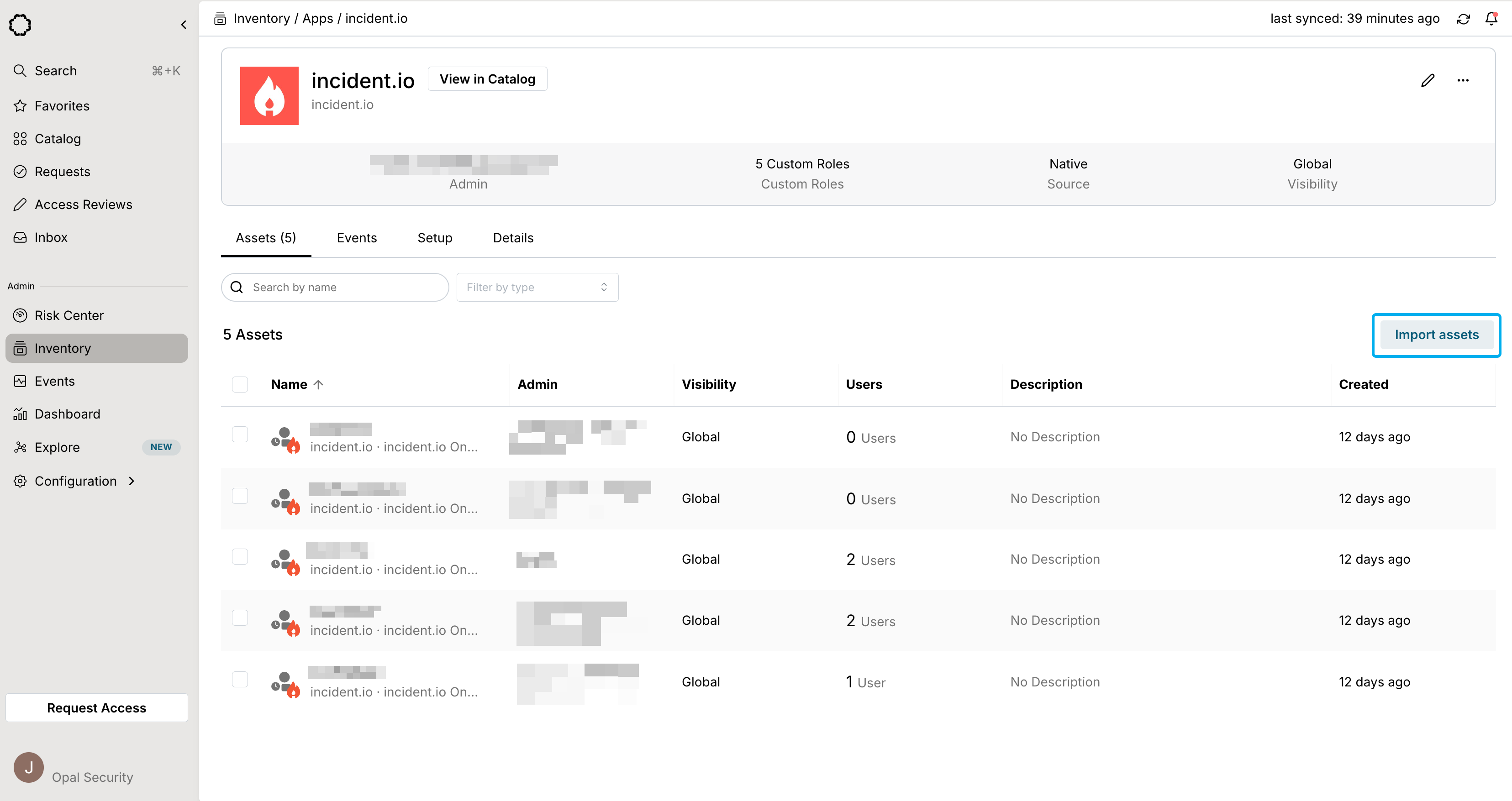
You can find your on-call schedules as a group under the **Assets** tab. To sync, click **Import assets** to add your schedules into Opal for management.
If you're importing schedules after your initial sync, remember to click
**Sync Items** in the top right hand corner of the **Import assets** tab.