> ## Documentation Index
> Fetch the complete documentation index at: https://docs.opal.dev/llms.txt
> Use this file to discover all available pages before exploring further.
# Google Cloud Platform (GCP)
> Connect your GCP infrastructure to use Opal to manage and review access.
Use Opal's Google Cloud integration to quickly grant your team temporary access to your Google Cloud resources. With the integration:
* Users can request time-bounded access to your GCP resources.
* Auditors can initiate access reviews that assign managers or group admins to periodically review users with long-lived access to GCP resources.
* All access changes are tracked as [events](/docs/event-types) that you can log to Slack or export to your favorite tools.
## Supported resources
| Resource | Read | Grant and revoke access | Included in [Risk Center](/docs/least-privilege-posture-management) |
| ---------------------------- | ---- | ----------------------- | ------------------------------------------------------------------- |
| GCP Organizations | ✔️ | ✔️ | ✔️ |
| GCP Projects | ✔️ | ✔️ | ✔️ |
| GCP Folders | ✔️ | ✔️ | ✔️ |
| GCP Buckets | ✔️ | ✔️ | ✔️ |
| GCP Cloud SQL instances | ✔️ | ✔️ | ✔️ |
| GCP Compute Engine Instances | ✔️ | ✔️ | ✔️ |
| GCP BigQuery Datasets | ✔️ | ✔️ | ✔️ |
| GCP BigQuery Tables | ✔️ | ✔️ | ✔️ |
| GCP Service Accounts | ✔️ | ✔️\* | ✔️ |
| GCP GKE | ✔️ | ✔️ | ✔️ |
\*You can assign give users access to GCP Service Accounts and grant GCP Service accounts access to resources. You cannot yet add GCP Service Accounts to groups.
## Create a service account
To get started, create a service account with the proper permission scopes.
* Open the [Service accounts page](https://console.developers.google.com/iam-admin/serviceaccounts). If prompted, select a project.
* Ensure that the selected project has the [Cloud Resource Manager API](https://console.developers.google.com/apis/api/cloudresourcemanager.googleapis.com/overview) and the [IAM API](https://console.developers.google.com/apis/api/iam.googleapis.com/overview) enabled.
* At the top of the page, click "**+ Create Service Account**". Enter a name and description for the service account. When done, click **Create**.
* The **Service account permissions** section that follows is not required. Click **Continue**.
* On the **Grant users access to this service account** screen, click **Done**.
* Select the new service account.
* Click the **Keys** tab.
* Click the **Add key** drop-down menu, then select **Create new key**.
* Select **JSON** as the **Key type** and click **Create**.
* Your new public/private key pair is generated and downloaded to your machine.
* Click **Close** on the **Private key saved to your computer** dialog, then return to the table of your service accounts.
* Make a copy of the full email of the service account.
Let's now [create a custom role in IAM](https://console.cloud.google.com/iam-admin/roles).
* Select the organization level at the top:
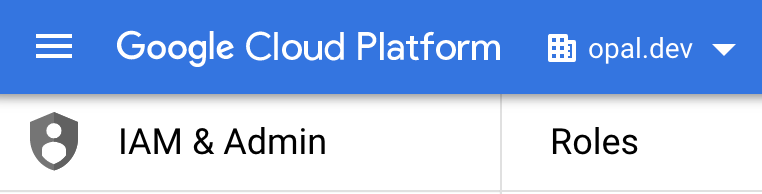 * Click **+ Create Role**.
* Give it a title, ID and set the launch stage to **General Availability**.
* Click **+ Add Permissions**.
* Click **+ Create Role**.
* Give it a title, ID and set the launch stage to **General Availability**.
* Click **+ Add Permissions**.
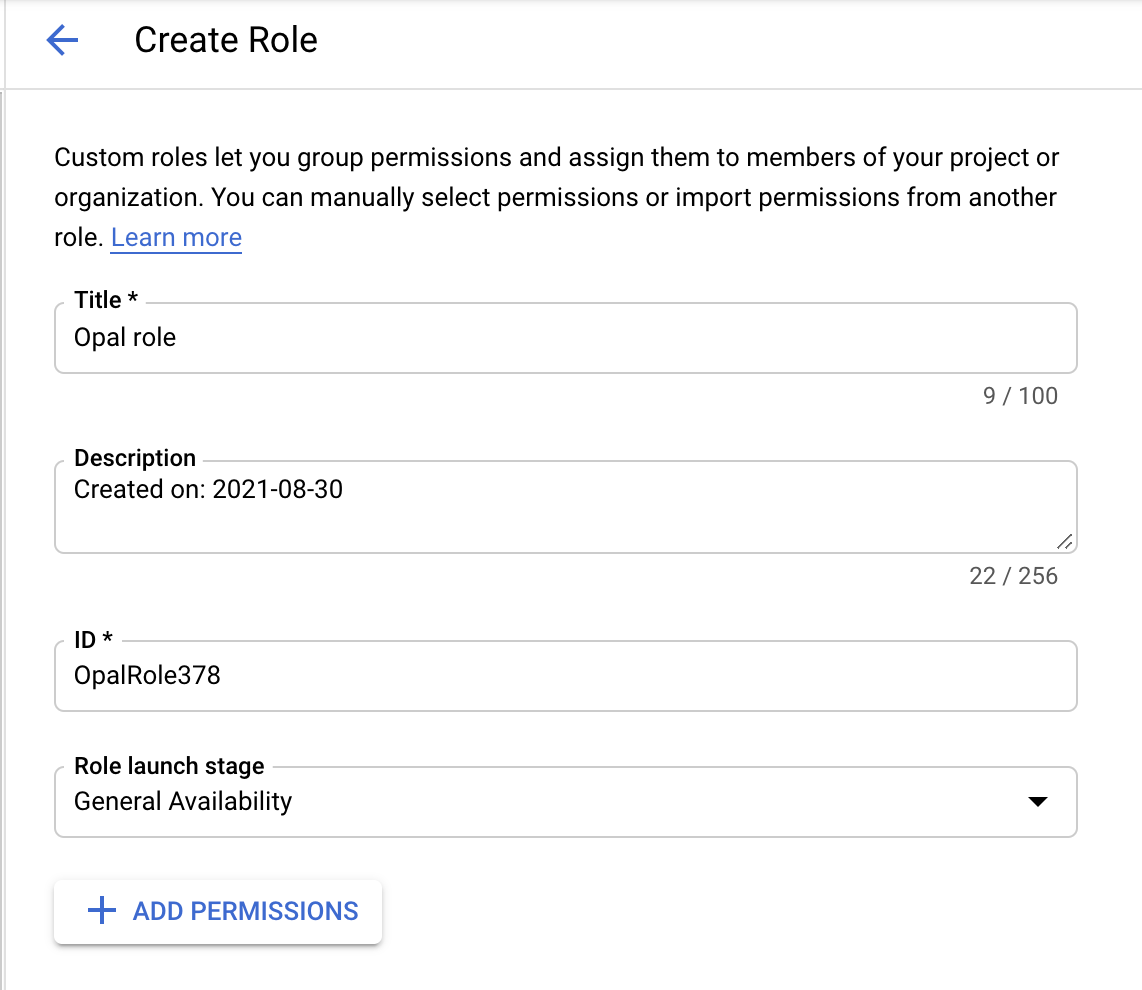 * Add the following permissions. The `resourcemanager.organizations.get` permission is required, and the rest are optional. Use the **Explanation** tab to learn which permissions are necessary for your use case.
```Text Permissions theme={null}
resourcemanager.organizations.get
iam.roles.get
iam.roles.list
resourcemanager.folders.get
resourcemanager.folders.getIamPolicy
resourcemanager.folders.list
resourcemanager.folders.setIamPolicy
resourcemanager.projects.get
resourcemanager.projects.getIamPolicy
resourcemanager.projects.list
resourcemanager.projects.setIamPolicy
resourcemanager.organizations.getIamPolicy
resourcemanager.organizations.setIamPolicy
storage.buckets.get
storage.buckets.getIamPolicy
storage.buckets.list
storage.buckets.setIamPolicy
cloudsql.users.create
cloudsql.users.delete
cloudsql.users.list
cloudsql.instances.get
cloudsql.instances.list
compute.instances.get
compute.instances.getIamPolicy
compute.instances.list
compute.instances.setIamPolicy
iam.serviceAccounts.get
iam.serviceAccounts.getIamPolicy
iam.serviceAccounts.list
iam.serviceAccounts.setIamPolicy
bigquery.datasets.get
bigquery.datasets.update
bigquery.datasets.getIamPolicy
bigquery.tables.get
bigquery.tables.getIamPolicy
bigquery.tables.list
bigquery.tables.setIamPolicy
bigquery.jobs.create
logging.privateLogEntries.list
```
```c Explanation theme={null}
// Required, used to import GCP organizations and their children
resourcemanager.organizations.get
// Optional, used to check the connection configuration
iam.roles.get
// Optional, used to check the connection configuration
iam.roles.list
// Optional, used to import GCP folders and their children
resourcemanager.folders.get
// Optional, used to view access to GCP folders
resourcemanager.folders.getIamPolicy
// Optional, used to import GCP folders and their children
resourcemanager.folders.list
// Optional, used to push access to GCP folders
resourcemanager.folders.setIamPolicy
// Optional, used to import GCP projects and their children
resourcemanager.projects.get
// Optional, used to view access to GCP projects
resourcemanager.projects.getIamPolicy
// Optional, used to import GCP projects and their children
resourcemanager.projects.list
// Optional, used to push access to GCP projects
resourcemanager.projects.setIamPolicy
// Optional, used to view access to GCP organizations
resourcemanager.organizations.getIamPolicy
// Optional, used to push access to GCP organizations
resourcemanager.organizations.setIamPolicy
// Optional, used to import GCP buckets
storage.buckets.get
// Optional, used to view access to GCP projects
storage.buckets.getIamPolicy
// Optional, used to import GCP buckets
storage.buckets.list
// Optional, used to push access to GCP buckets
storage.buckets.setIamPolicy
// Optional, used to add users to GCP SQL instances
cloudsql.users.create
// Optional, used to remove users from GCP SQL instances
cloudsql.users.delete
// Optional, used to view access to GCP SQL instances
cloudsql.users.list
// Optional, used to import GCP SQL instances
cloudsql.instances.get
// Optional, used to import GCP SQL instances
cloudsql.instances.list
// Optional, used import GCP compute instances
compute.instances.get
// Optional, used to view access to GCP compute instances
compute.instances.getIamPolicy
// Optional, used to import GCP compute instances
compute.instances.list
// Optional, used to push access to GCP compute instances
compute.instances.setIamPolicy
// Optional, used to import GCP service accounts
iam.serviceAccounts.get
// Optional, used to view access to GCP service accounts
iam.serviceAccounts.getIamPolicy
// Optional, used to import GCP service accounts
iam.serviceAccounts.list
// Optional, used to push access to GCP service accounts
iam.serviceAccounts.setIamPolicy
// Optional, used to import BigQuery datasets
bigquery.datasets.get
// Optional, used to push access to BigQuery datasets
bigquery.datasets.update
// Optional, used to view access to BigQuery datasets
bigquery.datasets.getIamPolicy
// Optional, used to import BigQuery tables
bigquery.tables.get
// Optional, used to view access to BigQuery tables
bigquery.tables.getIamPolicy
// Optional, used to import BigQuery tables
bigquery.tables.list
// Optional, used to push access to BigQuery tables
bigquery.tables.setIamPolicy
// Optional, used to efficiently import tagged BigQuery tables via INFORMATION_SCHEMA queries (falls back to per-table metadata calls if missing)
bigquery.jobs.create
// Optional, used to ingest usage events for GCP resources
logging.privateLogEntries.list
```
* Click **Create**.
Then open the [Resource Manager page](https://console.cloud.google.com/cloud-resource-manager).
* Select the top level organization:
* Add the following permissions. The `resourcemanager.organizations.get` permission is required, and the rest are optional. Use the **Explanation** tab to learn which permissions are necessary for your use case.
```Text Permissions theme={null}
resourcemanager.organizations.get
iam.roles.get
iam.roles.list
resourcemanager.folders.get
resourcemanager.folders.getIamPolicy
resourcemanager.folders.list
resourcemanager.folders.setIamPolicy
resourcemanager.projects.get
resourcemanager.projects.getIamPolicy
resourcemanager.projects.list
resourcemanager.projects.setIamPolicy
resourcemanager.organizations.getIamPolicy
resourcemanager.organizations.setIamPolicy
storage.buckets.get
storage.buckets.getIamPolicy
storage.buckets.list
storage.buckets.setIamPolicy
cloudsql.users.create
cloudsql.users.delete
cloudsql.users.list
cloudsql.instances.get
cloudsql.instances.list
compute.instances.get
compute.instances.getIamPolicy
compute.instances.list
compute.instances.setIamPolicy
iam.serviceAccounts.get
iam.serviceAccounts.getIamPolicy
iam.serviceAccounts.list
iam.serviceAccounts.setIamPolicy
bigquery.datasets.get
bigquery.datasets.update
bigquery.datasets.getIamPolicy
bigquery.tables.get
bigquery.tables.getIamPolicy
bigquery.tables.list
bigquery.tables.setIamPolicy
bigquery.jobs.create
logging.privateLogEntries.list
```
```c Explanation theme={null}
// Required, used to import GCP organizations and their children
resourcemanager.organizations.get
// Optional, used to check the connection configuration
iam.roles.get
// Optional, used to check the connection configuration
iam.roles.list
// Optional, used to import GCP folders and their children
resourcemanager.folders.get
// Optional, used to view access to GCP folders
resourcemanager.folders.getIamPolicy
// Optional, used to import GCP folders and their children
resourcemanager.folders.list
// Optional, used to push access to GCP folders
resourcemanager.folders.setIamPolicy
// Optional, used to import GCP projects and their children
resourcemanager.projects.get
// Optional, used to view access to GCP projects
resourcemanager.projects.getIamPolicy
// Optional, used to import GCP projects and their children
resourcemanager.projects.list
// Optional, used to push access to GCP projects
resourcemanager.projects.setIamPolicy
// Optional, used to view access to GCP organizations
resourcemanager.organizations.getIamPolicy
// Optional, used to push access to GCP organizations
resourcemanager.organizations.setIamPolicy
// Optional, used to import GCP buckets
storage.buckets.get
// Optional, used to view access to GCP projects
storage.buckets.getIamPolicy
// Optional, used to import GCP buckets
storage.buckets.list
// Optional, used to push access to GCP buckets
storage.buckets.setIamPolicy
// Optional, used to add users to GCP SQL instances
cloudsql.users.create
// Optional, used to remove users from GCP SQL instances
cloudsql.users.delete
// Optional, used to view access to GCP SQL instances
cloudsql.users.list
// Optional, used to import GCP SQL instances
cloudsql.instances.get
// Optional, used to import GCP SQL instances
cloudsql.instances.list
// Optional, used import GCP compute instances
compute.instances.get
// Optional, used to view access to GCP compute instances
compute.instances.getIamPolicy
// Optional, used to import GCP compute instances
compute.instances.list
// Optional, used to push access to GCP compute instances
compute.instances.setIamPolicy
// Optional, used to import GCP service accounts
iam.serviceAccounts.get
// Optional, used to view access to GCP service accounts
iam.serviceAccounts.getIamPolicy
// Optional, used to import GCP service accounts
iam.serviceAccounts.list
// Optional, used to push access to GCP service accounts
iam.serviceAccounts.setIamPolicy
// Optional, used to import BigQuery datasets
bigquery.datasets.get
// Optional, used to push access to BigQuery datasets
bigquery.datasets.update
// Optional, used to view access to BigQuery datasets
bigquery.datasets.getIamPolicy
// Optional, used to import BigQuery tables
bigquery.tables.get
// Optional, used to view access to BigQuery tables
bigquery.tables.getIamPolicy
// Optional, used to import BigQuery tables
bigquery.tables.list
// Optional, used to push access to BigQuery tables
bigquery.tables.setIamPolicy
// Optional, used to efficiently import tagged BigQuery tables via INFORMATION_SCHEMA queries (falls back to per-table metadata calls if missing)
bigquery.jobs.create
// Optional, used to ingest usage events for GCP resources
logging.privateLogEntries.list
```
* Click **Create**.
Then open the [Resource Manager page](https://console.cloud.google.com/cloud-resource-manager).
* Select the top level organization:
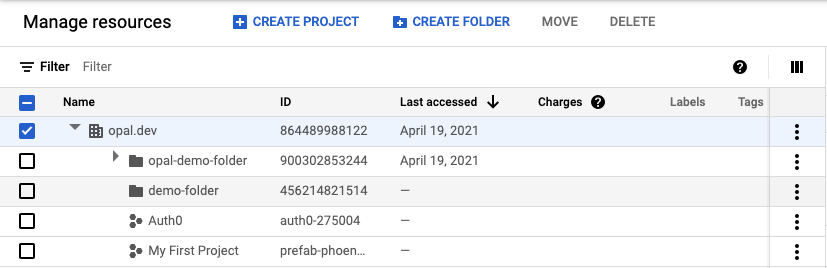 * On the right side "Info Panel", click **Add Principal**:
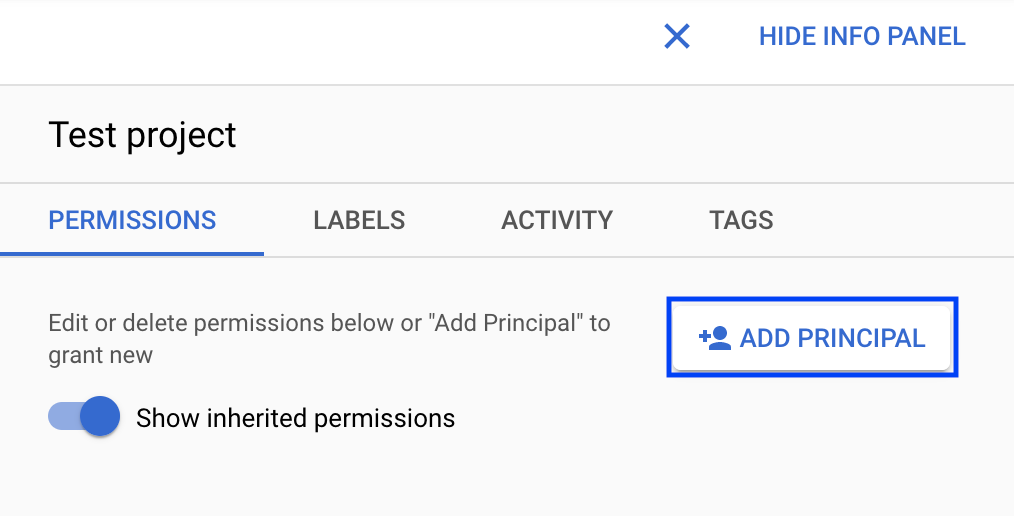 * Enter the service account email, and select the new custom role. Then click **Save**.
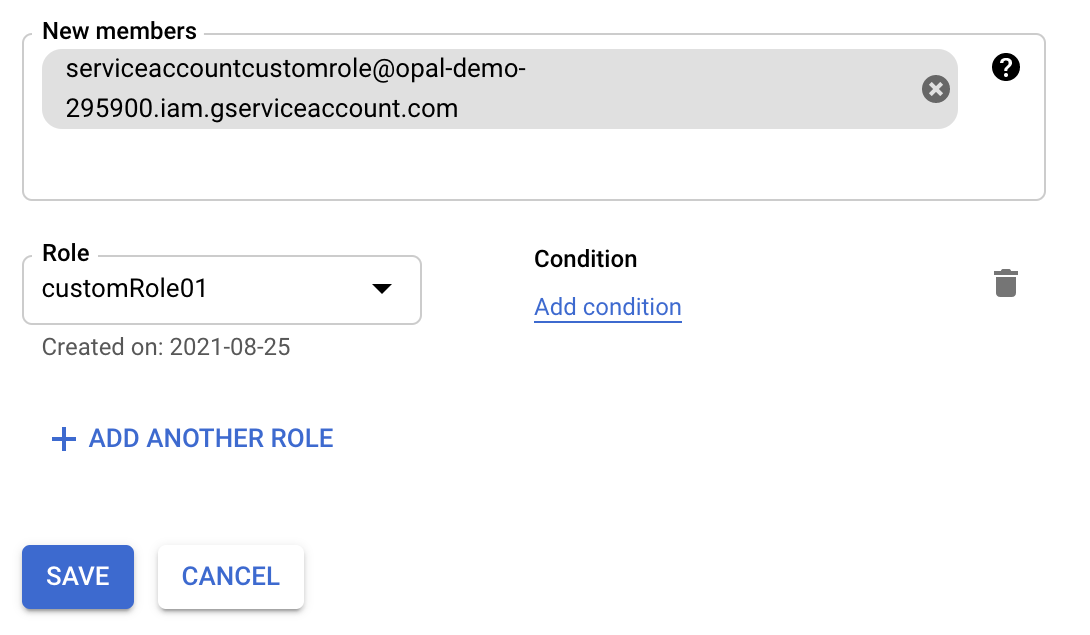 Your service account now has organization wide access to the Google IAM API.
## Connect app to Opal and confirm app validations
In Opal, go to the **Inventory** and select **+App**, then find the **Google Cloud Platform** tile. Fill out the form using the above steps.
After you save your app, you can view existing sync issues from the **Setup** tab on the app detail page. Missing permissions and sync issues show in the **App Validations** section. Select the refresh icon to rerun validation checks.
Your service account now has organization wide access to the Google IAM API.
## Connect app to Opal and confirm app validations
In Opal, go to the **Inventory** and select **+App**, then find the **Google Cloud Platform** tile. Fill out the form using the above steps.
After you save your app, you can view existing sync issues from the **Setup** tab on the app detail page. Missing permissions and sync issues show in the **App Validations** section. Select the refresh icon to rerun validation checks.
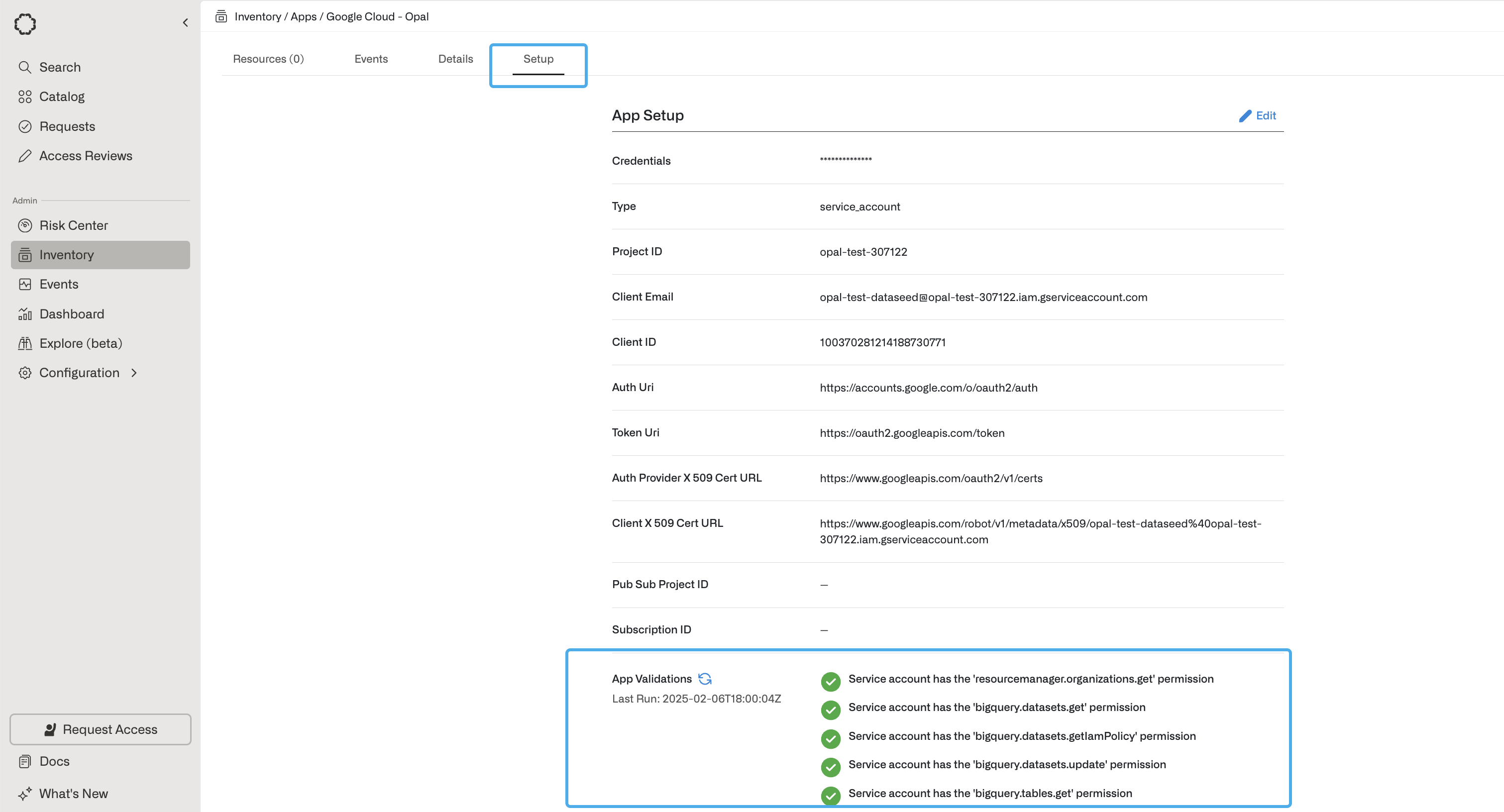 You can hover over the validation icons to learn why Opal needs a given permission. To correctly sync your app to Opal, ensure you address any sync errors, marked with the red ! icon. Inspect warnings on a case-by-case basis: warnings might impact features you’re not using and may be safely ignored, but this depends on your use case.
## Usage data and Risk Center
Opal can ingest usage data from your GCP environment to help identify usage patterns and surface unused access grants in the [Risk Center](/docs/least-privilege-posture-management).
You'll need to enable data access audit logs in your environment following [the GCP documentation](https://cloud.google.com/logging/docs/audit/configure-data-access). Opal currently ingests primarily read usage events, so the `ADMIN_READ` and `DATA_READ` permission types must be enabled.
Enable these audit logs for the following services:
* `Identity and Access Management (IAM) API`
* `Google Cloud Storage`
* `Compute Engine API`
* `Cloud Resource Manager API`
* `Cloud SQL`
## Update your Service Account Custom Role
When you update your custom role permissions (e.g., add organization resource manager permissions), you may notice a delay before changes take effect. This is a known GCP issue that you can read about in the [GCP documentation](https://cloud.google.com/iam/docs/creating-custom-roles#edit-role).
You can wait for the updates to take effect, which may take around a day or more. Alternatively, if your permissions are taking a long time to update or you want to have the new permissions immediately, you can work around this issue by creating a new custom role from scratch that includes all your desired permissions and assigning it to your service account at the organization level.
You can hover over the validation icons to learn why Opal needs a given permission. To correctly sync your app to Opal, ensure you address any sync errors, marked with the red ! icon. Inspect warnings on a case-by-case basis: warnings might impact features you’re not using and may be safely ignored, but this depends on your use case.
## Usage data and Risk Center
Opal can ingest usage data from your GCP environment to help identify usage patterns and surface unused access grants in the [Risk Center](/docs/least-privilege-posture-management).
You'll need to enable data access audit logs in your environment following [the GCP documentation](https://cloud.google.com/logging/docs/audit/configure-data-access). Opal currently ingests primarily read usage events, so the `ADMIN_READ` and `DATA_READ` permission types must be enabled.
Enable these audit logs for the following services:
* `Identity and Access Management (IAM) API`
* `Google Cloud Storage`
* `Compute Engine API`
* `Cloud Resource Manager API`
* `Cloud SQL`
## Update your Service Account Custom Role
When you update your custom role permissions (e.g., add organization resource manager permissions), you may notice a delay before changes take effect. This is a known GCP issue that you can read about in the [GCP documentation](https://cloud.google.com/iam/docs/creating-custom-roles#edit-role).
You can wait for the updates to take effect, which may take around a day or more. Alternatively, if your permissions are taking a long time to update or you want to have the new permissions immediately, you can work around this issue by creating a new custom role from scratch that includes all your desired permissions and assigning it to your service account at the organization level.