> ## Documentation Index
> Fetch the complete documentation index at: https://docs.opal.dev/llms.txt
> Use this file to discover all available pages before exploring further.
# Databricks
> Learn how to connect your Opal instance to Databricks.
Self-hosted Opal deployments must be on version 1.949 or later to use the Databricks integration.
With Opal's integration with Databricks:
* Users can request time-bound access to your Databricks groups.
* Auditors can initiate [access reviews](/docs/access-reviews) that assign managers or group admins to periodically review users with long-lived access to Databricks resources.
* Admins can add resources from other Opal integrations to an Databricks group so a Databricks group's members can automatically gain birthright access to, for example, a GitHub repo, AWS IAM role, etc.
* All access changes are tracked in as [events](/docs/event-types) that you can log to Slack or export to your favorite tools.
## Supported resources
| Resource | Read | Grant and revoke access | Available in Risk Center |
| ----------------------------------------------------------------------------------------------------------------- | ---- | ----------------------- | ------------------------ |
| Databricks account users | ✔️ | ✔️\* | ✔️ |
| [Databricks account groups](https://docs.databricks.com/aws/en/admin/users-groups/groups) | ✔️ | ✔️\* | ✔️ |
| [Databricks account service principals](https://docs.databricks.com/aws/en/admin/users-groups/service-principals) | ✔️ | ✔️\* | ✔️ |
\*You can add Databricks users and service principals as members of groups, and grant users, service principals, and groups access to resources.
The Databricks integration does not support managing identities at the workspace level, based on Databricks' guidelines for identity federation.
## Requirements
To set up the Databricks integration, you must:
* Be an Opal Admin
* Have permission to create a service principal in Databricks
## 1. Configure fields in Databricks
First, create a service principal in Databricks and create an OAuth secret for it:
1. Add a [Databricks service principal](https://docs.databricks.com/aws/en/admin/users-groups/service-principals#add-service-principals-to-your-account-using-the-account-console).
2. Assign the service principal the [Account admin role](https://docs.databricks.com/aws/en/admin/users-groups/service-principals#assign-account-admin-roles-to-a-service-principal).
3. [Create an OAuth secret](https://docs.databricks.com/aws/en/dev-tools/auth/oauth-m2m#step-2-create-an-oauth-secret-for-a-service-principal) for this service principal. Select **Generate secret** and specify any lifetime. You have to rotate this when it expires, so you might want to choose a long expiration. By default, secrets refresh every 2 years.
4. Save the **Secret** and **Client ID**, which you'll use in the next step.
You'll also need the following from Databricks:
* **Account Login URL**. Use the base URL you use to log in to Databricks. For example, `https://accounts.cloud.databricks.com`.
* **Account ID**. Retrieve this from your avatar in the top left corner of Databricks.
## 2. Configure fields in Opal
Go to **Inventory** > **+ App** and find the **Databricks** integration. Give the integration a name, [admin](/docs/configure-reviewers#owners), description, and specify its visibility.
Enter the **Account Login URL**, **Account ID**, **Client ID**, and **Client secret** fields from the previous step, then select **Save**.
## 3. Import resources to Opal
In the **Inventory** in the Databricks app, select **...** > **Import items** to add your Databricks resources to Opal.
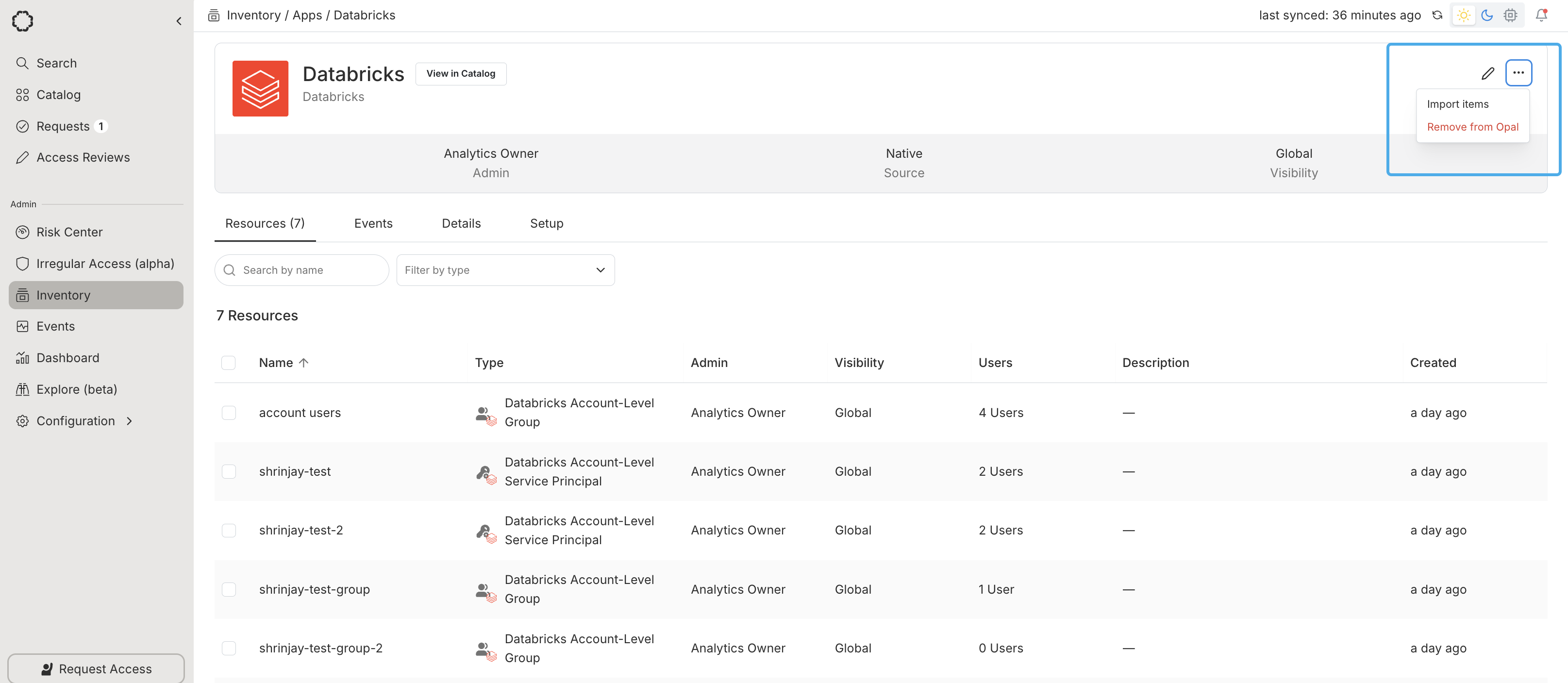 You can now manage access to Databricks resources in Opal.