> ## Documentation Index
> Fetch the complete documentation index at: https://docs.opal.dev/llms.txt
> Use this file to discover all available pages before exploring further.
# Azure Real Time Sync Setup
With **Opal Real Time Sync**, admins can see access changes to an application's Resources and Groups in near real-time and on an event-driven basis. Instead of waiting for Opal's scheduled syncs, each time an access change event occurs in the remote system (e.g. User added to a Group), Opal automatically syncs and reflect that change.
If you use Opal's **Azure (Entra) Integration**, you can expect to see changes in Opal as quickly as 3 minutes and no later than 10 minutes once you set up this feature.
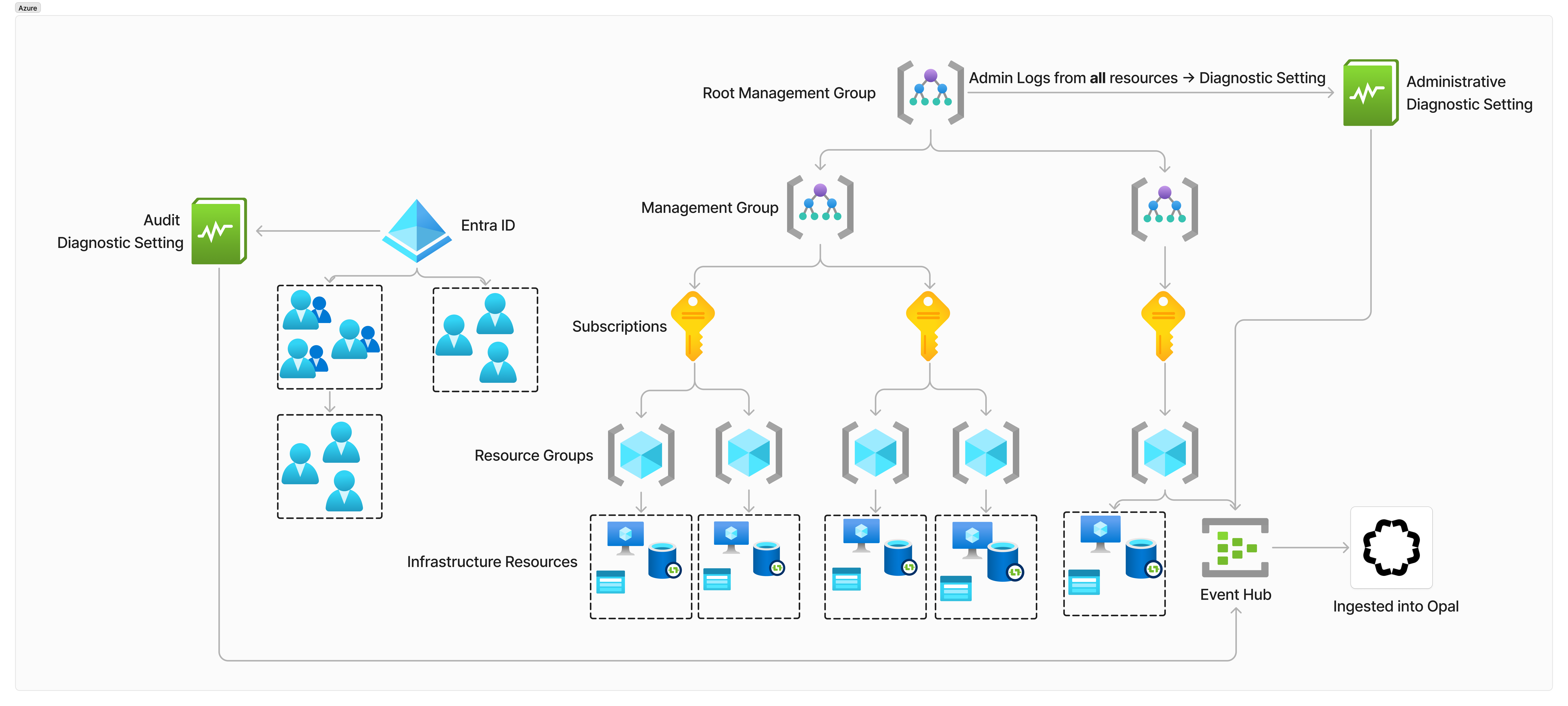
## Architecture diagram
 ## Requirements
* The Azure CLI configured. If you have not already, follow the instructions below.
* Follow the instructions [here](https://learn.microsoft.com/en-us/cli/azure/install-azure-cli)to install the Azure CLI
* Follow the instructions [here](https://learn.microsoft.com/en-us/cli/azure/authenticate-azure-cli) to log in to the Azure CLI
* An Azure Subscription
* The following providers must be registered in the Azure Subscription. If they are not registered, do so using: `az provider register --namespace --subscription `
* `Microsoft.Insights`
* `Microsoft.EventHub`
* Administrative access to an Azure Subscription, specifically the permissions listed below.
Required Permissions
* `Microsoft.EventHub/checkNameAvailability/action`
* `Microsoft.EventHub/register/action`
* `Microsoft.EventHub/namespaces/write`
* `Microsoft.EventHub/namespaces/read`
* `Microsoft.EventHub/namespaces/authorizationRules/read`
* `Microsoft.EventHub/namespaces/authorizationRules/write`
* `Microsoft.EventHub/namespaces/eventhubs/write`
* `Microsoft.EventHub/namespaces/eventhubs/read`
* `Microsoft.EventHub/namespaces/eventhubs/authorizationRules/read`
* `Microsoft.EventHub/namespaces/eventhubs/authorizationRules/write`
The [Azure Event Hubs Data Owner](https://learn.microsoft.com/en-us/azure/role-based-access-control/built-in-roles/analytics#azure-event-hubs-data-owner) role will provide these permissions.
## Using Terraform
### 1. Initialize the Azure EDS Terraform Module
We provide a Terraform module that configures most of the required resources for you. To get started, copy the following Terraform snippet.
```Text terr theme={null}
terraform {
required_providers {
azurerm = {
source = "hashicorp/azurerm"
version = "=4.8.0"
}
}
}
provider "azurerm" {
features {}
}
module "opal_azure_eds" {
source = "https://downloads.opal.dev/eds-templates/azure/terraform/tf-v1.zip"
root_management_group_name = "ExampleRootManagementGroup"
resource_group_name = "ExampleResourceGroup"
subscription_id = "00000000-0000-0000-0000-000000000000"
}
# Outputs configuration information necessary to perform the rest of setup
output "opal_eventhub_id" {
value = module.opal_azure_eds.opal_eventhub_id
}
output "opal_eventhub_name" {
value = module.opal_azure_eds.opal_eventhub_name
}
output "opal_eventhub_namespace_id" {
value = module.opal_azure_eds.opal_eventhub_namespace_id
}
output "opal_eventhub_authz_rule_id" {
value = module.opal_azure_eds.opal_eventhub_authz_rule_id
}
output "opal_entra_diagnostic_setting_id" {
value = module.opal_azure_eds.opal_entra_diagnostic_setting_id
}
```
### 2. Create a diagnostic setting at the root management group
For this step, we will need to use the Azure REST API, as this functionality is not available anywhere else. You can trigger this using any REST client you prefer. An authorization token is required, which you can retrieve from the Azure CLI using the following command:
```Text bash theme={null}
az account get-access-token --query accessToken --output tsv
```
To create the diagnostic setting, fill in the following fields in the command below.
* ``: The root management group for your Azure directory
* ``: Any name
* ``: The subscription under which you created your event hub namespace
* ``: The resource group under which you created your event hub namespace
* ``: The name of your event hub namespace
* ``: The name of the authorization rule configured above
* ``: The name of the event hub configured above
```
token=$(az account get-access-token --query accessToken --output tsv)
curl -X PUT -H "Authorization: Bearer $token" -H 'Content-Type: application/json' \
https://management.azure.com/providers/microsoft.management/managementGroups//providers/microsoft.insights/diagnosticSettings/\?api-version\=2020-01-01-preview \
-d '{"properties":{"eventHubAuthorizationRuleId":"/subscriptions//resourceGroups//providers/Microsoft.EventHub/namespaces//authorizationrules/","eventHubName":"","logs":[{"category":"Administrative", "enabled":true }, {}]}}'
```
This configures a [diagnostic setting](https://learn.microsoft.com/en-us/azure/azure-monitor/essentials/diagnostic-settings) to export any [Administrative](https://learn.microsoft.com/en-us/azure/azure-monitor/essentials/activity-log-schema?source=recommendations#administrative-category) logs from the root management group, and any children, to your event hub.
### 3. Allow the Opal App Registration to read from your Event Hub
Now we need to allow the Opal Service to read from your Azure Event Hub. Fill in the following command:
* ``: The object ID of the App Registration you use for Opal.
* ``: The ID of the created event hub that was output from your terraform apply
```
az role assignment create \
--assignee \
--role "Azure Event Hubs Data Receiver" \
--scope
```
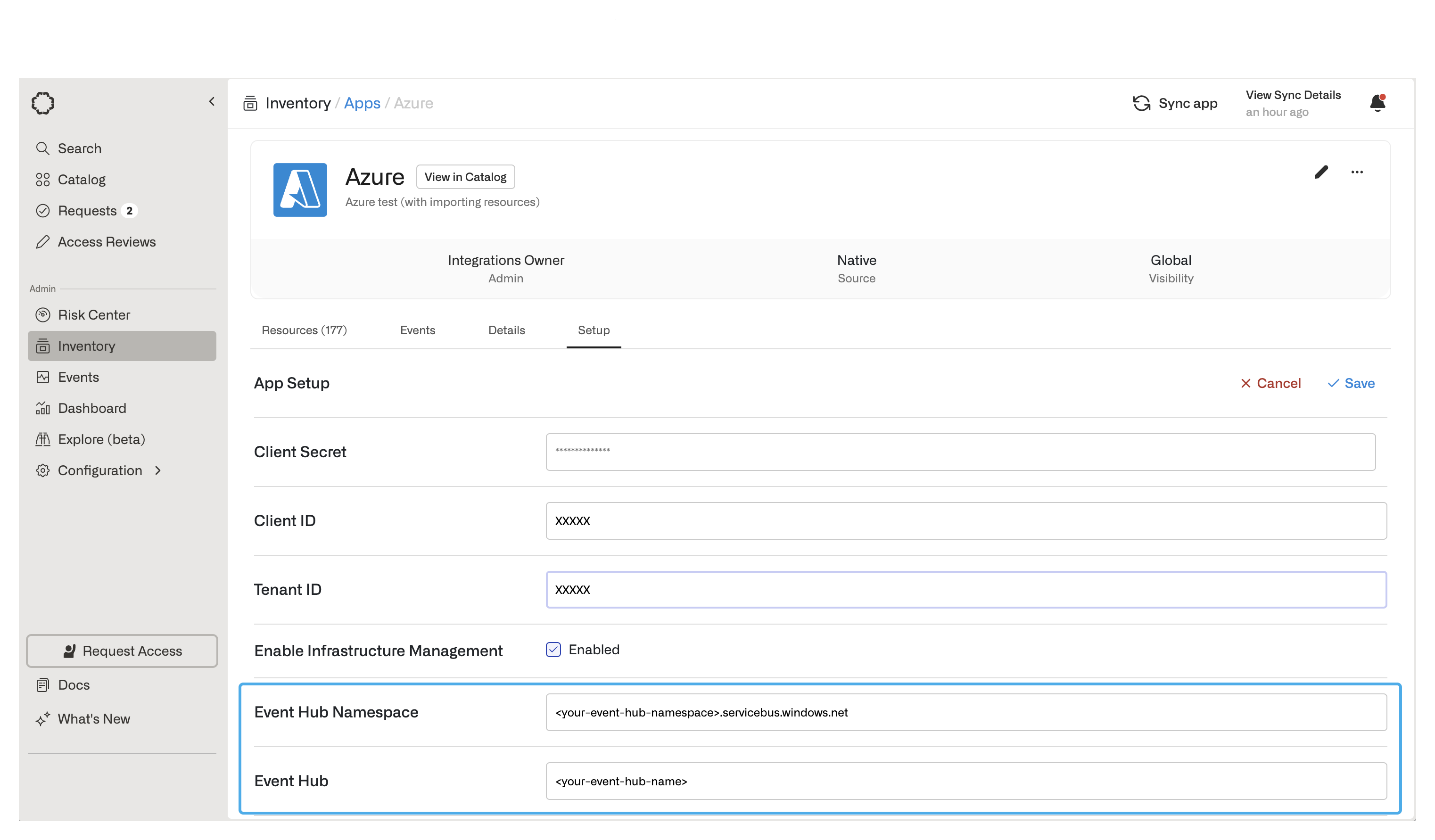
### 4. Connect Opal to your Event Hub
Go to your Azure app in Opal, select **Setup**, and click **Edit** to configure your event hub:
* Event Hub Namespace: This must be the **fully-qualified name** of your event hub namespace. It will be of the form `.servicebus.windows.net`
* Event Hub Name: Your event hub's **name**, as returned from the terraform apply.
## Requirements
* The Azure CLI configured. If you have not already, follow the instructions below.
* Follow the instructions [here](https://learn.microsoft.com/en-us/cli/azure/install-azure-cli)to install the Azure CLI
* Follow the instructions [here](https://learn.microsoft.com/en-us/cli/azure/authenticate-azure-cli) to log in to the Azure CLI
* An Azure Subscription
* The following providers must be registered in the Azure Subscription. If they are not registered, do so using: `az provider register --namespace --subscription `
* `Microsoft.Insights`
* `Microsoft.EventHub`
* Administrative access to an Azure Subscription, specifically the permissions listed below.
Required Permissions
* `Microsoft.EventHub/checkNameAvailability/action`
* `Microsoft.EventHub/register/action`
* `Microsoft.EventHub/namespaces/write`
* `Microsoft.EventHub/namespaces/read`
* `Microsoft.EventHub/namespaces/authorizationRules/read`
* `Microsoft.EventHub/namespaces/authorizationRules/write`
* `Microsoft.EventHub/namespaces/eventhubs/write`
* `Microsoft.EventHub/namespaces/eventhubs/read`
* `Microsoft.EventHub/namespaces/eventhubs/authorizationRules/read`
* `Microsoft.EventHub/namespaces/eventhubs/authorizationRules/write`
The [Azure Event Hubs Data Owner](https://learn.microsoft.com/en-us/azure/role-based-access-control/built-in-roles/analytics#azure-event-hubs-data-owner) role will provide these permissions.
## Using Terraform
### 1. Initialize the Azure EDS Terraform Module
We provide a Terraform module that configures most of the required resources for you. To get started, copy the following Terraform snippet.
```Text terr theme={null}
terraform {
required_providers {
azurerm = {
source = "hashicorp/azurerm"
version = "=4.8.0"
}
}
}
provider "azurerm" {
features {}
}
module "opal_azure_eds" {
source = "https://downloads.opal.dev/eds-templates/azure/terraform/tf-v1.zip"
root_management_group_name = "ExampleRootManagementGroup"
resource_group_name = "ExampleResourceGroup"
subscription_id = "00000000-0000-0000-0000-000000000000"
}
# Outputs configuration information necessary to perform the rest of setup
output "opal_eventhub_id" {
value = module.opal_azure_eds.opal_eventhub_id
}
output "opal_eventhub_name" {
value = module.opal_azure_eds.opal_eventhub_name
}
output "opal_eventhub_namespace_id" {
value = module.opal_azure_eds.opal_eventhub_namespace_id
}
output "opal_eventhub_authz_rule_id" {
value = module.opal_azure_eds.opal_eventhub_authz_rule_id
}
output "opal_entra_diagnostic_setting_id" {
value = module.opal_azure_eds.opal_entra_diagnostic_setting_id
}
```
### 2. Create a diagnostic setting at the root management group
For this step, we will need to use the Azure REST API, as this functionality is not available anywhere else. You can trigger this using any REST client you prefer. An authorization token is required, which you can retrieve from the Azure CLI using the following command:
```Text bash theme={null}
az account get-access-token --query accessToken --output tsv
```
To create the diagnostic setting, fill in the following fields in the command below.
* ``: The root management group for your Azure directory
* ``: Any name
* ``: The subscription under which you created your event hub namespace
* ``: The resource group under which you created your event hub namespace
* ``: The name of your event hub namespace
* ``: The name of the authorization rule configured above
* ``: The name of the event hub configured above
```
token=$(az account get-access-token --query accessToken --output tsv)
curl -X PUT -H "Authorization: Bearer $token" -H 'Content-Type: application/json' \
https://management.azure.com/providers/microsoft.management/managementGroups//providers/microsoft.insights/diagnosticSettings/\?api-version\=2020-01-01-preview \
-d '{"properties":{"eventHubAuthorizationRuleId":"/subscriptions//resourceGroups//providers/Microsoft.EventHub/namespaces//authorizationrules/","eventHubName":"","logs":[{"category":"Administrative", "enabled":true }, {}]}}'
```
This configures a [diagnostic setting](https://learn.microsoft.com/en-us/azure/azure-monitor/essentials/diagnostic-settings) to export any [Administrative](https://learn.microsoft.com/en-us/azure/azure-monitor/essentials/activity-log-schema?source=recommendations#administrative-category) logs from the root management group, and any children, to your event hub.
### 3. Allow the Opal App Registration to read from your Event Hub
Now we need to allow the Opal Service to read from your Azure Event Hub. Fill in the following command:
* ``: The object ID of the App Registration you use for Opal.
* ``: The ID of the created event hub that was output from your terraform apply
```
az role assignment create \
--assignee \
--role "Azure Event Hubs Data Receiver" \
--scope
```
### 4. Connect Opal to your Event Hub
Go to your Azure app in Opal, select **Setup**, and click **Edit** to configure your event hub:
* Event Hub Namespace: This must be the **fully-qualified name** of your event hub namespace. It will be of the form `.servicebus.windows.net`
* Event Hub Name: Your event hub's **name**, as returned from the terraform apply.
 ## Using Azure Portal
### 1. Create an Azure Event Hub Namespace
Go to [Event Hubs](https://portal.azure.com/#browse/Microsoft.EventHub%2Fnamespaces) and click **+Create**.
## Using Azure Portal
### 1. Create an Azure Event Hub Namespace
Go to [Event Hubs](https://portal.azure.com/#browse/Microsoft.EventHub%2Fnamespaces) and click **+Create**.
 Configure the following properties on the first page:
* Subscription: The subscription your event hub namespace is only affects where it is billed.
* Resource Group
* Namespace name
* Location
* Pricing Tier: Note that this affects the length of the data retention periods that you are eligible for
* [Throughput Units](https://learn.microsoft.com/en-us/azure/event-hubs/event-hubs-scalability#throughput-units): 1 TU is recommended
Configure the following properties on the first page:
* Subscription: The subscription your event hub namespace is only affects where it is billed.
* Resource Group
* Namespace name
* Location
* Pricing Tier: Note that this affects the length of the data retention periods that you are eligible for
* [Throughput Units](https://learn.microsoft.com/en-us/azure/event-hubs/event-hubs-scalability#throughput-units): 1 TU is recommended
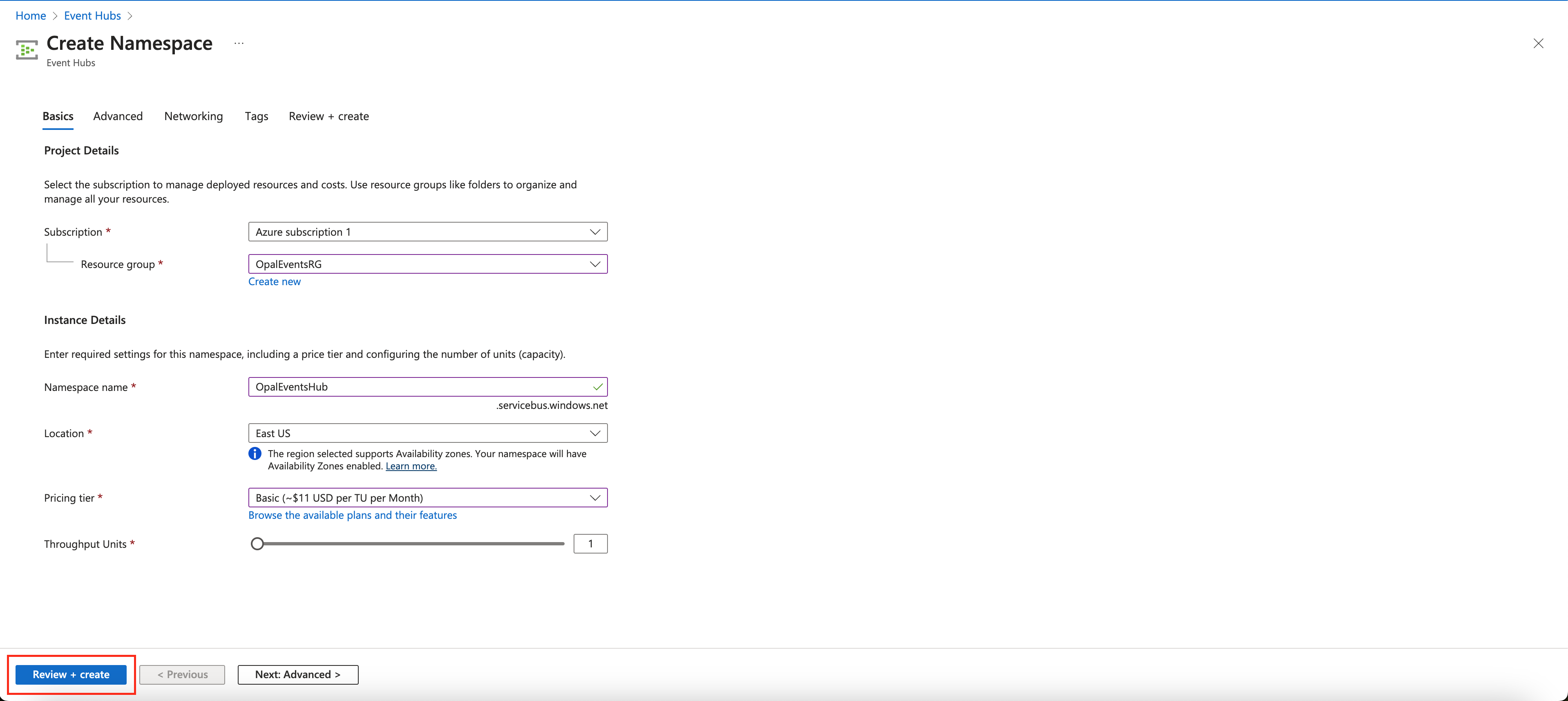 Under the following steps, you can configure any other setup required by your use-case. No further configuration for the event hub namespace is required for integration with Opal. Click "Review + create"
Once created, your event hub will take a few minutes to deploy.
### 2. Create an Event Hub
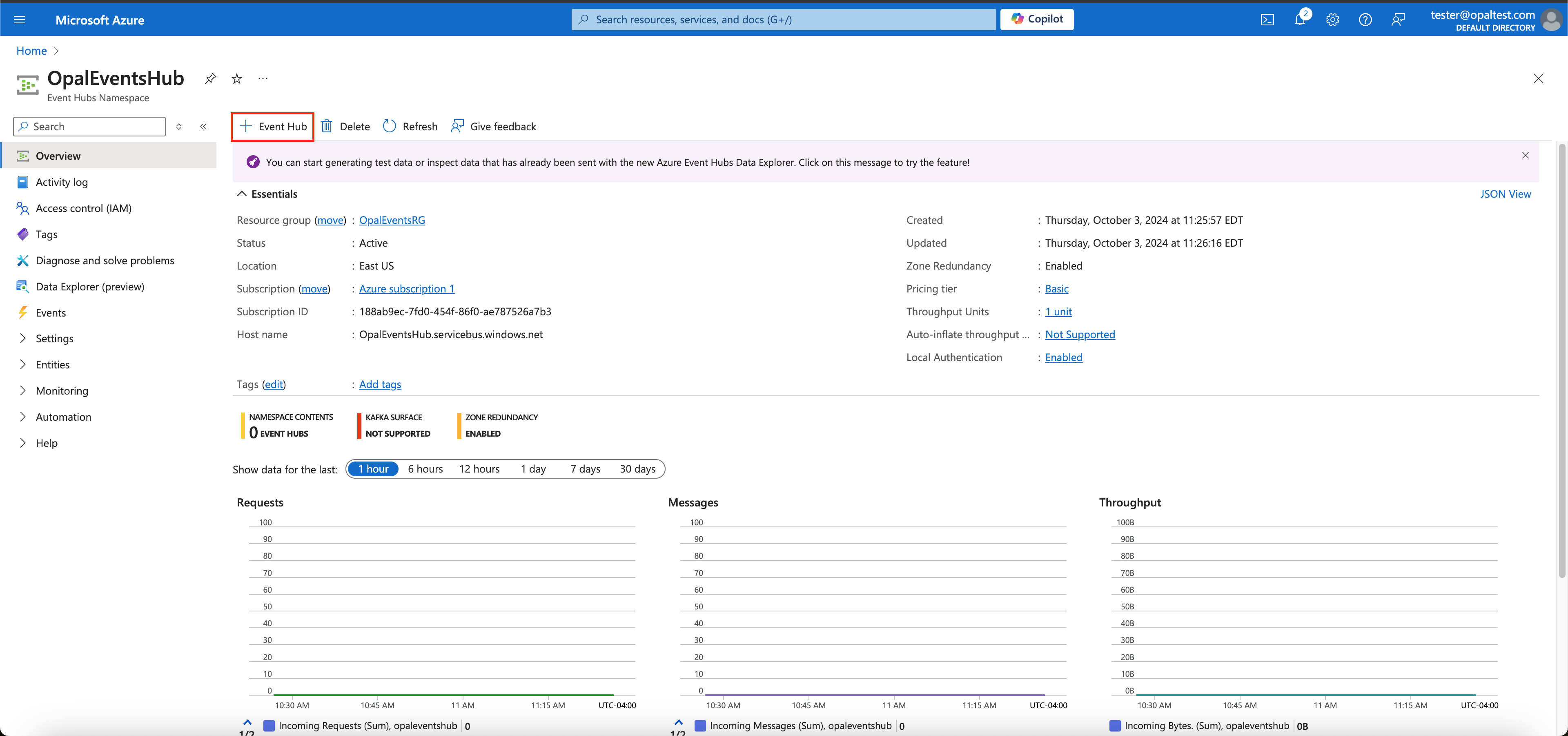
Once your event hub namespace is deployed, go to it in the Azure UI and click **+ Event Hub**.
Under the following steps, you can configure any other setup required by your use-case. No further configuration for the event hub namespace is required for integration with Opal. Click "Review + create"
Once created, your event hub will take a few minutes to deploy.
### 2. Create an Event Hub
Once your event hub namespace is deployed, go to it in the Azure UI and click **+ Event Hub**.
 On the first page, you will be prompted to configure the following:
* Name
* Partition Count: We recommend setting the partition count to **1**
* Cleanup Policy: Controls what happens when events reach their retention limit. We recommend using **Delete**
* Retention Time: The maximum retention period available to you will differ based on the pricing tier you chose in step 1. We recommend using the longest retention period possible.
On the first page, you will be prompted to configure the following:
* Name
* Partition Count: We recommend setting the partition count to **1**
* Cleanup Policy: Controls what happens when events reach their retention limit. We recommend using **Delete**
* Retention Time: The maximum retention period available to you will differ based on the pricing tier you chose in step 1. We recommend using the longest retention period possible.
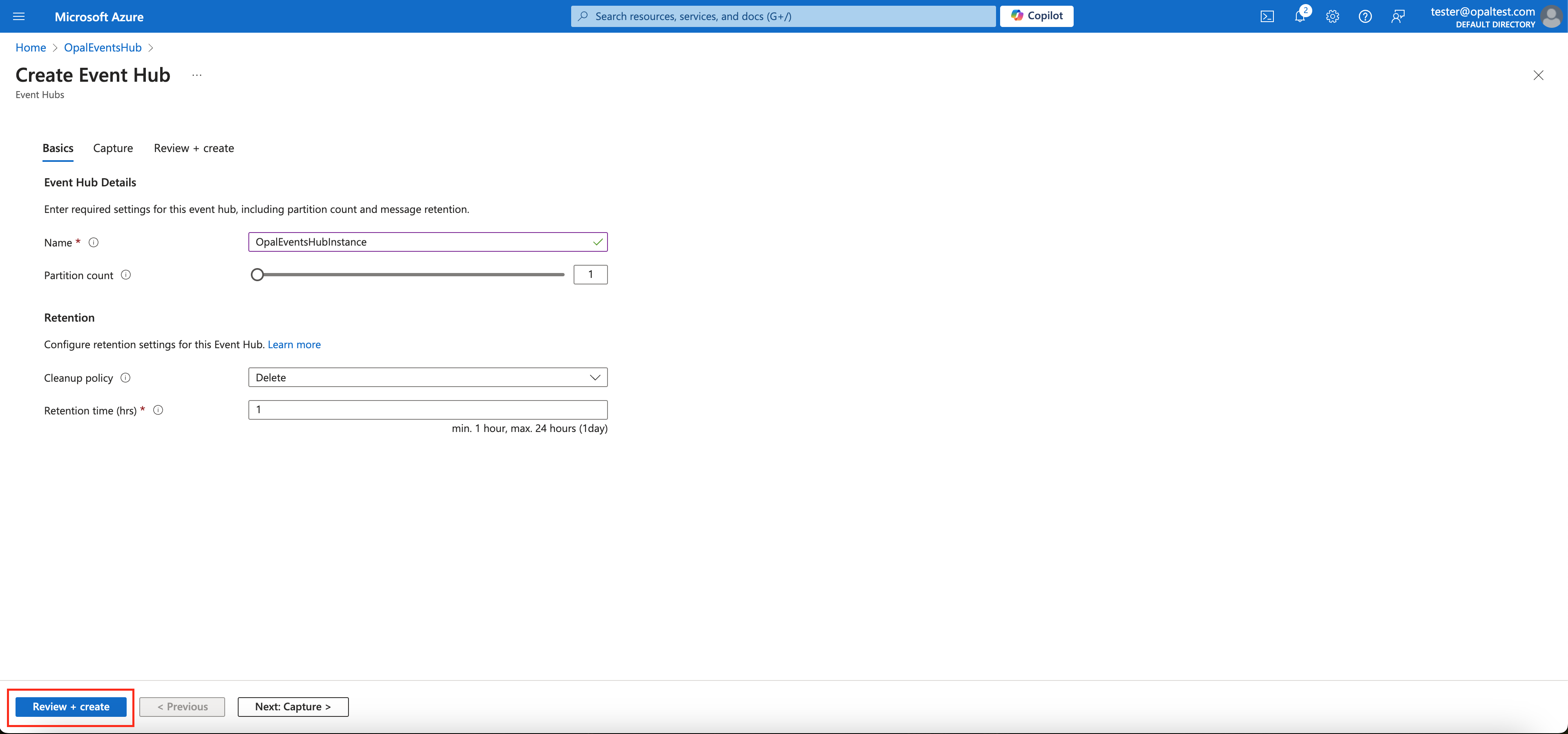 On the **Capture** tab, if you have a premium-tier namespace, you can enable capturing the data that is streamed by your event hub in Azure Data Lake or Azure Blob Storage. We recommend you keep this off.
Once complete, click **Review + Create**, confirm your configuration and create your event hub.
### 3. Set up authorization rules
Authorization rules allow Azure to push audit and administrative logs to your event hub, [see here](https://learn.microsoft.com/en-us/azure/event-hubs/authorize-access-shared-access-signature) for more details. Fill in the following fields in the command below to create an authorization rule on your namespace
* ``: Can be any name
* ``: Name of the event hub namespace configured above
* ``: Resource group under which the event hub namespace was created
```text bash theme={null}
az eventhubs namespace authorization-rule create \
--name \
--namespace-name \
--resource-group \
--rights Manage Send Listen
```
### 4. Create a diagnostic setting at the root management group
For this step, we will need to use the Azure REST API. You can trigger this via any REST client you would like. An authorization token is required, which you can retrieve from the Azure CLI using the following command:
```Text bash theme={null}
az account get-access-token --query accessToken --output tsv
```
To create the diagnostic setting, fill in the following fields in the command below to create a diagnostic setting
* ``: The root management group for your Azure directory
* ``: Any name
* ``: The subscription under which you created your event hub namespace
* ``: The resource group under which you created your event hub namespace
* ``: The name of your event hub namespace
* ``: The name of the authorization rule configured above
* ``: The name of the event hub configured above
```
token=$(az account get-access-token --query accessToken --output tsv)
curl -X PUT -H "Authorization: Bearer $token" -H 'Content-Type: application/json' \
https://management.azure.com/providers/microsoft.management/managementGroups//providers/microsoft.insights/diagnosticSettings/\?api-version\=2020-01-01-preview \
-d '{"properties":{"eventHubAuthorizationRuleId":"/subscriptions//resourceGroups//providers/Microsoft.EventHub/namespaces//authorizationrules/","eventHubName":"","logs":[{"category":"Administrative", "enabled":true }, {}]}}'
```
This configures a [diagnostic setting](https://learn.microsoft.com/en-us/azure/azure-monitor/essentials/diagnostic-settings) to export any [Administrative](https://learn.microsoft.com/en-us/azure/azure-monitor/essentials/activity-log-schema?source=recommendations#administrative-category) logs from the root management group, and any children, to your event hub.
### 5. Enable Microsoft Entra Logging
Go to [Microsoft Entra](https://entra.microsoft.com/#home) and click **Show More** on the left hand bar.
On the **Capture** tab, if you have a premium-tier namespace, you can enable capturing the data that is streamed by your event hub in Azure Data Lake or Azure Blob Storage. We recommend you keep this off.
Once complete, click **Review + Create**, confirm your configuration and create your event hub.
### 3. Set up authorization rules
Authorization rules allow Azure to push audit and administrative logs to your event hub, [see here](https://learn.microsoft.com/en-us/azure/event-hubs/authorize-access-shared-access-signature) for more details. Fill in the following fields in the command below to create an authorization rule on your namespace
* ``: Can be any name
* ``: Name of the event hub namespace configured above
* ``: Resource group under which the event hub namespace was created
```text bash theme={null}
az eventhubs namespace authorization-rule create \
--name \
--namespace-name \
--resource-group \
--rights Manage Send Listen
```
### 4. Create a diagnostic setting at the root management group
For this step, we will need to use the Azure REST API. You can trigger this via any REST client you would like. An authorization token is required, which you can retrieve from the Azure CLI using the following command:
```Text bash theme={null}
az account get-access-token --query accessToken --output tsv
```
To create the diagnostic setting, fill in the following fields in the command below to create a diagnostic setting
* ``: The root management group for your Azure directory
* ``: Any name
* ``: The subscription under which you created your event hub namespace
* ``: The resource group under which you created your event hub namespace
* ``: The name of your event hub namespace
* ``: The name of the authorization rule configured above
* ``: The name of the event hub configured above
```
token=$(az account get-access-token --query accessToken --output tsv)
curl -X PUT -H "Authorization: Bearer $token" -H 'Content-Type: application/json' \
https://management.azure.com/providers/microsoft.management/managementGroups//providers/microsoft.insights/diagnosticSettings/\?api-version\=2020-01-01-preview \
-d '{"properties":{"eventHubAuthorizationRuleId":"/subscriptions//resourceGroups//providers/Microsoft.EventHub/namespaces//authorizationrules/","eventHubName":"","logs":[{"category":"Administrative", "enabled":true }, {}]}}'
```
This configures a [diagnostic setting](https://learn.microsoft.com/en-us/azure/azure-monitor/essentials/diagnostic-settings) to export any [Administrative](https://learn.microsoft.com/en-us/azure/azure-monitor/essentials/activity-log-schema?source=recommendations#administrative-category) logs from the root management group, and any children, to your event hub.
### 5. Enable Microsoft Entra Logging
Go to [Microsoft Entra](https://entra.microsoft.com/#home) and click **Show More** on the left hand bar.
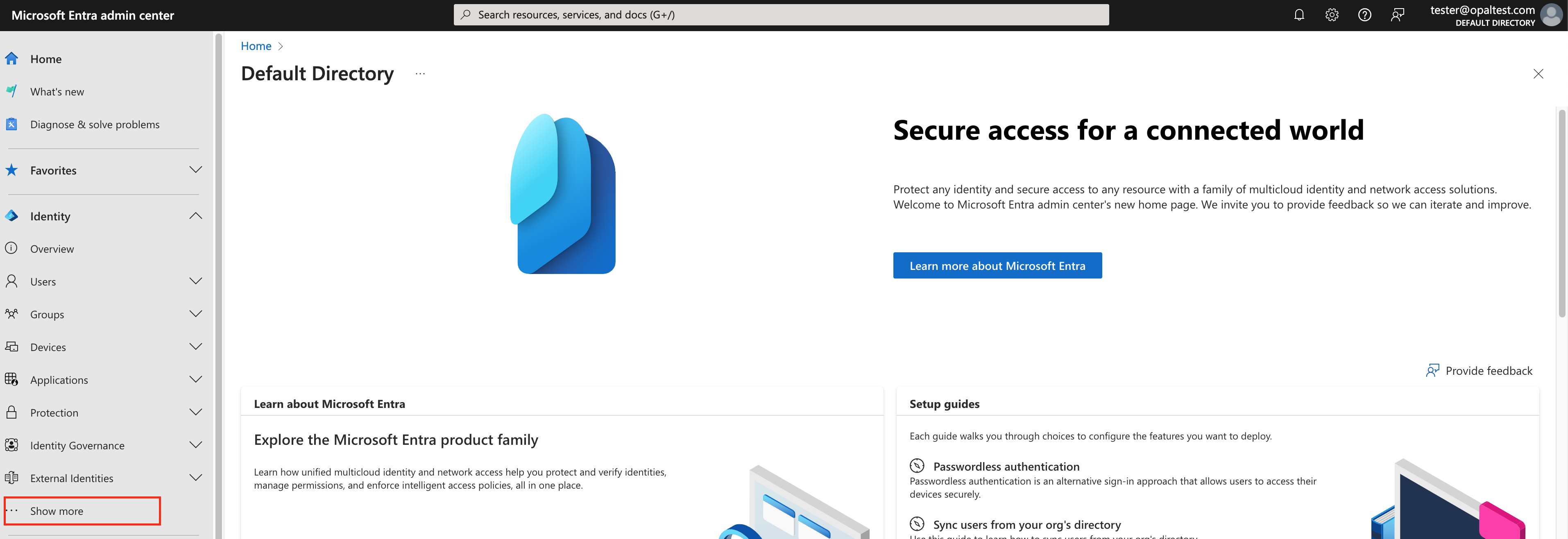 Expand **Monitoring & health** and select **Diagnostic settings**.
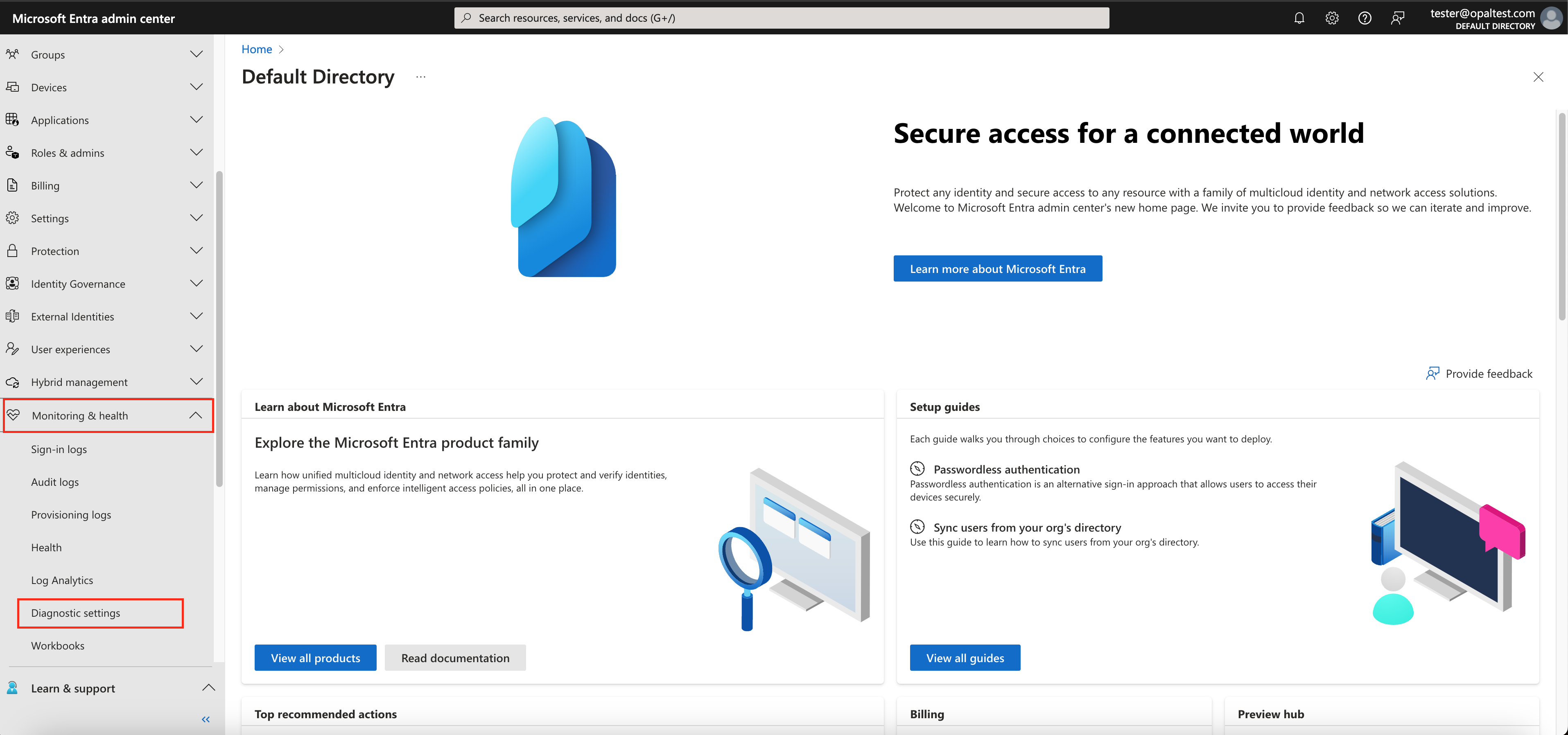 Select **Add diagnostic setting**.
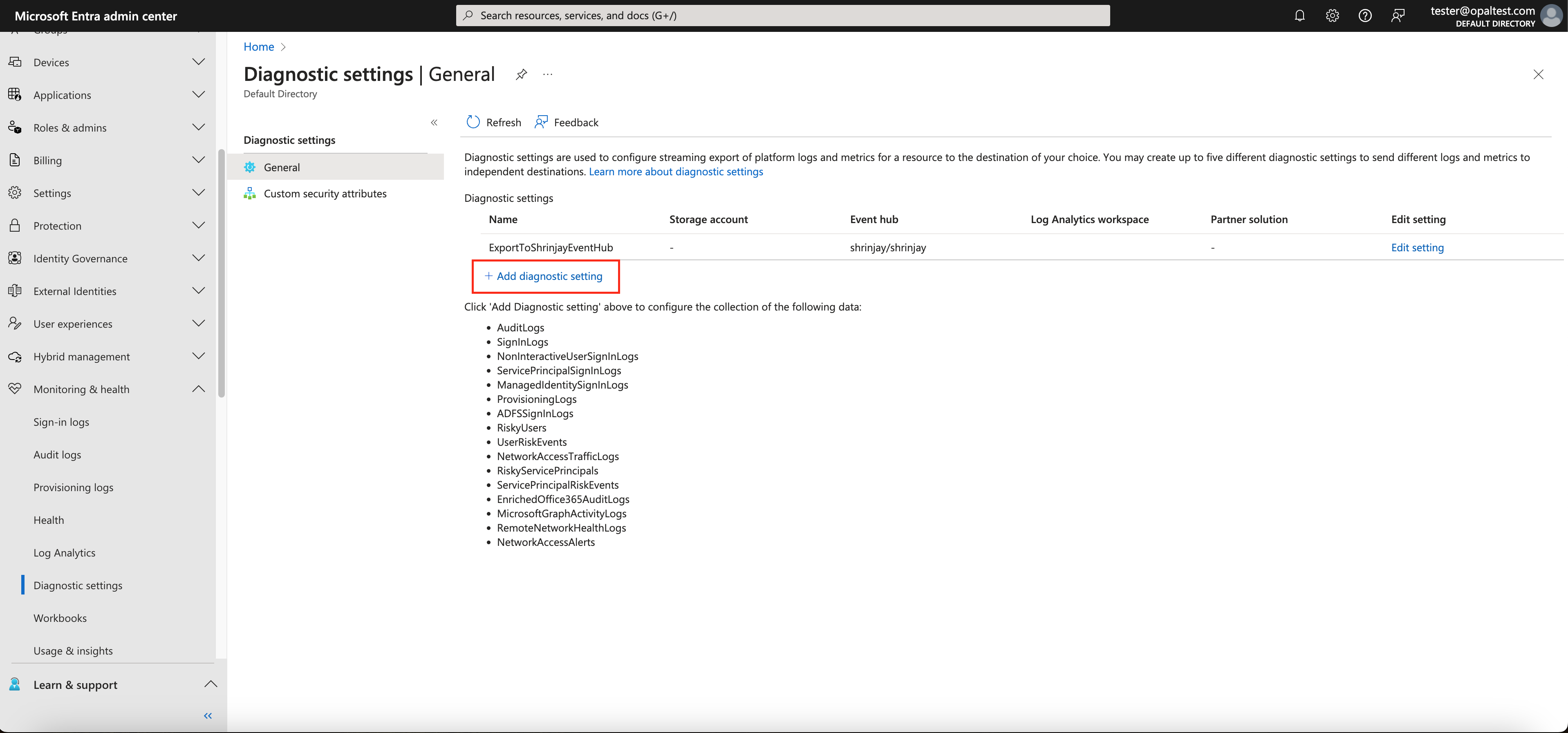 You will be prompted to configure the following:
* Diagnostic setting name
* Log Categories: Select **AuditLogs**
* Destination details: Select **Stream to an event hub**
* Select the subscription, event hub namespace, event hub and authorization rule created above
You will be prompted to configure the following:
* Diagnostic setting name
* Log Categories: Select **AuditLogs**
* Destination details: Select **Stream to an event hub**
* Select the subscription, event hub namespace, event hub and authorization rule created above
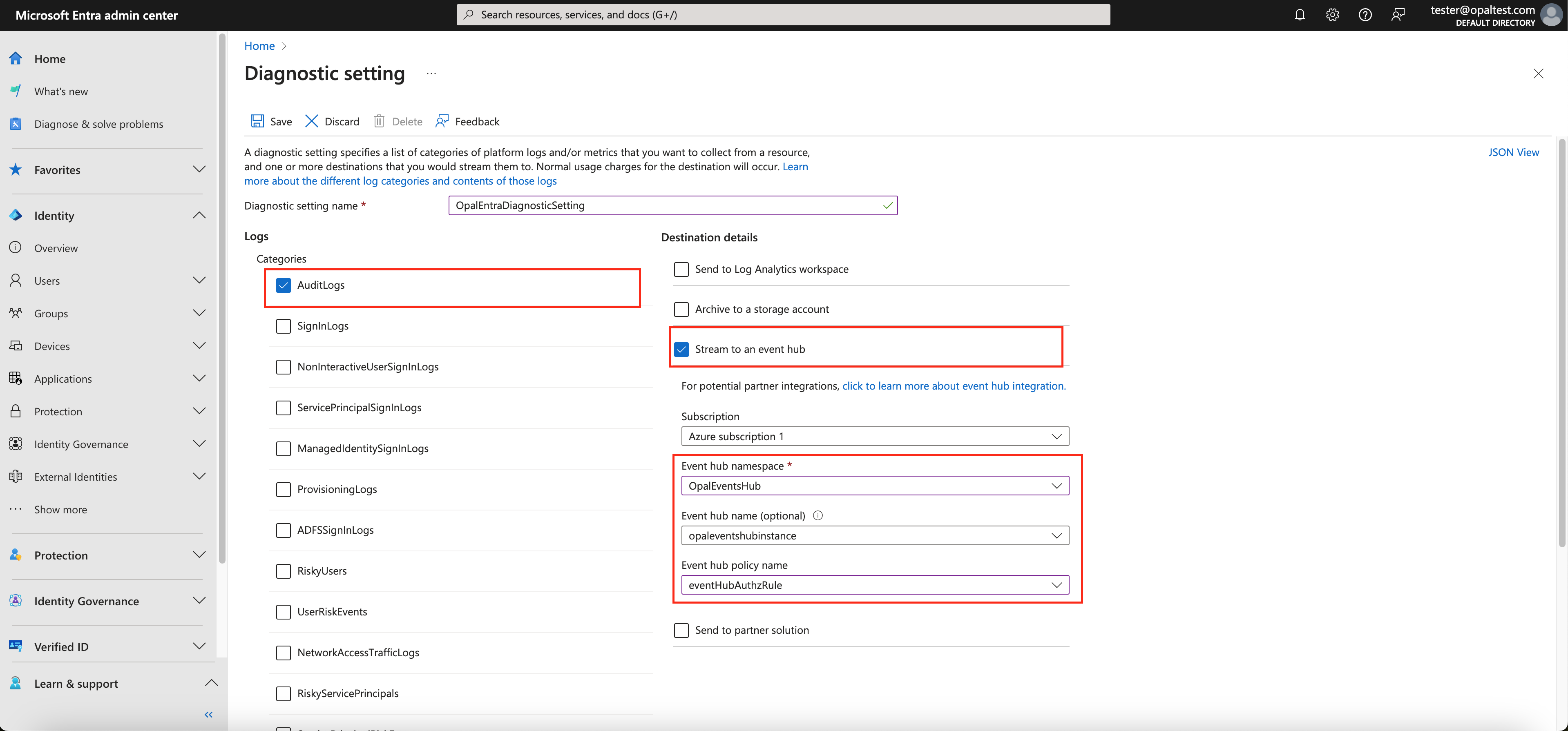 Once complete, click **Save**.
### 6. Allow the Opal App Registration to read from your Event Hub
Now we need to allow the Opal Service to read from your Azure Event Hub. Fill in the following command:
* ``: The object ID of the App Registration you use for Opal.
* ``: The ID of the created event hub
```
az role assignment create \
--assignee \
--role "Azure Event Hubs Data Receiver" \
--scope
```
### 7. Connect Opal to your Event Hub
Go to your Azure app in Opal, select **Setup** and click **Edit** to configure your event hub:
* Event Hub Namespace: This must be the **fully-qualified** name of your event hub namespace. It will be of the form `.servicebus.windows.net`
* Event Hub Name: Your event hub's name
Once complete, click **Save**.
### 6. Allow the Opal App Registration to read from your Event Hub
Now we need to allow the Opal Service to read from your Azure Event Hub. Fill in the following command:
* ``: The object ID of the App Registration you use for Opal.
* ``: The ID of the created event hub
```
az role assignment create \
--assignee \
--role "Azure Event Hubs Data Receiver" \
--scope
```
### 7. Connect Opal to your Event Hub
Go to your Azure app in Opal, select **Setup** and click **Edit** to configure your event hub:
* Event Hub Namespace: This must be the **fully-qualified** name of your event hub namespace. It will be of the form `.servicebus.windows.net`
* Event Hub Name: Your event hub's name