> ## Documentation Index
> Fetch the complete documentation index at: https://docs.opal.dev/llms.txt
> Use this file to discover all available pages before exploring further.
# AWS Real Time Sync Setup
With **Opal Real Time Sync**, admins can see access changes to an application's Resources and Groups in near real-time and on an event-driven basis. Instead of waiting for Opal's scheduled syncs, each time an access change event occurs in the remote system (e.g. User added to a Group), Opal automatically syncs and reflects that change.
For our AWS integration, you can expect to see changes in Opal as quickly as 3 minutes once you set up this feature.
## Prerequisites
* A cross-organizational CloudTrail that stores events in an S3 bucket.
* AWS Administrator access
## Deployment types
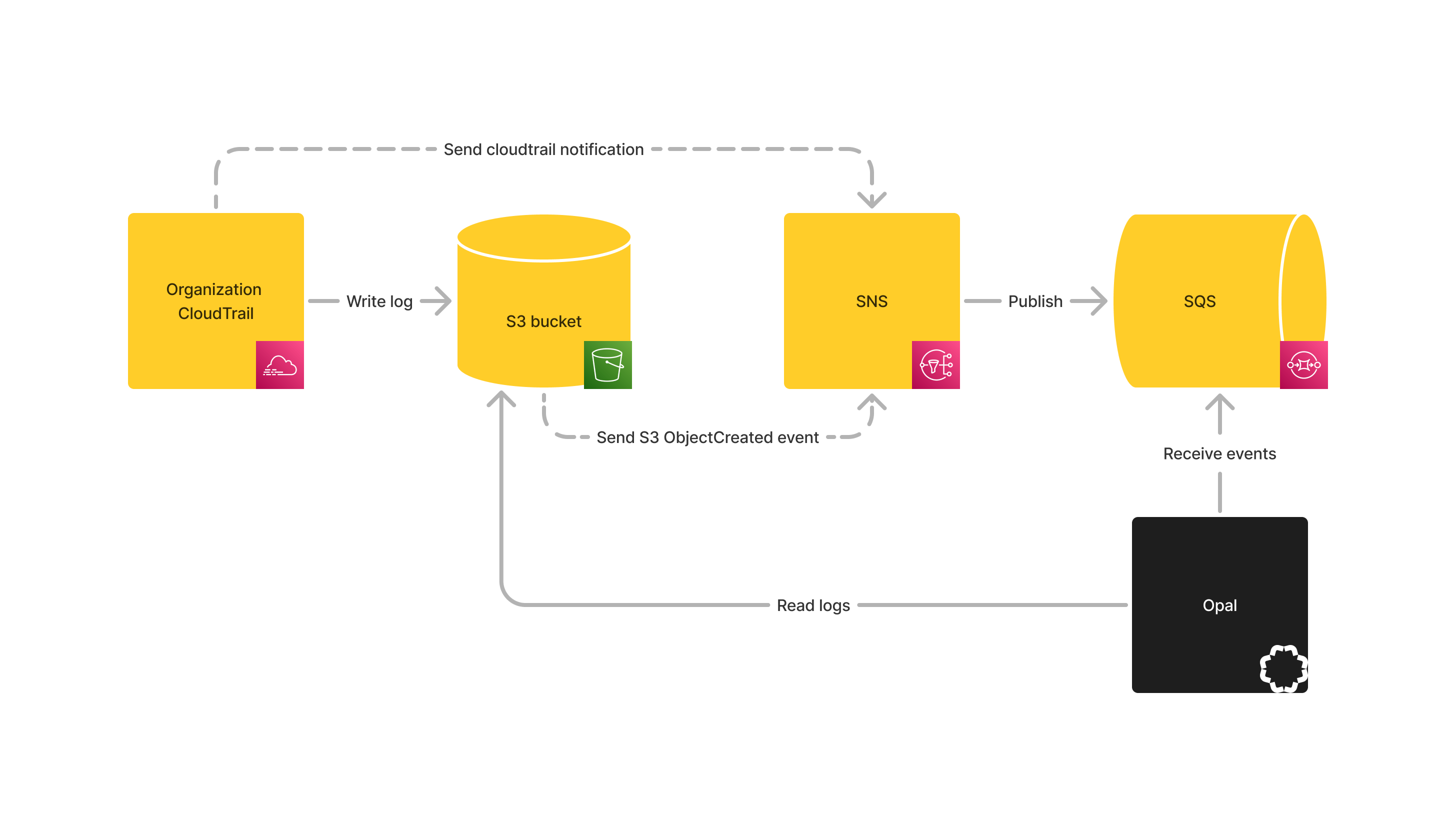 ### S3 bucket notifications
This method relies on "all object create event" notifications sent from your S3 logging bucket. Note that only one topic can be set up to receive these notifications per bucket. If you are already using "all object create event" notifications from your S3 buckets you must either use CloudTrail notifications instead (see below), or use the existing SNS topic.
### CloudTrail notifications
CloudTrail notifications rely on notifications sent directly from your CloudTrail. Unlike S3 bucket notifications, multiple topics can subscribe these notifications.
## AWS Setup
We provide Terraform and CloudFormation templates for easy setup.
### CloudFormation
1. Download the [CloudFormation template file](https://downloads.opal.dev/eds-templates/aws/cloudformation/cf-v1.json).
2. In the AWS Console, navigate to [CloudFormation > Stacks](https://console.aws.amazon.com/cloudformation/home/stacks).
3. Navigate to **Create Stack > With new resources**
4. Under **Specify template**, choose **Upload a template file** and upload the template from above.
5. Continue under **S3 Notifications** or **CloudTrail notifications** below depending on your choice of deployment type.
6. Fill out the form's fields depending on whether you prefer to use S3 notifications or CloudTrail notifications:
1. **S3 notifications:**
1. **NotificationType**: Select "**s3**"
2. **OpalIngesterRole**: Enter your OpalIngester role ARN
3. **CloudTrailBucketArn**: Enter the ARN of your S3 bucket that stores CloudTrail logs.
4. **ExistingTopicArn**: If using an existing SNS topic, enter its ARN here, otherwise leave this empty. Ensure that your topic is already preconfigured to receive "All object create event" notifications from the S3 bucket.
5. **CloudTrailArn**: Leave empty.
2. **CloudTrail notifications:**
1. **NotificationType**: Select "**cloudtrail**"
2. **OpalIngesterRole**: Enter your OpalIngester role ARN
3. **CloudTrailBucketArn**: Enter the ARN of your S3 bucket that stores CloudTrail logs.
4. **ExistingTopicArn**: If using an existing SNS topic, enter its ARN here, otherwise leave this empty. Ensure that your topic is already preconfigured to receive "All object create event" notifications from the S3 bucket.
5. **CloudTrailArn**: Enter the ARN of your cross-organizational CloudTrail.
7. Click **Next**
8. Tick the **I acknowledge that AWS CloudFormation might create IAM resources** checkbox at the bottom of the page and click **Next**
9. Review your configuration and click **Submit** once you are ready to spin up the resources.
10. (**CloudTrail notifications ONLY**):
1. In the AWS console, navigate to **CloudTrail > Trails**. Open your cross-organizational trail. Click **Edit**.
2. Under **SNS Notification Delivery**, check **Enabled**.
3. Under **SNS Topic**, select **Existing**, and choose the newly created SNS topic.
### Terraform
Follow the instructions below for S3 or CloudTrail notifications depending on your preference.
#### S3 Notifications
1. Create a new `.tf` file and paste the following:
```json json theme={null}
provider "aws" {}
module "opal_aws_events" {
source = "https://downloads.opal.dev/eds-templates/aws/terraform/tf-v1.zip"
notification_type = "s3"
opal_ingester_role_arn = "arn:aws:iam::123456789012:role/OpalIngester"
cloudtrail_bucket_arn = "arn:aws:s3:::aws-cloudtrail-logs-123456789012-a2531774"
existing_sns_topic_arn = "" // optional for s3 notifications
cloudtrail_arn = "" // not required for s3 notifications
}
```
2. Replace `opal_ingester_role_arn` and `cloudtrail_bucket_arn`with your OpalIngester role ARN and your CloudTrail S3 bucket respectively.
3. If using an existing SNS topic, ensure that it is already preconfigured to receive "All object create event" notifications. Enter your topic's ARN on the `existing_sns_topic_arn` field.
4. Save the file and deploy the Terraform schema.
#### CloudTrail Notifications
1. Create a new `.tf` file and paste the following:
```json json theme={null}
provider "aws" {}
module "opal_aws_events" {
source = "https://downloads.opal.dev/eds-templates/aws/terraform/tf-v1.zip"
notification_type = "cloudtrail"
opal_ingester_role_arn = "arn:aws:iam::123456789012:role/OpalIngester"
cloudtrail_bucket_arn = "arn:aws:s3:::aws-cloudtrail-logs-123456789012-a2531774"
existing_sns_topic_arn = "" // not required for cloudtrail notifications
cloudtrail_arn = "arn:aws:cloudtrail:us-east-2:123456789012:trail/management-events"
}
```
2. Replace `opal_ingester_role_arn`, `cloudtrail_bucket_arn`, and `cloudtrail_arn` with your OpalIngester role ARN, your CloudTrail S3 bucket ARN, and your CloudTrail ARN respectively.
3. Save the file and deploy the Terraform schema.
4. In the AWS console, navigate to **CloudTrail > Trails**. Open your cross-organizational trail. Click **Edit**.
5. Under **SNS Notification Delivery**, check **Enabled**.
6. Under **SNS Topic**, select **Existing**, and choose the newly created SNS topic.
## Opal setup
The AWS setup above should have yielded a new SQS queue with a name formatted like `opal-cloudtrail-queue-1234abcd`. Save its URL.
In Opal, go to the **Setup** tab in your AWS connector. Paste the SQS Queue URL into the **CloudTrail Events SQS Queue URL** field. Click Save.
You should now be all set up.
### S3 bucket notifications
This method relies on "all object create event" notifications sent from your S3 logging bucket. Note that only one topic can be set up to receive these notifications per bucket. If you are already using "all object create event" notifications from your S3 buckets you must either use CloudTrail notifications instead (see below), or use the existing SNS topic.
### CloudTrail notifications
CloudTrail notifications rely on notifications sent directly from your CloudTrail. Unlike S3 bucket notifications, multiple topics can subscribe these notifications.
## AWS Setup
We provide Terraform and CloudFormation templates for easy setup.
### CloudFormation
1. Download the [CloudFormation template file](https://downloads.opal.dev/eds-templates/aws/cloudformation/cf-v1.json).
2. In the AWS Console, navigate to [CloudFormation > Stacks](https://console.aws.amazon.com/cloudformation/home/stacks).
3. Navigate to **Create Stack > With new resources**
4. Under **Specify template**, choose **Upload a template file** and upload the template from above.
5. Continue under **S3 Notifications** or **CloudTrail notifications** below depending on your choice of deployment type.
6. Fill out the form's fields depending on whether you prefer to use S3 notifications or CloudTrail notifications:
1. **S3 notifications:**
1. **NotificationType**: Select "**s3**"
2. **OpalIngesterRole**: Enter your OpalIngester role ARN
3. **CloudTrailBucketArn**: Enter the ARN of your S3 bucket that stores CloudTrail logs.
4. **ExistingTopicArn**: If using an existing SNS topic, enter its ARN here, otherwise leave this empty. Ensure that your topic is already preconfigured to receive "All object create event" notifications from the S3 bucket.
5. **CloudTrailArn**: Leave empty.
2. **CloudTrail notifications:**
1. **NotificationType**: Select "**cloudtrail**"
2. **OpalIngesterRole**: Enter your OpalIngester role ARN
3. **CloudTrailBucketArn**: Enter the ARN of your S3 bucket that stores CloudTrail logs.
4. **ExistingTopicArn**: If using an existing SNS topic, enter its ARN here, otherwise leave this empty. Ensure that your topic is already preconfigured to receive "All object create event" notifications from the S3 bucket.
5. **CloudTrailArn**: Enter the ARN of your cross-organizational CloudTrail.
7. Click **Next**
8. Tick the **I acknowledge that AWS CloudFormation might create IAM resources** checkbox at the bottom of the page and click **Next**
9. Review your configuration and click **Submit** once you are ready to spin up the resources.
10. (**CloudTrail notifications ONLY**):
1. In the AWS console, navigate to **CloudTrail > Trails**. Open your cross-organizational trail. Click **Edit**.
2. Under **SNS Notification Delivery**, check **Enabled**.
3. Under **SNS Topic**, select **Existing**, and choose the newly created SNS topic.
### Terraform
Follow the instructions below for S3 or CloudTrail notifications depending on your preference.
#### S3 Notifications
1. Create a new `.tf` file and paste the following:
```json json theme={null}
provider "aws" {}
module "opal_aws_events" {
source = "https://downloads.opal.dev/eds-templates/aws/terraform/tf-v1.zip"
notification_type = "s3"
opal_ingester_role_arn = "arn:aws:iam::123456789012:role/OpalIngester"
cloudtrail_bucket_arn = "arn:aws:s3:::aws-cloudtrail-logs-123456789012-a2531774"
existing_sns_topic_arn = "" // optional for s3 notifications
cloudtrail_arn = "" // not required for s3 notifications
}
```
2. Replace `opal_ingester_role_arn` and `cloudtrail_bucket_arn`with your OpalIngester role ARN and your CloudTrail S3 bucket respectively.
3. If using an existing SNS topic, ensure that it is already preconfigured to receive "All object create event" notifications. Enter your topic's ARN on the `existing_sns_topic_arn` field.
4. Save the file and deploy the Terraform schema.
#### CloudTrail Notifications
1. Create a new `.tf` file and paste the following:
```json json theme={null}
provider "aws" {}
module "opal_aws_events" {
source = "https://downloads.opal.dev/eds-templates/aws/terraform/tf-v1.zip"
notification_type = "cloudtrail"
opal_ingester_role_arn = "arn:aws:iam::123456789012:role/OpalIngester"
cloudtrail_bucket_arn = "arn:aws:s3:::aws-cloudtrail-logs-123456789012-a2531774"
existing_sns_topic_arn = "" // not required for cloudtrail notifications
cloudtrail_arn = "arn:aws:cloudtrail:us-east-2:123456789012:trail/management-events"
}
```
2. Replace `opal_ingester_role_arn`, `cloudtrail_bucket_arn`, and `cloudtrail_arn` with your OpalIngester role ARN, your CloudTrail S3 bucket ARN, and your CloudTrail ARN respectively.
3. Save the file and deploy the Terraform schema.
4. In the AWS console, navigate to **CloudTrail > Trails**. Open your cross-organizational trail. Click **Edit**.
5. Under **SNS Notification Delivery**, check **Enabled**.
6. Under **SNS Topic**, select **Existing**, and choose the newly created SNS topic.
## Opal setup
The AWS setup above should have yielded a new SQS queue with a name formatted like `opal-cloudtrail-queue-1234abcd`. Save its URL.
In Opal, go to the **Setup** tab in your AWS connector. Paste the SQS Queue URL into the **CloudTrail Events SQS Queue URL** field. Click Save.
You should now be all set up.