> ## Documentation Index
> Fetch the complete documentation index at: https://docs.opal.dev/llms.txt
> Use this file to discover all available pages before exploring further.
# Add a Cloud SQL Instance
Opal lets your developers find and request access to GCP Cloud SQL instances. Use the following steps to add SQL instances to your Opal dashboard.
## 1. Enable the Cloud SQL Admin API
Opal requires the [Cloud SQL Admin API](https://console.cloud.google.com/apis/library/sqladmin.googleapis.com) to list and manage Cloud SQL instances. You must enable this API in **both**:
* The project where the Opal service account lives
* Every project that contains Cloud SQL instances you want to manage
To enable the API:
1. Visit the [Cloud SQL Admin API page](https://console.cloud.google.com/apis/library/sqladmin.googleapis.com).
2. Use the project selector in the top navigation bar to select the correct project.
3. Click **Enable**.
4. Repeat these steps for every project that has Cloud SQL instances you want to surface in Opal.
## 2. Go to SQL in GCP
Access the [SQL browser using this link](https://console.cloud.google.com/sql/instances) or find it by navigating to SQL in the search bar.
## 3. Configure your SQL instance
Select your instance and click **Edit**.
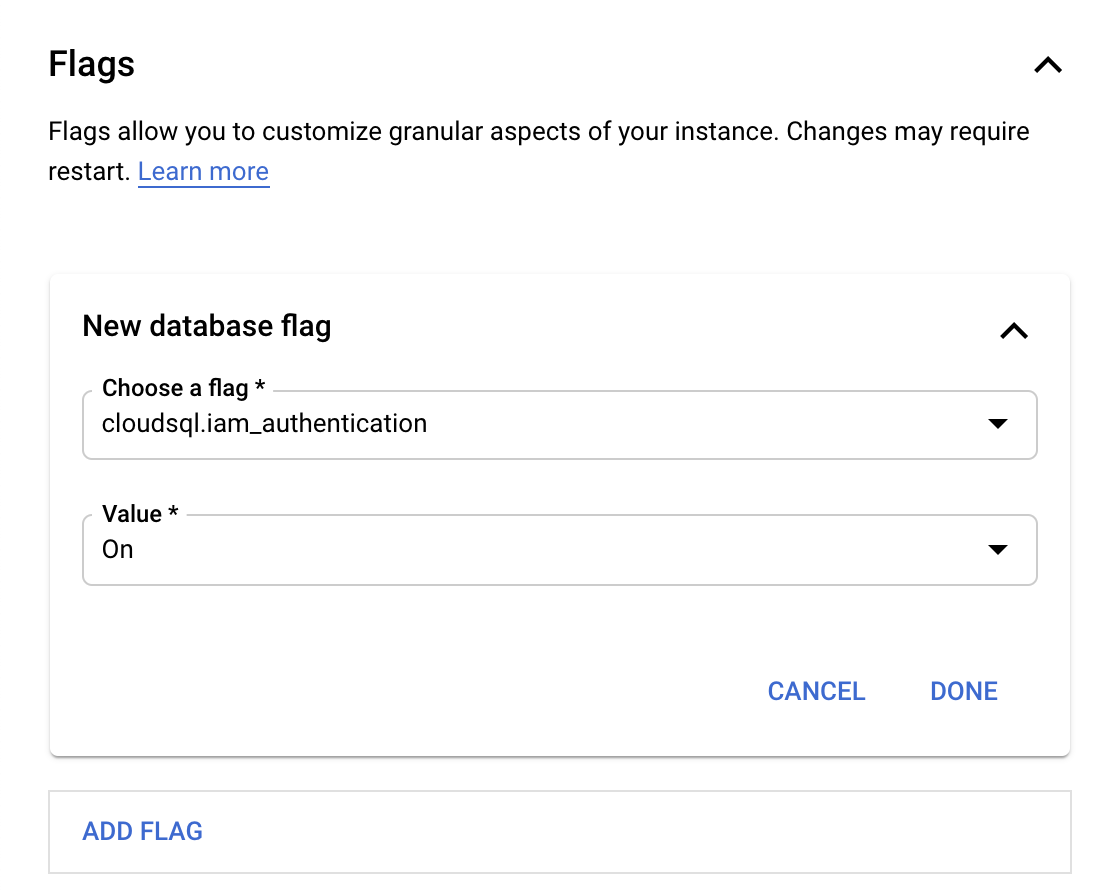
* Under **Customize your instance**, click **Flags**.
* Click **Add Flag**.
* Select cloudsql.iam\_authentication.
* Click **Done**.
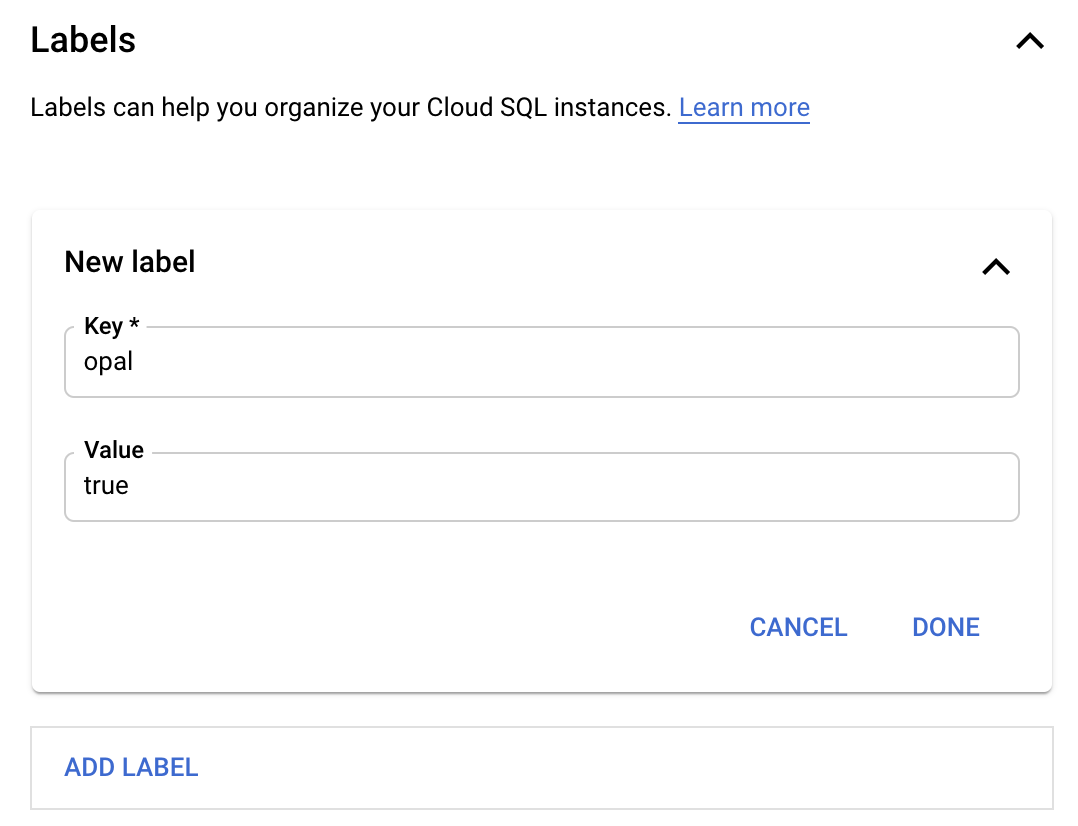
 Opal only adds resources for SQL instances that you label with `opal`.
* Scroll down to **Labels **and add the opal label.
* Click **Done**.
* Click **Save**
Opal only adds resources for SQL instances that you label with `opal`.
* Scroll down to **Labels **and add the opal label.
* Click **Done**.
* Click **Save**
 ## Access a SQL instance in Opal
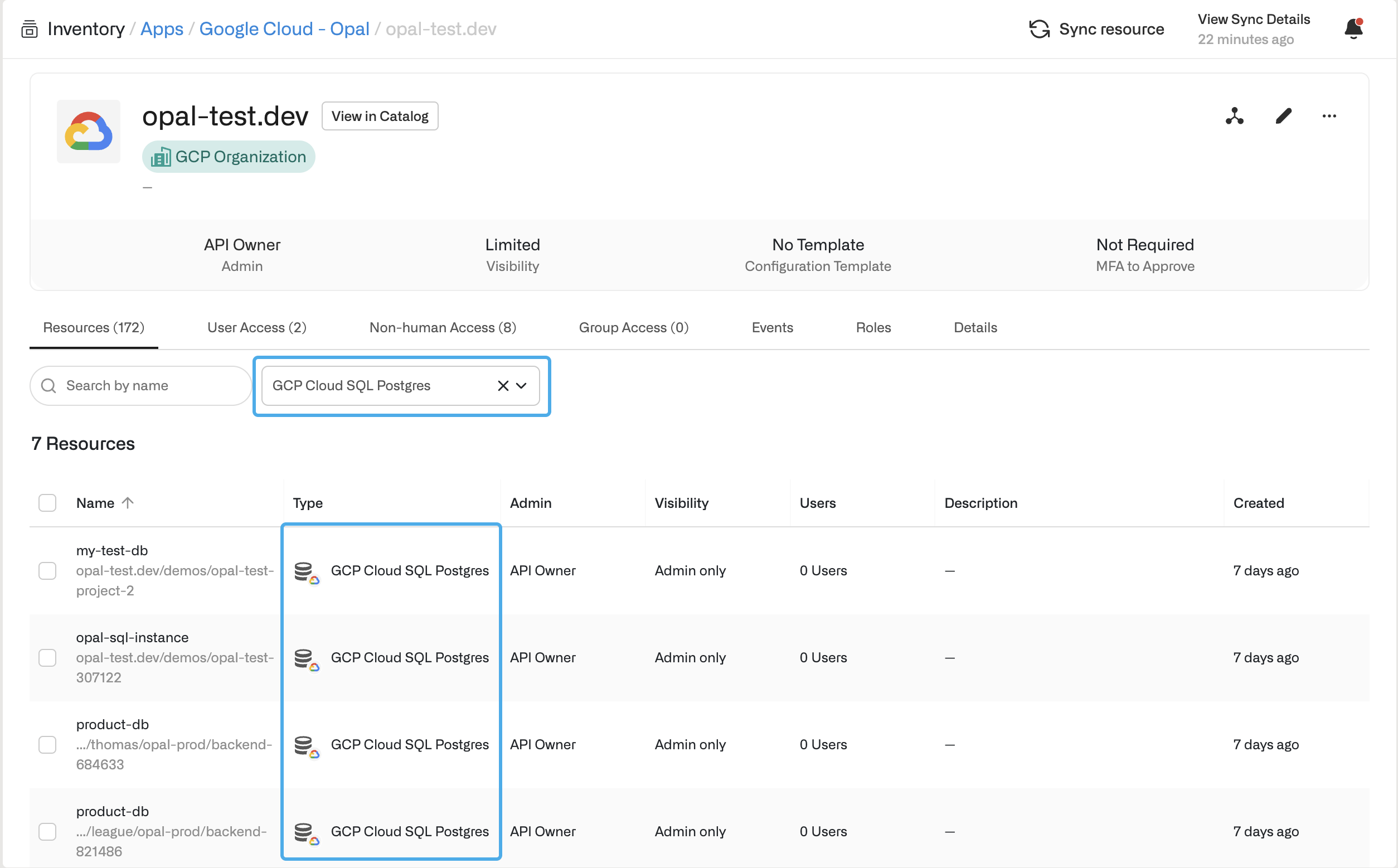
If you successfully labeled your SQL instance in GCP, the new SQL resource shows in the **Resources** tab.
## Access a SQL instance in Opal
If you successfully labeled your SQL instance in GCP, the new SQL resource shows in the **Resources** tab.
 Access to this instance is granted to the GCP user that matches your email address.
Opal [adds IAM users](https://cloud.google.com/sql/docs/mysql/add-manage-iam-users#creating-a-database-user) to the Cloud SQL instance, so users can log in, but by default accounts do **not** have any database privileges. Use the [Google guide](https://cloud.google.com/sql/docs/mysql/add-manage-iam-users#grant-db-privileges) to learn how to grant users database privileges.
***
Access to this instance is granted to the GCP user that matches your email address.
Opal [adds IAM users](https://cloud.google.com/sql/docs/mysql/add-manage-iam-users#creating-a-database-user) to the Cloud SQL instance, so users can log in, but by default accounts do **not** have any database privileges. Use the [Google guide](https://cloud.google.com/sql/docs/mysql/add-manage-iam-users#grant-db-privileges) to learn how to grant users database privileges.
***