> ## Documentation Index
> Fetch the complete documentation index at: https://docs.opal.dev/llms.txt
> Use this file to discover all available pages before exploring further.
# Add a project
> Read about how to add a GCP project to Opal so you can manage temporary access to them.
Opal lets your developers find and request access to GCP projects. You can currently request `viewer` and `editor` roles to projects. Use the following steps to add a project.
## 1. Go to the Resource Manager
Access the [resource manager](https://console.cloud.google.com/cloud-resource-manager) or find it by navigating to it: **IAM & Admin > Manage Resources**.
## 2. Label your project
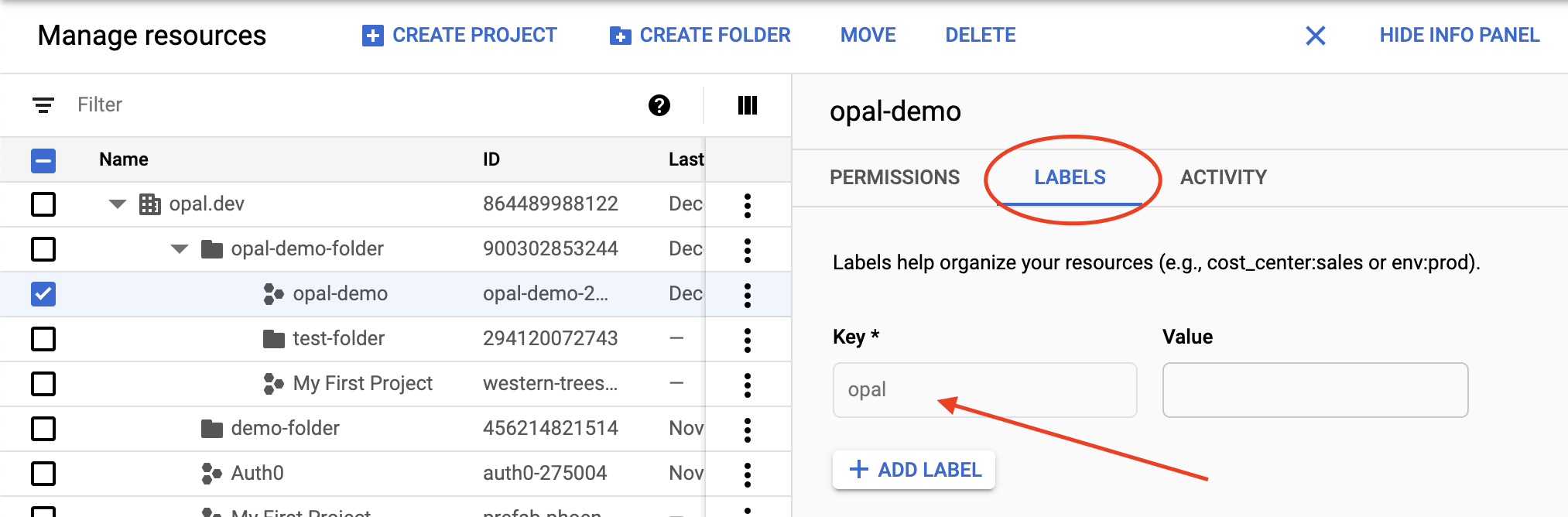
Opal only adds resources for projects that you label with `opal`. To do this, add a label to your project in the Resource Manager dashboard.
 ## Access a project in Opal
If you successfully labeled your project in GCP, the project shows on the **Resources** page after the next sync.
If you already have access to the project in GCP, through Opal or otherwise, you'll see a **Connected** label in the top right corner of the resource. The permissions to this project are granted to the GCP user that matches your email address.
## Access a project in Opal
If you successfully labeled your project in GCP, the project shows on the **Resources** page after the next sync.
If you already have access to the project in GCP, through Opal or otherwise, you'll see a **Connected** label in the top right corner of the resource. The permissions to this project are granted to the GCP user that matches your email address.