> ## Documentation Index
> Fetch the complete documentation index at: https://docs.opal.dev/llms.txt
> Use this file to discover all available pages before exploring further.
# Add a folder
> Learn how to add a GCP folder to Opal so you can manage temporary access to them.
Opal lets your developers find and request access to GCP folders. Folders let you grant access to multiple GCP projects and their underlying resources. Follow these steps to add GCP folders to your Opal dashboard.
## 1. Go to the Resource Manager
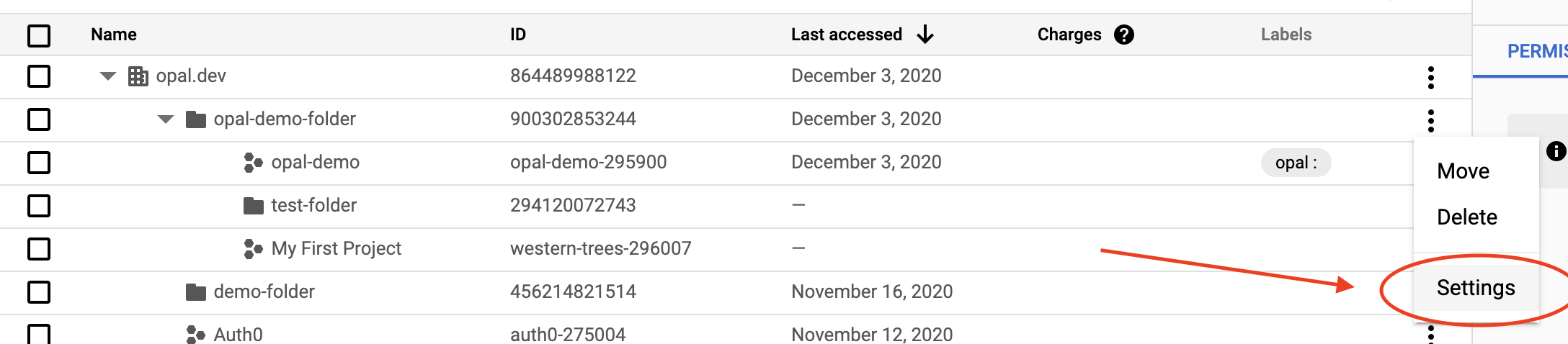
Access the [resource manager using this link](https://console.cloud.google.com/cloud-resource-manager) or find it by navigating to it: IAM & Admin > Manage Resources
## 2. Prefix your folder
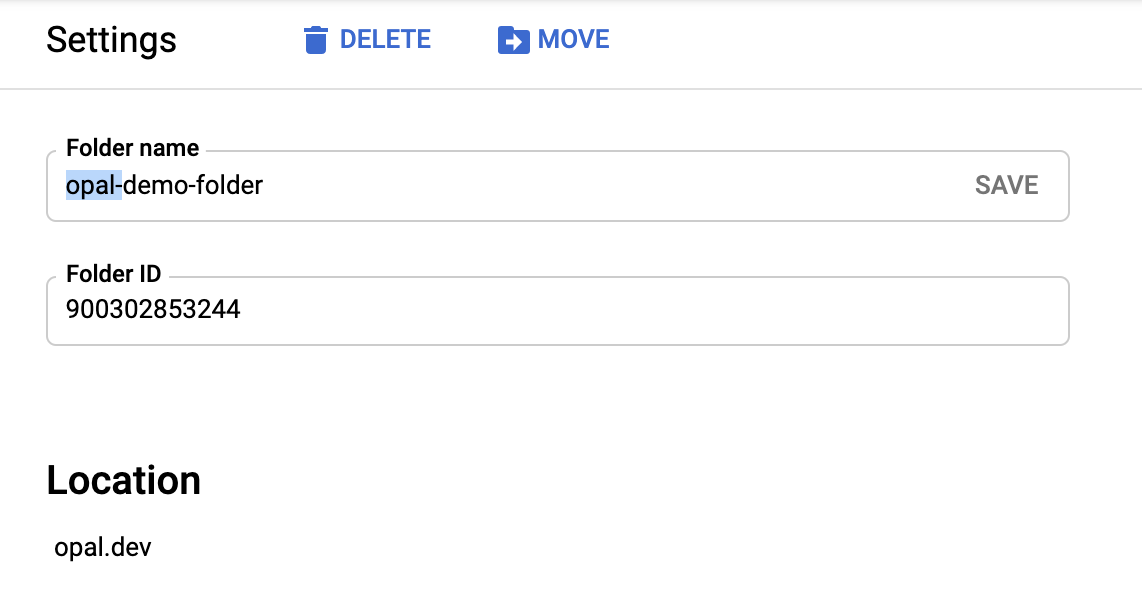
Opal only adds permissions for folders that you prefix with `opal`. To do this, go to your folder's settings and update the name to start with `opal`.
 ## Access a folder in Opal
If you successfully labeled your folder in GCP, it shows in the **Resources** page after the next sync.
If you already have access to the folder in GCP, through Opal or otherwise, you'll see a **Connected** label in the top right corner of the resource. The permissions to this folder are granted to the GCP user that matches your Opal email address.
## Access a folder in Opal
If you successfully labeled your folder in GCP, it shows in the **Resources** page after the next sync.
If you already have access to the folder in GCP, through Opal or otherwise, you'll see a **Connected** label in the top right corner of the resource. The permissions to this folder are granted to the GCP user that matches your Opal email address.