> ## Documentation Index
> Fetch the complete documentation index at: https://docs.opal.dev/llms.txt
> Use this file to discover all available pages before exploring further.
# Add a Cloud Storage bucket
Opal lets your developers find and request access to GCP Cloud Storage buckets. Follow these steps to add GCP buckets to your Opal dashboard.
## 1. Go to Cloud Storage
Access the [Cloud Storage browser using this link](https://console.cloud.google.com/storage/browser) or find it by navigating to Cloud Storage in the search bar.
## 2. Label your bucket
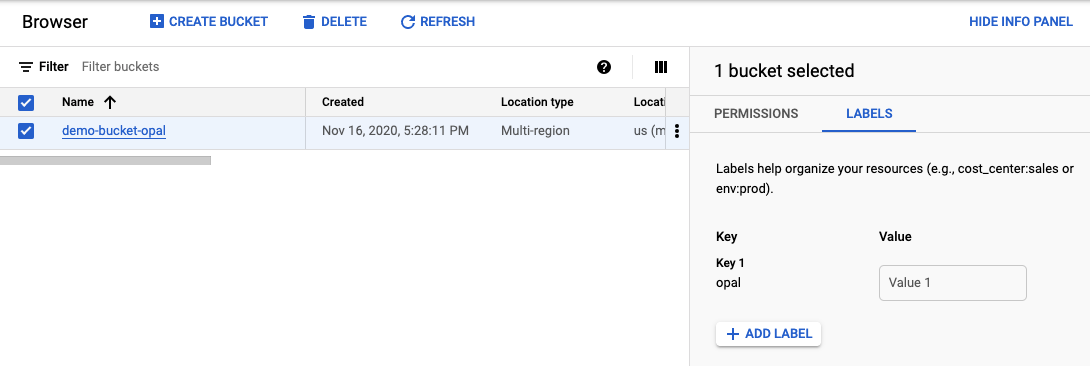
Opal only adds permissions for buckets that you label with Opal. To do this, add a label to your bucket in the Cloud Storage dashboard.
 ## Access a bucket in Opal
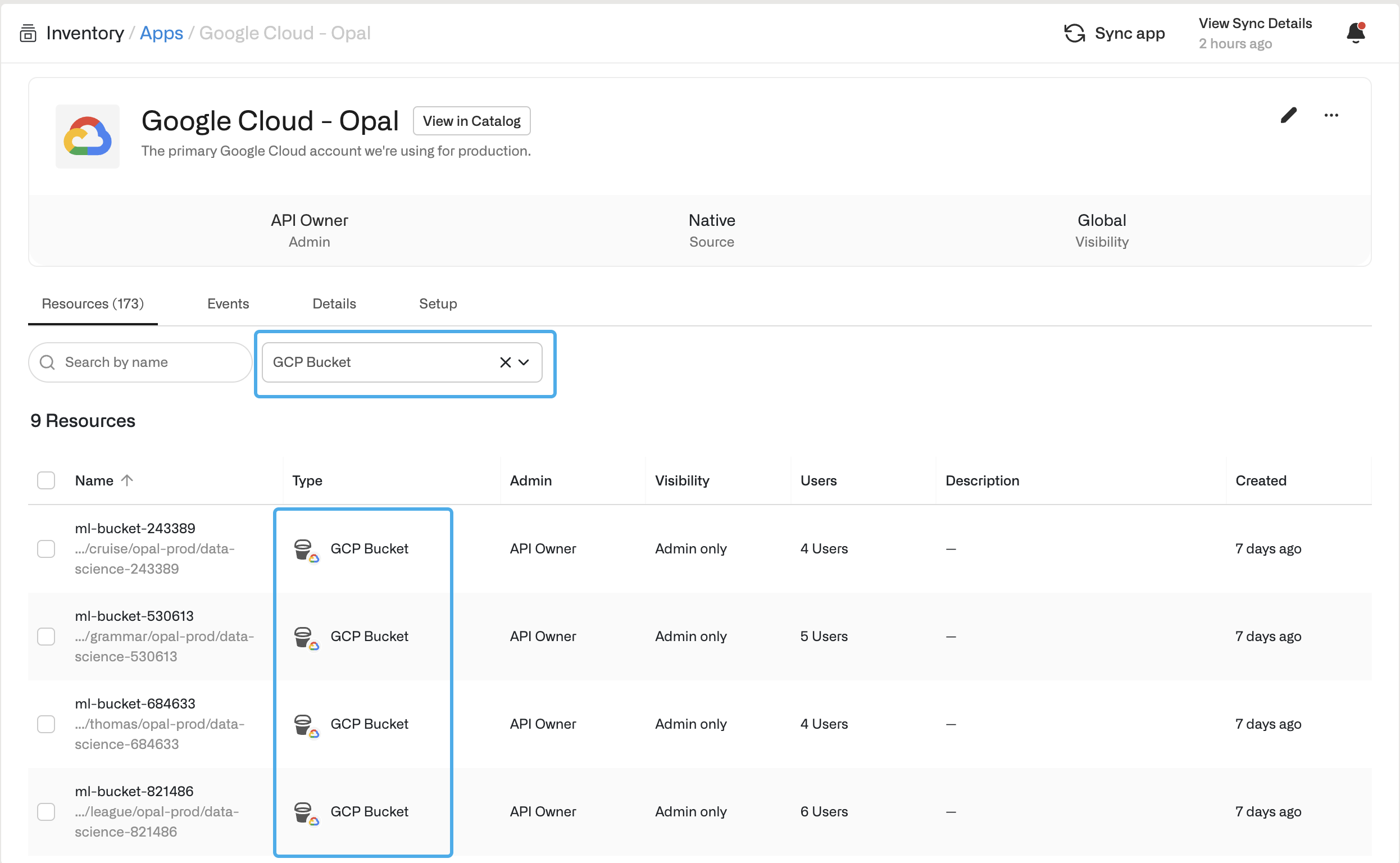
If you successfully labeled your bucket in GCP, the new bucket resource appears in Opal in the **Inventory** under **Resources**.
## Access a bucket in Opal
If you successfully labeled your bucket in GCP, the new bucket resource appears in Opal in the **Inventory** under **Resources**.