> ## Documentation Index
> Fetch the complete documentation index at: https://docs.opal.dev/llms.txt
> Use this file to discover all available pages before exploring further.
# Add an IAM role
> Add your AWS IAM roles to Opal to allow your developers to request temporary access.
This guide assumes you've already [configured your AWS organization in
Opal](/integrations/setting-up-your-aws-organization-in-opal).
## Add a role
Use the following steps to connect an IAM role to Opal.
### Trust policy
You must use the following trust policy for your role, substituting as follows:
* `${ACCOUNT_ID}`: The account ID of the account being configured.
* `${IDP_ISSUER_URL}`: The Identity Provider's issuer URL
* `${OPAL_CLIENT_ID}`: The Client ID assigned to Opal via your IdP.
```json trust_policy.json theme={null}
{
"Version": "2012-10-17",
"Statement": [
{
"Effect": "Allow",
"Principal": {
"Federated": "arn:aws:iam::${ACCOUNT_ID}:oidc-provider/${IDP_ISSUER_URL}"
},
"Action": "sts:AssumeRoleWithWebIdentity",
"Condition": {
"StringEquals": {
"${IDP_ISSUER_URL}:aud": "${OPAL_CLIENT_ID}"
}
}
}
]
}
```
### Create a role
Here is an example invocation for creating a role with the above trust policy file:
```shell Creating an IAM role for Opal aws iam create-role \ --role-name theme={null}
MyRoleWithPoliciesToBeManagedByOpal \ --assume-role-policy-document
file://trust_policy.json \ --tags Key=opal,Value="" \ --description "My role
containing policies to be managed by Opal"
```
### Attach policies to a role
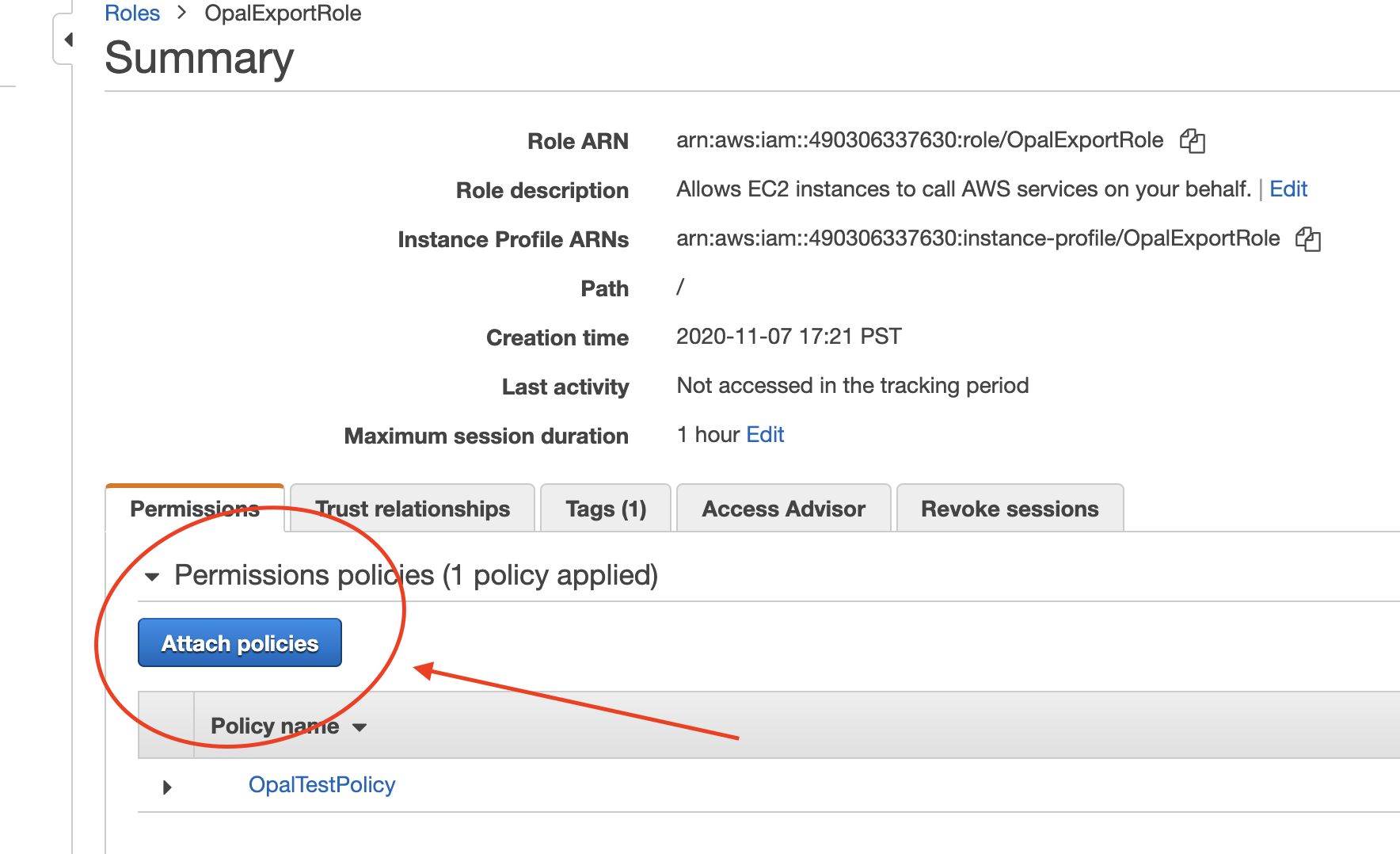
Next, attach all the policies you want to show up in Opal under this role. You can do this in the AWS Console:
 ### Terraform
If you use Terraform, for an existing `aws_iam_role`, you can use the following arguments for the role you want to manage with Opal:
```terraform theme={null}
assume_role_policy = < **Import items** from the **Inventory**.
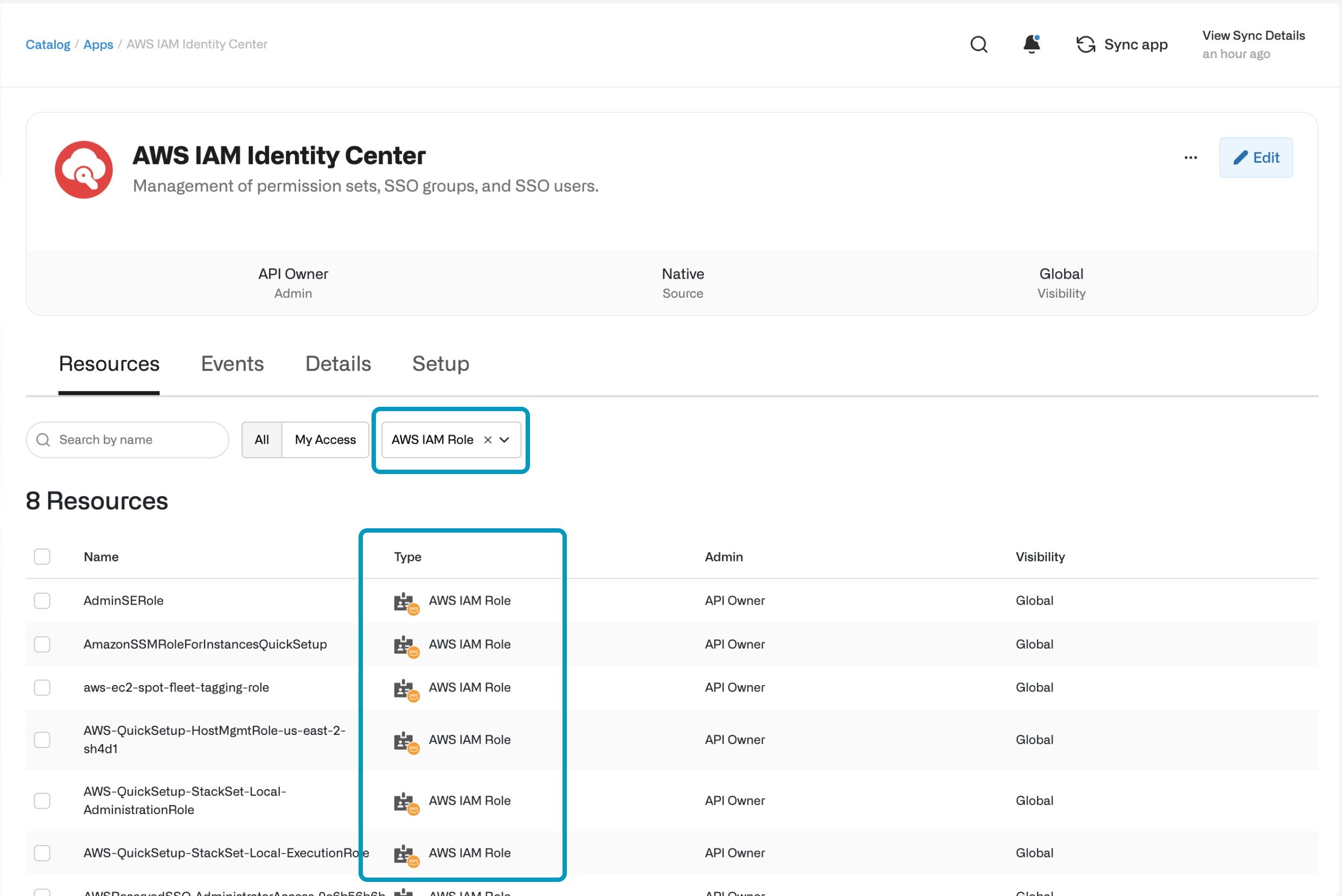
After you've imported roles to Opal, users can request them from the **Catalog** and you can manage them from the **Inventory**.
### Terraform
If you use Terraform, for an existing `aws_iam_role`, you can use the following arguments for the role you want to manage with Opal:
```terraform theme={null}
assume_role_policy = < **Import items** from the **Inventory**.
After you've imported roles to Opal, users can request them from the **Catalog** and you can manage them from the **Inventory**.
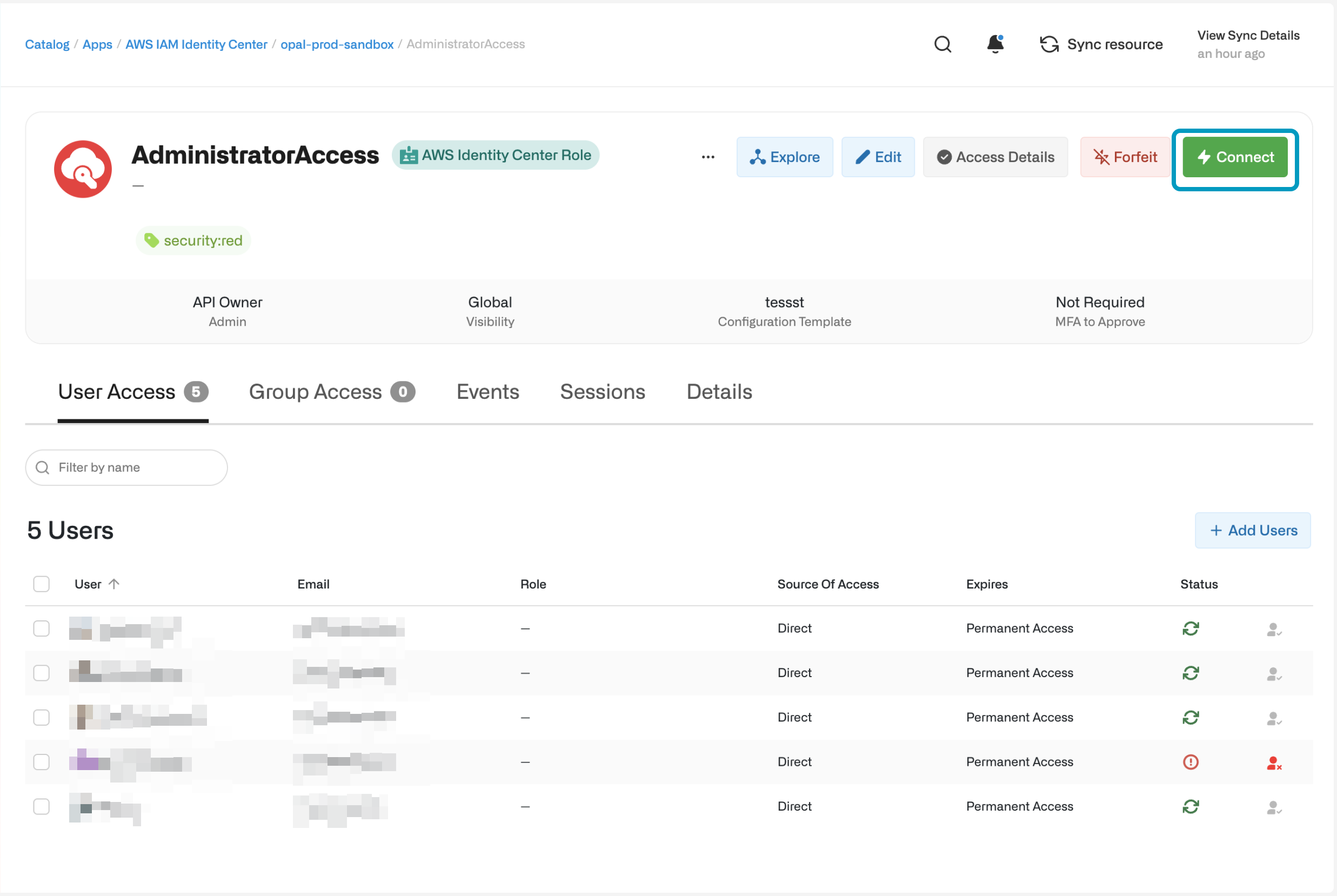
 AWS IAM roles are session-based, so your end users need to initiate their role-based session by clicking on the **Connect** button on the resource.
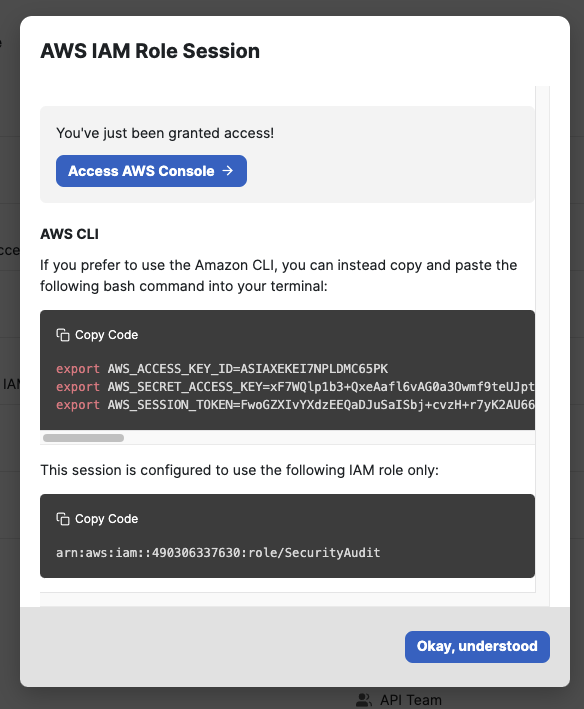
 Once a session is started, you can access the AWS Console (the Amazon GUI) directly or update your CLI with this role's permissions.