> ## Documentation Index
> Fetch the complete documentation index at: https://docs.opal.dev/llms.txt
> Use this file to discover all available pages before exploring further.
# Tips on searching
> Find apps and resources in Opal using filters and search queries.
Use **Search** to find apps, resources, and groups you can request access to. Open it from the left sidebar, press **⌘+K** (Mac) or **Ctrl+K** (Windows), or use the search box on Home.
 ## Filter by app, type, tag, or your access
Click the filter icon next to the search bar to show built-in filters. You can combine them to narrow results:
| Filter | What it does |
| - | - |
| **App** | Limit results to one or more connected apps (for example, AWS or Okta). |
| **Type** | Limit to specific resource or group types (for example, EC2 instances or GitHub repos). |
| **Tag** | Limit to items with specific tags (for example, `env:prod`). Requires tag visibility in your org. |
| **My Access** | Show only items you currently have access to. |
You can also toggle **Requestable Only** in the results header to hide items you cannot request.
## Search by name or keyword
Type in the search bar to match item names. If your organization has smart search enabled, you can combine **keywords** (apps and resource types) with **name text** in one query.
Smart search requires version 1.1228.0 or later.
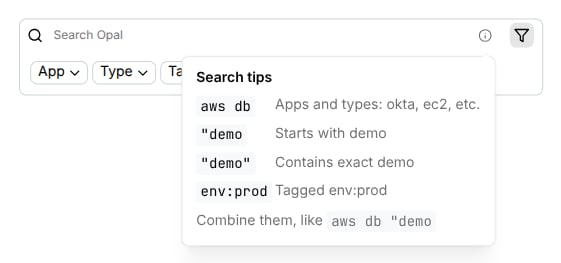
Hover the **ⓘ** icon next to the filters for in-product examples:
## Filter by app, type, tag, or your access
Click the filter icon next to the search bar to show built-in filters. You can combine them to narrow results:
| Filter | What it does |
| - | - |
| **App** | Limit results to one or more connected apps (for example, AWS or Okta). |
| **Type** | Limit to specific resource or group types (for example, EC2 instances or GitHub repos). |
| **Tag** | Limit to items with specific tags (for example, `env:prod`). Requires tag visibility in your org. |
| **My Access** | Show only items you currently have access to. |
You can also toggle **Requestable Only** in the results header to hide items you cannot request.
## Search by name or keyword
Type in the search bar to match item names. If your organization has smart search enabled, you can combine **keywords** (apps and resource types) with **name text** in one query.
Smart search requires version 1.1228.0 or later.
Hover the **ⓘ** icon next to the filters for in-product examples:
 ### Common query patterns
| Query | Finds |
| - | - |
| `aws db` | AWS database resources (for example, RDS). |
| `okta groups` | Okta group resources. |
| `ec2` | EC2 instances. |
| `"demo` | Names that **start with** `demo`. |
| `"demo"` | Names that **contain** the exact text `demo`. |
| `env:prod` | Items tagged `env:prod` (also works as `env=prod`). |
| `aws db "demo` | AWS databases whose names start with `demo`. |
Keywords map to apps and types your organization has connected. If a word is not recognized, Opal treats it as part of the name search.
### Try these
* `gcp postgres "admin"` finds GCP Cloud SQL Postgres instances whose names contain `admin`.
* `role admin` finds roles across your inventory whose names match `admin`, such as GitHub org roles and PagerDuty roles.
* `databricks group "remote` finds Databricks account groups whose names start with `remote`.
### Common query patterns
| Query | Finds |
| - | - |
| `aws db` | AWS database resources (for example, RDS). |
| `okta groups` | Okta group resources. |
| `ec2` | EC2 instances. |
| `"demo` | Names that **start with** `demo`. |
| `"demo"` | Names that **contain** the exact text `demo`. |
| `env:prod` | Items tagged `env:prod` (also works as `env=prod`). |
| `aws db "demo` | AWS databases whose names start with `demo`. |
Keywords map to apps and types your organization has connected. If a word is not recognized, Opal treats it as part of the name search.
### Try these
* `gcp postgres "admin"` finds GCP Cloud SQL Postgres instances whose names contain `admin`.
* `role admin` finds roles across your inventory whose names match `admin`, such as GitHub org roles and PagerDuty roles.
* `databricks group "remote` finds Databricks account groups whose names start with `remote`.
 ## Combine filters and text
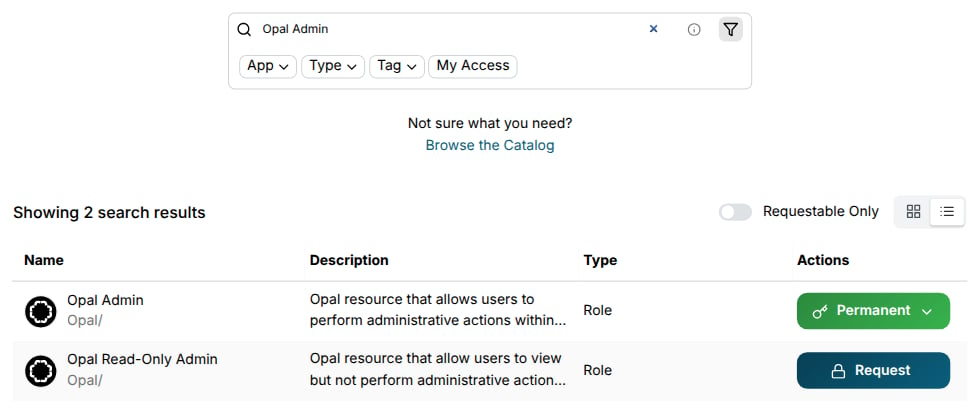
Filters and the search bar work together. For example, select **App → AWS**, then type `db "prod` to find AWS databases whose names start with `prod`.
## If you do not see what you need
* Try fewer keywords or a shorter name fragment.
* Clear filters and search again.
* Browse the **Catalog** to explore apps by category.
* Ask your admin if the resource is visible and requestable in Opal.
## Combine filters and text
Filters and the search bar work together. For example, select **App → AWS**, then type `db "prod` to find AWS databases whose names start with `prod`.
## If you do not see what you need
* Try fewer keywords or a shorter name fragment.
* Clear filters and search again.
* Browse the **Catalog** to explore apps by category.
* Ask your admin if the resource is visible and requestable in Opal.