> ## Documentation Index
> Fetch the complete documentation index at: https://docs.opal.dev/llms.txt
> Use this file to discover all available pages before exploring further.
# Set up an Airgapped Opal Environment
Note: This deployment method is part of our premium offering. To learn more
about leveraging this, please reach out to [sales@opal.dev](mailto:sales@opal.dev).
If you would like to run Opal in an environment with heightened network
restrictions and limit the number of systems Opal integrates with, you may
deploy Opal in an Airgapped mode. While this instance of Opal will not be fully
disconnected from networks, it will only integrate with other services that you
explicitly choose (for example, it will only integrate with a service like Slack
if you setup that connection). You will **not** need to add any of the hosts
listed in [the required outbound hosts
section](/docs/self-host-overview#outbound-hosts-required) to your allowlist.
The main limitations of this deployment mode are:
* SAML authentication is not supported. Authentication will only be possible via OIDC, and you will need to provide your own OIDC Provider (more details below).
* Opal's support team will have a slower path to turn features on and off for you. While we normally use LaunchDarkly for this, you will instead have a replacement service called [RelayProxy](https://docs.launchdarkly.com/sdk/relay-proxy) that you may need to manually update to a new image to bring in new flag values.
* Opal's support team will have less ability to help you debug issues, as we won't receive any logs or metrics from your instance.
# Prerequisite: Set up an OIDC Provider
Opal by default uses an [OpenID Connect](https://openid.net/developers/how-connect-works/) flow to authenticate users. Normally, we use Auth0 as the auth provider for this; in an airgapped environment, you will need to create your own OIDC provider and integrate it with your instance of Opal.
You should create an OIDC Provider in your Identity Provider, or another similar system that your users will be able to authenticate with. We will require the following from your OIDC Provider:
* Support for the basic `authorization_code` grant type
* Support for the following scope: `openid email profile`
* The following allowed sign-in redirect URIs:
* `https:///callback`
* `https:///callback/oidc`
* Your sign-out redirect URI set to `https:///sign-in`
Take note of this provider's Issuer URL, Client ID, and Client Secret - you'll need those when configuring your instance below.
You are responsible for configuring MFA policies for your users on this OIDC application.
In particular, Opal can be configured to require MFA when requesting or connecting to certain resources. In order for these settings to work as expected, your OIDC provider should require MFA on every `/authorize` call made to it.
## CLI-Specific OIDC Provider
If you would like to use our CLI, you will need to create a second OIDC provider in the same IDP. For this application, it should:
* Support the same `authorization_code` grant type and the same `openid email profile` scope
* Support PKCE
* *Not* require authenticating the client via client secret.
* Allow the sign-in redirect URL `http://127.0.0.1:49152/callback`. Our CLI runs a local webserver to implement the the Authorization Code flow, and that flow will require redirecting users to this local port.
# Deploying your Airgapped Environment
Before deploying your instance of Opal, you will need to setup infrastructure - see either [these instructions for AWS](/docs/self-host-opal-aws-guide#1-infrastructure-setup), or [these instructions for GCP](/docs/self-host-opal-gke-guide#1-infrastructure-setup). Additionally, you will need to create the following image repositories:
```
fluent-bit
opal-ld-relay-proxy
opal-migrate
opal-web_backend
redis
redis-sentinel
```
Once your infrastructure is ready, you have two options for deploying Opal - an airgapped installation with KOTS, or an airgapped installed with Helm.
Each of these will rely on accessing Replicated's customer-facing download portal, which has instructions and download links for airgap installs. Opal support will provide you with access to this download portal.
## Airgapped Installation with KOTS
Our distribution platform Replicated uses [KOTS](https://docs.replicated.com/intro-kots) to provide an admin portal that simplifies configuring and updating your instance of Opal.
This approach will require running several containers provided by Replicated; however, your cluster will still be able to pull images from your own private image repositories.
To start, you'll need to create a few additional image repositories:
```
kotsadm
minio
rqlite
```
Then follow [Replicated's instructions here](https://docs.replicated.com/enterprise/installing-existing-cluster-airgapped). Note that you'll want to download the application bundle and kotsadm from your Replicated download portal, which should look something like this:
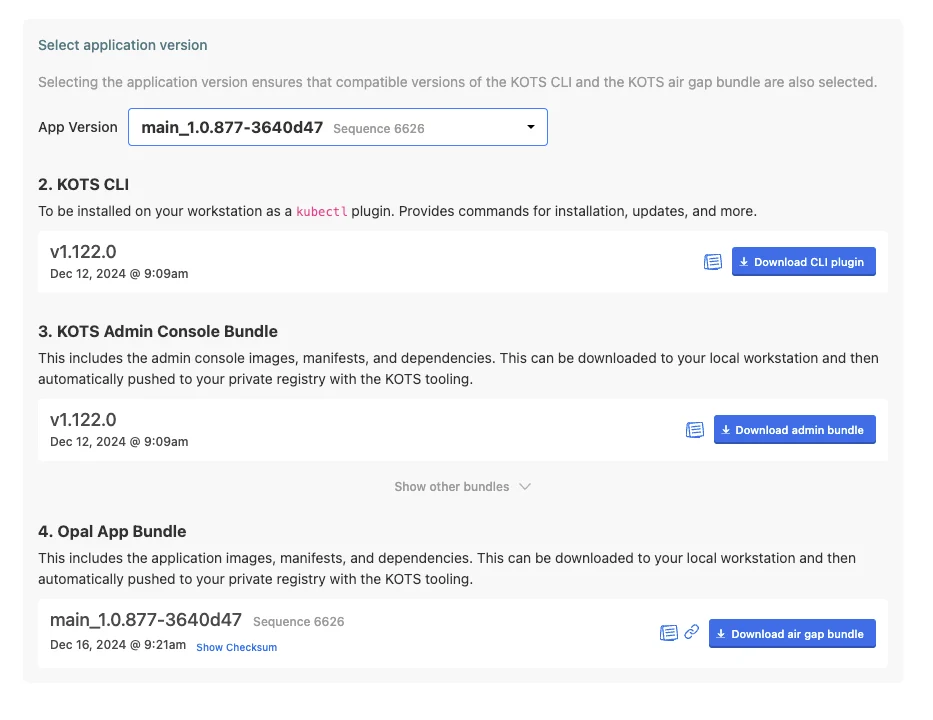 Once your admin portal is running and you see a configuration screen, you can follow our normal instructions for configuring Opal - [AWS](/docs/self-host-opal-aws-guide#3-configure-and-deploy-opal) or [GCP](/docs/self-host-opal-gke-guide#3-configure-and-deploy-opal).
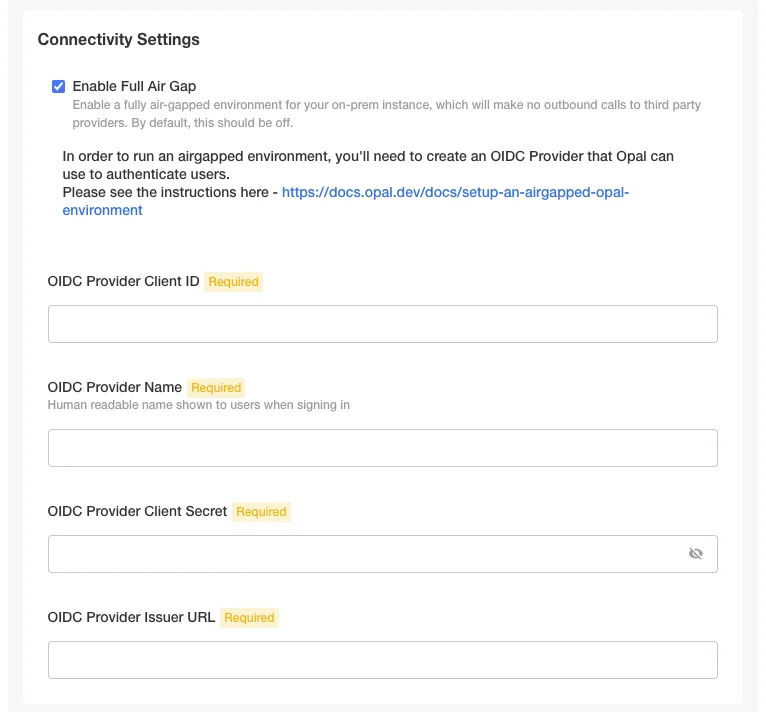
Ensure "Enable Full Airgap" is checked, and fill out the required fields below it:
Once your admin portal is running and you see a configuration screen, you can follow our normal instructions for configuring Opal - [AWS](/docs/self-host-opal-aws-guide#3-configure-and-deploy-opal) or [GCP](/docs/self-host-opal-gke-guide#3-configure-and-deploy-opal).
Ensure "Enable Full Airgap" is checked, and fill out the required fields below it:
 ## Airgapped Installation with Helm
You can avoid running KOTS and directly install Opal as a helm chart. This will require more work to configure Opal correctly, but will allow greater control over the resources you deploy.
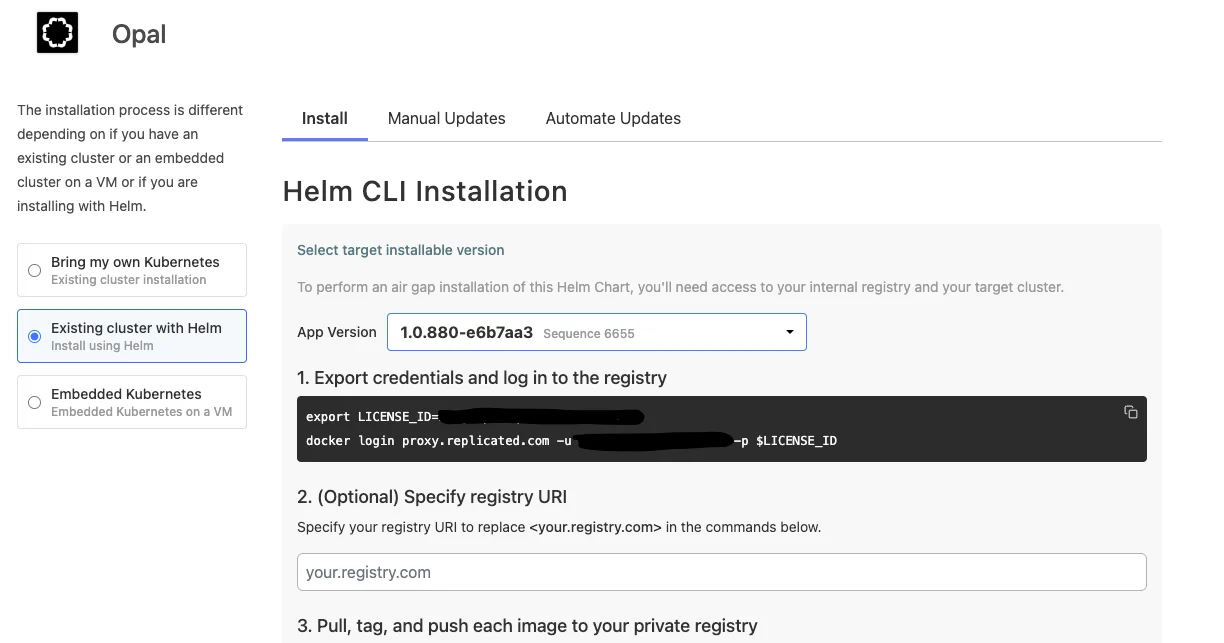
Visit your download portal in Replicated and select the "Existing Cluster with Helm" installation option. It'll look like this:
## Airgapped Installation with Helm
You can avoid running KOTS and directly install Opal as a helm chart. This will require more work to configure Opal correctly, but will allow greater control over the resources you deploy.
Visit your download portal in Replicated and select the "Existing Cluster with Helm" installation option. It'll look like this:
 Follow those instructions. Once you are ready to configure a `values.yaml` file for Opal's helm chart, refer to the annotated values.yaml below for which fields you need to set, and how to set them. Fill in anything with ``
```yaml yaml theme={null}
env:
# These are required for your environment to function correctly, and for us to push feature flags to you
environment: on_prem
onPremCustomerName:
# Providing "false" here will prevent your instance of Opal from exporting error logs
enableRemoteLogging: "false"
# Set the authIssuer based on the OIDC provider you created.
authIssuer:
# Leave the authProvider as this value
authProvider: GENERIC_OIDC
# Fill these in appropriately for the db instance you setup
postgresUser: postgres
postgresPassword:
postgresDb: opal
postgresHost:
postgresSslMode: "require"
postgresPort: 5432
# Generate secret values for these, and save them somewhere secure.
authTokenEncryptionKey:
csrfAuthenticationKey:
databaseEncryptionKey:
opalApiEncryptionKey:
secureCookieHashkey:
# You may alternatively point to an existing secret for these, like so:
# authTokenEncryptionKey:
# secretKeyRef:
# name: "mySecretName"
# key: "authTokenEncryptionKey"
redisHost: opal-web-redis-master
redisPort: 6379
# A DNS name you own that you will use to access Opal.
hostname:
# Optional. Set this to have pods use an existing service account in your cluster. Otherwise, omit this.
serviceAccount:
# This configures an SMTP provider for your instance of Opal to use for sending email notifications
# If set to false, Opal would use its default external service for sending emails
smtpEnable: true
smtpServer:
smtpPort:
# Set smtpEncryptionEnabled to true to enable SMTP encryption. serverPort 465 uses SMTPS and serverPort 587 uses STARTTLS
smtpEncryptionEnabled: false
# Optional. Enables async data exports backed by an S3-compatible bucket. Omit this block entirely to leave the feature off.
# In an airgapped environment, point this at an in-cluster store such as MinIO — cross-account AWS S3 is not reachable.
# See https://docs.opal.dev/docs/configure-async-exports-storage for setup details.
exportStorage:
bucketName:
endpoint:
accessKey:
secretKey:
# This is what tells Opal to run as an Airgapped instance
fullAirGap:
enabled: true
# Use the Client ID and Client Secret of the *main* OIDC provider you created - not the one customized for the CLI.
authClientID:
authClientSecret:
# This is a human-readable name you can provide as a label for your auth provider
# When signing in, your users will see a button that reads "Signin with "
authProviderName:
# The private image repository you setup for Opal images
image:
repository:
# Set these `registry` values to the same as `image.repository` above
redis:
image:
registry:
redis-sentinel-event-streaming:
image:
registry:
sentinel:
image:
registry:
# Setting `enabled` to true will deploy an Ingress resource you can use to route traffic to Opal
# If you disable this, you will need to create your own ingress that routes traffic to the `opal-web` service
ingress:
enabled: true
# Always leave `override=true`
override: true
overrideAnnotations: # Here, you should fill in annotations that will link your ingress to a load balancer in your cloud provider
# For AWS, this will look something like:
# kubernetes.io/ingress.class: alb
# alb.ingress.kubernetes.io/scheme: internet-facing
# alb.ingress.kubernetes.io/certificate-arn:
# For GCP, this will look something like
# ingress.gcp.kubernetes.io/pre-shared-cert: opal-certificate
# kubernetes.io/ingress.global-static-ip-name: opal
# This controls RelayProxy, our replacement service for LaunchDarkly that provides feature flags to your cluster
ld-relay:
image:
# You may also set a `tag` attribute here if you need to override the version of the proxy to run
# Otherwise, it'll default to the same version as your application
repository: /opal-ld-relay-proxy
# Providing "false" here will prevent your instance of Opal from exporting application logs
log-forwarder:
enabled: false
```
Once your values are configured, you can install Opal using the install command in your download portal
```
```
Follow those instructions. Once you are ready to configure a `values.yaml` file for Opal's helm chart, refer to the annotated values.yaml below for which fields you need to set, and how to set them. Fill in anything with ``
```yaml yaml theme={null}
env:
# These are required for your environment to function correctly, and for us to push feature flags to you
environment: on_prem
onPremCustomerName:
# Providing "false" here will prevent your instance of Opal from exporting error logs
enableRemoteLogging: "false"
# Set the authIssuer based on the OIDC provider you created.
authIssuer:
# Leave the authProvider as this value
authProvider: GENERIC_OIDC
# Fill these in appropriately for the db instance you setup
postgresUser: postgres
postgresPassword:
postgresDb: opal
postgresHost:
postgresSslMode: "require"
postgresPort: 5432
# Generate secret values for these, and save them somewhere secure.
authTokenEncryptionKey:
csrfAuthenticationKey:
databaseEncryptionKey:
opalApiEncryptionKey:
secureCookieHashkey:
# You may alternatively point to an existing secret for these, like so:
# authTokenEncryptionKey:
# secretKeyRef:
# name: "mySecretName"
# key: "authTokenEncryptionKey"
redisHost: opal-web-redis-master
redisPort: 6379
# A DNS name you own that you will use to access Opal.
hostname:
# Optional. Set this to have pods use an existing service account in your cluster. Otherwise, omit this.
serviceAccount:
# This configures an SMTP provider for your instance of Opal to use for sending email notifications
# If set to false, Opal would use its default external service for sending emails
smtpEnable: true
smtpServer:
smtpPort:
# Set smtpEncryptionEnabled to true to enable SMTP encryption. serverPort 465 uses SMTPS and serverPort 587 uses STARTTLS
smtpEncryptionEnabled: false
# Optional. Enables async data exports backed by an S3-compatible bucket. Omit this block entirely to leave the feature off.
# In an airgapped environment, point this at an in-cluster store such as MinIO — cross-account AWS S3 is not reachable.
# See https://docs.opal.dev/docs/configure-async-exports-storage for setup details.
exportStorage:
bucketName:
endpoint:
accessKey:
secretKey:
# This is what tells Opal to run as an Airgapped instance
fullAirGap:
enabled: true
# Use the Client ID and Client Secret of the *main* OIDC provider you created - not the one customized for the CLI.
authClientID:
authClientSecret:
# This is a human-readable name you can provide as a label for your auth provider
# When signing in, your users will see a button that reads "Signin with "
authProviderName:
# The private image repository you setup for Opal images
image:
repository:
# Set these `registry` values to the same as `image.repository` above
redis:
image:
registry:
redis-sentinel-event-streaming:
image:
registry:
sentinel:
image:
registry:
# Setting `enabled` to true will deploy an Ingress resource you can use to route traffic to Opal
# If you disable this, you will need to create your own ingress that routes traffic to the `opal-web` service
ingress:
enabled: true
# Always leave `override=true`
override: true
overrideAnnotations: # Here, you should fill in annotations that will link your ingress to a load balancer in your cloud provider
# For AWS, this will look something like:
# kubernetes.io/ingress.class: alb
# alb.ingress.kubernetes.io/scheme: internet-facing
# alb.ingress.kubernetes.io/certificate-arn:
# For GCP, this will look something like
# ingress.gcp.kubernetes.io/pre-shared-cert: opal-certificate
# kubernetes.io/ingress.global-static-ip-name: opal
# This controls RelayProxy, our replacement service for LaunchDarkly that provides feature flags to your cluster
ld-relay:
image:
# You may also set a `tag` attribute here if you need to override the version of the proxy to run
# Otherwise, it'll default to the same version as your application
repository: /opal-ld-relay-proxy
# Providing "false" here will prevent your instance of Opal from exporting application logs
log-forwarder:
enabled: false
```
Once your values are configured, you can install Opal using the install command in your download portal
```
```