> ## Documentation Index
> Fetch the complete documentation index at: https://docs.opal.dev/llms.txt
> Use this file to discover all available pages before exploring further.
# Use Paladin to scale your security function
> Scale your security function and automate routine operations using Paladin agents.
## Overview
Paladin is Opal's platform for building access-understanding agents that evaluate whether access and its surrounding policies are appropriate. Paladin agents operate like senior security engineers, gaining context from your organization's knowledge bases and communications.
Paladin enables you to scale your security function's practices and understanding, bringing a security evaluation at machine speed to operations focused on business enablement. With Paladin, you no longer have to choose between approving quickly and approving carefully.
The Paladin platform can be used by your organization to create agents for your use cases, each with their own guidelines, connectors and goals.
## Use Cases
Paladin can be applied to multiple use cases:
| Use Case | Status | Description | Docs |
| --------------- | ------------------------------------------------ | ------------------------------------------------------------------- | ----------------------------------------------- |
| Access Requests | Available | Assign Paladin to an approval stage as a sole or advisory reviewer. | [Access Requests](/docs/paladin/access-request) |
## Safety
Paladin agents operate as Opal Service Users, bringing them under the control of our authorization and auditing systems.
### Authorization
Paladin agents operate within Opal's authorization system. This means their access can be controlled using:
* [Opal Default Roles](/docs/roles-in-opal)
* [Opal Custom Scoped Roles](/docs/custom-opal-roles)
* [Visibility Controls](/docs/organize-access-via-tags#visibility)
* [Owner Permissions](/docs/owner-permissions)
We recommend assigning your Paladin agents the **Read-Only Admin** role, which gives them enough context to make decisions while limiting their actions to the specific operation being performed.
### Auditing
As service users, all actions Paladin agents take are audited the same way a human user's actions are audited. Audit logs are available under [Events](/docs/event-types) and can be streamed to other systems via [Events Streaming](/docs/events-streaming).
Paladin agents also maintain an audit log of:
* Inputs provided to them
* All tool calls made to Opal and external systems
* Their internal thought process
* Their final outputs provided before actions are taken
These audit logs are exposed via the specific product surfaces outlined in [Use Cases](#use-cases).
### Connectors
Paladin's access to your external systems is gated by **connectors**. Paladin agents cannot read or write from an external system unless specifically authorized to do so as part of their configuration.
#### Slack for Agents
Paladin's Slack for Agents is a separate Slack app distributed by Opal. Slack for agents allows Paladin agents to:
* **Read** messages in public and private (if invited) slack channels
* **Join** public slack channels, as long as the slack channel is **not externally connected** *(Optional)*
#### Notion Documents
Paladin can connect to Notion to **read documents** under the top-level page it is granted access to.
#### Confluence Documents
Paladin can connect to Confluence to **read pages** as a document source, alongside Notion. A single document search spans every connected source, letting Paladin find the runbook, access policy, or ownership doc relevant to a request.
#### Ticketing Integrations
Paladin can **read any ticket** in your connected ticketing systems, such as [Linear](/integrations/linear).
#### FleetDM Devices
Paladin can connect to FleetDM to check a requester's **device posture**, matching the requester to a Fleet host by email. Paladin reads each device's **compliance verdict** — derived from Fleet's policy results, including which critical policies are failing — to gate access on whether the requester is on a compliant device. If no matching device is found, posture is treated as **unverified**.
#### PagerDuty
Paladin can connect to PagerDuty to read **live on-call and incident context**, matching the requester to a PagerDuty user by email. Paladin uses it to confirm whether a requester is **currently on-call** and to **corroborate a cited incident** — verifying that it exists, is still active, and names the requester among its assignees. Freeform fields such as incident titles are treated as untrusted context, never as decision evidence.
## Create a Paladin Agent
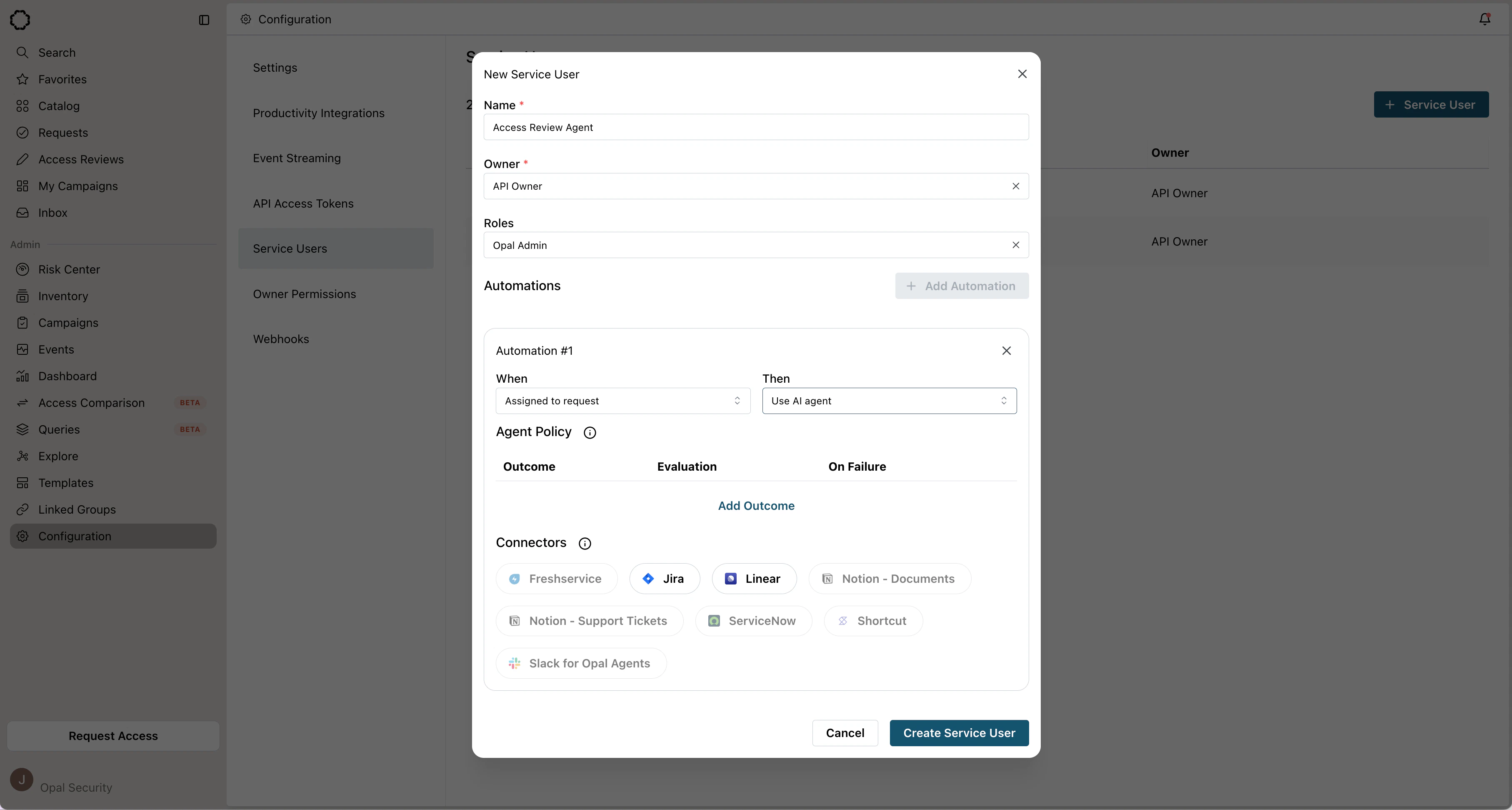
1. In Opal, navigate to **Configuration > Service Users** and create a service user that will represent your agent.
2. Configure the agent's name, owner group and role(s).
3. Configure an automation, select the trigger for your [use case](#use-cases) and select "Use AI Agent" as the automation action.
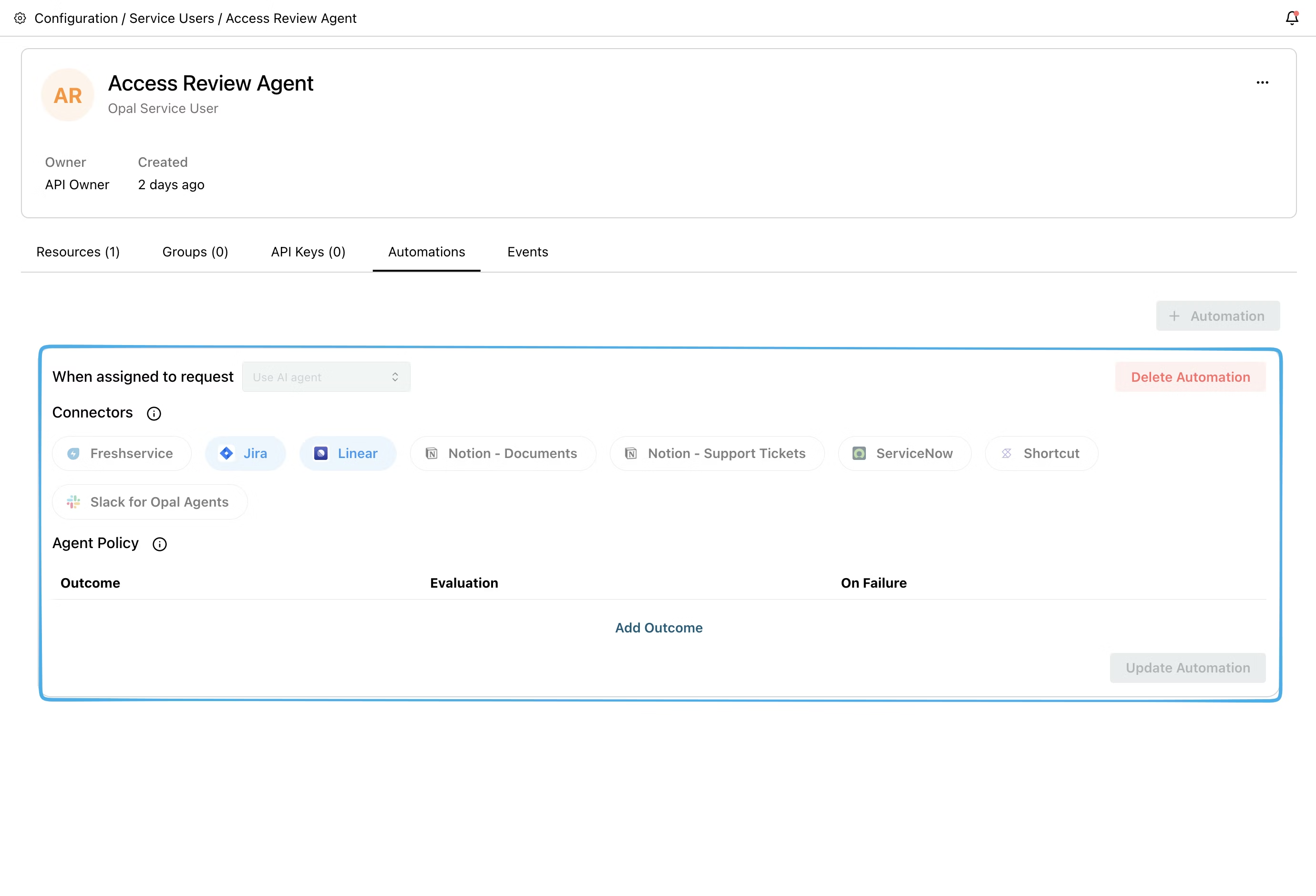
4. Select the available connectors that you want the agent to use. If any connector is unavailable, you can configure it in the next step.
 5. (If required) Configure any required connectors under **Configuration > Service Users > Your Service User > Automations**. If the integration for a connector is not already set up, you can do so now by clicking on a greyed-out connector.