> ## Documentation Index
> Fetch the complete documentation index at: https://docs.opal.dev/llms.txt
> Use this file to discover all available pages before exploring further.
# Review access campaigns with Paladin Insights
> Use Paladin Insights to group similar access in an access campaign and suggest bulk approve or revoke decisions to reviewers.
Paladin Insights for access reviews is in open beta. Contact Opal support to enable it for your organization.
## Overview
Paladin Insights groups similar items in an [access campaign](/docs/access-campaigns) and suggests whether to approve or revoke each group in bulk. Every suggestion comes with Paladin's reasoning, so reviewers can act on dozens of similar items at once while still deciding each one.
Paladin never submits decisions on its own. Reviewers stage a suggestion, adjust it, and submit their decisions as usual.
## Requirements
* Paladin Insights enabled for your organization by Opal support
* Opal Admin role to turn on **Access Review Insights**
* Opal cloud. AI features are not available in on-premises deployments.
Paladin Insights runs on your organization's [model provider](/docs/paladin/model-providers). Opal managed is the default and needs no setup. You don't need to create a Paladin agent; Opal runs the analysis as a built-in **UAR Paladin** service user.
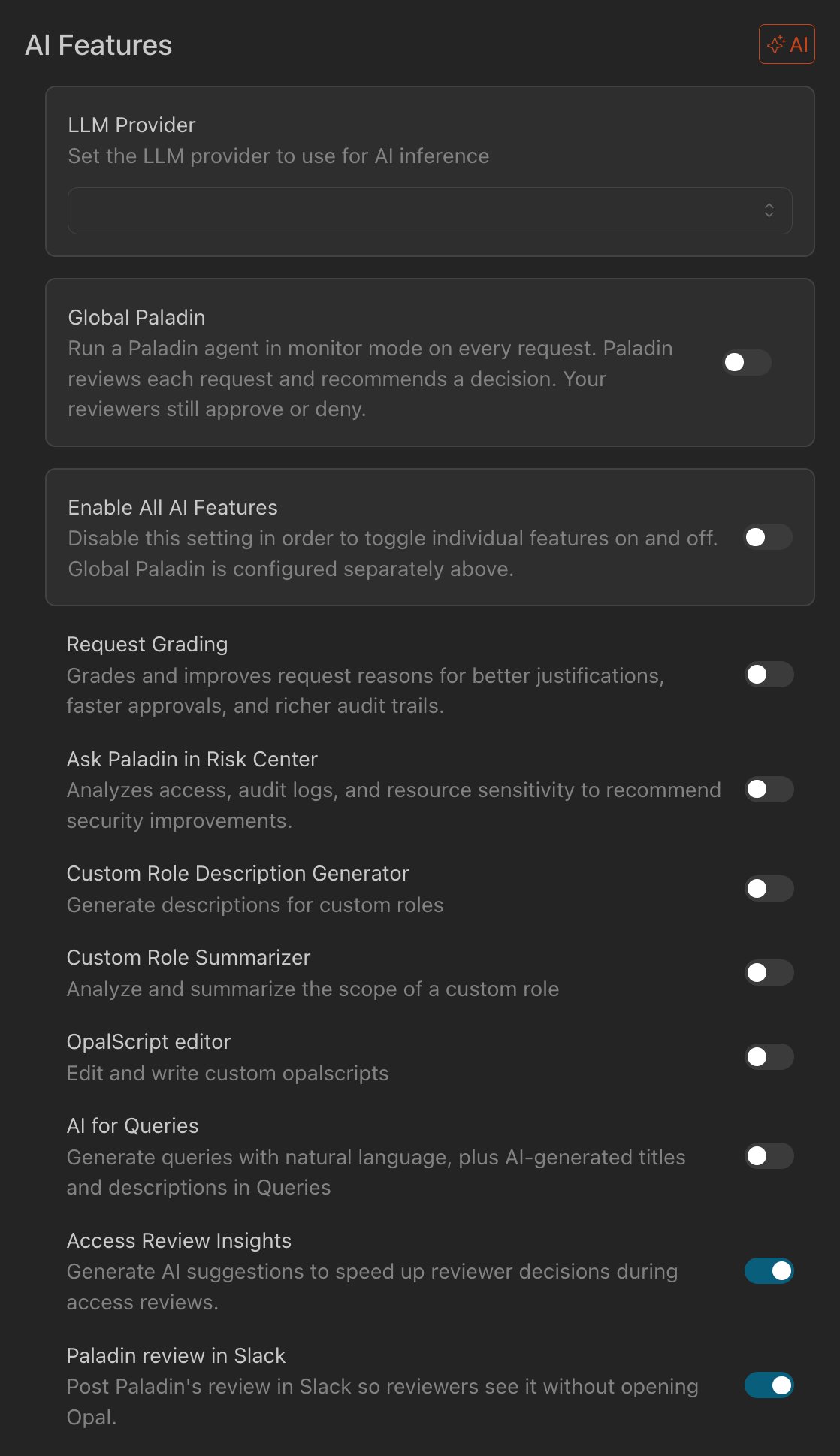
## Turn on Access Review Insights
1. Go to **Settings → AI Features**.
2. Turn on **Access Review Insights**.
If **Enable All AI Features** is on, Access Review Insights is already included. Turn it off to toggle features individually.
 ## Choose who sees insights for a campaign
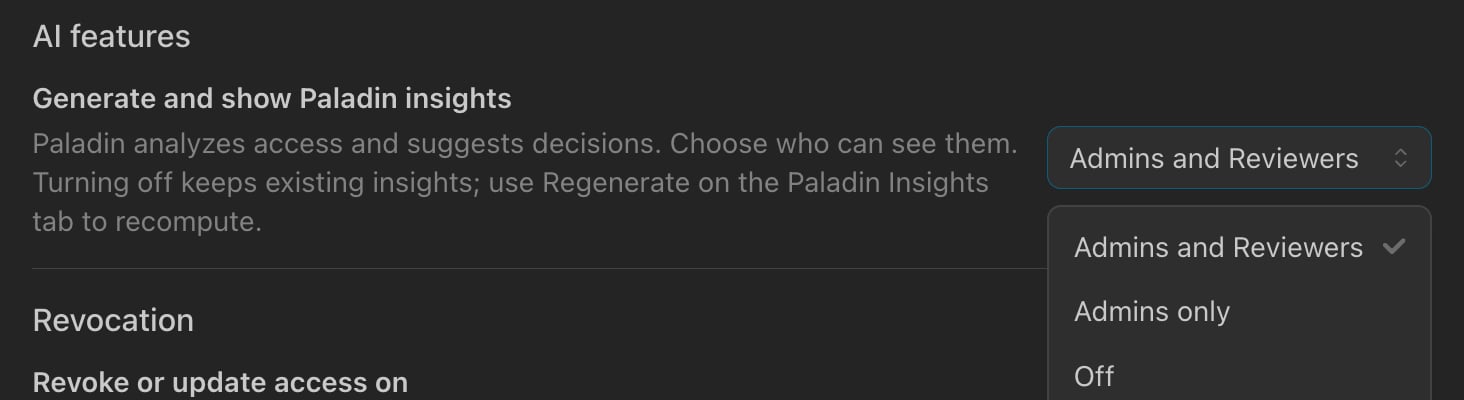
When you [configure a campaign draft](/docs/access-campaigns#configure-your-draft), open the **Settings** tab. Under **AI features**, use **Generate and show Paladin insights** to choose who can see insights for this campaign:
| Option | Generates insights | Who sees them |
| - | - | - |
| **Admins and Reviewers** (default) | Yes | Campaign admins and reviewers |
| **Admins only** | Yes | Admins, read-only admins, and auditors. Reviewers don't see suggestions. |
| **Off** | No | No one |
Choose **Admins only** to evaluate Paladin's suggestions on a real campaign before you show them to reviewers.
Turning insights **Off** keeps any insights already generated. If you turn them back on and the campaign has no saved insights, Paladin generates them. To recompute existing insights, use [Regenerate](#regenerate-insights).
Campaigns created from a template, and recurring campaigns, keep the template's setting.
## Choose who sees insights for a campaign
When you [configure a campaign draft](/docs/access-campaigns#configure-your-draft), open the **Settings** tab. Under **AI features**, use **Generate and show Paladin insights** to choose who can see insights for this campaign:
| Option | Generates insights | Who sees them |
| - | - | - |
| **Admins and Reviewers** (default) | Yes | Campaign admins and reviewers |
| **Admins only** | Yes | Admins, read-only admins, and auditors. Reviewers don't see suggestions. |
| **Off** | No | No one |
Choose **Admins only** to evaluate Paladin's suggestions on a real campaign before you show them to reviewers.
Turning insights **Off** keeps any insights already generated. If you turn them back on and the campaign has no saved insights, Paladin generates them. To recompute existing insights, use [Regenerate](#regenerate-insights).
Campaigns created from a template, and recurring campaigns, keep the template's setting.
 ## How Paladin builds suggestions
Paladin starts automatically once the campaign's review items finish populating and reviewers are assigned. It runs in the background.
### Grouping
Paladin first groups items that represent the same kind of access. Items are grouped by:
* Resource or group type
* Access level
* Principal type
* Provisioning source
* The principal user's job function
* Whether the access is just-in-time or standing
Some entitlements get a Paladin suggestion through heuristic matches like:
* **Deprovisioned users** and **Deleted users**: users who are deprovisioned or deleted in your HR or identity provider. Paladin suggests revoking their standing access.
* Short-lived access that was granted through an Opal access request: Paladin suggests approving it.
### Evaluation
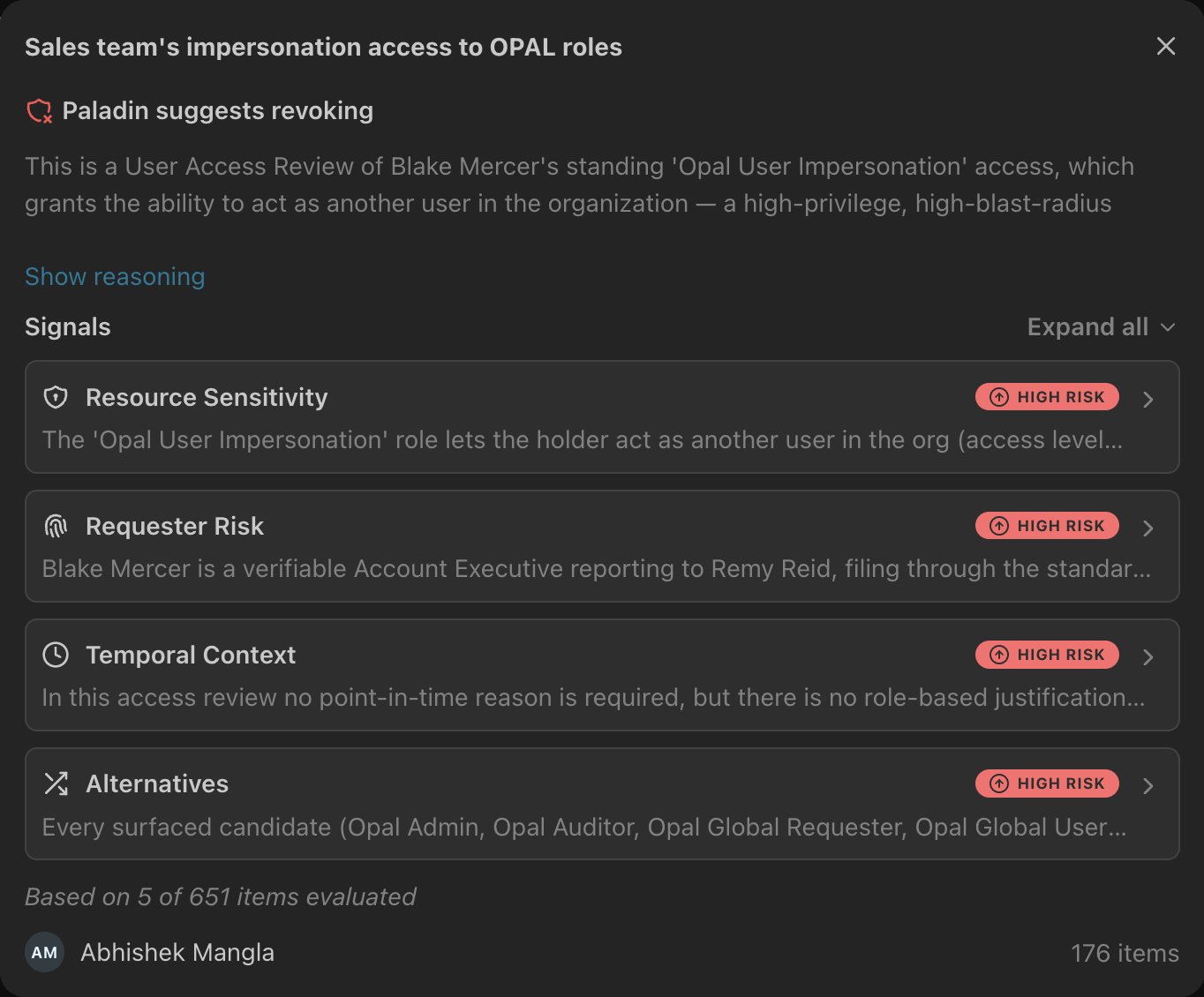
Paladin evaluates a sample of items. It picks at least one item for each distinct resource in the group, up to 20 items. Each sampled item is evaluated as if the user were requesting that access today, against four signals:
* **Resource Sensitivity**: how sensitive the resource is and how much the access grants.
* **Requester Risk**: the user's role, existing access, request history, and prior revocations.
* **Temporal Context**: whether the access is still in use, based on usage and last-used dates where available.
* **Alternatives**: whether a narrower, less-privileged option would meet the same need.
The sampled decisions roll up to the group:
* If any sampled item should be revoked, Paladin suggests **revoke**.
* If every sampled item should be kept, Paladin suggests **approve**.
* Otherwise, Paladin marks the group as **needs human review**.
Paladin shows a group only when it's confident in the suggestion. Each suggestion shows how many items were evaluated, for example "Based on 3 of 40 items evaluated".
If the groups cover less than half of a campaign's items and the campaign has 200 or fewer items, Paladin also evaluates each remaining item on its own.
## Review insights as an admin
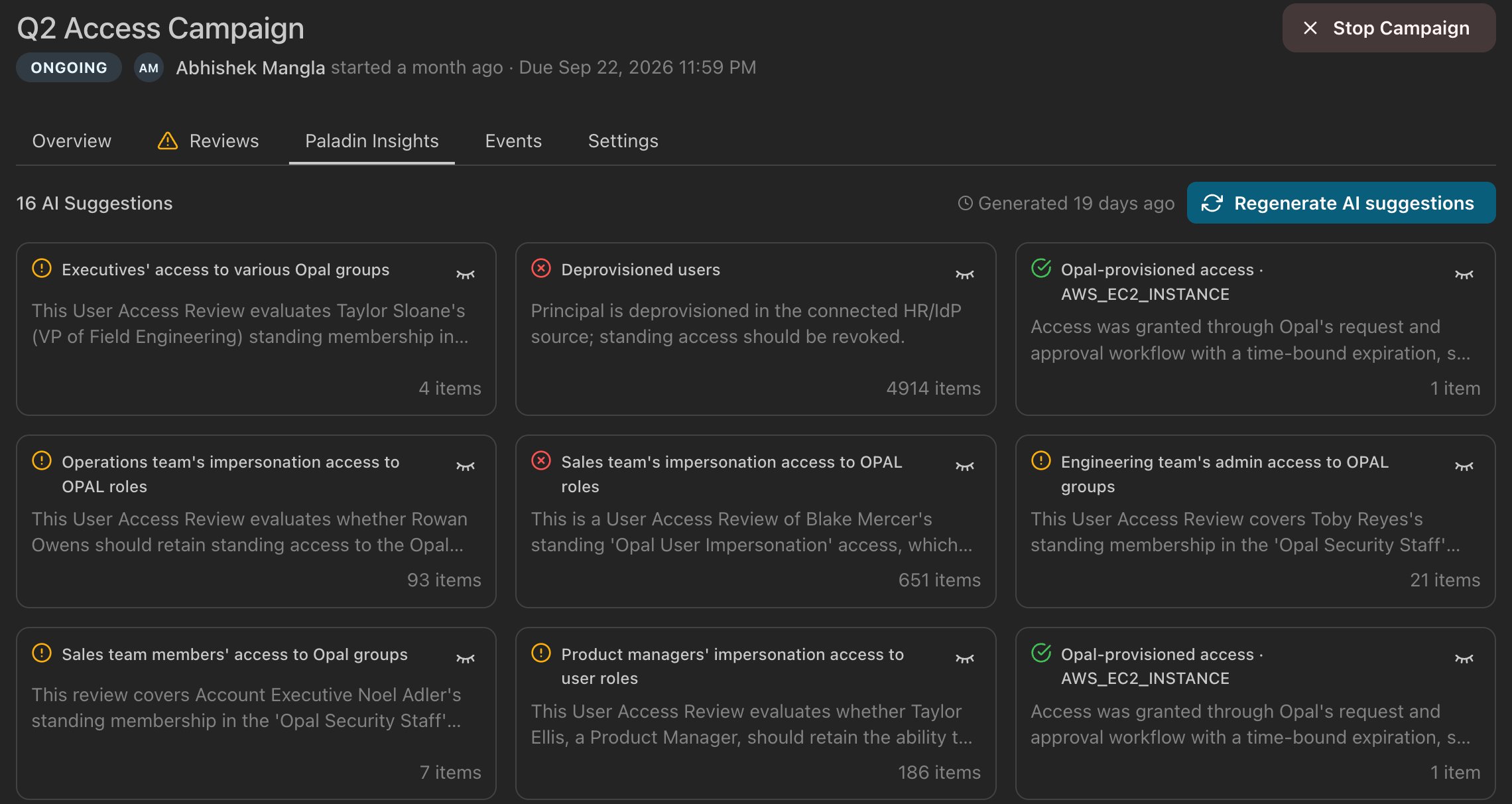
Open the campaign and select the **Paladin Insights** tab. Each card shows a group's label, Paladin's suggested decision, and the number of items in the group. The header shows when the insights were generated.
## How Paladin builds suggestions
Paladin starts automatically once the campaign's review items finish populating and reviewers are assigned. It runs in the background.
### Grouping
Paladin first groups items that represent the same kind of access. Items are grouped by:
* Resource or group type
* Access level
* Principal type
* Provisioning source
* The principal user's job function
* Whether the access is just-in-time or standing
Some entitlements get a Paladin suggestion through heuristic matches like:
* **Deprovisioned users** and **Deleted users**: users who are deprovisioned or deleted in your HR or identity provider. Paladin suggests revoking their standing access.
* Short-lived access that was granted through an Opal access request: Paladin suggests approving it.
### Evaluation
Paladin evaluates a sample of items. It picks at least one item for each distinct resource in the group, up to 20 items. Each sampled item is evaluated as if the user were requesting that access today, against four signals:
* **Resource Sensitivity**: how sensitive the resource is and how much the access grants.
* **Requester Risk**: the user's role, existing access, request history, and prior revocations.
* **Temporal Context**: whether the access is still in use, based on usage and last-used dates where available.
* **Alternatives**: whether a narrower, less-privileged option would meet the same need.
The sampled decisions roll up to the group:
* If any sampled item should be revoked, Paladin suggests **revoke**.
* If every sampled item should be kept, Paladin suggests **approve**.
* Otherwise, Paladin marks the group as **needs human review**.
Paladin shows a group only when it's confident in the suggestion. Each suggestion shows how many items were evaluated, for example "Based on 3 of 40 items evaluated".
If the groups cover less than half of a campaign's items and the campaign has 200 or fewer items, Paladin also evaluates each remaining item on its own.
## Review insights as an admin
Open the campaign and select the **Paladin Insights** tab. Each card shows a group's label, Paladin's suggested decision, and the number of items in the group. The header shows when the insights were generated.
 Click a card to see Paladin's reasoning: a short summary, the four signals, the items Paladin evaluated, and how many of the group's items each reviewer has.
 ### Hide a suggestion from reviewers
If you disagree with a suggestion, hover over its card and select **Hide from reviewers**. Reviewers no longer see that suggestion. Once you've hidden a suggestion, select **Show hidden suggestions** to see it again, or **Restore all** to show every hidden suggestion to reviewers again.
### Regenerate insights
To discard the current insights and recompute them, select **Regenerate AI suggestions**. If reviewers are already working on the campaign, the suggestions they see will change.
**Note:** Only one regeneration can run in your organization at a time.
## Use insights as a reviewer
If your admin shows insights to reviewers, a **Paladin Insights** bar appears above your review items. A suggestion appears in the bar only when you have at least 3 of its items to review.
### Hide a suggestion from reviewers
If you disagree with a suggestion, hover over its card and select **Hide from reviewers**. Reviewers no longer see that suggestion. Once you've hidden a suggestion, select **Show hidden suggestions** to see it again, or **Restore all** to show every hidden suggestion to reviewers again.
### Regenerate insights
To discard the current insights and recompute them, select **Regenerate AI suggestions**. If reviewers are already working on the campaign, the suggestions they see will change.
**Note:** Only one regeneration can run in your organization at a time.
## Use insights as a reviewer
If your admin shows insights to reviewers, a **Paladin Insights** bar appears above your review items. A suggestion appears in the bar only when you have at least 3 of its items to review.
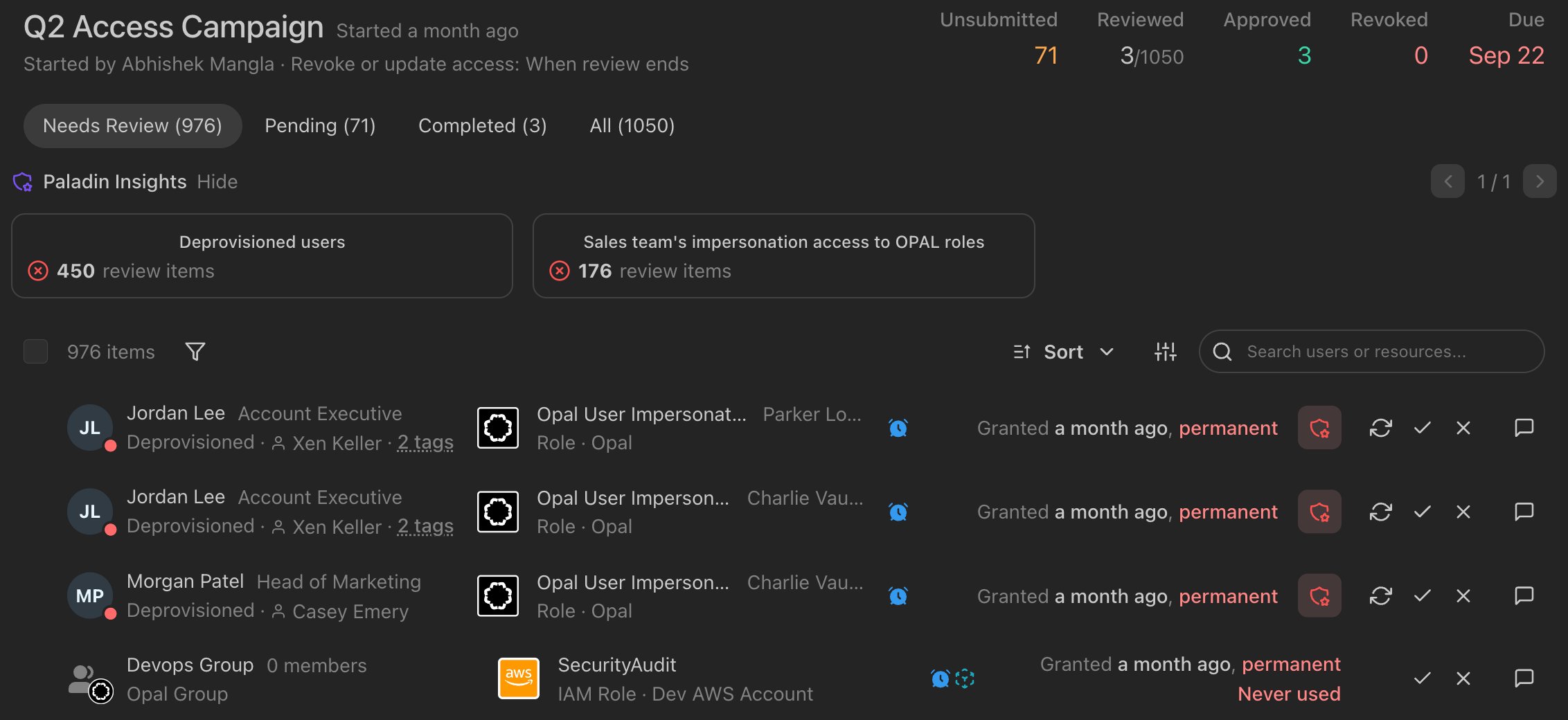 To act on a suggestion:
1. Click a suggestion card.
2. Select **Show reasoning** to read why Paladin made the suggestion.
3. Uncheck any items you want to decide differently.
4. Click **Stage approvals** or **Stage revocations**. The staged items move to **Pending**.
5. Click **Submit** to commit your decisions, as with any other review.
To act on a suggestion:
1. Click a suggestion card.
2. Select **Show reasoning** to read why Paladin made the suggestion.
3. Uncheck any items you want to decide differently.
4. Click **Stage approvals** or **Stage revocations**. The staged items move to **Pending**.
5. Click **Submit** to commit your decisions, as with any other review.
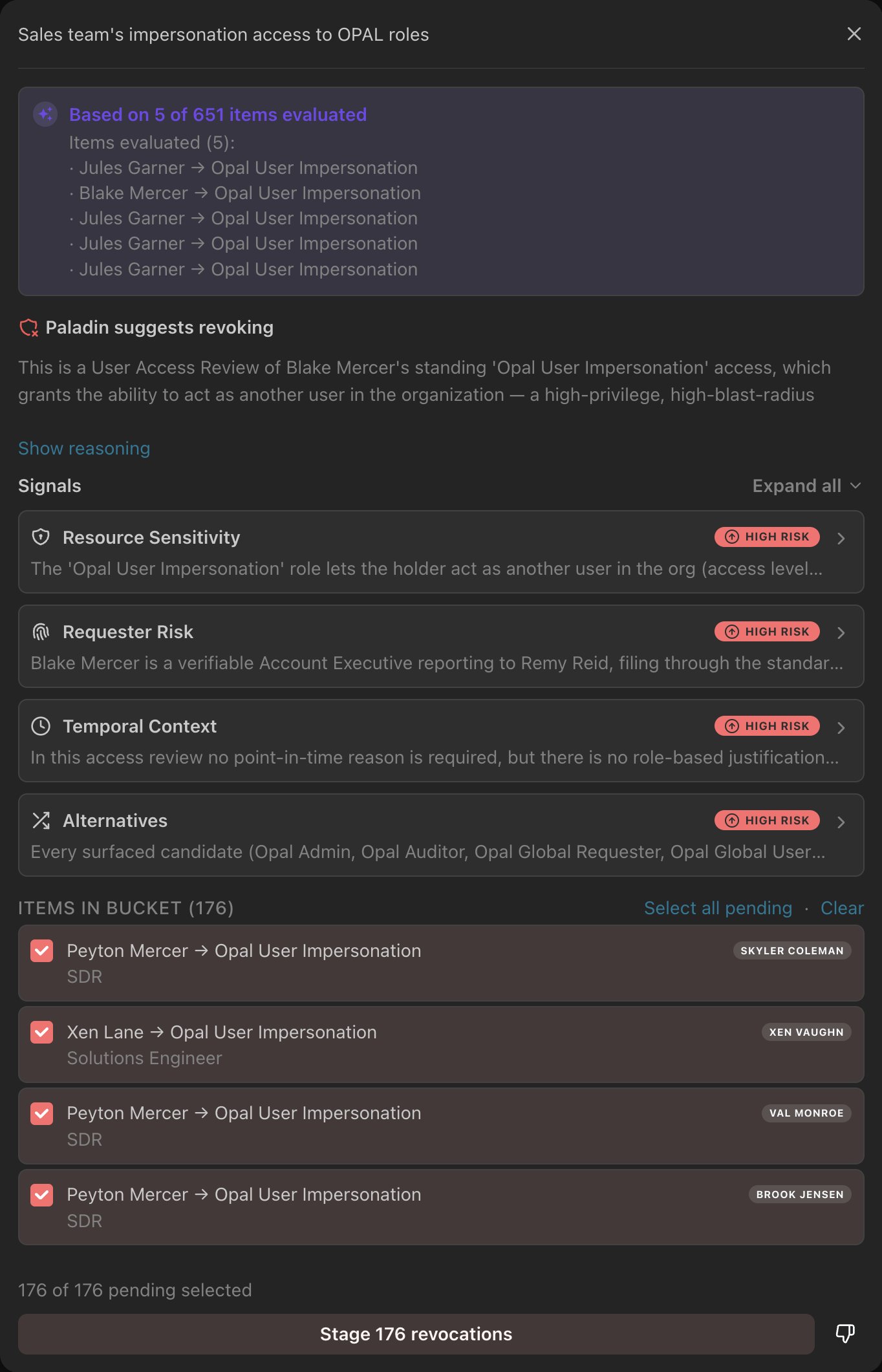 For a group marked **Paladin recommends human review**, Paladin doesn't suggest a decision. Read the reasoning, choose **Approve** or **Revoke**, and stage the items you select.
If a suggestion isn't useful, select the thumbs-down icon next to the Stage button to dismiss it. Dismissing hides the suggestion only for you.
### Ask Paladin about a single item
Click a row to open the item panel. Under **Paladin insight**, select **Ask Paladin on this item** to have Paladin evaluate just that item. You can also filter your items by **AI suggestion** to show only items Paladin suggests approving or revoking.
## Limitations
* Paladin evaluates access held by users. Access held by groups is reviewed item by item, except short-lived access granted through Opal.
* Insights aren't available after a campaign is stopped or completed.
This documentation is built and hosted on [Mintlify](https://mintlify.com), a developer documentation platform.
For a group marked **Paladin recommends human review**, Paladin doesn't suggest a decision. Read the reasoning, choose **Approve** or **Revoke**, and stage the items you select.
If a suggestion isn't useful, select the thumbs-down icon next to the Stage button to dismiss it. Dismissing hides the suggestion only for you.
### Ask Paladin about a single item
Click a row to open the item panel. Under **Paladin insight**, select **Ask Paladin on this item** to have Paladin evaluate just that item. You can also filter your items by **AI suggestion** to show only items Paladin suggests approving or revoking.
## Limitations
* Paladin evaluates access held by users. Access held by groups is reviewed item by item, except short-lived access granted through Opal.
* Insights aren't available after a campaign is stopped or completed.
This documentation is built and hosted on [Mintlify](https://mintlify.com), a developer documentation platform.