> ## Documentation Index
> Fetch the complete documentation index at: https://docs.opal.dev/llms.txt
> Use this file to discover all available pages before exploring further.
# Use OpalScript to automate access workflows
> Build access management workflows with OpalScript .
## Overview
OpalScript is Opal's scripting language for automating access management workflows integrated deeply with Opal's access management platform. Built on [Starlark](https://github.com/bazelbuild/starlark) (a Python-like language), OpalScript enables you to write custom automation logic and scripts that evaluate conditions, query the access graph and take actions programmatically.
## Use Cases
OpalScript currently supports **automated request review**, with additional automation types planned for the future:
| Script Type | Status | Description |
| ------------------ | ------------------------------------------------- | ---------------------------------------------------------- |
| Request Review | Available | Automatically approve, deny, or comment on access requests |
| *Additional types* | Coming Soon | *More automation capabilities will be added* |
## How OpalScript Works
Each OpalScript type has access to:
1. [**Utility modules**](/docs/opalscript-utilitymodules): Common functions available to all script types (e.g., `access` for access queries, `notifications` for sending notifications)
2. **Context module**: Script-type-specific data about what triggered the script
3. **Actions module**: Script-type-specific operations the script can perform
This separation allows you to learn the core language and utility functions once, then apply them across different automation scenarios.
## Create your first workflow
1. In Opal, navigate to **Configuration** > **Service Users** and create a new service user. This service user will be the identity that runs your OpalScript automations.
2. Open the service user and select **Add automation**. Configure the automation:
* **When**: Choose **Assigned to request** to trigger the script whenever a request is assigned to this service user for review.
* **Then**: Choose **Run OpalScript**.
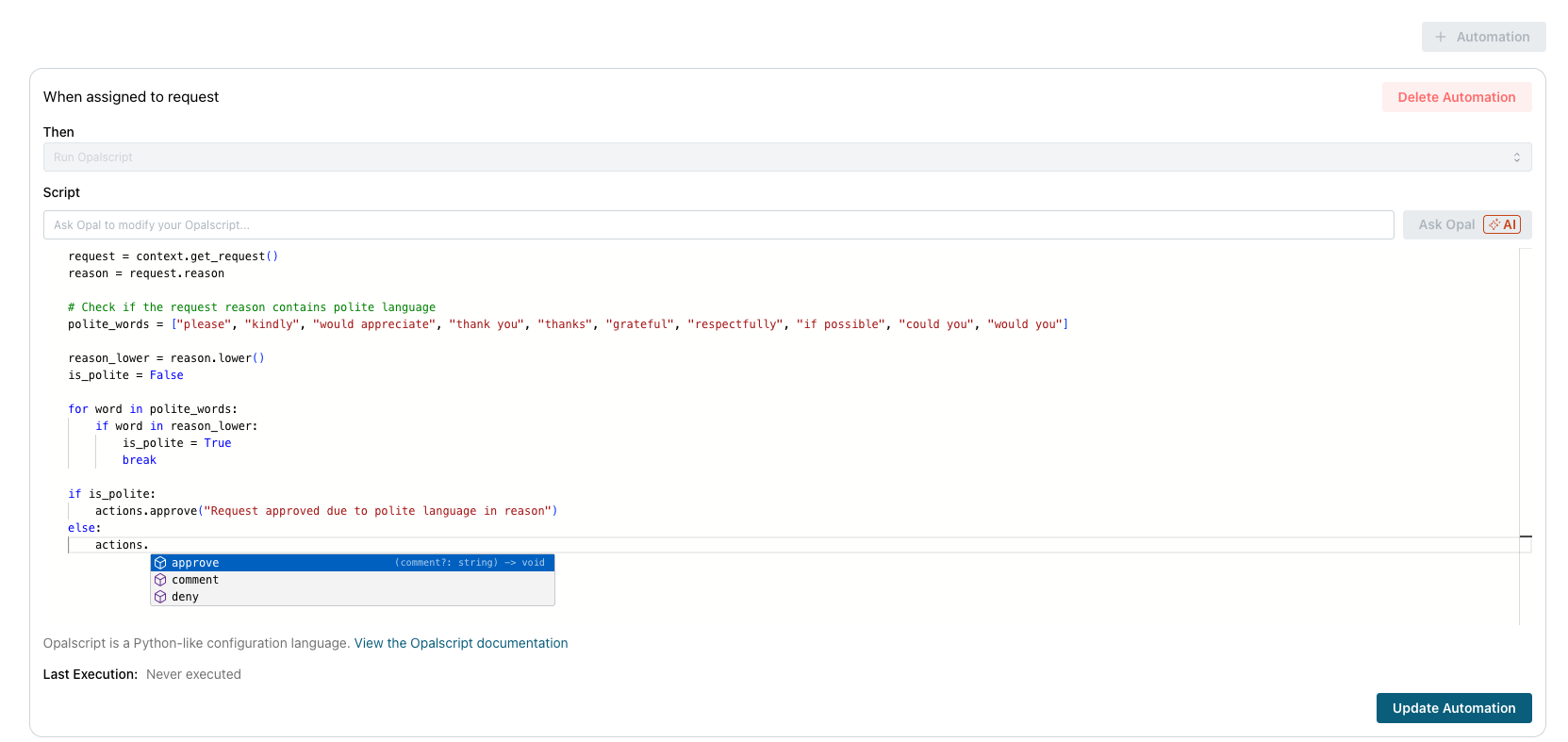 3. Enter your OpalScript in the editor. For example, to auto-approve all requests:
```python theme={null}
actions.approve()
```
See [Request Review: Get started](/docs/requestreview-getstarted) for the full `context` and `actions` API reference, and [examples](/docs/requestreview-examples) for ready-to-use scripts.
4. Add the service user as a reviewer on any resource or group. When a request is submitted, the automation will run your script automatically.
3. Enter your OpalScript in the editor. For example, to auto-approve all requests:
```python theme={null}
actions.approve()
```
See [Request Review: Get started](/docs/requestreview-getstarted) for the full `context` and `actions` API reference, and [examples](/docs/requestreview-examples) for ready-to-use scripts.
4. Add the service user as a reviewer on any resource or group. When a request is submitted, the automation will run your script automatically.