> ## Documentation Index
> Fetch the complete documentation index at: https://docs.opal.dev/llms.txt
> Use this file to discover all available pages before exploring further.
# Work with scripts in the OpalScript editor
> Create, test, version, and monitor OpalScript automations from the editor.
The OpalScript editor is where you write, test, and manage your scripts. This page walks through the editor, from creating a script to watching it run in production.
## Prerequisites
* You must be an Opal Admin or Read-only Admin to open the OpalScript editor.
* Read [Overview](/docs/opalscript-overview) first if you haven't created a script yet.
## The editor at a glance
Navigate to **OpalScript** > **Editor**.
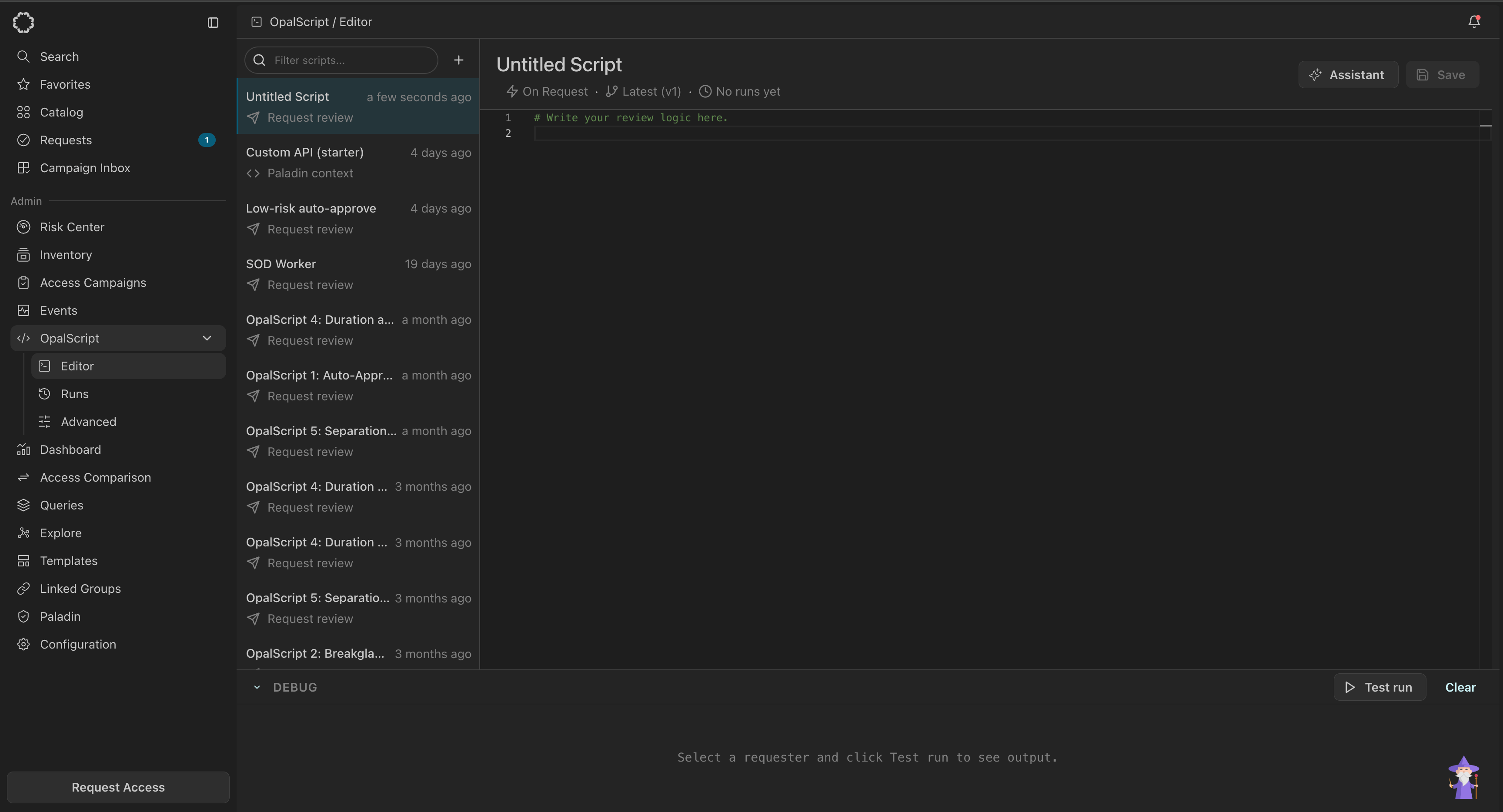 | Area | What it's for |
| -------------------- | ---------------------------------------------------------------------------------------------------------------------------------- |
| Script list (left) | Every script in your organization, with its type and when it was last edited. Filter by name, or select **+** to create a new one. |
| Editor (center) | The script body, with syntax highlighting and autocomplete for Opal's modules. |
| Metadata row | Three links under the script name. See below. |
| **Save** (top right) | Saves your changes as a new version. |
| **Debug** (bottom) | Test run output. Select **Test run** to open the test dialog, or **Clear** to empty the panel. |
The script name itself is editable—select it to rename the script.
### The metadata row
The row under the script name is three shortcuts, not just labels:
| Segment | What it shows | Where it takes you |
| -------------------------------- | ------------------------------------------------------------------------------------------------------------------------- | -------------------------------------------------------- |
| **On Request** | When this script type fires. Delegation condition scripts read **On Delegation**, context provider scripts **On Review**. | The list of resources and groups that trigger the script |
| **Latest (v1)** | Which version you're viewing | Version history |
| **No runs yet** / **Last run …** | When the script last executed | The Runs page, filtered to this script |
Renaming a script doesn't break anything it's attached to. Triggers follow the script, not its name.
## Create a script
1. Select **+** above the script list.
2. Choose a script type from the dropdown at the top left of the **New script** dialog—**Request review**, delegation condition, or context provider.
3. Pick a starting point. **Blank script** under **Start from scratch** gives you an empty file; the templates below it are grouped by what they do, and selecting one previews its full source on the right.
4. Select an **Owner**, then select **Use template**.
| Area | What it's for |
| -------------------- | ---------------------------------------------------------------------------------------------------------------------------------- |
| Script list (left) | Every script in your organization, with its type and when it was last edited. Filter by name, or select **+** to create a new one. |
| Editor (center) | The script body, with syntax highlighting and autocomplete for Opal's modules. |
| Metadata row | Three links under the script name. See below. |
| **Save** (top right) | Saves your changes as a new version. |
| **Debug** (bottom) | Test run output. Select **Test run** to open the test dialog, or **Clear** to empty the panel. |
The script name itself is editable—select it to rename the script.
### The metadata row
The row under the script name is three shortcuts, not just labels:
| Segment | What it shows | Where it takes you |
| -------------------------------- | ------------------------------------------------------------------------------------------------------------------------- | -------------------------------------------------------- |
| **On Request** | When this script type fires. Delegation condition scripts read **On Delegation**, context provider scripts **On Review**. | The list of resources and groups that trigger the script |
| **Latest (v1)** | Which version you're viewing | Version history |
| **No runs yet** / **Last run …** | When the script last executed | The Runs page, filtered to this script |
Renaming a script doesn't break anything it's attached to. Triggers follow the script, not its name.
## Create a script
1. Select **+** above the script list.
2. Choose a script type from the dropdown at the top left of the **New script** dialog—**Request review**, delegation condition, or context provider.
3. Pick a starting point. **Blank script** under **Start from scratch** gives you an empty file; the templates below it are grouped by what they do, and selecting one previews its full source on the right.
4. Select an **Owner**, then select **Use template**.
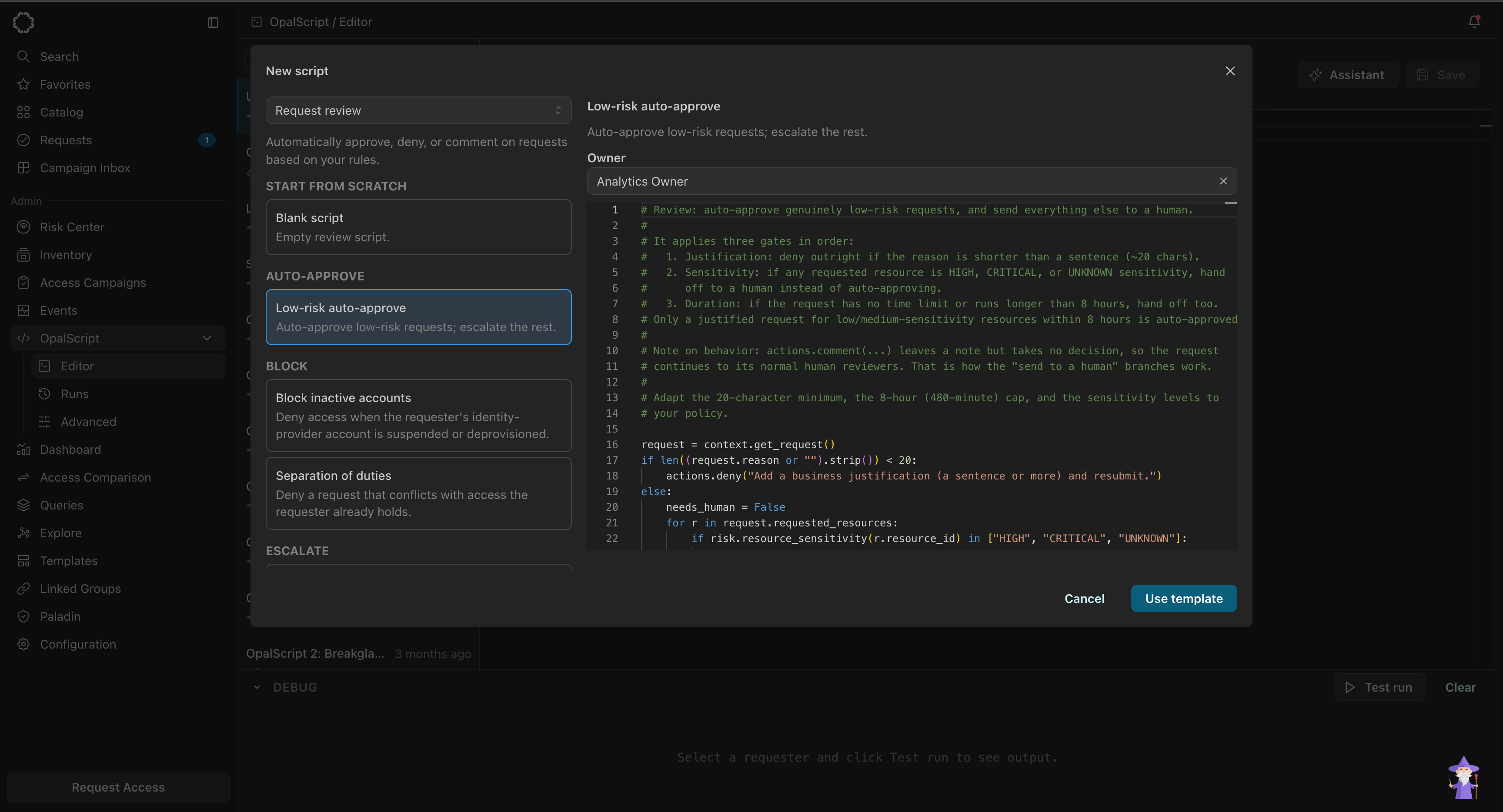 The owner you select owns the service user that Opal provisions behind the script.
Templates are the fastest way to see what OpalScript can do. Select each one to read its source—even if you start from a blank script, the templates show the idioms for common patterns.
## Test a script before you use it
Test runs execute your script against a synthetic request. Nothing real is approved, denied, or commented on.
1. Select **Test run** in the **Debug** panel at the bottom of the editor.
2. Build the request to simulate:
| Field | What it does |
| -------------------------------- | -------------------------------------------------------------------------------------------------------------------------------------------------------------------- |
| **Requester** (required) | The user the synthetic request comes from. Your script reads this as `request.requester_id`. |
| **Simulate time** | Runs the script as if it were a different time of day. Use this to test logic that depends on business hours. |
| **Resource or group** (required) | What the synthetic request asks for. |
| **Access level** | The access level requested, for resources that have more than one. |
| **Duration** (required) | **Default** uses the entity's configured duration; **Custom** lets you set days, hours, and minutes. Your script reads this as `request.requested_duration_minutes`. |
| **Reason** | The justification text. Optional here, but required by scripts that gate on `request.reason`. |
The owner you select owns the service user that Opal provisions behind the script.
Templates are the fastest way to see what OpalScript can do. Select each one to read its source—even if you start from a blank script, the templates show the idioms for common patterns.
## Test a script before you use it
Test runs execute your script against a synthetic request. Nothing real is approved, denied, or commented on.
1. Select **Test run** in the **Debug** panel at the bottom of the editor.
2. Build the request to simulate:
| Field | What it does |
| -------------------------------- | -------------------------------------------------------------------------------------------------------------------------------------------------------------------- |
| **Requester** (required) | The user the synthetic request comes from. Your script reads this as `request.requester_id`. |
| **Simulate time** | Runs the script as if it were a different time of day. Use this to test logic that depends on business hours. |
| **Resource or group** (required) | What the synthetic request asks for. |
| **Access level** | The access level requested, for resources that have more than one. |
| **Duration** (required) | **Default** uses the entity's configured duration; **Custom** lets you set days, hours, and minutes. Your script reads this as `request.requested_duration_minutes`. |
| **Reason** | The justification text. Optional here, but required by scripts that gate on `request.reason`. |
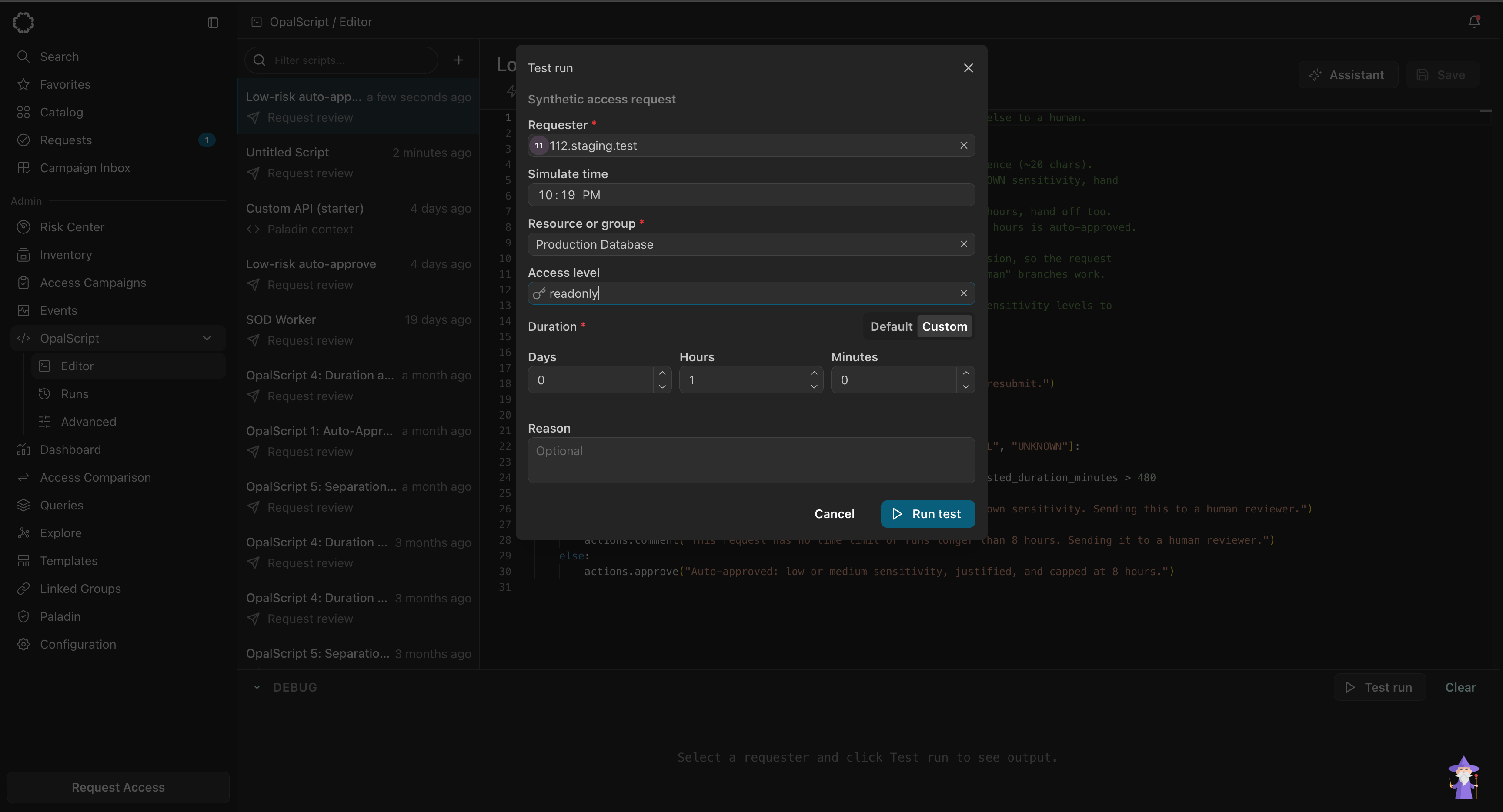 3. Select **Run test** and read the output in the **Debug** panel.
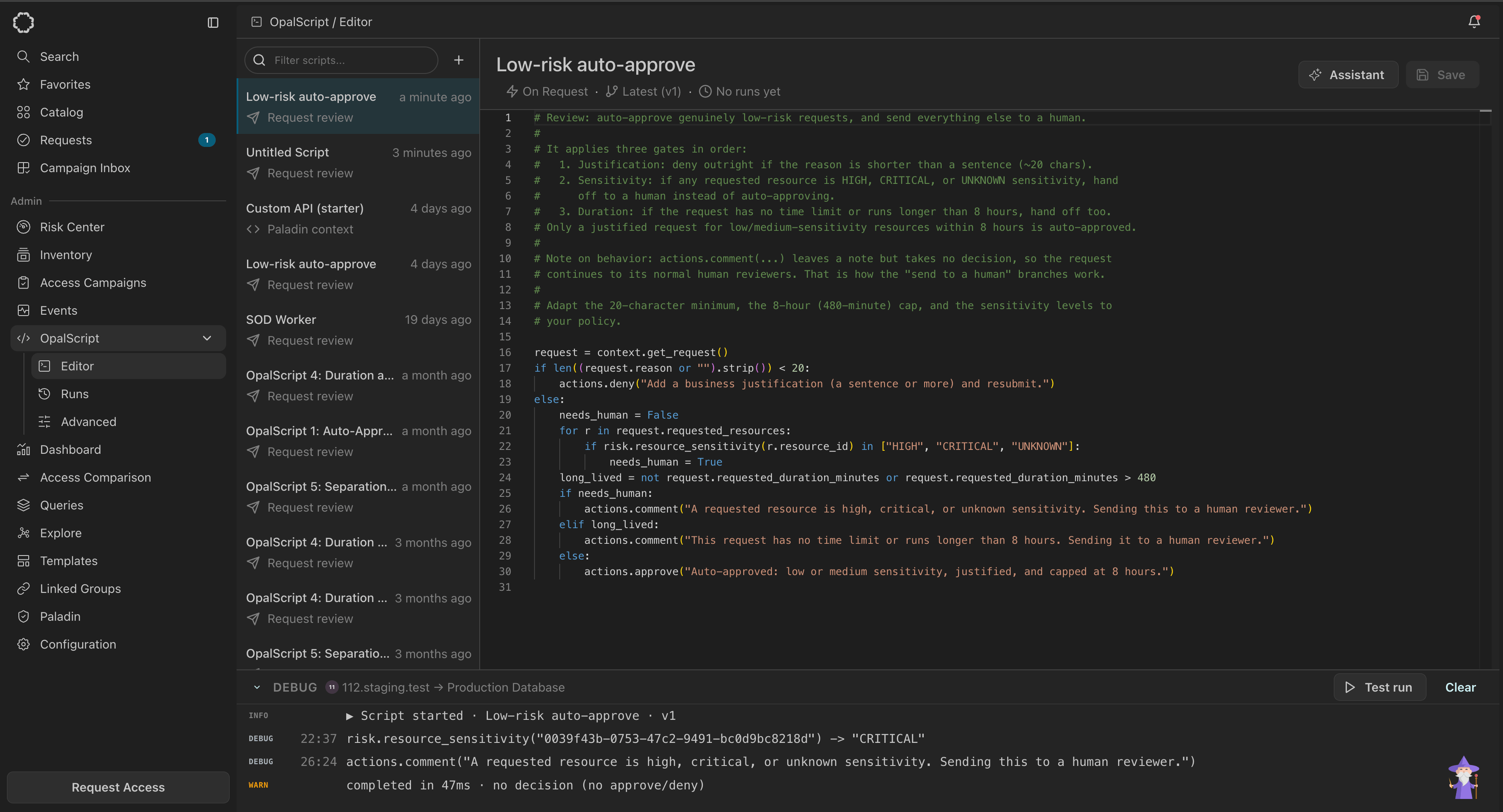 Each line is tagged by level and, for calls your script made, prefixed with the line and column it came from. The closing line gives the runtime and the decision the script reached.
A run that ends with **no decision (no approve/deny)** did not decide anything. `actions.comment()` leaves a note without deciding, so the request carries on to its normal human reviewers. That's the intended behavior for "send this to a human" branches—but if you expected an approval, this warning is the tell.
## Save a script that's already in use
Saving takes effect immediately—there's no staging step. So when you save a script that live resources, groups, or delegations already depend on, Opal asks you to confirm first.
The dialog is titled **This script is in use** and names what the save will affect:
| Script type | Message |
| -------------------- | ---------------------------------------------------------------------------------------------------------------------------------- |
| Request review | This script reviews access requests for *1 resource*. Saving takes effect immediately and changes how those requests are reviewed. |
| Delegation condition | This script gates *2 delegations*. Saving takes effect immediately and changes which requests they forward. |
Each line is tagged by level and, for calls your script made, prefixed with the line and column it came from. The closing line gives the runtime and the decision the script reached.
A run that ends with **no decision (no approve/deny)** did not decide anything. `actions.comment()` leaves a note without deciding, so the request carries on to its normal human reviewers. That's the intended behavior for "send this to a human" branches—but if you expected an approval, this warning is the tell.
## Save a script that's already in use
Saving takes effect immediately—there's no staging step. So when you save a script that live resources, groups, or delegations already depend on, Opal asks you to confirm first.
The dialog is titled **This script is in use** and names what the save will affect:
| Script type | Message |
| -------------------- | ---------------------------------------------------------------------------------------------------------------------------------- |
| Request review | This script reviews access requests for *1 resource*. Saving takes effect immediately and changes how those requests are reviewed. |
| Delegation condition | This script gates *2 delegations*. Saving takes effect immediately and changes which requests they forward. |
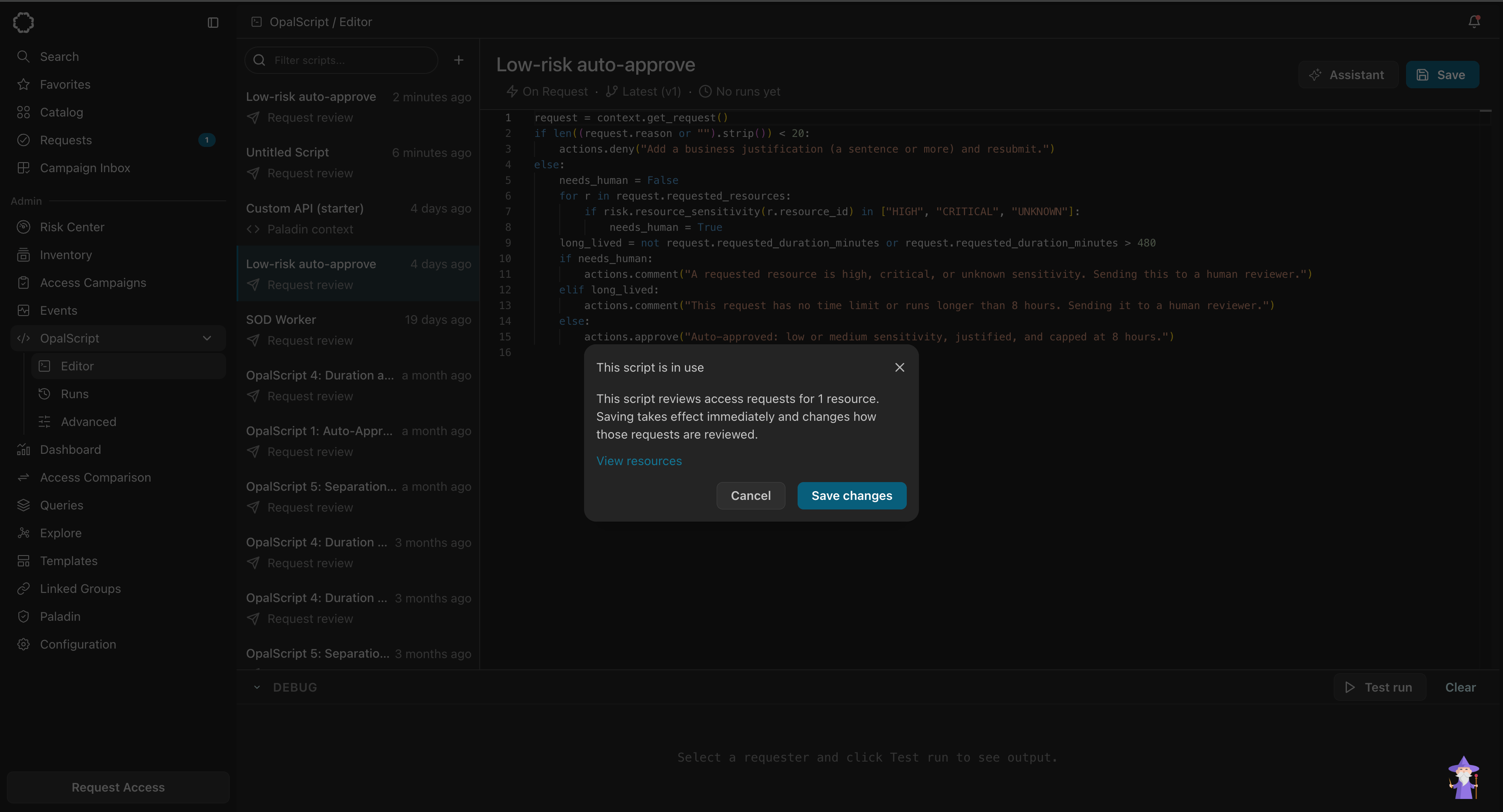 You have three choices:
* **Save changes** applies the new version right away. Every run after that point uses the new logic.
* **Cancel** returns you to the editor with your changes intact but unsaved.
* **View resources** (or **View delegations**) opens the drawer so you can check exactly what's affected before deciding.
The dialog only appears when something live depends on the script. If nothing is attached to it yet, saving is silent. For delegation condition scripts, delegations that have already ended don't count—only delegations still in effect trigger the warning.
Every run uses the latest saved version of the script. A run is never pinned to the version that was current when its request was submitted, so a save can change how in-flight requests are handled.
## Versions and diffs
Every save creates a new version. Select the version segment in the metadata row to open the history.
You have three choices:
* **Save changes** applies the new version right away. Every run after that point uses the new logic.
* **Cancel** returns you to the editor with your changes intact but unsaved.
* **View resources** (or **View delegations**) opens the drawer so you can check exactly what's affected before deciding.
The dialog only appears when something live depends on the script. If nothing is attached to it yet, saving is silent. For delegation condition scripts, delegations that have already ended don't count—only delegations still in effect trigger the warning.
Every run uses the latest saved version of the script. A run is never pinned to the version that was current when its request was submitted, so a save can change how in-flight requests are handled.
## Versions and diffs
Every save creates a new version. Select the version segment in the metadata row to open the history.
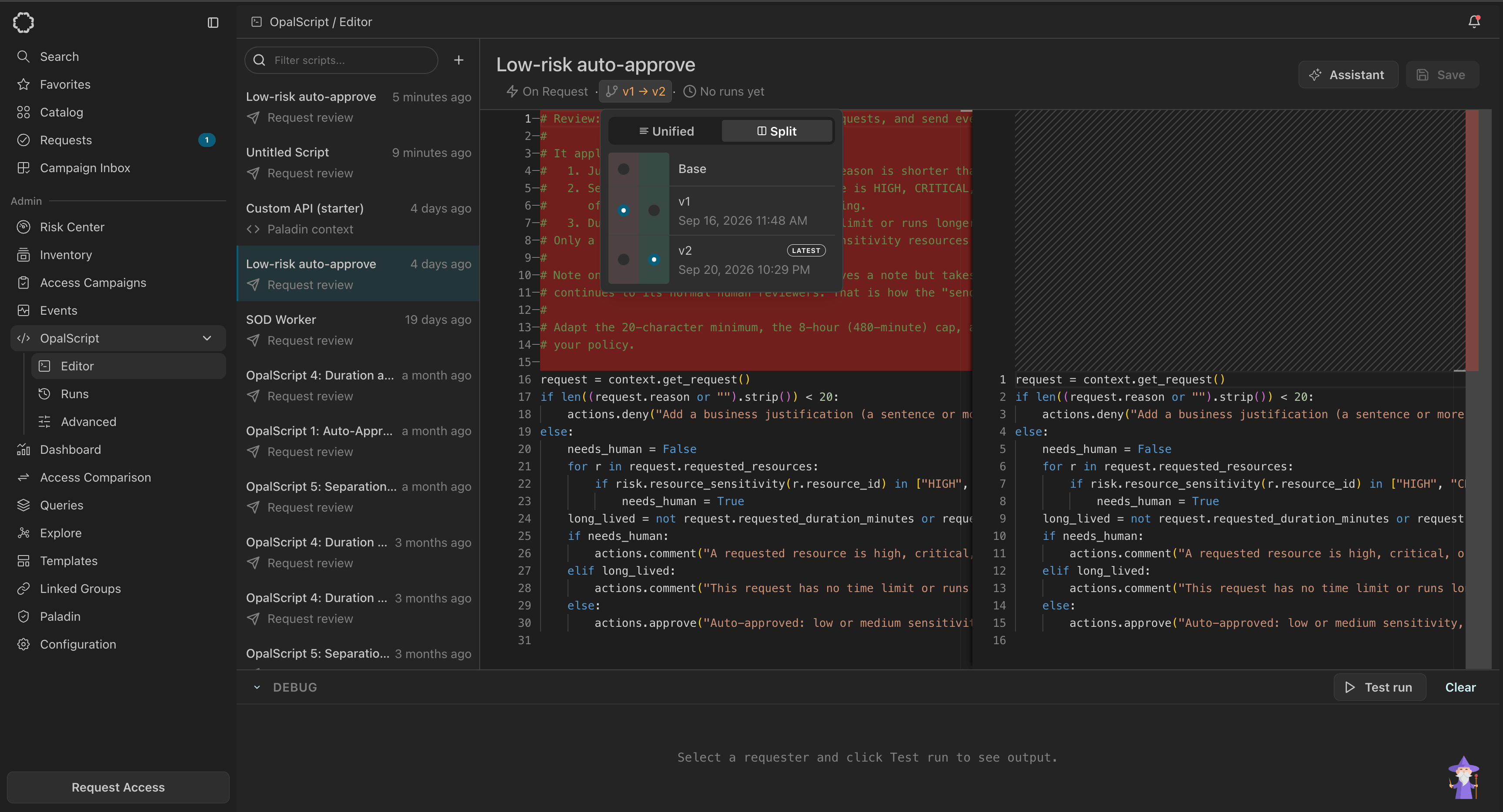 From the history you can:
* Select a version to view it. The editor becomes read-only and **Save** becomes **Restore**.
* Compare two versions. The **Base** column picks what to compare against; **Unified** shows changes inline and **Split** puts the versions side by side. The metadata row changes to `v1 → v2` while you're comparing.
* Select **Restore** to make an earlier version current. Restoring creates a new version rather than deleting the ones after it.
## Unsaved changes
The editor keeps your in-progress edits locally, even if you close the tab. When you come back, a banner tells you that unsaved changes were restored, and you can either save them or select **Discard** to return to the last saved version.
Leaving the editor with unsaved changes prompts you to confirm first.
## See where a script is used
Select the trigger segment (**On Request**) in the metadata row to open the drawer listing everything that causes the script to run. For request review scripts it's titled **Resources & groups**; for delegation condition scripts, **Delegations**.
From the history you can:
* Select a version to view it. The editor becomes read-only and **Save** becomes **Restore**.
* Compare two versions. The **Base** column picks what to compare against; **Unified** shows changes inline and **Split** puts the versions side by side. The metadata row changes to `v1 → v2` while you're comparing.
* Select **Restore** to make an earlier version current. Restoring creates a new version rather than deleting the ones after it.
## Unsaved changes
The editor keeps your in-progress edits locally, even if you close the tab. When you come back, a banner tells you that unsaved changes were restored, and you can either save them or select **Discard** to return to the last saved version.
Leaving the editor with unsaved changes prompts you to confirm first.
## See where a script is used
Select the trigger segment (**On Request**) in the metadata row to open the drawer listing everything that causes the script to run. For request review scripts it's titled **Resources & groups**; for delegation condition scripts, **Delegations**.
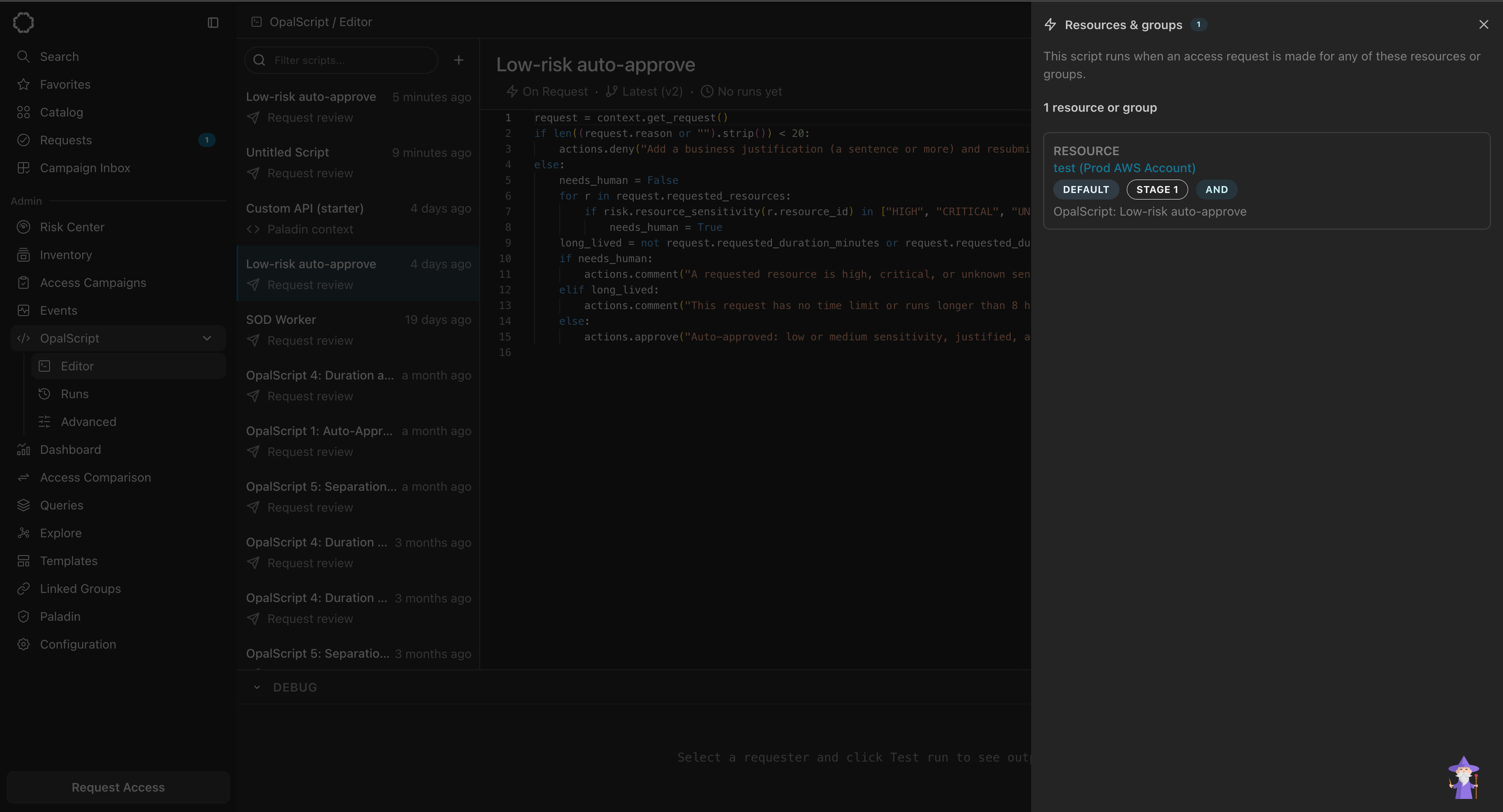 Each card names the resource or group, the request configuration the script is attached to, the approval stage it sits on, the stage's approval logic, and the other reviewers on that stage.
An empty drawer means nothing triggers the script yet—it won't run until you add it as a reviewer on a resource or group.
Check this drawer first when a script isn't running. Most of the time the script is fine and simply isn't attached to anything.
## Monitor runs
Select the last-run segment in the metadata row to see this script's execution history, or navigate to **OpalScript** > **Runs** for runs across all scripts.
Each card names the resource or group, the request configuration the script is attached to, the approval stage it sits on, the stage's approval logic, and the other reviewers on that stage.
An empty drawer means nothing triggers the script yet—it won't run until you add it as a reviewer on a resource or group.
Check this drawer first when a script isn't running. Most of the time the script is fine and simply isn't attached to anything.
## Monitor runs
Select the last-run segment in the metadata row to see this script's execution history, or navigate to **OpalScript** > **Runs** for runs across all scripts.
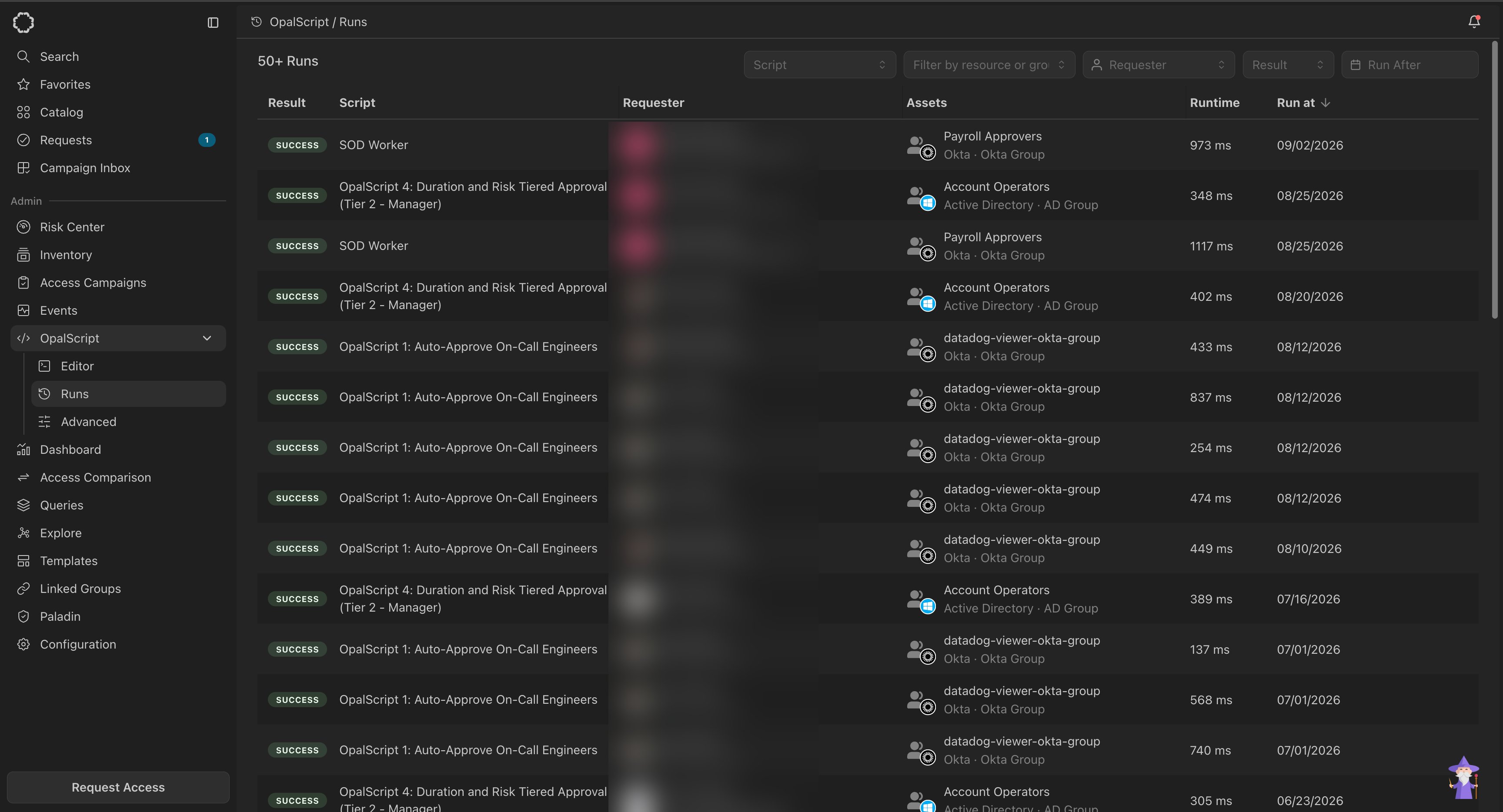 Each row is one execution:
| Column | What it shows |
| ------------- | ---------------------------------------------------------------------- |
| **Result** | Whether the run succeeded, failed, or is still pending |
| **Script** | Which script ran |
| **Requester** | Who submitted the request that triggered it |
| **Assets** | The resources and groups the request was for, with their source system |
| **Runtime** | How long the script took, in milliseconds |
| **Run at** | When it ran. Sorted newest first by default. |
Filter by script, resource or group, requester, result, or date—useful for answering "did this script act on that request?"
### Kill a pending run
A run that is still **pending** shows a red kill button at the end of its row. Selecting it asks you to confirm:
> This stops the OpalScript run and denies its linked request. This can't be undone.
Killing a run doesn't just stop the script—it **denies the access request** the run was reviewing. The requester will need to submit again.
Each row is one execution:
| Column | What it shows |
| ------------- | ---------------------------------------------------------------------- |
| **Result** | Whether the run succeeded, failed, or is still pending |
| **Script** | Which script ran |
| **Requester** | Who submitted the request that triggered it |
| **Assets** | The resources and groups the request was for, with their source system |
| **Runtime** | How long the script took, in milliseconds |
| **Run at** | When it ran. Sorted newest first by default. |
Filter by script, resource or group, requester, result, or date—useful for answering "did this script act on that request?"
### Kill a pending run
A run that is still **pending** shows a red kill button at the end of its row. Selecting it asks you to confirm:
> This stops the OpalScript run and denies its linked request. This can't be undone.
Killing a run doesn't just stop the script—it **denies the access request** the run was reviewing. The requester will need to submit again.