> ## Documentation Index
> Fetch the complete documentation index at: https://docs.opal.dev/llms.txt
> Use this file to discover all available pages before exploring further.
# Write OpalScript with AI
> Describe an automation in plain language and let the OpalScript assistant write, validate, and dry-run the script for you.
The OpalScript AI assistant writes and edits scripts from a plain-language description. Tell it what the automation should do, and it drafts the script, checks it against OpalScript's built-ins, dry-runs it, and proposes the result as a diff you can accept or discard. You can also ask it questions about the script you have open.
Only Opal Admins can use the assistant. Read-only Admins can open the editor but not the assistant.
## Write a script with the assistant
1. Navigate to **Admin** > **OpalScript** > **Editor**, open a script, then select **Assistant** at the top right of the editor.
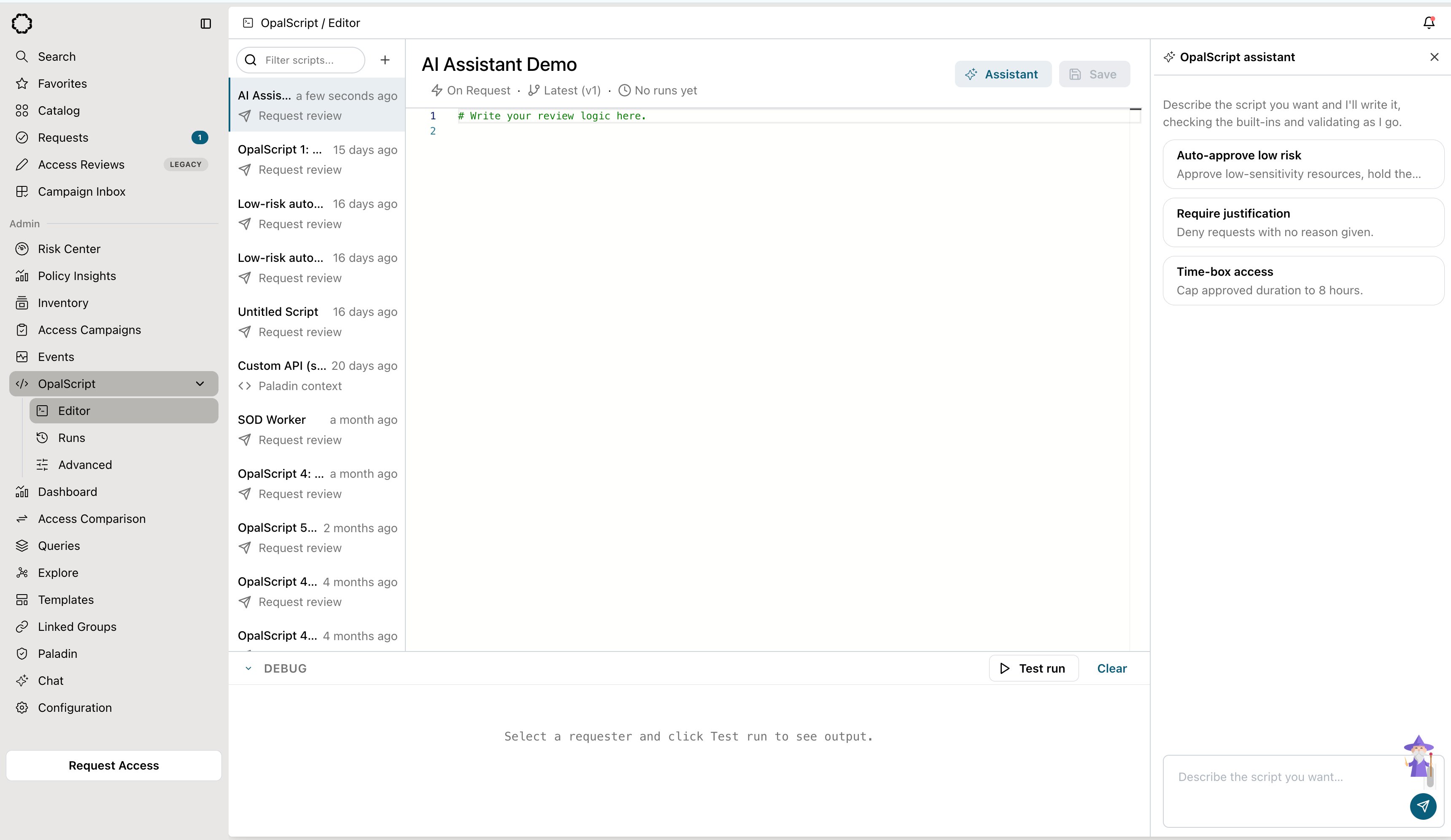 2. Describe what you want, or pick one of the suggested prompts. For example: "Deny requests with no reason given."
3. When the assistant changes the script, the editor shows a **Proposed change** diff. Select **Accept** to load the change into the editor, or **Discard** to drop it.
2. Describe what you want, or pick one of the suggested prompts. For example: "Deny requests with no reason given."
3. When the assistant changes the script, the editor shows a **Proposed change** diff. Select **Accept** to load the change into the editor, or **Discard** to drop it.
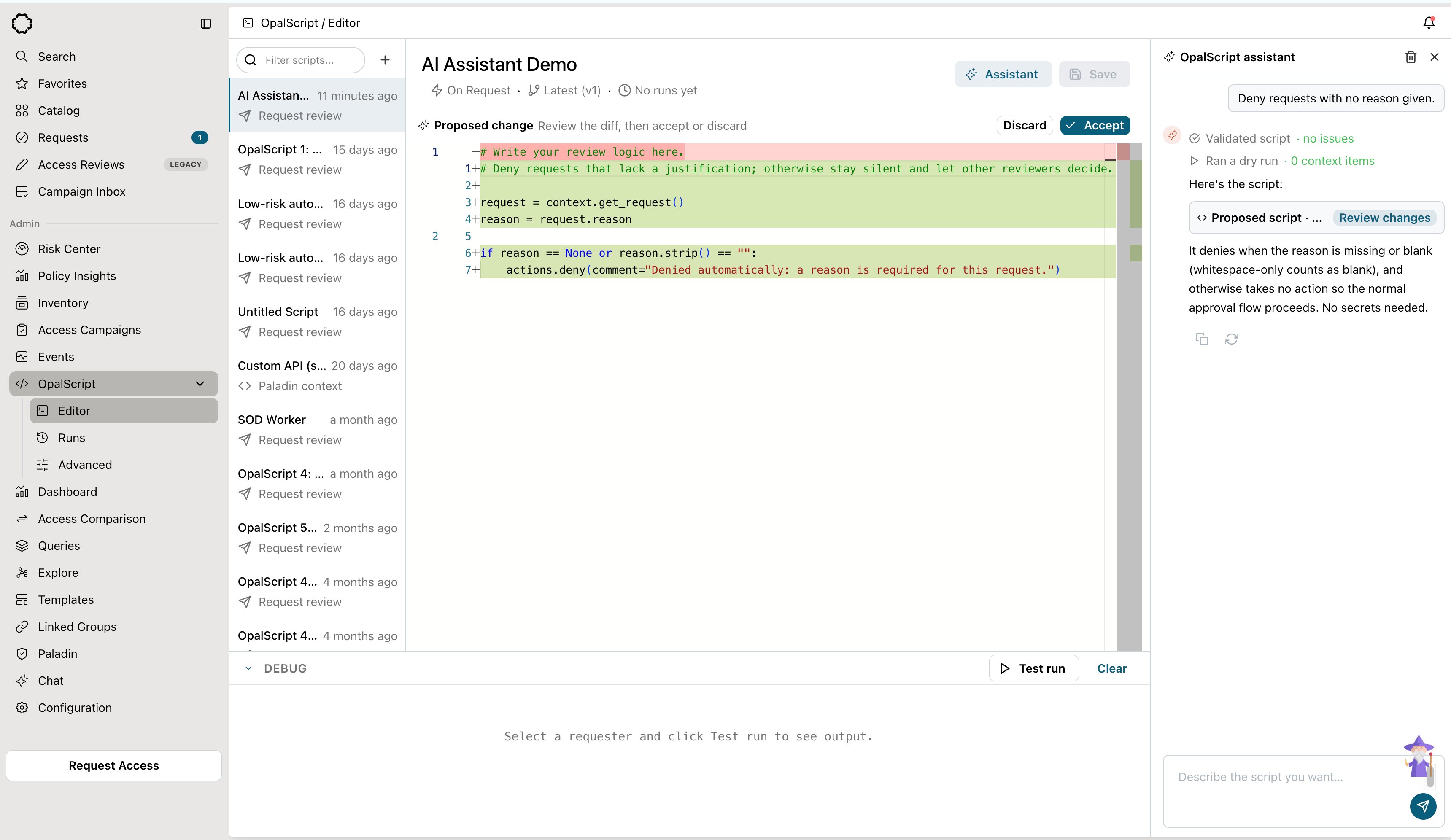 4. Accepting doesn't save. [Test the script](/docs/opalscript-editor#test-a-script-before-you-use-it), then select **Save**.
Keep refining in the same conversation, for example: "Also allow requests under 2 hours without a reason."
## What the assistant does while it works
The assistant doesn't just generate text. As it works, it uses tools against your organization and shows each step in the panel:
| Step | What it does |
| - | - |
| **Validate** | Runs the same checks the editor runs on save, and fixes any errors before proposing the script. You see "Validated script · no issues" when it passes. |
| **Dry run** | Executes the draft against a sample request without taking any action, to catch runtime errors. |
| **Look up entities** | Finds the users, resources, and groups you mention, so the script uses their real IDs instead of placeholders. |
| **Look up tags** | Lists the tag keys on your resources and groups, so tag-based conditions match what you actually use. |
| **Search the web** | When a script calls an outside API, finds that API's documentation. |
## Suggested prompts
The prompts the assistant offers depend on the type of script you have open:
| Script type | Suggested prompts |
| - | - |
| Request review | **Auto-approve low risk**, **Require justification**, **Time-box access** |
| Delegation condition | **Delegate to manager**, **Delegate by team** |
| Paladin context Beta | **Device posture** (Jamf Pro), **Endpoint detections** (CrowdStrike), **Sign-in risk** (Okta) |
## Conversations
Each conversation belongs to one script and one user. It picks up where you left off, even on another device. To start over, select the trash icon (**Clear conversation**) at the top of the assistant panel.
You can resize the assistant panel by dragging its edge. The editor remembers whether you left it open.
## Tips for good results
* **Say what should happen in every branch.** "Approve if X, deny if Y, otherwise leave it for a human" produces a more predictable script than "approve if X."
* **Name real things.** Mention the resource, group, tag, or user by name, and the assistant looks up its ID for you.
* **Mention outside systems and secrets.** If the script should call an API, name the service and the [secret](/docs/opalscript-utilitymodules#secrets-module) that holds its credential. The host must be on the [egress allowlist](/docs/opalscript-utilitymodules#egress-allowlist).
* **Always review and test.** The assistant validates and dry-runs its work, but you own the script. Read the diff, then use a [test run](/docs/opalscript-editor#test-a-script-before-you-use-it) before you save.
This documentation is built and hosted on [Mintlify](https://mintlify.com), a developer documentation platform.
4. Accepting doesn't save. [Test the script](/docs/opalscript-editor#test-a-script-before-you-use-it), then select **Save**.
Keep refining in the same conversation, for example: "Also allow requests under 2 hours without a reason."
## What the assistant does while it works
The assistant doesn't just generate text. As it works, it uses tools against your organization and shows each step in the panel:
| Step | What it does |
| - | - |
| **Validate** | Runs the same checks the editor runs on save, and fixes any errors before proposing the script. You see "Validated script · no issues" when it passes. |
| **Dry run** | Executes the draft against a sample request without taking any action, to catch runtime errors. |
| **Look up entities** | Finds the users, resources, and groups you mention, so the script uses their real IDs instead of placeholders. |
| **Look up tags** | Lists the tag keys on your resources and groups, so tag-based conditions match what you actually use. |
| **Search the web** | When a script calls an outside API, finds that API's documentation. |
## Suggested prompts
The prompts the assistant offers depend on the type of script you have open:
| Script type | Suggested prompts |
| - | - |
| Request review | **Auto-approve low risk**, **Require justification**, **Time-box access** |
| Delegation condition | **Delegate to manager**, **Delegate by team** |
| Paladin context Beta | **Device posture** (Jamf Pro), **Endpoint detections** (CrowdStrike), **Sign-in risk** (Okta) |
## Conversations
Each conversation belongs to one script and one user. It picks up where you left off, even on another device. To start over, select the trash icon (**Clear conversation**) at the top of the assistant panel.
You can resize the assistant panel by dragging its edge. The editor remembers whether you left it open.
## Tips for good results
* **Say what should happen in every branch.** "Approve if X, deny if Y, otherwise leave it for a human" produces a more predictable script than "approve if X."
* **Name real things.** Mention the resource, group, tag, or user by name, and the assistant looks up its ID for you.
* **Mention outside systems and secrets.** If the script should call an API, name the service and the [secret](/docs/opalscript-utilitymodules#secrets-module) that holds its credential. The host must be on the [egress allowlist](/docs/opalscript-utilitymodules#egress-allowlist).
* **Always review and test.** The assistant validates and dry-runs its work, but you own the script. Read the diff, then use a [test run](/docs/opalscript-editor#test-a-script-before-you-use-it) before you save.
This documentation is built and hosted on [Mintlify](https://mintlify.com), a developer documentation platform.