> ## Documentation Index
> Fetch the complete documentation index at: https://docs.opal.dev/llms.txt
> Use this file to discover all available pages before exploring further.
# Okta SAML Setup
> Learn how to configure Opal to authenticate users via Okta SAML SSO.
You can set up Opal to allow or require users to login via Okta SAML SSO.
## Setup
1. Log in to Okta as an administrator, then from the left sidebar, select **Applications** > **Create App Integration** > **SAML 2.0** > **Next**. On the **General Settings** page, fill in the following fields, then click **Next**.
* **App name:** Opal
* **App logo:** [Download](https://files.readme.io/54e771f-logo-black.png) and use Opal's logo.
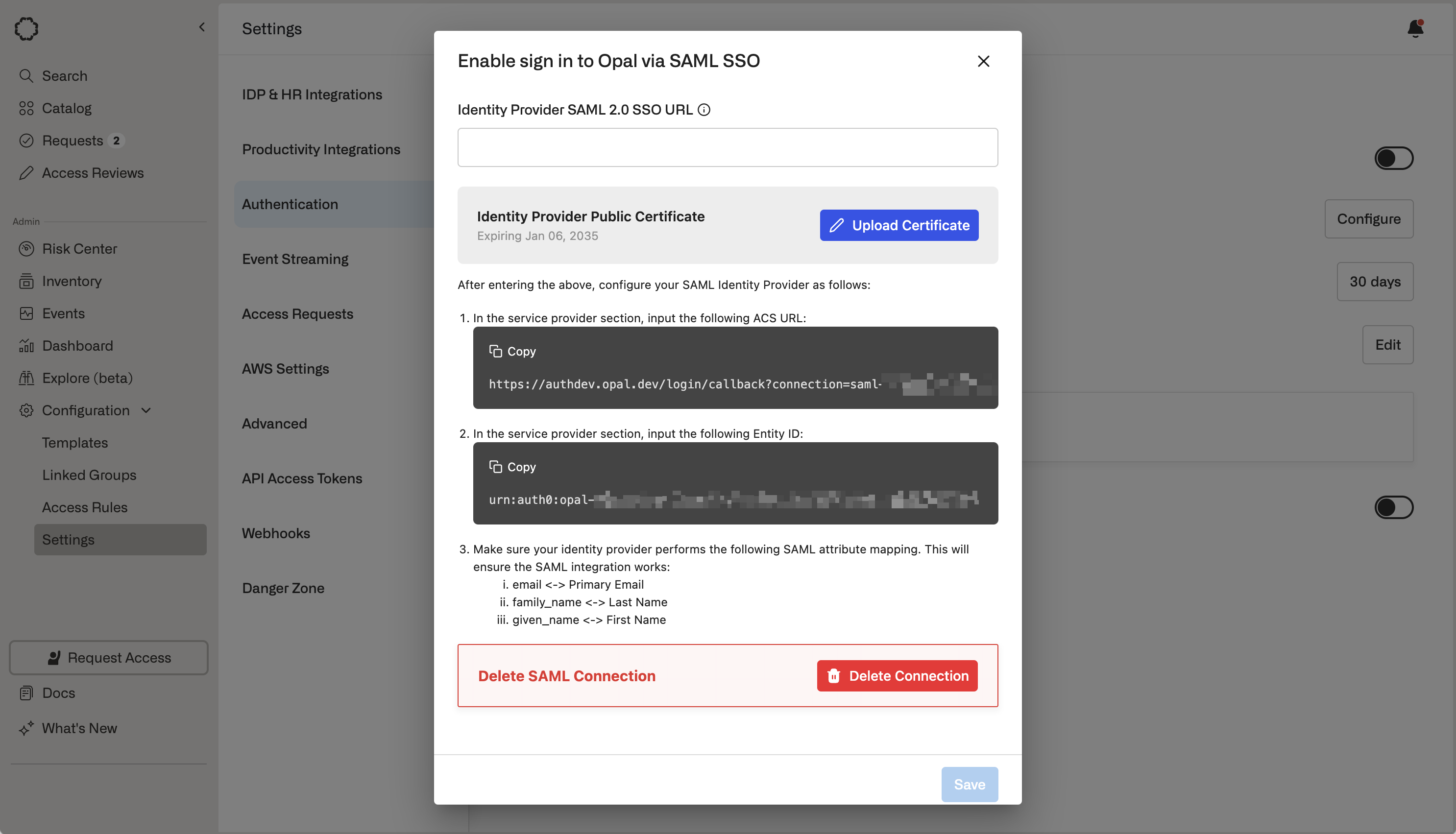
2. In a new tab, log in to the Opal dashboard, then go to **Configuration > Settings > Authentication > SAML SSO Settings > Setup**. You should see the following screen:
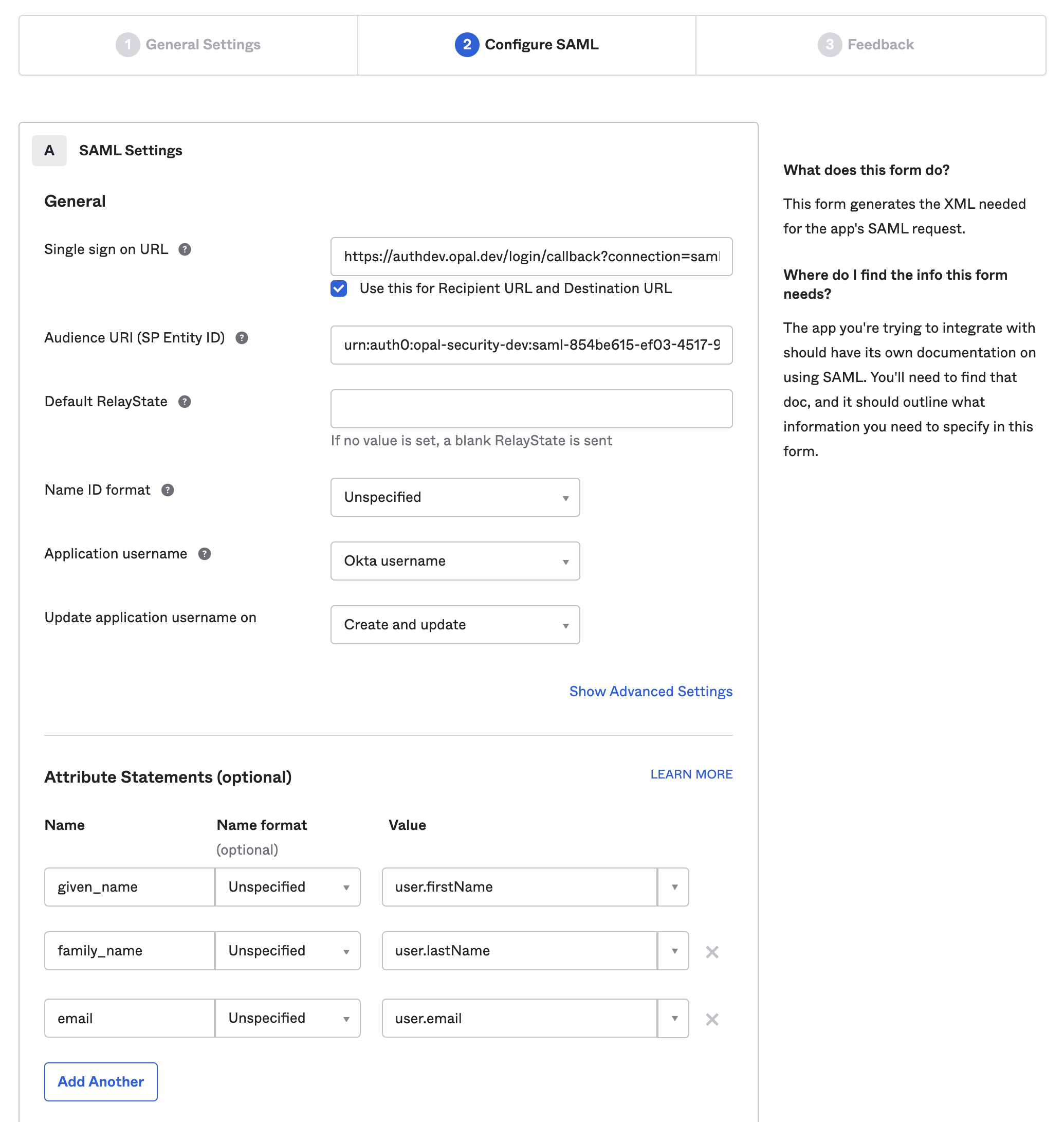
 3. Back in Okta, go to the next page. On the **Configure SAML** screen, fill in the following fields, then click **Next**. Leave all other fields in their default state.
* **Single sign on URL:** Use the **ACS URL** from the Opal modal.
* Leave **Use this for Recipient URL and Destination URL** checked.
* **Audience URI**: Use **Entity ID** from the Opal modal.
* **Attribute Statements:**
* `given_name` > `user.firstName`
* `family_name` > `user.lastName`
* `email` > `user.email`
3. Back in Okta, go to the next page. On the **Configure SAML** screen, fill in the following fields, then click **Next**. Leave all other fields in their default state.
* **Single sign on URL:** Use the **ACS URL** from the Opal modal.
* Leave **Use this for Recipient URL and Destination URL** checked.
* **Audience URI**: Use **Entity ID** from the Opal modal.
* **Attribute Statements:**
* `given_name` > `user.firstName`
* `family_name` > `user.lastName`
* `email` > `user.email`
 4. On the next page in Okta, select **I'm an Okta customer adding an internal app**, then click **Finish**.
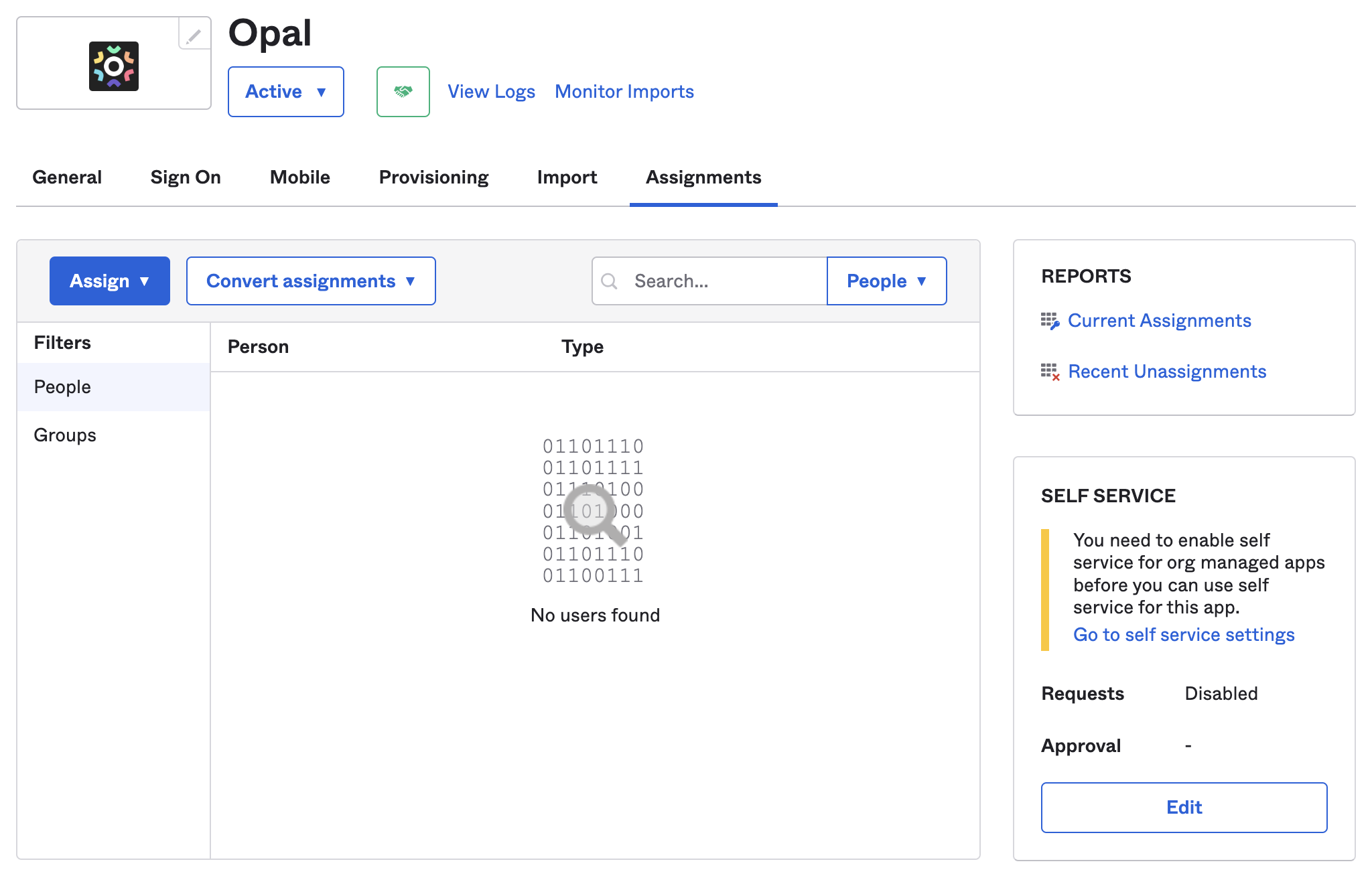
5. On the new Okta app page, click the **Assignments** tab and assign any users or groups who you want to grant access to Opal via Okta SAML SSO. Each email in Okta must match the email of the Opal account in order for the user's SAML login to succeed.
4. On the next page in Okta, select **I'm an Okta customer adding an internal app**, then click **Finish**.
5. On the new Okta app page, click the **Assignments** tab and assign any users or groups who you want to grant access to Opal via Okta SAML SSO. Each email in Okta must match the email of the Opal account in order for the user's SAML login to succeed.
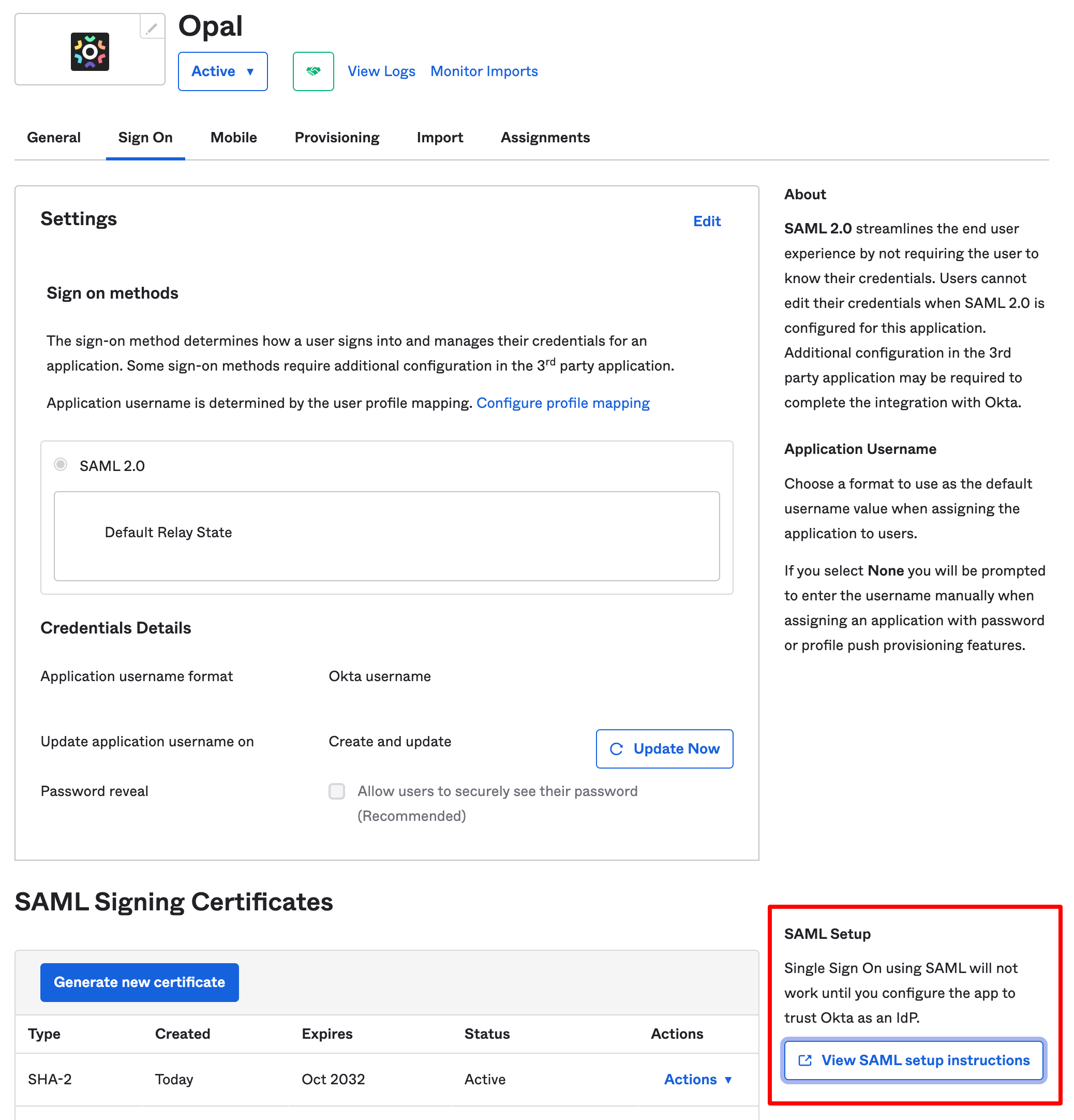
 6. Next, in the **Sign On** tab select **View SAML setup instructions**.
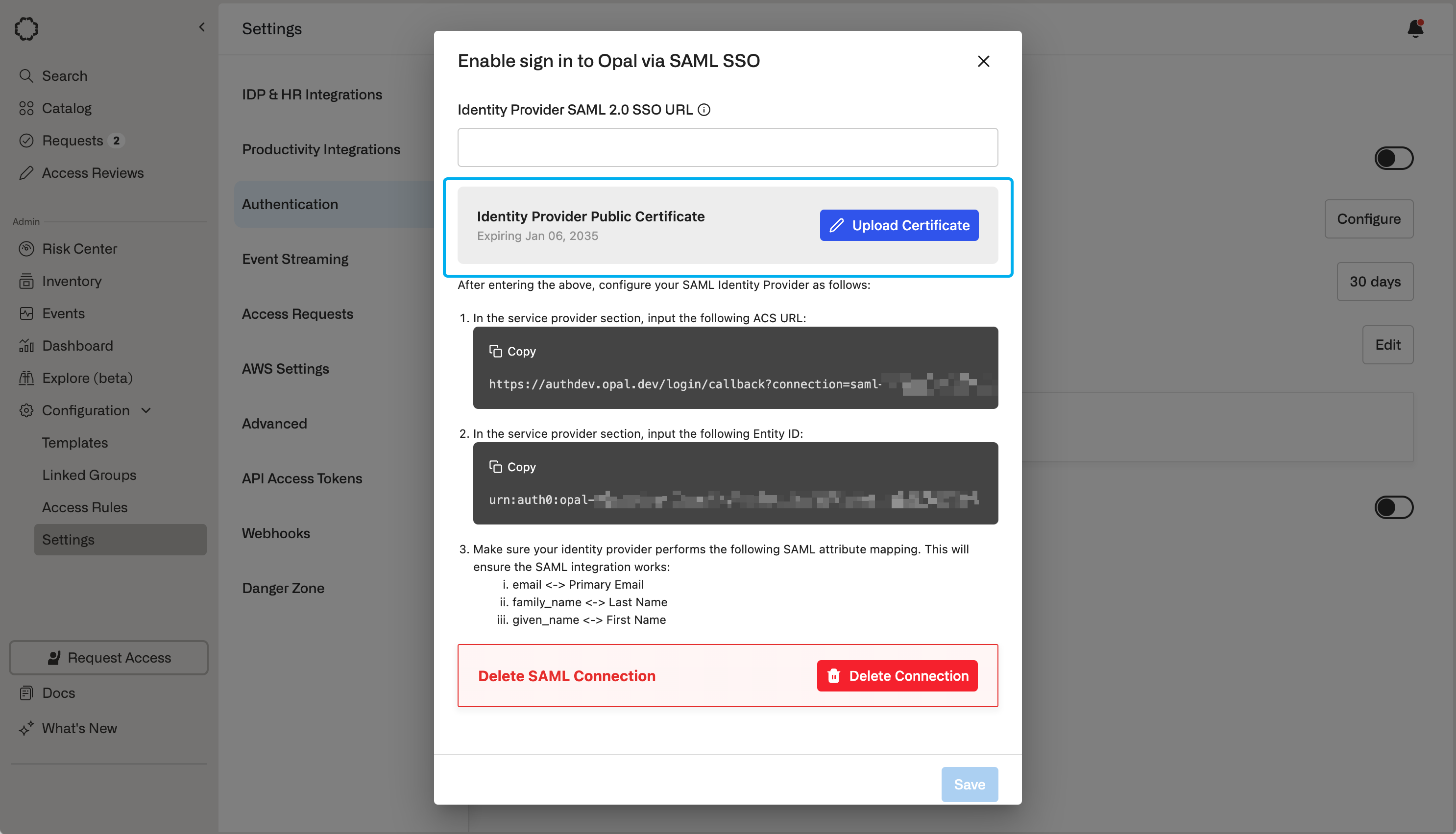
 7. Back in Opal, enter the following information, then click **Save**:
* **Identity Provider SAML 2.0 SSO URL:** Use **Identity Provider Single Sign-On URL** from Okta.
* **Identity Provider Public Certificate**: Download the **X.509 Certificate** from Okta and upload it to Opal.
7. Back in Opal, enter the following information, then click **Save**:
* **Identity Provider SAML 2.0 SSO URL:** Use **Identity Provider Single Sign-On URL** from Okta.
* **Identity Provider Public Certificate**: Download the **X.509 Certificate** from Okta and upload it to Opal.
 Your SAML SSO setup should now be complete. For more options on configuring your SAML connection, see [the SSO SAML guide](/docs/sso-with-saml).
## Test SAML login
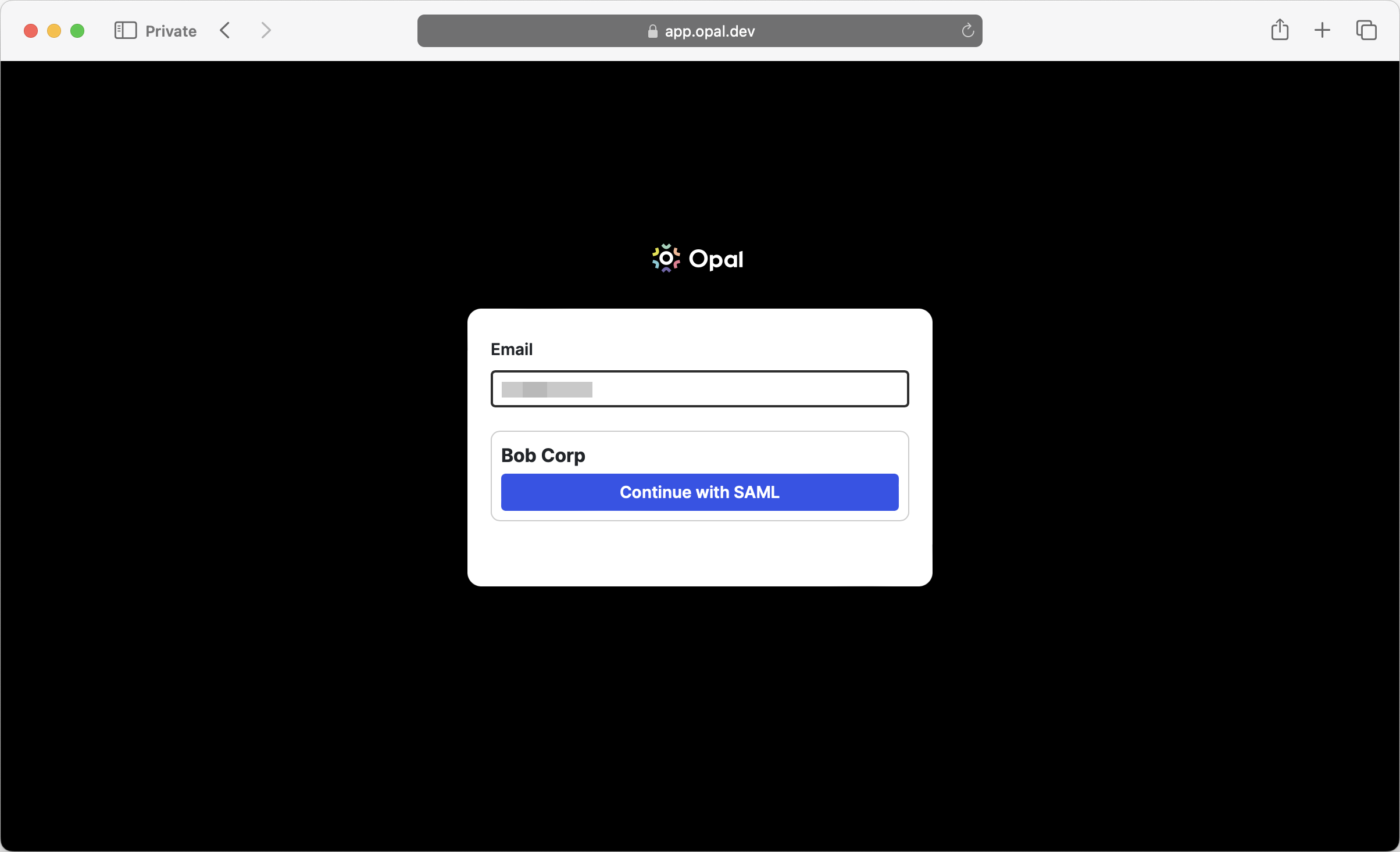
To test SAML login to Opal, log out of your Opal account and try to log in again. The next time you log in, you should see the following screen, which lets you choose to log in via SAML.
Your SAML SSO setup should now be complete. For more options on configuring your SAML connection, see [the SSO SAML guide](/docs/sso-with-saml).
## Test SAML login
To test SAML login to Opal, log out of your Opal account and try to log in again. The next time you log in, you should see the following screen, which lets you choose to log in via SAML.