> ## Documentation Index
> Fetch the complete documentation index at: https://docs.opal.dev/llms.txt
> Use this file to discover all available pages before exploring further.
# Okta Multifactor Authentication
## Using Okta MFA for Opal logins
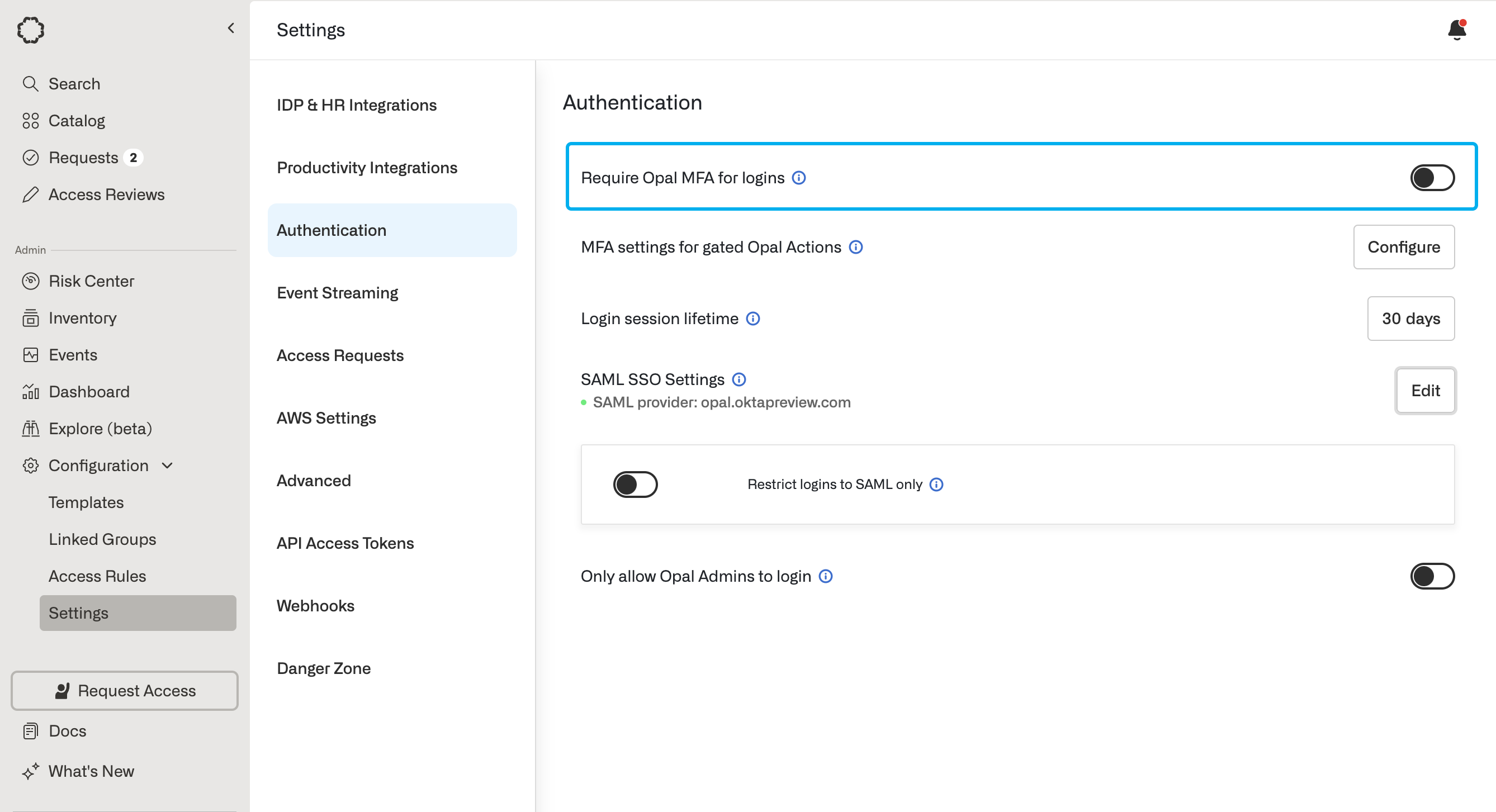
For logins, you must do 3 things:
1. Setup Okta as your SAML provider. [For instructions, see here.](/docs/okta-saml-setup)
2. In Okta, configure your Opal SAML app to [require MFA for login](https://help.okta.com/en-us/content/topics/security/mfa/mfa-home.htm).
3. In Opal, ensure that the **Require Opal MFA for logins** setting is off.
 ## Using Okta MFA for Opal actions: requesting, approving, connecting \[Legacy]
* Okta Verify TOTP
* Okta Verify Push
If you'd like to use WebAuthn (Yubikey, TouchID) in addition to Okta Verify, follow the instructions to use an OIDC Provider: [https://docs.opal.dev/docs/oidc-provider-setup-for-opal-actions](/docs/oidc-provider-setup-for-opal-actions)
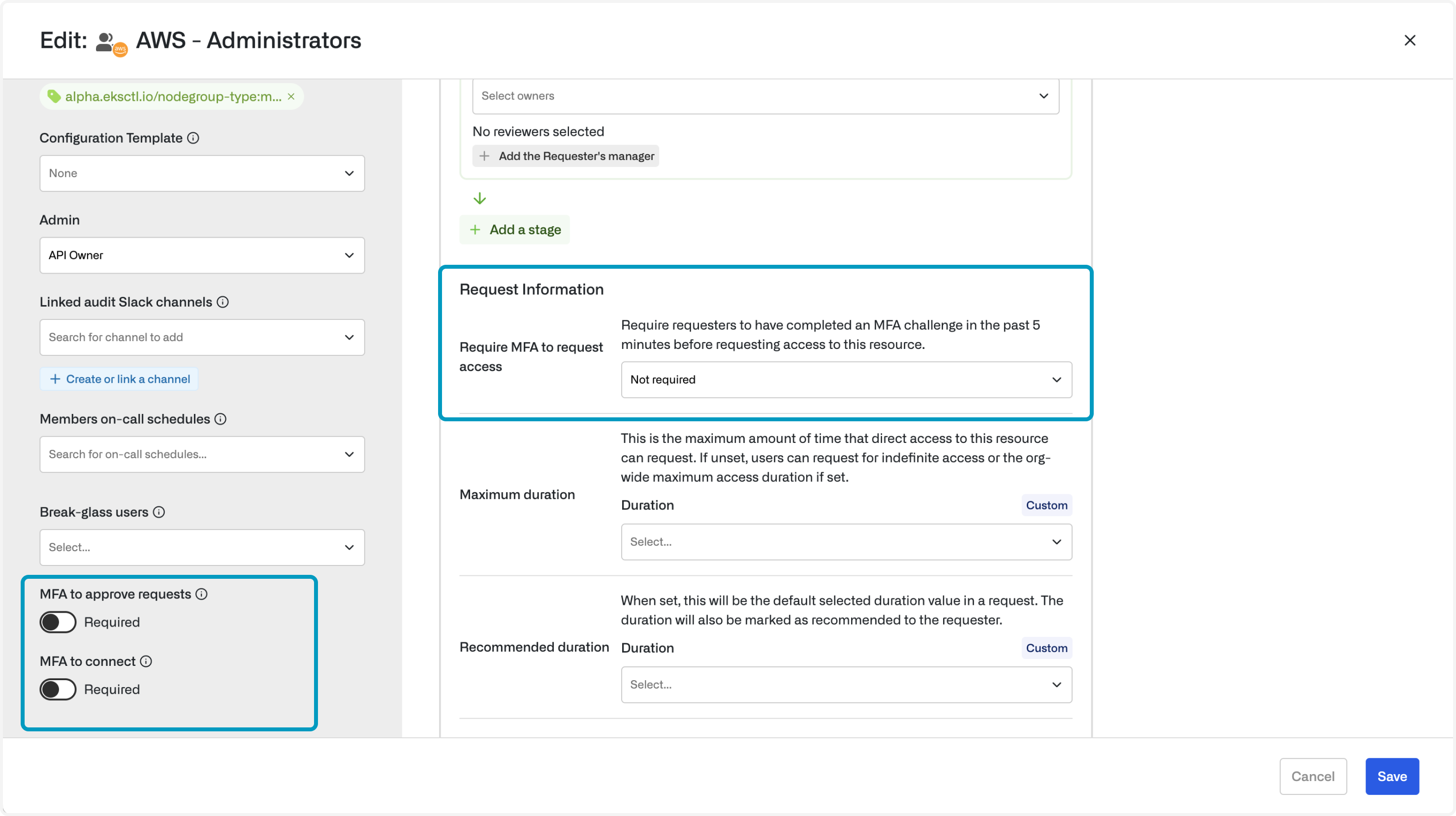
First, go to the resource(s) you want to require MFA for and click "Edit." Then, in the left pane, toggle on the desired setting:
* **MFA to approve requests** requires reviewers to have completed an MFA in the past 5 minutes prior to approving a request.
* **MFA to connect** (applies to select resource types) requires the user to have completed an MFA in the past 5 minutes prior to connecting to a resource.
## Using Okta MFA for Opal actions: requesting, approving, connecting \[Legacy]
* Okta Verify TOTP
* Okta Verify Push
If you'd like to use WebAuthn (Yubikey, TouchID) in addition to Okta Verify, follow the instructions to use an OIDC Provider: [https://docs.opal.dev/docs/oidc-provider-setup-for-opal-actions](/docs/oidc-provider-setup-for-opal-actions)
First, go to the resource(s) you want to require MFA for and click "Edit." Then, in the left pane, toggle on the desired setting:
* **MFA to approve requests** requires reviewers to have completed an MFA in the past 5 minutes prior to approving a request.
* **MFA to connect** (applies to select resource types) requires the user to have completed an MFA in the past 5 minutes prior to connecting to a resource.
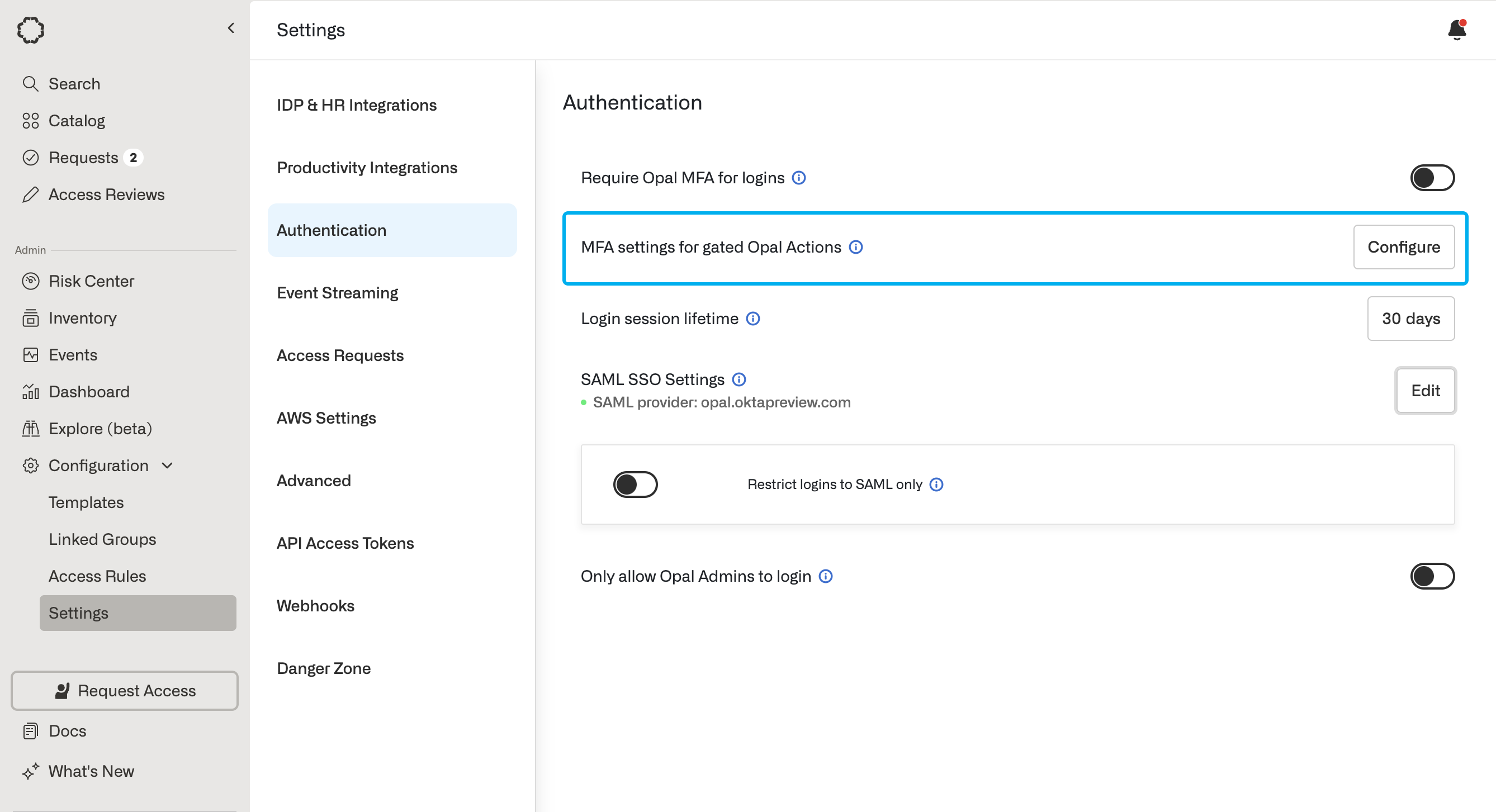
 Then, in your organization's settings, configure the following setting in the **Authentication** section:
 ### Requirements for Okta Verify Push
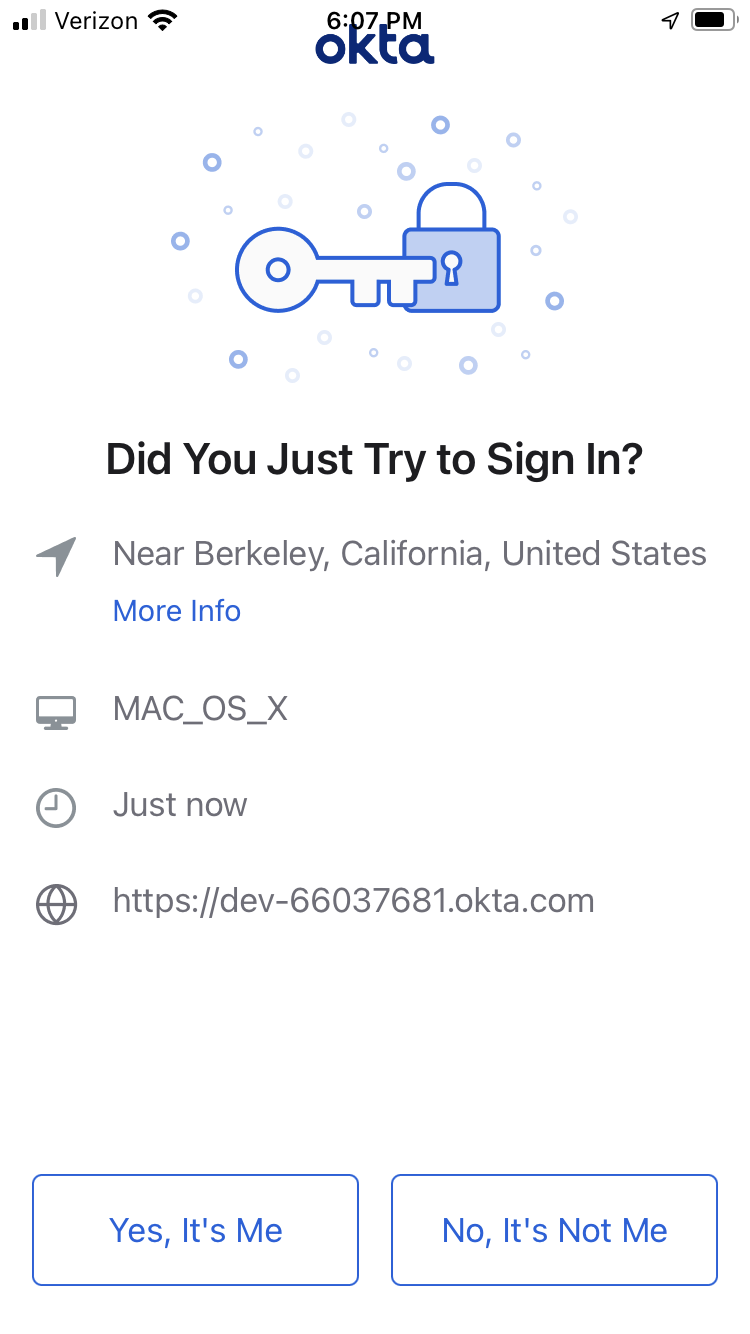
When a push notification is sent to the Okta Verify app, the location associated with the user agent is included to prevent phishing. Here is an example:
### Requirements for Okta Verify Push
When a push notification is sent to the Okta Verify app, the location associated with the user agent is included to prevent phishing. Here is an example:
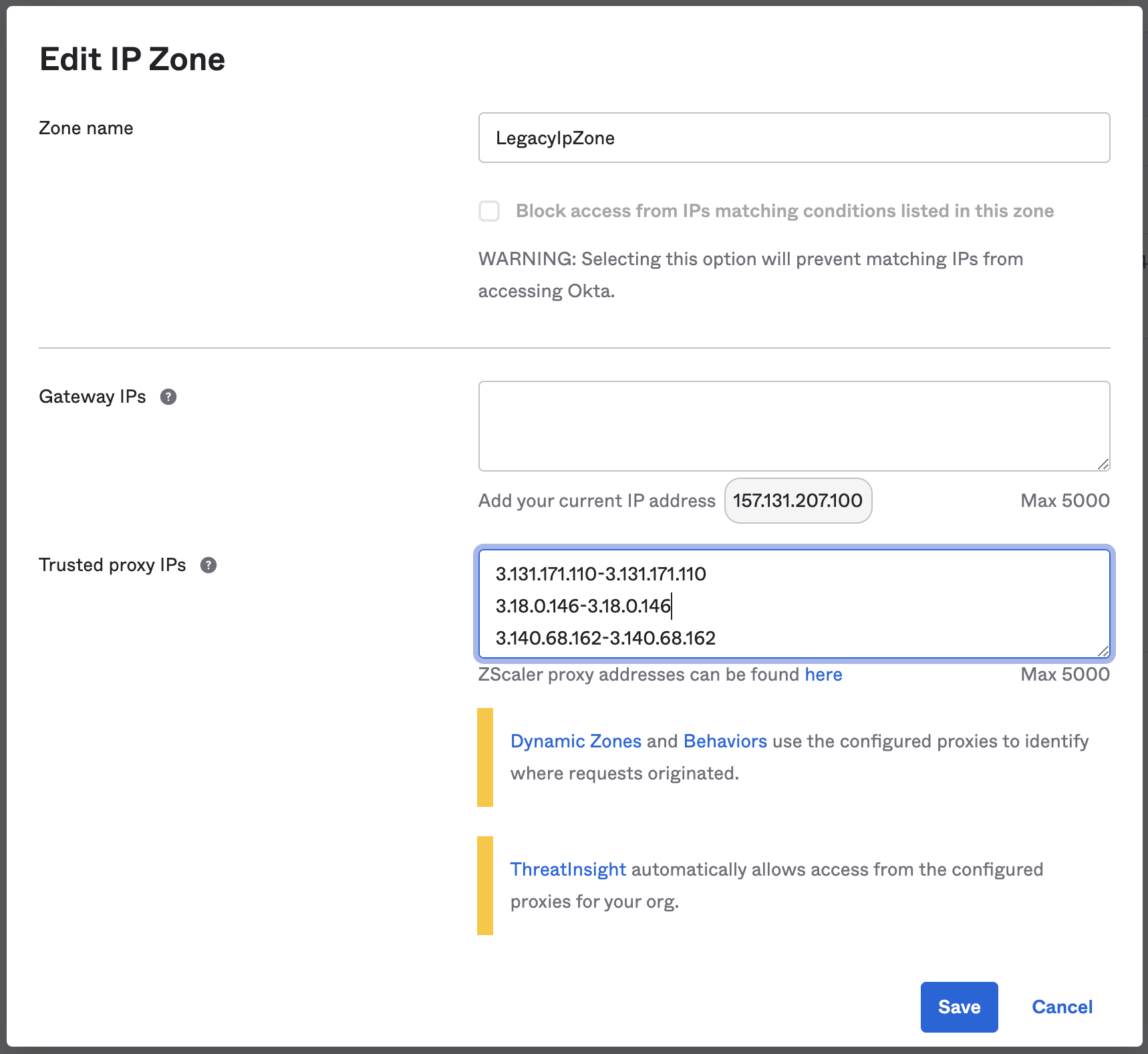
 Opal's [IP ranges](/docs/ip-ranges) must be added to the allowlist in your org's network security settings as a trusted proxy to forward the user agent's original IP address with the `X-Forwarded-For` HTTP header.
Note: If running Opal self-hosted, please use the public IP ranges for your infrastructure.
Navigate to the **Configuration** section in Okta:
* Under **Security**, click **Networks**.
* Edit the allowlist IP zone.
* Add the IP ranges under **Trusted proxy IPs**, like so:
Opal's [IP ranges](/docs/ip-ranges) must be added to the allowlist in your org's network security settings as a trusted proxy to forward the user agent's original IP address with the `X-Forwarded-For` HTTP header.
Note: If running Opal self-hosted, please use the public IP ranges for your infrastructure.
Navigate to the **Configuration** section in Okta:
* Under **Security**, click **Networks**.
* Edit the allowlist IP zone.
* Add the IP ranges under **Trusted proxy IPs**, like so:
 ***
***