> ## Documentation Index
> Fetch the complete documentation index at: https://docs.opal.dev/llms.txt
> Use this file to discover all available pages before exploring further.

# Import and configure resources

Once you have [connected apps and infrastructure integrations](/docs/set-up-connections) to Opal, you can import resources and groups to be managed.

## Automatic import

From the app detail page in the **Inventory**, select the edit icon.
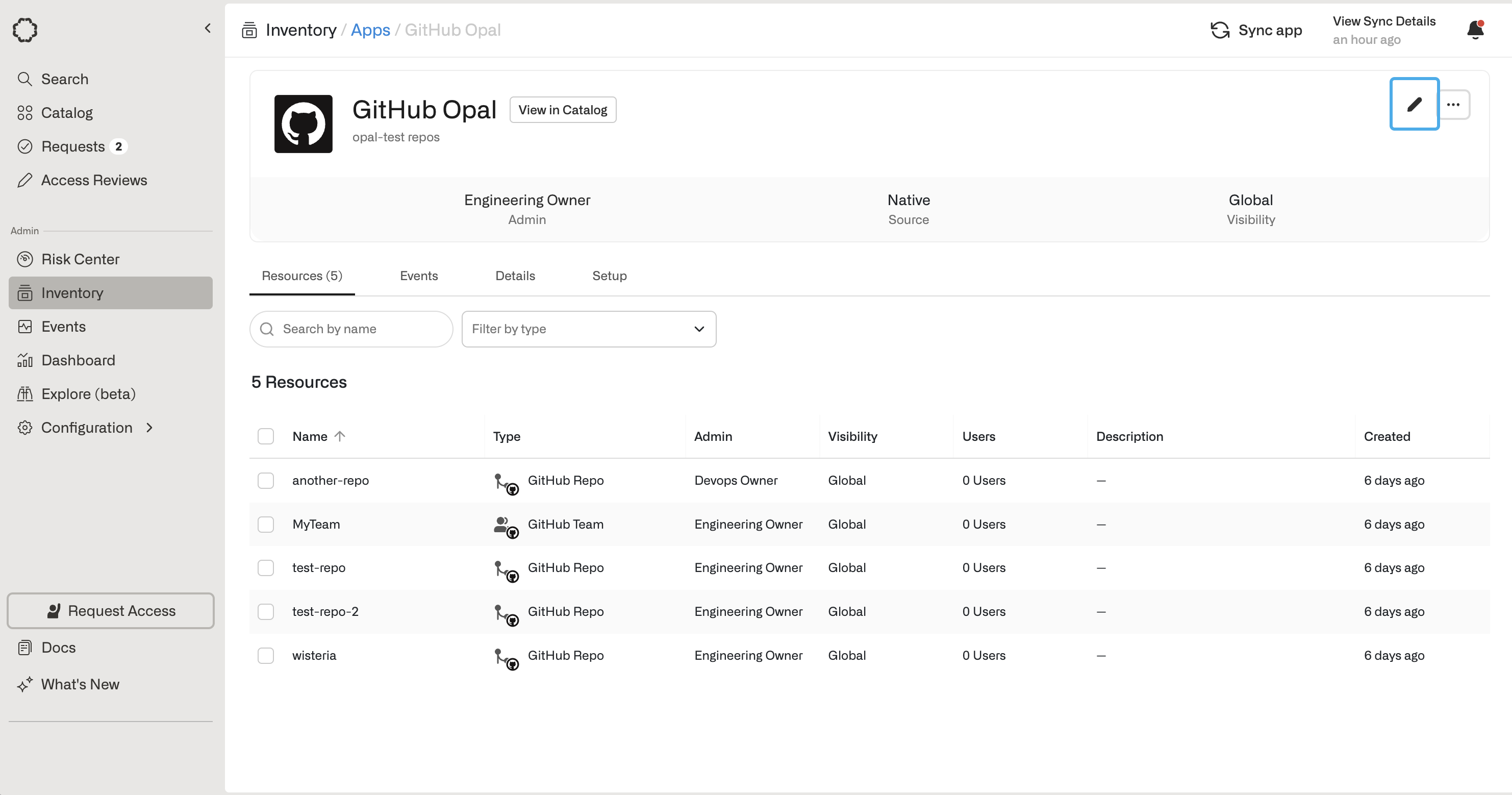
<img src="https://mintcdn.com/opalsecurity/lt0M-hBs5yNe5ff5/images/docs/a1bd8fb2868da66aeb2ecf09076044ee19ca54a268ba2a83977d0c7963d0cac5-edit_app.png?fit=max&auto=format&n=lt0M-hBs5yNe5ff5&q=85&s=0d0b61be7e2ab636f89f3aac4864a773" alt="" width="2964" height="1558" data-path="images/docs/a1bd8fb2868da66aeb2ecf09076044ee19ca54a268ba2a83977d0c7963d0cac5-edit_app.png" />

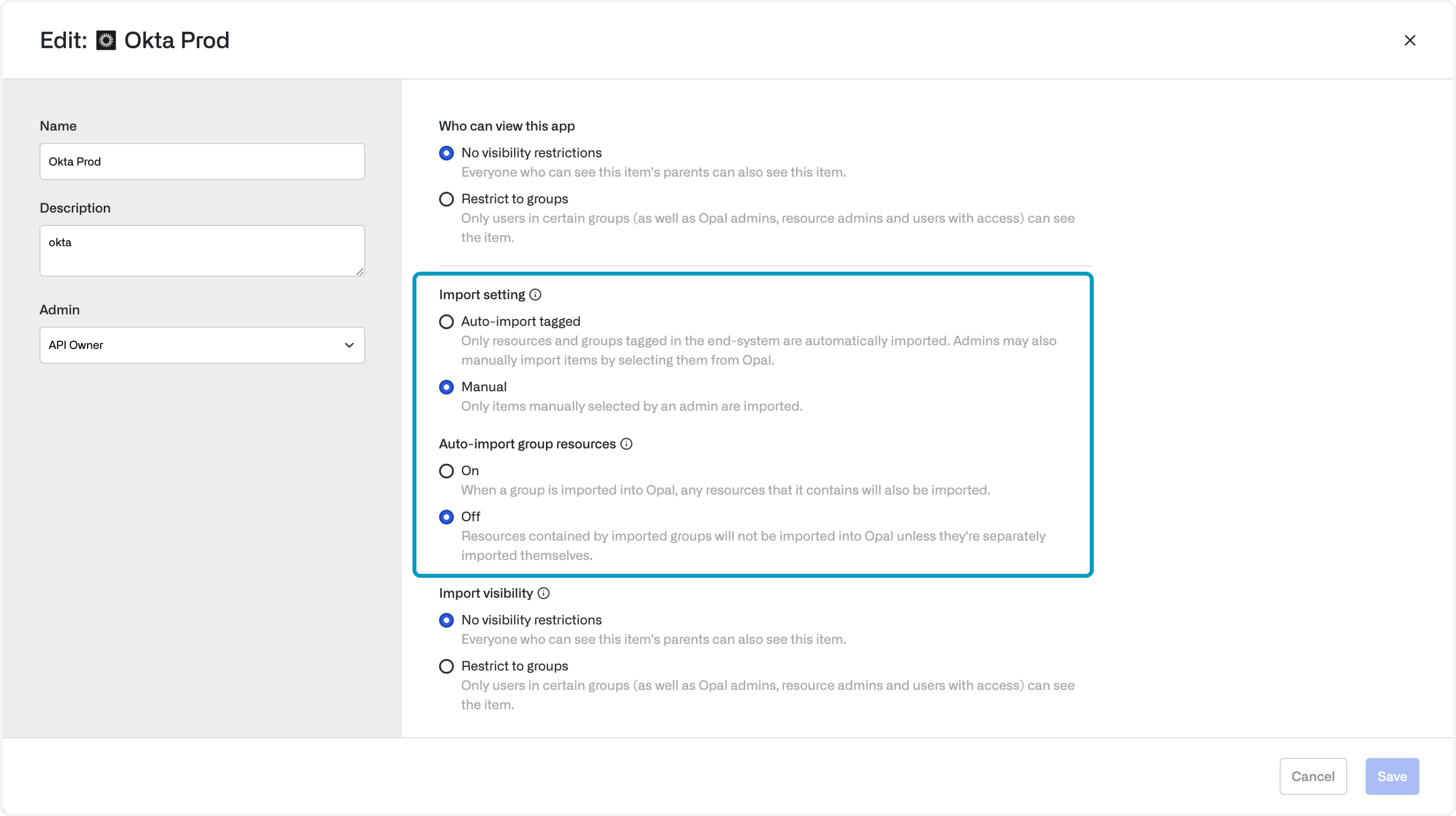
Depending on the app type, you can either choose to automatically import all resources, import tagged resources only, or only import manually.
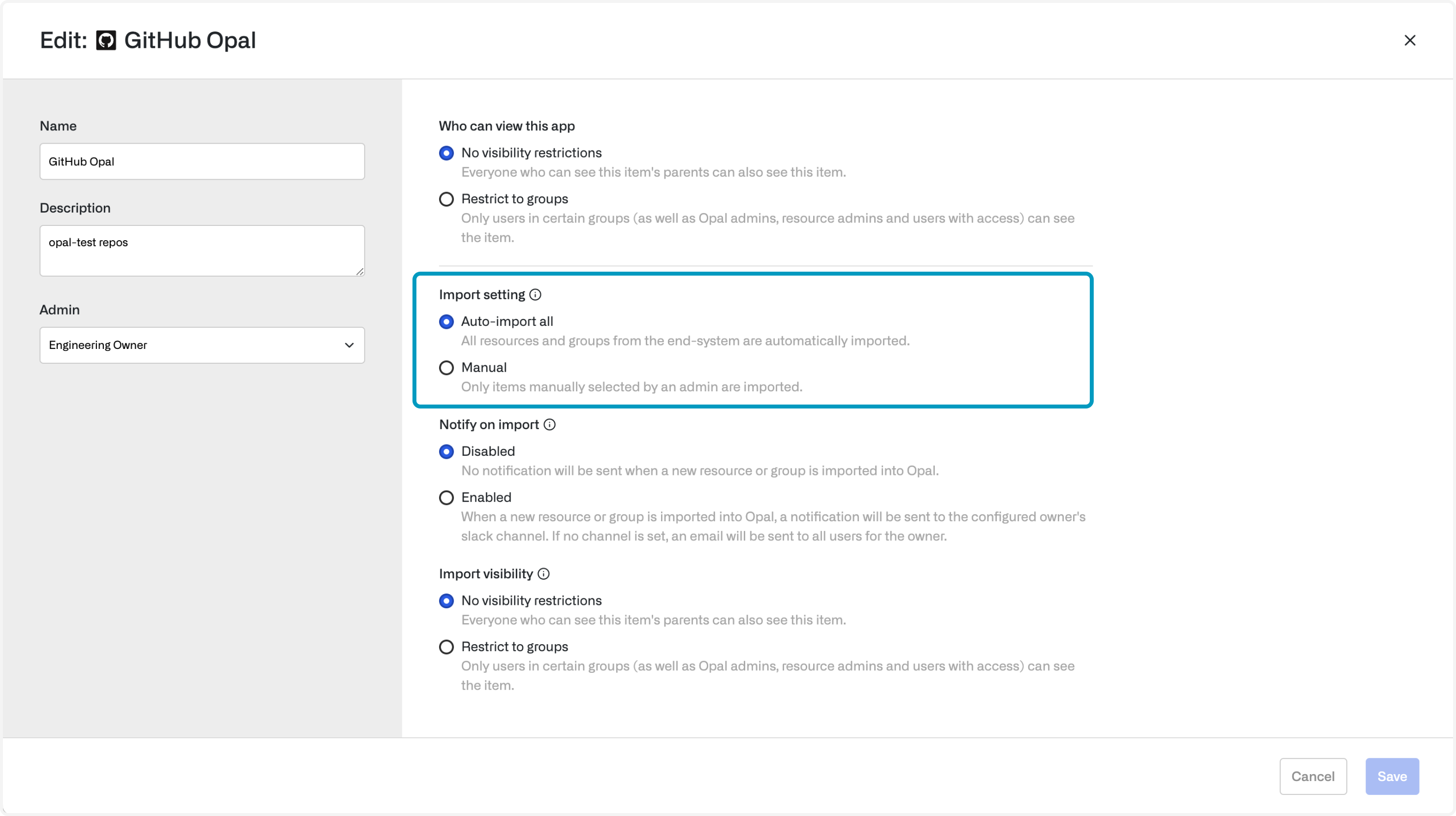
<img src="https://mintcdn.com/opalsecurity/lwwIeFbsleftxaXx/images/docs/cddca0f-importSettings.png?fit=max&auto=format&n=lwwIeFbsleftxaXx&q=85&s=dfca78adcd9ba2d0b73a8aecae1363b3" alt="" width="2958" height="1658" data-path="images/docs/cddca0f-importSettings.png" />

Okta also supports auto-importing groups which contain imported resources:
<img src="https://mintcdn.com/opalsecurity/fu-nWazMe1LxLhxi/images/docs/2bc231e-importSettings_okta.png?fit=max&auto=format&n=fu-nWazMe1LxLhxi&q=85&s=7a569ccfbb8082102ed7c2ff8db22acc" alt="" width="2958" height="1658" data-path="images/docs/2bc231e-importSettings_okta.png" />

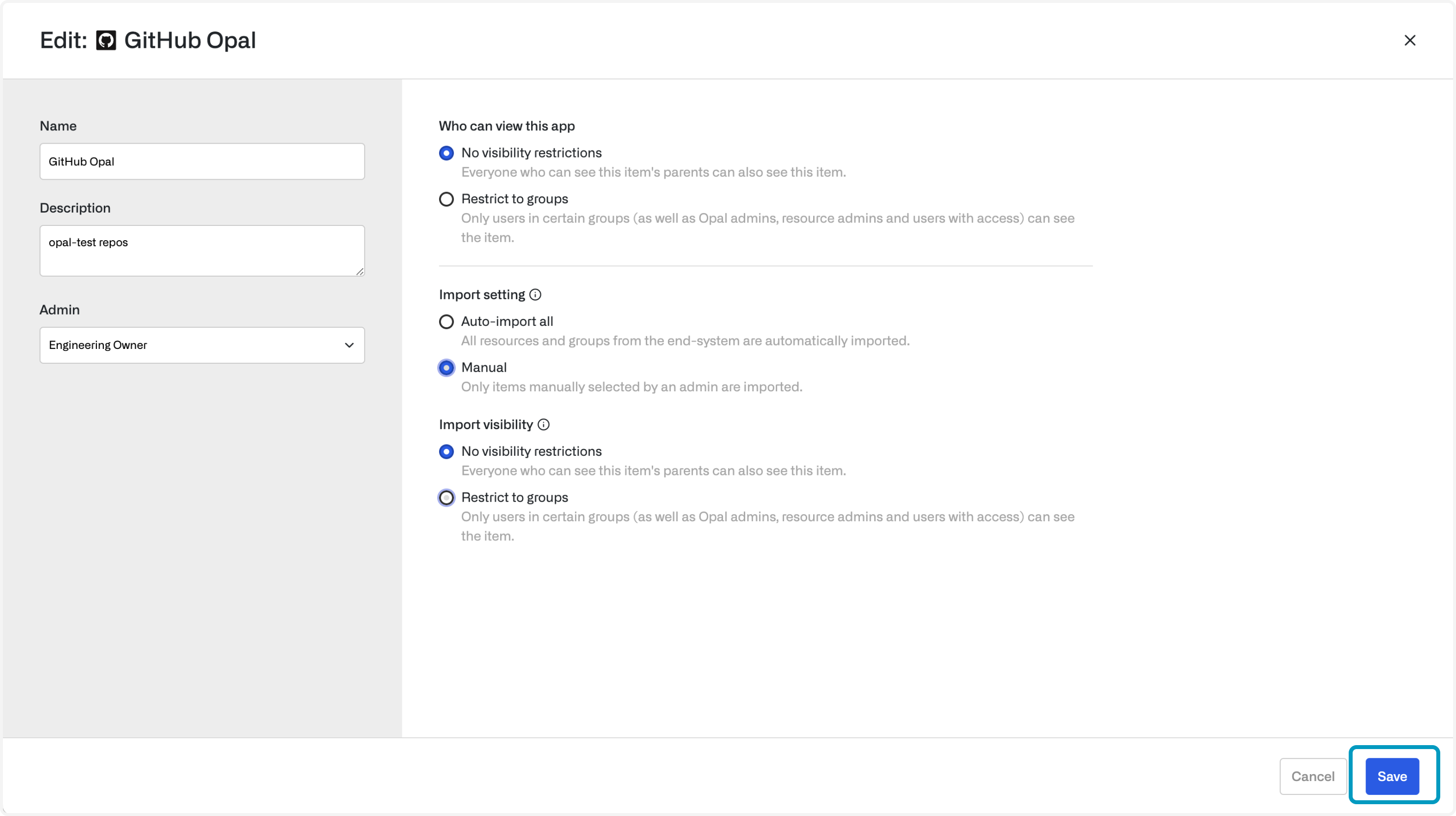
When you've made your selection, select **Save** and Opal will start syncing immediately.
<img src="https://mintcdn.com/opalsecurity/E-CmJXh0QNjZUl4g/images/docs/6cff8b8-app-edit-save.png?fit=max&auto=format&n=E-CmJXh0QNjZUl4g&q=85&s=ffaee0b8cf881cde19ca53555c858512" alt="" width="2958" height="1658" data-path="images/docs/6cff8b8-app-edit-save.png" />

## Manual import

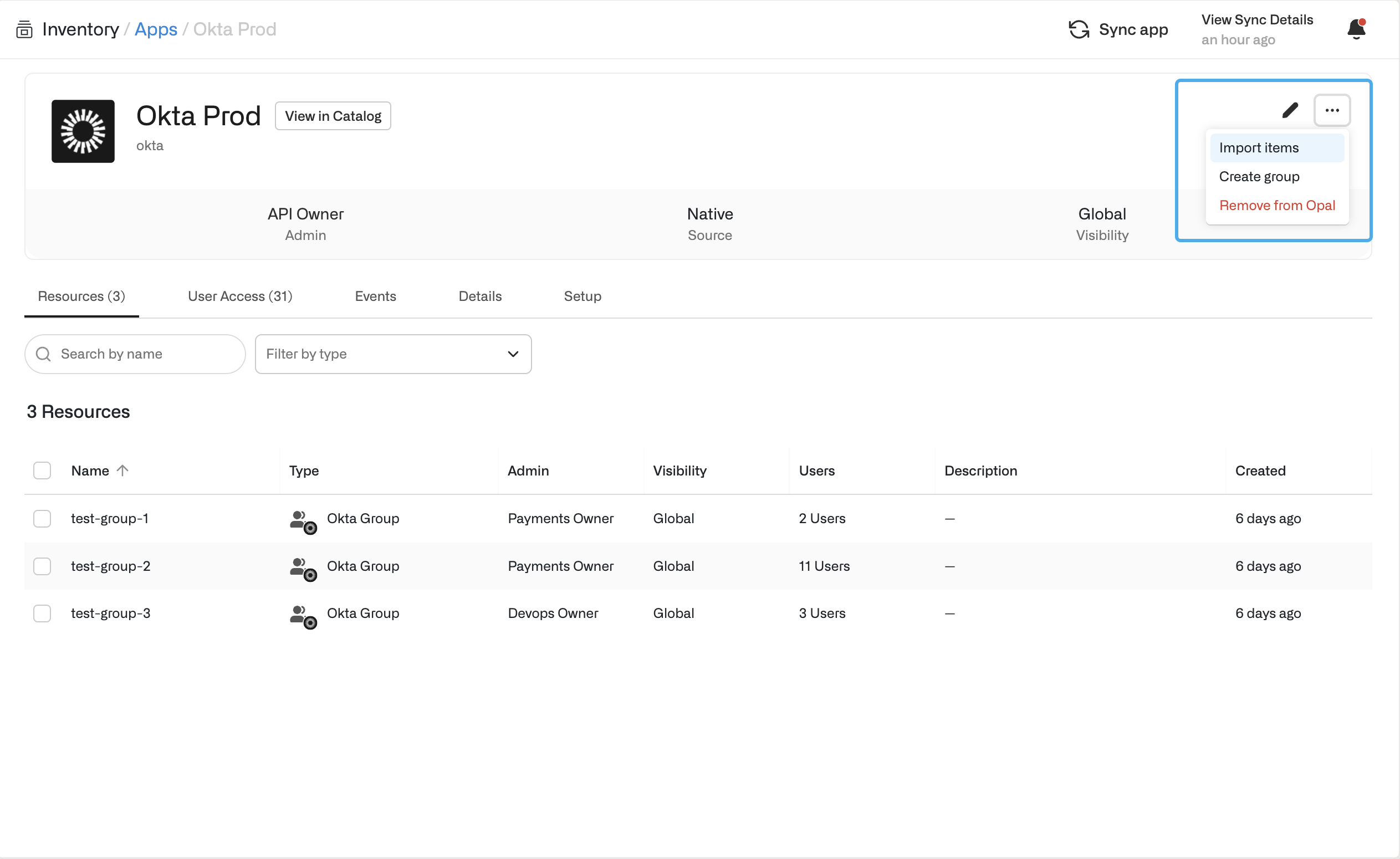
First, select **Import items** under the **...** menu for an app.
<img src="https://mintcdn.com/opalsecurity/E-CmJXh0QNjZUl4g/images/docs/5fd5d4486fb1820bc31bdf92b7e27c6d799657a323bf697ad033d6fa2ad10834-import-apps.png?fit=max&auto=format&n=E-CmJXh0QNjZUl4g&q=85&s=6ef08b192ff09ed3114a80527f7f14fc" alt="" width="2526" height="1550" data-path="images/docs/5fd5d4486fb1820bc31bdf92b7e27c6d799657a323bf697ad033d6fa2ad10834-import-apps.png" />

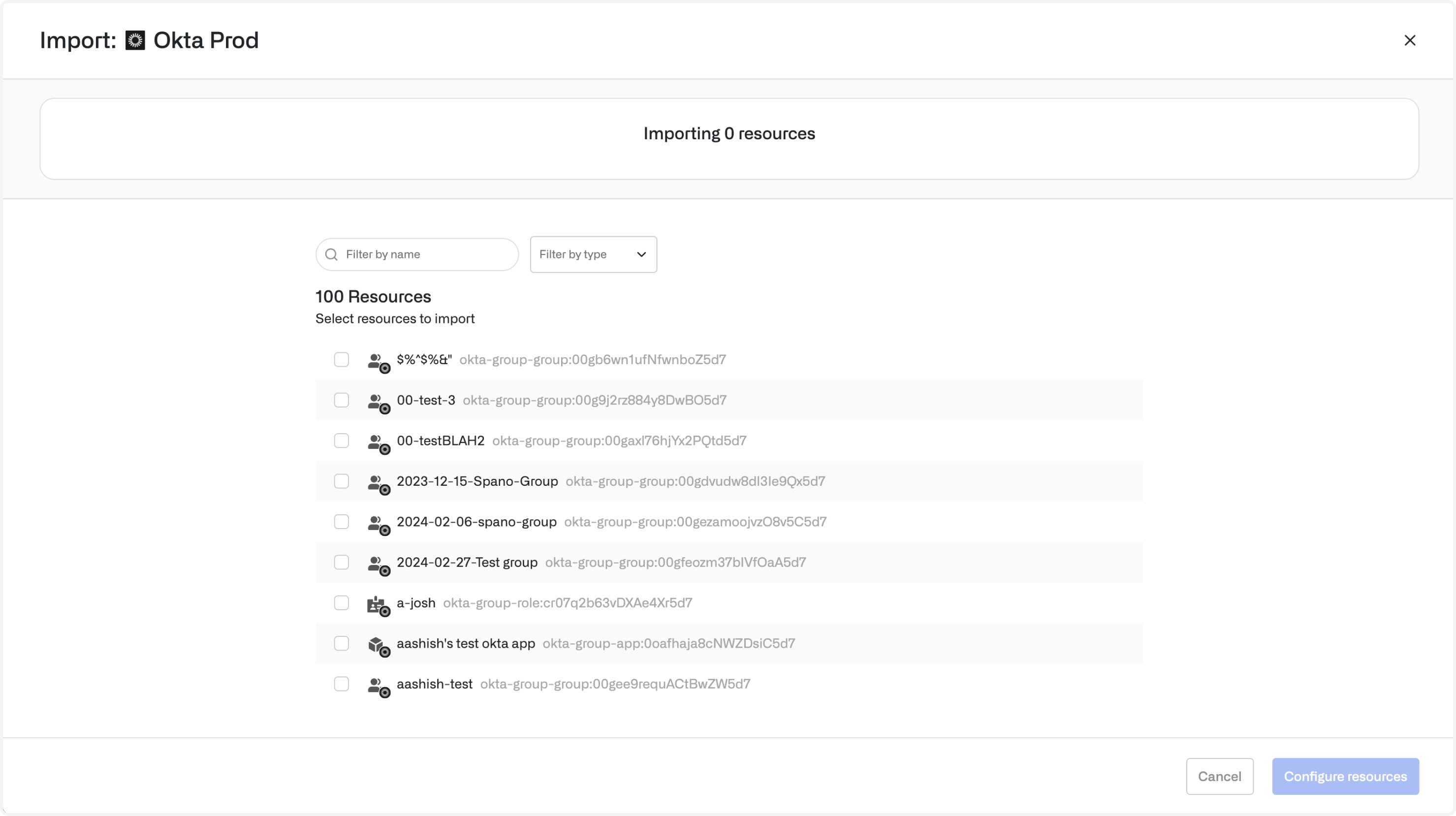
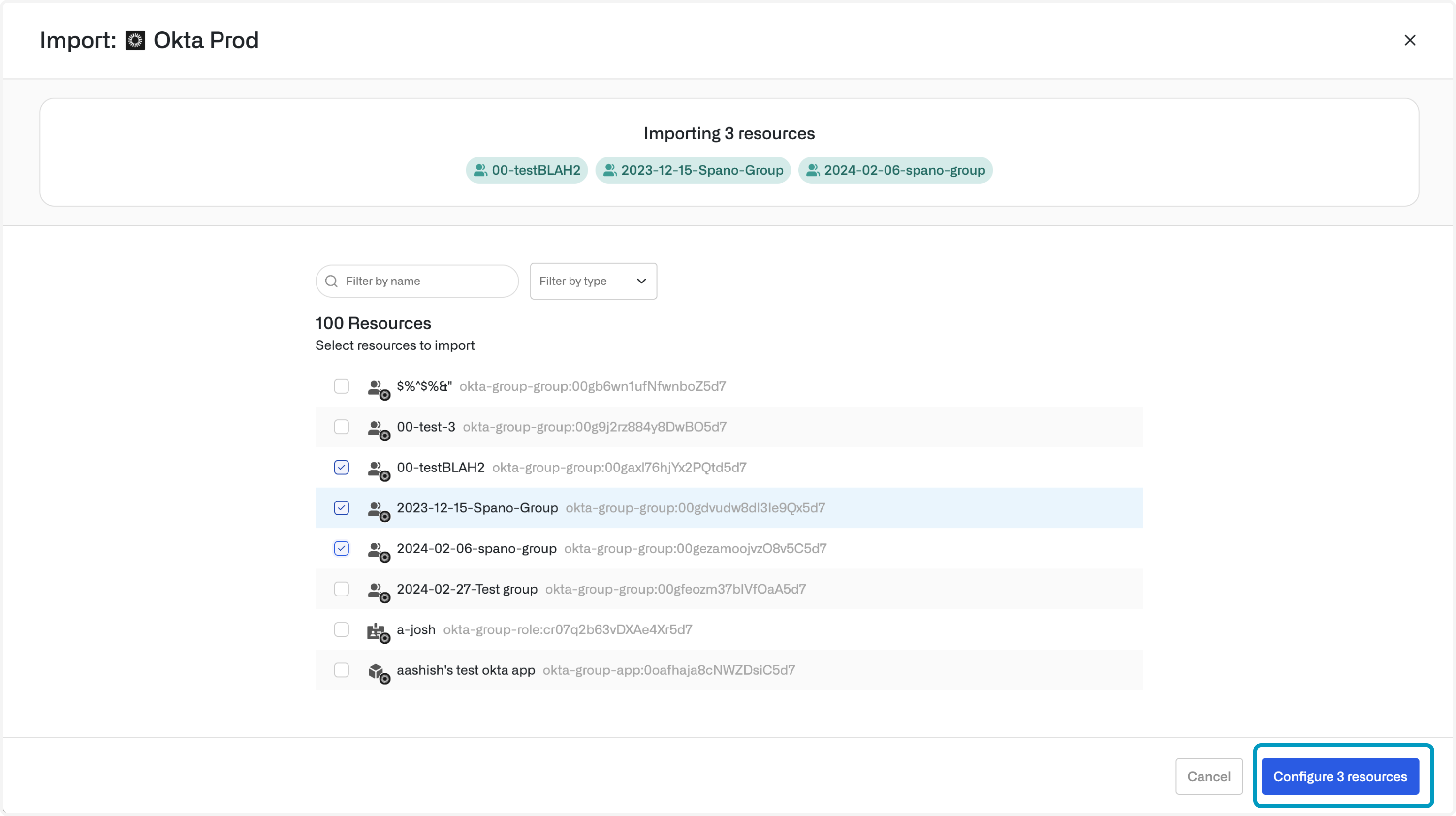
Select the resources and groups to import, then [configure access requests](/docs/configure-reviewers#approval-workflows) for these resources.
<img src="https://mintcdn.com/opalsecurity/lt0M-hBs5yNe5ff5/images/docs/9bc5acd-import-screen.png?fit=max&auto=format&n=lt0M-hBs5yNe5ff5&q=85&s=6e42a476e0c955dabdb2a18dc76499da" alt="" width="2958" height="1658" data-path="images/docs/9bc5acd-import-screen.png" />

<img src="https://mintcdn.com/opalsecurity/lt0M-hBs5yNe5ff5/images/docs/a195ee0-import-select.png?fit=max&auto=format&n=lt0M-hBs5yNe5ff5&q=85&s=e31877e6fe4c1e2f76bad3d1fc467636" alt="" width="2958" height="1658" data-path="images/docs/a195ee0-import-select.png" />

<img src="https://mintcdn.com/opalsecurity/lt0M-hBs5yNe5ff5/images/docs/af91c4d-Config.png?fit=max&auto=format&n=lt0M-hBs5yNe5ff5&q=85&s=9d96936e8247c6adce3f1c05a906f382" alt="" width="2958" height="1658" data-path="images/docs/af91c4d-Config.png" />

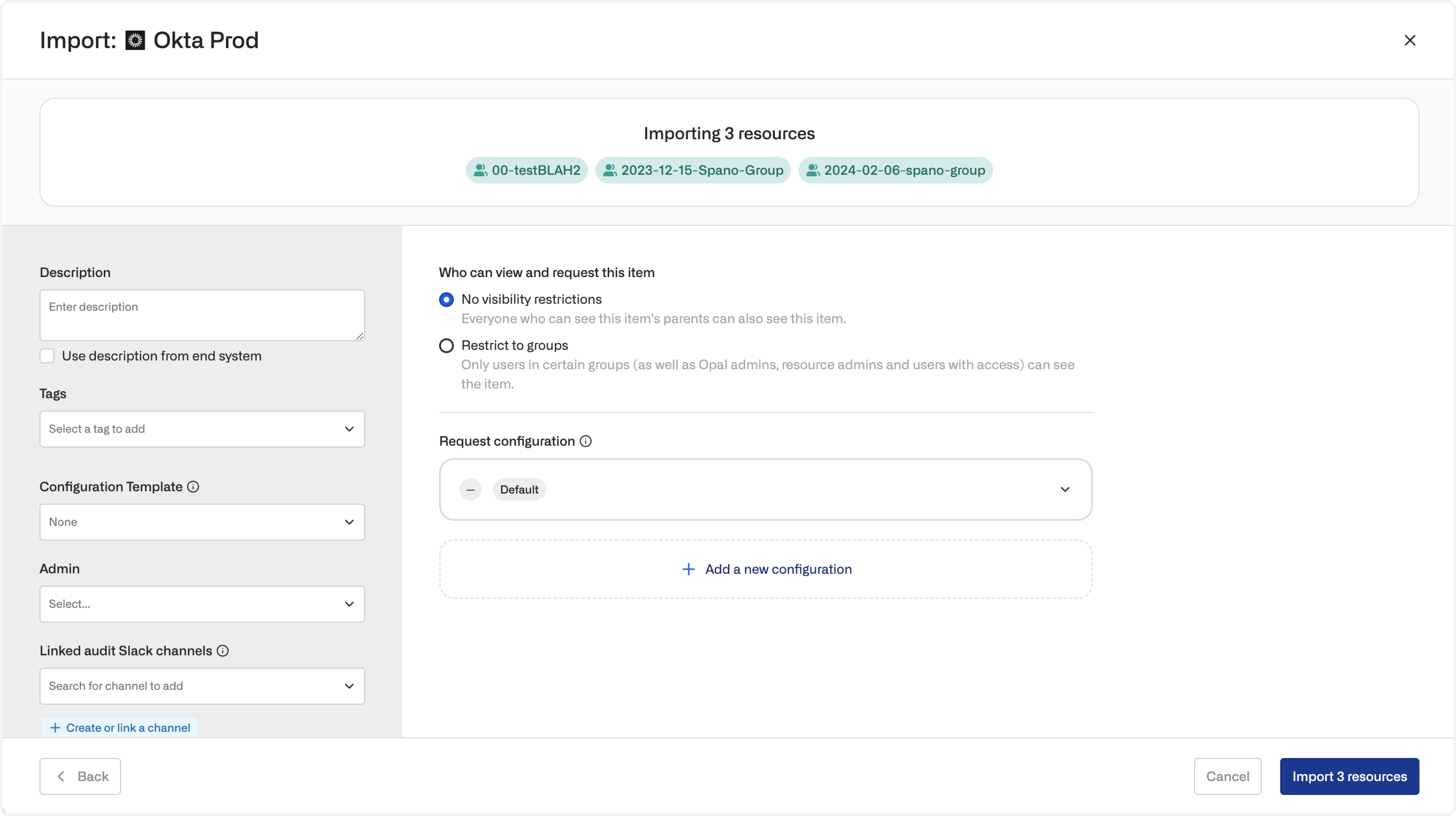
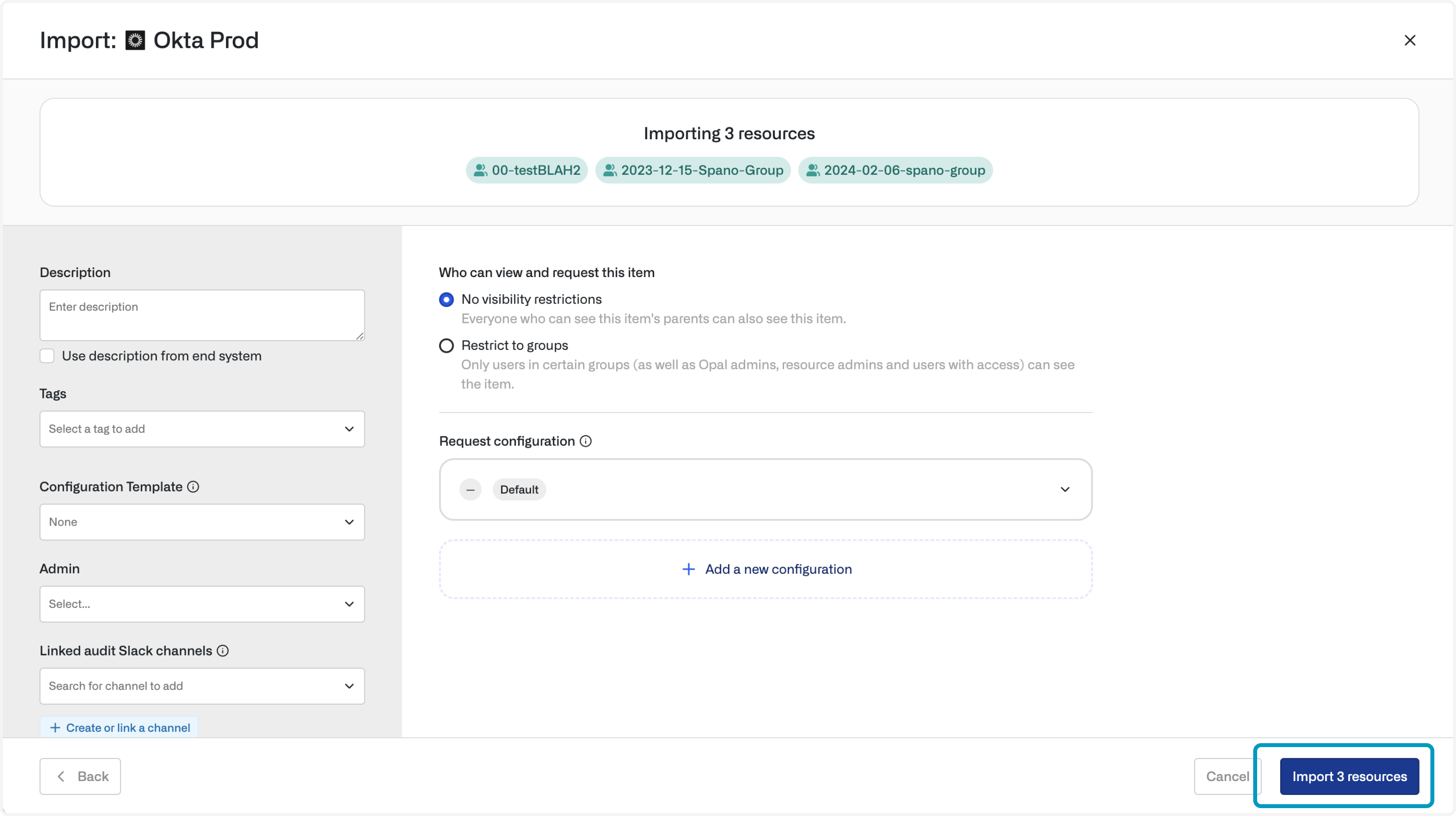
Finally, add them to Opal.

<img src="https://mintcdn.com/opalsecurity/KunPWigry5GIeB5g/images/docs/427aa86-import0button.png?fit=max&auto=format&n=KunPWigry5GIeB5g&q=85&s=6d80f4f33e9959d022985643f6e42336" alt="" width="2958" height="1658" data-path="images/docs/427aa86-import0button.png" />

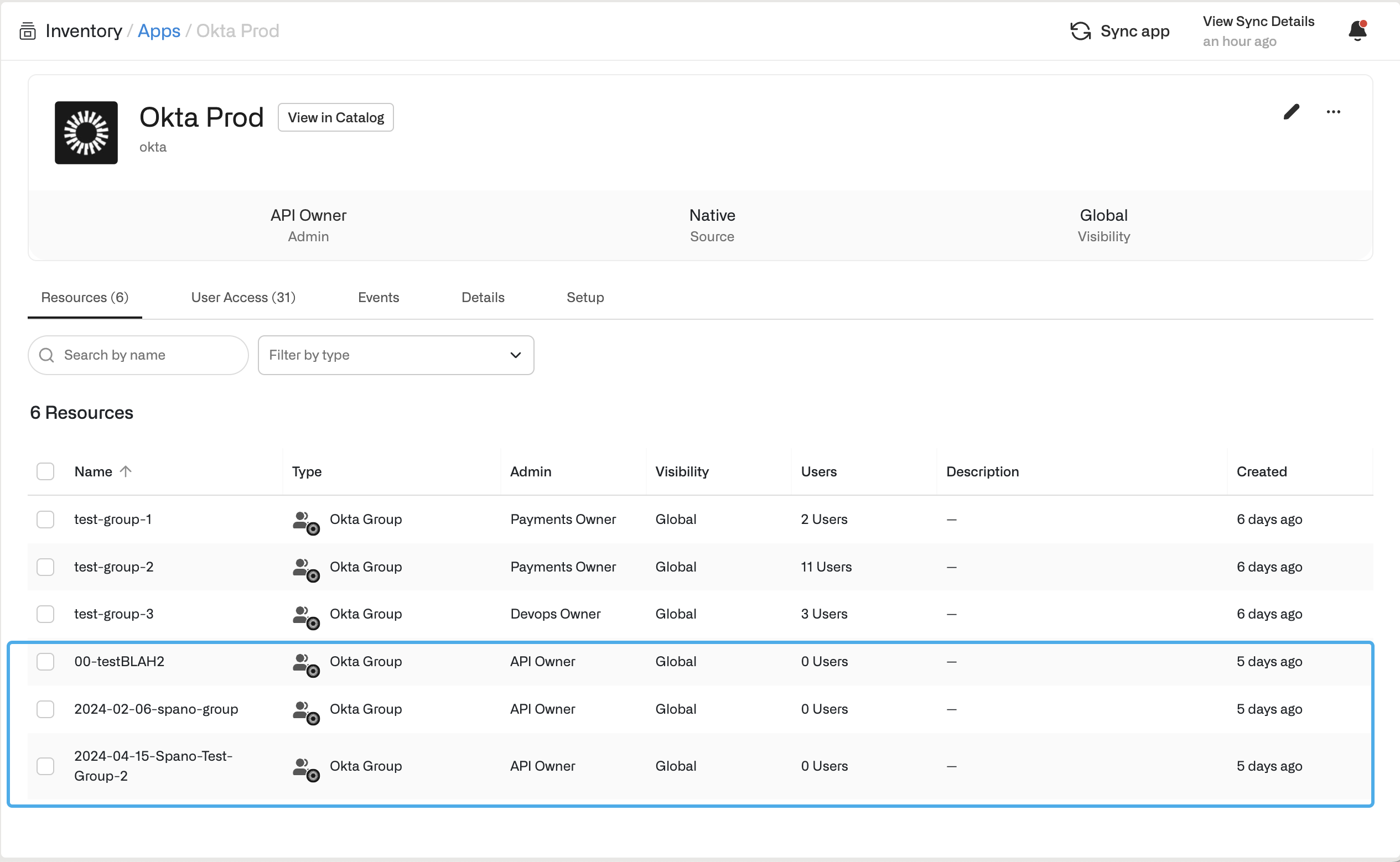
These resources will be synced and are now available in Opal.
<img src="https://mintcdn.com/opalsecurity/odnvD_MsXBxTor9u/images/docs/808c99abd38da0bc48e2a021f9dad8cee08af30ee5bebfcdc7768c729a179f1a-imported-resources.png?fit=max&auto=format&n=odnvD_MsXBxTor9u&q=85&s=d3fc5a0a3f419ee8358b82f1580c722a" alt="" width="2530" height="1558" data-path="images/docs/808c99abd38da0bc48e2a021f9dad8cee08af30ee5bebfcdc7768c729a179f1a-imported-resources.png" />

### Import resources from CSVs

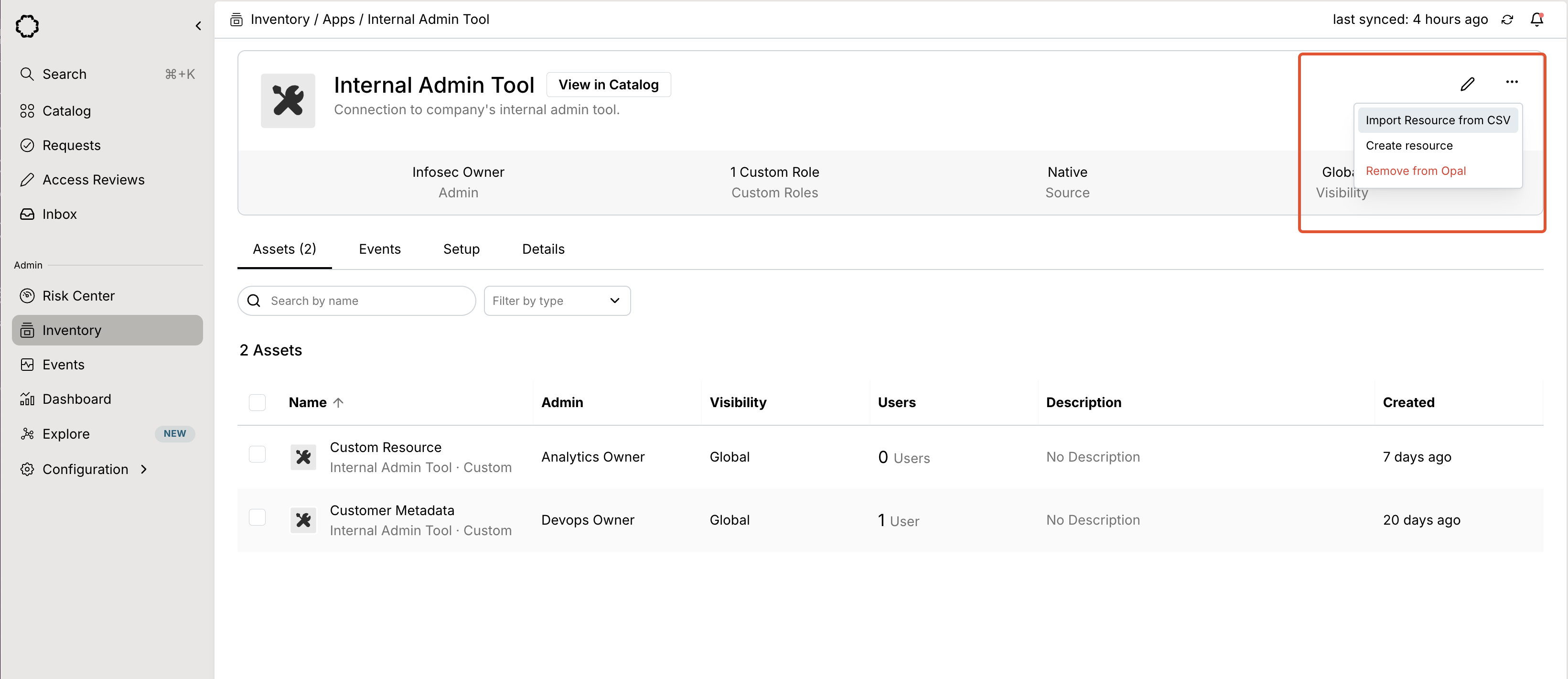
Within [**Push-only** custom apps](/docs/custom-integrations-overview), you can upload CSVs as resources. Go to the **Inventory**, then select **Import resource from CSV**.

This can be especially useful for configuring [access reviews](/docs/access-reviews) for systems without native Opal integrations.
<img src="https://mintcdn.com/opalsecurity/TlQj9FwRe9HHNEYB/images/docs/1c0171ba3db45f9a8edcb4695f815e8f03732b45caaa3ac41bab9a53f149354f-import-resource-from-csv.png?fit=max&auto=format&n=TlQj9FwRe9HHNEYB&q=85&s=a8f2e2140f14ae2a15f6ce1d5cb11234" alt="" width="3282" height="1421" data-path="images/docs/1c0171ba3db45f9a8edcb4695f815e8f03732b45caaa3ac41bab9a53f149354f-import-resource-from-csv.png" />