> ## Documentation Index
> Fetch the complete documentation index at: https://docs.opal.dev/llms.txt
> Use this file to discover all available pages before exploring further.
# Google SAML Setup
> Learn how to configure Opal to authenticate users via Google SAML SSO.
Use this guide to configure Opal to allow or require users to log in with Google SAML SSO.
## Setup
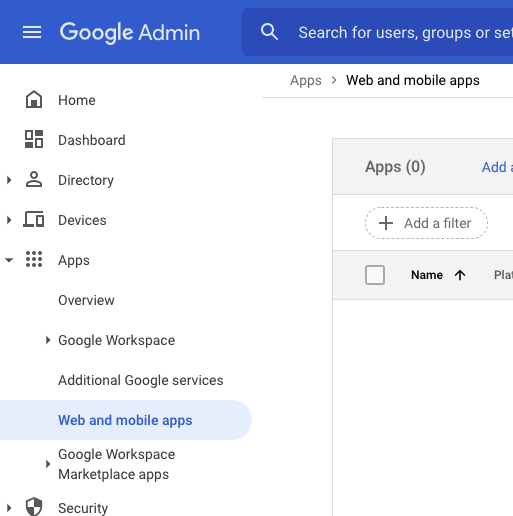
1. When logged into Google Workspace as an administrator, select **Apps > Web and mobile apps** on the left sidebar.
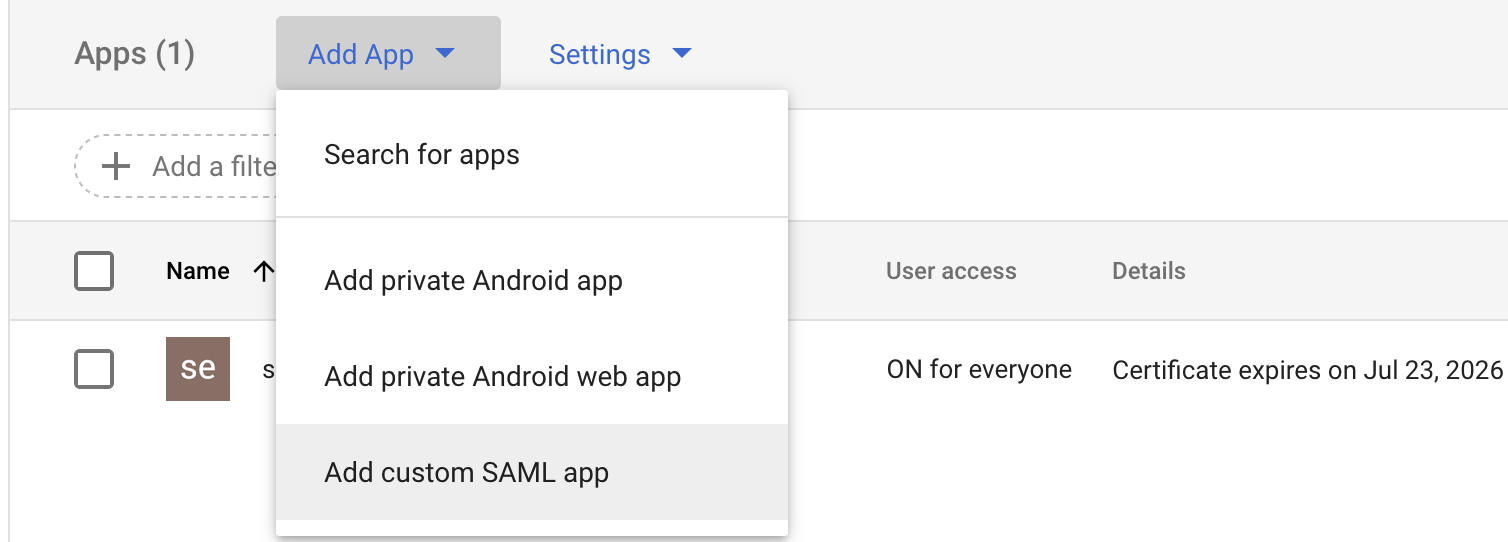
 2. Click on **Add App**, then **Add custom SAML app**.
 3. Name your SAML app **Opal**. You can use [this brand asset](https://drive.google.com/uc?export=download\&id=17DAV1wD6Ldc4hPmrX1smq4i4s6w-1brL) as the app icon. When ready, click **Continue**.
4. Copy the value of the **SSO URL **field.
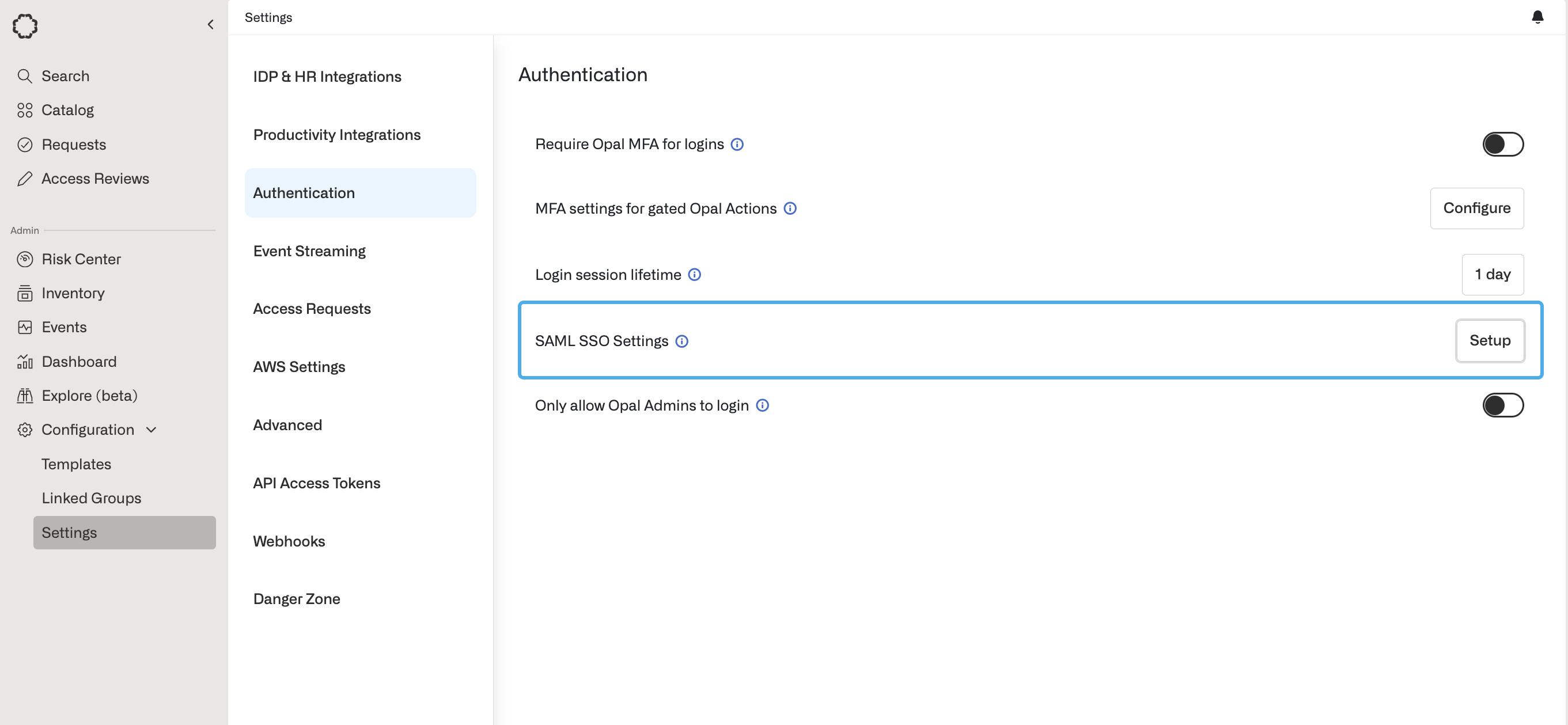
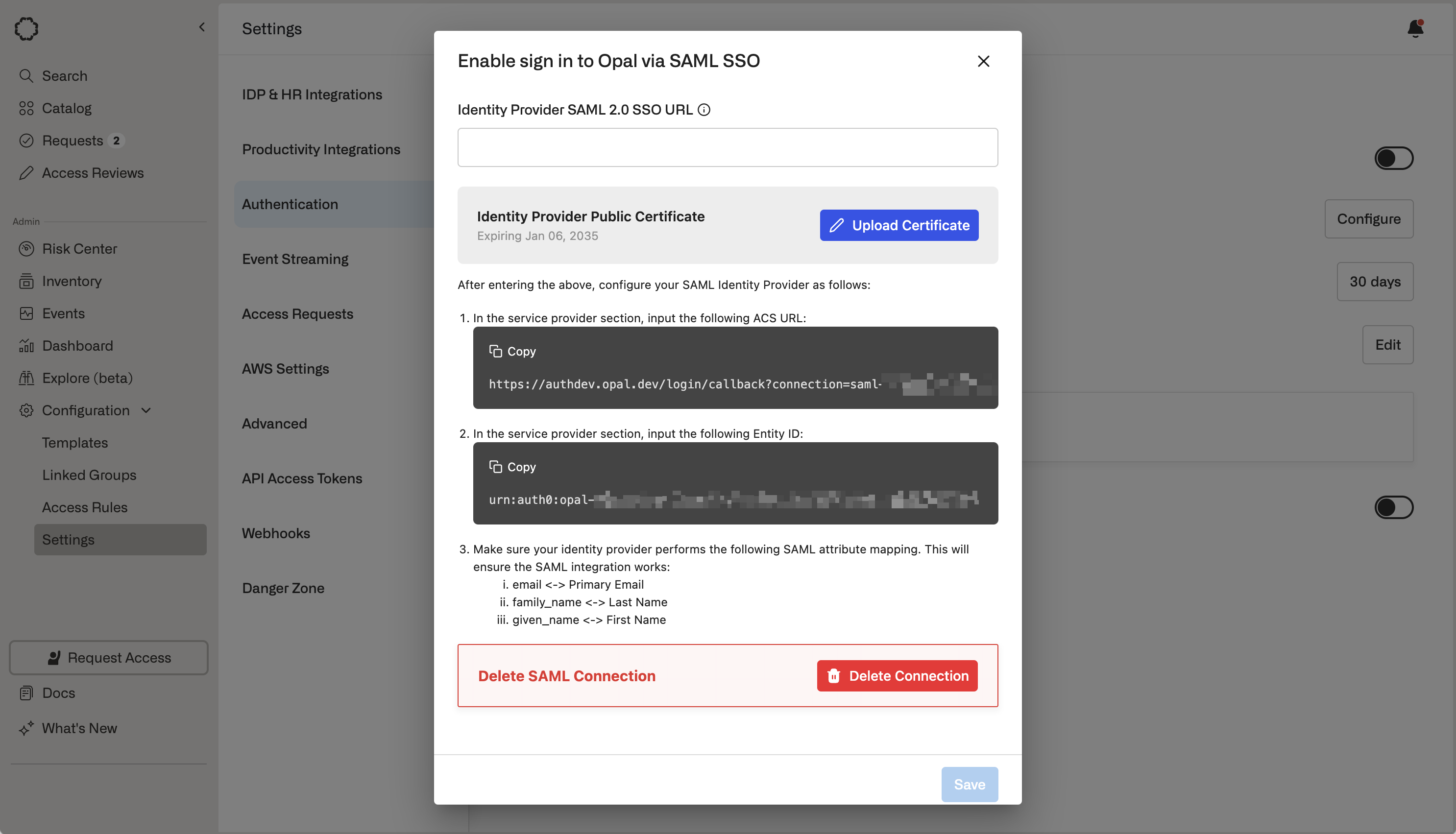
5. In the **Settings > Authentication** section of the Opal dashboard, click **Setup** and paste the **SSO URL** into the **Identity Provider SAML 2.0 SSO URL (HTTPS)** field.
3. Name your SAML app **Opal**. You can use [this brand asset](https://drive.google.com/uc?export=download\&id=17DAV1wD6Ldc4hPmrX1smq4i4s6w-1brL) as the app icon. When ready, click **Continue**.
4. Copy the value of the **SSO URL **field.
5. In the **Settings > Authentication** section of the Opal dashboard, click **Setup** and paste the **SSO URL** into the **Identity Provider SAML 2.0 SSO URL (HTTPS)** field.
 6. Download the Google IDP public certificate by clicking the down arrow icon next to the certificate.
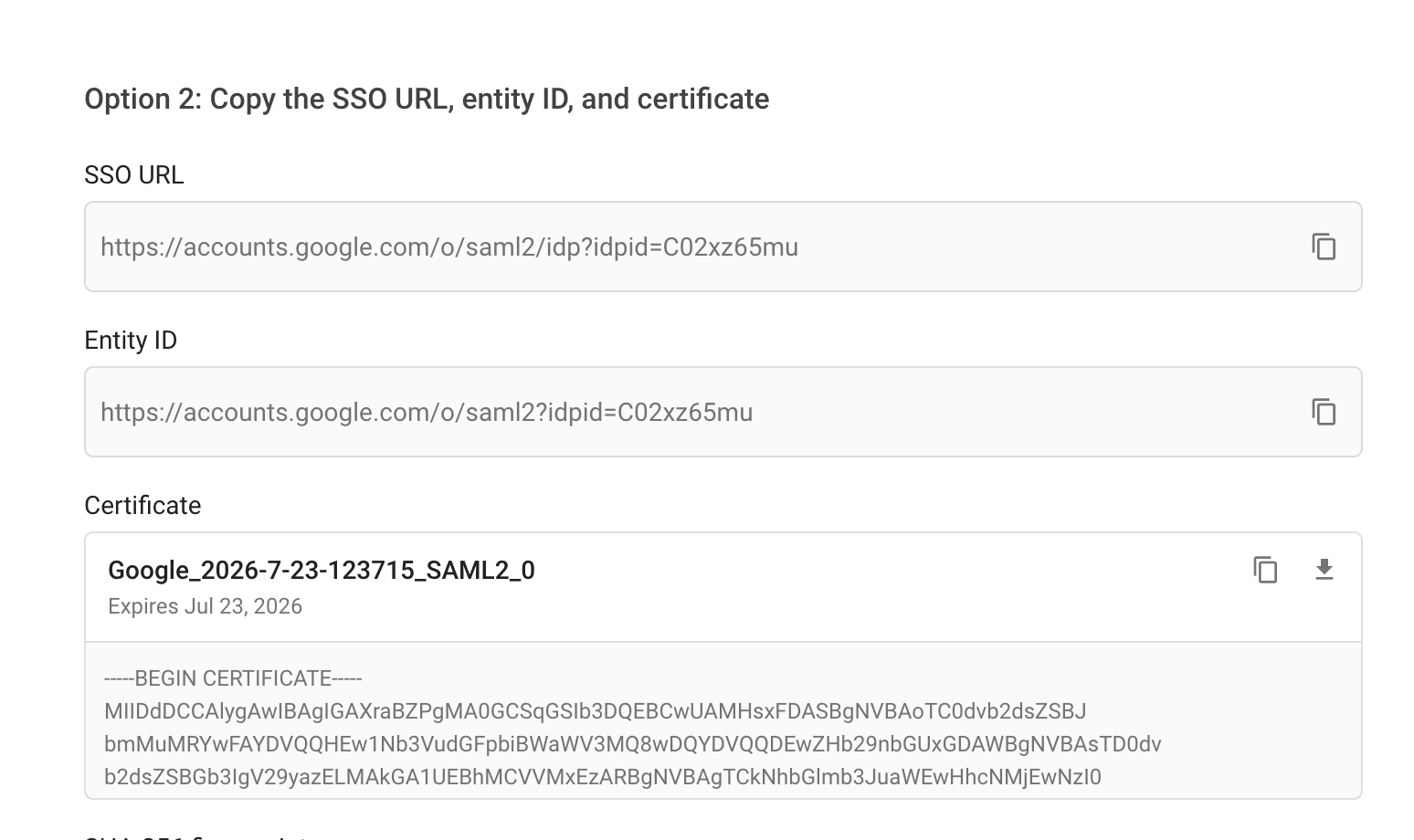 7. In Opal, upload the certificate with the **Upload Certificate** button.
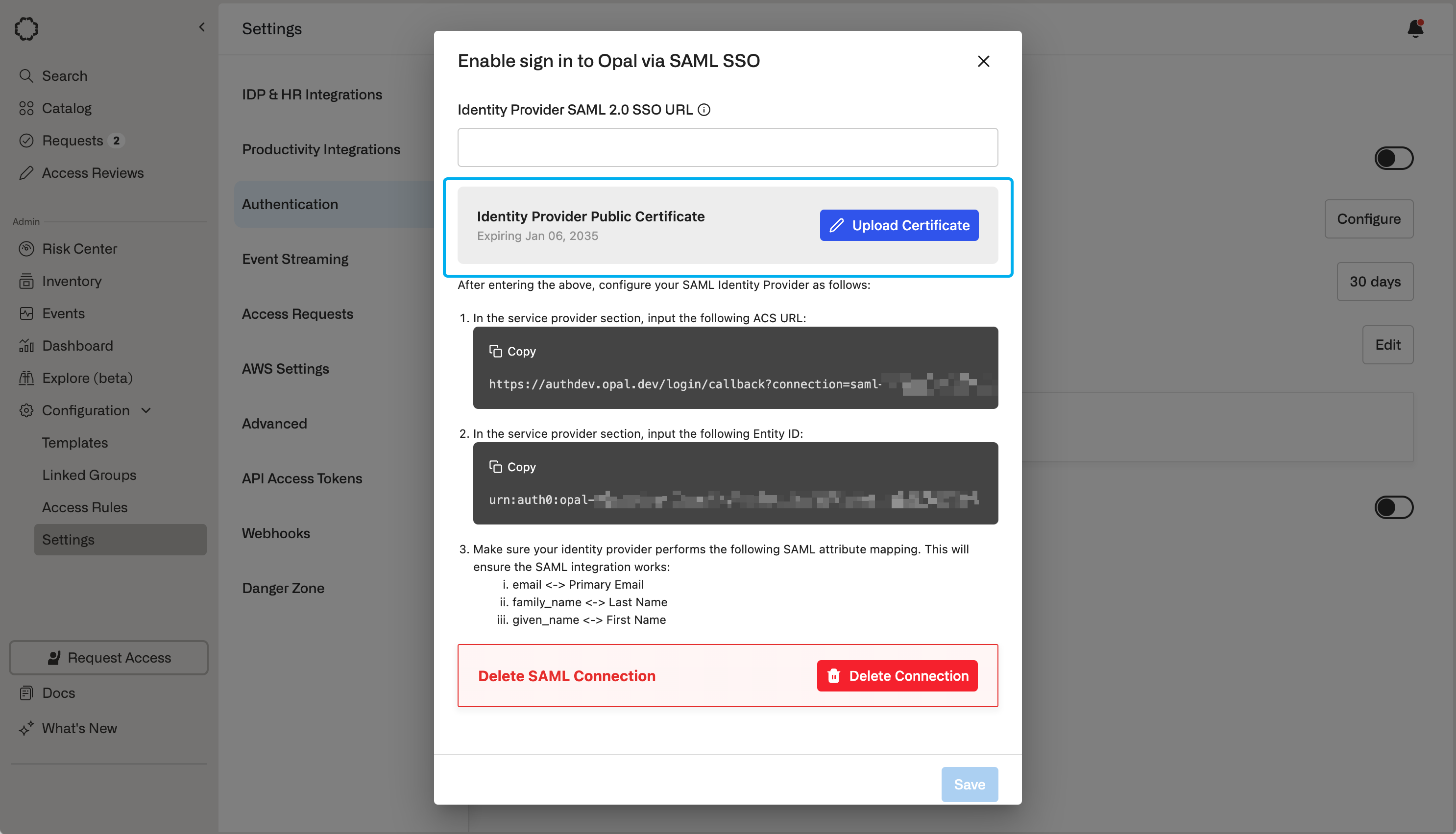 8. Click **Save Changes** to save this data to Opal.
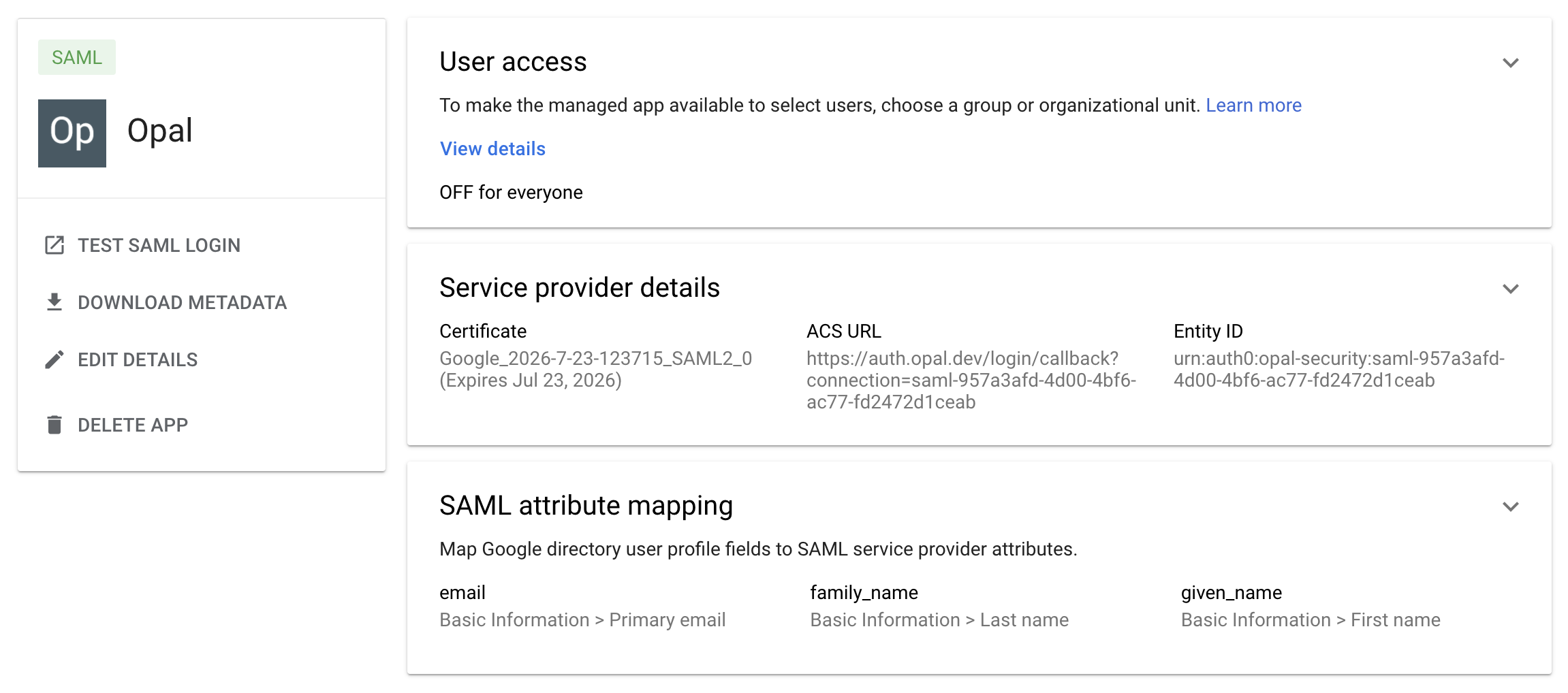
9. Open the **Setup** modal again and copy the **ACS URL **and **Entity ID** values. Go back to the Google SAML app creation page and paste these fields to the corresponding **ACS URL **and **Entity ID** fields.
8. Click **Save Changes** to save this data to Opal.
9. Open the **Setup** modal again and copy the **ACS URL **and **Entity ID** values. Go back to the Google SAML app creation page and paste these fields to the corresponding **ACS URL **and **Entity ID** fields.
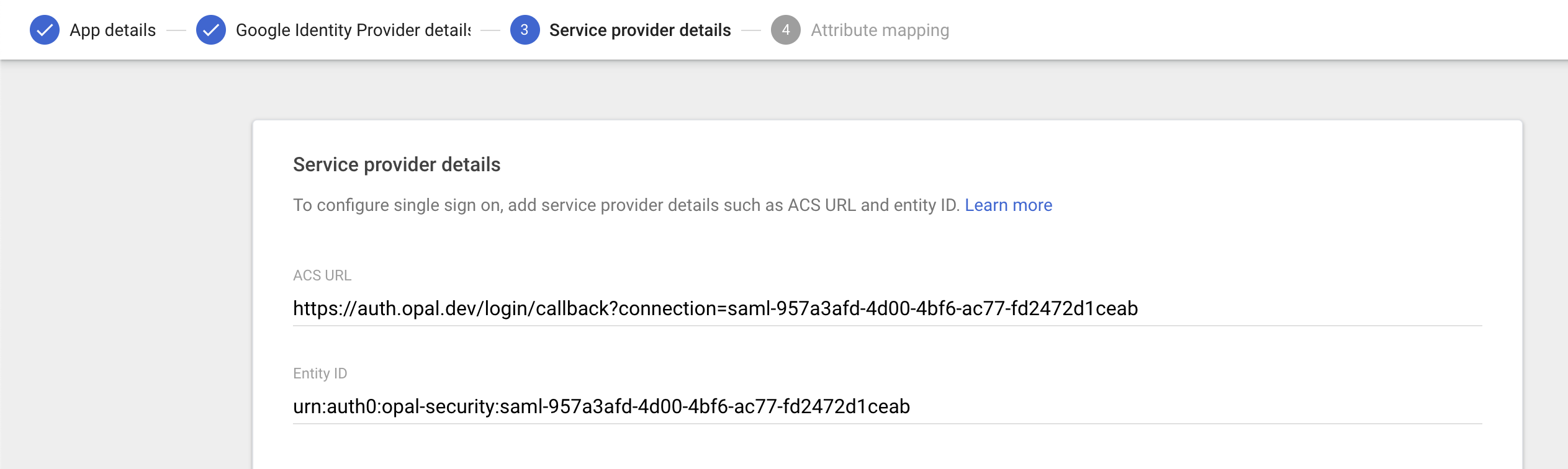 10. Click **Continue**.
11. In the **Attribute Statements** page, map the following **Google Directory** attributes to **App attributes**:
* **First name**: **given\_name**
* **Last name**: **family\_name**
* **Primary email**: **email**
10. Click **Continue**.
11. In the **Attribute Statements** page, map the following **Google Directory** attributes to **App attributes**:
* **First name**: **given\_name**
* **Last name**: **family\_name**
* **Primary email**: **email**
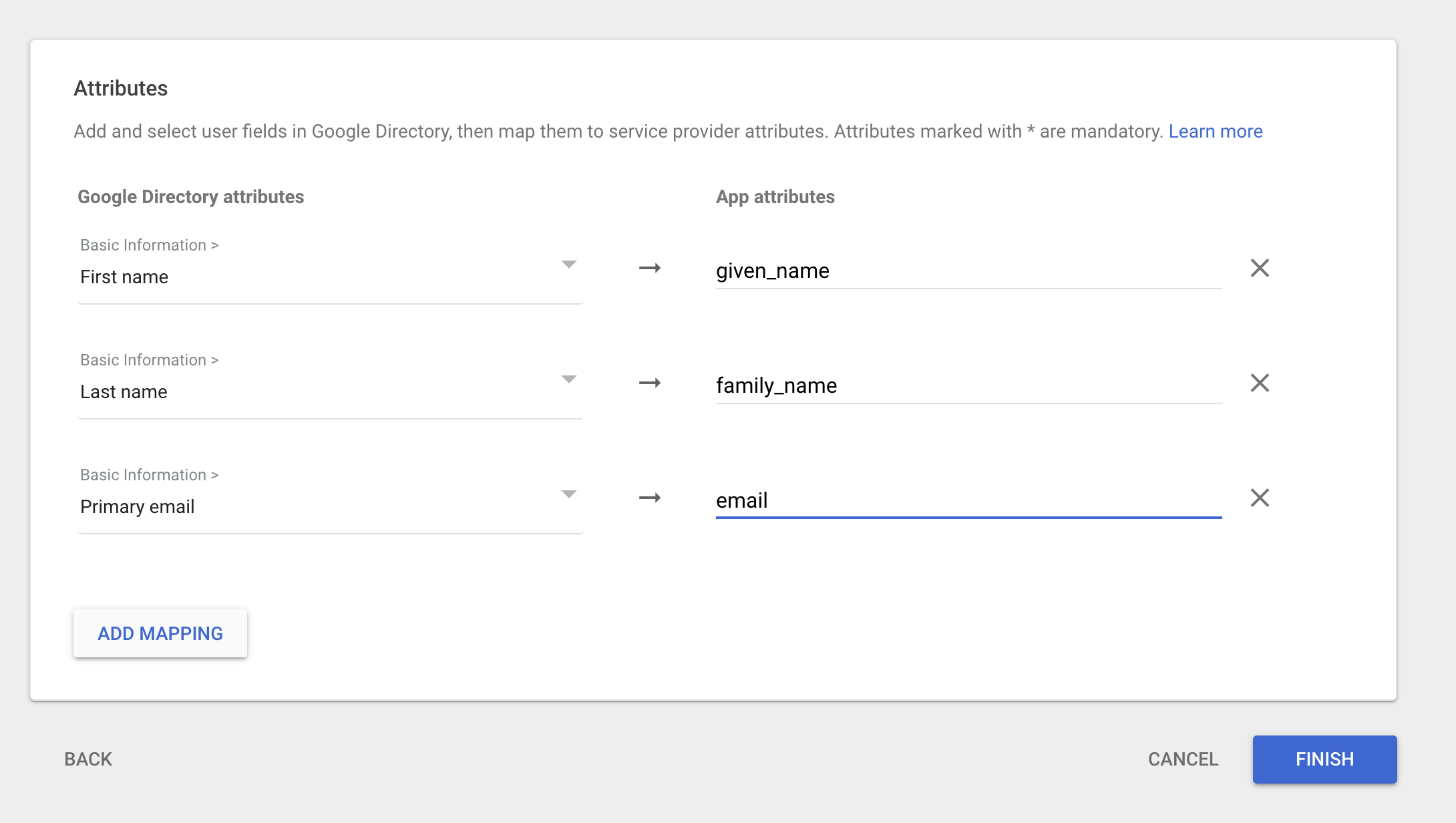 12. Click **Finish** to complete the creation of the Google SAML app.
13. Turn on the SAML app by selecting **OFF for everyone** in the SAML app page, then **ON for everyone**, then **Save.**
12. Click **Finish** to complete the creation of the Google SAML app.
13. Turn on the SAML app by selecting **OFF for everyone** in the SAML app page, then **ON for everyone**, then **Save.**
 ## Test login via SAML
1. Go to Opal, then log out of your Opal account.
2. Click on **Continue with SAML** on the Opal login screen.
3. Manually type your email address in the **Email field**. This email must have the same domain name as the user who created the SAML app in the Opal UI. For example, if `stephen@opaltest.com` created the SAML integration, the SAML integration will be tied only to users with the `opaltest.com` domain.
4. Click **Continue with SAML**. This should prompt you to log in with Google.
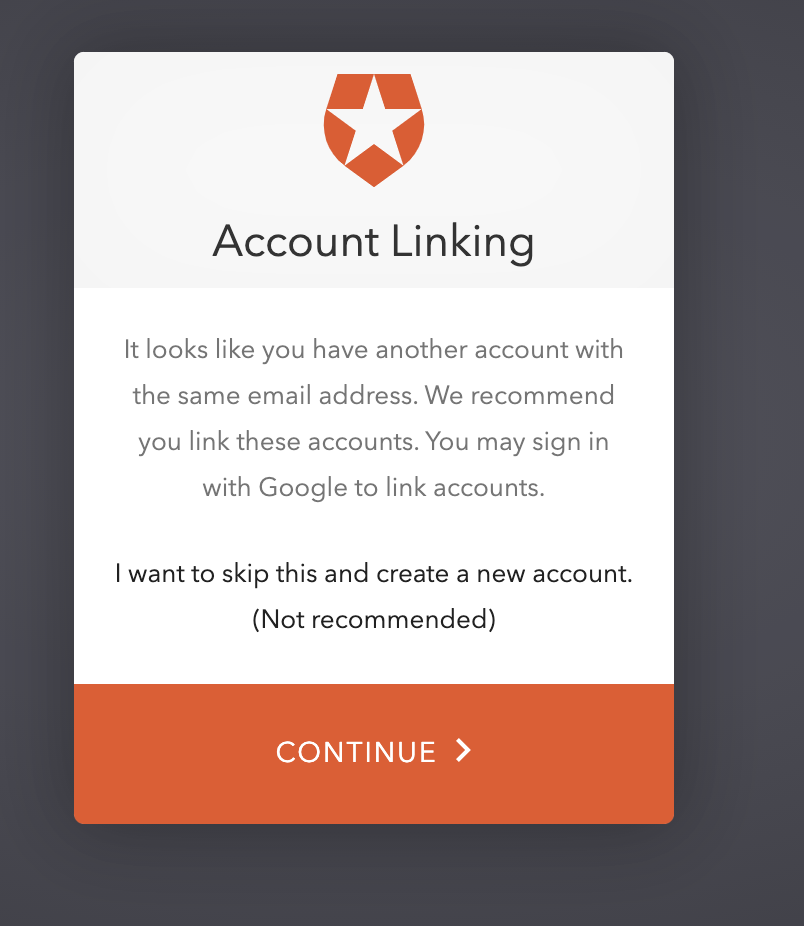
5. You may arrive at the following linking screen. If so, click **Continue** and log in with the account corresponding to your email address.
## Test login via SAML
1. Go to Opal, then log out of your Opal account.
2. Click on **Continue with SAML** on the Opal login screen.
3. Manually type your email address in the **Email field**. This email must have the same domain name as the user who created the SAML app in the Opal UI. For example, if `stephen@opaltest.com` created the SAML integration, the SAML integration will be tied only to users with the `opaltest.com` domain.
4. Click **Continue with SAML**. This should prompt you to log in with Google.
5. You may arrive at the following linking screen. If so, click **Continue** and log in with the account corresponding to your email address.
 7. At this point, you should be able to log into Opal.
## Test IDP-initiated flow from Gmail
1. Log in to Gmail.
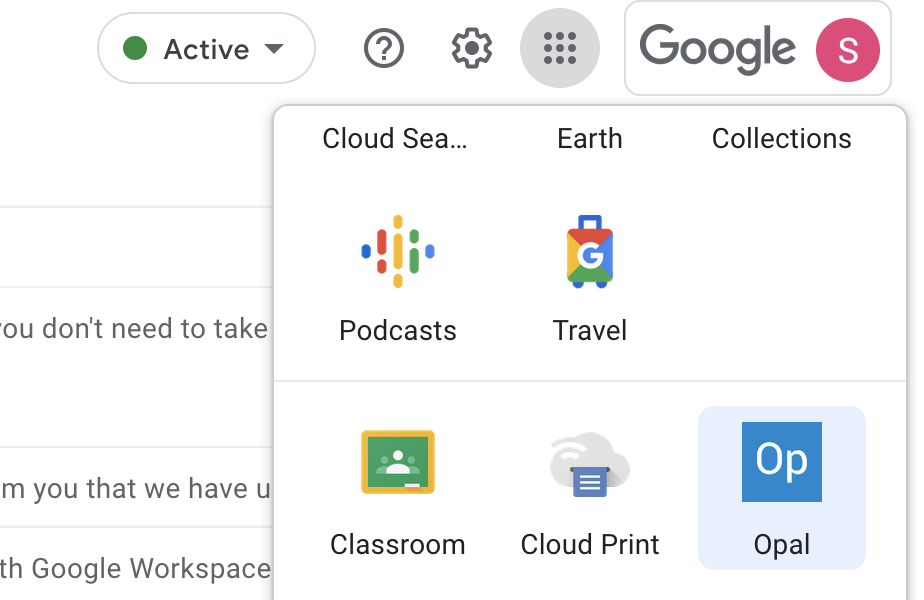
2. On the upper right corner, click on the **Google Apps** dots icon, then **Opal**.
7. At this point, you should be able to log into Opal.
## Test IDP-initiated flow from Gmail
1. Log in to Gmail.
2. On the upper right corner, click on the **Google Apps** dots icon, then **Opal**.
 3. This should prompt you to log in with Google.
4. At this point, you should be able to log into Opal.
## Common issues
Adding a SAML connection in Google and enabling it for your users can take up to **24 hours** to propagate. As a result, there are occasionally caching issues after you add a new SAML connection.
Manifestations of this problem include the following errors:
* **403 app\_not\_configured**
* **403 not\_a\_saml\_app**
* **500**
In some cases, these caching issues can be circumvented by **clearing browser state** for Opal and Google, or attempting to log in using an incognito browser tab or a different browser. The most consistent fix is to wait up to 24 hours for the app to propagate.
3. This should prompt you to log in with Google.
4. At this point, you should be able to log into Opal.
## Common issues
Adding a SAML connection in Google and enabling it for your users can take up to **24 hours** to propagate. As a result, there are occasionally caching issues after you add a new SAML connection.
Manifestations of this problem include the following errors:
* **403 app\_not\_configured**
* **403 not\_a\_saml\_app**
* **500**
In some cases, these caching issues can be circumvented by **clearing browser state** for Opal and Google, or attempting to log in using an incognito browser tab or a different browser. The most consistent fix is to wait up to 24 hours for the app to propagate.