> ## Documentation Index
> Fetch the complete documentation index at: https://docs.opal.dev/llms.txt
> Use this file to discover all available pages before exploring further.
# Events Streaming
> Set up Opal to stream Events to your logging destination in near real-time.
Events Streaming allows administrators set up a near real-time stream of Opal Events to a configured URL destination of choice (e.g. SIEM/logging sink). You can easily and flexibly integrate rich access data from Opal into your existing security logging stack for further auditing, notification, or detection purposes.
## Configuration
Event streaming is available on Opal versions 1.970.0 and later.
Use the following steps to set up event streaming in Opal.
### 1. Add Event Streaming Connection
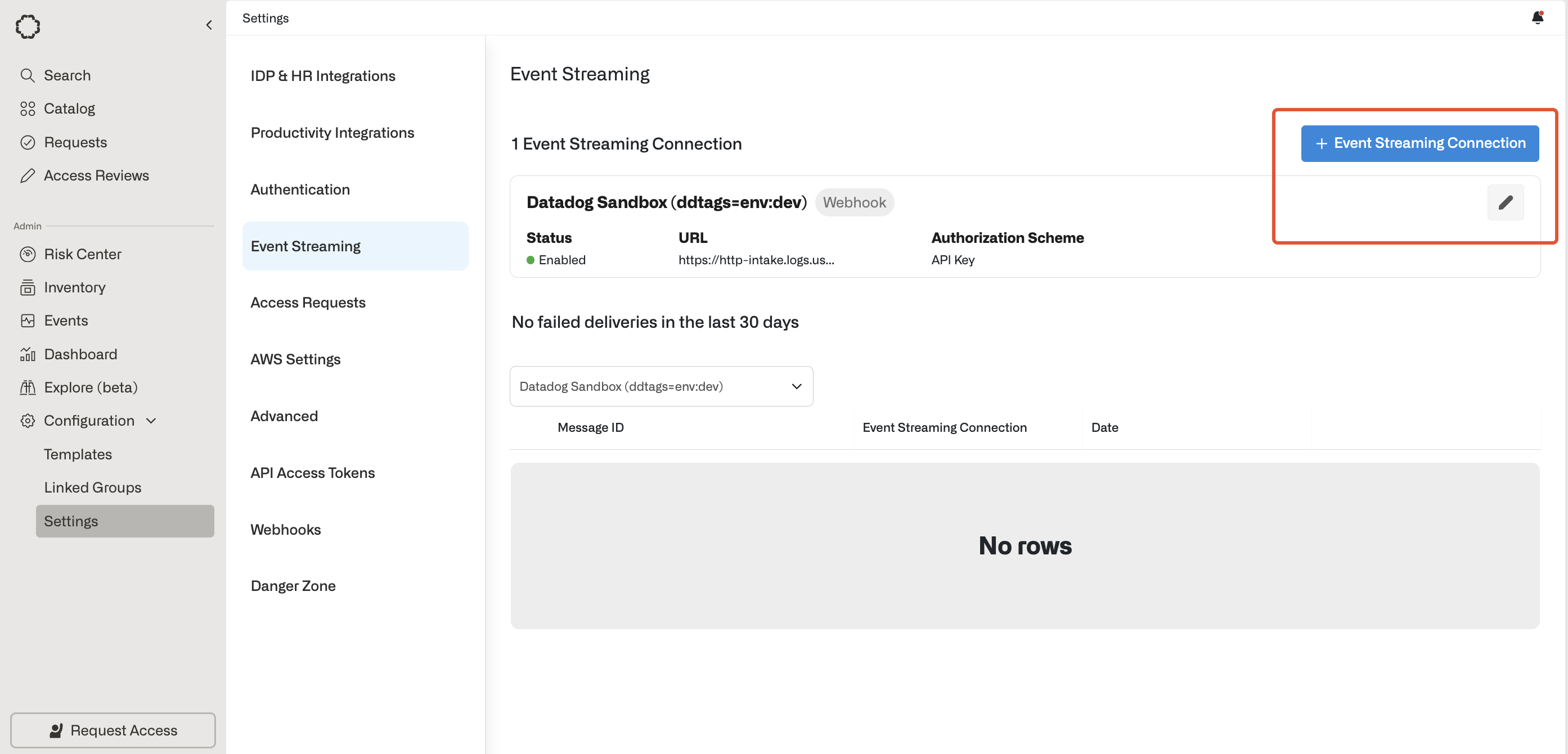
Go to **Settings > Event Streaming** and select **+ Event Streaming Connection**.
 ### 2. Fill in connection details
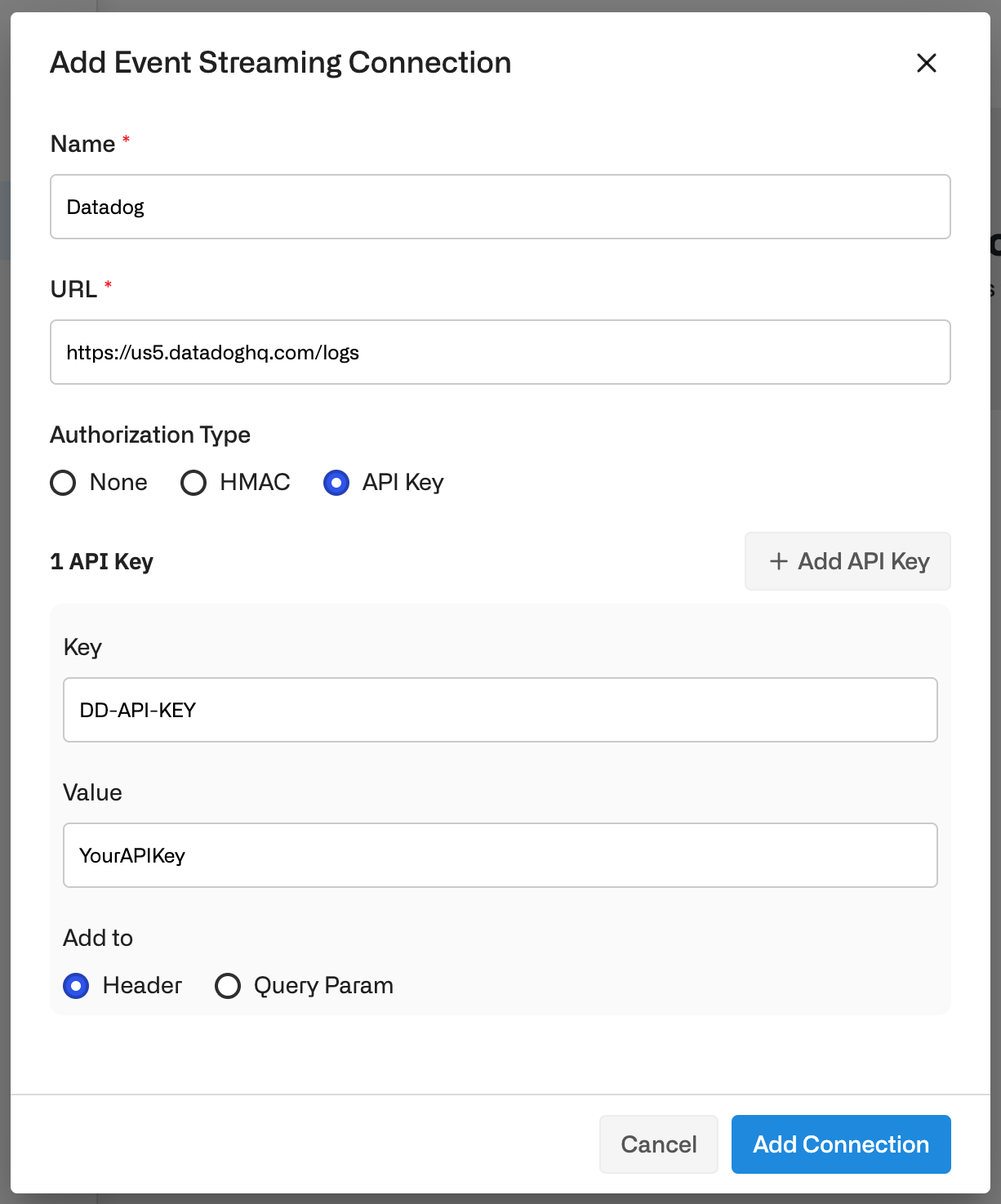
1. Provide a **Name** for the Event Stream Connection.
2. Enter a **URL** webhook endpoint you would like Opal to send the Events payloads to.
3. Select your **Authorization Type**.
4. Click **Add Connection**.
### 2. Fill in connection details
1. Provide a **Name** for the Event Stream Connection.
2. Enter a **URL** webhook endpoint you would like Opal to send the Events payloads to.
3. Select your **Authorization Type**.
4. Click **Add Connection**.
 Opal will send a test `POST` message to the end system to ensure that the endpoint can be reached before allowing for the Connection to be successfully configured.
### Authorization Types
#### 1. API Key
Add a `Key` , `Value` pair via:
* `Header` (recommended)
* `Query Parameter` (not recommended for secrets)
#### 2. HMAC
Verify that requests originated from Opal by checking signatures against a shared signing secret.
Opal adds `X-Opal-Signature` HTTP header on each request sent. The signature is created by combining the signing secret with the body of the request sent using a standard HMAC-SHA256 keyed hash.
A connection may have a max of 2 HMAC secrets to facilitate key rotation without any downtime. In this case, the value of `X-Opal-Signature` will be comma delimited (e.g., `X-Opal-Signature: , `), with each signature corresponding to one of the HMAC secrets.
##### How to: Verify HMAC Signature
```javascript javascript theme={null}
const timestamp = request.header('X-Opal-Request-Timestamp')
const signingSecret = 'SIGNING_SECRET'
const sigBaseString = 'v0:' + timestamp + ':' + JSON.stringify(request.body)
const hmac = crypto.createHmac('sha256', signingSecret);
hmac.write(sigBaseString)
const actualSignature = hmac.digest('hex'))
const expectedSignature = request.header('X-Opal-Signature')
console.log("Are equal?", actualSignature === expectedSignature)
```
## Events payload
All Event Streaming payloads have the same structure. Fields that are bespoke to the `event_type` will be nested under the `data` field, as in the following example object.
```json json theme={null}
{
"id": "cb8318b9-5719-4e5f-9740-a345650e22ca",
"transaction_id": "491a0ece-5f7c-4227-957e-932977aca70b",
"event_type": "EVENT_STREAM_CONNECTIONS_TESTED",
"severity": "INFO",
"timestamp": "2024-10-22T18:20:31.62251Z",
"actor_email": "[email protected]",
"actor_ip_address": "127.0.0.1",
"actor_name": "Tester tester",
"actor_user_id": "23b48b0e-db20-45ac-bb0c-7520e978d655",
"actor_user_agent": "Mozilla/5.0 (Macintosh; Intel Mac OS X 10_15_7) AppleWebKit/537.36 (KHTML, like Gecko) Chrome/129.0.0.0 Safari/537.36",
"data": {
"connection_type": "WEBHOOK",
"message": "This is a test message to validate the event stream connection"
}
}
```
### Fields
| Name | Description |
| ------------------ | ------------------------------------------------------------------------------- |
| `id` | The unique identifier for this event |
| `transaction_id` | An identifier to group related events |
| `event_type` | The event that took place |
| `severity` | The severity level of the event. Possible values are `INFO`, `WARNING`, `ALERT` |
| `timestamp` | The time the event happened |
| `actor_email` | Email of the user that triggered the event |
| `actor_ip_address` | IP address of the user that triggered the event |
| `actor_name` | The name of the user that triggered the event |
| `actor_user_id` | The identifier of the user that triggered the event |
| `actor_user_agent` | The agent used by the user that triggered the event |
| `data` | Fields that are bespoke to the `event_type` |
## Limitations
You can set up at most three connections.
## Enable and disable connections
New Event Stream Connections are **Enabled** by default.
If you need to **Disable** the connection—e.g. you need to rotate an API Key or change query parameters—edit the connection, then disable the **Connection Enabled** toggle. This pauses streaming of events to the endpoint. If the connection is disabled for ***7+ days***, the next time it is re-enabled, it will stream from the latest events, instead of the time at which it was paused.
## Errors and notifications
### Errors and delivery failures
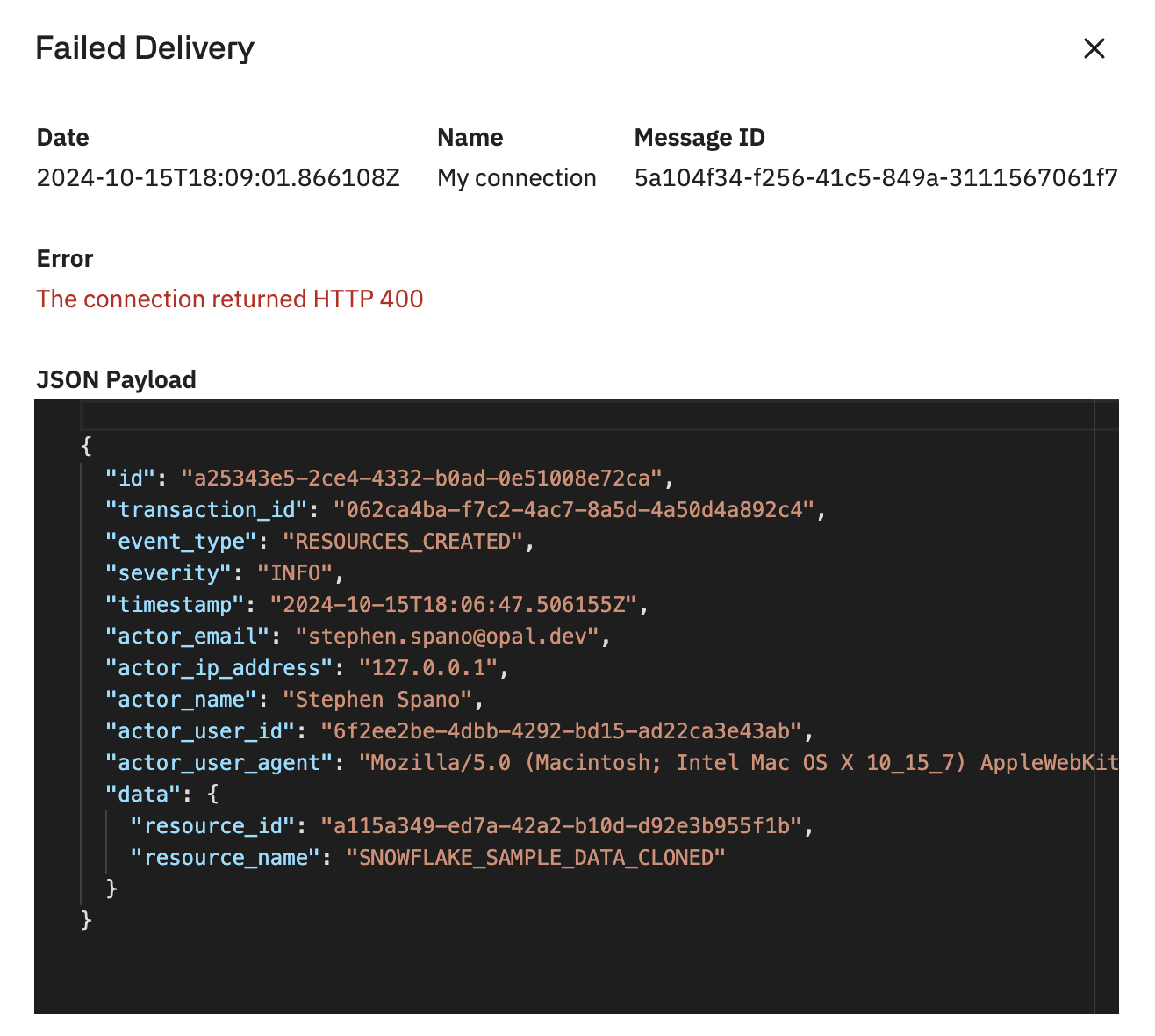
Admins can see a list of failed event deliveries from the last 30 days.
Opal will send a test `POST` message to the end system to ensure that the endpoint can be reached before allowing for the Connection to be successfully configured.
### Authorization Types
#### 1. API Key
Add a `Key` , `Value` pair via:
* `Header` (recommended)
* `Query Parameter` (not recommended for secrets)
#### 2. HMAC
Verify that requests originated from Opal by checking signatures against a shared signing secret.
Opal adds `X-Opal-Signature` HTTP header on each request sent. The signature is created by combining the signing secret with the body of the request sent using a standard HMAC-SHA256 keyed hash.
A connection may have a max of 2 HMAC secrets to facilitate key rotation without any downtime. In this case, the value of `X-Opal-Signature` will be comma delimited (e.g., `X-Opal-Signature: , `), with each signature corresponding to one of the HMAC secrets.
##### How to: Verify HMAC Signature
```javascript javascript theme={null}
const timestamp = request.header('X-Opal-Request-Timestamp')
const signingSecret = 'SIGNING_SECRET'
const sigBaseString = 'v0:' + timestamp + ':' + JSON.stringify(request.body)
const hmac = crypto.createHmac('sha256', signingSecret);
hmac.write(sigBaseString)
const actualSignature = hmac.digest('hex'))
const expectedSignature = request.header('X-Opal-Signature')
console.log("Are equal?", actualSignature === expectedSignature)
```
## Events payload
All Event Streaming payloads have the same structure. Fields that are bespoke to the `event_type` will be nested under the `data` field, as in the following example object.
```json json theme={null}
{
"id": "cb8318b9-5719-4e5f-9740-a345650e22ca",
"transaction_id": "491a0ece-5f7c-4227-957e-932977aca70b",
"event_type": "EVENT_STREAM_CONNECTIONS_TESTED",
"severity": "INFO",
"timestamp": "2024-10-22T18:20:31.62251Z",
"actor_email": "[email protected]",
"actor_ip_address": "127.0.0.1",
"actor_name": "Tester tester",
"actor_user_id": "23b48b0e-db20-45ac-bb0c-7520e978d655",
"actor_user_agent": "Mozilla/5.0 (Macintosh; Intel Mac OS X 10_15_7) AppleWebKit/537.36 (KHTML, like Gecko) Chrome/129.0.0.0 Safari/537.36",
"data": {
"connection_type": "WEBHOOK",
"message": "This is a test message to validate the event stream connection"
}
}
```
### Fields
| Name | Description |
| ------------------ | ------------------------------------------------------------------------------- |
| `id` | The unique identifier for this event |
| `transaction_id` | An identifier to group related events |
| `event_type` | The event that took place |
| `severity` | The severity level of the event. Possible values are `INFO`, `WARNING`, `ALERT` |
| `timestamp` | The time the event happened |
| `actor_email` | Email of the user that triggered the event |
| `actor_ip_address` | IP address of the user that triggered the event |
| `actor_name` | The name of the user that triggered the event |
| `actor_user_id` | The identifier of the user that triggered the event |
| `actor_user_agent` | The agent used by the user that triggered the event |
| `data` | Fields that are bespoke to the `event_type` |
## Limitations
You can set up at most three connections.
## Enable and disable connections
New Event Stream Connections are **Enabled** by default.
If you need to **Disable** the connection—e.g. you need to rotate an API Key or change query parameters—edit the connection, then disable the **Connection Enabled** toggle. This pauses streaming of events to the endpoint. If the connection is disabled for ***7+ days***, the next time it is re-enabled, it will stream from the latest events, instead of the time at which it was paused.
## Errors and notifications
### Errors and delivery failures
Admins can see a list of failed event deliveries from the last 30 days.
 ### Notifications sent to admins
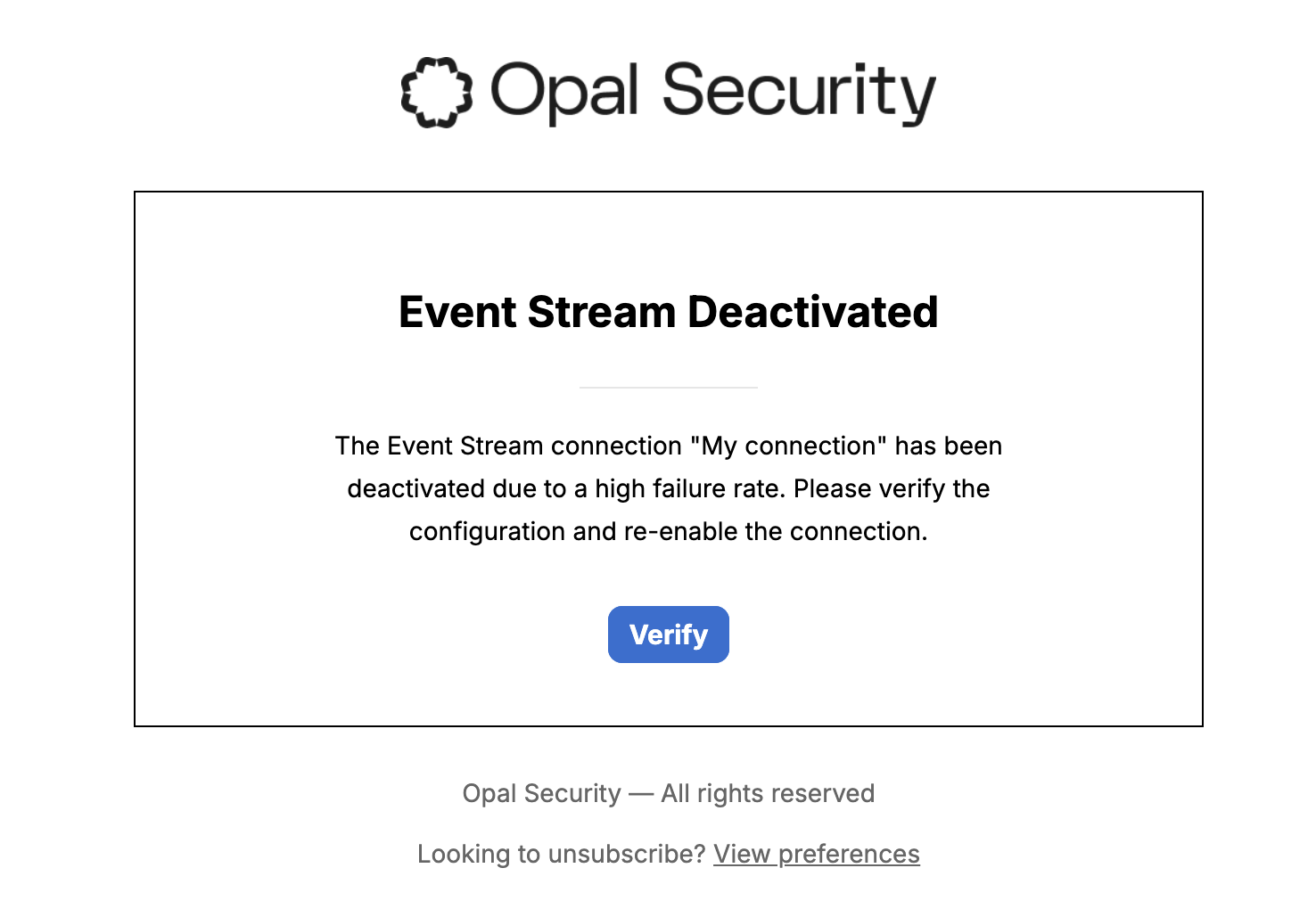
Notifications are sent to admins in the following cases:
* If messages for any connection failed to be delivered (daily notification)
* Connection has been auto-disabled by Opal due to an abnormally high failure rate (non- 200 Status Code, frequent timeouts, etc)
### Notifications sent to admins
Notifications are sent to admins in the following cases:
* If messages for any connection failed to be delivered (daily notification)
* Connection has been auto-disabled by Opal due to an abnormally high failure rate (non- 200 Status Code, frequent timeouts, etc)
 ## Example end systems to receive events
### Datadog
To configure your Event Stream to point to directly to Datadog:
1. Get the [Logs API](https://docs.datadoghq.com/api/latest/logs/) URL that corresponds to your [Datadog Site](https://docs.datadoghq.com/getting_started/site/#access-the-datadog-site).
2. Create a [Datadog API Key](https://docs.datadoghq.com/account_management/api-app-keys/#add-an-api-key-or-client-token).
3. In Opal, go to **Configuration > Organization Settings > Event Streaming** (`/settings#event-streaming`), and create a new connection:
1. Name the connection.
2. Set the **URL** to the Logs API URL you copied in the previous step.
3. Select **API Key** as the **Authorization Type** and enter the following values:
1. **Key**: `DD-API-KEY`.
2. **Value**: \
3. Under **Add to**, select **Header**.
4. **Optional**. To include metadata, specify a second API Key for the Log API's `ddtag` query string parameter.
5. Click **Add Connection**.
### Sumologic
To configure your Event Stream to point directly to Sumologic:
1. Generate an [Access Key](https://help.sumologic.com/docs/manage/security/access-keys/) in Sumo Logic.
2. [Base64 encode](https://help.sumologic.com/docs/api/getting-started/#base64-example) the Access Key.
3. In Sumo Logic, create an [HTTP source](https://help.sumologic.com/docs/send-data/hosted-collectors/http-source/logs-metrics/) for a hosted Collector. If a hosted Collector doesn’t already exist, then [create a new hosted Collector](https://help.sumologic.com/docs/send-data/hosted-collectors/)
4. Copy the HTTP source URL.
5. In Opal, go to **Configuration > Organization Settings > Event Streaming** (`/settings#event-streaming`), and create a new connection:
1. Name the connection.
2. Enter the URL you copied in the previous step.
3. Select **API Key** and set the following values.
1. **Key**: `Authorization`
2. **Value**: `Basic `
3. Under **Add to**, Select **Header**.
6. Select **Add Connection**.
### RunReveal
To stream Opal events to RunReveal:
1. Create a [webhook source](https://docs.runreveal.com/sources) in RunReveal. You can optionally configure HMAC signature verification in this step.
2. Copy the webhook URL.
3. In Opal, go to **Configuration > Organization Settings > Event Streaming** and create a new connection.
4. Name the connection, enter the webhook URL.
5. Optionally select **HMAC** as the **Authorization Type** and save the generated secret in your RunReveal configuration.
6. Select **Add Connection**.
## Example end systems to receive events
### Datadog
To configure your Event Stream to point to directly to Datadog:
1. Get the [Logs API](https://docs.datadoghq.com/api/latest/logs/) URL that corresponds to your [Datadog Site](https://docs.datadoghq.com/getting_started/site/#access-the-datadog-site).
2. Create a [Datadog API Key](https://docs.datadoghq.com/account_management/api-app-keys/#add-an-api-key-or-client-token).
3. In Opal, go to **Configuration > Organization Settings > Event Streaming** (`/settings#event-streaming`), and create a new connection:
1. Name the connection.
2. Set the **URL** to the Logs API URL you copied in the previous step.
3. Select **API Key** as the **Authorization Type** and enter the following values:
1. **Key**: `DD-API-KEY`.
2. **Value**: \
3. Under **Add to**, select **Header**.
4. **Optional**. To include metadata, specify a second API Key for the Log API's `ddtag` query string parameter.
5. Click **Add Connection**.
### Sumologic
To configure your Event Stream to point directly to Sumologic:
1. Generate an [Access Key](https://help.sumologic.com/docs/manage/security/access-keys/) in Sumo Logic.
2. [Base64 encode](https://help.sumologic.com/docs/api/getting-started/#base64-example) the Access Key.
3. In Sumo Logic, create an [HTTP source](https://help.sumologic.com/docs/send-data/hosted-collectors/http-source/logs-metrics/) for a hosted Collector. If a hosted Collector doesn’t already exist, then [create a new hosted Collector](https://help.sumologic.com/docs/send-data/hosted-collectors/)
4. Copy the HTTP source URL.
5. In Opal, go to **Configuration > Organization Settings > Event Streaming** (`/settings#event-streaming`), and create a new connection:
1. Name the connection.
2. Enter the URL you copied in the previous step.
3. Select **API Key** and set the following values.
1. **Key**: `Authorization`
2. **Value**: `Basic `
3. Under **Add to**, Select **Header**.
6. Select **Add Connection**.
### RunReveal
To stream Opal events to RunReveal:
1. Create a [webhook source](https://docs.runreveal.com/sources) in RunReveal. You can optionally configure HMAC signature verification in this step.
2. Copy the webhook URL.
3. In Opal, go to **Configuration > Organization Settings > Event Streaming** and create a new connection.
4. Name the connection, enter the webhook URL.
5. Optionally select **HMAC** as the **Authorization Type** and save the generated secret in your RunReveal configuration.
6. Select **Add Connection**.