> ## Documentation Index
> Fetch the complete documentation index at: https://docs.opal.dev/llms.txt
> Use this file to discover all available pages before exploring further.
# End user FAQ
> Learn answers to frequently asked questions for end users interacting with Opal.
## What is Opal?
Opal is an access management platform that helps organizations securely manage access to resources. As an end user, you'll primarily use Opal to request access to resources, review your existing access, and participate in access reviews.
## How do I request access to assets?
Browse, search, and request access to assets directly from the Opal UI or Slack.
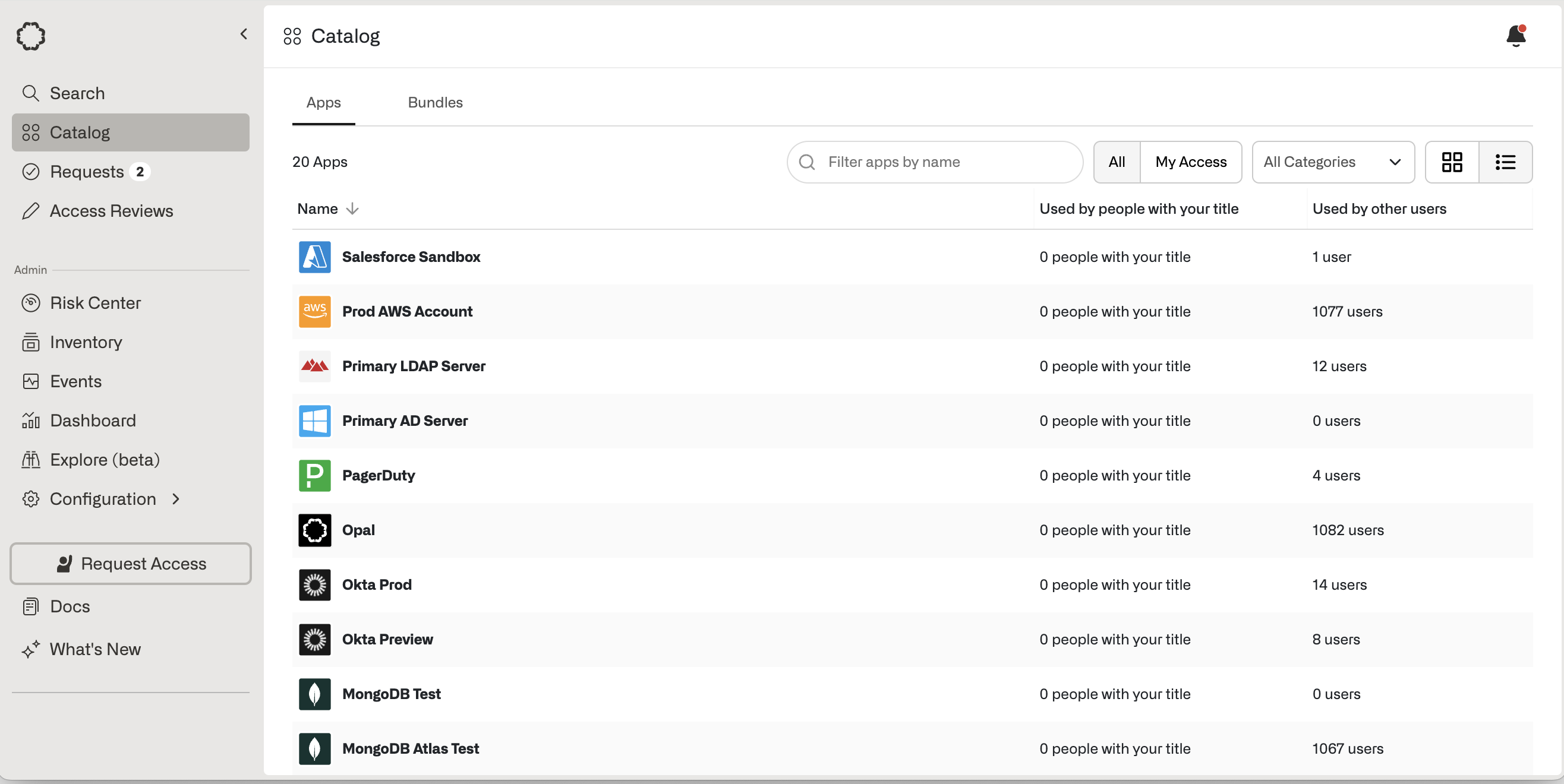
Request access through the **Catalog** or using the **Request Access** button. You can also find apps from the **Search** page.
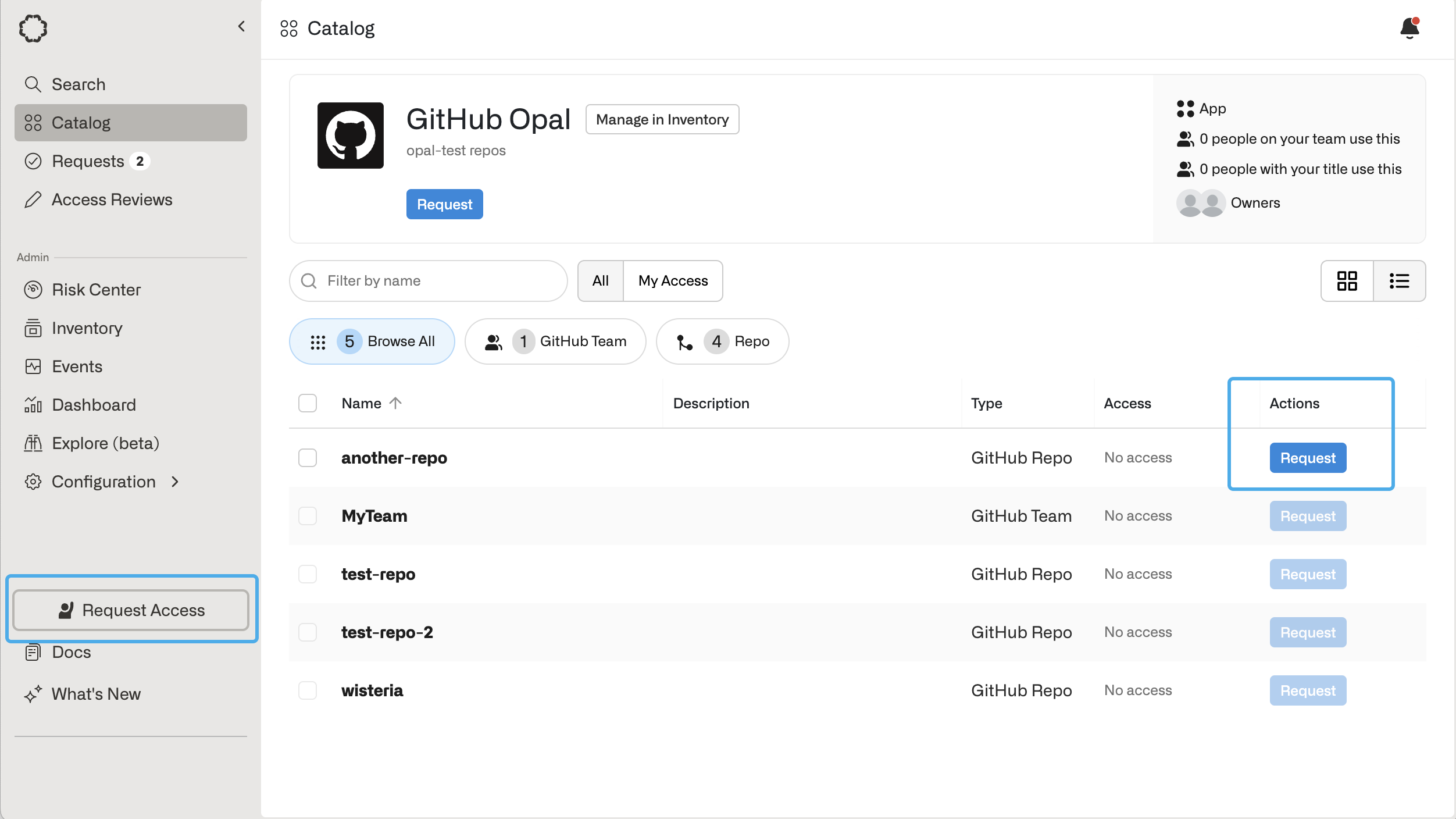
 After selecting an app, you can choose **Resources** that you want to request. **Resources** are specific permissions within applications. Example resources include:
* Salesforce: Roles, profiles, and permission sets
* GitHub: Repositories, Teams
* Amazon Web Services: IAM Roles, databases (RDS), and compute (EC2)
To make a request, open the resource and select **Request** in the **Actions** column, or select **Request Access** in the sidebar.
After selecting an app, you can choose **Resources** that you want to request. **Resources** are specific permissions within applications. Example resources include:
* Salesforce: Roles, profiles, and permission sets
* GitHub: Repositories, Teams
* Amazon Web Services: IAM Roles, databases (RDS), and compute (EC2)
To make a request, open the resource and select **Request** in the **Actions** column, or select **Request Access** in the sidebar.
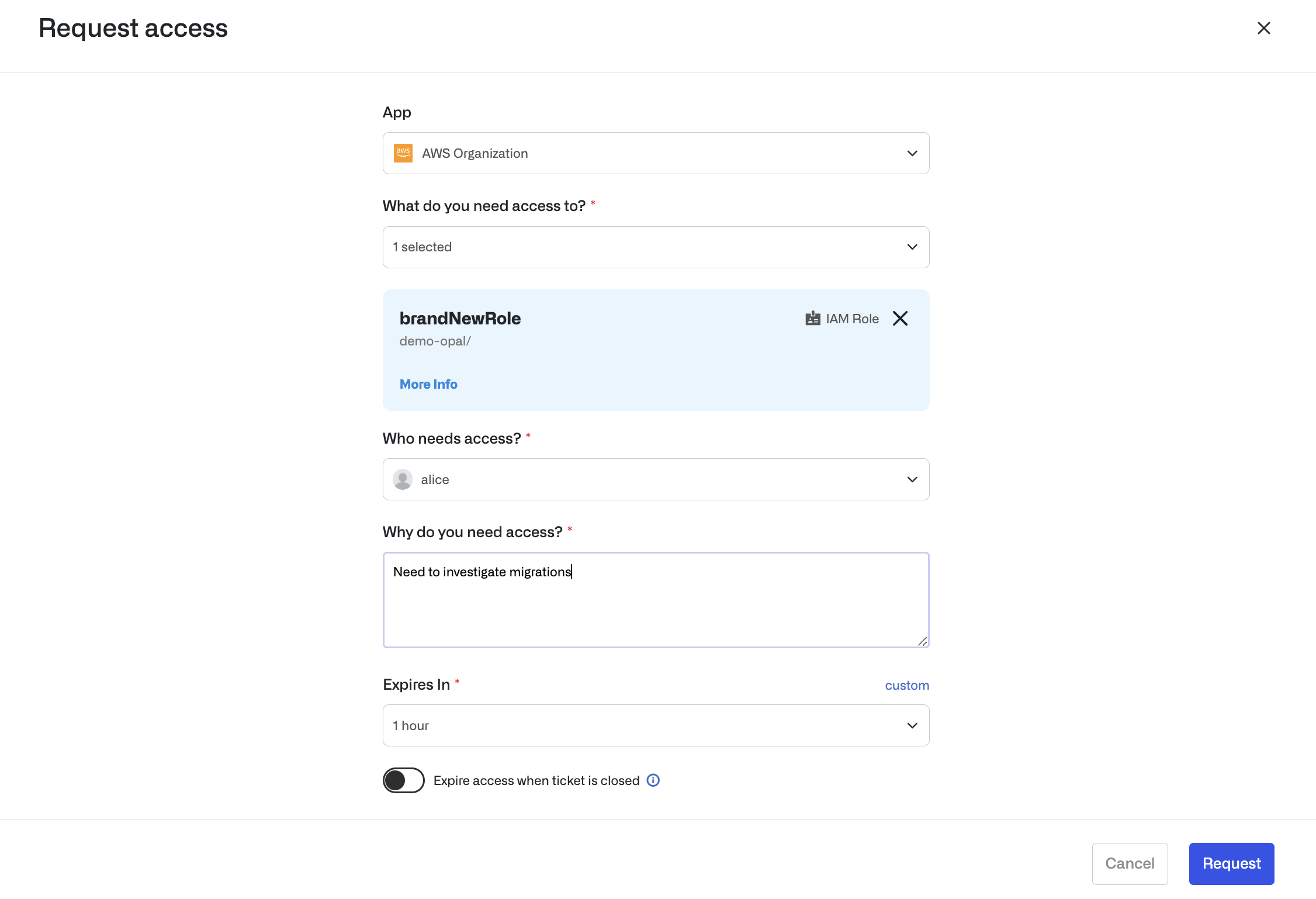
 Enter the following fields:
* **Reason**: By default, this is a required field. Admins can hide this field using the [request configuration](/docs/organize-access-via-tags) settings. Ensure you include enough context in your reason for your reviewers to approve your request.
* **Expires in**: Specify how long you need access. Use the default values, or request a custom range by selecting **Custom**.
* **Expire access when ticket is closed**: If you don't know how long you'll need access, you can bind the access request to a support ticket that is assigned to you. Once the ticket is completed, your access will be automatically revoked.
Enter the following fields:
* **Reason**: By default, this is a required field. Admins can hide this field using the [request configuration](/docs/organize-access-via-tags) settings. Ensure you include enough context in your reason for your reviewers to approve your request.
* **Expires in**: Specify how long you need access. Use the default values, or request a custom range by selecting **Custom**.
* **Expire access when ticket is closed**: If you don't know how long you'll need access, you can bind the access request to a support ticket that is assigned to you. Once the ticket is completed, your access will be automatically revoked.
 You may request access on behalf of another user. For security reasons, this functionality is limited to the following groups.
* **Opal Admins** can request access on behalf of all users for all resources.
* **Resource and group admins** can request access on behalf of others for those resources and groups where they are an admin.
* **Managers** can request access on behalf of their reports for those resources to which the manager has access.
You can navigate Opal assets and submit access requests directly in Slack using the `/opal` slash command.
### Search for requestable assets (recommended)
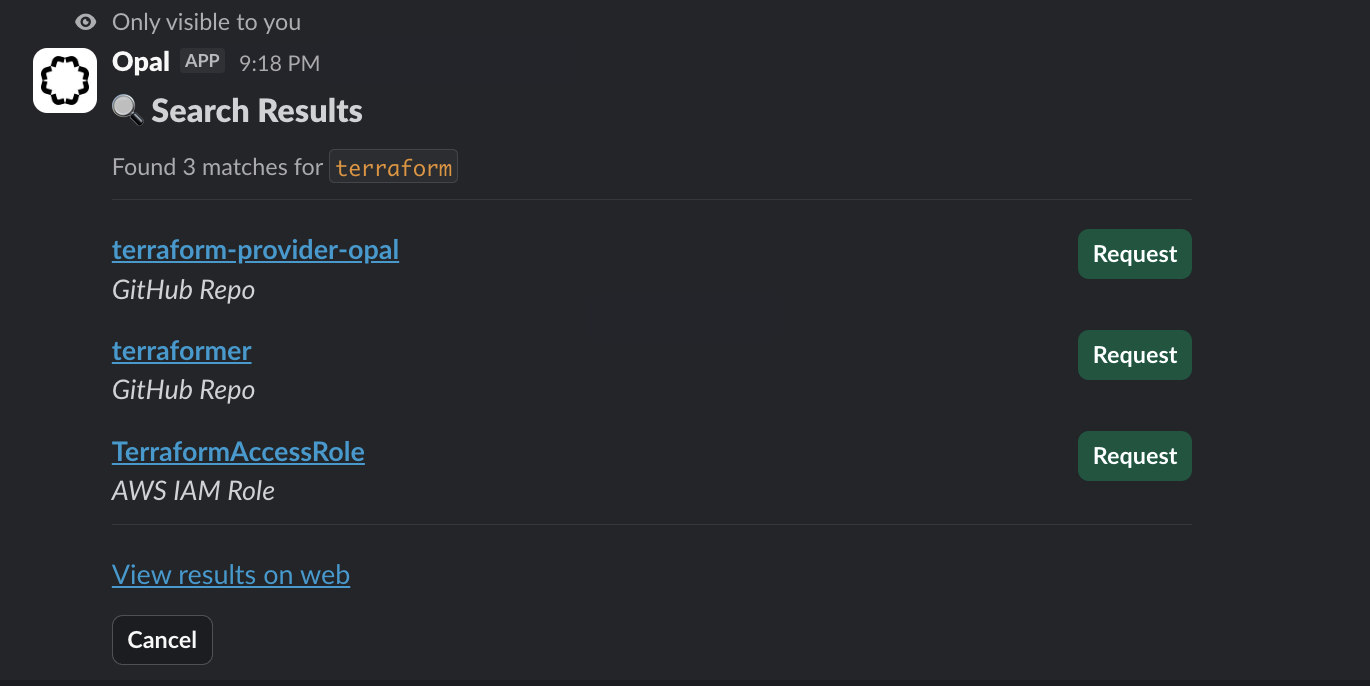
Run this search command from any Slack channel to find requestable assets.
`/opal search `
Select an asset from the results to start an access request, or click **View results on web** to see the full list of results on the web UI.
You may request access on behalf of another user. For security reasons, this functionality is limited to the following groups.
* **Opal Admins** can request access on behalf of all users for all resources.
* **Resource and group admins** can request access on behalf of others for those resources and groups where they are an admin.
* **Managers** can request access on behalf of their reports for those resources to which the manager has access.
You can navigate Opal assets and submit access requests directly in Slack using the `/opal` slash command.
### Search for requestable assets (recommended)
Run this search command from any Slack channel to find requestable assets.
`/opal search `
Select an asset from the results to start an access request, or click **View results on web** to see the full list of results on the web UI.
 ### Browse available assets
Run the command by itself to browse assets by App.
`/opal`
### Browse available assets
Run the command by itself to browse assets by App.
`/opal`
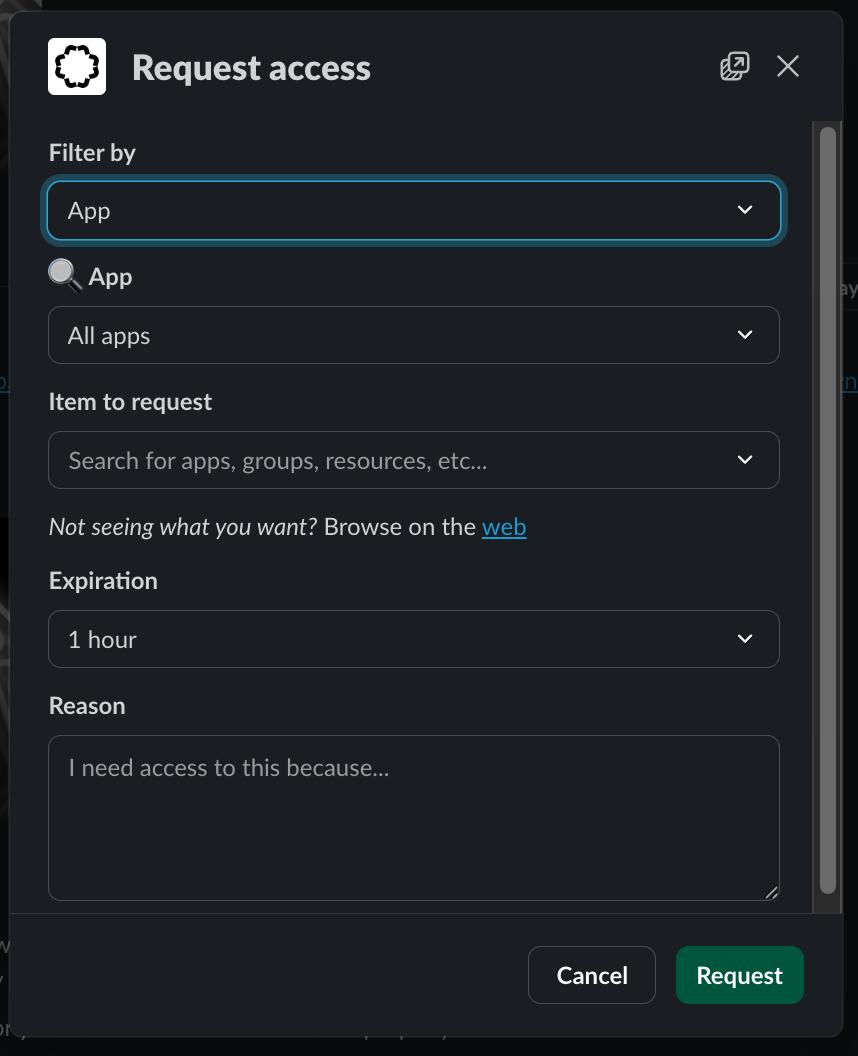 ### Using `/access` instead
Both commands work identically—use whichever you prefer:
* `/access` (opens browse modal)
* `/access search ` (searches directly)
## What happens after my access request?
Once approved, you'll be notified over email and in Slack. Go to **My Access** in the Opal web **Catalog** to view all resources you currently have access to.
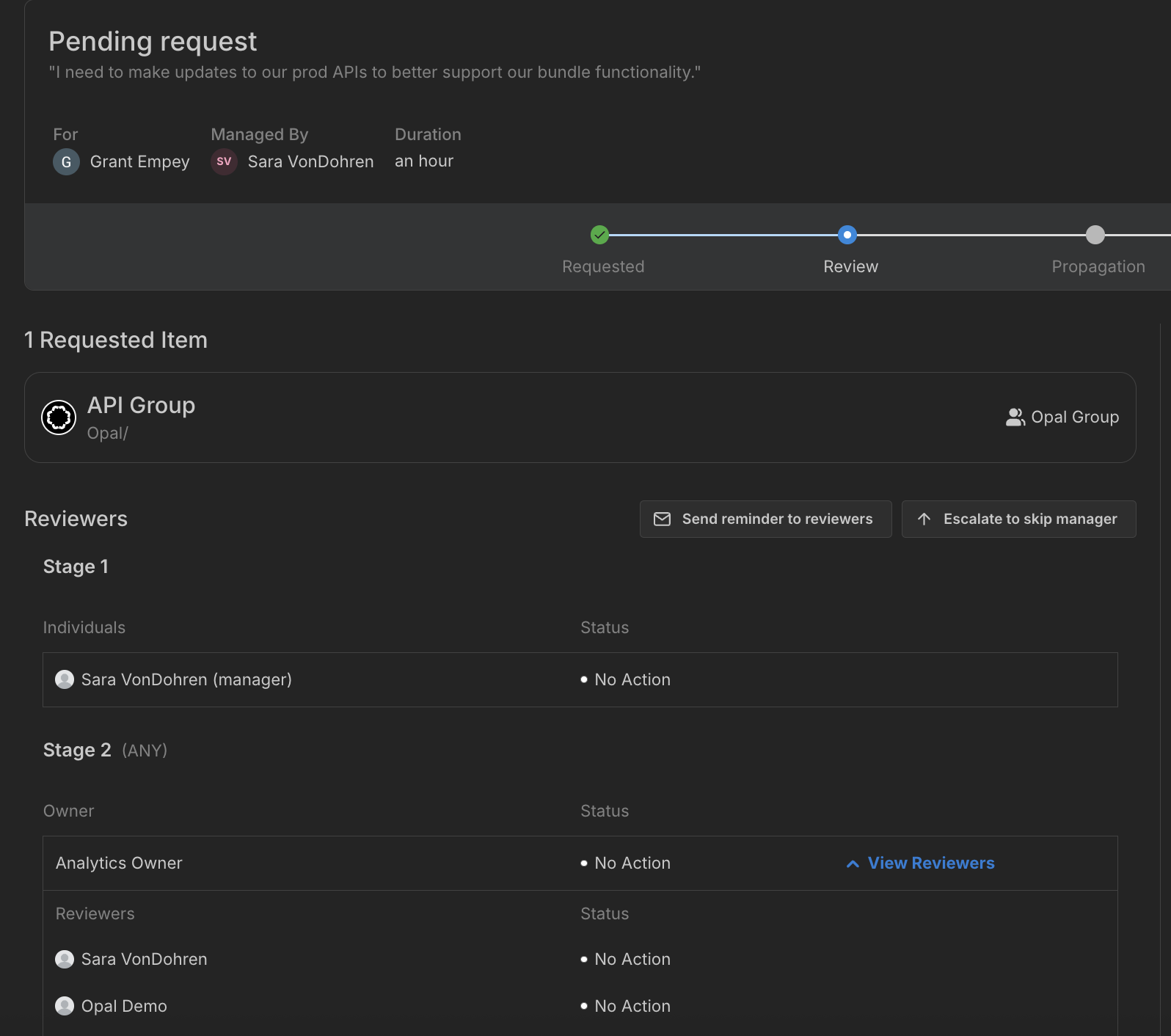
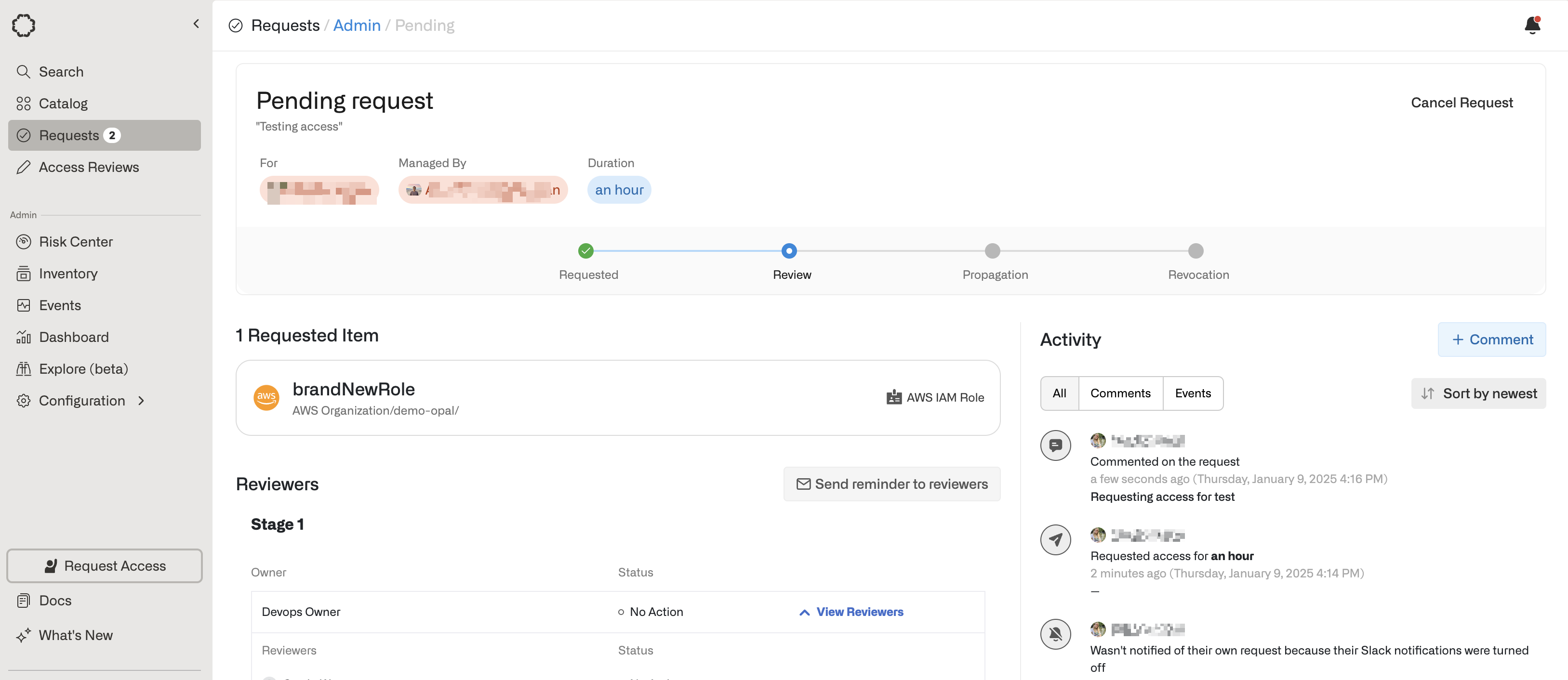
If you want to learn more about your request, you can click on the **Access request pending** button in Slack, or go to the **Requests** page in the Opal dashboard.
From here you can:
* See the status of your request
* See who the reviewers are
* Send reminders to your reviewers
* Cancel your request
* Escalate approval of your request to your skip manager by clicking **Escalate to skip manager**
### Using `/access` instead
Both commands work identically—use whichever you prefer:
* `/access` (opens browse modal)
* `/access search ` (searches directly)
## What happens after my access request?
Once approved, you'll be notified over email and in Slack. Go to **My Access** in the Opal web **Catalog** to view all resources you currently have access to.
If you want to learn more about your request, you can click on the **Access request pending** button in Slack, or go to the **Requests** page in the Opal dashboard.
From here you can:
* See the status of your request
* See who the reviewers are
* Send reminders to your reviewers
* Cancel your request
* Escalate approval of your request to your skip manager by clicking **Escalate to skip manager**
 ## How can I escalate my request?
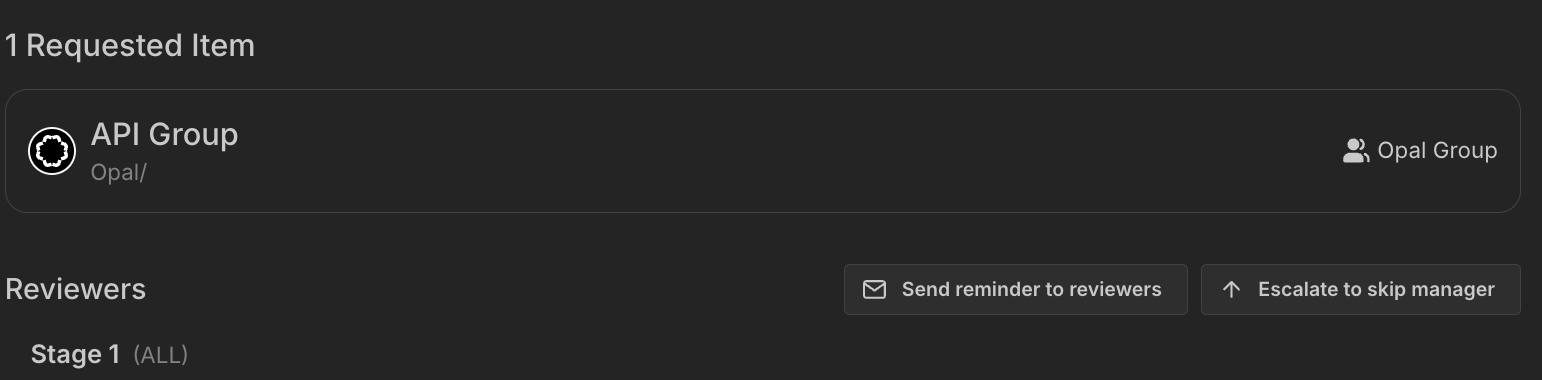
If your approver is your manager, you can escalate your request to your skip manager by selecting **Escalate to skip manager** on the request. Your skip manager will be notified to approve your request. This is especially useful if your manager is unavailable and your request is urgent.
## How can I escalate my request?
If your approver is your manager, you can escalate your request to your skip manager by selecting **Escalate to skip manager** on the request. Your skip manager will be notified to approve your request. This is especially useful if your manager is unavailable and your request is urgent.
 ## How do I check the status of my access request?
You can view the status of your access requests in the **Sent** tab of the **Requests** page. Each request shows its current status (Pending, Approved, Denied, etc.) and any pending approval steps.
## How long does my access request take to process after it's approved?
Most approved access requests are propagated to end systems within two minutes.
## How can I approve access requests?
You will be notified via Slack and email if you are a reviewer. In Slack, approvers can approve or reject access requests. This automatically provisions access.
## How do I check the status of my access request?
You can view the status of your access requests in the **Sent** tab of the **Requests** page. Each request shows its current status (Pending, Approved, Denied, etc.) and any pending approval steps.
## How long does my access request take to process after it's approved?
Most approved access requests are propagated to end systems within two minutes.
## How can I approve access requests?
You will be notified via Slack and email if you are a reviewer. In Slack, approvers can approve or reject access requests. This automatically provisions access.
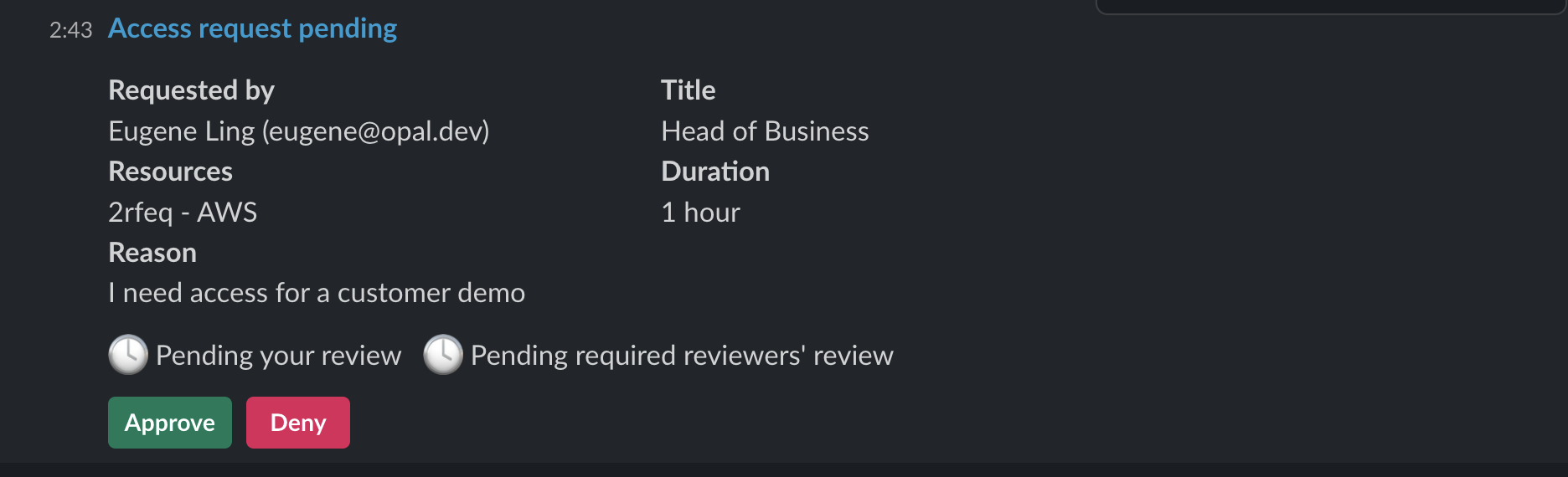 Requestors and requestees can also leave comments in Slack. Replies in the thread via Slack will show as comments in Opal. These comments bi-directionally sync with Opal's web UI.
 ## Can I approve my own access requests?
No. Currently access requests can not be approved by the submitter. Users are blocked from creating request conditions where they are the only possible approver, and submitters do not receive approval notifications for assets that they have requested where they are also a member of the approval owner.
## What happens if my access expires?
If you have been granted short-lived access to a resource and the time limit has expired, then Opal will automatically revoke your access.
## Can I approve my own access requests?
No. Currently access requests can not be approved by the submitter. Users are blocked from creating request conditions where they are the only possible approver, and submitters do not receive approval notifications for assets that they have requested where they are also a member of the approval owner.
## What happens if my access expires?
If you have been granted short-lived access to a resource and the time limit has expired, then Opal will automatically revoke your access.
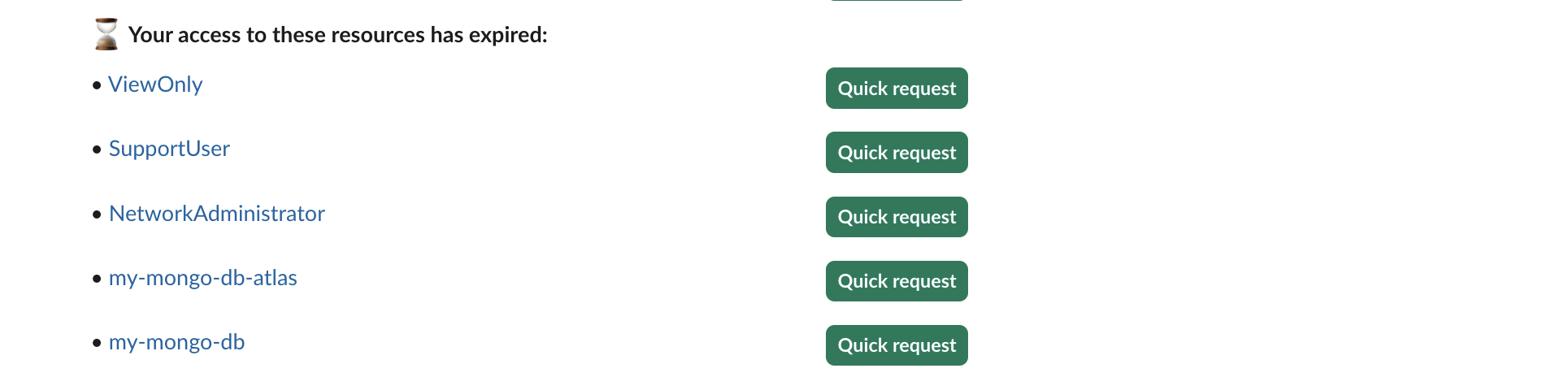 If your request is for more than 24 hours, Opal will send out notifications one day and one hour before to remind you to extend access. You will only receive a reminder notification if your access originated from a request. You will not get a notification if you were manually added to the resource or group by an admin.
 If your organization has enabled it, you may be able to extend your access from Slack or the Opal UI. Extended access does not need to be approved again.
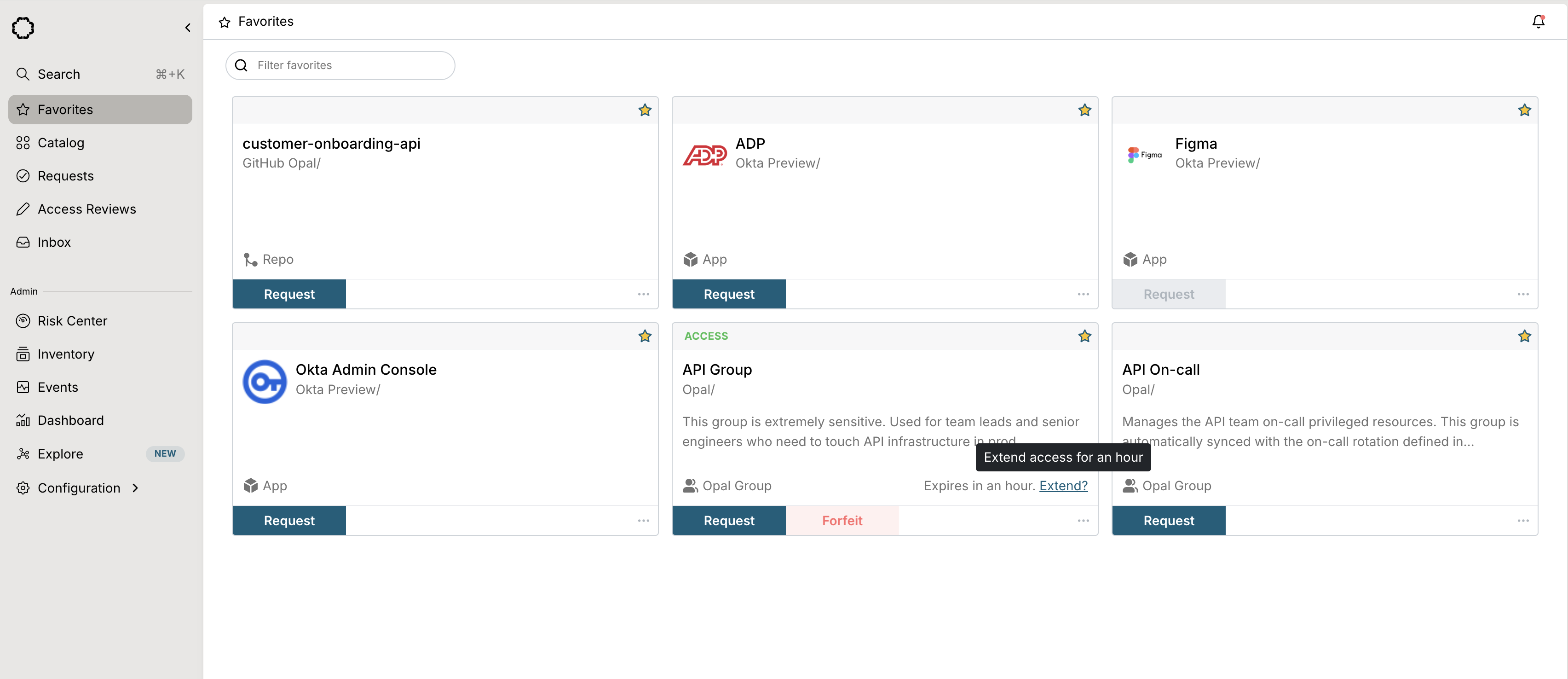 When your access expires after the requested duration, Opal sends you a Slack notification with a link to easily re-request.