> ## Documentation Index
> Fetch the complete documentation index at: https://docs.opal.dev/llms.txt
> Use this file to discover all available pages before exploring further.
# Configure SSO and MFA
> Learn how to set up MFA for Opal logins and actions.
Opal supports MFA for two types of product functions:
1. **Opal logins**: you can configure Opal to require MFA when a user logs in.
2. **Opal actions**: you configure resources in Opal to require MFA for requesting access, approving an access request, and/or connecting to a session.
Opal can be set up to require validation via its own MFA provider or via your Okta IDP's MFA provider.
## Enable MFA for Opal logins
Toggle the **Require Opal MFA for logins** setting to enable Opal-managed MFA.
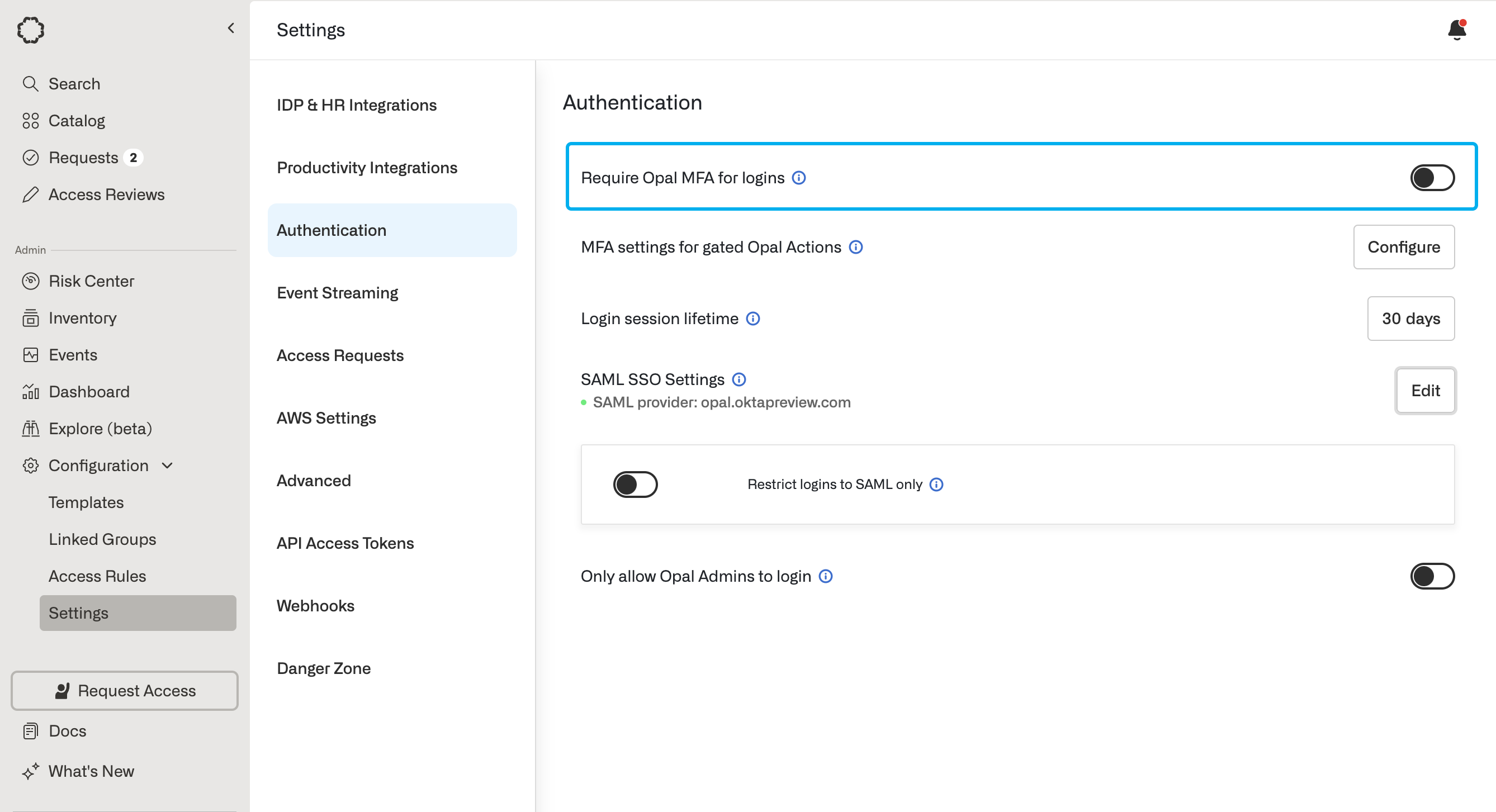 Alternatively, you can enable MFA through your SAML provider. In this case, disable this setting. See the [Okta multifactor authentication guide](/docs/okta-multifactor-authentication#using-okta-mfa-for-opal-logins) for more detail on the Okta configuration.
## Enable MFA for Opal actions
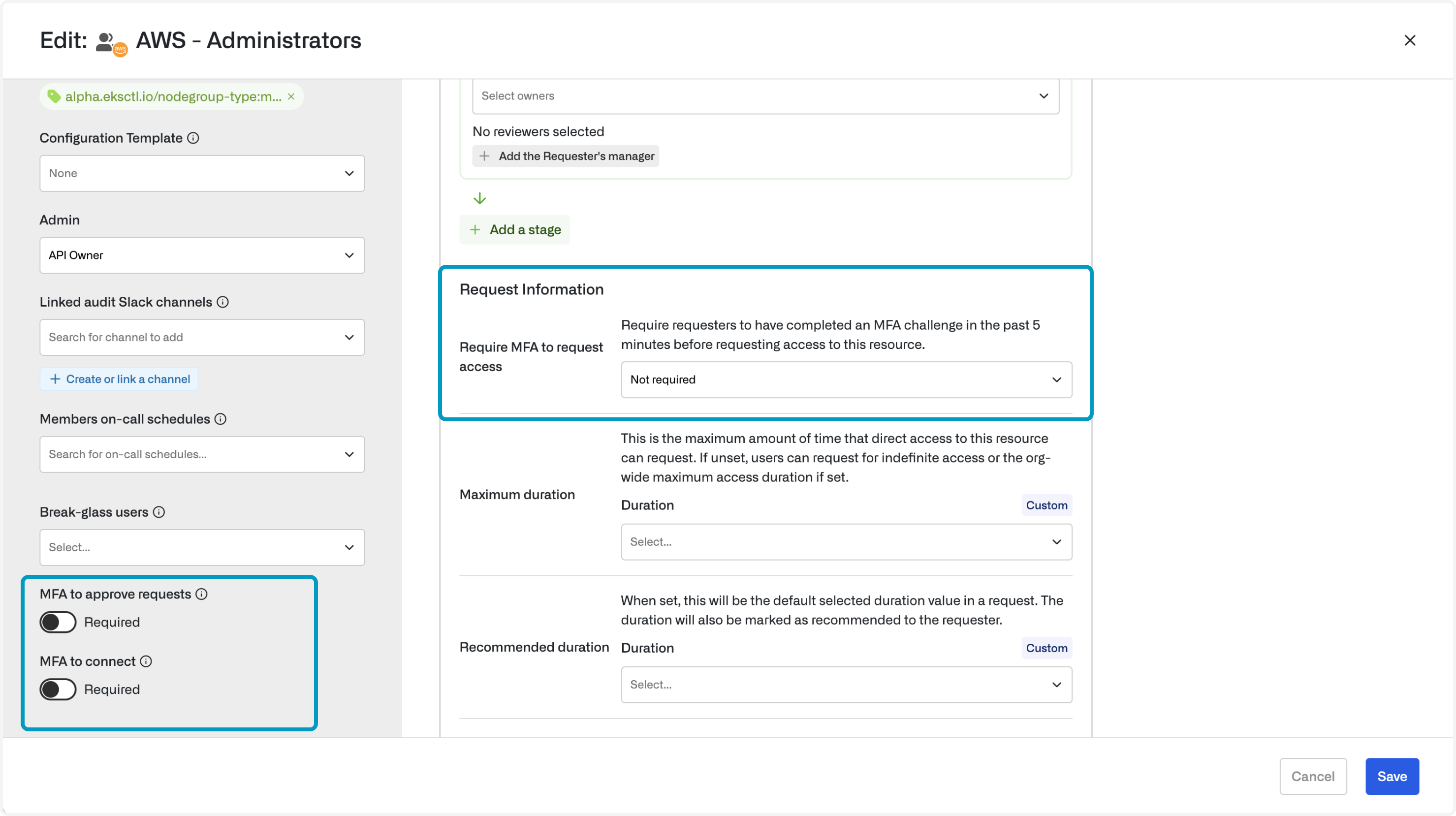
MFA for Opal actions can be toggled on a per-action, per-resource level. Edit your resource to enable MFA.
Alternatively, you can enable MFA through your SAML provider. In this case, disable this setting. See the [Okta multifactor authentication guide](/docs/okta-multifactor-authentication#using-okta-mfa-for-opal-logins) for more detail on the Okta configuration.
## Enable MFA for Opal actions
MFA for Opal actions can be toggled on a per-action, per-resource level. Edit your resource to enable MFA.
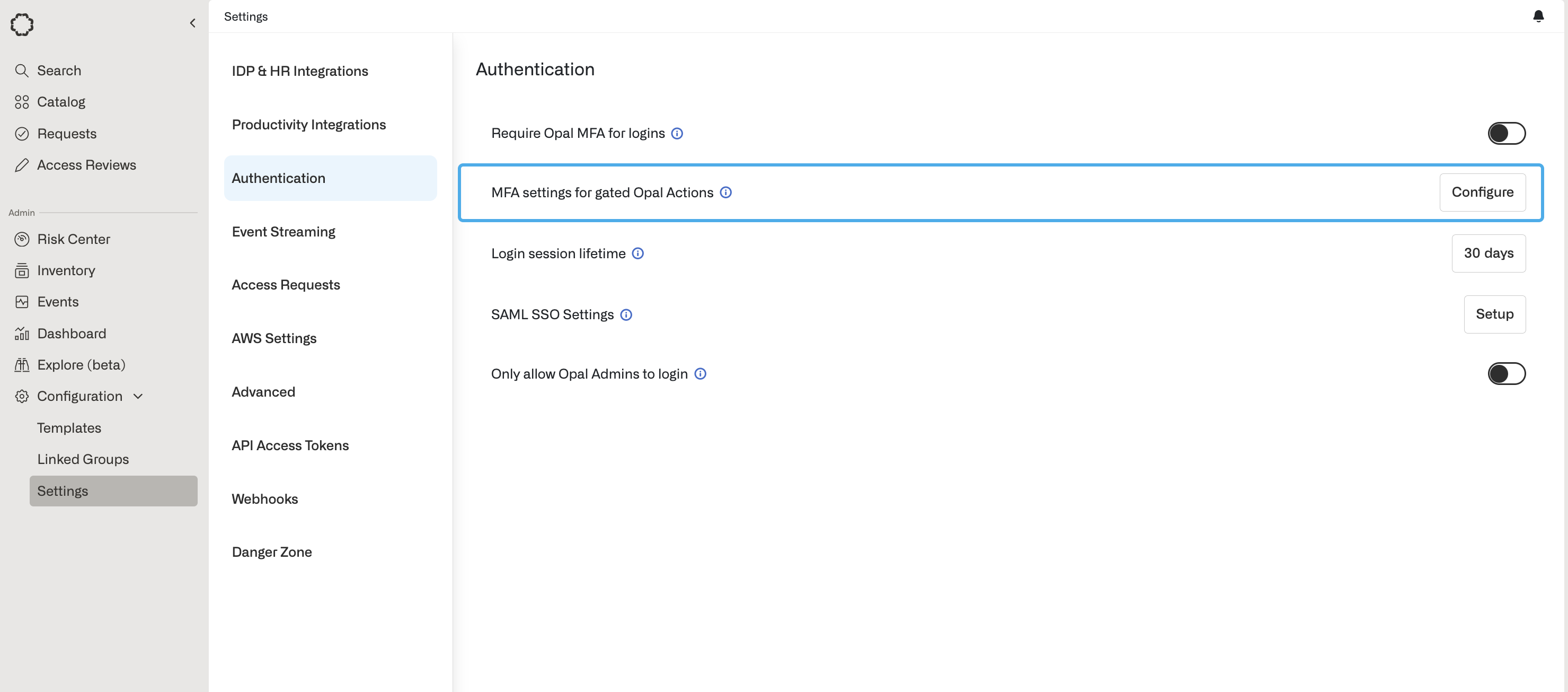
 To modify your MFA Provider settings for Opal Actions, go to **Configuration > Settings > Authentication** and select **Configure** next to **MFA settings for gated Opal Actions**.
 Three different options for MFA providers are supported:
1. **Opal managed MFA**: Users can register their MFA devices through Opal.
2. **[Okta-managed MFA \[Legacy\]](/docs/okta-multifactor-authentication#using-okta-mfa-for-opal-actions-requesting-approving-connecting-legacy)**: Okta Verify and TOTP. Users may only use these two factors for MFA.
3. **[OIDC MFA](/docs/oidc-provider-setup-for-opal-actions)**: Opal supports any OIDC provider, including Okta and Azure, as a MFA solution. Once configured, users will be able to use any MFA method that your OIDC provider supports, including WebAuthn (Yubikey, TouchID, etc.) and TOTP.
## Reset MFA for users
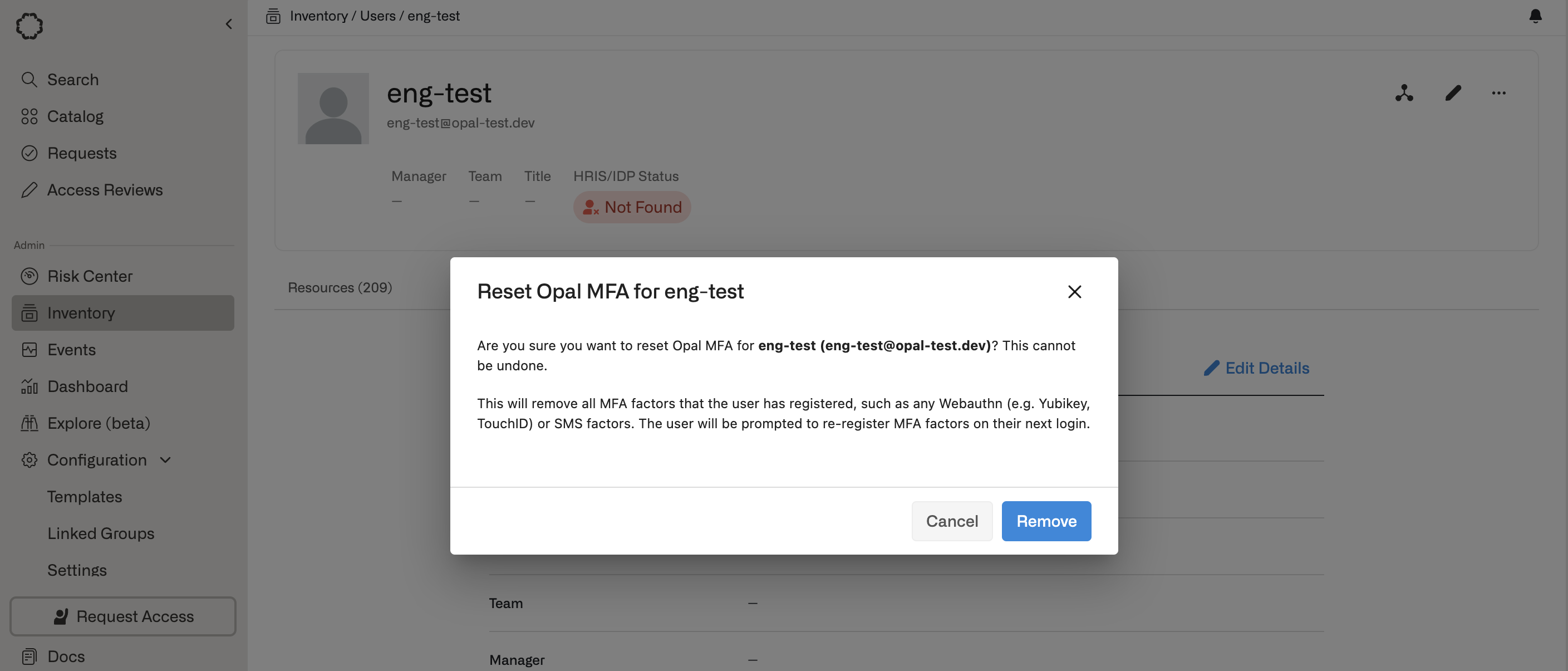
To reset MFA for an individual user, go to the **Inventory** > **Users** tab, then find the user detail page. Select the **...** dropdown on the upper right, then **Reset MFA for User**.
Three different options for MFA providers are supported:
1. **Opal managed MFA**: Users can register their MFA devices through Opal.
2. **[Okta-managed MFA \[Legacy\]](/docs/okta-multifactor-authentication#using-okta-mfa-for-opal-actions-requesting-approving-connecting-legacy)**: Okta Verify and TOTP. Users may only use these two factors for MFA.
3. **[OIDC MFA](/docs/oidc-provider-setup-for-opal-actions)**: Opal supports any OIDC provider, including Okta and Azure, as a MFA solution. Once configured, users will be able to use any MFA method that your OIDC provider supports, including WebAuthn (Yubikey, TouchID, etc.) and TOTP.
## Reset MFA for users
To reset MFA for an individual user, go to the **Inventory** > **Users** tab, then find the user detail page. Select the **...** dropdown on the upper right, then **Reset MFA for User**.
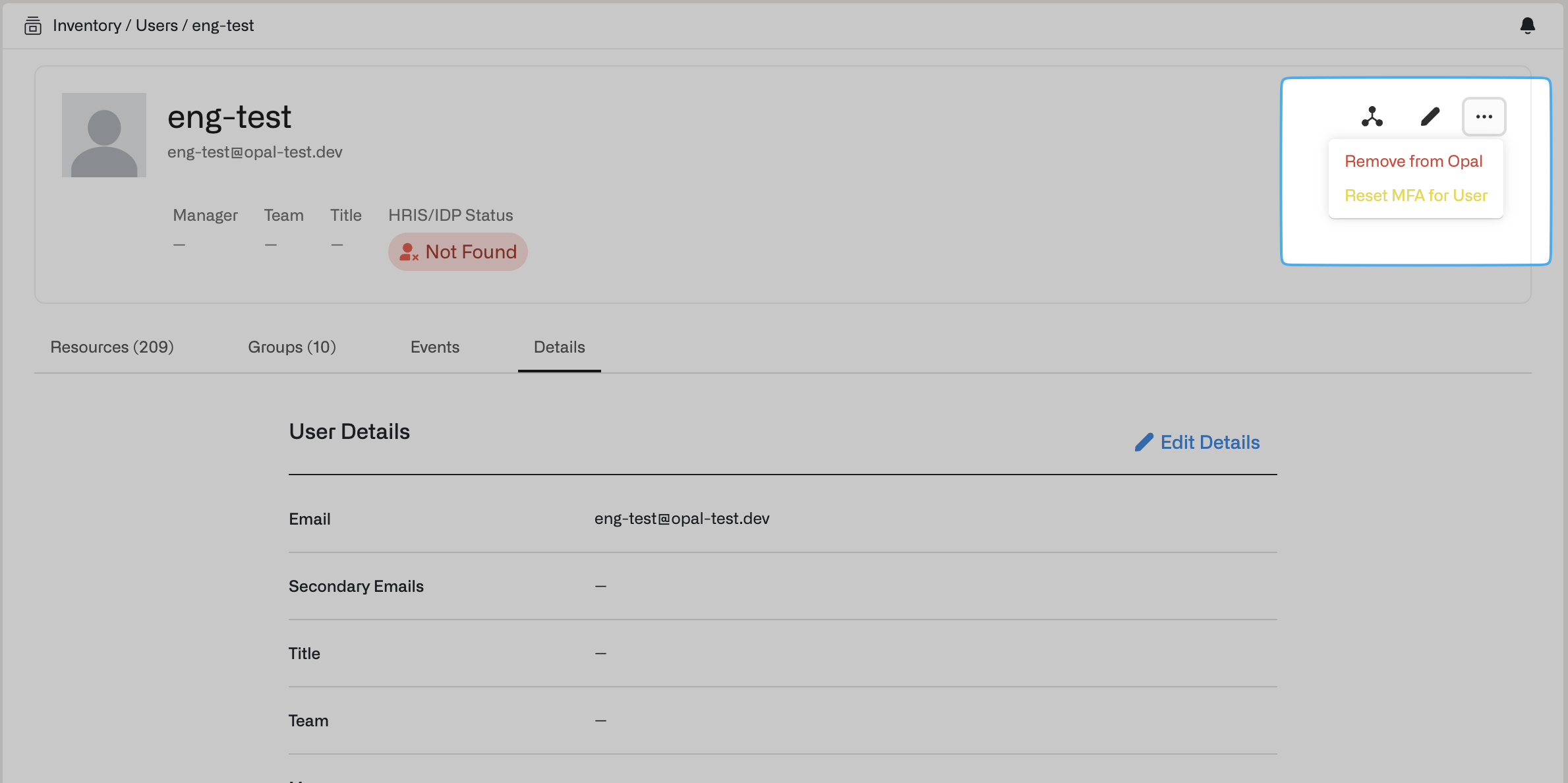 Follow the confirmation modal to finish resetting the user's MFA.