> ## Documentation Index
> Fetch the complete documentation index at: https://docs.opal.dev/llms.txt
> Use this file to discover all available pages before exploring further.
# Access Rules
> Use Access Rules to enforce access policies at scale.
Access Rules are available on cloud-hosted Opal and self-hosted Opal versions
1.943.0 and later.
Access Rules are a set of conditions—built from attributes from your HRIS/IDP source—you can use to **dynamically** grant access to groups and resources, enabling Attribute-Based Access Control (ABAC). With Access Rules, you can easily enforce policies at scale and adapt your access requirements to changing business logic, without additional overhead.
Use Access Rules to:
* Provision access based on workplace events (e.g. Joiner, Mover, Leaver)—Opal automatically syncs users and updates access downstream when users onboard, transfer, or leave your IDP or HRIS
* Automate and codify your desired state of identity and access at scale
## Requirements
To create and delete Access Rules, you must:
* Be an [Opal Admin](/docs/roles-in-opal)
Before you set up Access Rules, you also must:
* [Connect Opal](/docs/add-your-first-idphr-provider#connect-opal-to-an-idphris-system) to your IDP/HRIS system
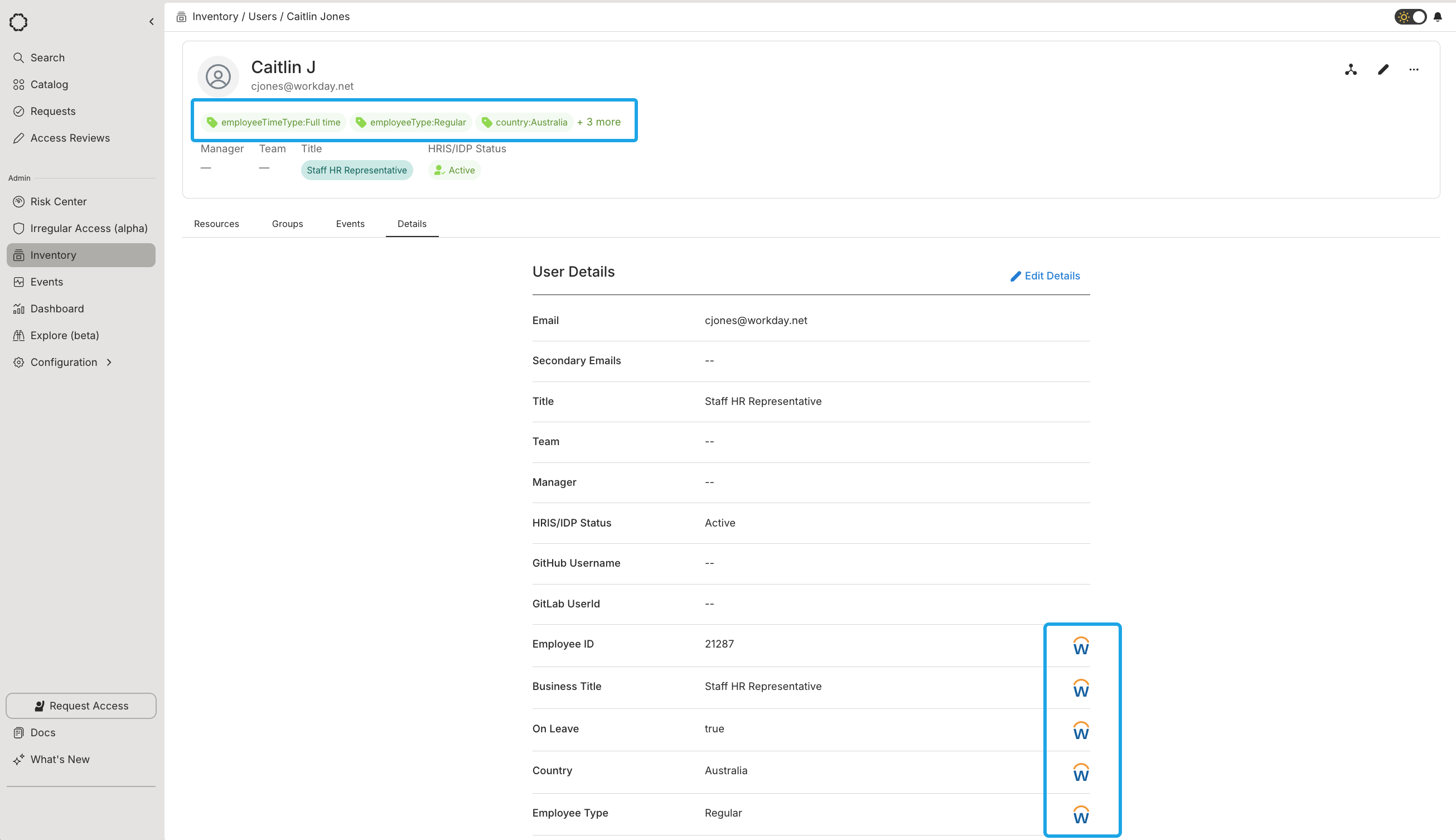
* [Import attributes](/docs/add-your-first-idphr-provider#import-attributes) from your IDP/HRIS system as **User Tags (custom attributes)**
To confirm your attributes are correctly imported, go to **Inventory** > **Tags** and search for your tag.
Alternatively, go to **Inventory** > **Users**, select a user you expect to be tagged, and go to the **Details** tab. There, you'll see the attributes with a logo in the column on the right indicating the source.
 ## Create Access Rules
Access Rules do not affect access to groups or resources until you've
explicitly [granted access](#grant-access-to-groups-and-resources), so it is
safe to create and modify Access Rules while you determine your ideal
conditions.
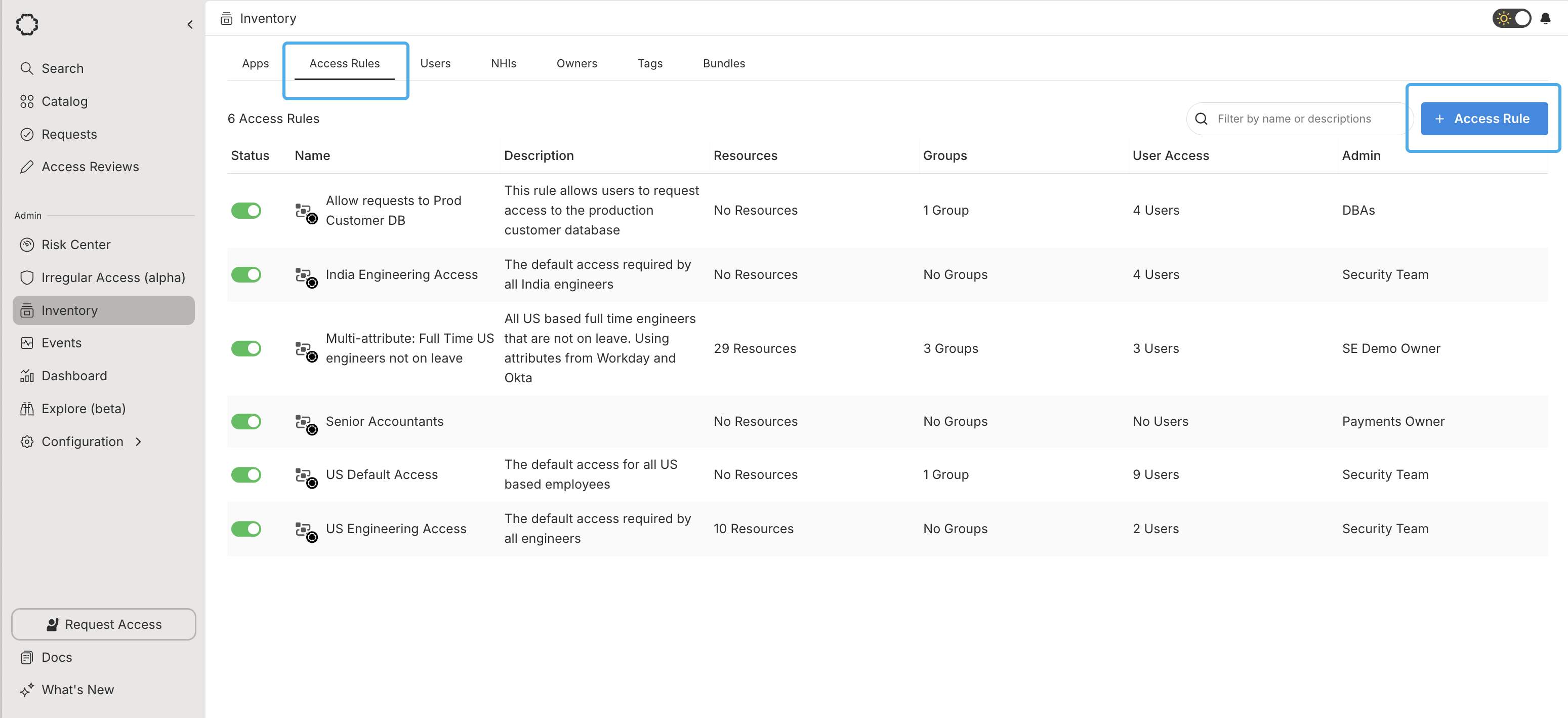
To create an Access Rule, go to **Inventory** > **Access Rules** and select **+ Access Rule**.
## Create Access Rules
Access Rules do not affect access to groups or resources until you've
explicitly [granted access](#grant-access-to-groups-and-resources), so it is
safe to create and modify Access Rules while you determine your ideal
conditions.
To create an Access Rule, go to **Inventory** > **Access Rules** and select **+ Access Rule**.
 Give your Access Rule a name based on the users you're targeting, a **Description**, and choose an **Admin**.
### Set conditions
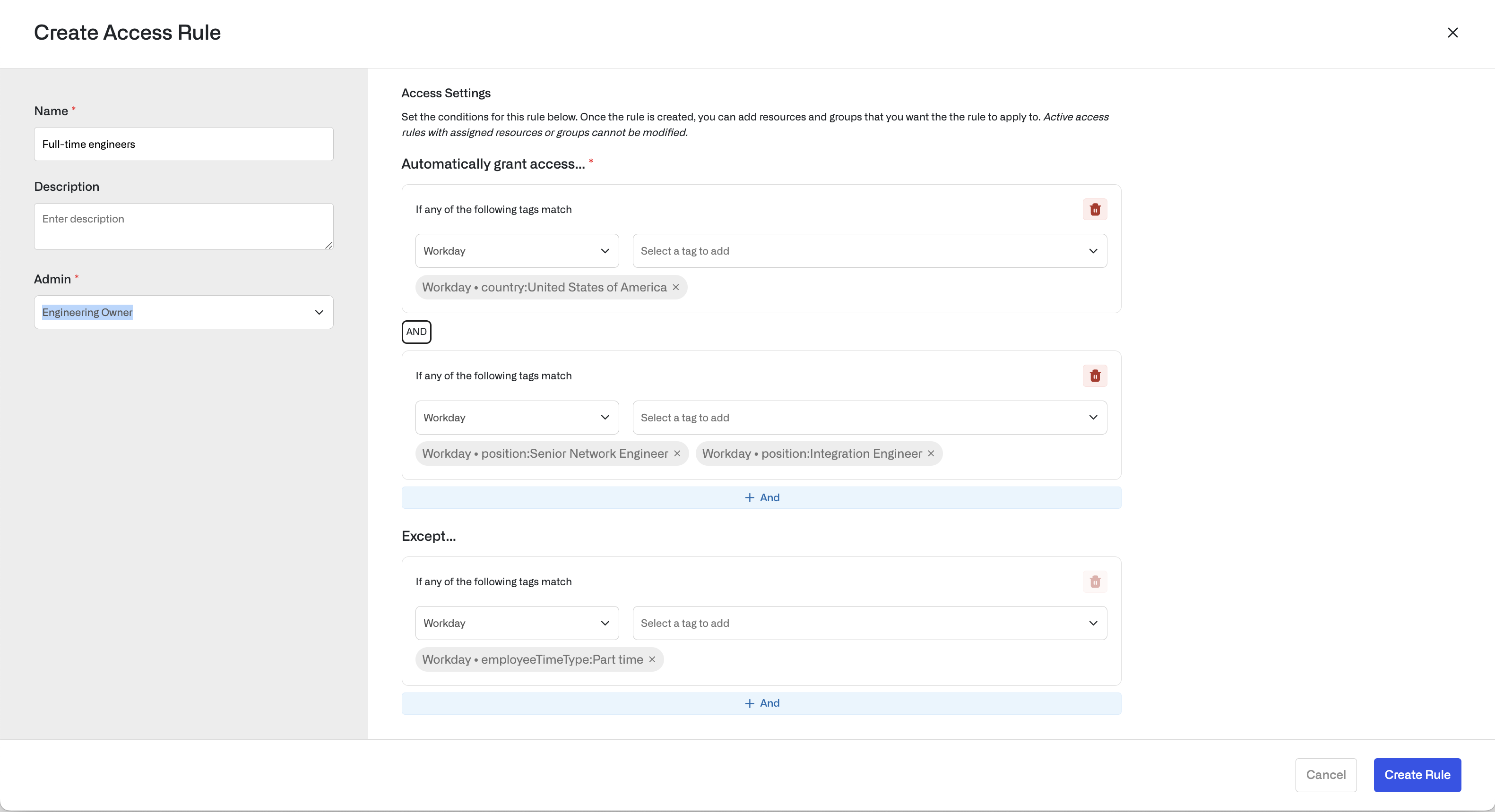
Access Rules consist of conditions, which you use to filter a list of users based on tags imported from your IDP. Conditions use the conjunctive normal form, expressed as an **AND** of **ORs**. You can exclude users with the **Except...** clause.
The following example filters users to full-time engineers living in the United States. The condition includes users tagged with **Country:United States** **AND** (**position:Senior Network Engineer** **OR** **position:Integration Engineer**), and the **Except...** clause excludes any users tagged with **employeeTimeType:PartTime**.
Give your Access Rule a name based on the users you're targeting, a **Description**, and choose an **Admin**.
### Set conditions
Access Rules consist of conditions, which you use to filter a list of users based on tags imported from your IDP. Conditions use the conjunctive normal form, expressed as an **AND** of **ORs**. You can exclude users with the **Except...** clause.
The following example filters users to full-time engineers living in the United States. The condition includes users tagged with **Country:United States** **AND** (**position:Senior Network Engineer** **OR** **position:Integration Engineer**), and the **Except...** clause excludes any users tagged with **employeeTimeType:PartTime**.
 You can continue to modify conditions until you've granted access to groups and resources.
After you select **Create Rule**, you can view the filtered users and [grant access to groups and resources](#grant-access-to-groups-and-resources). To modify conditions after you've added groups and resources, you must delete and re-create the Access Rule.
The users in an Access Rule are automatically synced when your IDP is updated, so you don't need to do any extra work to keep access up-to-date with your IDP and internal business logic.
## Grant access to groups and resources
To avoid over-provisioning access to privileged entities, **do not** use
Access Rules to grant access to any sensitive groups and resources. Leverage
[direct access requests](/docs/configure-reviewers) for these groups and
resources instead.
In the **Resources** tab on your Access Rule, you can grant access to groups and resources as you would for an individual group or user. You can also set the access duration to be indefinite or timebound.
You can continue to modify conditions until you've granted access to groups and resources.
After you select **Create Rule**, you can view the filtered users and [grant access to groups and resources](#grant-access-to-groups-and-resources). To modify conditions after you've added groups and resources, you must delete and re-create the Access Rule.
The users in an Access Rule are automatically synced when your IDP is updated, so you don't need to do any extra work to keep access up-to-date with your IDP and internal business logic.
## Grant access to groups and resources
To avoid over-provisioning access to privileged entities, **do not** use
Access Rules to grant access to any sensitive groups and resources. Leverage
[direct access requests](/docs/configure-reviewers) for these groups and
resources instead.
In the **Resources** tab on your Access Rule, you can grant access to groups and resources as you would for an individual group or user. You can also set the access duration to be indefinite or timebound.
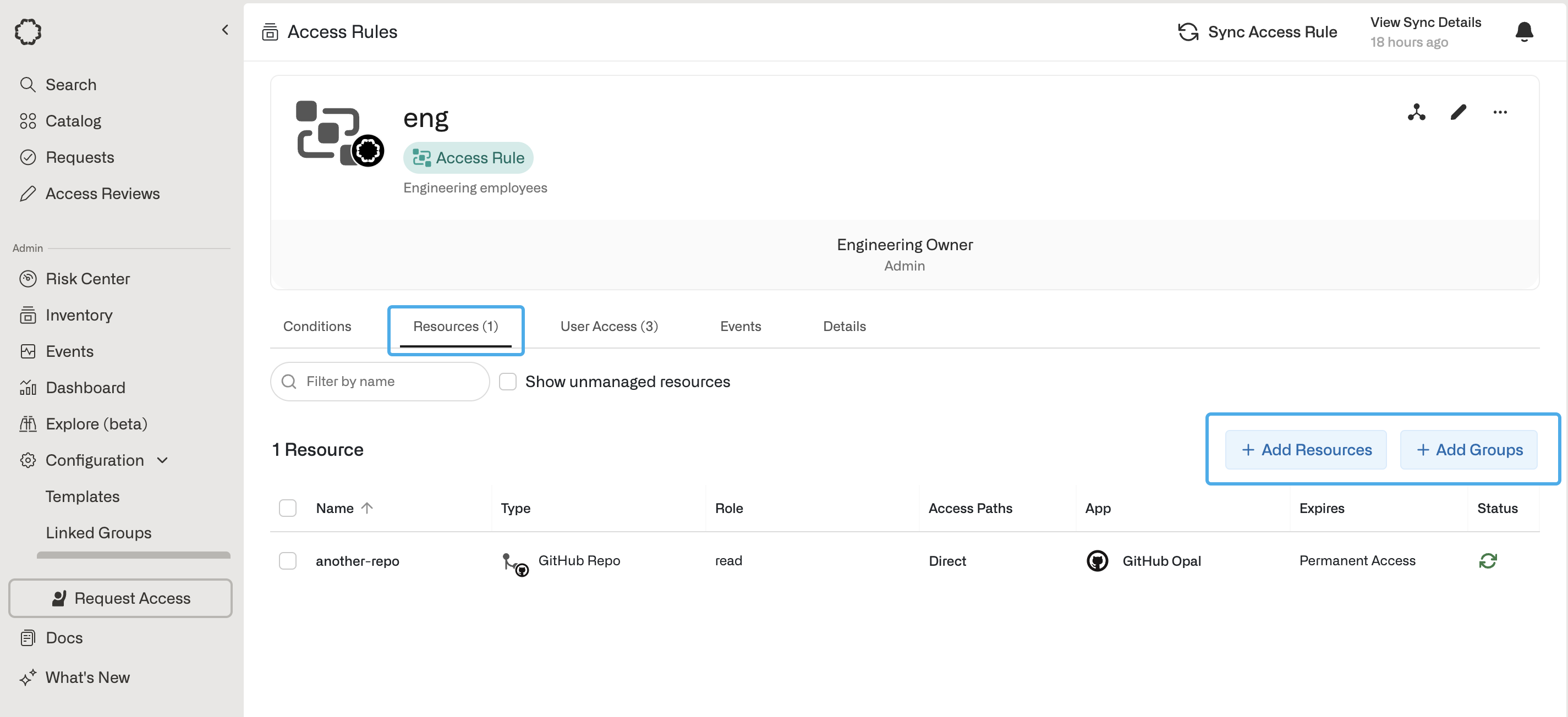 After you add groups and resources, the **Inventory** page for the group or resource displays the users granted access through the Access Rule. The **Access Path** column shows all sources of access for users.
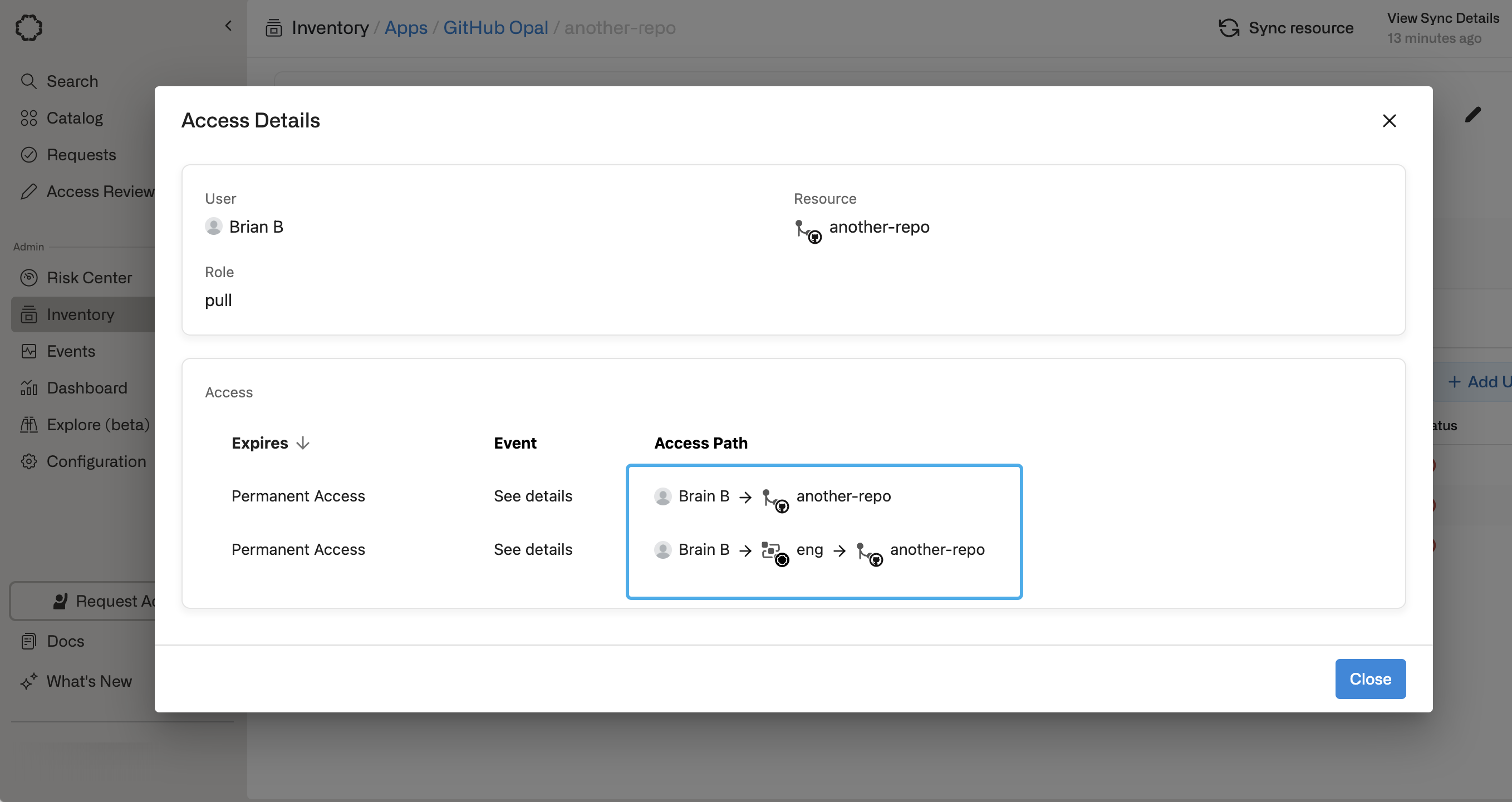
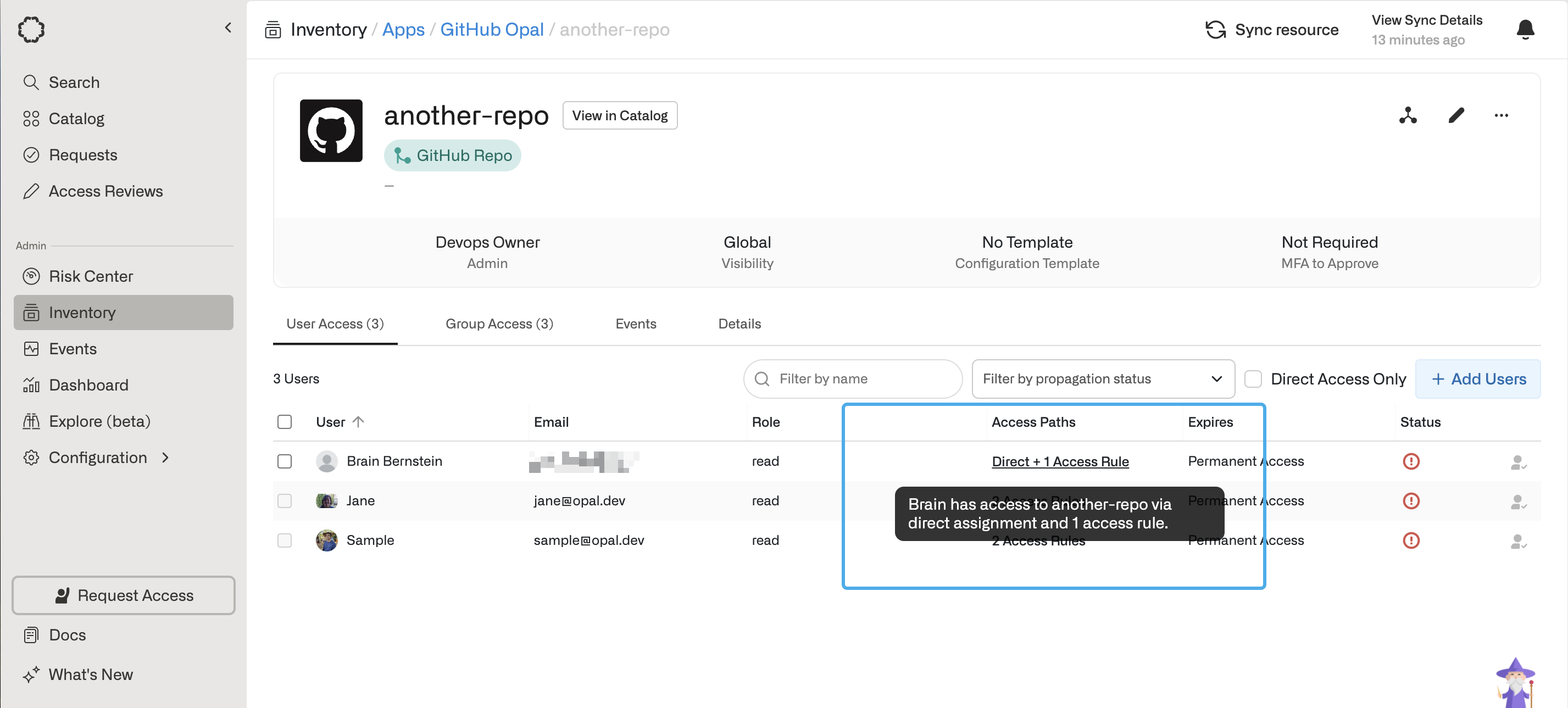 Clicking on the **Access Path** shows a detailed breakdown of the paths. This lets you easily determine how a user can access a group or resource, and predict what will happen when access is revoked or expired from different paths.
 ### Grant access with Terraform
Use [opal\_group\_resource\_list](https://registry.terraform.io/providers/opalsecurity/opal/latest/docs/data-sources/group_resource_list) and [opal\_group\_containing\_group](https://registry.terraform.io/providers/opalsecurity/opal/latest/docs/resources/group_containing_group) to assign resources and groups to access rules. Set the access rule ID as the `group_id`.
## Pause Access Rules
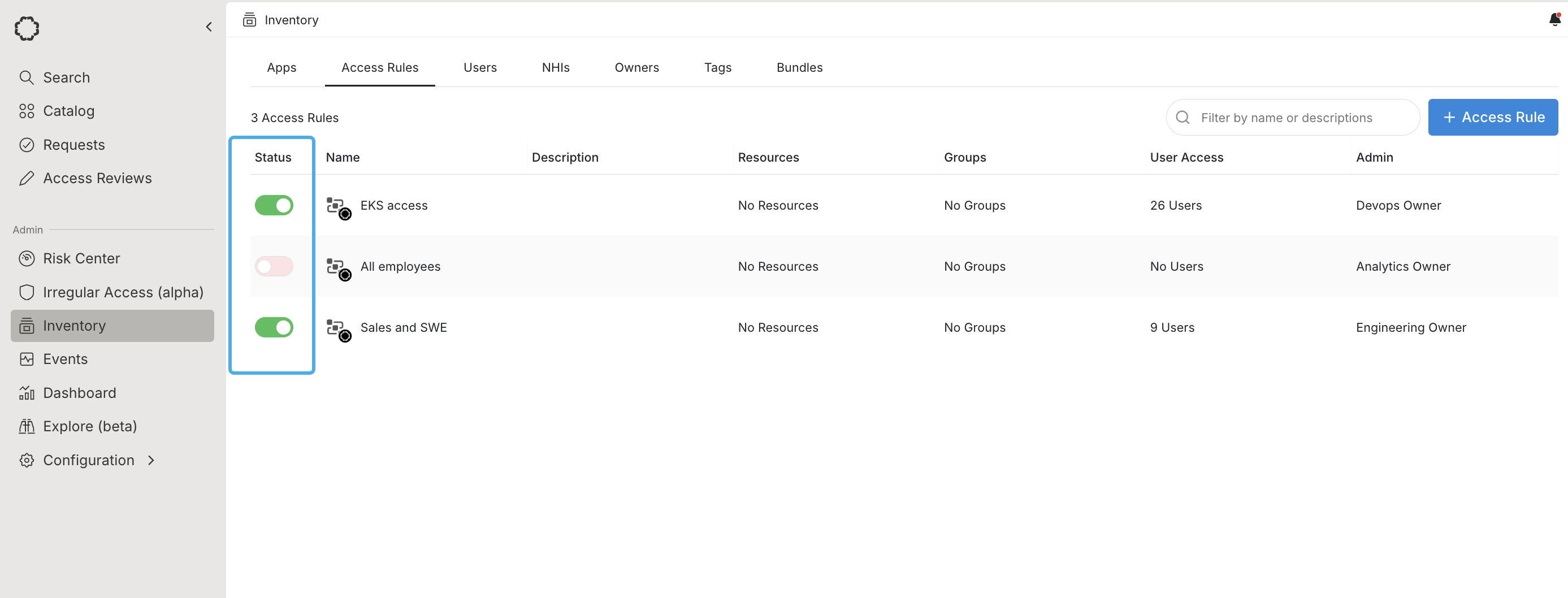
After you create an Access Rule, you can pause it to prevent new users from being added to the rule. Existing users, even if they no longer match the conditions, still have access to any resources or groups granted from the rule.
Pause and activate Access Rules by toggling the **Status** column, either on the **Access Rules** page or from the detail page.
### Grant access with Terraform
Use [opal\_group\_resource\_list](https://registry.terraform.io/providers/opalsecurity/opal/latest/docs/data-sources/group_resource_list) and [opal\_group\_containing\_group](https://registry.terraform.io/providers/opalsecurity/opal/latest/docs/resources/group_containing_group) to assign resources and groups to access rules. Set the access rule ID as the `group_id`.
## Pause Access Rules
After you create an Access Rule, you can pause it to prevent new users from being added to the rule. Existing users, even if they no longer match the conditions, still have access to any resources or groups granted from the rule.
Pause and activate Access Rules by toggling the **Status** column, either on the **Access Rules** page or from the detail page.
 ## Enable failsafe functionality
Failsafe functionality is available on Opal cloud and self-hosted Opal
versions \[1.929.0] and later.
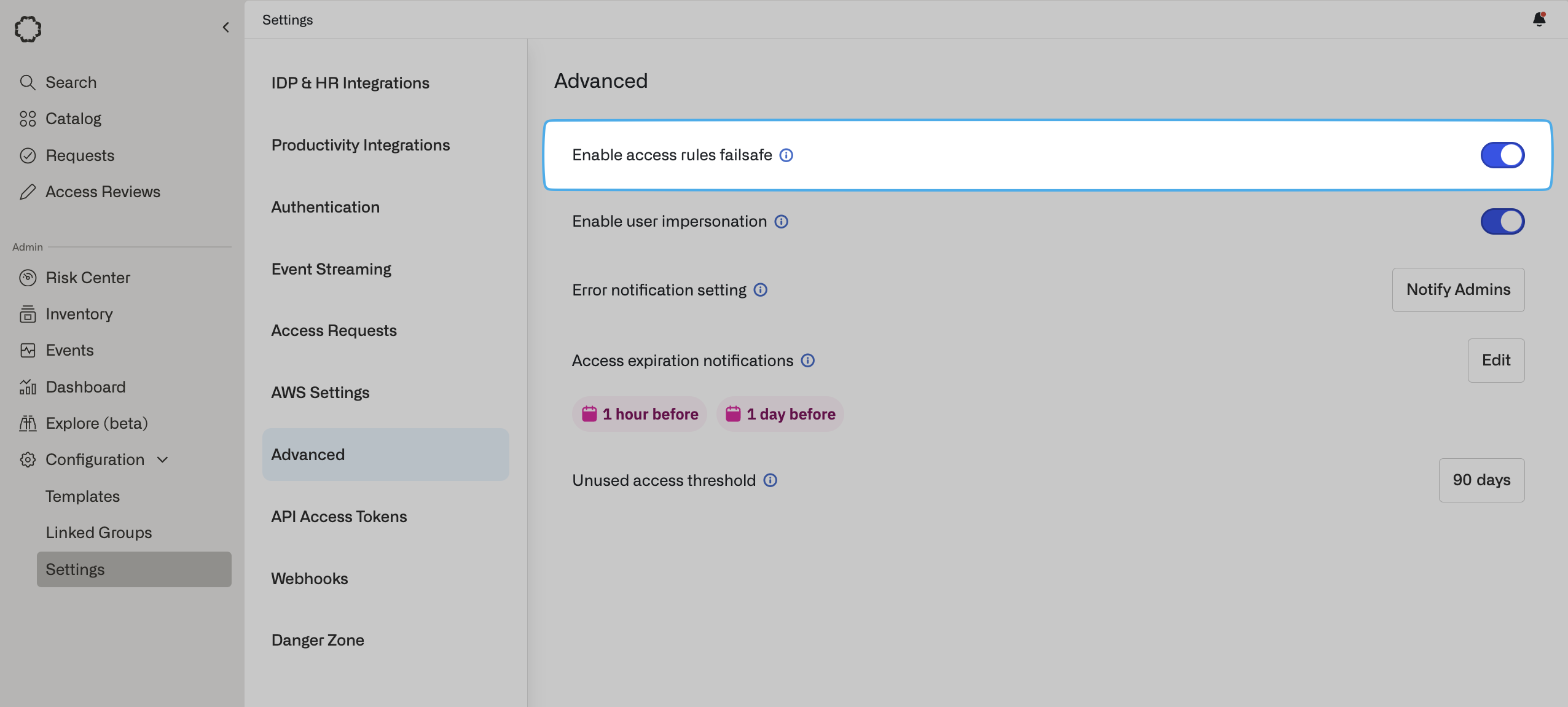
Admins can configure Opal to automatically pause Access Rules which would result in large membership changes. To enable this, go to **Configuration > Settings > Advanced** and toggle **Enable access rules failsafe**.
The failsafe is automatically triggered when either pending additions or removals exceed 30% of the current membership, the sync will be paused **before** any changes are applied.
## Enable failsafe functionality
Failsafe functionality is available on Opal cloud and self-hosted Opal
versions \[1.929.0] and later.
Admins can configure Opal to automatically pause Access Rules which would result in large membership changes. To enable this, go to **Configuration > Settings > Advanced** and toggle **Enable access rules failsafe**.
The failsafe is automatically triggered when either pending additions or removals exceed 30% of the current membership, the sync will be paused **before** any changes are applied.
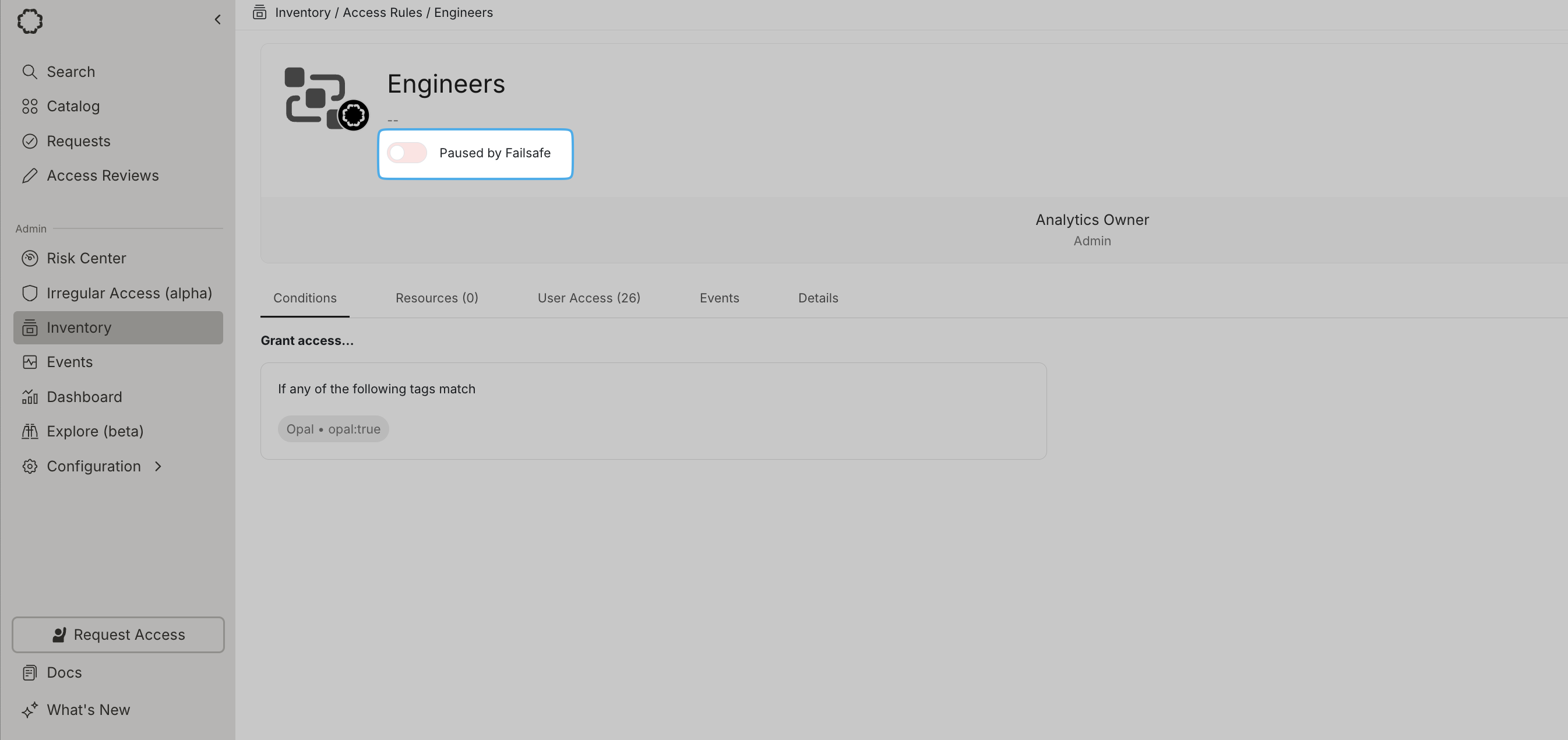
 The status on the upper right is updated to reflect the failsafe when it's triggered, as in the following example. If you don't have any resources or groups assigned to the rule, you can edit the rule's conditions to produce a smaller set of user changes.
 ## Test conditions for given users
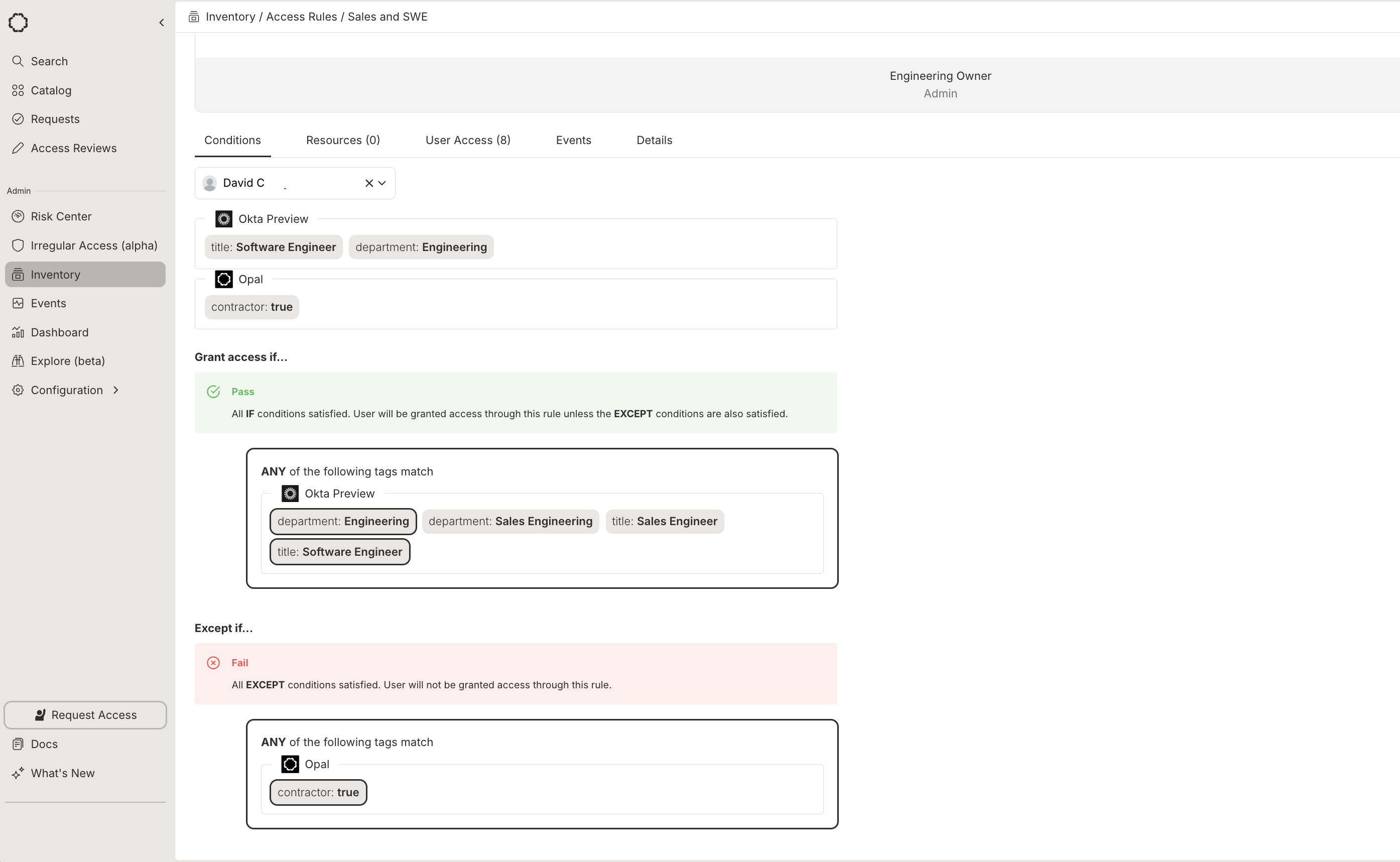
To test whether a given user will be included in an access rule and granted access to its resources and groups, enter a user from the **Conditions** tab on an existing rule. This can be especially useful for debugging.
## Test conditions for given users
To test whether a given user will be included in an access rule and granted access to its resources and groups, enter a user from the **Conditions** tab on an existing rule. This can be especially useful for debugging.
 **EXCEPT**
## Remove Access Rules
To remove an Access Rule, go to the detail page for the Access Rule, select **...**, then **Remove from Opal**.
Deleting an Access Rule does **not** automatically revoke access from remote systems, even if access was granted from the rule. To remove access granted by Opal, **first** delete all resources and groups from the rule, then remove the rule.
## Review resources associated with Access Rules
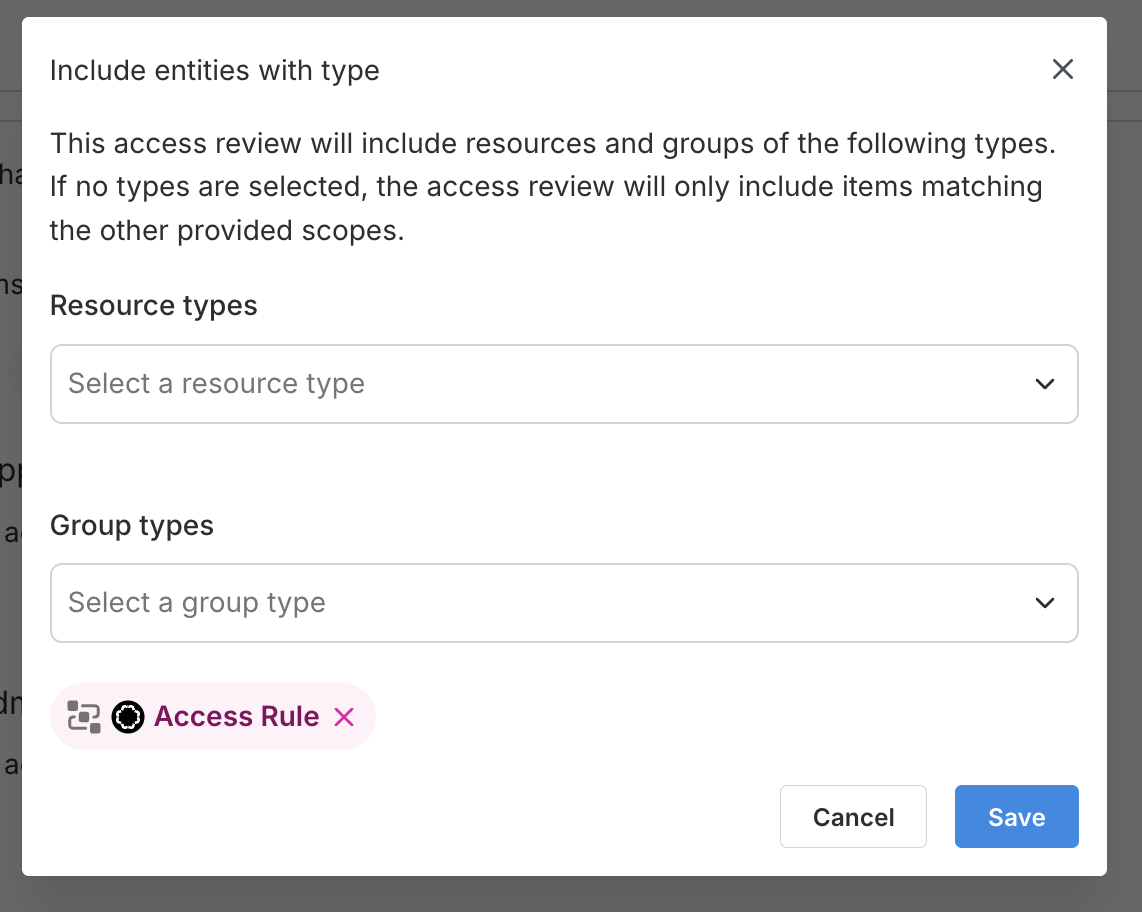
To review what resources an Access Rule grants its matching users access to, you can create a User Access Review, scope it to the desired Access Rules by selecting **Add entity** > then searching for the Access Rule under the **Groups** dropdown. You can also review resources across *multiple* Access Rules by selecting **Add entity type** > then searching for the **Access Rule** under the **Group types** dropdown.
**EXCEPT**
## Remove Access Rules
To remove an Access Rule, go to the detail page for the Access Rule, select **...**, then **Remove from Opal**.
Deleting an Access Rule does **not** automatically revoke access from remote systems, even if access was granted from the rule. To remove access granted by Opal, **first** delete all resources and groups from the rule, then remove the rule.
## Review resources associated with Access Rules
To review what resources an Access Rule grants its matching users access to, you can create a User Access Review, scope it to the desired Access Rules by selecting **Add entity** > then searching for the Access Rule under the **Groups** dropdown. You can also review resources across *multiple* Access Rules by selecting **Add entity type** > then searching for the **Access Rule** under the **Group types** dropdown.
 ## Configure access requests based on Access Rule membership
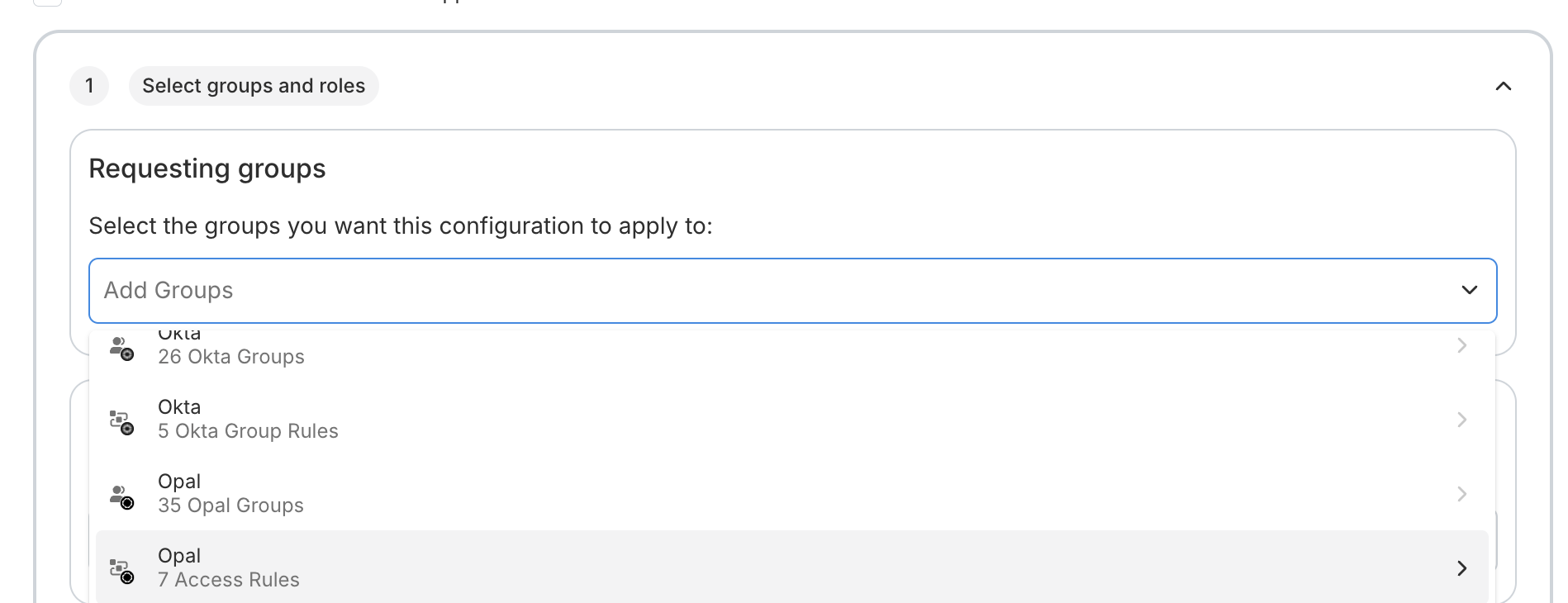
You can also use Access Rules to dynamically enforce which users can request access to resources based on attributes. On the resource, navigate to **Edit** > **Request Configuration** > **Add a New Configuration** > and under **Requesting Groups**, select the Access Rule.
## Configure access requests based on Access Rule membership
You can also use Access Rules to dynamically enforce which users can request access to resources based on attributes. On the resource, navigate to **Edit** > **Request Configuration** > **Add a New Configuration** > and under **Requesting Groups**, select the Access Rule.
 ## Configure visibility based on Access Rule membership
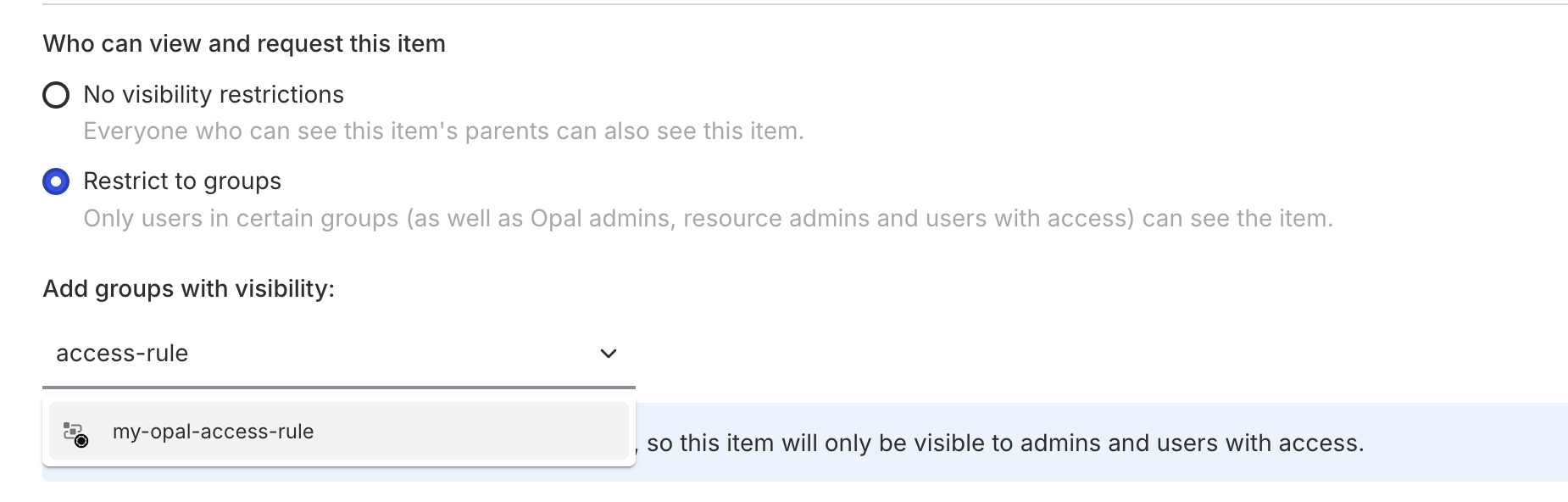
You can also use Access Rules to dynamically enforce which users can view resources based on attributes. On the resource, navigate to **Edit** > **Restrict to groups** > **Add groups with visibility:** > then select the Access Rule.
## Configure visibility based on Access Rule membership
You can also use Access Rules to dynamically enforce which users can view resources based on attributes. On the resource, navigate to **Edit** > **Restrict to groups** > **Add groups with visibility:** > then select the Access Rule.
 ***
***