> ## Documentation Index
> Fetch the complete documentation index at: https://docs.opal.dev/llms.txt
> Use this file to discover all available pages before exploring further.
# Create Access Campaigns
> Learn how to create a User Access Campaign.
Access Campaigns, Opal's new interface for access reviews, is now in beta! For current customers, this interface supports all features from the [legacy Access Reviews](/docs/access-reviews-legacy). The legacy feature will still be available to use until mid August. Please contact our support team for details.
Access Campaigns allows you to automate User Access Reviews (UARs) in Opal. Compliance teams can:
* Snapshot user access when a review is started
* Scope access campaigns intelligently with natural language or a query builder
* Automatically assign reviews for managers, resource owners or admins to review in a self-service way
* Send custom instructions and bulk reminders all without leaving Opal
* Generate a report to summarize all actions for audit purposes
## Requirements
You must have the Opal Auditor or Opal Admin role to create an access campaign, and be on versions `1.1176.0` or later to view the new interface. To learn more about the roles in Opal, see our page on [role capabilities](/docs/roles-in-opal#role-capabilities).
## Creating an Access Campaign
Navigate to the Access Campaigns tab and click **+ Campaigns** in the top left corner.
### Scoping a Campaign
Define the scope of your campaign by using natural language input or adding a Principal, Asset, and/or Edge filter in the query builder.
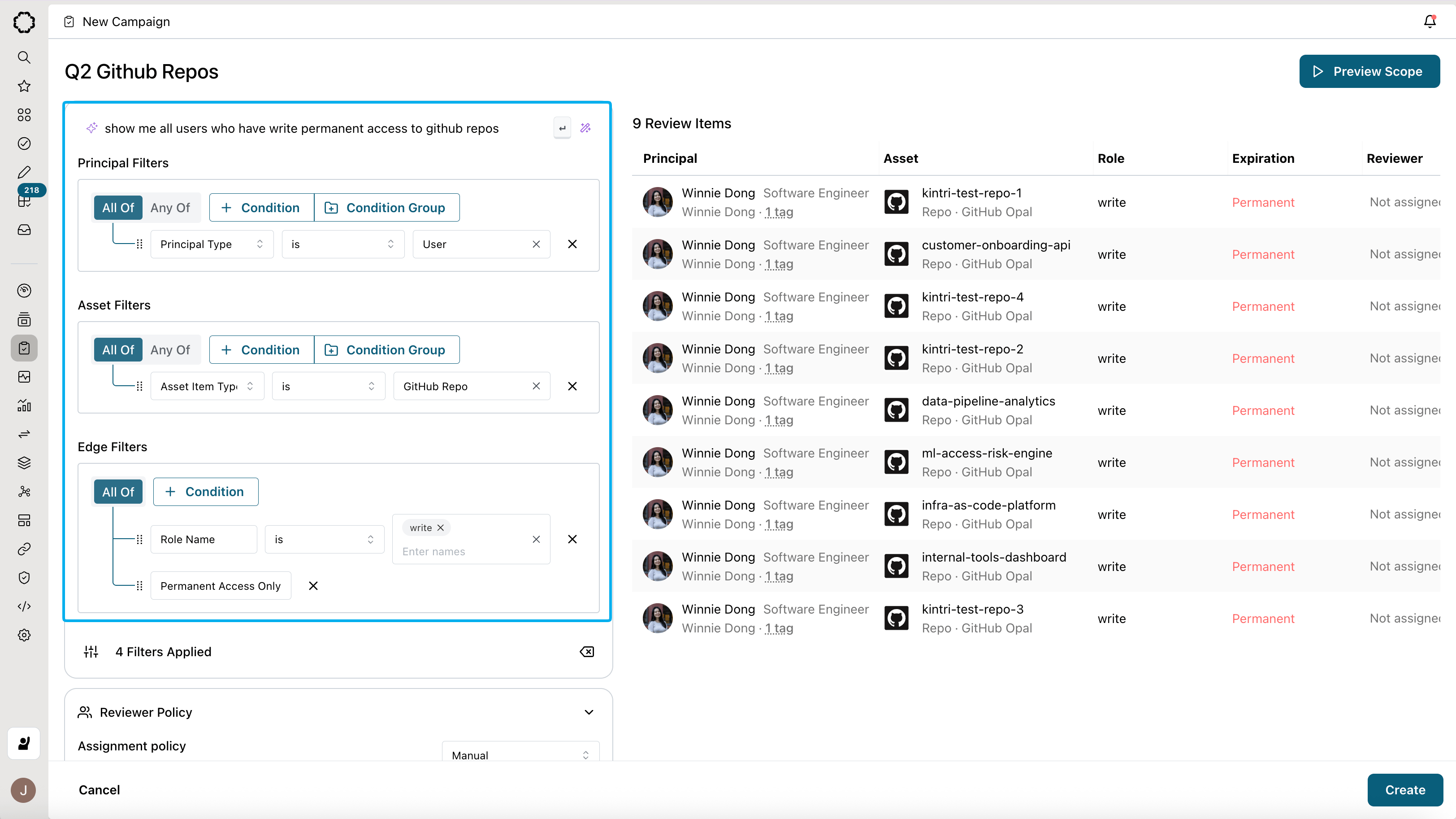 The query you build will be run against your access graph to produce all access items that fulfill those criteria, much like an SQL query. Here are the filters you may use to scope your campaign:
| **Filter type** | **Description** | **Conditions supported** |
| --------------- | ------------------------------------------------------------------- | ------------------------------------------------------------------------------------------------------------------------------------------------------------------------------ |
| **Principal** | Entities that have access to an asset (e.g. User, Resource, Groups) | • Principal
The query you build will be run against your access graph to produce all access items that fulfill those criteria, much like an SQL query. Here are the filters you may use to scope your campaign:
| **Filter type** | **Description** | **Conditions supported** |
| --------------- | ------------------------------------------------------------------- | ------------------------------------------------------------------------------------------------------------------------------------------------------------------------------ |
| **Principal** | Entities that have access to an asset (e.g. User, Resource, Groups) | • Principal
• Principal Type
• Principal Item Type
• Principal Name (`string` match)
• App (Entities managed by specific integration)
• Principal Tag |
| **Asset** | What principals have access to (e.g. Resource, Groups) | • Asset
• Asset Type
• Asset Item Type
• Asset Name (`string` match)
• App (Entities managed by specific integration)
• Asset Tag |
| **Edge** | Relationship between Principal and Asset | • Role Name (exact `string` match)
• Role Remote ID
• Access Duration Type (Permanent or Time-bound) |
Examples of queries you can build include:
* All users who have Github Repo admin access
* All permanent AWS RDS cluster or GCP project Access
* All groups that have access to Figma or Retool
* All users who have access to resources tagged SOX
To preview the results of the scope you’ve created, click **Preview Scope**.
### Set Reviewer Assignment Policy
Select a reviewer assignment policy from the dropdown. The preview table updates automatically to reflect your selection.
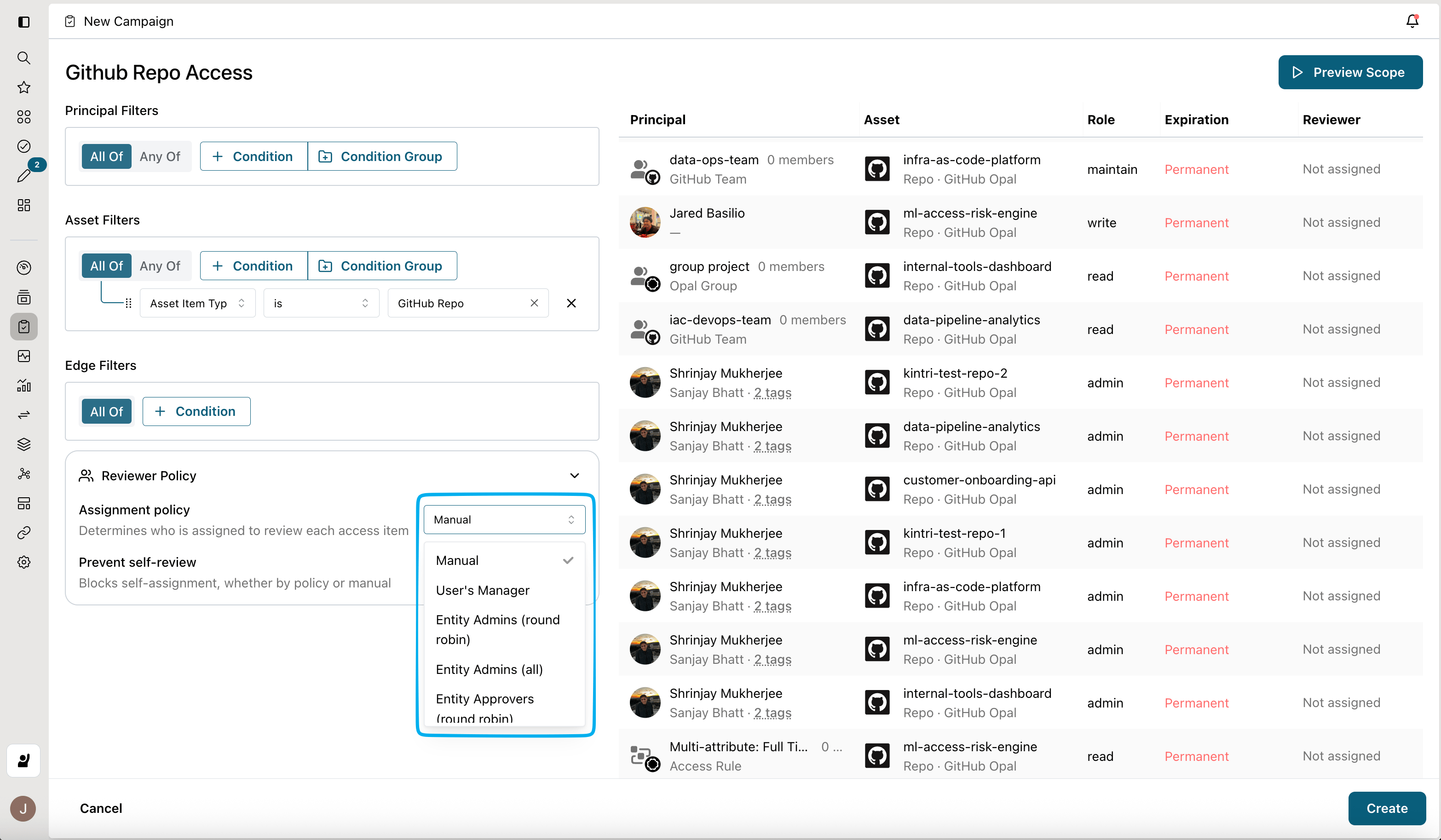 You can't change the bulk assignment policy after you create the campaign, but you can make manual adjustments to individual reviewers after saving your draft. If you choose **Manual Assignment**, you'll need to assign all reviewers after creating the draft.
Turn on **Allow self-review** to let users review their own access. You can change this setting after creating the draft.
## Configure your draft
After you click **Create**, your access campaign enters **Draft** mode. This allows you to edit reviewer assignments, add general information, and configure specific controls before you launch it to your reviewers.
When you click **Create**, Opal takes a snapshot of the access relationships between principals and assets in your campaign. Any access changes that occur after this point won't be reflected in the campaign.
For example, if Jane's GitHub role changes from admin to read-only after you click **Create**, the campaign will still show her original admin role.
### Reviewer Assignment
Open the **Reviews** tab to manually edit reviewer assignments. Use multi-select, grouping, filtering, and sorting to bulk-assign reviews to one or more reviewers.
You can't change the bulk assignment policy after you create the campaign, but you can make manual adjustments to individual reviewers after saving your draft. If you choose **Manual Assignment**, you'll need to assign all reviewers after creating the draft.
Turn on **Allow self-review** to let users review their own access. You can change this setting after creating the draft.
## Configure your draft
After you click **Create**, your access campaign enters **Draft** mode. This allows you to edit reviewer assignments, add general information, and configure specific controls before you launch it to your reviewers.
When you click **Create**, Opal takes a snapshot of the access relationships between principals and assets in your campaign. Any access changes that occur after this point won't be reflected in the campaign.
For example, if Jane's GitHub role changes from admin to read-only after you click **Create**, the campaign will still show her original admin role.
### Reviewer Assignment
Open the **Reviews** tab to manually edit reviewer assignments. Use multi-select, grouping, filtering, and sorting to bulk-assign reviews to one or more reviewers.
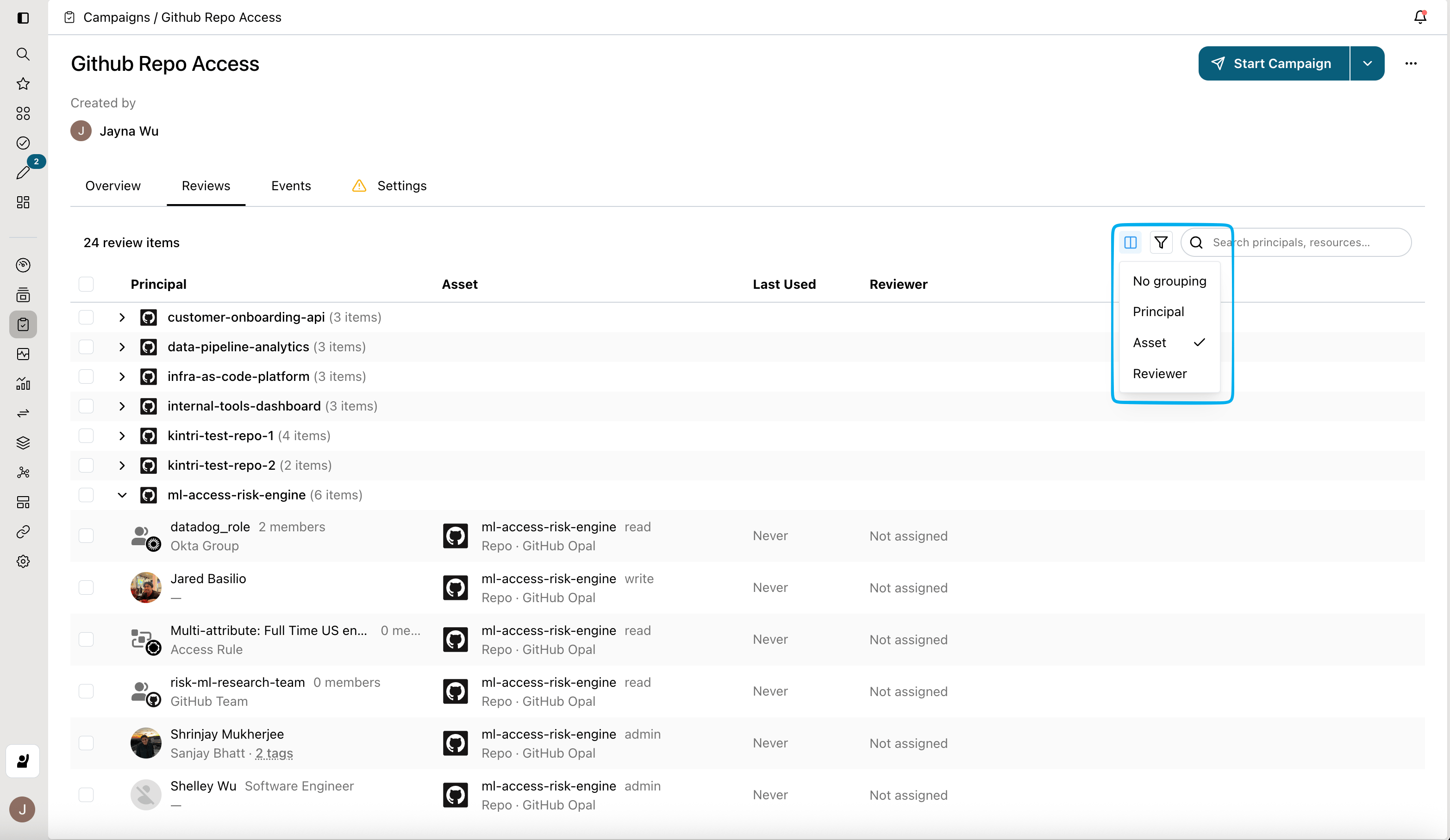 You can also bulk assign reviews to **each user's relative manager or asset owner**. If a review is assigned to multiple reviewers, it is only accepted if all reviewers approve access. If any reviewer revokes access, then the review item is revoked.
### Settings
#### Set your deadline
Configure the deadline of your access campaign in the **Settings** tab. This is required before starting the campaign.
#### Notifications
All notifications are sent through channels set up in Opal’s global configuration. You may configure Slack or email notifications via **Configuration > Settings > Notifications**. [Learn more](/docs/notifications).
Turn on **Notify reviewers** to send reviewers an email when they have new items to review, and include a custom message to be sent at the start of the campaign.
#### Revocation
Choose when you want revocations to propagate to the end system. You can either revoke access on decision, or when you end the campaign.
Enable **Require reason on denial** to require reviewers to provide a comment explaining why access was revoked.
#### Reminders
Choose a set schedule to send preset access campaign reminders to all reviewers with incomplete reviews. You may choose to include the reviewer’s manager in these reminders as well.
## Start your campaign
When you’re ready to start your access campaign, click the **Start Campaign** button.
You can also schedule your access campaign to start at a later date.
## See also
This wraps up access campaign creation. See the links below for an end user guide to reviews or managing the campaign you just created.
* [Complete your reviews](/docs/complete-access-reviews)
* [Manage your access campaign](/docs/managing-access-campaigns)
You can also bulk assign reviews to **each user's relative manager or asset owner**. If a review is assigned to multiple reviewers, it is only accepted if all reviewers approve access. If any reviewer revokes access, then the review item is revoked.
### Settings
#### Set your deadline
Configure the deadline of your access campaign in the **Settings** tab. This is required before starting the campaign.
#### Notifications
All notifications are sent through channels set up in Opal’s global configuration. You may configure Slack or email notifications via **Configuration > Settings > Notifications**. [Learn more](/docs/notifications).
Turn on **Notify reviewers** to send reviewers an email when they have new items to review, and include a custom message to be sent at the start of the campaign.
#### Revocation
Choose when you want revocations to propagate to the end system. You can either revoke access on decision, or when you end the campaign.
Enable **Require reason on denial** to require reviewers to provide a comment explaining why access was revoked.
#### Reminders
Choose a set schedule to send preset access campaign reminders to all reviewers with incomplete reviews. You may choose to include the reviewer’s manager in these reminders as well.
## Start your campaign
When you’re ready to start your access campaign, click the **Start Campaign** button.
You can also schedule your access campaign to start at a later date.
## See also
This wraps up access campaign creation. See the links below for an end user guide to reviews or managing the campaign you just created.
* [Complete your reviews](/docs/complete-access-reviews)
* [Manage your access campaign](/docs/managing-access-campaigns)